The Classroom share button provides a low effort pathway to make
your content accessible from within Google Classroom. Developers can embed a
short script in their application to generate a button, which enables users to
create Classroom assignments, questions, announcements, and
materials in a pop up iframe.
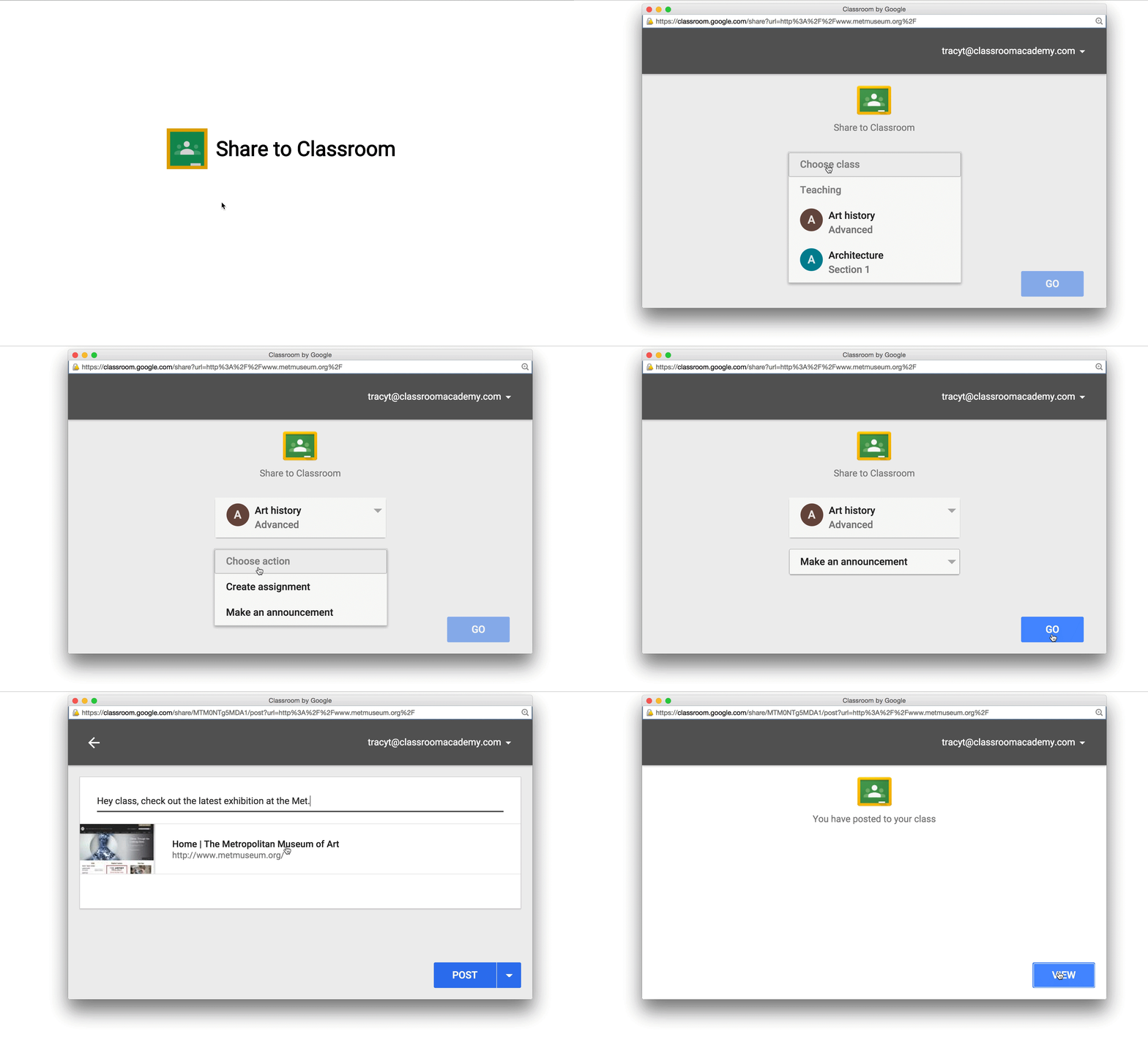
**Figure 1.** An example of a user clicking the "Share to Classroom" button to
create a Classroom assignment with links to learning materials.
The Classroom share button can be customized to meet the needs of
your website, such as modifying the button size and load technique. By adding
the Classroom share button to your website, you allow your users
to share your content to their classes and drive traffic to your site.
## Getting started
The easiest method for including a Classroom share button on your
page is to include the necessary JavaScript resource and to add a share button
custom element tag. The example snippet renders a basic button:
The button can also be rendered using standard HTML by setting the class
attribute to `g-sharetoclassroom`, and prefixing any button attributes with
`data-`. For example:
By default, the included script traverses the DOM and renders share tags as
buttons. You can improve rendering time on large pages by using the [JavaScript
API](https://developers.google.com/workspace/classroom/guides/sharebutton#js-api) to traverse only a single element within the page, or to render a
specific element as a share button.
The script must be loaded using the HTTPS protocol and can be included from any
point on the page without restriction. For more information, see the
[FAQ](https://developers.google.com/workspace/classroom/guides/sharebutton#faq).
## Configuration
The following sections describe key values and configuration options for a share
button.
### Share tag attributes
These attributes control settings for each button. You can set these attributes
as `attribute=value` pairs on share button HTML tags, or as JavaScript
`key:value` pairs in a call to `gapi.sharetoclassroom.render` using the
[JavaScript API](https://developers.google.com/workspace/classroom/guides/sharebutton#js-api).
The only required parameter is the `url`. This attribute explicitly defines the
target URL to share to Classroom and must be set in order to
render the share button.
| Attribute | Value | Default | Description |
|---|---|---|---|
| `body` | string | *null* | Sets the item body text to share to Classroom. |
| `courseid` | string | *null* | If specified, sets the [Course ID](https://developers.google.com/workspace/classroom/guides/manage-courses) to pre-select in the "Choose class" menu displayed after a user clicks the share button. The user can change this pre-selected value, if needed. |
| `itemtype` | `announcement`, `assignment`, `material`, or `question` | *null* | This will automatically show the creation dialog after the user first selects a course (or immediately if `courseid` is also specified). If a student chooses a class, or a teacher chooses a class in which they're a student, this value is ignored. |
| `locale` | [RFC 3066-compliant language tag](http://www.ietf.org/rfc/rfc3066.txt) | `en-US` | Sets the language for the button `aria-label` for accessibility purposes. This does not affect the language of the sharing dialog that appears when the user clicks the button: that is affected by the user's browser preferences. |
| `onsharecomplete` | string | *null* | If specified, sets the name of a function in the global namespace that is called when the user finishes sharing your link. If you pass your arguments through parameters to `gapi.sharetoclassroom.render`, you may also use a function itself. This feature does not work on Internet Explorer ([see below](https://developers.google.com/workspace/classroom/guides/sharebutton#what_web_browsers_are_supported)). Some developers have reported that the `onsharecomplete` behavior is not working as intended. If this impacts your use case, share feedback in the [public issue tracker](https://issuetracker.google.com/issues/197146617) |
| `onsharestart` | string | *null* | If specified, sets the name of a function in the global namespace that is called when the share dialog opens. If you pass your arguments through parameters to `gapi.sharetoclassroom.render`, you may also use a function itself. This feature does not work on Internet Explorer ([see below](https://developers.google.com/workspace/classroom/guides/sharebutton#what_web_browsers_are_supported)). Some developers have reported that the `onsharestart` behavior is not working as intended. If this impacts your use case, share feedback in the [public issue tracker](https://issuetracker.google.com/issues/197146617) |
| `size` | int | *null* | Sets the size in pixels of the share button. If the size is omitted, the button uses 32. |
| `theme` | `classic`, `dark`, or `light` | `classic` | Sets the button icon for the selected theme. |
| `title` | string | *null* | Sets the item title to share to Classroom. |
| `url` | URL to share | *null* | Sets the URL to share to Classroom. If you set this attribute by using `gapi.sharetoclassroom.render`, you shouldn't escape the URL. |
### Script tag parameters
These parameters are defined within a `script` element that must run before
loading the `platform.js` script. The parameters control the button loading
mechanism that is used across the entire web page.
Set the `parsetags` script tag parameter to `onload` (default) or `explicit` to
determine when button code is executed. To specify script tag parameters, use
the following syntax:
The allowed values are:
onload
: All share buttons on the page are automatically rendered after the page
loads.
explicit
: Share buttons are rendered only with explicit calls to
`gapi.sharetoclassroom.go` or `gapi.sharetoclassroom.render`.
When you use the explicit load in conjunction with `go` and `render` calls that
point to specific containers in your page, you prevent the script from
traversing the entire DOM, which can improve button rendering time. See the
`gapi.sharetoclassroom.go` and `gapi.sharetoclassroom.render`
[examples](https://developers.google.com/workspace/classroom/guides/sharebutton#explicit-load).
### Classroom share button guidelines
The display of the Classroom Share Button should conform to our min-max size
guidelines and related color or button templates. The button supports a variety
of sizes, from a minimum size of 32 pixels to a maximum of 96 pixels.
| Theme | Example |
|---|---|
| Classic |  |
| Dark |  |
| Light |  |
#### Customization
We prefer that you don't change or remake the icon in any way. However, if you
display multiple third-party social icons together on your app, you can
customize the Classroom icon to match your app's style. If you do so, ensure
that all buttons are customized using a similar style and that any
customizations follow the [Classroom branding guidelines](https://developers.google.com/workspace/classroom/brand). If
you want to fully control the appearance and behavior of the share button, you
can initiate the share using a URL of the following structure:
`https://classroom.google.com/share?url={url-to-share}`.
## JavaScript API
The share button JavaScript defines two button-rendering functions under the
`gapi.sharetoclassroom` namespace. You must call one of these functions if you
disable automatic rendering by setting [parsetags](https://developers.google.com/workspace/classroom/guides/sharebutton#tag-params) to `explicit`.
| Method | Description |
|---|---|
| ``` gapi.sharetoclassroom.render( container, parameters ) ``` | Renders the specified container as a share button. *** ** * ** *** container : The container to render as the share button. Specify either the ID of the container (string) or the DOM element itself. parameters : An object containing tag attributes as `key=value` pairs. For example, `{"size": "300", "theme": "light"}`. |
| ``` gapi.sharetoclassroom.go( opt_container ) ``` | Renders all share button tags and classes in the specified container. This function should be used only if `parsetags` is set to `explicit`, which you might do for performance reasons. *** ** * ** *** opt_container : The container containing the share button tags to render. Specify either the ID of the container (string) or the DOM element itself. If the `opt_container` parameter is omitted, all share button tags on the page are rendered. |
## Examples
The following are HTML examples of Share to Classroom button implementations.
### Basic page
Classroom demo: Basic page
### Explicitly load tags in a subset of the DOM
Demo: Explicit load of a Classroom share button
### Explicit render
Demo: Explicit render of a Classroom share buttonRender the Classroom share button
## Frequently asked questions
The following FAQs deal with technical considerations and implementation
details. For broader questions about Classroom, see the [general
FAQs](https://support.google.com/edu/classroom/answer/6025224?ref_topic=6020277).
### How do I test my Classroom share button integration?
You may [request Classroom test
accounts](https://developers.google.com/workspace/classroom/access#get_classroom_test_accounts) to test sharing to
Classroom from your integration.
### Can I place multiple buttons on a single page that all share different URLs?
Yes. Use the `url` attribute as specified in the share tag parameters to
indicate the URL to be shared to Classroom.
### Where should I put the share button on my pages?
You know your page and your users best, so we recommend putting the button
wherever you think it will be the most effective. Above the fold, near the title
of the page, and close to sharing links is often a good location. It can also be
effective to place the share button at both the end and beginning of a piece of
created content.
### Is there any latency impact from the position of the `script` tag in the page?
No, there is no significant latency impact from the placement of the `script`
tag. However, by placing the tag at the bottom of the document, just before
closing the `body` tag, you might improve the loading speed of the page.
### Does the `script` tag need to be included before the share tag?
No, the `script` tag can be included anywhere in the page.
### Does the `script` tag need to be included before another `script` tag calls one of the methods in the JavaScript API section?
Yes, if you use any of the JavaScript API methods, they need to be placed in the
page after the `script` inclusion. You also cannot use `async defer` with any of
the JavaScript API methods.
### Do I need to use the `url` attribute?
The `url` attribute is required. Not explicitly setting `url` will cause the
share button to not render. See [share tag parameters](https://developers.google.com/workspace/classroom/guides/sharebutton#share-attributes) for
more information.
### Some of my users get a security warning when they view pages with the share button. How do I get rid of this?
The share button code requires a script from Google's servers. You might get
this error by including the script using `http://` on a page that's loaded using
`https://`. We recommend using `https://` to include the script:
### What web browsers are supported?
The Classroom share button supports the same web browsers as the Classroom web
interface, browsers like Chrome, Firefox®, Internet Explorer®, or
Safari®. Note: The functions specified for `onsharestart` and
`onsharecomplete` are not called for users of Internet Explorer.
### What data is sent to Classroom when you click the Classroom share button?
When a user clicks the share button, they are prompted to sign in with their
Google Workspace for Education account. After authentication, the user account and `url`
attribute are sent to Classroom to complete the post.