Classroom add-ons are loaded within an iframe to provide the
end-user with a seamless and convenient user experience. There are five distinct
iframe types; see the [iframes pages](https://developers.google.com/workspace/classroom/add-ons/get-started/iframes/iframes-overview) in the User journeys directory for an
overview of the purpose and appearance of each iframe.
> [!IMPORTANT]
> **Key Point:** You receive a variety of information when a user opens one of your add-on views. Use this information to identify the attachment, validate the user's credentials and role, and perform certain API requests.
## iframe security guidelines
Developers are expected to follow industry best practices to secure their
iframe. However, you should also incorporate certain API interactions in your
user flow to confirm that you have valid credentials and can correctly identify
the user's role in the course.
### Server application configuration
To protect the iframe, we recommend the following server configurations:
- **HTTPS is required** . We strongly recommend using TLS 1.2 or greater and enabling HTTP Strict Transport Security (HSTS). See this related [MDN
article](https://developer.mozilla.org/en-US/docs/Web/HTTP/Headers/Strict-Transport-Security) about Strict Transport Security.
- Enable Strict Content Security Policy (Strict CSP). See this [OWASP article](https://cheatsheetseries.owasp.org/cheatsheets/Content_Security_Policy_Cheat_Sheet.html) and this related [Content Security Policy MDN article](https://developer.mozilla.org/en-US/docs/Web/HTTP/CSP).
- Enable the [Secure cookie attribute](https://cheatsheetseries.owasp.org/cheatsheets/Session_Management_Cheat_Sheet.html#secure-attribute). See the [HttpOnly attribute](https://cheatsheetseries.owasp.org/cheatsheets/Session_Management_Cheat_Sheet.html#httponly-attribute) and this related [Cookies MDN article](https://developer.mozilla.org/en-US/docs/Web/HTTP/Cookies#security).
## Query parameters
The iframes pass critical information to the add-on as **query parameters**.
There are two categories of parameters: attachment-related and sign-in related
parameters.
### Attachment-related parameters
The attachment-related parameters provide the add-on with information about the
course, the assignment, the add-on attachment, the student's submission, and an
authorizing token.
Course ID
: The `courseId` value is an identifier to the course.
Included with all iframes.
Item ID
: The `itemId` value is an identifier of the [`Announcement`](https://developers.google.com/workspace/classroom/reference/rest/v1/courses.announcements#resource:-announcement),
[`CourseWork`](https://developers.google.com/workspace/classroom/reference/rest/v1/courses.courseWork#resource:-coursework), or [`CourseWorkMaterial`](https://developers.google.com/workspace/classroom/reference/rest/v1/courses.courseWorkMaterials#resource:-courseworkmaterial) on which this attachment is
attached.
Included with all iframes.
Item Type
: The `itemType` value identifies the resource type on which this
attachment is attached. The passed string value is one of `"announcements"`,
`"courseWork"`, or `"courseWorkMaterials"`.
Included with all iframes.
Attachment ID
: The `attachmentId` value is an identifier to the attachment.
Included with the [`teacherViewUri`](https://developers.google.com/workspace/classroom/add-ons/developer-guides/iframes#teacherviewuri_and_studentviewuri_iframes), [`studentViewUri`](https://developers.google.com/workspace/classroom/add-ons/developer-guides/iframes#teacherviewuri_and_studentviewuri_iframes) and
[`studentWorkReviewUri`](https://developers.google.com/workspace/classroom/add-ons/developer-guides/iframes#studentworkreviewuri_iframe) iframes.
Submission ID
: The `submissionId` value is an identifier to the student's work,
but should be used in combination with the `attachmentId` to identify the
student's work of a particular assignment.
Included with the [`studentWorkReviewUri`](https://developers.google.com/workspace/classroom/add-ons/developer-guides/iframes#studentworkreviewuri_iframe).
> [!NOTE]
> **Note:** You may use a composite key of the `submissionId` and `attachmentId` to identify the student's work in the event that the same attachment is assigned to the same student across different courses. For more information, see [copied
> content](https://developers.google.com/workspace/classroom/add-ons/developer-guides/copy-content).
Add-on token
: The `addOnToken` value is an authorization token used to make
`addOnAttachments.create` calls in order to create the add-on.
Included with the [Attachment Discovery iframe](https://developers.google.com/workspace/classroom/add-ons/developer-guides/iframes#attachment_discovery_iframe) and the [Link Upgrade
iframe](https://developers.google.com/workspace/classroom/add-ons/developer-guides/iframes#link_upgrade_iframe).
URL to upgrade
: The presence of the `urlToUpgrade` value implies that the
teacher has included a [Link attachment](https://developers.google.com/workspace/classroom/reference/rest/v1/Link) in the assignment, and has agreed
to upgrade it to an [add-on attachment](https://developers.google.com/workspace/classroom/reference/rest/v1/courses.courseWork.addOnAttachments#AddOnAttachment). If you don't already have this
feature configured, see the guide about [upgrading links to add-on
attachments](https://developers.google.com/workspace/classroom/add-ons/developer-guides/upgrade-links-to-addons) for more details.
Included with the [Link Upgrade iframe](https://developers.google.com/workspace/classroom/add-ons/developer-guides/iframes#link_upgrade_iframe).
### Sign-in related parameters
The `login_hint` query parameter provides information about the
Classroom user visiting the add-on web page. This query parameter
is provided on the iframe `src` URL. It's sent when the user has previously used
your add-on to help reduce end user sign-in friction. You're required to handle
this query parameter in your add-on implementation.
Login hint
: The `login_hint` is a unique identifier for the user's Google
Account. After the user has logged in to your add-on for the first time, the
`login_hint` parameter is passed on each subsequent visit to your add-on by
the same user.
There are two potential uses for the `login_hint` parameter:
1. Pass the `login_hint` value during the authentication flow so that the user doesn't need to enter their credentials when the sign-in dialog appears. The user is not automatically signed-in.
2. After the user has been signed-in, use this parameter to compare the value to any users you might already have signed-in to the add-on. If you find a match, you can leave the user signed-in and avoid showing a sign-in flow. If the parameter doesn't match any of your signed-in users, prompt the user to sign-in with a [Google branded sign-in
button](https://developers.google.com/identity/branding-guidelines).
Included with all iframes.
> [!NOTE]
> **Note:** Additional information can be found about implementing the `login_hint` parameter and the sign-in flow in the [SSO](https://developers.google.com/workspace/classroom/add-ons/get-started/sign-in-journey), [Frictionless sign-in](https://developers.google.com/workspace/classroom/add-ons/developer-guides/frictionless-signin), and [Handle
> repeat logins walkthrough](https://developers.google.com/workspace/classroom/add-ons/walkthroughs/repeat-login) pages.
## Attachment Discovery iframe
| Dimension | Description |
|---|---|
| Required | Yes |
| URI | Provided in the add-on metadata |
| Query Params | `courseId`, `itemId`, `itemType`, `addOnToken`, and `login_hint`. |
| Height | 80% window height minus 60px for the top header |
| Width | Maximum of 1600px 90% window width when window \<= 600px wide 80% window width when window \> 600px wide |
### Example Attachment Discovery scenario
1. A Classroom add-on is registered in Google Workspace Marketplace with an Attachment Discovery URI of `https://example.com/addon`.
2. A teacher installs this add-on and creates a new announcement, assignment or material within one of their courses. For example, `itemId=234`, `itemType=courseWork` and `courseId=123`.
3. While configuring that item, the teacher chooses the newly installed add-on as an attachment.
4. Classroom creates an iframe with the src URL set to `https://example.com/addon?courseId=123&itemId=234&itemType=courseWork&addOnToken=456`.
1. Teacher performs work within the iframe to make an attachment selection.
5. On attachment selection, the add-on sends a `postMessage` to Classroom to close the iframe.
## teacherViewUri and studentViewUri iframes
| Dimension | Description |
|---|---|
| Required | Yes |
| URI | `teacherViewUri` or `studentViewUri` |
| Query Params | `courseId`, `itemId`, `itemType`, `attachmentId`, and `login_hint`. |
| Height | 100% window height minus 140px for the top header |
| Width | 100% window width |
## studentWorkReviewUri iframe
| Dimension | Description |
|---|---|
| Required | No (Determines whether this is an activity-type attachment) |
| URI | `studentWorkReviewUri` |
| Query Params | `courseId`, `itemId`, `itemType`, `attachmentId`, `submissionId`, and `login_hint`. |
| Height | 100% window height minus 168px for the top header |
| Width | 100% window width minus sidebar width\<\> sidebar is 312px when expanded and 56px when collapsed |
> [!NOTE]
> **Note:** Teachers could open the Student Work Review iframe for a student who hasn't previously viewed the add-on attachment. In this case, the add-on might not yet be aware of this student and should show an appropriate message.
## Link Upgrade iframe
| Dimension | Description |
|---|---|
| Required | Yes, if [upgrading links to add-on attachments](https://developers.google.com/workspace/classroom/add-ons/developer-guides/upgrade-links-to-addons) is supported by your add-on. |
| URI | Provided in the add-on metadata |
| Query Params | `courseId`, `itemId`, `itemType`, `addOnToken`, `urlToUpgrade`, and `login_hint`. |
| Height | 80% window height minus 60px for the top header |
| Width | Maximum of 1600px 90% window width when window \<= 600px wide 80% window width when window \> 600px wide |
### Example Link Upgrade scenario
1. A Classroom add-on is registered with a Link Upgrade URI of `https://example.com/upgrade`. You have provided the following host and path prefix patterns for [Link attachments](https://developers.google.com/workspace/classroom/reference/rest/v1/Link) that Classroom should attempt to upgrade to an [add-on attachment](https://developers.google.com/workspace/classroom/reference/rest/v1/courses.courseWork.addOnAttachments#AddOnAttachment):
- The host is `example.com` and the path prefix is `/quiz`.
2. A teacher creates a new announcement, assignment or material within one of their courses. For example, `itemId=234`, `itemType=courseWork` and `courseId=123`.
3. A teacher pastes a link, `https://example.com/quiz/5678`, in the Link attachment dialog that matches a URL pattern you provided. The teacher is then prompted to upgrade the Link to an add-on attachment.
4. Classroom launches the Link Upgrade iframe with the URL set
to
`https://example.com/upgrade?courseId=123&itemId=234&itemType=courseWork&addOnToken=456&urlToUpgrade=https%3A%2F%2Fexample.com%2Fquiz%2F5678`.
5. You evaluate the query parameters passed on the iframe and make a call to
the [`CreateAddOnAttachment` endpoint](https://developers.google.com/workspace/classroom/reference/rest/v1/courses.courseWork.addOnAttachments/create). Note that the `urlToUpgrade` query
parameter is URI encoded when passed on the iframe. You need to decode the
parameter to obtain it in its original form. JavaScript, for example, offers
the `decodeURIComponent()` function.
6. On successful creation of an add-on attachment from a Link, you send a
[`postMessage`](https://developers.google.com/workspace/classroom/add-ons/developer-guides/iframes#close_the_iframe) to Classroom to close the iframe.
## Close the iframe
The iframe may be closed from the learning tool by sending a `postMessage` with
the payload `{type: 'Classroom', action: 'closeIframe'}`.
Classroom only accepts this `postMessage` from the host_name+port
corresponding to the original URI that was opened.
**Close iframe from the iframe**
The domain+port of the page sending the `postMessage` event must have the same
domain+port as that of the URI used to launch the iframe, otherwise the message
is ignored. A workaround is to redirect back to a page on the original domain
that does nothing more than send the `postMessage` event.
**Close iframe from a new tab**
Cross-domain protections prevent this from working. A workaround is to handle
communications between the iframe and new tab on your own and let the iframe
ultimately be responsible for issuing the close `postMessage` event. As a side
note, the hyperlink "Open in Partner Name" is being removed so users don't
create tabs this way in the near future.
## Restrictions
All iframes are opened with the following [sandbox attributes](https://developer.mozilla.org/en-US/docs/Web/HTML/Element/iframe#attr-sandbox):
- `allow-popups`
- `allow-popups-to-escape-sandbox`
- `allow-forms`
- `allow-scripts`
- `allow-storage-access-by-user-activation`
- `allow-same-origin`
and the following feature policy:
- `allow="microphone *"`
## Third-party cookie blocking
Be aware that third-party cookie blocking makes it difficult to maintain a
signed in session in an iframe. Refer to [https://www.cookiestatus.com](https://www.cookiestatus.com) on the
current state of cookie blocking across different browsers. Of course, this
issue is not unique to Google Classroom add-ons and affects all websites that
iframe third-parties. Many of our partners have already encountered this issue.
Some general workarounds are:
- Open a new tab to create the cookie in a first-party context. Some browsers grant access to cookies created in the first-party context while in a third-party context.
- Ask the user to allow third-party cookies. This may not always be possible with all users.
- Design single-page web applications that don't rely on cookies.
More cookie restrictions are expected in future browser versions. Create
[feature requests](https://developers.google.com/workspace/classroom/support#developer_product_feedback) to
send feedback to Google on how to reduce the lift required by partners.
## Enable discoverability of add-ons using URL regular expressions
Teachers frequently create assignments with link attachments. To promote the use
of your add-on, you can specify regular expressions that match URLs of resources
that can be accessed in your add-on. A teacher attaching a link that matches one
of your regular expressions sees a dismissible dialog encouraging them to try
your add-on. They only see the dialog if the add-on is already installed for
their account.
If you would like to provide this behavior to teachers, *provide your Google
contacts with the appropriate regular expressions*. If the regular expressions
that you provide are overly broad or conflict with another add-on, they may be
modified to be more restricted or distinct.
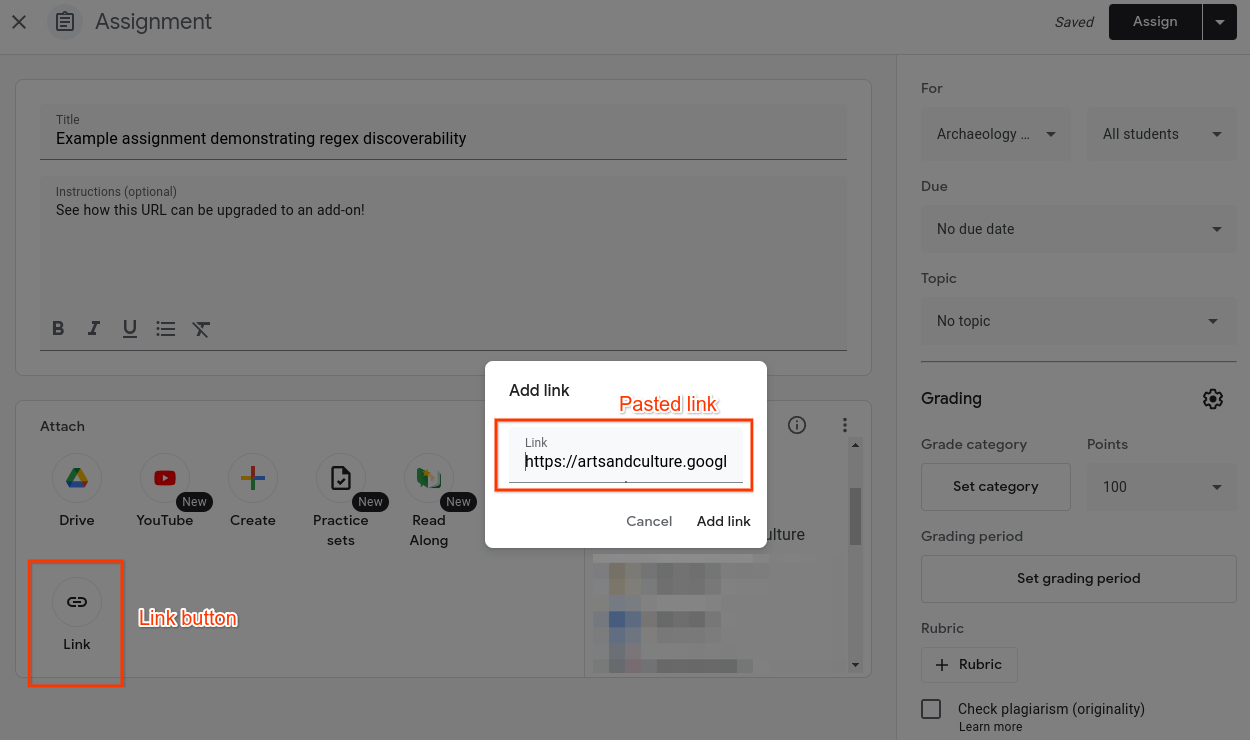 **Figure 1.** Teacher selecting a link
attachment to a new assignment.
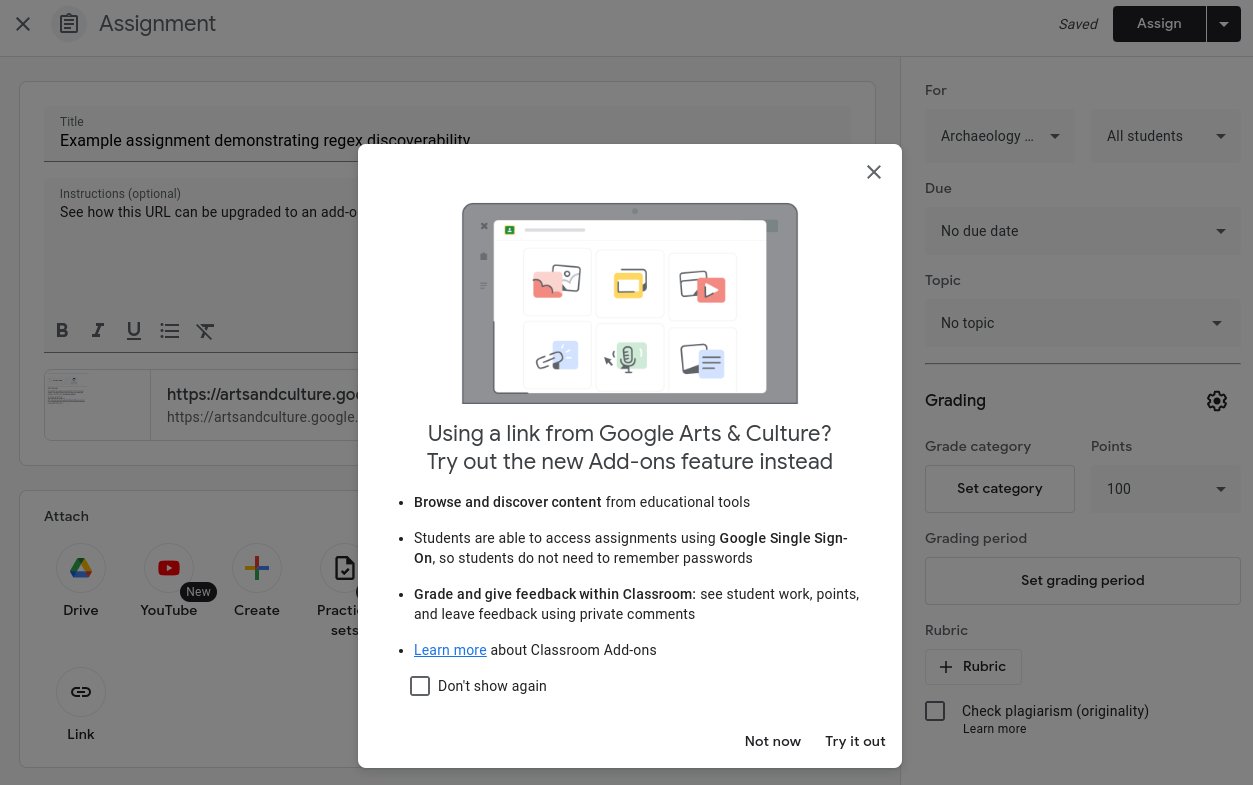 **Figure 2.** Teacher pasting a link from a third-party
source. The teacher has already installed the third-party's
Classroom add-on.
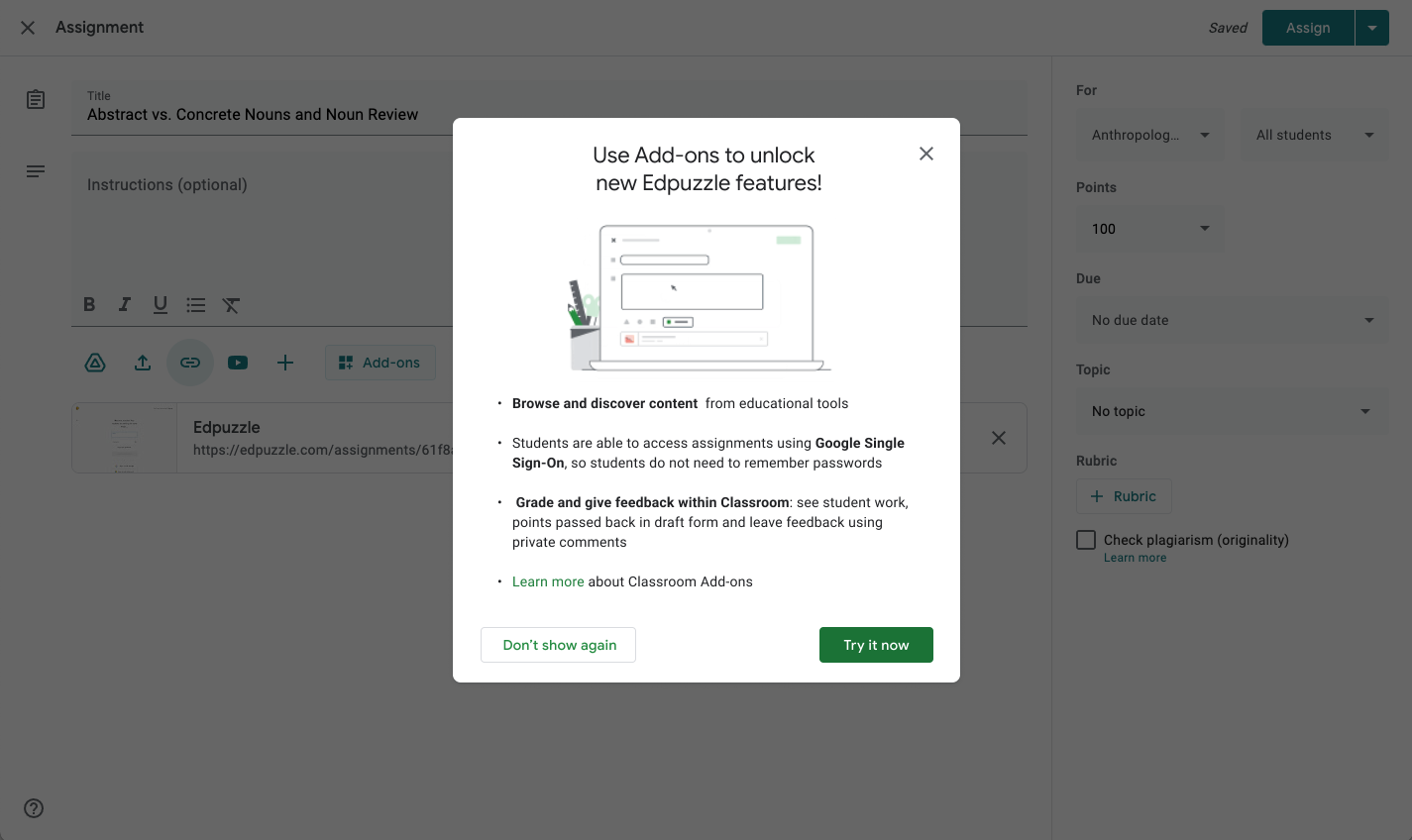 **Figure 3.** The interactive dialog presented
to the teacher when the pasted link matches a regular expression specified by
the third-party developer.
If a teacher selects "Try it now" in the pop as seen in figure 3, they're
redirected to your add-on's [Attachment Discovery iframe](https://developers.google.com/workspace/classroom/add-ons/developer-guides/iframes#attachment_discovery_iframe).