This guide explains how to use the
[`create()`](https://developers.google.com/workspace/chat/api/reference/rpc/google.chat.v1#google.chat.v1.ChatService.CreateMessage)
method on the `Message` resource of the Google Chat API to do any of the following:
- Send messages that contain text, cards, and interactive widgets.
- Send messages privately to a specific Chat user.
- Start or reply to a message thread.
- Name a message, so that you can specify it in other Chat API requests.
The maximum message size (including any text or cards) is 32,000 bytes.
To send a message that exceeds this size, your Chat app
must send multiple messages instead.
In addition to calling the Chat API to create messages,
Chat apps can create and send messages to reply to user
interactions, such as posting a welcome message after a user adds the
Chat app to a space. When responding to interactions,
Chat apps can use other types of messaging features, including
interactive dialogs and link preview interfaces. To reply to a user, the
Chat app returns the message synchronously, without
calling the Chat API. To learn about sending messages to respond to
interactions, see
[Receive and respond to interactions with your Google Chat app](https://developers.google.com/workspace/chat/receive-respond-interactions).
> [!NOTE]
> For more examples, see [Google Chat app samples](https://developers.google.com/workspace/chat/samples).
## How Chat displays and attributes messages created with the Chat API
You can call the `create()` method using
[app authentication](https://developers.google.com/workspace/chat/authenticate-authorize-chat-app)
and [user authentication](https://developers.google.com/workspace/chat/authenticate-authorize-chat-user).
Chat attributes the message sender differently
depending on the type of authentication that you use.
When you authenticate as the Chat app,
the Chat app sends the message.
 **Figure 1** : With app authentication, the Chat app sends the message. To note that the sender isn't a person, Chat displays `App` next to its name.
When you authenticate as a user, the Chat app sends the
message on behalf of the user. Chat also attributes the
Chat app to the message by displaying its name.
 **Figure 2**: With user authentication, the user sends the message, and Chat displays the Chat app name next to the user's name.
The authentication type also determines which messaging features and interfaces
that you can include in the message. With app authentication,
Chat apps can send messages that contain rich text,
card-based interfaces, and interactive widgets.
With user authentication, you can send text messages or create messages with cards, as documented in
[Create and update interactive cards](https://developers.google.com/workspace/chat/create-update-interactive-cards).
To learn more about messaging
features available for the Chat API, see the
[Google Chat messages overview](https://developers.google.com/workspace/chat/messages-overview).
This guide explains how to use either authentication type to send a message
with the Chat API.
## Prerequisites
### Node.js
- A Business or Enterprise [Google Workspace](https://support.google.com/a/answer/6043576) account with access to [Google Chat](https://workspace.google.com/products/chat/).
- Set up your environment:
- [Create a Google Cloud project](https://developers.google.com/workspace/guides/create-project).
- [Configure the OAuth consent screen](https://developers.google.com/workspace/guides/configure-oauth-consent).
- [Enable and configure the Google Chat API](https://developers.google.com/workspace/chat/configure-chat-api) with a name, icon, and description for your Chat app.
- Install the Node.js [Cloud Client Library](https://developers.google.com/workspace/chat/libraries?tab=nodejs#cloud-client-libraries).
- Create access credentials based on how you want to authenticate in your Google Chat API request:
- To authenticate as a Chat user, [create OAuth client ID
credentials](https://developers.google.com/workspace/chat/authenticate-authorize-chat-user) and save the credentials as a JSON file named `credentials.json` to your local directory.
- To authenticate as the Chat app, [create service account
credentials](https://developers.google.com/workspace/chat/authenticate-authorize-chat-app) and save the credentials as a JSON file named `credentials.json`.
- [Choose an authorization scope](https://developers.google.com/workspace/chat/authenticate-authorize#asynchronous-chat-calls) based on whether you want to authenticate as a user or the Chat app.
- A [Google Chat space](https://developers.google.com/workspace/chat/set-up-spaces) where the authenticated user or calling Chat app is a member. To authenticate as the Chat app, [add the
Chat app to the space](https://developers.google.com/workspace/chat/test-interactive-features).
### Python
- A Business or Enterprise [Google Workspace](https://support.google.com/a/answer/6043576) account with access to [Google Chat](https://workspace.google.com/products/chat/).
- Set up your environment:
- [Create a Google Cloud project](https://developers.google.com/workspace/guides/create-project).
- [Configure the OAuth consent screen](https://developers.google.com/workspace/guides/configure-oauth-consent).
- [Enable and configure the Google Chat API](https://developers.google.com/workspace/chat/configure-chat-api) with a name, icon, and description for your Chat app.
- Install the Python [Cloud Client Library](https://developers.google.com/workspace/chat/libraries?tab=python#cloud-client-libraries).
- Create access credentials based on how you want to authenticate in your Google Chat API request:
- To authenticate as a Chat user, [create OAuth client ID
credentials](https://developers.google.com/workspace/chat/authenticate-authorize-chat-user) and save the credentials as a JSON file named `credentials.json` to your local directory.
- To authenticate as the Chat app, [create service account
credentials](https://developers.google.com/workspace/chat/authenticate-authorize-chat-app) and save the credentials as a JSON file named `credentials.json`.
- [Choose an authorization scope](https://developers.google.com/workspace/chat/authenticate-authorize#asynchronous-chat-calls) based on whether you want to authenticate as a user or the Chat app.
- A [Google Chat space](https://developers.google.com/workspace/chat/set-up-spaces) where the authenticated user or calling Chat app is a member. To authenticate as the Chat app, [add the
Chat app to the space](https://developers.google.com/workspace/chat/test-interactive-features).
### Java
- A Business or Enterprise [Google Workspace](https://support.google.com/a/answer/6043576) account with access to [Google Chat](https://workspace.google.com/products/chat/).
- Set up your environment:
- [Create a Google Cloud project](https://developers.google.com/workspace/guides/create-project).
- [Configure the OAuth consent screen](https://developers.google.com/workspace/guides/configure-oauth-consent).
- [Enable and configure the Google Chat API](https://developers.google.com/workspace/chat/configure-chat-api) with a name, icon, and description for your Chat app.
- Install the Java [Cloud Client Library](https://developers.google.com/workspace/chat/libraries?tab=java#cloud-client-libraries).
- Create access credentials based on how you want to authenticate in your Google Chat API request:
- To authenticate as a Chat user, [create OAuth client ID
credentials](https://developers.google.com/workspace/chat/authenticate-authorize-chat-user) and save the credentials as a JSON file named `credentials.json` to your local directory.
- To authenticate as the Chat app, [create service account
credentials](https://developers.google.com/workspace/chat/authenticate-authorize-chat-app) and save the credentials as a JSON file named `credentials.json`.
- [Choose an authorization scope](https://developers.google.com/workspace/chat/authenticate-authorize#asynchronous-chat-calls) based on whether you want to authenticate as a user or the Chat app.
- A [Google Chat space](https://developers.google.com/workspace/chat/set-up-spaces) where the authenticated user or calling Chat app is a member. To authenticate as the Chat app, [add the
Chat app to the space](https://developers.google.com/workspace/chat/test-interactive-features).
### Apps Script
- A Business or Enterprise [Google Workspace](https://support.google.com/a/answer/6043576) account with access to [Google Chat](https://workspace.google.com/products/chat/).
- Set up your environment:
- [Create a Google Cloud project](https://developers.google.com/workspace/guides/create-project).
- [Configure the OAuth consent screen](https://developers.google.com/workspace/guides/configure-oauth-consent).
- [Enable and configure the Google Chat API](https://developers.google.com/workspace/chat/configure-chat-api) with a name, icon, and description for your Chat app.
- [Create a standalone Apps Script project](https://developers.google.com/apps-script/guides/projects), and turn on the [Advanced Chat Service](https://developers.google.com/apps-script/advanced/chat).
- In this guide, you must use either [user
or app authentication](https://developers.google.com/workspace/chat/authenticate-authorize). To authenticate as the Chat app, create service account credentials. For steps, see [Authenticate and authorize as a
Google Chat app](https://developers.google.com/workspace/chat/authenticate-authorize-chat-app).
- [Choose an authorization scope](https://developers.google.com/workspace/chat/authenticate-authorize#asynchronous-chat-calls) based on whether you want to authenticate as a user or the Chat app.
- A [Google Chat space](https://developers.google.com/workspace/chat/set-up-spaces) where the authenticated user or calling Chat app is a member. To authenticate as the Chat app, [add the
Chat app to the space](https://developers.google.com/workspace/chat/test-interactive-features).
> [!NOTE]
> The code samples in this page use the gRPC API interface with the Google Cloud client libraries. Alternatively, you can use the REST API interface. For more information about the gRPC and REST interfaces, see [Google Chat API overview](https://developers.google.com/workspace/chat/api/reference).
## Send a message as the Chat app
This section explains how to send messages that contain text, cards, and
interactive accessory widgets using
[app authentication](https://developers.google.com/workspace/chat/authenticate-authorize-chat-app).
 **Figure 4.** A Chat app sends a message with text, a card, and an accessory button.
To call the [`CreateMessage()`](https://developers.google.com/workspace/chat/api/reference/rpc/google.chat.v1#google.chat.v1.ChatService.CreateMessage)
method using app authentication, you must specify the following fields in the
request:
- The `chat.bot` [authorization scope](https://developers.google.com/workspace/chat/api/reference/rpc/google.chat.v1#google.chat.v1.ChatService.CreateMessage).
- The [`Space`](https://developers.google.com/workspace/chat/api/reference/rpc/google.chat.v1#google.chat.v1.Space) resource in which you want to post the message. The Chat app must be a member of the space.
- The [`Message`](https://developers.google.com/workspace/chat/api/reference/rpc/google.chat.v1#google.chat.v1.Message) resource to create. To define the content of the message, you can include rich text ([`text`](https://developers.google.com/workspace/chat/api/reference/rpc/google.chat.v1#google.chat.v1.Message.FIELDS.string.google.chat.v1.Message.text)), one or more card interfaces ([`cardsV2`](https://developers.google.com/workspace/chat/api/reference/rpc/google.chat.v1#google.chat.v1.Message.FIELDS.repeated.google.chat.v1.CardWithId.google.chat.v1.Message.cards_v2)), or both.
Optionally, you can include the following:
- The `elements` field to [add citations to the message](https://developers.google.com/workspace/chat/format-messages#messages-citations).
- The `accessoryWidgets` field to include [interactive buttons at the bottom of the message](https://developers.google.com/workspace/chat/create-messages#add-accessory-widgets).
- The `privateMessageViewer` field to [send the message privately](https://developers.google.com/workspace/chat/create-messages#private) to a specified user.
- The `messageId` field, which lets you [name the message](https://developers.google.com/workspace/chat/create-messages#name_a_created_message) to use in other API requests.
- The `thread.threadKey` and `messageReplyOption` fields to [start or reply to a thread](https://developers.google.com/workspace/chat/create-messages#create-message-thread). If the space doesn't use threading, this field is ignored.
The following code shows an example of how a Chat app
can send a message posted as the Chat app that contains
text, a card, and a clickable button at the bottom of the message:
### Node.js
chat/client-libraries/cloud/create-message-app-cred.js [View on GitHub](https://github.com/googleworkspace/node-samples/blob/main/chat/client-libraries/cloud/create-message-app-cred.js)
```javascript
import {createClientWithAppCredentials} from './authentication-utils.js';
// This sample shows how to create message with app credential
async function main() {
// Create a client
const chatClient = createClientWithAppCredentials();
// Initialize request argument(s)
const request = {
// Replace SPACE_NAME here.
parent: 'spaces/SPACE_NAME',
message: {
text:
'👋🌎 Hello world! I created this message by calling ' +
"the Chat API's `messages.create()` method.",
cardsV2: [
{
card: {
header: {
title: 'About this message',
imageUrl:
'https://fonts.gstatic.com/s/i/short-term/release/googlesymbols/info/default/24px.svg',
},
sections: [
{
header: 'Contents',
widgets: [
{
textParagraph: {
text:
'🔡 Text which can include ' +
'hyperlinks 🔗, emojis 😄🎉, and @mentions 🗣️.',
},
},
{
textParagraph: {
text:
'🖼️ A card to display visual elements' +
'and request information such as text 🔤, ' +
'dates and times 📅, and selections ☑️.',
},
},
{
textParagraph: {
text:
'👉🔘 An accessory widget which adds ' +
'a button to the bottom of a message.',
},
},
],
},
{
header: "What's next",
collapsible: true,
widgets: [
{
textParagraph: {
text: "❤️ Add a reaction.",
},
},
{
textParagraph: {
text:
"🔄 Update " +
"or ❌ delete " +
'the message.',
},
},
],
},
],
},
},
],
accessoryWidgets: [
{
buttonList: {
buttons: [
{
text: 'View documentation',
icon: {materialIcon: {name: 'link'}},
onClick: {
openLink: {
url: 'https://developers.google.com/workspace/chat/create-messages',
},
},
},
],
},
},
],
},
};
// Make the request
const response = await chatClient.createMessage(request);
// Handle the response
console.log(response);
}
await main();
```
### Python
chat/client-libraries/cloud/create_message_app_cred.py [View on GitHub](https://github.com/googleworkspace/python-samples/blob/main/chat/client-libraries/cloud/create_message_app_cred.py)
```python
from authentication_utils import create_client_with_app_credentials
from google.apps import chat_v1 as google_chat
# This sample shows how to create message with app credential
def create_message_with_app_cred():
# Create a client
client = create_client_with_app_credentials()
# Initialize request argument(s)
request = google_chat.CreateMessageRequest(
# Replace SPACE_NAME here.
parent = "spaces/SPACE_NAME",
message = {
"text": '👋🌎 Hello world! I created this message by calling ' +
'the Chat API\'s `messages.create()` method.',
"cards_v2" : [{ "card": {
"header": {
"title": 'About this message',
"image_url": 'https://fonts.gstatic.com/s/i/short-term/release/googlesymbols/info/default/24px.svg'
},
"sections": [{
"header": "Contents",
"widgets": [{ "text_paragraph": {
"text": '🔡 Text which can include ' +
'hyperlinks 🔗, emojis 😄🎉, and @mentions 🗣️.'
}}, { "text_paragraph": {
"text": '🖼️ A card to display visual elements' +
'and request information such as text 🔤, ' +
'dates and times 📅, and selections ☑️.'
}}, { "text_paragraph": {
"text": '👉🔘 An accessory widget which adds ' +
'a button to the bottom of a message.'
}}
]}, {
"header": "What's next",
"collapsible": True,
"widgets": [{ "text_paragraph": {
"text": "❤️ Add a reaction."
}}, { "text_paragraph": {
"text": "🔄 Update " +
"or ❌ delete " +
"the message."
}
}]
}
]
}}],
"accessory_widgets": [{ "button_list": { "buttons": [{
"text": 'View documentation',
"icon": { "material_icon": { "name": 'link' }},
"on_click": { "open_link": {
"url": 'https://developers.google.com/workspace/chat/create-messages'
}}
}]}}]
}
)
# Make the request
response = client.create_message(request)
# Handle the response
print(response)
create_message_with_app_cred()
```
### Java
chat/client-libraries/cloud/src/main/java/com/google/workspace/api/chat/samples/CreateMessageAppCred.java [View on GitHub](https://github.com/googleworkspace/java-samples/blob/main/chat/client-libraries/cloud/src/main/java/com/google/workspace/api/chat/samples/CreateMessageAppCred.java)
```java
import com.google.apps.card.v1.Button;
import com.google.apps.card.v1.ButtonList;
import com.google.apps.card.v1.Card;
import com.google.apps.card.v1.Icon;
import com.google.apps.card.v1.MaterialIcon;
import com.google.apps.card.v1.OnClick;
import com.google.apps.card.v1.OpenLink;
import com.google.apps.card.v1.TextParagraph;
import com.google.apps.card.v1.Widget;
import com.google.apps.card.v1.Card.CardHeader;
import com.google.apps.card.v1.Card.Section;
import com.google.chat.v1.AccessoryWidget;
import com.google.chat.v1.CardWithId;
import com.google.chat.v1.ChatServiceClient;
import com.google.chat.v1.CreateMessageRequest;
import com.google.chat.v1.Message;
// This sample shows how to create message with app credential.
public class CreateMessageAppCred {
public static void main(String[] args) throws Exception {
try (ChatServiceClient chatServiceClient =
AuthenticationUtils.createClientWithAppCredentials()) {
CreateMessageRequest.Builder request = CreateMessageRequest.newBuilder()
// Replace SPACE_NAME here.
.setParent("spaces/SPACE_NAME")
.setMessage(Message.newBuilder()
.setText( "👋🌎 Hello world! I created this message by calling " +
"the Chat API\'s `messages.create()` method.")
.addCardsV2(CardWithId.newBuilder().setCard(Card.newBuilder()
.setHeader(CardHeader.newBuilder()
.setTitle("About this message")
.setImageUrl("https://fonts.gstatic.com/s/i/short-term/release/googlesymbols/info/default/24px.svg"))
.addSections(Section.newBuilder()
.setHeader("Contents")
.addWidgets(Widget.newBuilder().setTextParagraph(TextParagraph.newBuilder().setText(
"🔡 Text which can include " +
"hyperlinks 🔗, emojis 😄🎉, and @mentions 🗣️.")))
.addWidgets(Widget.newBuilder().setTextParagraph(TextParagraph.newBuilder().setText(
"🖼️ A card to display visual elements " +
"and request information such as text 🔤, " +
"dates and times 📅, and selections ☑️.")))
.addWidgets(Widget.newBuilder().setTextParagraph(TextParagraph.newBuilder().setText(
"👉🔘 An accessory widget which adds " +
"a button to the bottom of a message."))))
.addSections(Section.newBuilder()
.setHeader("What's next")
.setCollapsible(true)
.addWidgets(Widget.newBuilder().setTextParagraph(TextParagraph.newBuilder().setText(
"❤️ Add a reaction.")))
.addWidgets(Widget.newBuilder().setTextParagraph(TextParagraph.newBuilder().setText(
"🔄 Update " +
"or ❌ delete " +
"the message."))))))
.addAccessoryWidgets(AccessoryWidget.newBuilder()
.setButtonList(ButtonList.newBuilder()
.addButtons(Button.newBuilder()
.setText("View documentation")
.setIcon(Icon.newBuilder()
.setMaterialIcon(MaterialIcon.newBuilder().setName("link")))
.setOnClick(OnClick.newBuilder()
.setOpenLink(OpenLink.newBuilder()
.setUrl("https://developers.google.com/workspace/chat/create-messages")))))));
Message response = chatServiceClient.createMessage(request.build());
System.out.println(JsonFormat.printer().print(response));
}
}
}
```
### Apps Script
chat/advanced-service/Main.gs [View on GitHub](https://github.com/googleworkspace/apps-script-samples/blob/main/chat/advanced-service/Main.gs)
```javascript
/**
* This sample shows how to create message with app credential
*
* It relies on the OAuth2 scope 'https://www.googleapis.com/auth/chat.bot'
* used by service accounts.
*/
function createMessageAppCred() {
// Initialize request argument(s)
// TODO(developer): Replace SPACE_NAME here.
const parent = "spaces/SPACE_NAME";
const message = {
text:
"👋🌎 Hello world! I created this message by calling " +
"the Chat API's `messages.create()` method.",
cardsV2: [
{
card: {
header: {
title: "About this message",
imageUrl:
"https://fonts.gstatic.com/s/i/short-term/release/googlesymbols/info/default/24px.svg",
},
sections: [
{
header: "Contents",
widgets: [
{
textParagraph: {
text:
"🔡 Text which can include " +
"hyperlinks 🔗, emojis 😄🎉, and @mentions 🗣️.",
},
},
{
textParagraph: {
text:
"🖼️ A card to display visual elements" +
"and request information such as text 🔤, " +
"dates and times 📅, and selections ☑️.",
},
},
{
textParagraph: {
text:
"👉🔘 An accessory widget which adds " +
"a button to the bottom of a message.",
},
},
],
},
{
header: "What's next",
collapsible: true,
widgets: [
{
textParagraph: {
text: "❤️ Add a reaction.",
},
},
{
textParagraph: {
text:
"🔄 Update " +
"or ❌ delete " +
"the message.",
},
},
],
},
],
},
},
],
accessoryWidgets: [
{
buttonList: {
buttons: [
{
text: "View documentation",
icon: { materialIcon: { name: "link" } },
onClick: {
openLink: {
url: "https://developers.google.com/workspace/chat/create-messages",
},
},
},
],
},
},
],
};
const parameters = {};
// Make the request
const response = Chat.Spaces.Messages.create(
message,
parent,
parameters,
getHeaderWithAppCredentials(),
);
// Handle the response
console.log(response);
}
```
To run this sample, replace `SPACE_NAME` with the ID from
the space's
[`name`](https://developers.google.com/workspace/chat/api/reference/rpc/google.chat.v1#google.chat.v1.Space.FIELDS.string.google.chat.v1.Space.name)
field. You can obtain the ID by calling the
[`ListSpaces()`](https://developers.google.com/workspace/chat/api/reference/rpc/google.chat.v1#google.chat.v1.ChatService.ListSpaces)
method or from the space's URL.
### Add interactive widgets at the bottom of a message
In the first code sample of this guide, the
Chat app message displays a clickable button at the
bottom of the message, known as an *accessory widget*. Accessory widgets
appear after any text or cards in a message. You can use these widgets to prompt
users to interact with your message in many ways, including the following:
- Rate the accuracy or satisfaction of a message.
- Report an issue with the message or Chat app.
- Open a link to related content, such as documentation.
- Dismiss or snooze similar messages from the Chat app for a specific period of time.
To add accessory widgets, include the
[`accessoryWidgets[]`](https://developers.google.com/workspace/chat/api/reference/rpc/google.chat.v1#google.chat.v1.AccessoryWidget)
field in the body of your request and specify one or more widgets that you want
to include.
The following image shows a Chat app that appends
a text message with accessory widgets so that users can rate their experience
with the Chat app.
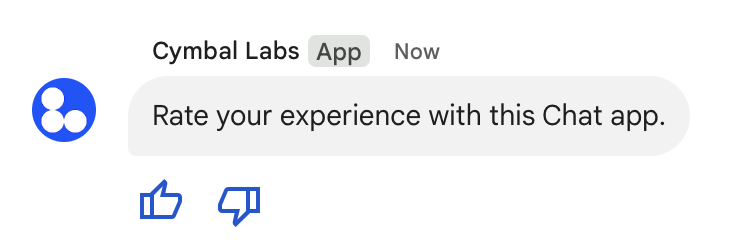 **Figure 5**: A Chat app message with text and accessory widgets.
The following shows the body of the request that creates a text message with
two accessory buttons. When a user clicks a button, the corresponding
function (such as `doUpvote`) processes the interaction:
{
text: "Rate your experience with this Chat app.",
accessoryWidgets: [{ buttonList: { buttons: [{
icon: { material_icon: {
name: "thumb_up"
}},
color: { red: 0, blue: 255, green: 0 },
onClick: { action: {
function: "doUpvote"
}}
}, {
icon: { material_icon: {
name: "thumb_down"
}},
color: { red: 0, blue: 255, green: 0 },
onClick: { action: {
function: "doDownvote"
}}
}]}}]
}
### Send a message privately
[Video](https://www.youtube.com/watch?v=DpajWetSYw8)
Chat apps can send messages privately so that the
message is only visible to a specific user in the space. When a
Chat app sends a private message, the message
shows a label that notifies the user that the message is only visible to them.
To send a message privately using the Chat API, specify the
[`privateMessageViewer`](https://developers.google.com/workspace/chat/api/reference/rpc/google.chat.v1#google.chat.v1.Message.FIELDS.google.chat.v1.User.google.chat.v1.Message.private_message_viewer)
field in the body of your request. To specify the user, you set the value to
the
[`User`](https://developers.google.com/workspace/chat/api/reference/rpc/google.chat.v1#google.chat.v1.User)
resource that represents the Chat user. You can also use the
[`name`](https://developers.google.com/workspace/chat/api/reference/rpc/google.chat.v1#google.chat.v1.User.FIELDS.string.google.chat.v1.User.name)
field of the `User` resource, as shown in the following example:
{
text: "Hello private world!",
privateMessageViewer: {
name: "users/USER_ID"
}
}
To use this sample, replace `USER_ID`
with a unique ID for the user, such as `12345678987654321` or
`hao@cymbalgroup.com`. For more information about specifying users, see
[Identify and specify Google Chat users](https://developers.google.com/workspace/chat/identify-reference-users).
To send a message privately, you must omit the following in your request:
- [Attachments](https://developers.google.com/workspace/chat/upload-media-attachments)
### Send forced notifications or silent messages
When a Chat app sends a message, it can use one of
these options to notify users:
- **Force a notification**: Chat always sends a push notification to recipients, regardless of their notification settings or Do Not Disturb (DND) status. Inside Chat, the message triggers a bolding and bumping behavior in the recipients' roster or Home list, and shows a badge.
- **Send a silent message**: Chat suppresses push notifications for recipients. Inside Chat, the message doesn't trigger a bolding or bumping behavior in the recipients' roster or Home list, and doesn't show a badge. If the silent message is the last message in a conversation, its content isn't shown in the Home snippet.
Whether forced or silent, these messages include a visual indicator that
notifies the recipients of the special notification behavior.
Forced notifications and silent messages are only available for Chat apps using
[app authentication](https://developers.google.com/workspace/chat/authenticate-authorize-chat-app).
Forced notification and silent messages have these limitations:
- **External users**: Forced notifications and silent messages don't apply to external users (guests) in a space. External users receive notifications according to their own settings.
- **Mentions** : Silent messages don't support [mentioning users](https://developers.google.com/workspace/chat/format-messages#mentions). If you include a mention in a silent message, it's treated as plain text.
- **Threading**: You can't start or reply to a thread with a silent message.
- **Space type**: Forced notifications and silent messages aren't supported in direct messages (DMs) or spaces owned by people who don't have a Google Workspace account.
- **Email notifications**: Silent messages don't trigger email notifications. Force-notified messages only trigger email notifications if they also include a mention for a specific user.
To force a notification or send a silent message, include the
[`createMessageNotificationOptions`](https://developers.google.com/workspace/chat/api/reference/rest/v1/spaces.messages/create#body.QUERY_PARAMETERS.create_message_notification_options)
field in your request and set `notificationType` to one of the following:
| Value | Behavior |
|---|---|
| `NOTIFICATION_TYPE_FORCE_NOTIFY` | Forces a notification. |
| `NOTIFICATION_TYPE_SILENT` | Sends the message silently. |
The following example shows the JSON body of a request to send a message with a
forced notification:
{
"text": "Critical update: the server is down!",
"createMessageNotificationOptions": {
"notificationType": "NOTIFICATION_TYPE_FORCE_NOTIFY"
}
}
## Send a text message on behalf of a user
This section explains how to send messages on behalf of a user using
[user authentication](https://developers.google.com/workspace/chat/authenticate-authorize-chat-user).
With user authentication, you can send text messages or create messages with cards
on behalf of a user. For details on sending cards on behalf of a user, see
[Create and update interactive cards](https://developers.google.com/workspace/chat/create-update-interactive-cards).
 **Figure 3.** A Chat app sends a text message on behalf of a user.
To call the `CreateMessage()` method using user authentication, you must specify
the following fields in the request:
- An [authorization scope](https://developers.google.com/workspace/chat/api/reference/rpc/google.chat.v1#google.chat.v1.ChatService.CreateMessage) that supports user authentication for this method. The following sample uses the `chat.messages.create` scope.
- The [`Space`](https://developers.google.com/workspace/chat/api/reference/rpc/google.chat.v1#google.chat.v1.Space) resource in which you want to post the message. The authenticated user must be a member of the space.
- The [`Message`](https://developers.google.com/workspace/chat/api/reference/rpc/google.chat.v1#google.chat.v1.Message) resource to create. To define the content of the message, you must include the [`text`](https://developers.google.com/workspace/chat/api/reference/rpc/google.chat.v1#google.chat.v1.Message.FIELDS.string.google.chat.v1.Message.text) field.
Optionally, you can include the following:
- The `createMessageNotificationOptions` field to [force a notification or send the message silently](https://developers.google.com/workspace/chat/create-messages#force-notify-silent).
- The `messageId` field, which lets you [name the message](https://developers.google.com/workspace/chat/create-messages#name_a_created_message) to use in other API requests.
- The `thread.threadKey` and `messageReplyOption` fields to [start or reply to a thread](https://developers.google.com/workspace/chat/create-messages#create-message-thread). If the space doesn't use threading, this field is ignored.
The following code shows an example of how a Chat app
can send a text message in a given space on behalf of an authenticated user:
### Node.js
chat/client-libraries/cloud/create-message-user-cred.js [View on GitHub](https://github.com/googleworkspace/node-samples/blob/main/chat/client-libraries/cloud/create-message-user-cred.js)
```javascript
import {createClientWithUserCredentials} from './authentication-utils.js';
const USER_AUTH_OAUTH_SCOPES = [
'https://www.googleapis.com/auth/chat.messages.create',
];
// This sample shows how to create message with user credential
async function main() {
// Create a client
const chatClient = await createClientWithUserCredentials(
USER_AUTH_OAUTH_SCOPES,
);
// Initialize request argument(s)
const request = {
// Replace SPACE_NAME here.
parent: 'spaces/SPACE_NAME',
message: {
text:
'👋🌎 Hello world!' +
'Text messages can contain things like:\n\n' +
'* Hyperlinks 🔗\n' +
'* Emojis 😄🎉\n' +
'* Mentions of other Chat users `@` \n\n' +
'For details, see the ' +
'.',
},
};
// Make the request
const response = await chatClient.createMessage(request);
// Handle the response
console.log(response);
}
await main();
```
### Python
chat/client-libraries/cloud/create_message_user_cred.py [View on GitHub](https://github.com/googleworkspace/python-samples/blob/main/chat/client-libraries/cloud/create_message_user_cred.py)
```python
from authentication_utils import create_client_with_user_credentials
from google.apps import chat_v1 as google_chat
SCOPES = ["https://www.googleapis.com/auth/chat.messages.create"]
def create_message_with_user_cred():
# Create a client
client = create_client_with_user_credentials(SCOPES)
# Initialize request argument(s)
request = google_chat.CreateMessageRequest(
# Replace SPACE_NAME here.
parent = "spaces/SPACE_NAME",
message = {
"text": '👋🌎 Hello world!' +
'Text messages can contain things like:\n\n' +
'* Hyperlinks 🔗\n' +
'* Emojis 😄🎉\n' +
'* Mentions of other Chat users `@` \n\n' +
'For details, see the ' +
'.'
}
)
# Make the request
response = client.create_message(request)
# Handle the response
print(response)
create_message_with_user_cred()
```
### Java
chat/client-libraries/cloud/src/main/java/com/google/workspace/api/chat/samples/CreateMessageUserCred.java [View on GitHub](https://github.com/googleworkspace/java-samples/blob/main/chat/client-libraries/cloud/src/main/java/com/google/workspace/api/chat/samples/CreateMessageUserCred.java)
```java
import com.google.chat.v1.ChatServiceClient;
import com.google.chat.v1.CreateMessageRequest;
import com.google.chat.v1.Message;
// This sample shows how to create message with user credential.
public class CreateMessageUserCred {
private static final String SCOPE =
"https://www.googleapis.com/auth/chat.messages.create";
public static void main(String[] args) throws Exception {
try (ChatServiceClient chatServiceClient =
AuthenticationUtils.createClientWithUserCredentials(
ImmutableList.of(SCOPE))) {
CreateMessageRequest.Builder request = CreateMessageRequest.newBuilder()
// Replace SPACE_NAME here.
.setParent("spaces/SPACE_NAME")
.setMessage(Message.newBuilder()
.setText( "👋🌎 Hello world!" +
"Text messages can contain things like:\n\n" +
"* Hyperlinks 🔗\n" +
"* Emojis 😄🎉\n" +
"* Mentions of other Chat users `@` \n\n" +
"For details, see the " +
"."));
Message response = chatServiceClient.createMessage(request.build());
System.out.println(JsonFormat.printer().print(response));
}
}
}
```
### Apps Script
chat/advanced-service/Main.gs [View on GitHub](https://github.com/googleworkspace/apps-script-samples/blob/main/chat/advanced-service/Main.gs)
```javascript
/**
* This sample shows how to create message with user credential
*
* It relies on the OAuth2 scope 'https://www.googleapis.com/auth/chat.messages.create'
* referenced in the manifest file (appsscript.json).
*/
function createMessageUserCred() {
// Initialize request argument(s)
// TODO(developer): Replace SPACE_NAME here.
const parent = "spaces/SPACE_NAME";
const message = {
text:
"👋🌎 Hello world!" +
"Text messages can contain things like:\n\n" +
"* Hyperlinks 🔗\n" +
"* Emojis 😄🎉\n" +
"* Mentions of other Chat users `@` \n\n" +
"For details, see the " +
".",
};
// Make the request
const response = Chat.Spaces.Messages.create(message, parent);
// Handle the response
console.log(response);
}
```
To run this sample, replace `SPACE_NAME` with the ID from
the space's
[`name`](https://developers.google.com/workspace/chat/api/reference/rpc/google.chat.v1#google.chat.v1.Space.FIELDS.string.google.chat.v1.Space.name)
field. You can obtain the ID by calling the
[`ListSpaces()`](https://developers.google.com/workspace/chat/api/reference/rpc/google.chat.v1#google.chat.v1.ChatService.ListSpaces)
method or from the space's URL.
## Start or reply in a thread
For spaces that use [threads](https://support.google.com/chat/answer/12176589),
you can specify whether a new message starts a thread, or replies to
an existing thread.
By default, messages that you create using the Chat API start a new
thread. To help you identify the thread and reply to it later, you can specify a
thread key in your request:
- In the body of your request, specify the [`thread.threadKey`](https://developers.google.com/workspace/chat/api/reference/rpc/google.chat.v1#google.chat.v1.Thread.FIELDS.string.google.chat.v1.Thread.thread_key) field.
- Specify the query parameter [`messageReplyOption`](https://developers.google.com/workspace/chat/api/reference/rpc/google.chat.v1#google.chat.v1.CreateMessageRequest.FIELDS.google.chat.v1.CreateMessageRequest.MessageReplyOption.google.chat.v1.CreateMessageRequest.message_reply_option) to determine what happens if the key already exists.
To create a message that replies to an existing thread:
- In the body of your request, include the `thread` field. If set, you can specify the [`threadKey`](https://developers.google.com/workspace/chat/api/reference/rpc/google.chat.v1#google.chat.v1.Thread.FIELDS.string.google.chat.v1.Thread.thread_key) that you created. Otherwise, you must use the [`name`](https://developers.google.com/workspace/chat/api/reference/rpc/google.chat.v1#google.chat.v1.Thread.FIELDS.string.google.chat.v1.Thread.name) of the thread.
- Specify the query parameter `messageReplyOption`.
The following code shows an example of how a Chat app
can send a text message that starts or replies to a given thread identified by
key of a given space on behalf of an authenticated user:
### Node.js
chat/client-libraries/cloud/create-message-user-cred-thread-key.js [View on GitHub](https://github.com/googleworkspace/node-samples/blob/main/chat/client-libraries/cloud/create-message-user-cred-thread-key.js)
```javascript
import {protos} from '@google-apps/chat';
import {createClientWithUserCredentials} from './authentication-utils.js';
const USER_AUTH_OAUTH_SCOPES = [
'https://www.googleapis.com/auth/chat.messages.create',
];
// This sample shows how to create message with user credential with thread key
async function main() {
// Create a client
const chatClient = await createClientWithUserCredentials(
USER_AUTH_OAUTH_SCOPES,
);
// Initialize request argument(s)
const request = {
// Replace SPACE_NAME here.
parent: 'spaces/SPACE_NAME',
// Creates the message as a reply to the thread specified by thread_key
// If it fails, the message starts a new thread instead
messageReplyOption:
protos.google.chat.v1.CreateMessageRequest.MessageReplyOption
.REPLY_MESSAGE_FALLBACK_TO_NEW_THREAD,
message: {
text: 'Hello with user credential!',
thread: {
// Thread key specifies a thread and is unique to the chat app
// that sets it
threadKey: 'THREAD_KEY',
},
},
};
// Make the request
const response = await chatClient.createMessage(request);
// Handle the response
console.log(response);
}
await main();
```
### Python
chat/client-libraries/cloud/create_message_user_cred_thread_key.py [View on GitHub](https://github.com/googleworkspace/python-samples/blob/main/chat/client-libraries/cloud/create_message_user_cred_thread_key.py)
```python
from authentication_utils import create_client_with_user_credentials
from google.apps import chat_v1 as google_chat
import google.apps.chat_v1.CreateMessageRequest.MessageReplyOption
SCOPES = ["https://www.googleapis.com/auth/chat.messages.create"]
# This sample shows how to create message with user credential with thread key
def create_message_with_user_cred_thread_key():
# Create a client
client = create_client_with_user_credentials(SCOPES)
# Initialize request argument(s)
request = google_chat.CreateMessageRequest(
# Replace SPACE_NAME here
parent = "spaces/SPACE_NAME",
# Creates the message as a reply to the thread specified by thread_key.
# If it fails, the message starts a new thread instead.
message_reply_option = MessageReplyOption.REPLY_MESSAGE_FALLBACK_TO_NEW_THREAD,
message = {
"text": "Hello with user credential!",
"thread": {
# Thread key specifies a thread and is unique to the chat app
# that sets it.
"thread_key": "THREAD_KEY"
}
}
)
# Make the request
response = client.create_message(request)
# Handle the response
print(response)
create_message_with_user_cred_thread_key()
```
### Java
chat/client-libraries/cloud/src/main/java/com/google/workspace/api/chat/samples/CreateMessageUserCredThreadKey.java [View on GitHub](https://github.com/googleworkspace/java-samples/blob/main/chat/client-libraries/cloud/src/main/java/com/google/workspace/api/chat/samples/CreateMessageUserCredThreadKey.java)
```java
import com.google.chat.v1.ChatServiceClient;
import com.google.chat.v1.CreateMessageRequest;
import com.google.chat.v1.CreateMessageRequest.MessageReplyOption;
import com.google.chat.v1.Message;
import com.google.chat.v1.Thread;
// This sample shows how to create message with a thread key with user
// credential.
public class CreateMessageUserCredThreadKey {
private static final String SCOPE =
"https://www.googleapis.com/auth/chat.messages.create";
public static void main(String[] args) throws Exception {
try (ChatServiceClient chatServiceClient =
AuthenticationUtils.createClientWithUserCredentials(
ImmutableList.of(SCOPE))) {
CreateMessageRequest.Builder request = CreateMessageRequest.newBuilder()
// Replace SPACE_NAME here.
.setParent("spaces/SPACE_NAME")
// Creates the message as a reply to the thread specified by thread_key.
// If it fails, the message starts a new thread instead.
.setMessageReplyOption(
MessageReplyOption.REPLY_MESSAGE_FALLBACK_TO_NEW_THREAD)
.setMessage(Message.newBuilder()
.setText("Hello with user credentials!")
// Thread key specifies a thread and is unique to the chat app
// that sets it.
.setThread(Thread.newBuilder().setThreadKey("THREAD_KEY")));
Message response = chatServiceClient.createMessage(request.build());
System.out.println(JsonFormat.printer().print(response));
}
}
}
```
### Apps Script
chat/advanced-service/Main.gs [View on GitHub](https://github.com/googleworkspace/apps-script-samples/blob/main/chat/advanced-service/Main.gs)
```javascript
/**
* This sample shows how to create message with user credential with thread key
*
* It relies on the OAuth2 scope 'https://www.googleapis.com/auth/chat.messages.create'
* referenced in the manifest file (appsscript.json).
*/
function createMessageUserCredThreadKey() {
// Initialize request argument(s)
// TODO(developer): Replace SPACE_NAME here.
const parent = "spaces/SPACE_NAME";
// Creates the message as a reply to the thread specified by thread_key
// If it fails, the message starts a new thread instead
const messageReplyOption = "REPLY_MESSAGE_FALLBACK_TO_NEW_THREAD";
const message = {
text: "Hello with user credential!",
thread: {
// Thread key specifies a thread and is unique to the chat app
// that sets it
threadKey: "THREAD_KEY",
},
};
// Make the request
const response = Chat.Spaces.Messages.create(message, parent, {
messageReplyOption: messageReplyOption,
});
// Handle the response
console.log(response);
}
```
To run this sample, replace the following:
- `THREAD_KEY`: an existing thread key in the space, or to create a new thread, a unique name for the thread.
- `SPACE_NAME`: the ID from the space's [`name`](https://developers.google.com/workspace/chat/api/reference/rpc/google.chat.v1#google.chat.v1.Space.FIELDS.string.google.chat.v1.Space.name) field. You can obtain the ID by calling the [`ListSpaces()`](https://developers.google.com/workspace/chat/api/reference/rpc/google.chat.v1#google.chat.v1.ChatService.ListSpaces) method or from the space's URL.
## Name a message
To retrieve or specify a message in future API calls, you can name a message
by setting the `messageId` field in your request.
Naming your message lets you specify the message without needing to store the
system-assigned ID from the resource name of the message (represented in the
[`name`](https://developers.google.com/workspace/chat/api/reference/rpc/google.chat.v1#google.chat.v1.Message.FIELDS.string.google.chat.v1.Message.name)
field).
For example, to retrieve a message using the `get()` method, you use the
resource name to specify which message to retrieve. The resource name is
formatted as `spaces/{space}/messages/{message}`, where `{message}` represents
the system-assigned ID or the custom name that you set when you created the
message.
To name a message, specify a custom ID in the
[`messageId`](https://developers.google.com/workspace/chat/api/reference/rpc/google.chat.v1#google.chat.v1.CreateMessageRequest.FIELDS.string.google.chat.v1.CreateMessageRequest.message_id)
field when you create the message. The `messageId` field sets the value for the
[`clientAssignedMessageId`](https://developers.google.com/workspace/chat/api/reference/rpc/google.chat.v1#google.chat.v1.Message.FIELDS.string.google.chat.v1.Message.client_assigned_message_id)
field of the `Message` resource.
You can only name a message when you create the message. You can't name or
modify a custom ID for existing messages. The custom ID must meet the following
requirements:
- Begins with `client-`. For example, `client-custom-name` is a valid custom ID, but `custom-name` is not.
- Contains up to 63 characters and only lowercase letters, numbers, and hyphens.
- Is unique within a space. A Chat app can't use the same custom ID for different messages.
The following code shows an example of how a Chat app
can send a text message with an ID to a given space on behalf of an
authenticated user:
### Node.js
chat/client-libraries/cloud/create-message-user-cred-message-id.js [View on GitHub](https://github.com/googleworkspace/node-samples/blob/main/chat/client-libraries/cloud/create-message-user-cred-message-id.js)
```javascript
import {createClientWithUserCredentials} from './authentication-utils.js';
const USER_AUTH_OAUTH_SCOPES = [
'https://www.googleapis.com/auth/chat.messages.create',
];
// This sample shows how to create a message with user credentials and a custom
// message id
async function main() {
// Create a client
const chatClient = await createClientWithUserCredentials(
USER_AUTH_OAUTH_SCOPES,
);
// Initialize request argument(s)
const request = {
// Replace SPACE_NAME here.
parent: 'spaces/SPACE_NAME',
// Message id lets chat apps get, update or delete a message without needing
// to store the system assigned ID in the message's resource name
messageId: 'client-MESSAGE-ID',
message: {text: 'Hello with user credential!'},
};
// Make the request
const response = await chatClient.createMessage(request);
// Handle the response
console.log(response);
}
await main();
```
### Python
chat/client-libraries/cloud/create_message_user_cred_message_id.py [View on GitHub](https://github.com/googleworkspace/python-samples/blob/main/chat/client-libraries/cloud/create_message_user_cred_message_id.py)
```python
from authentication_utils import create_client_with_user_credentials
from google.apps import chat_v1 as google_chat
SCOPES = ["https://www.googleapis.com/auth/chat.messages.create"]
# This sample shows how to create message with user credential with message id
def create_message_with_user_cred_message_id():
# Create a client
client = create_client_with_user_credentials(SCOPES)
# Initialize request argument(s)
request = google_chat.CreateMessageRequest(
# Replace SPACE_NAME here
parent = "spaces/SPACE_NAME",
# Message id let chat apps get, update or delete a message without needing
# to store the system assigned ID in the message's resource name.
message_id = "client-MESSAGE-ID",
message = {
"text": "Hello with user credential!"
}
)
# Make the request
response = client.create_message(request)
# Handle the response
print(response)
create_message_with_user_cred_message_id()
```
### Java
chat/client-libraries/cloud/src/main/java/com/google/workspace/api/chat/samples/CreateMessageUserCredMessageId.java [View on GitHub](https://github.com/googleworkspace/java-samples/blob/main/chat/client-libraries/cloud/src/main/java/com/google/workspace/api/chat/samples/CreateMessageUserCredMessageId.java)
```java
import com.google.chat.v1.ChatServiceClient;
import com.google.chat.v1.CreateMessageRequest;
import com.google.chat.v1.Message;
// This sample shows how to create message with message id specified with user
// credential.
public class CreateMessageUserCredMessageId {
private static final String SCOPE =
"https://www.googleapis.com/auth/chat.messages.create";
public static void main(String[] args) throws Exception {
try (ChatServiceClient chatServiceClient =
AuthenticationUtils.createClientWithUserCredentials(
ImmutableList.of(SCOPE))) {
CreateMessageRequest.Builder request = CreateMessageRequest.newBuilder()
// Replace SPACE_NAME here.
.setParent("spaces/SPACE_NAME")
.setMessage(Message.newBuilder()
.setText("Hello with user credentials!"))
// Message ID lets chat apps get, update or delete a message without
// needing to store the system assigned ID in the message's resource
// name.
.setMessageId("client-MESSAGE-ID");
Message response = chatServiceClient.createMessage(request.build());
System.out.println(JsonFormat.printer().print(response));
}
}
}
```
### Apps Script
chat/advanced-service/Main.gs [View on GitHub](https://github.com/googleworkspace/apps-script-samples/blob/main/chat/advanced-service/Main.gs)
```javascript
/**
* This sample shows how to create message with user credential with message id
*
* It relies on the OAuth2 scope 'https://www.googleapis.com/auth/chat.messages.create'
* referenced in the manifest file (appsscript.json).
*/
function createMessageUserCredMessageId() {
// Initialize request argument(s)
// TODO(developer): Replace SPACE_NAME here.
const parent = "spaces/SPACE_NAME";
// Message id lets chat apps get, update or delete a message without needing
// to store the system assigned ID in the message's resource name
const messageId = "client-MESSAGE-ID";
const message = { text: "Hello with user credential!" };
// Make the request
const response = Chat.Spaces.Messages.create(message, parent, {
messageId: messageId,
});
// Handle the response
console.log(response);
}
```
To run this sample, replace the following:
- `SPACE_NAME`: the ID from the space's [`name`](https://developers.google.com/workspace/chat/api/reference/rpc/google.chat.v1#google.chat.v1.Space.FIELDS.string.google.chat.v1.Space.name) field. You can obtain the ID by calling the [`ListSpaces()`](https://developers.google.com/workspace/chat/api/reference/rpc/google.chat.v1#google.chat.v1.ChatService.ListSpaces) method or from the space's URL.
- `MESSAGE-ID`: a name for the message that begins with `custom-`. Must be unique from any other message names created by the Chat app in the specified space.
## Quote a message
You can quote another message by calling
`CreateMessage()`
([`rpc`](https://developers.google.com/workspace/chat/api/reference/rpc/google.chat.v1#google.chat.v1.ChatService.CreateMessage),
[`rest`](https://developers.google.com/workspace/chat/api/reference/rest/v1/spaces.messages/create))
and setting `quotedMessageMetadata`
([`rpc`](https://developers.google.com/workspace/chat/api/reference/rpc/google.chat.v1#google.chat.v1.QuotedMessageMetadata),
[`rest`](https://developers.google.com/workspace/chat/api/reference/rest/v1/spaces.messages#quotedmessagemetadata))
in the request.
You can quote messages within a thread or in the main chat, but you can't quote
a message from a different thread.
The following code shows how to create a message that quotes another message:
### Node.js
import {createClientWithUserCredentials} from './authentication-utils.js';
const USER_AUTH_OAUTH_SCOPES = ['https://www.googleapis.com/auth/chat.messages.create'];
// This sample shows how to create a message that quotes another message.
async function main() {
// Create a client
const chatClient = await createClientWithUserCredentials(USER_AUTH_OAUTH_SCOPES);
// Initialize request argument(s)
const request = {
// TODO(developer): Replace SPACE_NAME .
parent: 'spaces/SPACE_NAME',
message: {
text: 'I am responding to a quoted message!',
// quotedMessageMetadata lets Chat apps respond to a message by quoting it.
quotedMessageMetadata: {
// TODO(developer): Replace QUOTED_MESSAGE_NAME
// and QUOTED_MESSAGE_LAST_UPDATE_TIME.
name: 'QUOTED_MESSAGE_NAME',
lastUpdateTime: 'QUOTED_MESSAGE_LAST_UPDATE_TIME'
}
}
};
// Make the request
const response = await chatClient.createMessage(request);
// Handle the response
console.log(response);
}
main().catch(console.error);
### Python
from authentication_utils import create_client_with_user_credentials
from google.apps import chat_v1 as google_chat
from google.protobuf.timestamp_pb2 import Timestamp
SCOPES = ['https://www.googleapis.com/auth/chat.messages.create']
# This sample shows how to create a message that quotes another message.
def create_message_quote_message():
'''Creates a message that quotes another message.'''
# Create a client
client = create_client_with_user_credentials(SCOPES)
# Create a timestamp from the RFC-3339 string.
# TODO(developer): Replace QUOTED_MESSAGE_LAST_UPDATE_TIME.
last_update_time = Timestamp()
last_update_time.FromJsonString('QUOTED_MESSAGE_LAST_UPDATE_TIME')
# Initialize request argument(s)
request = google_chat.CreateMessageRequest(
# TODO(developer): Replace SPACE_NAME.
parent='spaces/SPACE_NAME',
# Create the message.
message = google_chat.Message(
text='I am responding to a quoted message!',
# quotedMessageMetadata lets Chat apps respond to a message by quoting it.
quoted_message_metadata=google_chat.QuotedMessageMetadata(
name='QUOTED_MESSAGE_NAME',
last_update_time=last_update_time
)
)
)
# Make the request
response = client.create_message(request)
# Handle the response
print(response)
create_message_quote_message()
### Java
import com.google.chat.v1.ChatServiceClient;
import com.google.chat.v1.CreateMessageRequest;
import com.google.chat.v1.Message;
import com.google.chat.v1.QuotedMessageMetadata;
import com.google.protobuf.util.Timestamps;
import com.google.workspace.api.chat.samples.utils.AuthenticationUtils;
import java.text.ParseException;
// This sample shows how to create a message that quotes another message.
public class CreateMessageQuoteMessage {
public static void main(String[] args) throws Exception, ParseException {
// Create a client.
ChatServiceClient chatClient = AuthenticationUtils.createClientWithUserCredentials();
// Initialize request argument(s).
// TODO(developer): Replace SPACE_NAME, QUOTED_MESSAGE_NAME,
// and QUOTED_MESSAGE_LAST_UPDATE_TIME here.
String parent = "spaces/SPACE_NAME";
String quotedMessageName = "QUOTED_MESSAGE_NAME";
String lastUpdateTime = "QUOTED_MESSAGE_LAST_UPDATE_TIME";
QuotedMessageMetadata quotedMessageMetadata =
QuotedMessageMetadata.newBuilder()
.setName(quotedMessageName)
.setLastUpdateTime(Timestamps.parse(lastUpdateTime))
.build();
Message message = Message.newBuilder()
.setText("I am responding to a quoted message!")
.setQuotedMessageMetadata(quotedMessageMetadata)
.build();
CreateMessageRequest request =
CreateMessageRequest.newBuilder()
.setParent(parent)
.setMessage(message)
.build();
// Make the request.
Message response = chatClient.createMessage(request);
// Handle the response.
System.out.println(response);
}
}
### Apps Script
/**
* Creates a message that quotes another message.
*
* Relies on the OAuth2 scope 'https://www.googleapis.com/auth/chat.messages.create'
* referenced in the manifest file (appsscript.json).
*/
function createMessageQuoteMessage() {
// Initialize request argument(s)
// TODO(developer): Replace SPACE_NAME here.
const parent = 'spaces/SPACE_NAME';
const message = {
// The text content of the message.
text: 'I am responding to a quoted message!',
// quotedMessageMetadata lets Chat apps respond to a message by quoting it.
//
// TODO(developer): Replace QUOTED_MESSAGE_NAME
// and QUOTED_MESSAGE_LAST_UPDATE_TIME .
quotedMessageMetadata: {
name: 'QUOTED_MESSAGE_NAME',
lastUpdateTime: 'QUOTED_MESSAGE_LAST_UPDATE_TIME',
}
};
// Make the request
const response = Chat.Spaces.Messages.create(message, parent);
// Handle the response
console.log(response);
}
To run this sample, replace the following:
- `SPACE_NAME`: the ID from the space's [`name`](https://developers.google.com/workspace/chat/api/reference/rpc/google.chat.v1#google.chat.v1.Space.FIELDS.string.google.chat.v1.Space.name) field. You can obtain the ID by calling the `ListSpaces()` ([`rpc`](https://developers.google.com/workspace/chat/api/reference/rpc/google.chat.v1#google.chat.v1.ChatService.ListSpaces), [`rest`](https://developers.google.com/workspace/chat/api/reference/rest/v1/spaces/list)) method or from the space's URL.
- `QUOTED_MESSAGE_NAME`: the message resource `name` ([`rpc`](https://developers.google.com/workspace/chat/api/reference/rpc/google.chat.v1#google.chat.v1.Message.FIELDS.string.google.chat.v1.Message.name), [`rest`](https://developers.google.com/workspace/chat/api/reference/rest/v1/spaces.messages#Message.FIELDS.name)) of the message to quote in the format `spaces/{space}/messages/{message}`.
- `QUOTED_MESSAGE_LAST_UPDATE_TIME`: the last update time of the message that you want to quote. If the message was never edited, corresponds with `createTime` ([`rpc`](https://developers.google.com/workspace/chat/api/reference/rpc/google.chat.v1#google.chat.v1.Message.FIELDS.google.protobuf.Timestamp.google.chat.v1.Message.create_time), [`rest`](https://developers.google.com/workspace/chat/api/reference/rest/v1/spaces.messages#Message.FIELDS.create_time)). If the message was edited, corresponds with `lastUpdateTime` ([`rpc`](https://developers.google.com/workspace/chat/api/reference/rpc/google.chat.v1#google.chat.v1.Message.FIELDS.google.protobuf.Timestamp.google.chat.v1.Message.last_update_time), [`rest`](https://developers.google.com/workspace/chat/api/reference/rest/v1/spaces.messages#Message.FIELDS.last_update_time)).
## Troubleshoot
When a Google Chat app or
[card](https://developers.google.com/workspace/chat/create-messages#create) returns an error, the
Chat interface surfaces a message saying "Something went wrong."
or "Unable to process your request." Sometimes the Chat UI
doesn't display any error message, but the Chat app or
card produces an unexpected result; for example, a card message might not
appear.
Although an error message might not display in the Chat UI,
descriptive error messages and log data are available to help you fix errors
when error logging for Chat apps is turned on. For help viewing,
debugging, and fixing errors, see
[Troubleshoot and fix Google Chat errors](https://developers.google.com/workspace/chat/troubleshoot).
## Related topics
- [Use the Card Builder](https://addons.gsuite.google.com/uikit/builder) to design and preview JSON card messages for Chat apps.
- [Format messages](https://developers.google.com/workspace/chat/format-messages).
- [Get details about a message](https://developers.google.com/workspace/chat/get-messages).
- [List messages in a space](https://developers.google.com/workspace/chat/list-messages).
- [Update a message](https://developers.google.com/workspace/chat/update-messages).
- [Delete a message](https://developers.google.com/workspace/chat/delete-messages).
- [Identify users in Google Chat messages](https://developers.google.com/workspace/chat/identify-reference-users).
- [Send messages to Google Chat with incoming webhooks](https://developers.google.com/workspace/chat/quickstart/webhooks).