Developers can embed a Waze Live Map on their website. The Live Map lets visitors search for
locations and view real-time traffic updates based on Waze's real-time map data.
> [!NOTE]
> **Note:** Some functionality described here is specific to
> partners in the Waze Broadcasters program.
>
> Interested in joining our Broadcasters partnership?
> **[Apply here](https://www.waze.com/broadcasters)**.
You embed the Waze Live Map into your website by using an iFrame, so that the output looks
like the following:
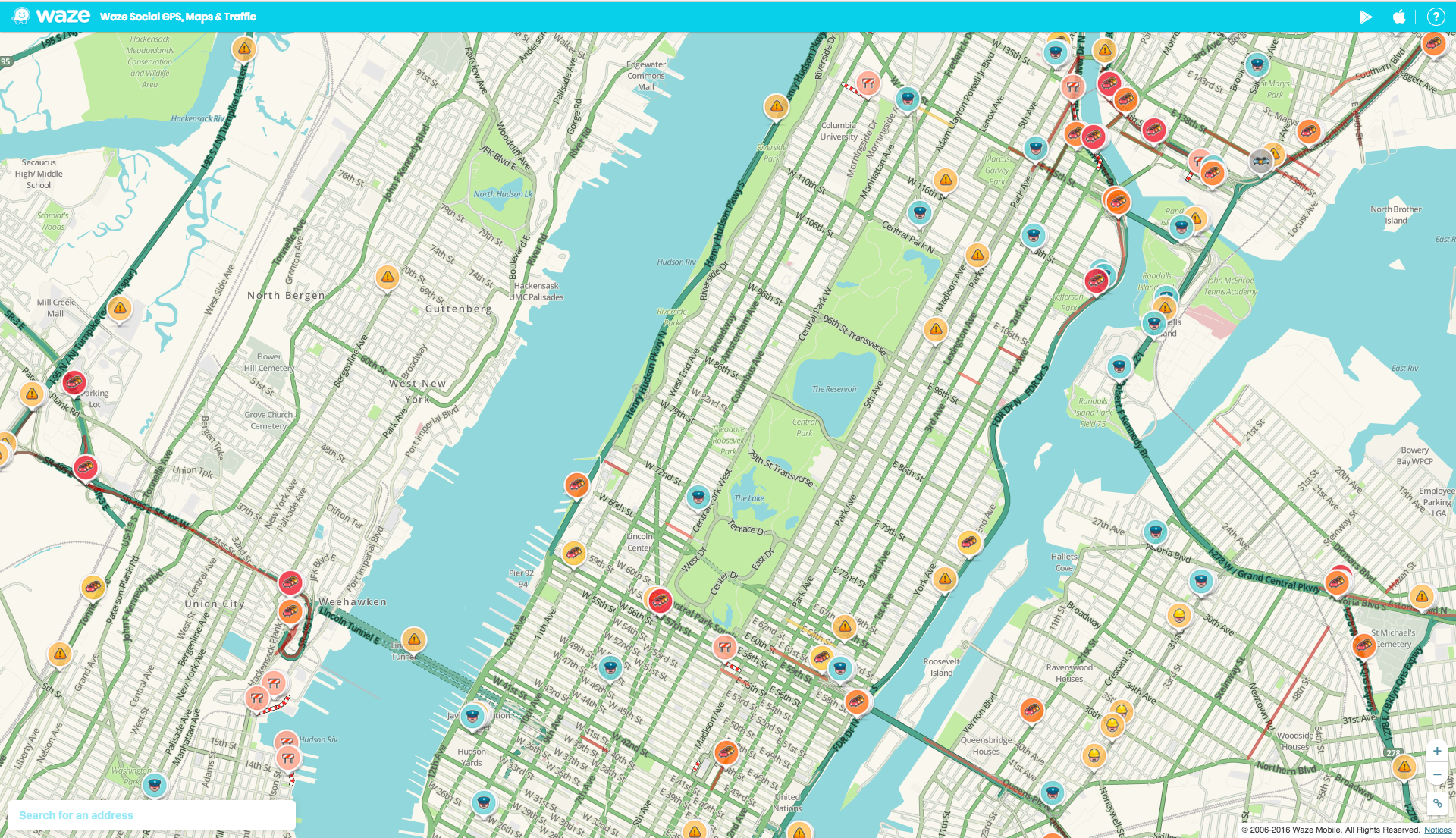
By default, the Live Map includes a link to this map's search and routing options in the
lower-left corner.
For examples of additional Live Map configuration options, see
[Examples](https://developers.google.com/waze/iframe#examples).
**To embed an iFrame with Waze Live Map:**
1. Open your web page in a text editor.
2. To generate an iFrame on your web page, add your iFrame code to your web page.
3. Open the [Waze Live Map](https://www.waze.com/livemap), search for your location either in the search bar or by zooming in and clicking on a specific segment of the map.
4. Click the share icon  in the bottom right corner of the map.
5. A pop-up should appear with a customized embed code. Copy and paste the code into the body of
your web page.
> [!NOTE]
> **Note:** The zoom level of your view on the Live Map is reflected in the embed code. You can modify the zoom level with the zoom parameter. For more information, see [URL parameters](https://developers.google.com/waze/iframe#params).
### Example
The following example shows how to embed the Live Map into your website. Update the URL
parameters for your use case.
```
```
To embed the iFrame into a responsive website, we recommend that you use common CSS techniques to
set the iFrame size automatically, based on the screen size.
## URL parameters
The following table describes the parameters of the Waze iFrame:
| Parameter | Required? | Description |
|---|---|---|
| `desc` | Optional | Set this parameter to any value to display a descriptive text block in the Live Map. Broadcasters use this text to provide up-to-date information for Wazers, with no need for manual updates to their stations' websites. All text is created by Waze ensuring the content is correct. |
| `lat` | **Required** | The latitude of the map's center point. |
| `lon` | **Required** | The longitude of the map's center point. |
| `pin` | Optional | Set to 1 to place a pin to the center of the map. For example:
``` ```
|
| `zoom` | **Required** | The level of magnification of the map when it is opened. The minimum value is 3 (least magnification). The maximum value is 17 (most magnification). |
## Localization
The default language code is English. For more information, see [Localizing
the iFrame](https://developers.google.com/waze/iframe/localization).
The following example shows how to change the display language:
```
```
## Guidelines
To embed the Waze Live Map on your site, you must adhere to the following guidelines:
- Do not associate Waze with use of a non-Waze map in any way.
- Do not use Waze-branded materials (logo, icons, etc) with non-Waze maps.
## Examples
The following examples show using combinations of the parameters to add different visual elements
to the Live Map:
### Example 1
The following iframe implementation shows the map pin.
Manhattan, New York (With pin):
The iframe uses the following code:
```
```
### Example 2
The following iframe implementation shows the map pin and includes the descriptive text.
San Paulo (with pin and description):
The iframe uses the following code:
```
```
### Example 3
The following iframe implementation shows the map pin.
Paris, France (with pin):
The iframe uses the following code:
```
```
## Contact the Waze Developers' Community
For more information, join the conversation in the [Waze Developers' Community forum](https://www.waze.com/discuss/c/editors/waze-developers-community/4928).