As a developer or merchant, integrating Google Wallet with your flight reservation systems can significantly enhance the customer experience by verifying that all boarding information is accessible.
## Background
Integrating Google Wallet with your flight reservation systems can significantly
enhance the customer experience by verifying that all boarding information is
accessible. Google Wallet's integration with Gmail allows for the automatic
creation of digital passes for users who receive eligible email messages.
Key to achieving this seamless integration is through two ways: (1) including
relevant information in the email body or (2) through the use of structured
markup in the emails you send to customers, particularly focusing on the
ticketToken field
This documentation provides the necessary information that is needed to be
included in your next email / CRM campaign to your users in order to
auto-generate boarding passes on Wallet.
## Import boarding pass information from boarding pass emails to improve your Google Wallet integration
Our Gmail Imported Pass feature serves as a lightweight mechanism to digitize
users boarding passes on to Google Wallet. Information is automatically
extracted from the email content, minimizing user friction and increasing
adoption rates.
This solution is designed to work complementary to the existing Google Wallet
API product. Gmail imported passes provide the most basic information for users:
| Gmail Imported Pass | Google Wallet API Integration |
|---|---|
| - User Information: - Passenger Name - Frequent Flyer Number - Flight Information: - Departure Airport - Departure Time - Flight No. - Seat No. - Boarding Gate - Arrival Time - Arrival Airport | - All User information in Gmail Imported Pass - Most uptodate changes reflected push notifications - Auto-Linked Passes - Passes Value Added Opportunities - And More |
Our goal is for us to increase and complement the adoption of your airline's
digital pass and equip users who have not clicked the "Add to Google Wallet"
button an automated boarding pass generated from the emails you send to them.
## Option 1: Email Body
Including relevant information in the email body can make the email
automatically detected and extracted.
**Required Fields (in plain text)**
To enable automatic detection, include the following fields clearly in the email
body or attachments:
1. **Passenger Information** :
- Passenger Name (for example, "JOHN DOE")
2. **Flight Information**
- Booking Reference or Ticket Number
- Departure Airport (for example, IATA Code for example Los Angeles as "LAX")
- Departure Date and Time
- Arrival Airport (for example, IATA Code for example Los Angeles as "LAX")
- Arrival Date and Time
- Flight No.
- Seat No.
- Boarding Gate
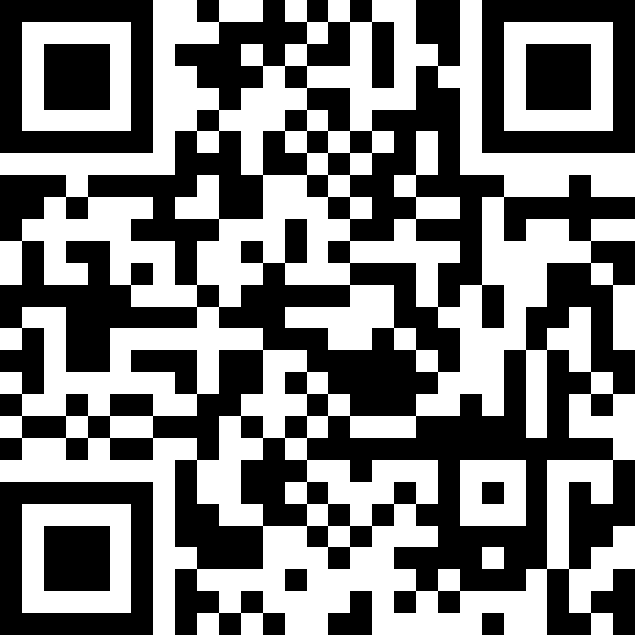
3. **Boarding Pass QR Code:** An inline image or image attachment for the boarding pass QR code itself. The preferred QR code type is QR_CODE or PDF417. And the preferred image mime type is PNG and JPG.
**Optional Fields**
You can also generate loyalty cards from Boarding Pass information to enhance
the user experience. To enable automatic detection, include the following fields
clearly in the email body:
1. Merchant name (for example, "ABC Airline")
2. Frequent Flyer ID (for example, "1234567890")
3. Frequent Flyer or Airline Loyalty Program name (for example, "Mileage Plus Rewards")
You can see more details in the Loyalty instruction page (link to loyalty
webpage).
**Here is an example email (e.g. Boarding Pass Email)**
**Subject:** Your Boarding Pass for Flight GG123 (Booking Reference: P8F8R8)
**Body:**
Dear Passenger,
Your Boarding Pass has been successfully generated!
**FLIGHT SUMMARY**
From
Departure Airport Code
Departure Time: 23:00 Jul 9, 2025
To
Arrival Airport Code
Arrival Time: 05:00 Jul 10, 2025
Flight
GG123
Seat
1A
Booking Reference
P8F8R8
Ticket Number
987654321
Boarding Pass QR
Reminders:
- Carry a printed or digital copy of your boarding pass to the airport.
- Get your photo identification proof checked both at the airport security and boarding gate respectively.
- Baggage drop. In case you have check-in baggage, please proceed to the Baggage Drop counters or else proceed straight to the gates. We recommend you arrive at least 2 hours prior to the scheduled departure of your flight. Our check-in counters close 60 minutes before departure.
- Boarding gates close 25 minutes before departure.
Here's wishing you a happy and safe flying experience!
Regards,
Team Fake Air
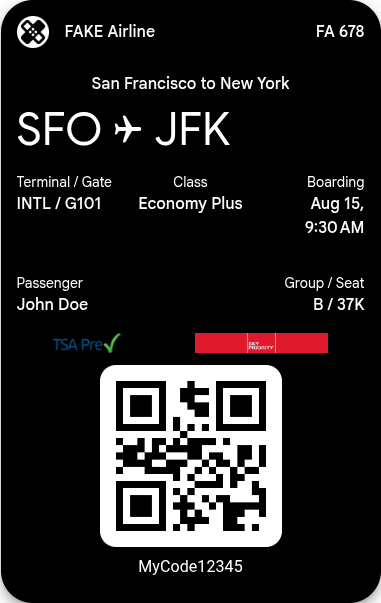
**Here is the related boarding pass in Google Wallet**
### Onboard to Google Wallet
1. Craft Your Email Campaign: Design and send your email campaigns to your user
base, verifying that all necessary information for pass generation mentioned in
the [Required Fields](https://developers.google.com/wallet/tickets/boarding-passes/use-cases/import-from-gmail.md.txt#option-1-email-body) Section is clearly present within
the email body.
2. Forward an actual sample email to our dedicated
[parser-sample+wallet_partner_boardingpass@google.com](mailto:parser-sample+wallet_partner_boardingpass@google.com)
- For any updates to the email templates, forward to the same address [parser-sample+wallet_partner_boardingpass@google.com](mailto:parser-sample+wallet_partner_boardingpass@google.com) so we can make sure Gmail detects the latest templates
- Make sure that the original sender is the actual sender of the email from your campaigns
3. Upon receipt of your sample email template, our team will review and
configure the parsing logic. You can expect the feature to be successfully
rolled out for your submitted email template within five (5) working days.
*Note:* We may reach out to you using the email you sent. Make sure that the
email you use to forward the sample with us can receive incoming messages.
## Option 2: Gmail Microdata
A key to achieving this seamless integration is through the use of structured
markup in the emails you send to customers, particularly focusing on the
`ticketToken` field.
### Why Embed Markup?
Embedding markup into your flight confirmation emails allows the reservation
details to be automatically recognized and imported into the customer's Google
Wallet (if the feature is enabled). This process, facilitated by structured data
in the [Schema.org](https://developers.google.com/wallet/tickets/boarding-passes/use-cases/schema.org) format, enhances the functionality of Google
Wallet by automatically adding relevant flight information.
#### Key Field: `ticketToken`
The `ticketToken` field is crucial as it typically contains a secure code type
and raw value that can be rendered directly as a scannable code. This field
ensures that all the necessary boarding information is instantly available in
the customer's Google Wallet. In addition, the raw value must conform with
[BCBP](https://www.iata.org/contentassets/1dccc9ed041b4f3bbdcf8ee8682e75c4/2021_03_02-bcbp-implementation-guide-version-7-.pdf)
(Bar Coded Boarding Pass). You can use a [decoder](https://jia.je/decode-bcbp/)
to decode the token value. The merchant needs to ensure the value in json is
consistent with the decoded value.
Here are some supported code types:
- barcode128
- pdf417
- qrCode
- aztecCode
And here are some examples of valid `ticketTokens`:
barcode128:M1HANFENG/ZHU EMWLPJ SFOAUSGG 123 350J25A 614a 10A1973966772
pdf417:M1HANFENG/ZHU EMWLPJ SFOAUSGG 123 350J25A 614a 10A1973966772
qrCode:M1HANFENG/ZHU EMWLPJ SFOAUSGG 123 350J25A 614a 10A1973966772
aztecCode:M1HANFENG/ZHU EMWLPJ SFOAUSGG 123 350J25A 614a 10A1973966772
Here's how you can structure your email markup:
```javascript
```