# Provision a new card
To provision a new Hotel Key, the user must complete an authentication
and association flow on their device. This links their external
user account to a Google Wallet account.
This document describes that process at a high level across different surfaces.
## Add to Google Wallet from an Android app
In this section, we describe the flow to save a card to
Google Wallet from a Service Provider's Android app.
### User flow
These figures illustrate the user flow to provision a Hotel Key from a
Google Wallet perspective.
> [!NOTE]
> **Note:** Before this flow begins, the user must authenticate within the Service Provider's app. Next, they must select the [Add to Google Wallet](https://developers.google.com/wallet/access/hotel-key/get-started/brand-guidelines#add-to-google-wallet-button) button. If the user doesn't have a Google Account, they complete a flow to create one and then continue the flow to provision their card.
 **Figure 1**: A user begins to provision their card and accepts the Terms of Service.
- A spinning connection animation is shown to the user while network connectivity and initial services configure.
- After this completes, the user accepts the Terms of Service and continues with the flow.
 **Figure 2**: User provisioning completes.
- A spinning save animation is shown to the user while background services provision the account on the device.
- After the services complete, a success screen appears.
- The user might be prompted in subsequent screens to download the Google Wallet app, if it doesn't already exist on their device.
### Key points
- If the card is already saved to the selected Google Account, the user is instead shown a link to open the card in the Google Wallet app, where they can view card details.
- If the card is saved to a Google Account other than the one the user is logged into, the user receives a message that indicates another Google Account has already saved that card.
- If the user attempts to add a card and doesn't have a Google Account, a prompt to create an account appears. After creation of the Google Account, the flow continues normally.
- Apps that support Hotel Key flows need to integrate with Google Play services APIs. However, the method calls from the Service Provider app to Google Play services aren't available in the publicly distributed version of [Google Play services](https://developers.google.com/android/guides/overview). The Service Provider app developer must add and get access to custom modules to call certain methods. Check with your Service Provider for more information.
## Add to Google Wallet on a Wearable from an Android app
Users can provision to their Wearables by initiating the provisioning flow on
their phone and selecting a single Wearable, as seen in this figure:
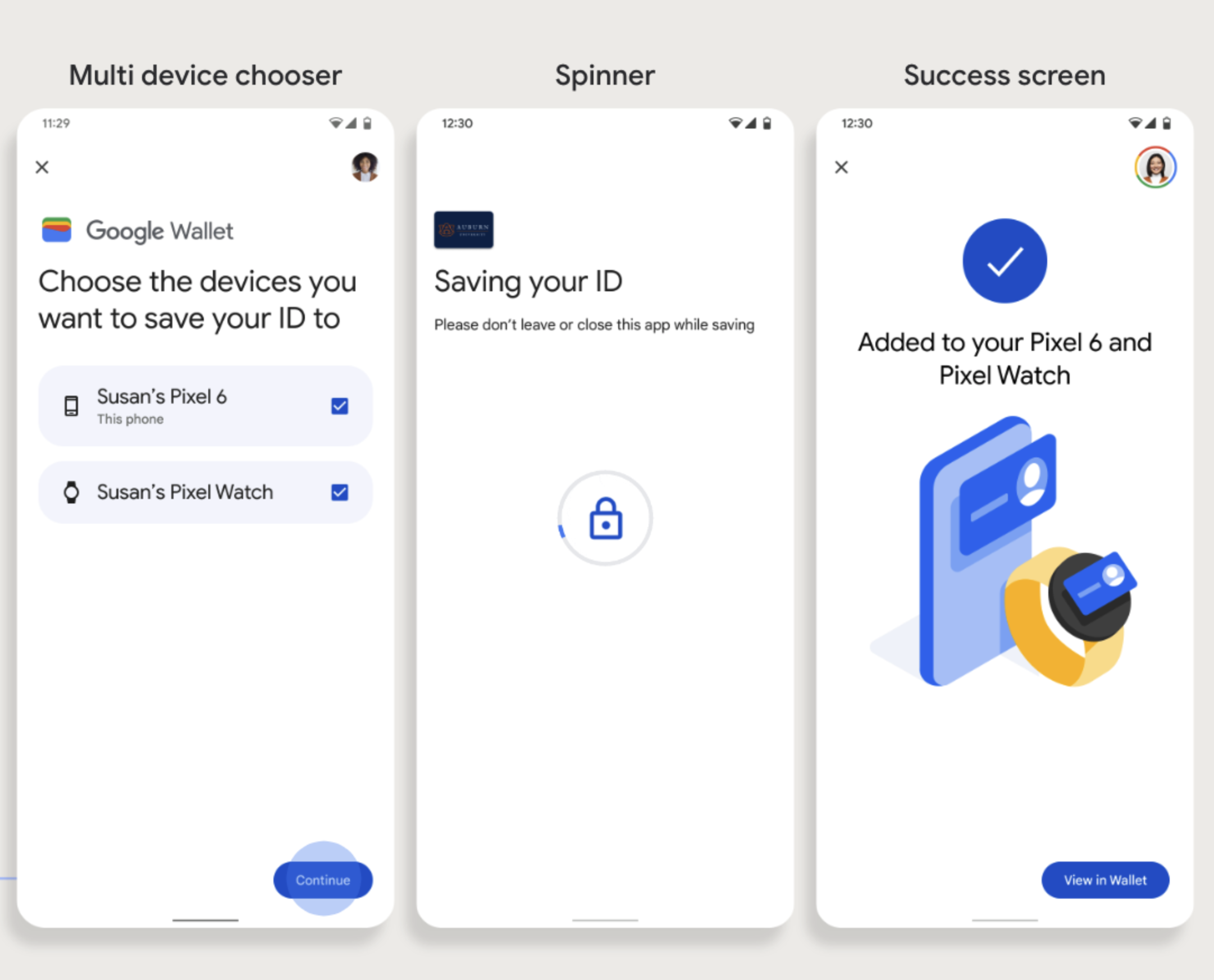 **Figure 1**: Wearable provisioning flow.
### Key points
- Provisioning to a Wearable requires a phone capable of provisioning a card; therefore, both need to be paired.
- Users can provision to their phone and Wearable in a single flow, or they can restart the flow to add it to a Wearable after the first provisioning to their phone is complete.
- Users should be limited by the Service Provider to provisioning only a single Wearable.
- If a Wearable is unpaired from the phone, the digital card remains on the device, but the user won't be able to provision a card to a 2nd Wearable without deleting the 1st.
- Inquire with your Service Provider about the availability of Wearable provisioning.
- Apps that support Hotel Key flows need to integrate with Google Play services APIs. However, the method calls from the Service Provider app to Google Play services aren't available in the publicly distributed version of [Google Play services](https://developers.google.com/android/guides/overview). The Service Provider app developer must add and get access to custom modules to call certain methods. Check with your Service Provider for more information.
## Add to Google Wallet from a Website
This section describes the flow to save a card to Google Wallet from
an issuer's website.
### Step 1: Sign in to Website
The first step in the flow is to sign in to the issuer's website and select
the Add to Google Wallet button.
 **Figure 3**: A user logs into a website and navigates to the Add to Google Wallet button.
> [!IMPORTANT]
> **Important:** Google requires that your website authenticates users before you show the Add to Google Wallet button. Sending the user an email with a "secret" link is not sufficient authentication.
### Step 2: Sign in with Google
The user completes Sign in with Google and then sees a loading screen
on the issuer's website before being redirected to Google Wallet in the next
step.
 **Figure 3**: A user chooses a Google Account to link to their Hotel Key.
> [!NOTE]
> **Note:** You can download this [loading gif](https://developers.google.com/static/wallet/access/images/web-provisioning-loading.gif) for use on your website's loading page if you would like to match the Google Wallet loading screen.
### Step 3: Complete Provisioning
The user completes the provisioning flow within Google Wallet.
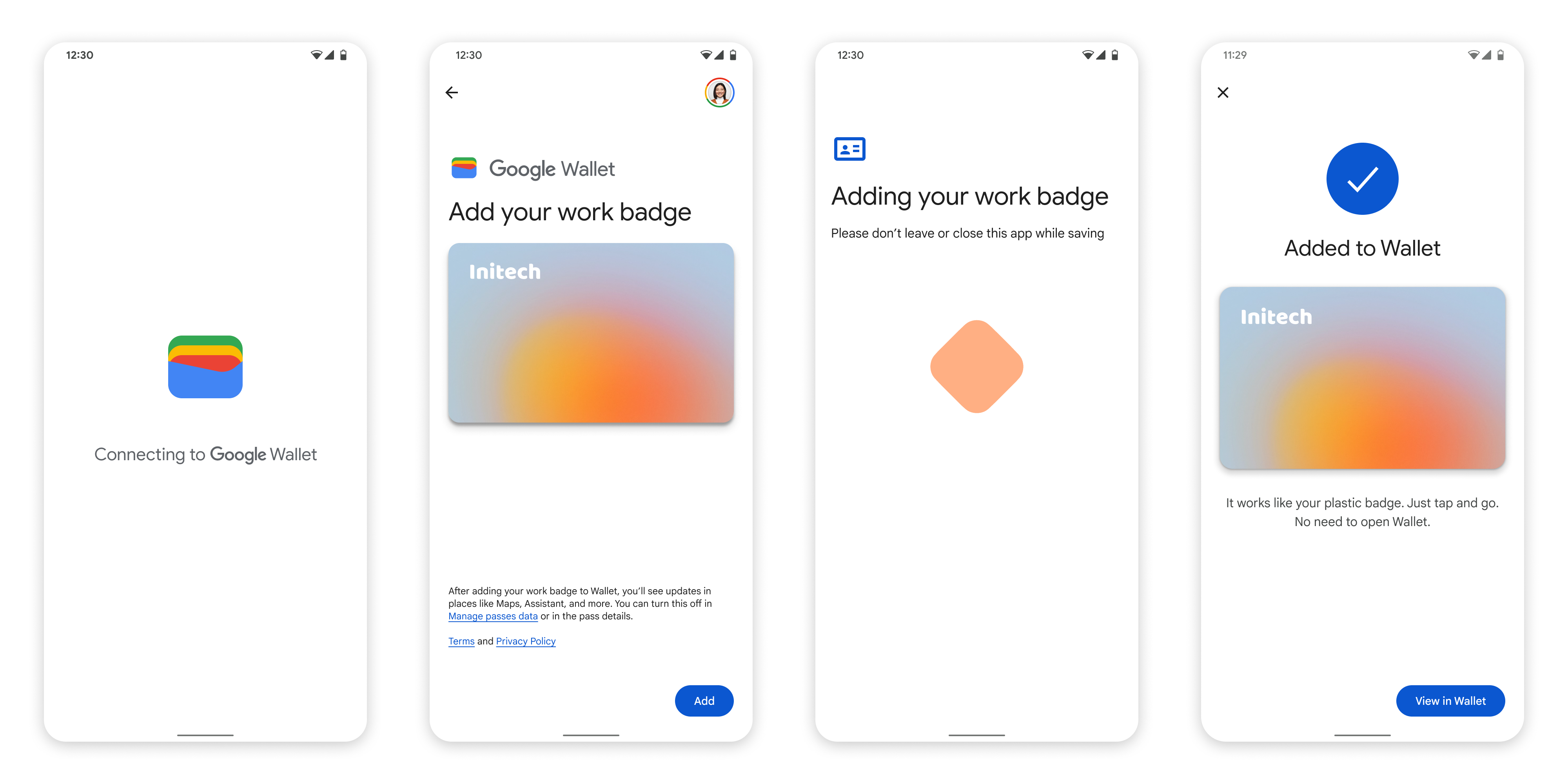 **Figure 3**: A user continues with provisioning, accepts terms of service, and completes the flow.
## Add to Google Wallet from an app in work profile
If a user has the Service Provider's app installed in their Android Work
Profile, they can still add the Hotel Key to Google Wallet,
which runs in their personal profile. When the user taps the
[Add to Google Wallet](https://developers.google.com/wallet/access/hotel-key/get-started/brand-guidelines#add-to-google-wallet-button)
button from an app in a work profile, Google Wallet lands the user to the
Google Wallet app in personal profile where user can continue to add their card.
The rest of the card management is consistent with how card management is done
when card is directly saved from personal profile.