# BigQuery efficiency tips for Search Console bulk data exports
Monday, June 5, 2023
Search Console [bulk data export](https://developers.google.com/search/blog/2023/02/bulk-data-export) is a powerful way
to get your website's search performance data into BigQuery to increase storage, analysis, and reporting
capabilities. For example, after exporting the data, you can perform query and URL clustering, run
analyses on long-tail search queries, and join search with other sources of data. You can also choose
to retain the data for as long as you need it.
When using Bulk data exports, it's important to make informed decisions when managing the data processing
and storage costs. There are no costs associated with Search Console to export the data; however, do read
the [BigQuery pricing](https://cloud.google.com/bigquery/pricing) to
understand what you will be billed for. **In this post, we'll discuss tips to help you take advantage
of the new data without incurring significant cost.**
If you haven't set up a bulk data export yet, check the [step-by-step guide](https://support.google.com/webmasters/answer/12917675)
in the Search Console help center. For an overview of the data available through the export, check the
video embedded here.
[Video](https://www.youtube.com/watch?v=d8BBbZ75qpA)
## Create billing alerts and restrictions
When considering your costs, it might help to think through how much you'd be willing to spend. The answer
to that question is likely to be different between storage, analysis, and monitoring. For example, you
might be willing to pay a certain amount to make sure you're storing all your data, but less to create
a reporting platform. While thinking through that, you might want to set a monthly budget to invest in
Search data.
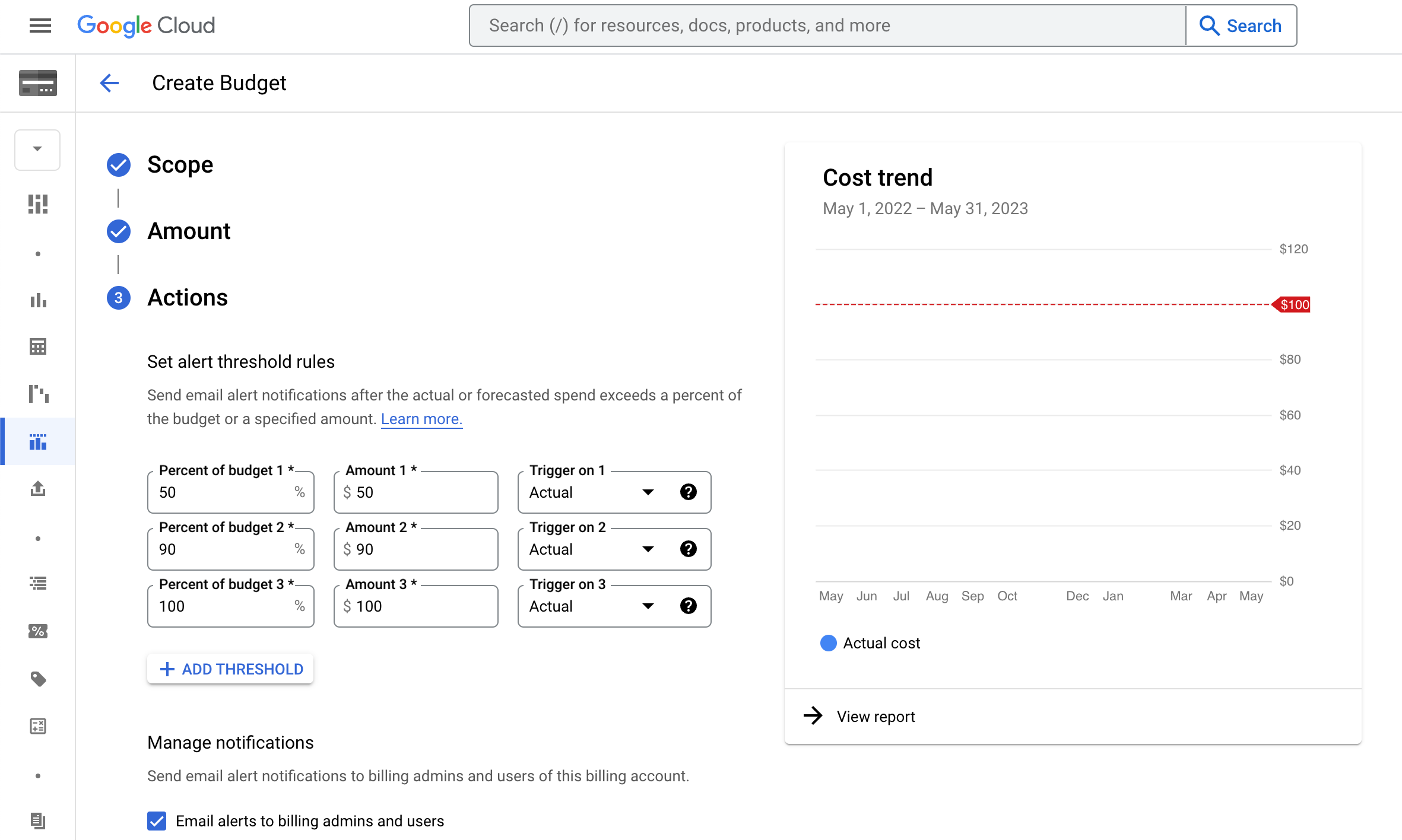
Once you have a budget amount in mind, you can create a [Google Cloud budget alert](https://cloud.google.com/billing/docs/how-to/budgets)
to avoid surprises on your bill. You can also set threshold rules that trigger email notifications when
you're advancing towards your budget amount.
For added protection, you can also [restrict the number of bytes billed](https://cloud.google.com/bigquery/docs/best-practices-costs#limit_query_costs_by_restricting_the_number_of_bytes_billed)
for a query. If you do that, the number of bytes that the query will read is estimated before the query
execution. If the number of estimated bytes is beyond the limit, then the query fails without incurring
a charge.
## Don't build dashboards directly on raw data
BigQuery is fast, and it is tempting to link your dashboard directly to the Search Console exported tables.
But for large sites, this dataset is very large (especially with over-time queries). If you build a
dashboard that recomputes summary information on every view and share that within your company, this
will quickly run up large query costs.
To avoid these costs, consider pre-aggregating the data from every daily drop and materializing one or
more summary tables. Your dashboard can then query a much smaller time series table, decreasing processing
costs.
Check the [scheduling queries](https://cloud.google.com/bigquery/docs/scheduling-queries)
functionality in BigQuery, or consider [BI Engine](https://cloud.google.com/bigquery/docs/bi-engine-intro)
if you'd like a more automated solution.
## Optimize data storage costs
When you start a bulk data export, by default, data is kept forever in your BigQuery dataset. However,
you can [update the default partition expiration times](https://cloud.google.com/bigquery/docs/updating-datasets#partition-expiration)
so that date partitions are automatically deleted after a year, or 16 months, or any duration you desire.
> [!WARNING]
> Do not set an expiration time on the table, that will delete the entire table at the specified date!
The data exported can be valuable to you, but it can be very large. Use your business knowledge and consider
retaining it long enough for deep analyses, but not too long that it becomes a burden. One option is to
keep a sampled version of older tables while keeping the entire table of more recent dates.
## Optimize your SQL queries
While querying your Search Console data, you should make sure your queries are optimized for performance. If you're
new to BigQuery, check the [guidelines and sample queries](https://support.google.com/webmasters/answer/12917174)
in the help center. There are three techniques you should try.
### 1. Limit the input scan
First of all, [avoid using `SELECT *`](https://cloud.google.com/bigquery/docs/best-practices-costs#avoid_select_),
this is the most expensive way to query the data, BigQuery does a full scan of every column in the table.
Applying a `LIMIT` clause does **not** affect the amount of data read.
Since the tables exported are date-partitioned, you can limit the input scan to only days of interest, especially
when you're testing and playing with the data. Use a `WHERE` clause to limit the date range
in the date partitioned table, this will bring significant savings in query cost. For example, you can
look only at the last 14 days using the following clause:
```
WHERE data_date between DATE_SUB(CURRENT_DATE(), INTERVAL 14 day)
```
For every query you make you want to introduce any known filters as soon as possible to reduce the input scan.
For example, if you are analyzing queries, you probably want to filter out
[anonymized queries](https://developers.google.com/search/blog/2022/10/performance-data-deep-dive#privacy-filtering) rows.
An anonymized query is reported as a zero-length string in the table. To do so, you can add the following:
```
WHERE query != ''
```
### 2. Sample the data
BigQuery provides a [table sampling](https://cloud.google.com/bigquery/docs/table-sampling)
capability, which lets you query random subsets of data from large BigQuery tables. Sampling returns a variety
of records while avoiding the costs associated with scanning and processing an entire table, and is
especially useful while developing queries, or when exact results are not needed.
### 3. Use approximate functions where exact results are not required
BigQuery supports a number of [approximate aggregation functions](https://cloud.google.com/bigquery/docs/reference/standard-sql/approximate_aggregate_functions)
which provide estimated results and are much cheaper to compute than their exact counterparts. For example,
if you are looking for the top URLs by impressions over some condition, you could use
```
SELECT APPROX_TOP_SUM(url, impressions, 10) WHERE datadate=...;
```
Instead of
```
SELECT url, SUM(impressions) WHERE datadate=... GROUP BY url ORDER BY 2 DESC LIMIT 10;
```
## Resources
These are just a few tips you can use to start managing your costs, to learn more check the
[cost optimization best practices for BigQuery](https://cloud.google.com/blog/products/data-analytics/cost-optimization-best-practices-for-bigquery).
And as always, if you have any questions or concerns, please reach out to us via the
[Google Search Central Community](https://support.google.com/webmasters/threads?thread_filter=(category:search_console))
or on [Twitter](https://twitter.com/googlesearchc).
Posted by [Daniel Waisberg](https://www.danielwaisberg.com), Search Advocate, and Gaal Yahas, Software Engineer.