One option for generating OAuth2 credentials is to use the **OAuth2
Playground**. The OAuth2 Playground, in conjunction with the Google Ads API console,
lets you manually create OAuth2 tokens.
The OAuth2 Playground is for users who only need to access the accounts for a
*single* manager account or Google Ads user. If you need to prompt multiple
users for credentials, it is likely better to configure a [client library](https://developers.google.com/search-ads/reporting/client-libraries/client-libraries) for
OAuth in Search Ads 360.
## Get a client ID and client secret
> [!WARNING]
> **Warning:** To use the **OAuth2 Playground** , you need to generate a **client
> ID** for a [web application](https://developers.google.com/identity/protocols/OAuth2WebServer). This is the *only* type of application that works with the OAuth2 Playground. Refer to [Choose an application
> type](https://developers.google.com/google-ads/api/docs/oauth/cloud-project#choose_an_application_type) for more information.
If you do not have an existing cloud project:
1. Open the [Google API Console
Credentials page](https://console.cloud.google.com/apis/credentials).
2. From the project drop-down, select an existing project or create a new one.
3. On the Credentials page, select **Create credentials** , then select
**OAuth client ID**.
4. Under **Application type** , choose **Web application**.
5. Under **Authorized redirect URIs** , add a line with:
`https://developers.google.com/oauthplayground`
6. Click **Create**.
7. On the Client ID page, take note of the **client ID** and **client secret**.
You'll need these in the next step.
If you have an existing cloud project, you can reuse it by setting the
Authorized redirect URIs as above.
## Generate tokens
> [!WARNING]
> **Warning:** The Search Ads 360 user you're signed in as in your browser determines which accounts you'll be able to access with the OAuth2 credentials you generate. Therefore, you may want to do these steps in an incognito window or when you're not signed in to your Search Ads 360 account, since it's likely that the user whose credentials you want to use isn't the same user you were signed in as when you got the client ID and secret.
1. Go to the [OAuth2
Playground](https://developers.google.com/oauthplayground/#step1&scopes=https%3A//www.googleapis.com/auth/doubleclicksearch&url=https%3A//&content_type=application/json&http_method=GET&useDefaultOauthCred=checked&oauthEndpointSelect=Google&oauthAuthEndpointValue=https%3A//accounts.google.com/o/oauth2/v2/auth&oauthTokenEndpointValue=https%3A//oauth2.googleapis.com/token&includeCredentials=unchecked&accessTokenType=bearer&autoRefreshToken=unchecked&accessType=offline&forceAprovalPrompt=checked&response_type=code),
(using this link should pre-populate some key values for you).
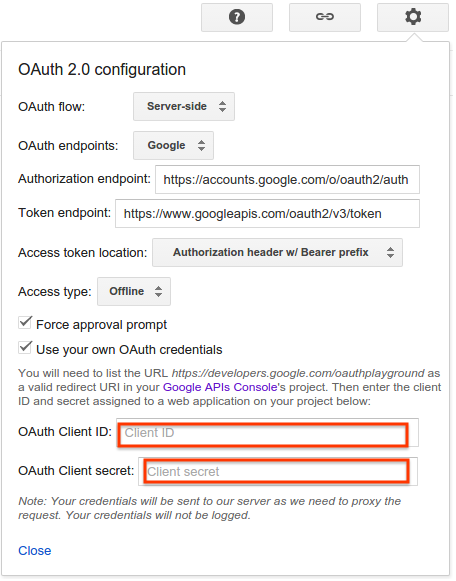
2. Click the gear icon 
in the upper right corner and check the box labeled **Use your own OAuth
credentials** (if it isn't already checked).
3. Make sure that:
- **OAuth flow** is set to **Server-side**.
- **Access type** is set to **Offline** (this ensures you get a refresh token *and* an access token, instead of just an access token).
4. Enter the **OAuth2 client ID** and **OAuth2 client secret** you obtained above.
5. In the section labeled **Step 1 - Select \& authorize APIs** , click **Search Ads 360 Reporting API** from the list and select its scope,
`https://www.googleapis.com/auth/doubleclicksearch`. Then click **Authorize APIs**:

6. If prompted, sign in to the account to which you want to grant access and
authorization. Otherwise, confirm that the current user in the top
right corner is the client or manager account for whom you want to obtain
credentials.
If you got your client ID and secret only a few minutes ago, and you get an error such as **Error: redirect_uri_mismatch** , the changes you made may not have propagated. Click the back button in your browser, wait a few minutes, then try clicking **Authorize APIs** again.
> [!WARNING]
> If you get an error that you have not been granted access by the developer and the app is currently being tested, you will need to visit the OAuth consent screen page within your GCP project and do one of the following:
>
>
>
> - Publish the app.
>
> - Keep the app in the Testing status, and add yourself as a test user.
>
7. A prompt appears indicating your app would like to
**Manage your Search Ads 360 campaigns** . Click **Accept** to continue.
8. In the tab labeled **Step 2 - Exchange authorization code for tokens** ,
an **Authorization code** should appear. Click
**Exchange authorization code for tokens**.

9. If all goes well, the **Refresh token** and **Access token** should be
filled in for you (you may have to re-expand
**Step 2 - Exchange authorization code for tokens**):

10. Copy the **Refresh token** into the configuration file for your client
library of choice, along with the **client ID** and **client secret**.
11. [Configure a client library for OAuth in the Search Ads 360 Reporting API](https://developers.google.com/search-ads/reporting/client-libraries/client-libraries).
## Remove the OAuth2 Playground from your client ID
Now that you have a **refresh token**, you no longer need the OAuth2 Playground
to be an authorized redirect URI. To remove it from the list of authorized
redirect URIs:
1. Go to the [Google API Console Credentials page](https://console.cloud.google.com/apis/credentials).
2. From the project drop-down, select your project.
3. On the Credentials page, click the **client ID name** to edit.
4. Remove `https://developers.google.com/oauthplayground` from the **Authorized
redirect URIs** . Note that you must leave at least *one* redirect URI in
place.
5. Click **Save**.