When you work with your TSP to enable Google Pay support, you must ensure
certain settings comply with Google Pay's requirements. These include:
- [Terms of Service](https://developers.google.com/pay/issuers/tsp-integration/tsp-config#terms_of_service_guidelines)
- [Card metadata](https://developers.google.com/pay/issuers/tsp-integration/tsp-config#card_art_and_metadata_guidelines) including [card
art](https://developers.google.com/pay/issuers/tsp-integration/tsp-config#card_art_guidelines)
If you need to change which TSP receives provisioning requests for your BINs or
need to remove certain fields (e.g. the expiry or CVV fields), you might need
Google to customize your [BIN settings](https://developers.google.com/pay/issuers/tsp-integration/tsp-config#bin_configuration) so we properly
handle cards in your BIN ranges.
## Terms of Service guidelines
During the tokenization flow, users must accept the issuer's terms of service
(ToS) provided through the TSP. For security reasons, issuers must comply with
the following requirements in their terms of service to ensure they are
presented properly. Google removes prohibited content from a non-compliant ToS
before presenting it to the user. Google reserves the right to update its review
process if we identify any new risks.
The ToS may be formatted using one of the following two options:
- Plain text (UTF-8 encoded)
- HTML (using a limited subset of tags)
> [!NOTE]
> **Note:** The size of the ToS should be kept to a minimum and must not exceed an uncompressed size of 100kB.
### Plain text option
Using plain text is the simplest approach to delivering a compliant ToS because
there is no risk of including non-compliant tags or hyperlinks. Content must be
UTF-8 encoded.
If you're using plain text, use the provided template:
Section Header
Text for this section...
Section Header
Text for this section...
* Bullet 1
* Bullet 2
* Bullet 3
Section Header
Text for this section...
### HTML Option
Using HTML provides more control over formatting while remaining compliant with
our ToS guidelines, but we only allow certain HTML tags. Any non-compliant tags
are stripped from what is presented to the user.
The ToS must be a well-formed HTML v4 or v5 document, with proper document structure and balanced tags. The only
tags allowed are:
- Document structure: `html`, `head`, `title`, `body`
- Headers: `h1`, `h2`, ..., `h6`
- List elements: `li`, `ul`, `ol`
- Tables: `table`, `tr`, `td`, `th`
- Paragraph and line breaks: `p`, `br`
- Text formatting: `b`, `i`, `u`, `strong`, `em`
Don't use any of the following commonly used tags:
- Images: `img` tags
- Javascript:
- `script` tags
- `link` tags to javascript files
- CSS in any form: `style`, `link`, `style` tag attributes
- Links: `a`
- Tracking tags and pixels
- Any of the following: `applet`, `base`, `embed`, `form`, `iframe`, `link`, `math`, `meta`, `object`, `script`, `style`, `svg`, `template`
Additional requirements:
- Don't explicitly set font sizes. Use heading tags instead.
- Don't set colors.
If you are using HTML, use the following provided template:
Section Header
Text for this section...
Section Header
Text for this section...
- Bullet 1
- Bullet 2
- Bullet 3
Section Header
Text for this section with emphasis...
## Card art and metadata guidelines
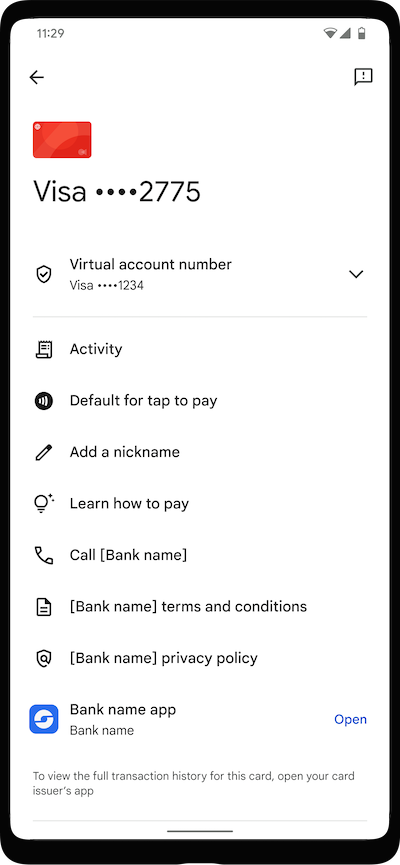
Card issuing banks submit the following card information according to your
network's established process:
- Card issuing bank name
- Card art
- Link to Terms of Service document (recommended)
- Link to Privacy Policy document (recommended)
- Card issuing bank contact phone number. International phone numbers are supported (e.g. +1-222-333-4444)
- Information about the card issuing bank mobile app for Android (package name)
### Card art guidelines
Your card art is rendered on devices in card list screens, the card details
screen within the app, and on tap confirmation at point-of-sale terminals. At
the moment, we only support horizontal card art layouts. If you use a vertical
card layout, make sure to submit a card art design that is appropriate for
horizontal display.
Generally, we use the following information from the TSP to display card art:
- **Static content ID:** details required to download the card art image.
- **Overlay text color (required):** numeric (int or hex) RGB color used to render the last four digits over the card image, provides good contrast. We recommend you use white or black.
- **Card color (optional):** accent / background color on tap confirmation and card details screens, also initially used to render a generic card image on the device until the image file has been downloaded to the device. If not specified, a dominant color will be extracted from the downloaded card image and gray will be used for the initial generic art.
| Specs | Requirement | Display and use notes |
|---|---|---|
| Card art format | PDF (vector) or PNG-32 | PNGs rendered from submitted PDFs |
| Dimensions | PNG (1536 x 969) | Scaled to fit device screen |
| Orientation | Horizontal | |
| File size | \< 4 MB | |
| Corners | Rectangular | Corners rounded for display on device |
| Color mode | RGB | |
| Border, whitespace | None, image must extend to edges | |
| Private or more secure information (PII) | Don't include cardholder name, card number, expiration, CVV | |
| Logos | Include logos as needed | Only combined assets are supported. Google Pay does not superimpose or overlay logos on card art. |
### Common issues with metadata
- **URLs**: URLs should be valid, use HTTPS (not HTTP), and avoid references to other wallets in the URL or corresponding page content. It is okay if the URL points to a generic page that supports all wallets. URLs that reference another wallet but redirect to a generic page should be replaced with a generic URL.
- **Package name** : The package name of your mobile banking app. The package
name is used to display a link to your app on the card details view for a
token. Issuers should provide just their package name. A common error is
that issuers reference part or all of the URL for their app in the Play
Store. Though we attempt to catch these common errors when rendering the
link, the best practice is for the issuer to properly configure this setting
in the token configuration.
Example of a valid package name:
- `com.google.android.apps.walletnfcrel`
Examples of invalid package names:
- Don't send the full Play Store URL. Example:
'https://play.google.com/store/apps/details?id=com.google.android.apps.walletnfcrel\&hl=en'
- Don't include URL parameters after the package name. This is a common error when getting the package name from the Play Store link. Example: 'com.google.android.apps.walletnfcrel\&hl=en'
- Don't link to an iOS app. Example:
'https://apps.apple.com/us/app/google-pay/id575923525'
## Identity and verification (ID\&V)
When a cardholder attempts to add a card to Google Pay, Google performs a
[risk engine](https://developers.google.com/pay/issuers/tsp-integration/tsp-config#google_risk_engine) check on our end. Assuming the user passes
Google's check, they will proceed with tokenization. Google's risk engine check
is separate and distinct from the risk signals and provisioning data we provide
in each provisioning request. Each provisioning request will include information
about the user, device, and risk details. Issuers should use this information to
make a risk decision about the provisioning request. This risk decision results
in the cardholder's card being assigned one of three paths:
| Color path | Authentication status |
|---|---|
| Green | The card is successfully added to Google Pay |
| Yellow | More verification is required before the card is added to Google Pay. Some verification methods might be hidden due to suspicious activities if alternative ID\&V methods are available. |
| Red | The card addition to Google Pay is declined |
### Supported yellow path ID\&V methods
For attempts that go to the yellow path, Google Pay supports various forms
of ID\&V authentication. Issuers must support at least two yellow path ID\&V
options (ranked in order of issuer preference):
- [App-to-app verification](https://developers.google.com/pay/issuers/tsp-integration/app-to-app-idv) with the issuer's mobile app
- [App-to-web verification](https://developers.google.com/pay/issuers/tsp-integration/app-to-web-idv) with the issuer's website
- Web-based secure authentication (3-D Secure) hosted by your TSP
- The Web-based secure authentication method is only available for Visa and Mastercard customers at this time
- One-time passcode (OTP) sent to cardholder by any of the following delivery methods:
- Email
- SMS text message
- Bank statement
- Phone call from bank to cardholder
- Phone call from cardholder to bank
- Not recommended due to low success rates
### Masking guidelines for ID\&V options
- **SMS Phone masking:** We recommend masking all but the last 4 digits of the user's phone number for the best user experience. If at least the last 2 digits are visible and match the phone number reported by the device, we will offer to [autofill](https://developers.google.com/pay/issuers/tsp-integration/tsp-config#otp_guidelines) the SMS OTP for the user. Non-digit characters like `+` for country codes or separators like `-` and whitespace are allowed in the masked number. Use `X` or `*` to mask the digits.
- **Email address masking**: The email address should be valid and masked with the domain visible. An example of a valid email address would be a\*\*\*b@gmail.com or a\*\*\*\*\*\*\*\*\*\*\*b@gmail.com.
### OTP guidelines for SMS text messages
It's important for cardholders to have clear instructions when they use an OTP
to add your card to Google Pay. For best results, use the following
guidelines:
- **Visibility:** Make sure that cardholders are able to see OTPs in text messages without opening their messaging app.
- **Format:** Use the recommended format for text with an OTP: "Enter 123456 to verify your \[bank name\] card for Google Wallet."
- **Autofill:** Make sure the OTP is the first 6-digit numeric string in the text message. The cardholder doesn't have to enter the OTP into Google Pay. Google Pay captures the OTP and autofills the appropriate field in the app to validate the cardholder's identity. We recommended that you don't include any other 6-digit numeric strings in the text other than the OTP. If you must add other numeric strings, such as the last 4 digits of the card, add them after the OTP.
- **Maximum attempts:** Banks must support cardholders when they use their maximum number of attempts to use an OTP. We recommend solutions such as these when cardholders try to use OTP after their attempts are exhausted:
- Google Pay displays "Try again later" and an alternate ID\&V method instead of an OTP.
- Cardholder is prompted to call the bank to complete ID\&V.
### Risk scores and recommendations
> [!WARNING]
> You must be logged in to see this section.
If you have been granted access to this content, make sure you are signed in with your
authorized Google account. If you are a partner who needs access, use the button below for
instructions on how to request access.
[Sign in](https://accounts.google.com/AccountChooser?continue=https://developers.google.com/pay/issuers/tsp-integration/tsp-config) [Request access](https://developers.google.com/pay/issuers/request-access)
### Fraud reporting
It is a requirement for issuers to report fraud on tokens to maintain ecosystem
health and improve overall risk models. Issuers must report fraud by initiating
a Token Lifecycle Management action (Suspend or Delete) through their TSP's API,
utilizing the specific fraud reason codes designated by their network.
For example:
- **Mastercard (MDES):** Use the `SUSPECTED_FRAUD` reason code when calling
the Suspend or Delete API.
- **Visa (VTS):** Use the `FRAUD` reason code when calling the Suspend or
Delete API.
- **Canonical TSP integrations:** Send a token status change event indicating
suspension or deletion, providing a generalized reason code that
specifically designates fraud (such as `SUSPENDED_DUE_TO_FRAUD`).
### ID\&V best practices
Refer to the following links for recommended ID\&V best practices:
1. [Make the most of risk signals](https://developers.google.com/pay/issuers/tsp-integration/best-practices#1_make_the_most_of_risk_signals)
2. [Match ID\&V options to risk level](https://developers.google.com/pay/issuers/tsp-integration/best-practices#2_match_idv_options_to_risk_level)
3. [Use RCS for SMS OTP](https://developers.google.com/pay/issuers/tsp-integration/best-practices#3_use_rcs_for_sms_otp)
4. [Using SMS OTP to redirect the user through their banking app](https://developers.google.com/pay/issuers/tsp-integration/best-practices#4_using_sms_otp_to_redirect_the_user_through_their_banking_app)
5. [General messaging best practises for SMS OTP and Email OTP](https://developers.google.com/pay/issuers/tsp-integration/best-practices#5_general_messaging_best_practises_for_sms_otp_and_email_otp)
6. [Alternative ID\&V methods which enable issuers to achieve SCA compliance](https://developers.google.com/pay/issuers/tsp-integration/best-practices#6_alternative_idv_methods_which_enable_issuers_to_achieve_sca_compliance)
## Google risk engine
> [!WARNING]
> You must be logged in to see this section.
If you have been granted access to this content, make sure you are signed in with your
authorized Google account. If you are a partner who needs access, use the button below for
instructions on how to request access.
[Sign in](https://accounts.google.com/AccountChooser?continue=https://developers.google.com/pay/issuers/tsp-integration/tsp-config) [Request access](https://developers.google.com/pay/issuers/request-access)
## BIN configuration
> [!WARNING]
> You must be logged in to see this section.
If you have been granted access to this content, make sure you are signed in with your
authorized Google account. If you are a partner who needs access, use the button below for
instructions on how to request access.
[Sign in](https://accounts.google.com/AccountChooser?continue=https://developers.google.com/pay/issuers/tsp-integration/tsp-config) [Request access](https://developers.google.com/pay/issuers/request-access)