# Overview
## Enabling Google Pay device tokenization
To enable Google Pay device tokenization support for your cards, you need
to integrate with one or more supported Token Service Providers (TSP). It is
important to note that the issuer has an integration with a TSP and the TSP has
an integration with Google. While the end-to-end flow is critical for the user
experience, most of the work to enable Google Pay support should be
managed directly between the issuer and TSP.
Each TSP shares details about what API methods and fields you must support to
enable device tokenization. Within the TSP requirements, you will need to
follow some Google Pay [specific implementation details](https://developers.google.com/pay/issuers/tsp-integration/tsp-config) for
your integration to work properly end-to-end.
## Supported Token Service Providers (TSPs)
Google Wallet is available in [dozens of countries](https://support.google.com/wallet/answer/12060037#zippy=%2Cuse-google-wallet-for-payments)
globally, supported by multiple different TSPs:
- Alelo (Brazil)
- American Express
- Bancomat (Italy)
- Cartes Bancaires (France)
- Discover
- EFTPOS (Australia)
- Elo (Brazil)
- iD (Japan)
- Interac (Canada)
- Jaywan (UAE)
- JCB (Japan)
- Mada (Saudi Arabia)
- Mastercard
- Paypal (United States and Germany)
- QUICPay (Japan)
- Ticket (Brazil)
- Visa
> [!TIP]
> **Tip:** Prior to integrating with Google Pay, reach out to your TSP and ensure they support your specific use case. Not all TSPs support Google Pay in all available countries.
## Brand guidelines
Google's [Partner Marketing Hub](https://partnermarketinghub.withgoogle.com/brands/google-wallet/brand-introduction/) explains our general
branding guidelines and trademark usage guidelines to guide your co-marketing
campaigns. The Partner Marketing Hub also includes consumer messaging you can
use to describe Google Pay in your creative and promotional materials.
If you'd like to use Google Pay branding in any co-marketing materials,
you'll need to follow the brand approval process through the Partner Marketing
Hub before your campaign goes live. The approval process can require 3-5 days.
## Key concepts
Before you get started it is important to understand some key concepts about
how Google Pay stores cardholder information and how the Android OS, a
user's Google Account, and the payments ecosystem work as components of
Google Pay.
### Device tokenization
When a user successfully adds their card to Google Pay, Google Pay
stores a uniquely generated token on the device that has its own value. This
new number, called a dynamic primary account number (DPAN) or device token, is
similar to a credit card number.
A DPAN improves account security because Google Pay passes it to a
terminal during payment instead of the actual card number. In Google Pay,
DPAN is referred as a 'virtual account number'. Users can only see the last
four digits of this number, which are visible on the card details view in the
Google Wallet app.
### Relationship between devices, Android users, Google Accounts and wallets
Users can add a single card to more than one wallet. For example, a user with
multiple devices or multiple Google Accounts on the same device can add the
same card to each of their respective accounts and devices. Though each user
tokenizes a card using the same PAN, each wallet receives a unique DPAN.
> [!NOTE]
> **Note:** We don't recommend limiting the number of tokens that users can have for a given card. Such restrictions can lead to unexpected declines that result in a frustrating user experience and customer services calls.
#### Android user
Android devices support multiple users though, in practice, most devices have
only one Android user account. User data is stored separately on the device
and only one user can be active at a time. When a user unlocks their device,
they select an account. The account selected becomes the active user.
#### Google Account
An Android user can have multiple Google Accounts. For example, a user may have
two Google Accounts: a personal Gmail account (personal_email@gmail.com) and a
Google Workspace account through their company (company_email@example.com).
#### Wallet ID
In the context of Google Pay, the wallet ID refers to the container of
payments data and tokens on a device. Each Android user and Google Account
combination has a unique wallet ID with a 24-byte identifier that is sent
during provisioning.
A single Android device can have multiple wallet IDs. For example, a user may
have a personal wallet associated with personal_email@gmail.com and a work
wallet associated with company_email@example.com. Only one wallet can be active
at a time and payment taps use the active wallet.
## Google Pay components
On Android devices, Google Pay is divided into two distinct layers that
operate together:
- **Google Pay service:** Part of [Google Play Services](https://play.google.com/store/apps/details?id=com.google.android.gms) which is included on most Android devices.
- **Google Wallet app:** Presents a UI on top of the service.
The Google Wallet app and Google Play services are updated on different cycles
and are designed to work flexibly with each other across versions. Google Play
services is generally updated every 3-4 weeks and the Google Wallet app is
usually updated every 2 weeks. We rely on the solution approvals obtained from
TSPs and test that our releases comply with those approvals. We don't notify
issuers when updates are made to Google Play services or the Google Wallet app.
These updates generally add new features or are cosmetic changes. If a
change breaks an existing integration, Google works with TSPs to make the change
and they work with issuers to ensure ongoing support.
Google Pay includes other surfaces:
- **[Google Pay Website](https://pay.google.com):** lets users manage their cards on file and addresses.
- **[Google Pay iOS app](https://apps.apple.com/us/app/google-pay-save-pay-manage/id1193357041):** lets users manage their cards on file and make peer-to-peer transactions.
### Google Play services
The Google Pay component of Google Play services manages tokenization,
identification and verification (ID\&V), token lifecycle management, and payment
taps. These features work, even if the Google Wallet app is not installed on the
device assuming the user is in a
[supported country](https://developers.google.com/pay/issuers#supported_countries) and is using a
[compatible device](https://developers.google.com/pay/issuers/overview/supported-devices).
### Google Wallet app
The [Google Wallet app](https://pay.google.com/about/) provides a more robust
UI, loyalty cards, and rich receipts.
#### Uninstalling the Google Wallet app
The ability to delete or uninstall the Google Wallet app depends on your
cardholder's mobile carrier. The original equipment manufacturer (OEM) controls
the list of "standard" or pre-installed applications on their device.
- If the Google Wallet app was pre-installed on the mobile device by the OEM, users generally can't delete the app.
- If the Google Wallet app wasn't pre-installed, the user is free to delete it.
> [!NOTE]
> **Note:** When you uninstall the Google Wallet app, you don't delete cards / tokens from the mobile device.
## Token provisioning sequence diagrams
The following flow diagrams show how the cardholder's device, Google's servers,
the TSP, and the card issuing bank's systems interact to provision a token.
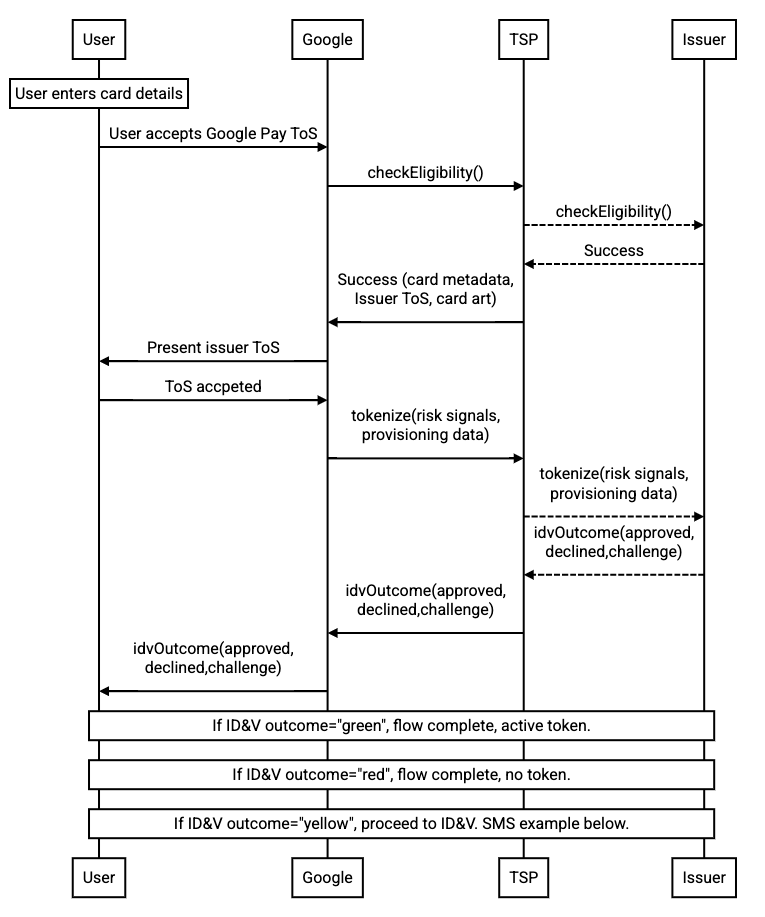
The following flow diagram provides an example for how the yellow path SMS flow
works. The flow for each yellow path ID\&V option will vary but will generally
be similar to the flow below.

> [!NOTE]
> **Note:** These sequence diagrams are provided for illustration purposes. We do not provide sequence diagrams for every lifecycle event or permutation of these flows.
## Launch checklist
To ensure a smooth launch of your Google Pay integration please ensure
you have:
- Signed an NDA with Google
- Signed the issuer agreement with Google
- Completed all [functional tests](https://developers.google.com/pay/issuers/tsp-integration/testing#testing_requirements) to ensure your tokenization experience is working properly.
- Implemented all applicable Google Pay [best practices](https://developers.google.com/pay/issuers/tsp-integration/best-practices).
- Implemented at least two yellow path (verification required) authentication options for tokenization.
- Confirmed that no known problems exist related to tokenization, in-store transactions, or online transactions.
- [Trained](https://developers.google.com/pay/issuers/support/overview#end_user_support) your support team to properly handle and route cardholder inquiries
- [Updated your website](https://developers.google.com/pay/issuers/tsp-integration/overview#brand_guidelines) to inform cardholders about Google Pay as appropriate, including any relevant user-facing Google Pay support information.
- Submitted the list of products to launch in English and in your local language to your TSP. This information will be used to update our [supported issuers list](https://support.google.com/pay/answer/7454247).
- Submitted launch checklist documentation with your TSP.
- Received certification from your TSP for launching in production.