As your organization grows, management of your locations and permissions can
overwhelm you. This guide details the best practices to manage multiple
locations, and describes the following account types:
- [Personal account](https://developers.google.com/my-business/content/manage-locations#personal-account)
- [Organization account](https://developers.google.com/my-business/content/manage-locations#organization-account)
- [Location group account](https://developers.google.com/my-business/content/manage-locations#location-group-account)
- [User group account](https://developers.google.com/my-business/content/manage-locations#user-group-account)
## Account types
Each account type has a role in the management of locations. A personal account
can manage an organization account, and then gain permissions to the user groups
and locations groups in that organization. The personal account can then manage
locations and listings through the associated location groups.
### Personal account
A personal account is automatically available to you when you create a
[Google account](https://myaccount.google.com/). Personal accounts
can be
[owners and managers of listings](https://support.google.com/business/answer/9178945).
### Organization account
An
[organization account](https://support.google.com/business/answer/7663063)
is the overlying account that represents your
[agency](https://support.google.com/business/answer/9199701).
Your location group and user groups are saved in it, and all members of an
organization have access to them. Locations can be part of multiple
organizations.
With the My Business Account Management API, you can use the
[`accounts.admins.create`](https://developers.google.com/my-business/reference/accountmanagement/rest/v1/accounts.admins/create)
method to invite personal accounts to manage or own the organization account.
### Location group account
A
[location group](https://support.google.com/business/answer/7655842)
is used to manage a group of individual locations. You can use a location group
to perform bulk tasks to multiple locations. When you add personal accounts and
user groups to a location group, they inherit the location group's permissions.
You can also create location groups to categorize locations, such as by chain,
region, or category. Locations can be in multiple location groups at once.
> [!NOTE]
> **Note:** A personal account that belongs to an organization or user group isn't eligible to directly own a location or location group.
With the My Business Account Management API, you can use the
[`accounts.create`](https://developers.google.com/my-business/reference/accountmanagement/rest/v1/accounts/create) method to
create location groups, and
[transfer locations](https://developers.google.com/my-business/content/transfer-locations) to a location
group. You can also invite personal accounts to
[manage location groups](https://developers.google.com/my-business/content/manage-admins) with the API. User
groups can be directly added to location groups from the web interface.
### User group account
To manage permissions at scale, use a
[user group](https://support.google.com/business/answer/7655731).
You can add personal accounts to a user group. Then, you can grant the user
group management access to multiple location groups in the organization. Now all
the personal accounts in the user group can perform managerial actions on the
locations under the location groups.
> [!NOTE]
> **Note:** It's best not to add personal accounts to a location group. Instead, grant user groups access directly. This is an easier way to manage at scale.
For example, when a new member joins an operations team, you can add them
directly to a user group and they immediately have access to all the locations
that their peers have access to. It takes longer to grant users access to each
individual location, and is more difficult to manage that way.
With the My Business Account Management API, you can use the
[`accounts.create`](https://developers.google.com/my-business/reference/accountmanagement/rest/v1/accounts/create) method to
create user groups. You can also use the API to invite personal accounts to
[manage admins for accounts and locations](https://developers.google.com/my-business/content/manage-admins).
## Use the API to call a list of all accounts
To list all accounts that you have access to, and their associated account types,
call the [`accounts.list`](https://developers.google.com/my-business/reference/accountmanagement/rest/v1/accounts/list) method
with your [OAuth credentials](https://developers.google.com/my-business/content/implement-oauth). The
response contains a list of all the accounts, their account IDs,
which are present in the *name* field, and the account types.
### Request
The following is an
[`accounts.list`](https://developers.google.com/my-business/reference/accountmanagement/rest/v1/accounts/list) request example:
HTTP
```
GET
https://mybusinessaccountmanagement.googleapis.com/v1/accounts
Authorization: Bearer
```
### Response
The following is an
[`accounts.list`](https://developers.google.com/my-business/reference/accountmanagement/rest/v1/accounts/list) response example:
```
{
"accounts": [
{
"name": "accounts/{accountId}",
"accountName": "John Doe",
"type": "PERSONAL",
"state": {
"status": "UNVERIFIED"
},
"profilePhotoUrl": "//lh5.googleusercontent.com/REDACTED"
},
{
"name": "accounts/{accountId}",
"accountName": "John Doe's Location Group",
"type": "LOCATION_GROUP",
"role": "OWNER",
"state": {
"status": "UNVERIFIED"
},
"accountNumber": "{accountNumber}",
"permissionLevel": "OWNER_LEVEL"
}
]
}
```
All the account types detailed in this guide might be included in the response
to your
[`accounts.list`](https://developers.google.com/my-business/reference/accountmanagement/rest/v1/accounts/list) request. Review
the account list and identify the specific account that has access to the
locations that you want to manage. Then, call
[`accounts.locations.list`](https://developers.google.com/my-business/reference/businessinformation/rest/v1/accounts.locations/list)
with the *name* field of the specific account in order to retrieve a list of
locations that that account has access to.
For instance, if you want to retrieve all locations that belong to "John Doe's
Location Group," make the following request:
HTTP
```
GET
https://mybusinessbusinessinformation.googleapis.com/v1/{accountId}/locations
Authorization: Bearer
```
The response returns a list of locations that the user has access to, as
follows:
```
{
"locations": [
{
"name": "locations/{locationId}",
"locationName": "Test Business",
...
},
{
"name": "locations/{locationId}",
"locationName": "2nd Test Business",
...
}
]
}
```
## Location management diagram
The following diagram illustrates the following:
- Organizations can contain multiple user groups.
- User groups can manage multiple location groups.
- Location groups can contain multiple locations.
- Locations can span multiple location groups across organizations.
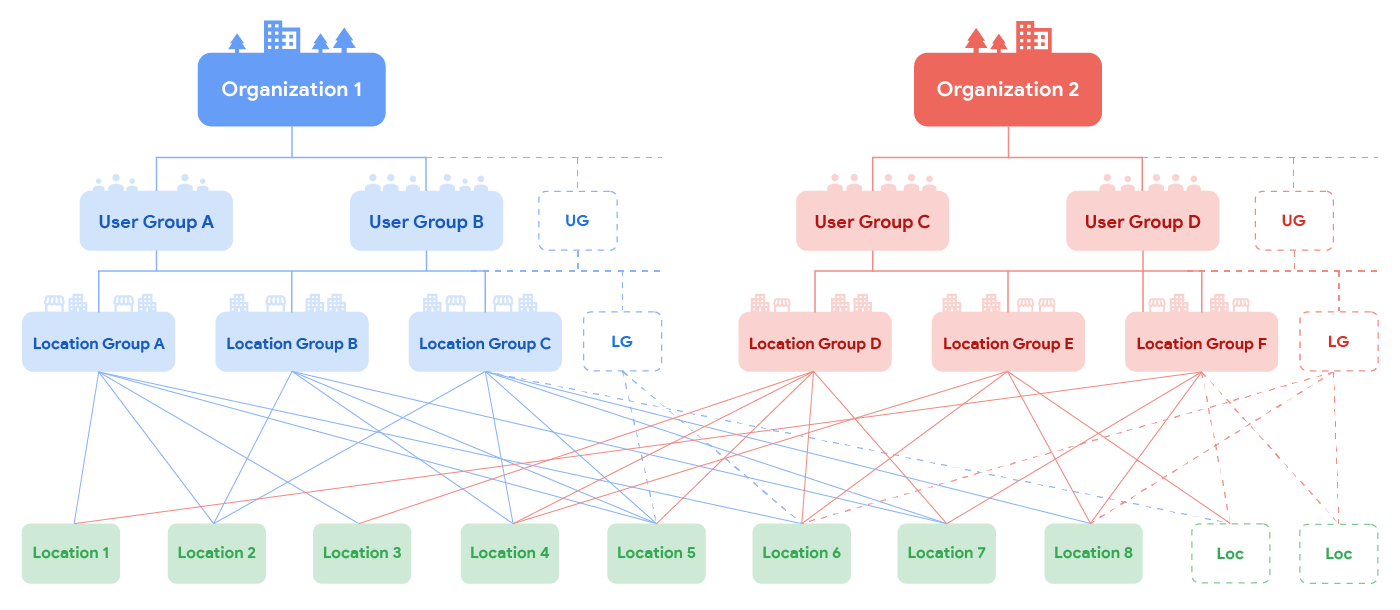 **Figure 1.** Location management hierarchy