The Google code scanner API provides a complete solution for scanning code
without requiring your app to request camera permission, while preserving user
privacy. This is accomplished by delegating the task of scanning the code to
Google Play services and returning only the scan results to your app (Video 1).
All image processing occurs on the device and Google doesn't store the results
or image data. The API supports the same code formats as the
[ML Kit Barcode Scanning API](https://developers.google.com/ml-kit/vision/barcode-scanning.md.txt) and returns the
same [`Barcode`](https://developers.google.com/android/reference/com/google/mlkit/vision/barcode/common/Barcode.md.txt)
object.
This API is ideal for apps that require seamless code scanning without the need
for a custom UI or camera experience. The implementation resides entirely within
Google Play services, ensuring minimal impact on the size of your app.
Starting with version 16.1.0, you can enable auto-zoom to allow the Google code
scanner to automatically scan barcodes that are far away from the camera. When
users point their devices at a barcode, the scanner will intelligently detect
and zoom in on the barcode. This eliminates the need for manual zoom
adjustments, making barcode scanning faster, more accurate and more accessible
(see Video 2).
|---|---|
|  | 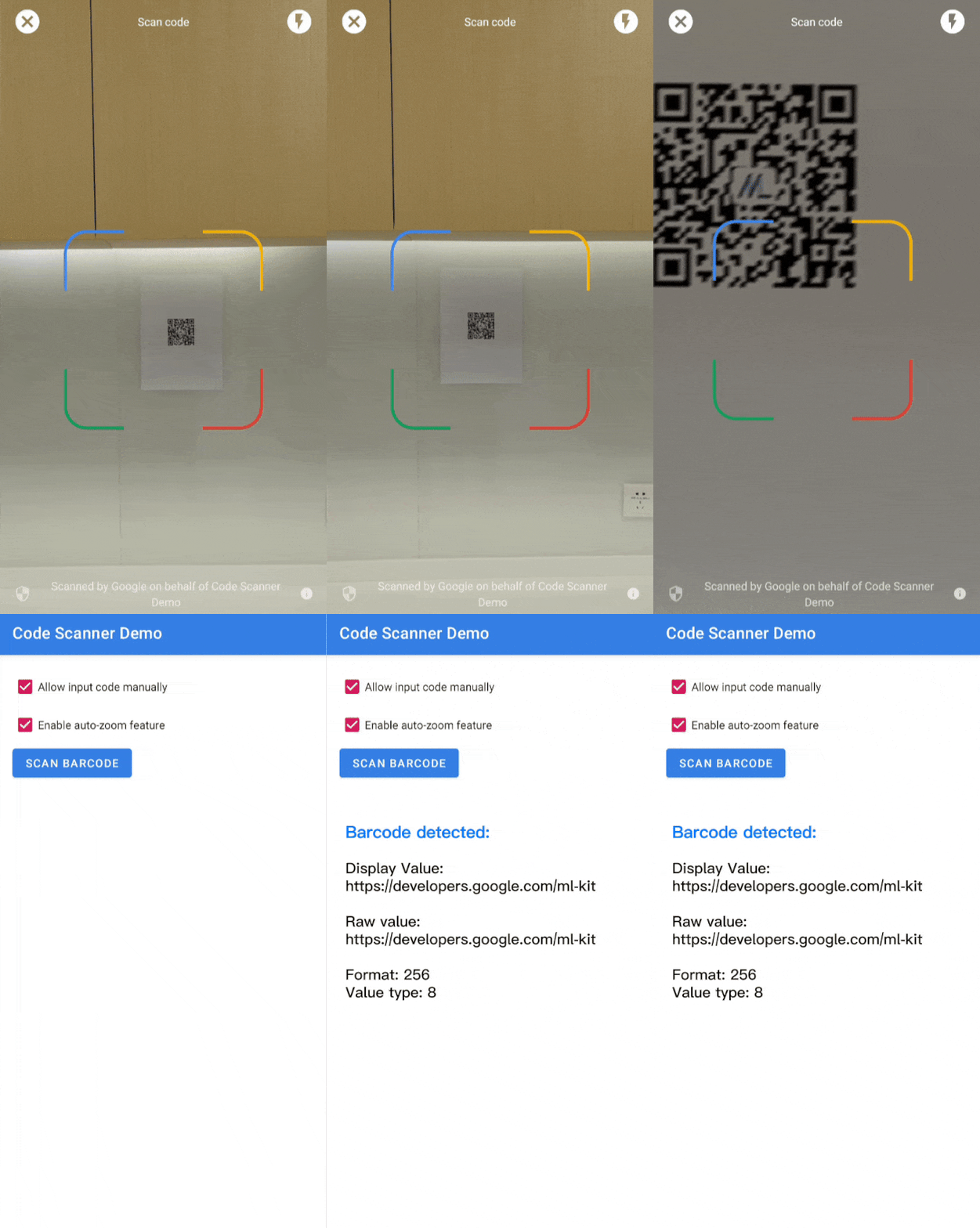 |
| Video 1. Google code scanner integration | Video 2. Auto-zoom effect |
For more complex use cases that require a custom UI, we recommend using the
[ML Kit Barcode Scanning API](https://developers.google.com/ml-kit/vision/barcode-scanning.md.txt) directly.
If you have questions, want to submit a bug, or need assistance, check the
[ML Kit community page](https://developers.google.com/ml-kit/community).
This API uses an unbundled library that must be downloaded before use. See [this guide](https://developers.google.com/ml-kit/tips/installation-paths.md.txt) for more information.
## Before you begin
> [!NOTE]
> This API requires Android API level 23 or above. Make sure that your app's build file uses a `minSdkVersion` value of 23 or higher.
To prepare your app, complete the steps in the following sections.
## Configure your app
1. In your top-level `settings.gradle` file, include
[Google's Maven repository](https://maven.google.com/web/index.html) and
[Maven central repository](https://search.maven.org/artifact) in under the
`dependencyResolutionManagement` block:
dependencyResolutionManagement {
repositories {
google()
mavenCentral()
}
}
2. Add the Google Play services dependency for the `play-services-code-scanner`
SDK to your module's Gradle build file, which is commonly `app/build.gradle`:
dependencies {
implementation 'com.google.android.gms:play-services-code-scanner:16.1.0'
}
3. You can configure your app to have Google Play services automatically
download the scanner module to the device while your app is installed from
the Play Store.
...
...
You can also explicitly check the scanner module availability and request
download through Google Play services [ModuleInstallClient
API](https://developers.google.com/android/guides/module-install-apis).
If you don't enable install-time module downloads or request explicit
downloads---and the scanner module isn't already installed for another
use case---Google Play services downloads the scanner module the first
time it's used.
## Scan a code
Implement the following steps to scan a barcode.
1. Optional: Configure the code scanner.
If you know which barcode formats you expect to read, you can improve the
speed of the barcode detector by configuring it to only detect those
formats. For example, to detect only Aztec code and QR codes, build a
[`GmsBarcodeScannerOptions`](https://developers.google.com/android/reference/com/google/mlkit/vision/codescanner/GmsBarcodeScannerOptions.Builder.md.txt)
object as in the following example:
### Kotlin
```kotlin
val options = GmsBarcodeScannerOptions.Builder()
.setBarcodeFormats(
Barcode.FORMAT_QR_CODE,
Barcode.FORMAT_AZTEC)
.build()
```
### Java
```java
GmsBarcodeScannerOptions options = new GmsBarcodeScannerOptions.Builder()
.setBarcodeFormats(
Barcode.FORMAT_QR_CODE,
Barcode.FORMAT_AZTEC)
.build();
```
By default, auto-zoom is turned off. To enable auto-zoom functionality
starting in version 16.1.0, call `enableAutoZoom()` as shown in the
following code example.
### Kotlin
```kotlin
val options = GmsBarcodeScannerOptions.Builder()
.setBarcodeFormats(...)
.enableAutoZoom() // available on 16.1.0 and higher
.build()
```
### Java
```java
GmsBarcodeScannerOptions options = new GmsBarcodeScannerOptions.Builder()
.setBarcodeFormats(...)
.enableAutoZoom() // available on 16.1.0 and higher
.build();
```
2. Get an instance of [`GmsBarcodeScanner`](https://developers.google.com/android/reference/com/google/mlkit/vision/codescanner/GmsBarcodeScanner.md.txt),
as shown in the code example:
### Kotlin
```kotlin
val scanner = GmsBarcodeScanning.getClient(this)
// Or with a configured options
// val scanner = GmsBarcodeScanning.getClient(this, options)
```
### Java
```java
GmsBarcodeScanner scanner = GmsBarcodeScanning.getClient(this);
// Or with a configured options
// GmsBarcodeScanner scanner = GmsBarcodeScanning.getClient(context, options);
```
3. Request a code scanning by calling [`startScan()`](https://developers.google.com/android/reference/com/google/mlkit/vision/codescanner/GmsBarcodeScanner.md.txt#startScan()).
### Kotlin
```kotlin
scanner.startScan()
.addOnSuccessListener { barcode ->
// Task completed successfully
}
.addOnCanceledListener {
// Task canceled
}
.addOnFailureListener { e ->
// Task failed with an exception
}
```
### Java
```java
scanner
.startScan()
.addOnSuccessListener(
barcode -> {
// Task completed successfully
})
.addOnCanceledListener(
() -> {
// Task canceled
})
.addOnFailureListener(
e -> {
// Task failed with an exception
});
```
4. Handle the resulting [`Barcode`](https://developers.google.com/android/reference/com/google/mlkit/vision/barcode/common/Barcode.md.txt).
### Kotlin
```kotlin
val rawValue: String? = barcode.rawValue
```
### Java
```java
String rawValue = barcode.getRawValue();
```