Select platform: [Android](https://developers.google.com/maps/documentation/places/android-sdk/place-photos.md.txt "View this page for the Android platform docs.") [iOS](https://developers.google.com/maps/documentation/places/ios-sdk/place-photos.md.txt "View this page for the iOS platform docs.") [Web Service](https://developers.google.com/maps/documentation/places/web-service/place-photos.md.txt "View this page for the Web Service platform docs.") **European Economic Area (EEA) developers**
> [!NOTE]
> If your billing address is in the European Economic Area, effective on 8 July 2025, the [Google Maps Platform EEA Terms of Service](https://cloud.google.com/terms/maps-platform/eea) will apply to your use of the Services. Functionality varies by region. [Learn more](https://developers.google.com/maps/comms/eea/faq.md.txt).
> [!NOTE]
> **Important:** Using data returned by this endpoint is subject to applicable [policies and attributions for Places API](https://developers.google.com/maps/documentation/places/web-service/policies.md.txt).
## Introduction
The [Place Photos (New)](https://developers.google.com/maps/documentation/places/web-service/reference/rest/v1/places.photos/getMedia.md.txt)
service is a read-only API that lets you add high quality
photographic content to your application. Place Photos (New) gives
you access to the millions of photos stored in the Places database.
When you get place information using a Place Details (New), Nearby Search (New), or
Text Search (New) request, you can also request photo resources for relevant photographic
content. Using Place Photos (New), you can then access the referenced photos and resize the
image to the optimal size for your application.
The APIs Explorer lets you make live requests so that you can get familiar with
the API and the API options:
[Try it!](https://developers.google.com/maps/documentation/places/web-service/place-photos.md.txt#try_it)
> [!NOTE]
> **Note:** Enter the place `name` from the `photos` array of your [Place Details (New)](https://developers.google.com/maps/documentation/places/web-service/place-details.md.txt) response body and click "Execute." To view the photo, use the `photoUri` value in the Place Photos (New) response body.
## Place Photos (New) requests
A Place Photos (New) request is an HTTP GET request to a URL in the form:
```
https://places.googleapis.com/v1/NAME/media?key=API_KEY&PARAMETERS
```
Where the following parameters are required:
- NAME contains the resource name of the photo.
- API_KEY contains the API key.
- PARAMETERS contains either the `maxHeightPx` parameter, the `maxWidthPx` parameter, or both.
The complete list of required and optional parameters are described below.
## Required parameters
### Photo name
A string identifier that uniquely identifies a photo. Photo names are
returned from a [Place Details (New)](https://developers.google.com/maps/documentation/places/web-service/place-details.md.txt),
[Nearby Search (New)](https://developers.google.com/maps/documentation/places/web-service/nearby-search.md.txt), or [Text Search (New)](https://developers.google.com/maps/documentation/places/web-service/text-search.md.txt) request in the `name` property of each element of the
`photos[]` array.
For an example, see [Get a photo name](https://developers.google.com/maps/documentation/places/web-service/place-photos.md.txt#get-photo-ref).
### maxHeightPx and maxWidthPx
Specifies the maximum intended height and width, in pixels, of the image. If the image is smaller
than the values specified, the original image will be returned. If the image is larger in either
dimension, it will be scaled to match the smaller of the two dimensions, restricted to its original
aspect ratio. Both the maxheight and maxwidth properties accept an integer between 1 and 4800.
You must specify either `maxHeightPx`, or `maxWidthPx`, or both.
## Optional parameters
### skipHttpRedirect
If `false` (default), make an HTTP redirect to the image to return the image.
If `true`, skip the redirect and return a JSON response containing the image details.
For example:
```json
{
"name": "places/ChIJj61dQgK6j4AR4GeTYWZsKWw/photos/Aaw_FcKly0DEv3EWmDJyHiEqXIP5mowOc99lN1GzBun6KHH52AZ5fFA/media",
"photoUri": "https://lh3.googleusercontent.com/a-/AD_cFT-b=s100-p-k-no-mo"
}
```
This option is ignored for non-HTTP requests.
## Get a photo name
All requests to Place Photos (New) must include a photo resource
name, returned in the response to a Nearby Search (New),
Text Search (New), or Place Details (New) request. The
response to these requests contains a `photos[]` array if the
place has related photographic content.
> [!NOTE]
> **Note:** To include the `photos[]` array in the response, make sure to include `photos` (Place Details (New)) or `places.photos` (Nearby Search (New) and Text Search (New)) in the field mask of the request. Each API can return up to 10 photos for a place location.
Each elements of `photo[]` contains the following fields:
- `name` --- A string containing the resource name of the photo when you
perform a Photo request. This string is in the form:
```
places/PLACE_ID/photos/PHOTO_RESOURCE
```
- `heightPx` --- The maximum height of the image, in pixels.
- `widthPx` --- The maximum width of the image, in pixels.
- `authorAttributions[]` --- Any required attributions. This field is always present, but might be empty.
Photos returned by Place Photos (New) are sourced from a variety of locations,
including business owners and user contributed photos. In most cases, these
photos can be used without attribution, or will have the required attribution
included as a part of the image. However, if the returned `photo` element
includes a value in the `authorAttributions` field, you must include the
additional attribution in your application wherever you display the image.
> [!CAUTION]
> **Caution:** You cannot cache a photo name. Also, the name can expire. Ensure you always get the name from a response to a request to [Place Details (New)](https://developers.google.com/maps/documentation/places/web-service/place-details.md.txt), [Nearby Search (New)](https://developers.google.com/maps/documentation/places/web-service/nearby-search.md.txt), or [Text Search (New)](https://developers.google.com/maps/documentation/places/web-service/text-search.md.txt). For more info, see the caching restrictions in Section 3.2.3(b)(No Caching) of the [Google Maps Platform Terms of Service](https://cloud.google.com/maps-platform/terms).
The following example shows a Place Details (New) request that
includes `photos` in the field mask so that the response
includes the `photos[]` array in the response:
```
curl -X GET \
-H 'Content-Type: application/json' -H "X-Goog-Api-Key: API_KEY" \
-H "X-Goog-FieldMask: id,displayName,photos" \
https://places.googleapis.com/v1/places/ChIJ2fzCmcW7j4AR2JzfXBBoh6E
```
An example of a `photos[]` array in the response is shown below.
```json
...
"photos" : [
{
"name": "places/ChIJ2fzCmcW7j4AR2JzfXBBoh6E/photos/AUacShh3_Dd8yvV2JZMtNjjbbSbFhSv-0VmUN-uasQ2Oj00XB63irPTks0-A_1rMNfdTunoOVZfVOExRRBNrupUf8TY4Kw5iQNQgf2rwcaM8hXNQg7KDyvMR5B-HzoCE1mwy2ba9yxvmtiJrdV-xBgO8c5iJL65BCd0slyI1",
"widthPx": 6000,
"heightPx": 4000,
"authorAttributions": [
{
"displayName": "John Smith",
"uri": "//maps.google.com/maps/contrib/101563",
"photoUri": "//lh3.googleusercontent.com/a-/AD_cFT-b=s100-p-k-no-mo"
}
]
},
...
```
## Request a place photo
The example request below returns an image using its resource `name`, resizing it so
that it is at most 400 pixels tall and wide:
```
https://places.googleapis.com/v1/places/ChIJ2fzCmcW7j4AR2JzfXBBoh6E/photos/ATKogpeivkIjQ1FT7QmbeT33nBSwqLhdPvIWHfrG1WfmgrFjeZYpS_Ls7c7rj8jejN9QGzlx4GoAH0atSvUzATDrgrZic_tTEJdeITdWL-oG3TWi5HqZoLozrjTaxoAIxmROHfV5KXVcLeTdCC6kmZExSy0CLVIG3lAPIgmvUiewNf-ZHYE4-jXYwPQpWHJgqVosvZJ6KWEgowEA-qRAzNTu9VH6BPFqHakGQ7EqBAeYOiU8Dh-xIQC8FcBJiTi0xB4tr-MYXUaF0p_AqzAhJcDE6FAgLqG1s7EsME0o36w2nDRHA-IuoISBC3SIahINE3Xwq2FzEZE6TpNTFVfgTpdPhV8CGLeqrauHn2I6ePm-2hA8-87aO7aClXKJJVzlQ1dc_JuHz6Ks07d2gglw-ZQ3ibCTF5lMtCF9O-9JHyRQXsfuXw/media?maxHeightPx=400&maxWidthPx=400&key=API_KEY
```
The [response](https://developers.google.com/maps/documentation/places/web-service/reference/rest/v1/places.photos/getMedia.md.txt#response-body)
of a successful Place Photos (New) request is an image.
> [!NOTE]
> **Note:** The image format can vary. Standard image formats are supported (including JPEG, PNG, and GIF), but Google does not guarantee the format of the image.
## Error codes
Place Photos (New) requests may return the following error codes.
### Quota exceeded (403)
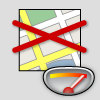
If your request exceeds your available quota, the server returns an
HTTP 403 status and displays the following image to indicate that the quota has
been exceeded:
### Invalid request (404)
If the server is unable to understand your request, it returns HTTP 400
status, which indicates an invalid request. The most common reasons for an
invalid request include:
- The submitted photo name was not correctly specified.
- The request did not include the `maxHeightPx` or the `maxWidthPx` parameter.
- The value of the `maxHeightPx` or the `maxWidthtPx` parameter was set to `null`.
- The `name` has expired. If `name` expires, make a request to [Place Details (New)](https://developers.google.com/maps/documentation/places/web-service/place-details.md.txt), [Nearby Search (New)](https://developers.google.com/maps/documentation/places/web-service/nearby-search.md.txt), or [Text Search (New)](https://developers.google.com/maps/documentation/places/web-service/text-search.md.txt) to obtain a new `name`.
### Too many requests (429)
Google recommends loading photos on demand. If you attempt to show all images for a place at
once, the server may return an HTTP 429 status indicating loading too many photos at the same
time. If you receive this error message,
[contact Support](https://developers.google.com/maps/documentation/places/web-service/support.md.txt#contact-maps-support)
and request a quota increase.
## Try it!
The API Explorer lets you make sample requests so
that you can get familiar with the API and the API options.
To make a request:
1. Select the API icon on the right side of the page.
2. Set the `name` parameter to:
```yaml
places/PLACE_ID/photos/PHOTO_RESOURCE/media
```
> [!NOTE]
> **Note:** Make sure you are using a `name` from a recent Place Details (New) request because the `name` can expire.
3. Set `skipHttpRedirect` to `true` so that the request returns a JSON response. By default, the request returns the image, which cannot be displayed by the API Explorer.
4. Select **Execute** button. In the dialog, choose the account that you want to use to make the request.
5. In the API Explorer panel, select the fullscreen icon
to expand the API Explorer
window.