> [!WARNING]
> This product or feature is in Preview (pre-GA). Pre-GA products and features might have limited support, and changes to pre-GA products and features might not be compatible with other pre-GA versions. Pre-GA Offerings are covered by the [Google
> Maps Platform Service Specific Terms](https://cloud.google.com/maps-platform/terms/maps-service-terms). For more information, see the [launch stage
> descriptions](https://developers.google.com/maps/launch-stages).
> [!IMPORTANT]
> **Important:** All apps developed for use with CarPlay require a CarPlay entitlement from Apple and must follow Apple's CarPlay guidelines. This guide provides standard practices to follow, but you must still submit your app for approval before you can launch it for CarPlay. See [Apple's CarPlay App
> Programming
> Guide](https://developer.apple.com/carplay/documentation/CarPlay-App-Programming-Guide.pdf) and the [CarPlay Human Interface
> Guidelines](https://developer.apple.com/design/human-interface-guidelines/carplay) for specifics.
This section describes how you can use the Navigation SDK with the Apple CarPlay
library to display your app's navigation experience on in-dash [head
units](https://en.wikipedia.org/wiki/Automotive_head_unit). If a driver's
in-dash system supports CarPlay, drivers can use your app directly on their
car's display by connecting their phone to the unit. Voice guidance also runs on
the car's speakers.
You build your CarPlay app from a set of UI templates provided by Apple. Your
app is responsible for selecting the template to show and for providing the data
inside of it.
**The in-dashboard system displays the safety-approved interactive elements** so
that the driver can safely navigate to their destination without undue
distraction. You can also program your app so that the driver can interact with
your app-specific features, such as accepting or rejecting orders, or viewing
the location of the customer on a map. Order status updates can also be
programmed to appear on the in-dashboard unit.
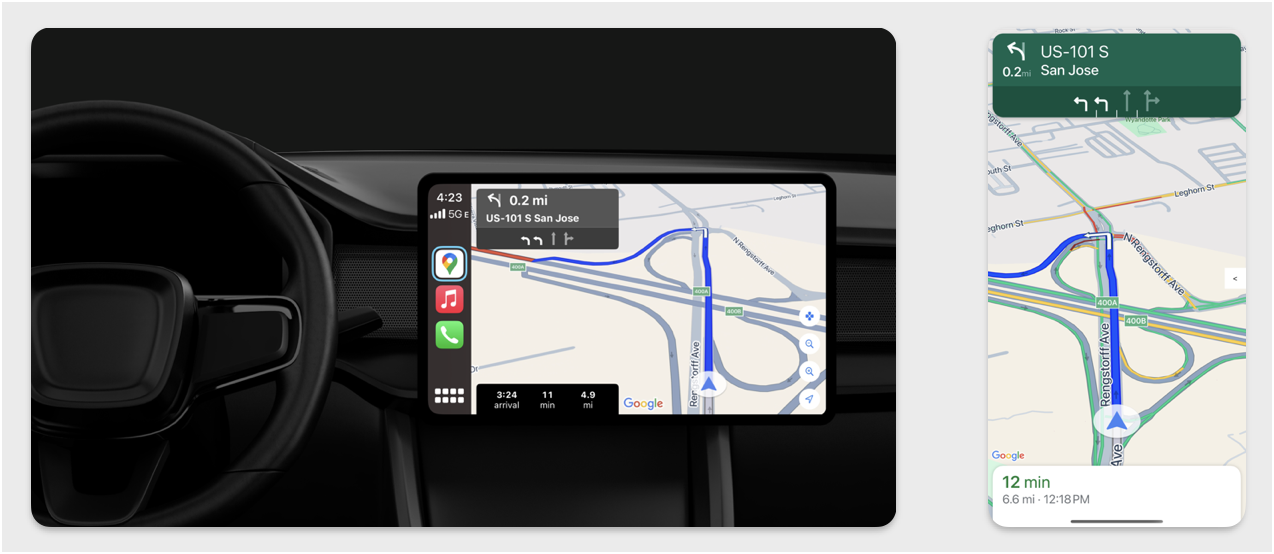 The left-hand image shows an example of a CarPlay navigation display. The right-hand image shows the same navigation as it appears on a phone.
## Setup
### Start with CarPlay
First, familiarize yourself with the Apple documentation:
- [Apple CarPlay Developer Guide](https://developer.apple.com/carplay/)
- [Apple CarPlay Developer PDF](https://developer.apple.com/carplay/documentation/CarPlay-App-Programming-Guide.pdf)
### Set up the Navigation SDK
1. Once you've read through the Apple documentation, you're ready to work with the Navigation SDK.
2. [Set up your project](https://developers.google.com/maps/documentation/navigation/ios-sdk/config) if you haven't already integrated the Navigation SDK into your app.
3. [Enable the TurnByTurn guidance
feed](https://developers.google.com/maps/documentation/navigation/ios-sdk/nav-only-feed) for your app.
4. Optional. Use [generated
icons](https://developers.google.com/maps/documentation/navigation/ios-sdk/nav-only-feed#creating_icons_for_maneuvers) from the Navigation SDK.
5. Draw the map using the `GMSMapView` class provided in the UIView class. See [Navigate a route](https://developers.google.com/maps/documentation/navigation/ios-sdk/route.md.txt) for more information. Populate `CPNavigationSession` with the data from the TurnByTurn library.
## Draw the map and navigation UI
The
[`GMSMapView`](https://developers.google.com/maps/documentation/ios-sdk/reference/objc/Classes/GMSMapView.md.txt)
class renders a map and the
[`CPMapTemplate`](https://developer.apple.com/documentation/carplay/cpmaptemplate)
renders the UI on CarPlay screens. It provides much of the same functionality as
the `GMSMapView` for phones, but with limited interactivity.
### Swift
```swift
init(window: CPWindow) {
super.init(nibName: nil, bundle: nil)
self.window = window
// More CPMapTemplate initialization
}
override func viewDidLoad() {
super.viewDidLoad()
let mapViewOptions = GMSMapViewOptions()
mapViewOptions.screen = window.screen
mapViewOptions.frame = self.view.bounds
mapView = GMSMapView(options: mapViewOptions)
mapView.autoresizingMask = [.flexibleHeight, .flexibleWidth]
mapView.settings.isNavigationHeaderEnabled = false
mapView.settings.isNavigationFooterEnabled = false
// Disable buttons: in CarPlay, no part of the map is clickable.
// The app should instead place these buttons in the appropriate slots of the CarPlay template.
mapView.settings.compassButton = false
mapView.settings.isRecenterButtonEnabled = false
mapView.shouldDisplaySpeedometer = false
mapView.isMyLocationEnabled = true
self.view.addSubview(mapView)
}
```
### Objective-C
```objective-c
- (instancetype)initWithWindow:(CPWindow *)window {
self = [super initWithNibName:nil bundle:nil];
if (self) {
_window = window;
// More CPMapTemplate initialization
}
}
- (void)viewDidLoad {
[super viewDidLoad];
GMSMapViewOptions *options = [[GMSMapViewOptions alloc] init];
options.screen = _window.screen;
options.frame = self.view.bounds;
_mapView = [[GMSMapView alloc] initWithOptions:options];
_mapView.autoresizingMask = UIViewAutoresizingFlexibleHeight | UIViewAutoresizingFlexibleWidth;
_mapView.settings.navigationHeaderEnabled = NO;
_mapView.settings.navigationFooterEnabled = NO;
// Disable buttons: in CarPlay, no part of the map is clickable.
// The app should instead place these buttons in the appropriate slots of the CarPlay template.
_mapView.settings.compassButton = NO;
_mapView.settings.recenterButtonEnabled = NO;
_mapView.shouldDisplaySpeedometer = NO;
_mapView.myLocationEnabled = YES;
[self.view addSubview:_mapView];
}
```
## Enable map interaction
To ensure driver safety, CarPlay limits screen surface interaction to a series
of
[`CPMapTemplateDelegate`](https://developer.apple.com/documentation/carplay/cpmaptemplatedelegate)
methods. Use these callbacks to support limited driver interaction with the map
on an in-dash screen.
To support additional user actions, create an array of `CPMapButton` and assign
it to`CPMapTemplate.mapButtons`.
The following code creates panning interactions and buttons to pan, zoom in and
out, and to provide the user's location.
### Panning interactions
### Swift
```swift
// MARK: CPMapTemplateDelegate
func mapTemplate(_ mapTemplate: CPMapTemplate, panBeganWith direction: CPMapTemplate.PanDirection) {
}
func mapTemplate(_ mapTemplate: CPMapTemplate, panWith direction: CPMapTemplate.PanDirection) {
let scrollAmount = scrollAmount(for: direction)
let scroll = GMSCameraUpdate.scrollBy(x: scrollAmount.x, y: scrollAmount.y)
mapView.animate(with: scroll)
}
func mapTemplate(_ mapTemplate: CPMapTemplate, panEndedWith direction: CPMapTemplate.PanDirection) {
}
func scrollAmount(for panDirection: CPMapTemplate.PanDirection) -> CGPoint {
let scrollDistance = 80.0
var scrollAmount = CGPoint(x: 0, y: 0)
switch panDirection {
case .left:
scrollAmount.x -= scrollDistance
break;
case .right:
scrollAmount.x += scrollDistance
break;
case .up:
scrollAmount.y += scrollDistance
break;
case .down:
scrollAmount.y -= scrollDistance
break;
default:
break;
}
if scrollAmount.x != 0 && scrollAmount.y != 0 {
// Adjust length if scrolling diagonally.
scrollAmount = CGPointMake(scrollAmount.x * sqrt(1.0/2.0), scrollAmount.y * sqrt(1.0/2.0))
}
return scrollAmount
}
```
### Objective-C
```objective-c
#pragma mark - CPMapTemplateDelegate
- (void)mapTemplate:(CPMapTemplate *)mapTemplate panBeganWithDirection:(CPPanDirection)direction {
}
- (void)mapTemplate:(CPMapTemplate *)mapTemplate panWithDirection:(CPPanDirection)direction {
CGPoint scrollAmount = [self scrollAmountForPanDirection:direction];
GMSCameraUpdate *scroll = [GMSCameraUpdate scrollByX:scrollAmount.x Y:scrollAmount.y];
[_mapView animateWithCameraUpdate:scroll];
}
- (void)mapTemplate:(CPMapTemplate *)mapTemplate panEndedWithDirection:(CPPanDirection)direction {
}
- (CGPoint)scrollAmountForPanDirection:(CPPanDirection)direction {
static const CGFloat scrollDistance = 80.;
CGPoint scrollAmount = {0., 0.};
if (direction & CPPanDirectionLeft) {
scrollAmount.x = -scrollDistance;
}
if (direction & CPPanDirectionRight) {
scrollAmount.x = scrollDistance;
}
if (direction & CPPanDirectionUp) {
scrollAmount.y = -scrollDistance;
}
if (direction & CPPanDirectionDown) {
scrollAmount.y = scrollDistance;
}
if (scrollAmount.x != 0 && scrollAmount.y != 0) {
// Adjust length if scrolling diagonally.
scrollAmount =
CGPointMake(scrollAmount.x * (CGFloat)M_SQRT1_2, scrollAmount.y * (CGFloat)M_SQRT1_2);
}
return scrollAmount;
}
```
### Common button usages
### Swift
```swift
// MARK: Create Buttons
func createMapButtons() -> [CPMapButton] {
let panButton = mapButton(systemImageName: "dpad.fill") { [weak self] in
self?.didTapPanButton()
}
let zoomOutButton = mapButton(systemImageName: "minus.magnifyingglass") { [weak self] in
self?.didTapZoomOutButton()
}
let zoomInButton = mapButton(systemImageName: "plus.magnifyingglass") { [weak self] in
self?.didTapZoomInButton()
}
let myLocationButton = mapButton(systemImageName: "location") { [weak self] in
self?.didTapMyLocationButton()
}
let mapButtons = [panButton, zoomOutButton, zoomInButton, myLocationButton]
return mapButtons
}
func mapButton(systemImageName: String, handler: @escaping () -> Void) -> CPMapButton {
}
// MARK: Button callbacks
@objc func didTapPanButton() {
mapTemplate?.showPanningInterface(animated: true)
}
@objc func didTapZoomOutButton() {
mapView.animate(with: GMSCameraUpdate.zoomOut())
}
@objc func didTapZoomInButton() {
mapView.animate(with: GMSCameraUpdate.zoomIn())
}
@objc func didTapMyLocationButton() {
if let lastLocation = lastLocation {
let cameraPosition = GMSCameraPosition(target: lastLocation.coordinate, zoom: 15)
mapView.animate(to: cameraPosition)
}
}
```
### Objective-C
```objective-c
#pragma mark - Create Buttons
- (NSArray*)createMapButtons {
NSMutableArray *mapButtons = [NSMutableArray array];
__weak __typeof__(self) weakSelf = self;
CPMapButton *panButton = [self mapButtonWithSystemImageNamed:@"dpad.fill"
handler:^(CPMapButton *_) {
[weakSelf didTapPanButton];
}];
[mapButtons addObject:panButton];
CPMapButton *zoomOutButton =
[self mapButtonWithSystemImageNamed:@"minus.magnifyingglass"
handler:^(CPMapButton *_Nonnull mapButon) {
[weakSelf didTapZoomOutButton];
}];
[mapButtons addObject:zoomOutButton];
CPMapButton *zoomInButton =
[self mapButtonWithSystemImageNamed:@"plus.magnifyingglass"
handler:^(CPMapButton *_Nonnull mapButon) {
[weakSelf didTapZoomInButton];
}];
[mapButtons addObject:zoomInButton];
CPMapButton *myLocationButton =
[self mapButtonWithSystemImageNamed:@"location"
handler:^(CPMapButton *_Nonnull mapButton) {
[weakSelf didTapMyLocationButton];
}];
[mapButtons addObject:myLocationButton];
return mapButtons;
}
#pragma mark - Button Callbacks
- (void)didTapZoomOutButton {
[_mapView animateWithCameraUpdate:[GMSCameraUpdate zoomOut]];
}
- (void)didTapZoomInButton {
[_mapView animateWithCameraUpdate:[GMSCameraUpdate zoomIn]];
}
- (void)didTapMyLocationButton {
CLLocation *location = self.lastLocation;
if (location) {
GMSCameraPosition *position =
[[GMSCameraPosition alloc] initWithTarget:self.lastLocation.coordinate zoom:15.];
[_mapView animateToCameraPosition:position];
}
}
- (void)didTapPanButton {
[_mapTemplate showPanningInterfaceAnimated:YES];
_isPanningInterfaceEnabled = YES;
}
- (void)didTapStopPanningButton {
[_mapTemplate dismissPanningInterfaceAnimated:YES];
_isPanningInterfaceEnabled = NO;
}
```
**Note:** Alternate routes cannot be selected on the CarPlay screen. They must
be selected from the phone before CarPlay starts.
## Display navigation directions
This section covers how to set up a listener for a data feed and how to populate
navigation directions in the guidance and trip estimate panels. See the ["Build
a CarPlay Navigation App" section of the CarPlay App Programming
Guide](https://developer.apple.com/carplay/documentation/CarPlay-App-Programming-Guide.pdf)
for more information.
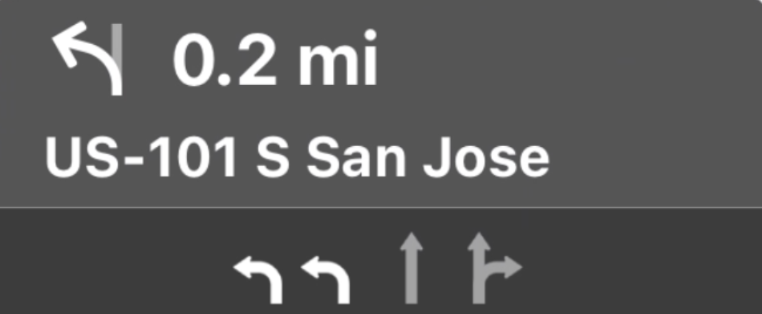
Guidance and trip estimate panels provide a navigation card that displays
navigation information related to the current trip. The TurnByTurn library in
Navigation SDK can help provide some of this information, such as symbol, text,
and remaining time.
### Set up a listener
Follow the instructions for setting up an event listener in [Details about the turn-by-turn
data
feed](https://developers.google.com/maps/documentation/navigation/ios-sdk/nav-only-feed#set_up_an_event_listener).
### Populate navigation information
The first portion of the following code sample shows how to create CarPlay
travel estimates by translating the
`GMSNavigationNavInfo.timeToCurrentStepSeconds` to `CPTravelEstimate`. You can
read more about these and other display elements in [Details about the turn-by-turn data
feed](https://developers.google.com/maps/documentation/navigation/ios-sdk/nav-only-feed#set_up_an_event_listener).
The second part of the sample shows how to create an object and store it in the
`userInfo` field of `CPManuevers`. This determines the `CPManeuverDisplayStyle`,
which is also used for lane guidance information. See Apple's [CarPlay App
Programming
Guide](https://developer.apple.com/carplay/documentation/CarPlay-App-Programming-Guide.pdf)
for more information.
### Swift
```swift
// Get a CPTravelEstimate from GMSNavigationNavInfo
func getTravelEstimates(from navInfo:GMSNavigationNavInfo) -> CPTravelEstimates {
let distanceRemaining = navInfo.roundedDistance(navInfo.distanceToCurrentStepMeters)
let timeRemaining = navInfo.roundedTime(navInfo.timeToCurrentStepSeconds)
let travelEstimates = CPTravelEstimates(distanceRemaining: distanceRemaining, timeRemaining: timeRemaining)
return travelEstimates
}
// Create an object to be stored in the userInfo field of CPManeuver to determine the CPManeuverDisplayStyle.
/** An object to be stored in the userInfo field of a CPManeuver. */
struct ManeuverUserInfo {
var stepInfo: GMSNavigationStepInfo
var isLaneGuidance: Bool
}
func mapTemplate(_ mapTemplate: CPMapTemplate, displayStyleFor maneuver: CPManeuver) -> CPManeuverDisplayStyle {
let userInfo = maneuver.userInfo
if let maneuverUserInfo = userInfo as? ManeuverUserInfo {
return maneuverUserInfo.isLaneGuidance ? .symbolOnly : .leadingSymbol
}
return .leadingSymbol
}
// Get a CPManeuver with instructionVariants and symbolImage from GMSNavigationStepInfo
func getManeuver(for stepInfo: GMSNavigationStepInfo) -> CPManeuver {
let maneuver = CPManeuver()
maneuver.userInfo = ManeuverUserInfo(stepInfo: stepInfo, isLaneGuidance: false)
switch stepInfo.maneuver {
case .destination:
maneuver.instructionVariants = ["Your destination is ahead."]
break
case .destinationLeft:
maneuver.instructionVariants = ["Your destination is ahead on your left."]
break
case .destinationRight:
maneuver.instructionVariants = ["Your destination is ahead on your right."]
break
default:
maneuver.attributedInstructionVariants = currentNavInfo?.instructions(forStep: stepInfo, options: instructionOptions)
break
}
maneuver.symbolImage = stepInfo.maneuverImage(with: instructionOptions.imageOptions)
return maneuver
}
// Get the lane image for a CPManeuver from GMSNavigationStepInfo
func laneGuidanceManeuver(for stepInfo: GMSNavigationStepInfo) -> CPManeuver? {
let maneuver = CPManeuver()
maneuver.userInfo = ManeuverUserInfo(stepInfo: stepInfo, isLaneGuidance: true)
let lanesImage = stepInfo.lanesImage(with: imageOptions)
guard let lanesImage = lanesImage else { return nil }
maneuver.symbolImage = lanesImage
return maneuver
}
```
### Objective-C
```objective-c
// Get a CPTravelEstimate from GMSNavigationNavInfo
- (nonull CPTravelEstimates *)travelEstimates:(GMSNavigationNavInfo *_Nonnull navInfo) {
NSMeasurement *distanceRemaining = [navInfo roundedDistance:navInfo.distanceToCurrentStepMeters];
NSTimeInterval timeRemaining = [navInfo roundedTime:navInfo.timeToCurrentStepSeconds];
CPTravelEstimate* travelEstimate = [[CPTravelEstimates alloc] initWithDistanceRemaining:distanceRemaining
timeRemaining:timeRemaining];
}
// Create an object to be stored in the userInfo field of CPManeuver to determine the CPManeuverDisplayStyle.
/** An object to be stored in the userInfo field of a CPManeuver. */
@interface ManeuverUserInfo : NSObject
@property(nonatomic, readonly, nonnull) GMSNavigationStepInfo *stepInfo;
@property(nonatomic, readonly, getter=isLaneGuidance) BOOL laneGuidance;
- (nonnull instancetype)initWithStepInfo:(GMSNavigationStepInfo *)stepInfo
isLaneGuidance:(BOOL)isLaneGuidance NS_DESIGNATED_INITIALIZER;
- (instancetype)init NS_UNAVAILABLE;
@end
- (CPManeuverDisplayStyle)mapTemplate:(CPMapTemplate *)mapTemplate
displayStyleForManeuver:(nonnull CPManeuver *)maneuver {
ManeuverUserInfo *userInfo = maneuver.userInfo;
return userInfo.laneGuidance ? CPManeuverDisplayStyleSymbolOnly : CPManeuverDisplayStyleDefault;
}
// Get a CPManeuver with instructionVariants and symbolImage from GMSNavigationStepInfo
- (nonnull CPManeuver *)maneuverForStep:(nonnull GMSNavigationStepInfo *)stepInfo {
CPManeuver *maneuver = [[CPManeuver alloc] init];
maneuver.userInfo = [[ManeuverUserInfo alloc] initWithStepInfo:stepInfo isLaneGuidance:NO];
switch (stepInfo.maneuver) {
case GMSNavigationManeuverDestination:
maneuver.instructionVariants = @[ @"Your destination is ahead." ];
break;
case GMSNavigationManeuverDestinationLeft:
maneuver.instructionVariants = @[ @"Your destination is ahead on your left." ];
break;
case GMSNavigationManeuverDestinationRight:
maneuver.instructionVariants = @[ @"Your destination is ahead on your right." ];
break;
default: {
maneuver.attributedInstructionVariants =
[_currentNavInfo instructionsForStep:stepInfo options:_instructionOptions];
break;
}
}
maneuver.symbolImage = [stepInfo maneuverImageWithOptions:_instructionOptions.imageOptions];
return maneuver;
}
// Get the lane image for a CPManeuver from GMSNavigationStepInfo
- (nullable CPManeuver *)laneGuidanceManeuverForStep:(nonnull GMSNavigationStepInfo *)stepInfo {
CPManeuver *maneuver = [[CPManeuver alloc] init];
maneuver.userInfo = [[ManeuverUserInfo alloc] initWithStepInfo:stepInfo isLaneGuidance:YES];
UIImage *lanesImage = [stepInfo lanesImageWithOptions:_imageOptions];
if (!lanesImage) {
return nil;
}
maneuver.symbolImage = lanesImage;
return maneuver;
}
```
## Maneuvers
CarPlay uses the [`CPManeuver`
class](https://developer.apple.com/documentation/carplay/cpmaneuver) to provide
turn-by-turn guidance. See [Details about the turn-by-turn data
feed](https://developers.google.com/maps/documentation/navigation/ios-sdk/nav-only-feed) for more information
on maneuvers and lane guidance.
## Related documentation
-
-
-
- [Details about the turn-by-turn data feed](https://developers.google.com/maps/documentation/navigation/ios-sdk/nav-only-feed.md.txt)
- [Navigate a route](https://developers.google.com/maps/documentation/navigation/ios-sdk/route.md.txt)