> [!WARNING]
> This product or feature is in Preview (pre-GA) and we are no longer onboarding new customers. Pre-GA products and features might have limited support, and changes to pre-GA products and features might not be compatible with other pre-GA versions. Pre-GA Offerings are covered by the [Google Maps
> Platform Service Specific Terms](https://cloud.google.com/maps-platform/terms/maps-service-terms). For more information, see the [launch stage descriptions](https://developers.google.com/maps/launch-stages.md.txt).
You can see how your app is using the Location Selection API by
looking at your project's usage reports.
Follow this procedure to access usage reports:
1. Go to [Google Cloud console](https://console.cloud.google.com).
2. Select your Location Selection API project.
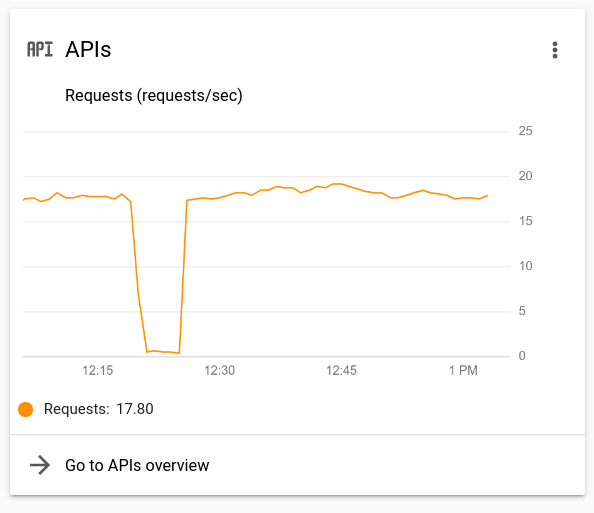
3. At the bottom of the APIs chart, click **Go to APIs overview** .
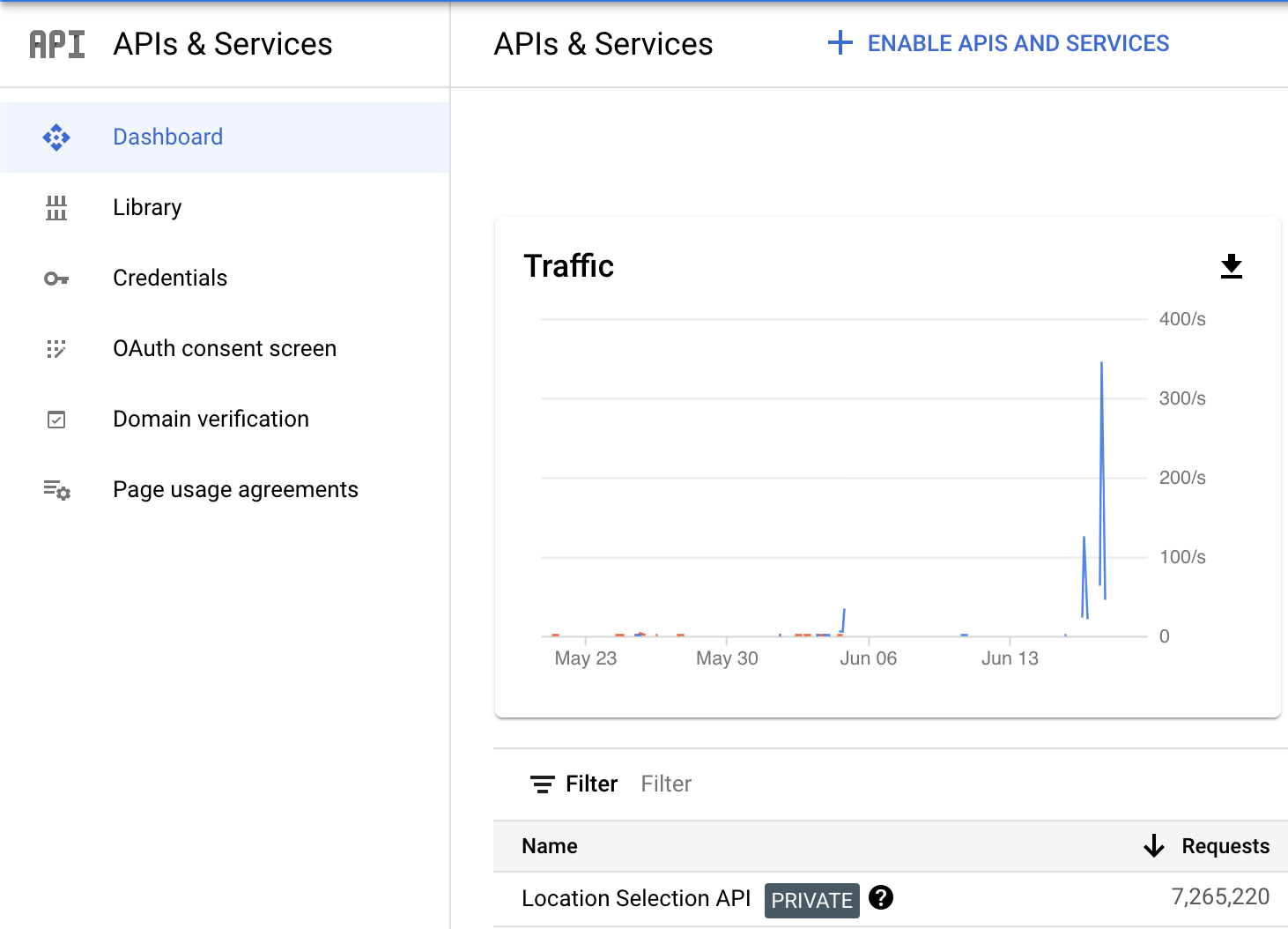
4. At the bottom of the **Traffic** chart, click **Location Selection API** .
5. Beneath the chart titled **Traffic by response code** , click **View metrics** .

The Google Cloud console displays the **Metrics** reports page.
> [!NOTE]
> **Note:** If you just started using the Location Selection API, then your charts won't contain much data. You can see more detail by reducing the reporting period (which defaults to the last 30 days).