Select platform: [Android](https://developers.google.com/maps/documentation/android-sdk/styling.md.txt "View this page for the Android platform docs.") [iOS](https://developers.google.com/maps/documentation/ios-sdk/styling.md.txt "View this page for the iOS platform docs.") [JavaScript](https://developers.google.com/maps/documentation/javascript/json-styling-overview.md.txt "View this page for the JavaScript platform docs.")
You can apply customized styling through an embedded JSON style declarations
to the following:
- Default map.
- Map types that a user can switch between within a single map frame.
> [!IMPORTANT]
> If you want to update the same style across multiple apps, look into [cloud customization](https://developers.google.com/maps/documentation/javascript/cloud-customization.md.txt), which is available in the Google Cloud console and requires a [map ID](https://developers.google.com/maps/documentation/get-map-id). To avoid potential conflicts, **do not combine** cloud customization and hardcoded styling in the same app.
> [!NOTE]
> For a more comprehensive styling experience, you can instead use [JSON styling with cloud-based maps styling](https://developers.google.com/maps/documentation/javascript/cloud-customization/json.md.txt), which offers a more extensive list of map features and greater customization options. The cloud-based maps styling JSON schema is not backward compatible with embedded JSON style declarations. This means that cloud-based maps styling JSON cannot be used directly in the Maps JavaScript API. However, you can import embedded JSON style declarations into the cloud-based maps styling JSON schema.
## Specify styles to features
To apply styles to different features and elements in a map, create an array of
[`MapTypeStyle`](https://developers.google.com/maps/documentation/javascript/3.exp/reference#MapTypeStyle)
objects that define how the map should be styled.
The array takes the following form:
```javascript
var stylesArray = [
{
featureType: '',
elementType: '',
stylers: [
{color: ''},
{visibility: ''},
// Add any stylers you need.
]
},
{
featureType: '',
// Add the stylers you need.
}
]
```
For a list of all available values for `featureType`, `elementType`, and
`stylers`, see the [JSON style reference](https://developers.google.com/maps/documentation/javascript/style-reference.md.txt).
## Maps Platform Styling Wizard
[](https://mapstyle.withgoogle.com)[](https://mapstyle.withgoogle.com)[](https://mapstyle.withgoogle.com)[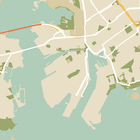](https://mapstyle.withgoogle.com/) [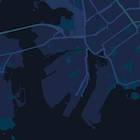](https://mapstyle.withgoogle.com/) [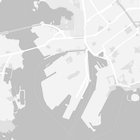](https://mapstyle.withgoogle.com/) [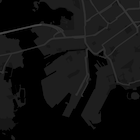](https://mapstyle.withgoogle.com/) [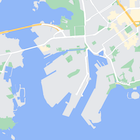](https://mapstyle.withgoogle.com/) [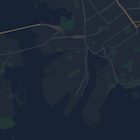](https://mapstyle.withgoogle.com/) [Create
custom styles for the Google Maps Platform APIs](https://mapstyle.withgoogle.com)
Use the [Maps Platform Styling Wizard](https://mapstyle.withgoogle.com) as a quick way to generate a JSON styling object.
> [!NOTE]
> **Note:** To have a style apply to multiple app platforms, consider using [cloud-based maps styling](https://developers.google.com/maps/documentation/javascript/cloud-customization.md.txt). If you want to use a JSON style, you can import it. For details, see [Import a JSON map style](https://developers.google.com/maps/documentation/javascript/cloud-customization/map-styles-leg#json-import).
## Apply styles to a default map
The following shows an example default map styled using light-colored text and
icons on a dark background (i.e. dark mode). To see the code sample, go to
[Styled Maps - Night Mode code sample](https://developers.google.com/maps/documentation/javascript/examples/style-array.md.txt).
To modify the styles of the default map, set the map's `styles` property in the
`MapOptions` object to your style array when:
- Creating your map.
- Or, when calling the `Map.setOptions` method.
Changes to labels and roads affect all map types including terrain, satellite,
hybrid, and default roadmap types.
## Apply styles to a map type
The following shows an added map type called **Styled Map** in the control at
the top left of the map. To see the code sample, go to [Styled Map Types](https://developers.google.com/maps/documentation/javascript/examples/maptype-styled-simple.md.txt).
To create a styled map type, set the style array to a [`StyledMapType`](https://developers.google.com/maps/documentation/javascript/3.exp/reference#StyledMapType)
object. Creating a new styled map type does not affect the style of the default
map types.