Select platform: [Android](https://developers.google.com/maps/documentation/android-sdk/dds-datasets/start.md.txt "View this page for the Android platform docs.") [iOS](https://developers.google.com/maps/documentation/ios-sdk/dds-datasets/start.md.txt "View this page for the iOS platform docs.") [JavaScript](https://developers.google.com/maps/documentation/javascript/dds-datasets/start.md.txt "View this page for the JavaScript platform docs.")
Follow these steps to get set up with the data-driven styling for datasets.
## Get an API key and enable APIs
Before using the data-driven styling for datasets, you need:
Google Cloud project with a billing account, and both the
Maps JavaScript API and the Maps Datasets API enabled.
To learn more, see
[Set up your Google Cloud project](https://developers.google.com/maps/documentation/javascript/cloud-setup).
[Get an API key](https://developers.google.com/maps/documentation/javascript/get-api-key.md.txt)
[Enable the Maps JavaScript API](https://console.cloud.google.com/apis/library/maps-backend.googleapis.com)
[Enable the Maps Datasets API](https://console.cloud.google.com/apis/library/mapsplatformdatasets.googleapis.com)
## Create a map ID
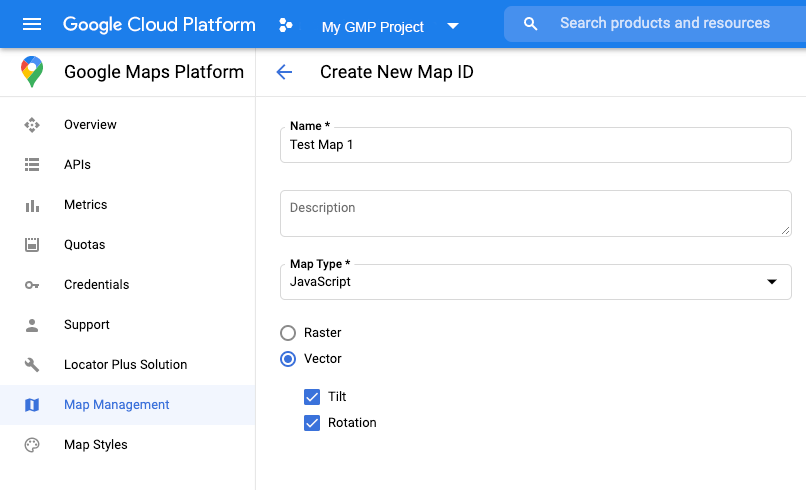
To create a new [map ID](https://developers.google.com/maps/documentation/javascript/map-ids/mapid-over.md.txt),
follow the steps in
[Cloud customization](https://developers.google.com/maps/documentation/javascript/map-ids/get-map-id.md.txt).
Set the Map type to **JavaScript** , and select the **Vector** option.
Provide a map ID using the `mapId` property when you instantiate the map .
The map ID must correspond to the map style that is associated with the dataset
to display.
```javascript
const position = new google.maps.LatLng(40.75, -74.05);
const map = new google.maps.Map(document.getElementById('map'), {
zoom: 11,
center: position,
mapId: 'YOUR_MAP_ID',
});
```
## Create a new map style
To create a new map style, follow the instructions in
[Create and use map styles](https://developers.google.com/maps/documentation/javascript/cloud-customization/map-styles-leg)
to create the style, and
[associate the style with the map ID you just created](https://developers.google.com/maps/documentation/javascript/cloud-customization/map-styles-leg#associate-style-with-map-id).
## Update your map initialization code
To use the data-driven styling for datasets, first load the
Maps JavaScript API, by adding the inline bootstrap loader to
your application code, as shown here
(use `v=beta` in your API `script` tag):
```javascript
```
## Check map capabilities (optional)
Data-driven styling for datasets requires a map ID. If the map ID is missing,
or an invalid map ID is passed, data features cannot load. As a
troubleshooting step, you can add a `mapcapabilities_changed` listener to
subscribe to map capability changes. This will indicate whether the following
conditions have been met:
- A valid map ID is in use.
- The map ID is associated with a vector map.
Using Map Capabilities is optional, and recommended only for testing and
troubleshooting purposes, or for runtime fallback purposes.
```javascript
// Optional: subscribe to map capability changes.
map.addListener('mapcapabilities_changed', () => {
const mapCapabilities = map.getMapCapabilities();
if (!mapCapabilities.isDataDrivenStylingAvailable) {
// Data-driven styling is *not* available, add a fallback.
// Existing feature layers are also unavailable.
}
});
```
## Next steps
- [Create and upload a dataset](https://developers.google.com/maps/documentation/javascript/dds-datasets/create-dataset.md.txt)