Select platform: [Android](https://developers.google.com/maps/documentation/android-sdk/advanced-markers/add-marker.md.txt "View this page for the Android platform docs.") [iOS](https://developers.google.com/maps/documentation/ios-sdk/advanced-markers/customization.md.txt "View this page for the iOS platform docs.") [JavaScript](https://developers.google.com/maps/documentation/javascript/advanced-markers/basic-customization.md.txt "View this page for the JavaScript platform docs.")
#### See the complete example source code
This example shows how to customize markers in the following ways:
add title text, scale the marker, change the background color, change the
border color, change the glyph color, hide the glyph.
### TypeScript
```typescript
const mapElement = document.querySelector('gmp-map')!;
async function init() {
// Request needed libraries.
const [{ AdvancedMarkerElement, PinElement }] = await Promise.all([
google.maps.importLibrary('marker'),
google.maps.importLibrary('maps'),
]);
// Each PinElement is paired with a marker to demonstrate setting each parameter.
// Default marker with title text (no PinElement).
const markerWithText = new AdvancedMarkerElement({
position: { lat: 37.419, lng: -122.03 },
title: 'Title text for the marker at lat: 37.419, lng: -122.03',
});
mapElement.append(markerWithText);
// Adjust the scale.
const pinScaled = new PinElement({
scale: 1.5,
});
const markerScaled = new AdvancedMarkerElement({
position: { lat: 37.419, lng: -122.02 },
});
markerScaled.append(pinScaled);
mapElement.append(markerScaled);
// Change the background color.
const pinBackground = new PinElement({
background: '#FBBC04',
});
const markerBackground = new AdvancedMarkerElement({
position: { lat: 37.419, lng: -122.01 },
});
markerBackground.append(pinBackground);
mapElement.append(markerBackground);
// Change the border color.
const pinBorder = new PinElement({
borderColor: '#137333',
});
const markerBorder = new AdvancedMarkerElement({
position: { lat: 37.415, lng: -122.035 },
});
markerBorder.append(pinBorder);
mapElement.append(markerBorder);
// Change the glyph color.
const pinGlyph = new PinElement({
glyphColor: 'white',
});
const markerGlyph = new AdvancedMarkerElement({
position: { lat: 37.415, lng: -122.025 },
});
markerGlyph.append(pinGlyph);
mapElement.append(markerGlyph);
const pinTextGlyph = new PinElement({
glyphText: 'T',
glyphColor: 'white',
});
const markerGlyphText = new AdvancedMarkerElement({
position: { lat: 37.415, lng: -122.015 },
});
markerGlyphText.append(pinTextGlyph);
mapElement.append(markerGlyphText);
// Hide the glyph.
const pinNoGlyph = new PinElement({
glyphText: '',
});
const markerNoGlyph = new AdvancedMarkerElement({
position: { lat: 37.415, lng: -122.005 },
});
markerNoGlyph.append(pinNoGlyph);
mapElement.append(markerNoGlyph);
}
void init();
```
### JavaScript
```javascript
const mapElement = document.querySelector('gmp-map');
async function init() {
// Request needed libraries.
const [{ AdvancedMarkerElement, PinElement }] = await Promise.all([
google.maps.importLibrary('marker'),
google.maps.importLibrary('maps'),
]);
// Each PinElement is paired with a marker to demonstrate setting each parameter.
// Default marker with title text (no PinElement).
const markerWithText = new AdvancedMarkerElement({
position: { lat: 37.419, lng: -122.03 },
title: 'Title text for the marker at lat: 37.419, lng: -122.03',
});
mapElement.append(markerWithText);
// Adjust the scale.
const pinScaled = new PinElement({
scale: 1.5,
});
const markerScaled = new AdvancedMarkerElement({
position: { lat: 37.419, lng: -122.02 },
});
markerScaled.append(pinScaled);
mapElement.append(markerScaled);
// Change the background color.
const pinBackground = new PinElement({
background: '#FBBC04',
});
const markerBackground = new AdvancedMarkerElement({
position: { lat: 37.419, lng: -122.01 },
});
markerBackground.append(pinBackground);
mapElement.append(markerBackground);
// Change the border color.
const pinBorder = new PinElement({
borderColor: '#137333',
});
const markerBorder = new AdvancedMarkerElement({
position: { lat: 37.415, lng: -122.035 },
});
markerBorder.append(pinBorder);
mapElement.append(markerBorder);
// Change the glyph color.
const pinGlyph = new PinElement({
glyphColor: 'white',
});
const markerGlyph = new AdvancedMarkerElement({
position: { lat: 37.415, lng: -122.025 },
});
markerGlyph.append(pinGlyph);
mapElement.append(markerGlyph);
const pinTextGlyph = new PinElement({
glyphText: 'T',
glyphColor: 'white',
});
const markerGlyphText = new AdvancedMarkerElement({
position: { lat: 37.415, lng: -122.015 },
});
markerGlyphText.append(pinTextGlyph);
mapElement.append(markerGlyphText);
// Hide the glyph.
const pinNoGlyph = new PinElement({
glyphText: '',
});
const markerNoGlyph = new AdvancedMarkerElement({
position: { lat: 37.415, lng: -122.005 },
});
markerNoGlyph.append(pinNoGlyph);
mapElement.append(markerNoGlyph);
}
void init();
```
### CSS
```css
/*
* Always set the map height explicitly to define the size of the div element
* that contains the map.
*/
gmp-map {
height: 100%;
}
/*
* Optional: Makes the sample page fill the window.
*/
html,
body {
height: 100%;
margin: 0;
padding: 0;
}
```
### HTML
```html
Advanced Marker Basic Customization
```
### Try Sample
[JSFiddle.net](https://jsfiddle.net/gh/get/library/pure/googlemaps-samples/js-api-samples/tree/main/dist/samples/advanced-markers-basic-style/jsfiddle)
This page shows you how to customize markers in the following ways:
- [Add title text](https://developers.google.com/maps/documentation/javascript/advanced-markers/basic-customization.md.txt#add-title-text)
- [Scale the marker](https://developers.google.com/maps/documentation/javascript/advanced-markers/basic-customization.md.txt#scale-the-marker)
- [Change the background color](https://developers.google.com/maps/documentation/javascript/advanced-markers/basic-customization.md.txt#change-the-background-color)
- [Change the border color](https://developers.google.com/maps/documentation/javascript/advanced-markers/basic-customization.md.txt#change-the-border-color)
- [Change the glyph color](https://developers.google.com/maps/documentation/javascript/advanced-markers/basic-customization.md.txt#change-the-glyph-color)
- [Use text in a glyph](https://developers.google.com/maps/documentation/javascript/advanced-markers/basic-customization.md.txt#glyph-with-text)
- [Hide the glyph](https://developers.google.com/maps/documentation/javascript/advanced-markers/basic-customization.md.txt#hide-the-glyph)
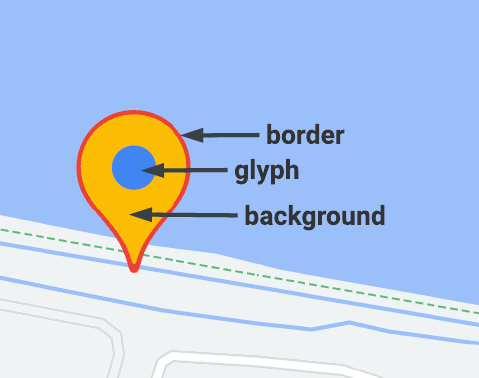 **Figure 1**: The parts of an Advanced Marker.
Advanced markers uses two classes to define markers: the
`AdvancedMarkerElement` class provides the basic parameters (`position`,
`title`, and `map`), and the `PinElement` class contains options for further
customization.
In order to add markers to a map, you must first
[load the `marker` library](https://developers.google.com/maps/documentation/javascript/advanced-markers/add-marker.md.txt#load_the_advanced_marker_library)
which provides the [`AdvancedMarkerElement`](https://developers.google.com/maps/documentation/javascript/reference/advanced-markers.md.txt#AdvancedMarkerElement)
and [`PinElement`](https://developers.google.com/maps/documentation/javascript/reference/advanced-markers.md.txt#PinElement)
classes.
The following snippet shows code to create a new `PinElement`, then apply it to
a marker.
```javascript
// Create a pin element.
const myPin = new PinElement({
scale: 1.5,
});
// Create a marker.
const myMarker = new AdvancedMarkerElement({
position: { lat: 37.4239163, lng: -122.0947209 },
});
// Append the pin to the marker.
myMarker.append(myPin);
// Append the marker to the map.
mapElement.append(myMarker);
```
In maps created using custom HTML elements, the basic parameters for a
marker are declared using the `gmp-advanced-marker` HTML element; any
customization that uses the `PinElement` class must be applied
programmatically. To do this, your code must retrieve the `gmp-advanced-marker`
elements from the HTML page. The following snippet shows code to query for a
collection of `gmp-advanced-marker` elements, then iterate through the results
to apply customization that was declared in the `PinElement`.
```javascript
// Return an array of markers.
const advancedMarkers = [...document.querySelectorAll('gmp-advanced-marker')];
// Loop through the markers
for (let i = 0; i < advancedMarkers.length; i++) {
const pin = new PinElement({
scale: 2.0,
});
marker.append(pin);
}
```
## Add title text
Title text appears when the cursor hovers over a marker. Title text is readable
by screen readers.
To add title text programmatically, use the `AdvancedMarkerElement.title`
option:
```javascript
// Default marker with title text (no PinElement).
const markerWithText = new AdvancedMarkerElement({
position: { lat: 37.419, lng: -122.03 },
title: 'Title text for the marker at lat: 37.419, lng: -122.03',
});
mapElement.append(markerWithText);
```
To add title text to a marker created using custom HTML elements, use
the `title` attribute:
```html
```
## Scale the marker
To scale a marker, use the `scale` option.
### TypeScript
```typescript
// Adjust the scale.
const pinScaled = new PinElement({
scale: 1.5,
});
const markerScaled = new AdvancedMarkerElement({
position: { lat: 37.419, lng: -122.02 },
});
markerScaled.append(pinScaled);
mapElement.append(markerScaled);
```
### JavaScript
```javascript
// Adjust the scale.
const pinScaled = new PinElement({
scale: 1.5,
});
const markerScaled = new AdvancedMarkerElement({
position: { lat: 37.419, lng: -122.02 },
});
markerScaled.append(pinScaled);
mapElement.append(markerScaled);
```
## Change the background color
Use the `PinElement.background` option to change the background color of a marker:
### TypeScript
```typescript
// Change the background color.
const pinBackground = new PinElement({
background: '#FBBC04',
});
const markerBackground = new AdvancedMarkerElement({
position: { lat: 37.419, lng: -122.01 },
});
markerBackground.append(pinBackground);
mapElement.append(markerBackground);
```
### JavaScript
```javascript
// Change the background color.
const pinBackground = new PinElement({
background: '#FBBC04',
});
const markerBackground = new AdvancedMarkerElement({
position: { lat: 37.419, lng: -122.01 },
});
markerBackground.append(pinBackground);
mapElement.append(markerBackground);
```
## Change the border color
Use the `PinElement.borderColor` option to change the border color of a marker:
### TypeScript
```typescript
// Change the border color.
const pinBorder = new PinElement({
borderColor: '#137333',
});
const markerBorder = new AdvancedMarkerElement({
position: { lat: 37.415, lng: -122.035 },
});
markerBorder.append(pinBorder);
mapElement.append(markerBorder);
```
### JavaScript
```javascript
// Change the border color.
const pinBorder = new PinElement({
borderColor: '#137333',
});
const markerBorder = new AdvancedMarkerElement({
position: { lat: 37.415, lng: -122.035 },
});
markerBorder.append(pinBorder);
mapElement.append(markerBorder);
```
## Change the glyph color
Use the `PinElement.glyphColor` option to change the glyph color of a marker:
### TypeScript
```typescript
// Change the glyph color.
const pinGlyph = new PinElement({
glyphColor: 'white',
});
const markerGlyph = new AdvancedMarkerElement({
position: { lat: 37.415, lng: -122.025 },
});
markerGlyph.append(pinGlyph);
mapElement.append(markerGlyph);
```
### JavaScript
```javascript
// Change the glyph color.
const pinGlyph = new PinElement({
glyphColor: 'white',
});
const markerGlyph = new AdvancedMarkerElement({
position: { lat: 37.415, lng: -122.025 },
});
markerGlyph.append(pinGlyph);
mapElement.append(markerGlyph);
```
## Use text in a glyph
Use the `PinElement.glyphText` option to replace the default glyph with a text
character. The text glyph of the `PinElement` scales with the `PinElement` and
its default color matches the default `glyphColor` of the `PinElement`.
### TypeScript
```typescript
const pinTextGlyph = new PinElement({
glyphText: 'T',
glyphColor: 'white',
});
const markerGlyphText = new AdvancedMarkerElement({
position: { lat: 37.415, lng: -122.015 },
});
markerGlyphText.append(pinTextGlyph);
mapElement.append(markerGlyphText);
```
### JavaScript
```javascript
const pinTextGlyph = new PinElement({
glyphText: 'T',
glyphColor: 'white',
});
const markerGlyphText = new AdvancedMarkerElement({
position: { lat: 37.415, lng: -122.015 },
});
markerGlyphText.append(pinTextGlyph);
mapElement.append(markerGlyphText);
```
## Hide the glyph
Set the `PinElement.glyphText` option to an empty string to hide a marker's
glyph:
### TypeScript
```typescript
// Hide the glyph.
const pinNoGlyph = new PinElement({
glyphText: '',
});
const markerNoGlyph = new AdvancedMarkerElement({
position: { lat: 37.415, lng: -122.005 },
});
markerNoGlyph.append(pinNoGlyph);
mapElement.append(markerNoGlyph);
```
### JavaScript
```javascript
// Hide the glyph.
const pinNoGlyph = new PinElement({
glyphText: '',
});
const markerNoGlyph = new AdvancedMarkerElement({
position: { lat: 37.415, lng: -122.005 },
});
markerNoGlyph.append(pinNoGlyph);
mapElement.append(markerNoGlyph);
```
Alternatively, set `PinElement.glyphColor` to the same value as
`PinElement.background`. This has the effect of visually hiding the glyph.
## Next steps:
- [Create markers with graphics](https://developers.google.com/maps/documentation/javascript/advanced-markers/graphic-markers.md.txt)