Select platform: [Android](https://developers.google.com/maps/documentation/android-sdk/styling.md.txt "View this page for the Android platform docs.") [iOS](https://developers.google.com/maps/documentation/ios-sdk/styling.md.txt "View this page for the iOS platform docs.") [JavaScript](https://developers.google.com/maps/documentation/javascript/json-styling-overview.md.txt "View this page for the JavaScript platform docs.")
This tutorial shows you how to add a map with custom styling to your Android
app. The tutorial uses *night mode* as an example of custom styling.
With style options you can customize the presentation of the standard Google map
styles, changing the visual display of features like roads, parks, businesses,
and other points of interest. This means that you can emphasize
particular components of the map or make the map complement the style of your
app.
Styling works only on the `normal` map type. Styling does not affect
[indoor maps](https://developers.google.com/maps/documentation/android-sdk/map.md.txt#indoor).
> [!IMPORTANT]
> If you want to update the same style across multiple apps, look into [cloud customization](https://developers.google.com/maps/documentation/android-sdk/cloud-customization.md.txt), which is available in the Google Cloud console and requires a [map ID](https://developers.google.com/maps/documentation/get-map-id). To avoid potential conflicts, **do not combine** cloud customization and hardcoded styling in the same app.
> [!NOTE]
> For a more comprehensive styling experience, you can instead use [JSON styling with cloud-based maps styling](https://developers.google.com/maps/documentation/android-sdk/cloud-customization/json.md.txt), which offers a more extensive list of map features and greater customization options. The cloud-based maps styling JSON schema is not backward compatible with embedded JSON style declarations. This means that cloud-based maps styling JSON cannot be used directly in the Maps SDK for Android. However, you can import embedded JSON style declarations into the cloud-based maps styling JSON schema.
## Get the code
[Clone or download the Google Maps Android API v2 Samples repository](https://github.com/googlemaps-samples/android-samples)
from GitHub.
## Set up your development project
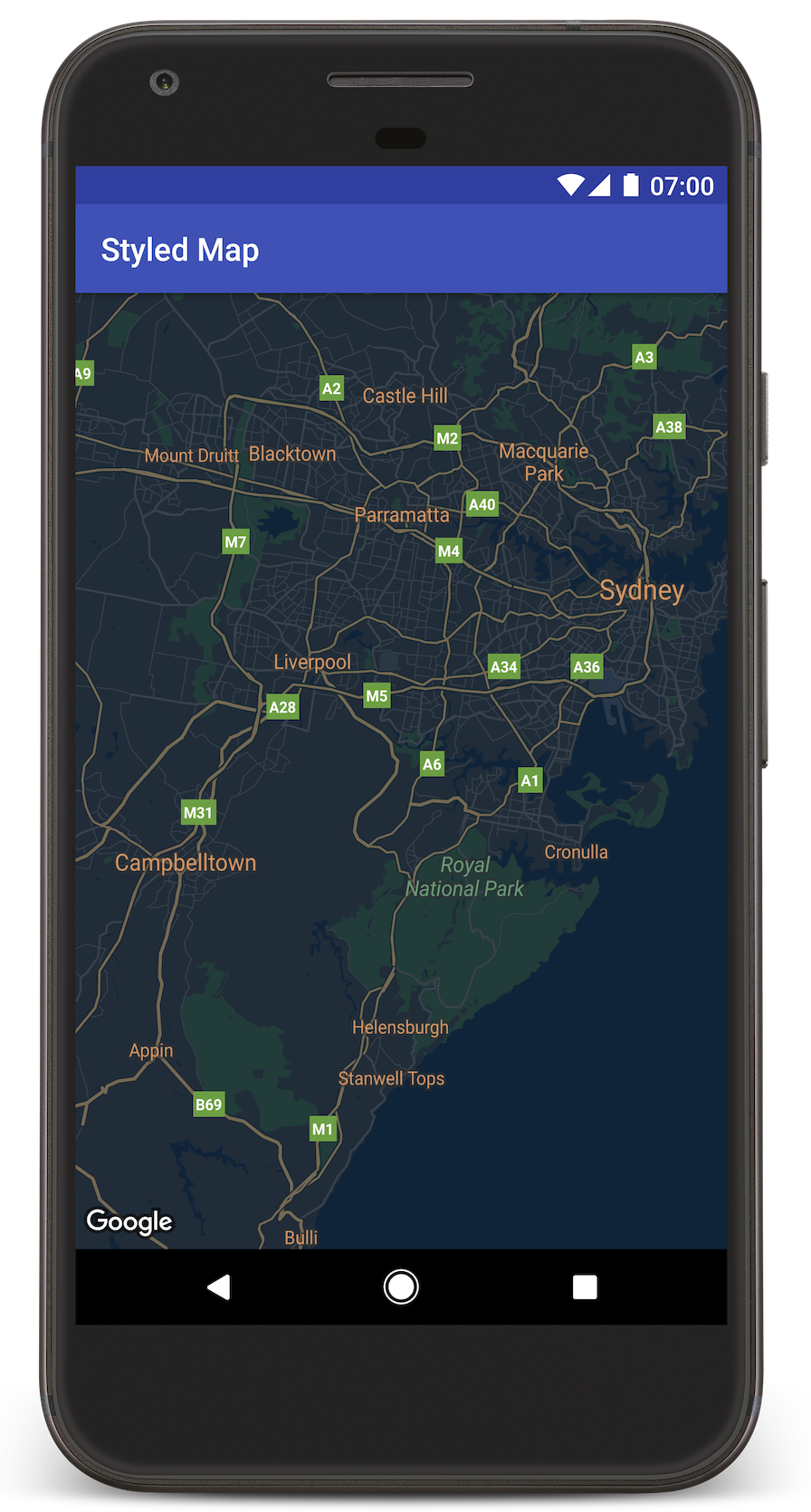
Follow these steps to create the tutorial project in Android Studio.
1. [Download](https://developer.android.com/studio/index.html) and [install](https://developer.android.com/studio/install.html?pkg=studio) Android Studio.
2. [Add the **Google Play services** package](https://developer.android.com/studio/intro/update.html#sdk-manager) to Android Studio.
3. [Clone or download the Google Maps Android API v2 Samples repository](https://github.com/googlemaps-samples/android-samples) if you didn't do that when you started reading this tutorial.
4. Import the tutorial project:
- In Android Studio, select **File \> New \> Import Project**.
- Go to the location where you saved the Google Maps Android API v2 Samples repository after downloading it.
- Find the **StyledMap** project at this location:
`PATH-TO-SAVED-REPO/android-samples/tutorials/StyledMap`
- Select the project directory, then click **OK**. Android Studio now builds your project, using the Gradle build tool.
## Get an API key and enable the necessary APIs
To complete this tutorial, you need a Google API key that's authorized to use
the Maps SDK for Android.
Click the button below to get a key and activate the API.
Get a Key
For more details, see the [Get an API Key](https://developers.google.com/maps/documentation/android-sdk/get-api-key.md.txt) guide.
## Add the API key to your app
1. Edit your project's `gradle.properties` file.
2. Paste your API key into the value of the `GOOGLE_MAPS_API_KEY` property. When
you build your app, Gradle copies the API key into the app's Android
manifest.
GOOGLE_MAPS_API_KEY=PASTE-YOUR-API-KEY-HERE
## Build and run your app
1. Connect an Android device to your computer. Follow the [instructions](https://developer.android.com/studio/run/device.html) to enable developer options on your Android device and configure your system to detect the device. (Alternatively, you can use the [Android Virtual Device (AVD) Manager](https://developer.android.com/studio/run/managing-avds.html) to configure a virtual device. When choosing an emulator, make sure you pick an image that includes the Google APIs. For more details, see the [getting started guide](https://developers.google.com/maps/documentation/android-sdk/start.md.txt#step_6_connect_an_android_device).)
2. In Android Studio, click the **Run** menu option (or the play button icon). Choose a device as prompted.
Android Studio invokes Gradle to build the app, and then runs the app on
the device or on the emulator. You should see a map with dark (night mode)
styling, similar to the image on this page.
Troubleshooting:
- If you don't see a map, check that you've obtained an API key and added it to the app, [as described above](https://developers.google.com/maps/documentation/android-sdk/styling.md.txt#api-key). Check the sign in on Android Studio's [Android Monitor](https://developer.android.com/studio/debug/am-logcat.html) for error messages about the API key.
- Use the [Android Studio debugging tools](https://developer.android.com/studio/debug/am-logcat.html) to view logs and debug the app.
## Understand the code
This part of the tutorial explains the most significant parts of the
**StyledMap** app, to help you understand how to build a similar app.
### Add a resource containing a JSON style object
Add a resource to your development project, containing your style declarations
in JSON format. You can use a raw resource or a string, as shown in the examples
below.
> [!NOTE]
> **Note:** The sample app that you downloaded from GitHub uses a raw resource.
### Raw resource
Define a raw resource in `/res/raw/style_json.json`, containing
the JSON style declaration for night-mode styling:
Show/Hide the JSON.
```
[
{
"featureType": "all",
"elementType": "geometry",
"stylers": [
{
"color": "#242f3e"
}
]
},
{
"featureType": "all",
"elementType": "labels.text.stroke",
"stylers": [
{
"lightness": -80
}
]
},
{
"featureType": "administrative",
"elementType": "labels.text.fill",
"stylers": [
{
"color": "#746855"
}
]
},
{
"featureType": "administrative.locality",
"elementType": "labels.text.fill",
"stylers": [
{
"color": "#d59563"
}
]
},
{
"featureType": "poi",
"elementType": "labels.text.fill",
"stylers": [
{
"color": "#d59563"
}
]
},
{
"featureType": "poi.park",
"elementType": "geometry",
"stylers": [
{
"color": "#263c3f"
}
]
},
{
"featureType": "poi.park",
"elementType": "labels.text.fill",
"stylers": [
{
"color": "#6b9a76"
}
]
},
{
"featureType": "road",
"elementType": "geometry.fill",
"stylers": [
{
"color": "#2b3544"
}
]
},
{
"featureType": "road",
"elementType": "labels.text.fill",
"stylers": [
{
"color": "#9ca5b3"
}
]
},
{
"featureType": "road.arterial",
"elementType": "geometry.fill",
"stylers": [
{
"color": "#38414e"
}
]
},
{
"featureType": "road.arterial",
"elementType": "geometry.stroke",
"stylers": [
{
"color": "#212a37"
}
]
},
{
"featureType": "road.highway",
"elementType": "geometry.fill",
"stylers": [
{
"color": "#746855"
}
]
},
{
"featureType": "road.highway",
"elementType": "geometry.stroke",
"stylers": [
{
"color": "#1f2835"
}
]
},
{
"featureType": "road.highway",
"elementType": "labels.text.fill",
"stylers": [
{
"color": "#f3d19c"
}
]
},
{
"featureType": "road.local",
"elementType": "geometry.fill",
"stylers": [
{
"color": "#38414e"
}
]
},
{
"featureType": "road.local",
"elementType": "geometry.stroke",
"stylers": [
{
"color": "#212a37"
}
]
},
{
"featureType": "transit",
"elementType": "geometry",
"stylers": [
{
"color": "#2f3948"
}
]
},
{
"featureType": "transit.station",
"elementType": "labels.text.fill",
"stylers": [
{
"color": "#d59563"
}
]
},
{
"featureType": "water",
"elementType": "geometry",
"stylers": [
{
"color": "#17263c"
}
]
},
{
"featureType": "water",
"elementType": "labels.text.fill",
"stylers": [
{
"color": "#515c6d"
}
]
},
{
"featureType": "water",
"elementType": "labels.text.stroke",
"stylers": [
{
"lightness": -20
}
]
}
]
```
### String resource
Define a string resource in `/res/values/style_strings.xml`,
containing the JSON style declaration for night-mode styling. This
tutorial uses the string name `style_json`. In
this file you need to use a backslash to escape the quotation marks:
Show/Hide the JSON.
```
[
{
\"featureType\": \"all\",
\"elementType\": \"geometry\",
\"stylers\": [
{
\"color\": \"#242f3e\"
}
]
},
{
\"featureType\": \"all\",
\"elementType\": \"labels.text.stroke\",
\"stylers\": [
{
\"lightness\": -80
}
]
},
{
\"featureType\": \"administrative\",
\"elementType\": \"labels.text.fill\",
\"stylers\": [
{
\"color\": \"#746855\"
}
]
},
{
\"featureType\": \"administrative.locality\",
\"elementType\": \"labels.text.fill\",
\"stylers\": [
{
\"color\": \"#d59563\"
}
]
},
{
\"featureType\": \"poi\",
\"elementType\": \"labels.text.fill\",
\"stylers\": [
{
\"color\": \"#d59563\"
}
]
},
{
\"featureType\": \"poi.park\",
\"elementType\": \"geometry\",
\"stylers\": [
{
\"color\": \"#263c3f\"
}
]
},
{
\"featureType\": \"poi.park\",
\"elementType\": \"labels.text.fill\",
\"stylers\": [
{
\"color\": \"#6b9a76\"
}
]
},
{
\"featureType\": \"road\",
\"elementType\": \"geometry.fill\",
\"stylers\": [
{
\"color\": \"#2b3544\"
}
]
},
{
\"featureType\": \"road\",
\"elementType\": \"labels.text.fill\",
\"stylers\": [
{
\"color\": \"#9ca5b3\"
}
]
},
{
\"featureType\": \"road.arterial\",
\"elementType\": \"geometry.fill\",
\"stylers\": [
{
\"color\": \"#38414e\"
}
]
},
{
\"featureType\": \"road.arterial\",
\"elementType\": \"geometry.stroke\",
\"stylers\": [
{
\"color\": \"#212a37\"
}
]
},
{
\"featureType\": \"road.highway\",
\"elementType\": \"geometry.fill\",
\"stylers\": [
{
\"color\": \"#746855\"
}
]
},
{
\"featureType\": \"road.highway\",
\"elementType\": \"geometry.stroke\",
\"stylers\": [
{
\"color\": \"#1f2835\"
}
]
},
{
\"featureType\": \"road.highway\",
\"elementType\": \"labels.text.fill\",
\"stylers\": [
{
\"color\": \"#f3d19c\"
}
]
},
{
\"featureType\": \"road.local\",
\"elementType\": \"geometry.fill\",
\"stylers\": [
{
\"color\": \"#38414e\"
}
]
},
{
\"featureType\": \"road.local\",
\"elementType\": \"geometry.stroke\",
\"stylers\": [
{
\"color\": \"#212a37\"
}
]
},
{
\"featureType\": \"transit\",
\"elementType\": \"geometry\",
\"stylers\": [
{
\"color\": \"#2f3948\"
}
]
},
{
\"featureType\": \"transit.station\",
\"elementType\": \"labels.text.fill\",
\"stylers\": [
{
\"color\": \"#d59563\"
}
]
},
{
\"featureType\": \"water\",
\"elementType\": \"geometry\",
\"stylers\": [
{
\"color\": \"#17263c\"
}
]
},
{
\"featureType\": \"water\",
\"elementType\": \"labels.text.fill\",
\"stylers\": [
{
\"color\": \"#515c6d\"
}
]
},
{
\"featureType\": \"water\",
\"elementType\": \"labels.text.stroke\",
\"stylers\": [
{
\"lightness\": -20
}
]
}
]
```
### Pass a JSON style object to your map
To style your map, call [`GoogleMap.setMapStyle()`](https://developers.google.com/android/reference/com/google/android/gms/maps/GoogleMap.md.txt#setMapStyle(com.google.android.gms.maps.model.MapStyleOptions)) passing a
[`MapStyleOptions`](https://developers.google.com/android/reference/com/google/android/gms/maps/model/MapStyleOptions.md.txt) object that contains your style
declarations in JSON format.
### Raw resource
The following code sample assumes your project contains a raw resource
named `style_json`:
```
// Copyright 2020 Google LLC
//
// Licensed under the Apache License, Version 2.0 (the "License");
// you may not use this file except in compliance with the License.
// You may obtain a copy of the License at
//
// http://www.apache.org/licenses/LICENSE-2.0
//
// Unless required by applicable law or agreed to in writing, software
// distributed under the License is distributed on an "AS IS" BASIS,
// WITHOUT WARRANTIES OR CONDITIONS OF ANY KIND, either express or implied.
// See the License for the specific language governing permissions and
// limitations under the License.
package com.example.styledmap;
import android.content.res.Resources;
import android.os.Bundle;
import android.util.Log;
import androidx.appcompat.app.AppCompatActivity;
import com.google.android.gms.maps.CameraUpdateFactory;
import com.google.android.gms.maps.GoogleMap;
import com.google.android.gms.maps.OnMapReadyCallback;
import com.google.android.gms.maps.SupportMapFragment;
import com.google.android.gms.maps.model.LatLng;
import com.google.android.gms.maps.model.MapStyleOptions;
/** A styled map using JSON styles from a raw resource. */
public class MapsActivityRaw extends AppCompatActivity implements OnMapReadyCallback {
private static final String TAG = MapsActivityRaw.class.getSimpleName();
@Override
protected void onCreate(Bundle savedInstanceState) {
super.onCreate(savedInstanceState);
// Retrieve the content view that renders the map.
setContentView(R.layout.activity_maps_raw);
// Get the SupportMapFragment and register for the callback
// when the map is ready for use.
SupportMapFragment mapFragment =
(SupportMapFragment) getSupportFragmentManager().findFragmentById(R.id.map);
mapFragment.getMapAsync(this);
}
/**
* Manipulates the map when it's available. The API invokes this callback when the map is ready
* for use.
*/
@Override
public void onMapReady(GoogleMap googleMap) {
try {
// Customise the styling of the base map using a JSON object defined
// in a raw resource file.
boolean success =
googleMap.setMapStyle(
MapStyleOptions.loadRawResourceStyle(this, R.raw.style_json));
if (!success) {
Log.e(TAG, "Style parsing failed.");
}
} catch (Resources.NotFoundException e) {
Log.e(TAG, "Can't find style. Error: ", e);
}
// Position the map's camera near Sydney, Australia.
googleMap.moveCamera(CameraUpdateFactory.newLatLng(new LatLng(-34, 151)));
}
}
```
The layout (`activity_maps_raw.xml`) looks like this:
Show/Hide the layout file.
```
```
### String resource
The following code sample assumes your project contains a string resource
named `style_json`:
```
package com.example.styledmap;
import android.os.Bundle;
import android.support.v7.app.AppCompatActivity;
import android.util.Log;
import com.google.android.gms.maps.CameraUpdateFactory;
import com.google.android.gms.maps.GoogleMap;
import com.google.android.gms.maps.OnMapReadyCallback;
import com.google.android.gms.maps.SupportMapFragment;
import com.google.android.gms.maps.model.LatLng;
import com.google.android.gms.maps.model.MapStyleOptions;
/**
* A styled map using JSON styles from a string resource.
*/
public class MapsActivityString extends AppCompatActivity
implements OnMapReadyCallback {
private static final String TAG = MapsActivityString.class.getSimpleName();
@Override
protected void onCreate(Bundle savedInstanceState) {
super.onCreate(savedInstanceState);
// Retrieve the content view that renders the map.
setContentView(R.layout.activity_maps_string);
// Get the SupportMapFragment and register for the callback
// when the map is ready for use.
SupportMapFragment mapFragment =
(SupportMapFragment) getSupportFragmentManager()
.findFragmentById(R.id.map);
mapFragment.getMapAsync(this);
}
/**
* Manipulates the map when it's available.
* The API invokes this callback when the map is ready for use.
*/
@Override
public void onMapReady(GoogleMap googleMap) {
// Customise the styling of the base map using a JSON object defined
// in a string resource file. First create a MapStyleOptions object
// from the JSON styles string, then pass this to the setMapStyle
// method of the GoogleMap object.
boolean success = googleMap.setMapStyle(new MapStyleOptions(getResources()
.getString(R.string.style_json)));
if (!success) {
Log.e(TAG, "Style parsing failed.");
}
// Position the map's camera near Sydney, Australia.
googleMap.moveCamera(CameraUpdateFactory.newLatLng(new LatLng(-34, 151)));
}
}
```
The layout (`activity_maps_string.xml`) looks like this:
Show/Hide the layout file.
```
```
### More about JSON style declarations
Styled maps use two concepts to apply colors and other style changes to a
map:
- **Selectors** specify the geographic components that you can style on the map. These include roads, parks, bodies of water, and more, as well as their labels. The selectors include *features* and *elements* , specified as `featureType` and `elementType` properties.
- **Stylers** are color and visibility properties that you can apply to map elements. They define the displayed color through a combination of hue, color, and lightness and gamma values.
See the [style reference](https://developers.google.com/maps/documentation/android-sdk/style-reference.md.txt) for a detailed description of the
JSON styling options.
## Maps Platform Styling Wizard
[](https://mapstyle.withgoogle.com)[](https://mapstyle.withgoogle.com)[](https://mapstyle.withgoogle.com)[](https://mapstyle.withgoogle.com/) [](https://mapstyle.withgoogle.com/) [](https://mapstyle.withgoogle.com/) [](https://mapstyle.withgoogle.com/) [](https://mapstyle.withgoogle.com/) [](https://mapstyle.withgoogle.com/) [Create
custom styles for the Google Maps Platform APIs](https://mapstyle.withgoogle.com)
Use the [Maps Platform Styling Wizard](https://mapstyle.withgoogle.com) as a quick way to generate
a JSON styling object. The Maps SDK for Android supports the same style
declarations as the Maps JavaScript API.
> [!NOTE]
> **Note:** To have a style apply to multiple app platforms, consider using [cloud-based maps styling](https://developers.google.com/maps/documentation/android-sdk/cloud-customization.md.txt). If you want to use a JSON style, you can import it. For details, see [Import a JSON map style](https://developers.google.com/maps/documentation/android-sdk/cloud-customization/map-styles-leg#json-import).
## Next step
See how to [hide features on the map](https://developers.google.com/maps/documentation/android-sdk/hiding-features.md.txt) with styling.