Select platform: [Android](https://developers.google.com/maps/documentation/android-sdk/controls.md.txt "View this page for the Android platform docs.") [iOS](https://developers.google.com/maps/documentation/ios-sdk/controls.md.txt "View this page for the iOS platform docs.") [JavaScript](https://developers.google.com/maps/documentation/javascript/controls.md.txt "View this page for the JavaScript platform docs.")
Using the Maps SDK for Android, you can customize the way in which users
can interact with your map, by determining which of the built in UI components
appear on the map and which gestures are allowed.
## Code samples
The [ApiDemos repository](https://github.com/googlemaps-samples/android-samples/blob/main/ApiDemos) on GitHub includes
a sample that demonstrates the use of control and gesture options:
- [UiSettingsDemoActivity](https://github.com/googlemaps-samples/android-samples/blob/main/ApiDemos/project/kotlin-app/src/main/java/com/example/kotlindemos/UiSettingsDemoActivity.kt): Kotlin sample
- [UiSettingsDemoActivity](https://github.com/googlemaps-samples/android-samples/blob/main/ApiDemos/project/java-app/src/main/java/com/example/mapdemo/UiSettingsDemoActivity.java): Java sample
## Lite mode for minimal user interaction
If you want a light-weight map with minimal user interaction, consider using a
lite-mode map. Lite mode offers a bitmap image of a map at a specified
location and zoom level. In lite mode, users cannot pan or zoom the map and
gestures do not work. For details, see the guide to [lite mode](https://developers.google.com/maps/documentation/android-sdk/lite.md.txt).
## UI controls
The Maps API offers built-in UI controls that are similar to those
found in the Google Maps application on your Android phone. You can toggle
the visibility of these controls using the [`UiSettings`](https://developers.google.com/android/reference/com/google/android/gms/maps/UiSettings.md.txt) class
which can be obtained from a `GoogleMap` with the `GoogleMap.getUiSettings`
method. Changes made on this class are immediately reflected on the map. To
see an example of these features, look at the UI Settings demo activity in the
[sample application](https://developers.google.com/maps/documentation/android-sdk/code-samples).
You can also configure most of these options when the map is created either
via XML attributes or using the [`GoogleMapOptions`](https://developers.google.com/android/reference/com/google/android/gms/maps/GoogleMapOptions.md.txt)
class. See [Configuring initial state](https://developers.google.com/maps/documentation/android-sdk/map.md.txt#configure_initial_state) for more details.
Each UI control has a pre-determined position relative to the edge of the map.
You can move the controls away from the top, bottom, left or right edge by
adding [padding](https://developers.google.com/maps/documentation/android-sdk/map.md.txt#map_padding) to the `GoogleMap` object.
### Zoom controls
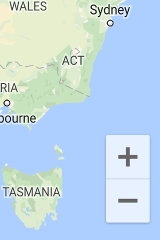
The Maps API provides built-in zoom controls that appear in the bottom
right hand corner of the map. These are disabled by default, but can be
enabled by calling `UiSettings.setZoomControlsEnabled(true)`.
### Compass
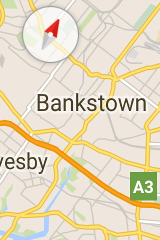
The Maps API provides a compass graphic which appears in the top left
corner of the map under certain circumstances. The compass will only ever
appear when the camera is oriented such that it has a non-zero bearing or
non-zero tilt. When the user clicks on the compass, the camera animates back
to a position with bearing and tilt of zero (the default orientation)
and the compass fades away shortly afterwards. You can disable the compass
appearing altogether by calling `UiSettings.setCompassEnabled(boolean)`.
However, you cannot force the compass to always be shown.
### My Location button
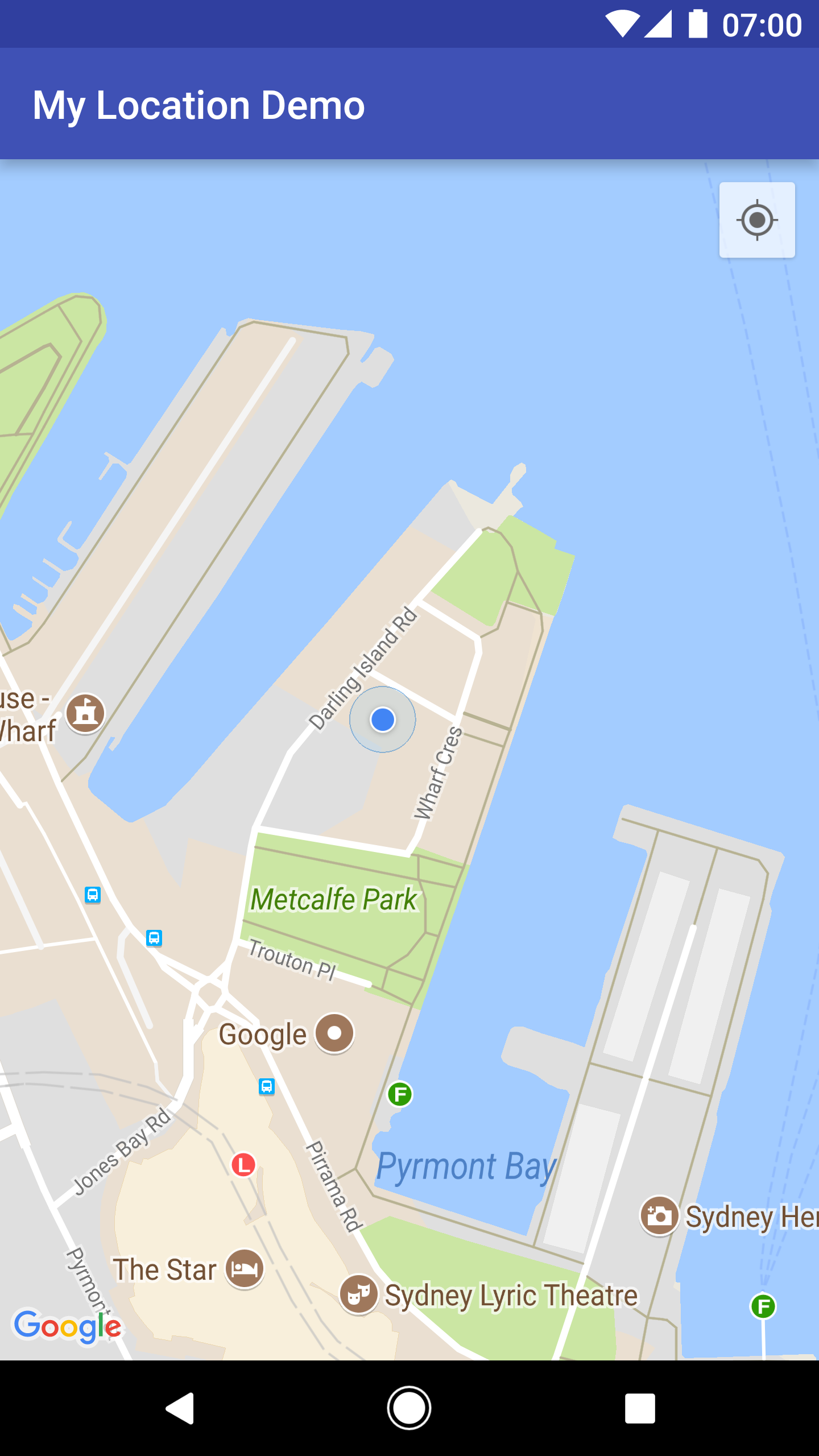
The My Location button appears in the top right corner of the screen *only*
when the My Location layer is enabled. For details, see the guide to
[location data](https://developers.google.com/maps/documentation/android-sdk/location.md.txt#my-location).
### Level picker
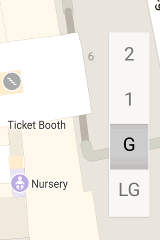
By default, a level picker (floor picker) appears near the center right-hand
edge of the screen when the user is viewing an [indoor map](https://developers.google.com/maps/documentation/android-sdk/map.md.txt#indoor_maps). When two or
more indoor maps are visible the level picker will apply to the building that is
currently in focus, which is typically the one nearest the center of the screen.
Each building has a default level which will be selected when the picker is
first displayed. Users can choose a different level by selecting it from the
picker.
You can disable or enable the level picker control by calling
[`GoogleMap.getUiSettings().setIndoorLevelPickerEnabled(boolean)`](https://developers.google.com/android/reference/com/google/android/gms/maps/UiSettings.md.txt#setIndoorLevelPickerEnabled(boolean)).
This is useful if you want to replace the default level picker with your own.
## Map toolbar
By default, a toolbar appears at the bottom right of the map when a user taps a
marker. The toolbar gives the user quick access to the Google Maps mobile app.
You can enable and disable the toolbar by calling
[`UiSettings.setMapToolbarEnabled(boolean)`](https://developers.google.com/android/reference/com/google/android/gms/maps/UiSettings.md.txt#setMapToolbarEnabled(boolean)).
In a [lite-mode](https://developers.google.com/maps/documentation/android-sdk/lite.md.txt) map, the toolbar persists independently of the user's
actions. In a fully-interactive map, the toolbar slides in when the user taps a
marker and slides out again when the marker is no longer in focus.
The toolbar displays icons that provide access to a map view or directions
request in the Google Maps mobile app. When a user taps an icon on the toolbar,
the API builds an [intent](http://developer.android.com/reference/android/content/Intent.html) to launch the corresponding activity
in the Google Maps mobile app.
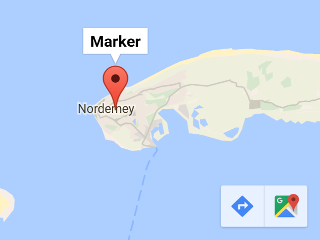
The toolbar is visible at bottom right of the map in the above screenshot.
Zero, one or both of the intent icons will appear on the map, depending on the
content of the map and provided that the Google Maps mobile app supports the
resulting intent.
> [!NOTE]
> **Note:** If your app targets API level 30 or above, add the Google Maps package "com.google.android.apps.maps" as an entry in your `AndroidManifest.xml` `` element as part of the [package visibility](https://developer.android.com/about/versions/11/privacy/package-visibility) privacy changes introduced in Android 11.
## Map gestures
A map created with the Maps SDK for Android supports the same gestures as
the Google Maps application. However, there might be situations where you want
to disable certain gestures in order to preserve the state of the map. Zoom,
pan, tilt and bearing can also be set programmatically - see
[Camera and View](https://developers.google.com/maps/documentation/android-sdk/views.md.txt) for more details. Note that disabling gestures
does not affect whether you can change the camera position programmatically.
Like the UI controls, you can enable/disable gestures with the
[`UiSettings`](https://developers.google.com/android/reference/com/google/android/gms/maps/UiSettings.md.txt) class which can be obtained from a `GoogleMap`
by calling `GoogleMap.getUiSettings`. Changes made on this class are
immediately reflected on the map. To see an example of these features, look
at the UI Settings demo activity in the sample application (see
[here](https://developers.google.com/maps/documentation/android-sdk/code-samples) for how to install it).
You can also configure these options when the map is created either via XML
Attributes or using the [`GoogleMapOptions`](https://developers.google.com/android/reference/com/google/android/gms/maps/GoogleMapOptions.md.txt) class.
See [Configuring the map](https://developers.google.com/maps/documentation/android-sdk/map.md.txt#configure_initial_state) for more details.
### Zoom gestures
The map responds to a variety of gestures that can change the zoom level of
the camera:
- Double tap to increase the zoom level by 1 (zoom in).
- Two finger tap to decrease the zoom level by 1 (zoom out).
- Two finger pinch/stretch
- One finger zooming by double tapping but not releasing on the second tap, and then sliding the finger up to zoom out, or down to zoom in.
You can disable zoom gestures by calling
`UiSettings.setZoomGesturesEnabled(boolean)`. This will not affect whether a
user can use the zoom controls to zoom in and out.
### Scroll (pan) gestures
A user can scroll (pan) around the map by dragging the map with their finger.
You can disable scrolling by calling
`UiSettings.setScrollGesturesEnabled(boolean)`.
### Tilt gestures
A user can tilt the map by placing two fingers on the map and moving them down
or up together to increase or decrease the tilt angle respectively. You can
disable tilt gestures by calling `UiSettings.setTiltGesturesEnabled(boolean)`.
### Rotate gestures
A user can rotate the map by placing two fingers on the map and applying a
rotate motion. You can disable rotation by calling
`UiSettings.setRotateGesturesEnabled(boolean)`.