## Overview
Use this guide to learn how to match a location with a specific merchant and
display detailed merchant information.
> [!NOTE]
> **Note:** This implementation guide is for web and mobile web applications using the Maps JavaScript API and Google Maps Platform web services.
When you issue abbreviated transaction statements like "ACMEHCORP", your
customers can find this hard to understand. This can lead to disputed charges
and extra support costs for you. Instead, it's better to supply the full
merchant name, such as Acme Housewares.
Enriched Transactions makes it easier for you to provide intuitive transaction
information, including merchant's full name, business category, storefront
image, and contact and location details. This increases transparency, improves
Net Promoter Scores (NPS), and results in more time spent in your app.
[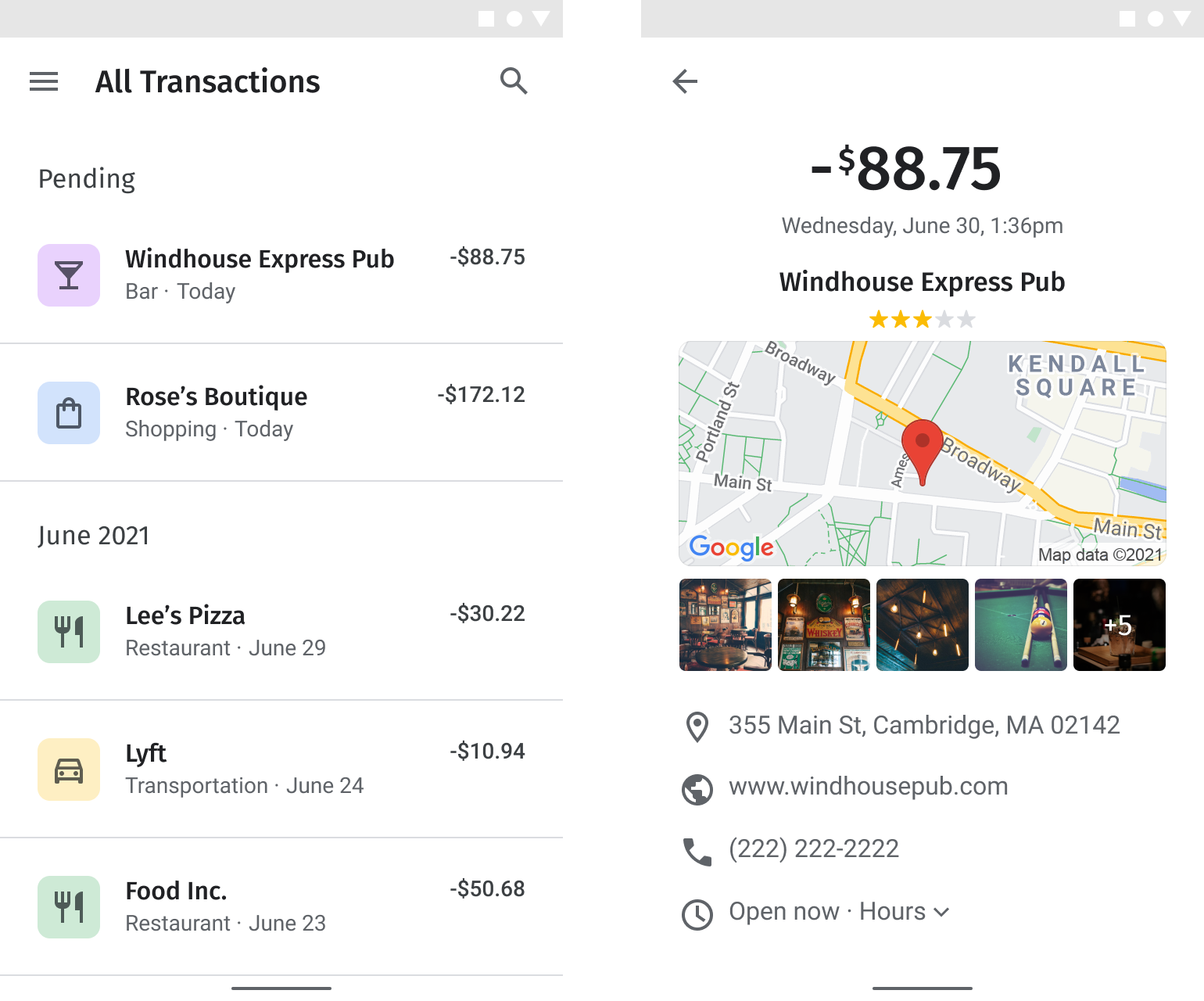](https://developers.google.com/static/maps/architecture/enriched-transactions/images/diagram.png) Enriched transactions sample screens (click to enlarge)
### Enable APIs
To implement Enriched Transactions, you must enable the following APIs in the
Google Cloud console. The following links open the Google Cloud console so you can
enable each API for your selected project:
- [Places API (New)](https://console.cloud.google.com/apis/library/places.googleapis.com)
- [Geocoding API](https://console.cloud.google.com/apis/library/geocoding-backend.googleapis.com)
- [Maps JavaScript API](https://console.cloud.google.com/apis/library/maps-backend.googleapis.com), [Maps Static API](https://console.cloud.google.com/apis/library/static-maps-backend.googleapis.com), [Maps SDK for Android](https://console.cloud.google.com/apis/library/maps-android-backend.googleapis.com), or [Maps SDK for iOS](https://console.cloud.google.com/apis/library/maps-ios-backend.googleapis.com)
For more information about setup, see [Getting
started with Google Maps Platform](https://developers.google.com/maps/get-started).
### Implementation guide sections
The following implementations and customizations are covered in this guide:
|---|---|---|
| | [Match merchants with Google Maps Platform](https://developers.google.com/maps/architecture/enriched-transactions.md.txt#match_merchants) | Associate a merchant in transaction history with a place in Google Maps Platform. |
| | [Display merchant details](https://developers.google.com/maps/architecture/enriched-transactions.md.txt#display_merchants) | Show data-rich transactions with helpful information about the merchant so customers can quickly recognize the transaction. |
| | [Add a map of the merchant location](https://developers.google.com/maps/architecture/enriched-transactions.md.txt#merchant_map) | Add a map of the merchant location with an advanced marker. |
## Match merchants with Google Maps Platform
|---|---|
| **This example uses:** [Places API (New)](https://developers.google.com/maps/documentation/places/web-service/text-search.md.txt) | **Also available:** [JavaScript](https://developers.google.com/maps/documentation/javascript/place-search.md.txt) |
The following flowchart shows how your application matches merchant transactions
to return a result using place details from an existing database of merchants or
through a Text Search request:
[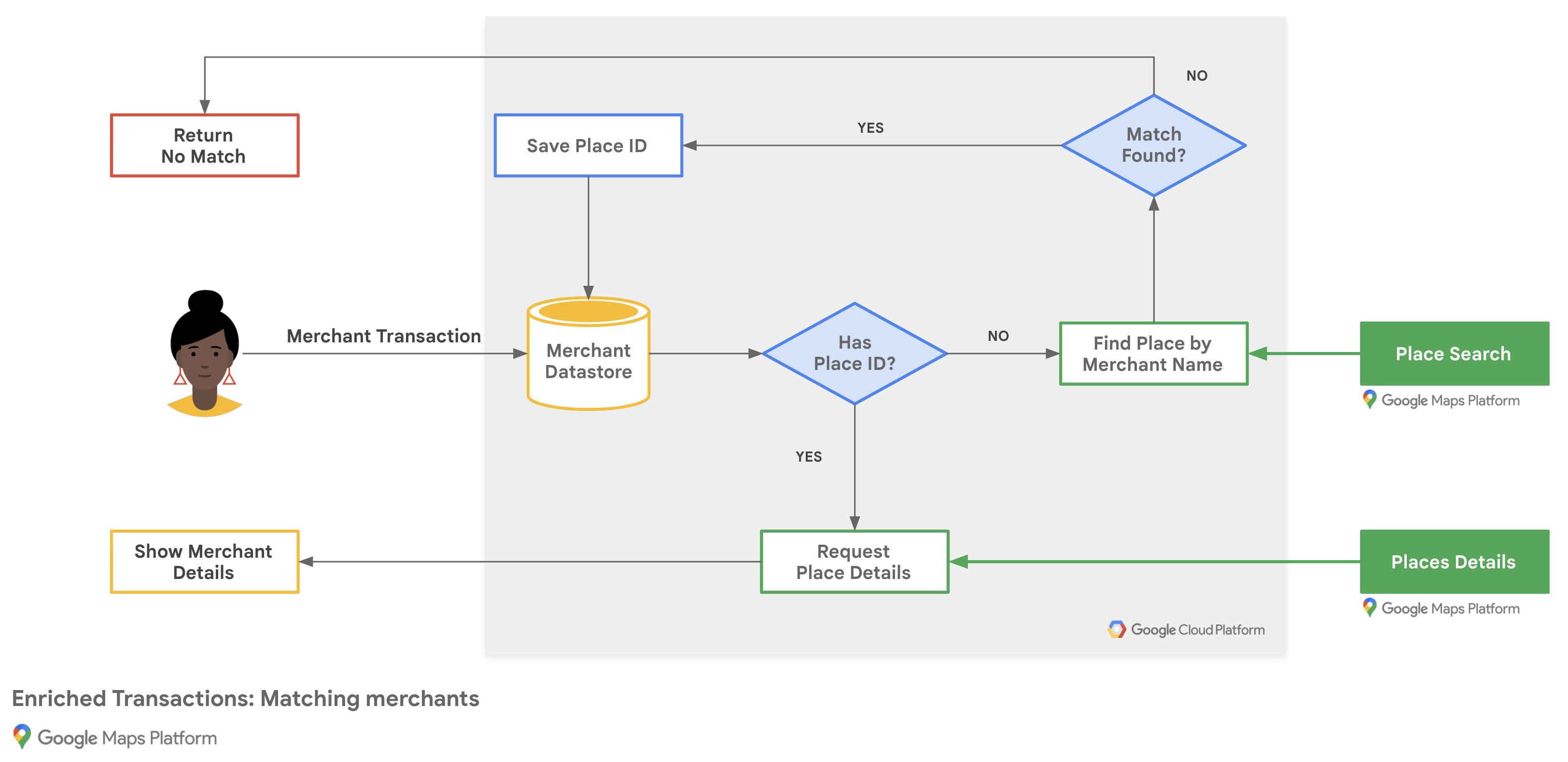](https://developers.google.com/static/maps/architecture/enriched-transactions/images/decision-matrix-diagram.png) Merchant matching flow matrix (click to enlarge)
### Get Google Maps Platform place IDs
You might have a database of merchants with basic information like the business
name and its address. To get information that Google Maps Platform has about
that place, including contact details and customer-contributed ratings, find the
[place ID](https://developers.google.com/maps/documentation/places/web-service/place-id.md.txt#id-overview)
that corresponds to each merchant in your database.
To get the place ID for a business, make a call to the
[Text Search (New)
endpoint](https://developers.google.com/maps/documentation/places/web-service/text-search) in Places API (New) and request only the
`places.id` field in the field mask, which triggers the
[Text
Search Essentials (IDs Only) SKU](https://developers.google.com/maps/billing-and-pricing/sku-details/places#places_text-search-id-only-ess-sku). If the merchant has multiple locations,
include the city or street name along with the merchant name in your query.
Validate the returned results to confirm that they match the merchant.
The following example requests the place ID for the Google Taipei office using
the merchant name and city:
```
curl -X POST -d '{
"textQuery" : "Google Taipei"
}' \
-H 'Content-Type: application/json' \
-H 'X-Goog-Api-Key: YOUR_API_KEY' \
-H 'X-Goog-FieldMask: places.id' \
'https://places.googleapis.com/v1/places:searchText'
```
### Store place IDs
To store information from Google Maps Platform about the merchant for future
requests, you can [store the place ID](https://developers.google.com/maps/documentation/places/web-service/place-id.md.txt#save-id)
indefinitely in your database as an attribute of the merchant's record. You
need to run the Text Search (New) request only once for each
merchant, or you can search for the place ID whenever a customer requests
transaction details.
To keep your stored place IDs accurate,
[refresh place IDs](https://developers.google.com/maps/documentation/places/web-service/place-id.md.txt#refresh-id)
every 12 months by making a
[Place Details (New)](https://developers.google.com/maps/documentation/places/web-service/place-details.md.txt)
request that specifies only the `id` field in the field mask.
If the place details you display don't match the merchant where the customer
completed the transaction, Google recommends letting customers submit feedback
about the quality of the merchant match.
## Display merchant details
|---|---|
| **This example uses:** [Places API (New)](https://developers.google.com/maps/documentation/places/web-service/place-details.md.txt) | **Also available:** [Places SDK for Android](https://developers.google.com/maps/documentation/places/android-sdk/details-place.md.txt) \| [Places SDK for iOS](https://developers.google.com/maps/documentation/places/ios-sdk/details-place.md.txt) \| [Places Library, Maps JavaScript API](https://developers.google.com/maps/documentation/javascript/place-details.md.txt) |
You can share the place details customers need after they visit a merchant
location. After calling the
[Place Details (New) endpoint](https://developers.google.com/maps/documentation/places/web-service/place-details.md.txt)
in Places API (New), you can filter and render the response in an info
window, a web sidebar, or a mobile detail view within the limits of the
Google Maps Platform Terms of Service.
[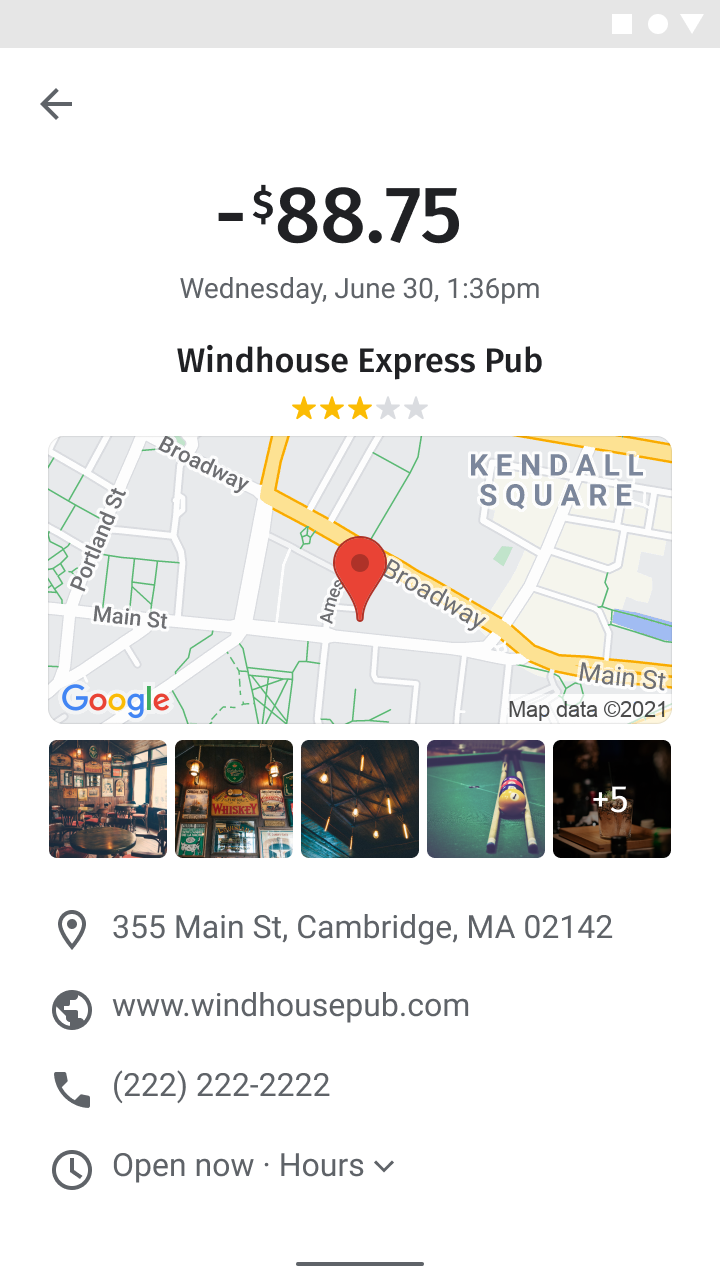](https://developers.google.com/static/maps/architecture/enriched-transactions/images/enriched-transactions.png) Sample merchant details screen (click to enlarge)
To issue a request to the Place Details endpoint, you need the place ID for each
location. See
[Get Google Maps Platform place IDs](https://developers.google.com/maps/architecture/enriched-transactions.md.txt#getting_place_ids) to retrieve the
place ID of a merchant location.
The following Place Details (New) request returns the display name,
formatted address, coordinates, website, phone number, icon, opening hours, and
rating in JSON format for the Google Taipei 101 place ID:
```
curl -X GET -H 'Content-Type: application/json' \
-H 'X-Goog-Api-Key: YOUR_API_KEY' \
-H 'X-Goog-FieldMask: displayName,formattedAddress,location,websiteUri,nationalPhoneNumber,iconMaskBaseUri,regularOpeningHours,rating' \
'https://places.googleapis.com/v1/places/ChIJraeA2rarQjQRyAqIxkx2vN8'
```
If you're building a web application with the Maps JavaScript API,
you can also use the
[Place class](https://developers.google.com/maps/documentation/javascript/place.md.txt)
to fetch the same fields on the client:
```
const place = new google.maps.places.Place({
id: "ChIJraeA2rarQjQRyAqIxkx2vN8",
});
await place.fetchFields({
fields: [
"displayName",
"formattedAddress",
"location",
"websiteURI",
"nationalPhoneNumber",
"regularOpeningHours",
"rating",
],
});
```
## Add a map of the merchant location
|---|---|
| **This example uses:** [Maps JavaScript API](https://developers.google.com/maps/documentation/javascript) \| [Geocoding API](https://developers.google.com/maps/documentation/geocoding) \| [Maps Static API](https://developers.google.com/maps/documentation/maps-static) | **Also available:** [Android](https://developers.google.com/maps/documentation/android-sdk/map.md.txt) \| [iOS](https://developers.google.com/maps/documentation/ios-sdk/map.md.txt) |
### Determine the merchant's location
You can place a marker on a map using geographic coordinates from
[place details](https://developers.google.com/maps/architecture/enriched-transactions.md.txt#display_merchants). If your merchant database has street
addresses without geographic coordinates and you aren't requesting place
details, you can use the Geocoding API to convert street addresses
to latitude and longitude coordinates on the server side, store those
coordinates in your database, and refresh them
[at least once every 30 days](https://cloud.google.com/maps-platform/terms/maps-service-terms#3.-geocoding-api).
The following example uses the Geocoding API to get the latitude
and longitude for the Google Taipei office place ID:
```html
https://maps.googleapis.com/maps/api/geocode/json?place_id=ChIJraeA2rarQjQRyAqIxkx2vN8&key=YOUR_API_KEY
```
### Add an advanced marker on a web map
Because customers view the map to confirm transactions rather than browse or
navigate, configure your map with limited interactivity and place an
[advanced
marker](https://developers.google.com/maps/documentation/javascript/advanced-markers/overview) at the merchant's location. Advanced markers require a
[map ID](https://developers.google.com/maps/documentation/javascript/map-ids/mapid-over.md.txt) and the
`marker` library (`libraries=marker`).
First, load the Maps JavaScript API with `libraries=marker` and
add a container `div` for the map:
Next, initialize the map with `gestureHandling: "none"` and
`zoomControl: false` to limit interactivity, provide your `mapId`, and create a
`google.maps.marker.AdvancedMarkerElement` at the merchant's coordinates:
```
function initMap() {
const merchantLocation = { lat: 25.033976, lng: 121.5645389 };
const map = new google.maps.Map(document.getElementById("map"), {
center: merchantLocation,
zoom: 16,
mapId: "DEMO_MAP_ID",
gestureHandling: "none",
zoomControl: false,
});
new google.maps.marker.AdvancedMarkerElement({
map,
position: merchantLocation,
title: "Google Taipei",
});
}
```
You can also customize your
[advanced
markers](https://developers.google.com/maps/documentation/javascript/advanced-markers/basic-customization) by changing the pin background, border, or glyph color, or by
supplying a
[custom
graphic image](https://developers.google.com/maps/documentation/javascript/advanced-markers/graphic-markers) for the merchant's category.
### Add a static map image
If you prefer a non-interactive map image for desktop or mobile web, create a
[Maps Static API URL with a single marker](https://developers.google.com/maps/documentation/maps-static/start.md.txt#Markers)
at the merchant's latitude and longitude coordinates or address. The
Maps Static API returns an image version of a map using the
parameters you specify.
The following request returns a roadmap with a size of 640x480 pixels, centered
on a red marker at the Google Taipei office with a cloud-based map style:
```html
https://maps.googleapis.com/maps/api/staticmap?size=640x480&markers=color:red%7C25.033976%2C121.5645389&map_id=b224095f76859890&key=YOUR_API_KEY&signature=BASE64_SIGNATURE
```
The following table describes each section of the request:
|---|---|
| **API URL** | https://maps.googleapis.com/maps/api/staticmap? |
| **Image size** | size=640x480 |
| **Merchant location markers** (using [URL encoding](https://developers.google.com/maps/documentation/places/web-service/web-services-best-practices.md.txt#BuildingURLs)) | markers=color:red%7C25.033976%2C121.5645389 |
| **Cloud-based map style** | map_id=b224095f76859890 |
| **API key** | key=YOUR_API_KEY |
| **Digital signature** (learn how to [digitally sign your request](https://developers.google.com/maps/documentation/maps-static/get-api-key.md.txt#gen-sig)) | signature=BASE64_SIGNATURE |
The request produces the following static map image:

You can also pass an address as the marker location:
```html
https://maps.googleapis.com/maps/api/staticmap?size=640x480&markers=color:green%7CTaipei%20101%20Tower%2CNo.%207信義路五段信義區台北市%20Taiwan%20110&map_id=b224095f76859890&key=YOUR_API_KEY&signature=BASE64_SIGNATURE
```
For additional parameter options, see the
[Maps Static API documentation](https://developers.google.com/maps/documentation/maps-static).
### Add a map on your mobile application
If you're using the Maps SDK for Android or
Maps SDK for iOS, you can place an advanced marker using coordinates
from [place details](https://developers.google.com/maps/architecture/enriched-transactions.md.txt#display_merchants).
Because customers view the map to confirm transactions rather than browse or
navigate, configure a map with limited interactivity:
- For Android applications, see [Advanced markers for Android](https://developers.google.com/maps/documentation/android-sdk/advanced-markers/overview.md.txt) and [Add a map with a marker](https://developers.google.com/maps/documentation/android-sdk/map-with-marker.md.txt), and enable [Lite Mode](https://developers.google.com/maps/documentation/android-sdk/lite.md.txt) to provide limited interactivity.
- For iOS applications, see [Advanced markers for iOS](https://developers.google.com/maps/documentation/ios-sdk/advanced-markers/overview.md.txt) and [Add a map with a marker](https://developers.google.com/maps/documentation/ios-sdk/map-with-marker.md.txt), and [disable controls and gestures](https://developers.google.com/maps/documentation/ios-sdk/controls.md.txt#map_controls) with the `GMSUISettings` class.