Apps and projects that use the Google Maps Platform APIs and SDKs **must** use
API keys or, if supported, OAuth 2.0, to authenticate themselves.
These best practices show you how to secure your
Maps Platform access.
If you want to use OAuth 2.0 to authorize **server-to-server** traffic,
look for the OAuth topic in your API documentation.
See [Use OAuth for server-side apps](https://developers.google.com/maps/api-security-best-practices.md.txt#use-oauth-for-server-side-apps) for more
details.
> [!IMPORTANT]
> **Important:** Restrict you API keys to prevent unauthorized usage. You are financially responsible for charges caused by abuse of unrestricted API keys.
[Video](https://www.youtube.com/watch?v=2_HZObVbe-g)
In addition to applying application and API key restrictions, follow any
security practices that apply to specific Google Maps Platform products. For
example, see the Maps JavaScript API below in [Recommended
application and API restrictions](https://developers.google.com/maps/api-security-best-practices#more-information).
If your API keys are already in use, review the recommendations below in [If you
are restricting an API key that's in use](https://developers.google.com/maps/api-security-best-practices#key-in-use).
For more details about digital signatures, supported by
Maps Static API and Street View Static API, see the
[Digital Signature Guide](https://developers.google.com/maps/digital-signature.md.txt).
## Recommended best practices
For increased security and to avoid being billed for unauthorized use, follow
these API security best practices for all Google Maps Platform APIs, SDKs, or
services:
#### Recommended for all API key uses
[Restrict your API keys](https://developers.google.com/maps/api-security-best-practices.md.txt#restricting-api-keys)
[Use separate API keys for each app](https://developers.google.com/maps/api-security-best-practices.md.txt#separate-apikey)
[Delete unused API keys](https://developers.google.com/maps/api-security-best-practices.md.txt#deleting-unused-apikeys)
[Check your API key usage](https://developers.google.com/maps/api-security-best-practices.md.txt#monitor-apikey)
[Be careful when rotating API keys](https://developers.google.com/maps/api-security-best-practices.md.txt#regenerate-apikey)
[Split client-side and server-side usage into separate projects](https://developers.google.com/maps/api-security-best-practices.md.txt#split-client-side-and-server-side-usage-into-separate-projects)
[Disable unused services](https://developers.google.com/maps/api-security-best-practices.md.txt#disable-unused-services)
#### Additional recommendations for client-side apps
[Use client-side SDKs](https://developers.google.com/maps/api-security-best-practices.md.txt#use-client-side-sdks)
[Secure client-side web service calls](https://developers.google.com/maps/api-security-best-practices.md.txt#secure-client-side-ws-calls)
#### Additional recommendations for websites or client-side apps using Static Web APIs
[Protect Static Web API usage](https://developers.google.com/maps/api-security-best-practices.md.txt#protect-static-web-api-usage)
#### Additional recommendations for server-side apps using web services
[Protect web service API keys](https://developers.google.com/maps/api-security-best-practices.md.txt#protect-web-service-api-keys)
[Use OAuth for server-side apps](https://developers.google.com/maps/api-security-best-practices.md.txt#use-oauth-for-server-side-apps)
#### If you are restricting or rotating an API key that's in use
- Before you change the API key, [Check your API key usage](https://developers.google.com/maps/api-security-best-practices.md.txt#monitor-apikey)
This step is especially important if you are adding restrictions for a
key that is already in use in a production application.
- After you change the key, update all of your apps with the new API keys, as
needed.
- If your API key has not been compromised and is not actively abused,
you can migrate your apps to multiple new API keys at your own pace, leaving
the original API key untouched until you only observe one type of traffic,
and the API key can safely be restricted with a single type of application
restrictions without causing unintended service disruptions.
For further instructions, see
[Migrate to multiple API keys](https://developers.google.com/maps/api-security-best-practices.md.txt#migrating-to-multiple-api-keys).
Monitor the usage over time, and see when specific APIs, platform types, and
domains have migrated off the old API key before you choose to restrict or
delete the old key. For more information, see [Reporting and
monitoring](https://developers.google.com/maps/reporting-and-monitoring/reporting#google-maps-metrics)
and [Metrics](https://cloud.google.com/monitoring/api/metrics_gcp#gcp-maps)
- If your API key has been compromised, you want to move more quickly to
secure your API key and stop the abuse. In Android and iOS apps, keys aren't
replaced until customers update their apps. Updating or replacing keys in
on webpages or in server-side apps is much more straightforward, but may
still require careful planning and fast work.
For more information, see
[Handle unauthorized use of an API key](https://developers.google.com/maps/api-security-best-practices.md.txt#unauth-key-use).
#### More information
[Recommended application and API restrictions](https://developers.google.com/maps/api-security-best-practices.md.txt#more-information)
## Restrict your API keys
> [!TIP]
> **Tip:** If you are restricting an API key that's already in use, also see section [If you are restricting or rotating an API key that's in use](https://developers.google.com/maps/api-security-best-practices.md.txt#key-in-use).
Best practice is to always restrict your API keys with one type of application
restrictions and one or more API restrictions. For suggested restrictions by API,
SDK, or JavaScript service, see [Recommended application and API
restrictions](https://developers.google.com/maps/api-security-best-practices#more-information) below.
- **Application restrictions** You can limit the use of an API key to specific
platforms: Android or iOS applications, or specific websites for client-side
applications, or specific IP addresses or CIDR subnets for server-side apps
issuing web service REST API calls.
You restrict a key by adding one or more application restrictions of the
types you want to authorize, after which only requests originating from
these sources are permitted.
> [!NOTE]
> **Note:** If you place an application restriction on an API key, you cannot use it on other platforms. For example, if you restrict the API key to only Android apps, you cannot use it with iOS, web services, or JavaScript APIs.
- **API restrictions** You can restrict which Google Maps Platform APIs,
SDKs, or services on which your API key can be used. API restrictions only
allow requests to the APIs and SDKs you specify. For any given API key, you
can specify as many API restrictions as needed. The list of available APIs
includes all APIs enabled on a project.
> [!IMPORTANT]
> **Important:** Make sure the APIs or SDKs to which you're restricting your API key support the type of application restrictions you set. For example, if you configure the key with an iOS restriction, make sure your API you intend to use the key with is available on iOS.
### Set an application restriction for an API key
1. Open the Google Cloud console [**Google Maps Platform Credentials**](https://console.cloud.google.com/project/_/google/maps-apis/credentials?utm_source=Docs_Credentials)
page.
2. Select the API key that you want to restrict.
3. On the **Edit API key page** , under **Key restrictions** , select
**Set an application restriction**.
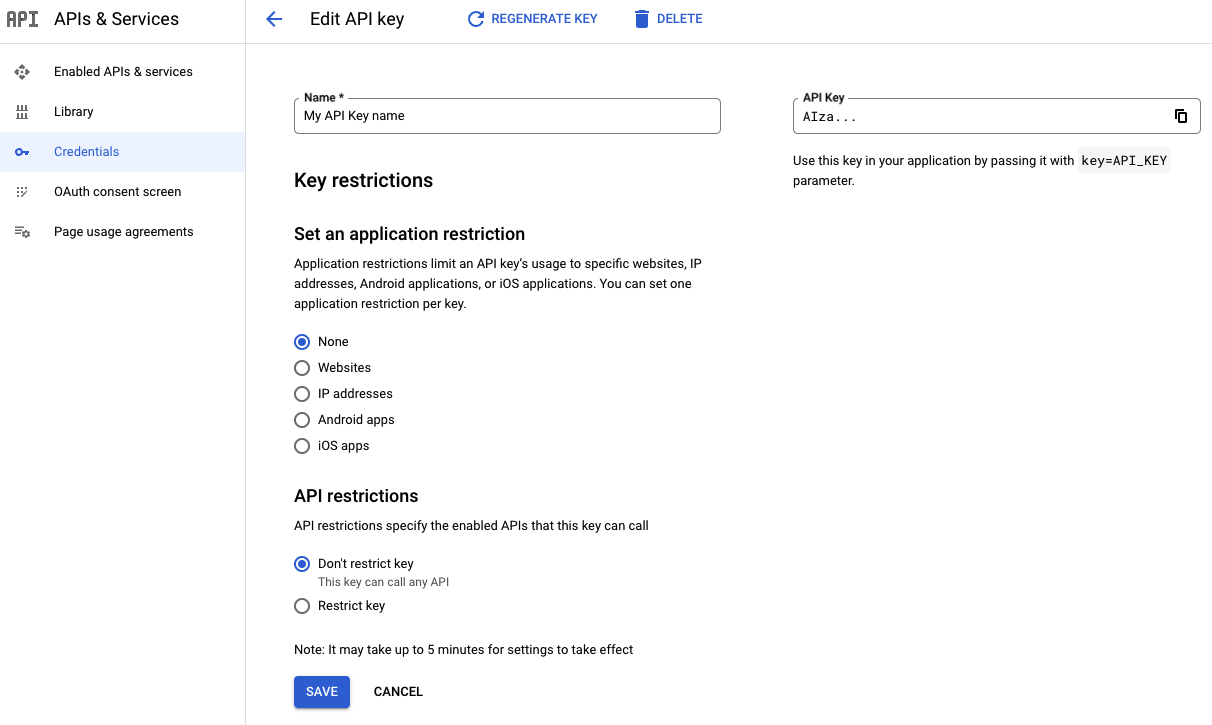
4. Select one of the restriction types and supply the requested information
following the restriction list.
| Restriction type | Description |
|---|---|
| Websites | Specify one or more referrer websites. - The universally supported referrer URI schemes are `https` and `http`. Other schemes are not guaranteed to work correctly, since modern web browsers will for privacy reasons not send a \`Referer\` header in outgoing requests. - Always provide the **whole** referrer string, including the protocol scheme, hostname and optional port (e.g., `https://google.com`). - You can use wildcard characters to authorize all subdomains. For example, `https://*.google.com` accepts all sites ending in `.google.com`. - Be careful when authorizing full-path referrers, for example, `https://google.com/some/path`, since most web browsers will for privacy reasons strip the path from cross-origin requests. |
| IP addresses | Specify one or more IPv4 or IPv6 addresses, or subnets using CIDR notation. The IP addresses must match the source address the Google Maps Platform servers observe. If you use [network address translation (NAT)](https://en.wikipedia.org/wiki/Network_address_translation), this address typically corresponds to your machine's *public* IP address. |
| Android apps | Add the Android package name (from the `AndroidManifest.xml` file) and the SHA-1 signing certificate fingerprint of each Android application you want to authorize. 1. Select **Android apps**. 2. Click **+ Add**. 3. Enter your package name and SHA-1 certificate fingerprint. For example: ``` com.example.android.mapexample ``` ``` BB:0D:AC:74:D3:21:E1:43:67:71:9B:62:91:AF:A1:66:6E:44:5D:75 ``` 4. Click **Save**. There are two certificate types: - **Debug certificate**: Only use this certificate type with apps you're testing and other non-production code. Don't attempt to publish an app that's signed with a debug certificate. The Android SDK tools generate this certificate automatically when you run a debug build. - **Release certificate**: Use this certificate when you're ready to release your app to an app store. The Android SDK tools generate this certificate when you run a release build. For more information about Android application signing and certificates, see the [Sign your app guide](https://developer.android.com/tools/publishing/app-signing.html). If you use **Play App Signing** , to fetch the signing certificate fingerprint, see [Working with API Providers](https://developer.android.com/studio/publish/app-signing#api-providers). If you manage your own signing key, see [Self-signing your application](https://developers.google.com/android/guides/client-auth.md.txt#self-signing_your_application) or refer to the instructions for your build environment. |
| iOS apps | Add the [bundle identifier](https://developer.apple.com/documentation/appstoreconnectapi/bundle_ids) of each iOS application you want to authorize. 1. Select **iOS apps**. 2. Click **+ Add**. 3. Add the bundle ID to accept requests from the iOS app with that ID. 4. Click **Save**. |
For recommendations for an application restriction, see [Recommended
application Restriction](https://developers.google.com/maps/api-security-best-practices#rec-app-restriction).
5. Select **Save**.
### Set API restrictions for an API key
1. Open the Google Cloud console [**Google Maps Platform Credentials**](https://console.cloud.google.com/project/_/google/maps-apis/credentials?utm_source=Docs_Credentials)
page.
2. Select the API key that you want to restrict.
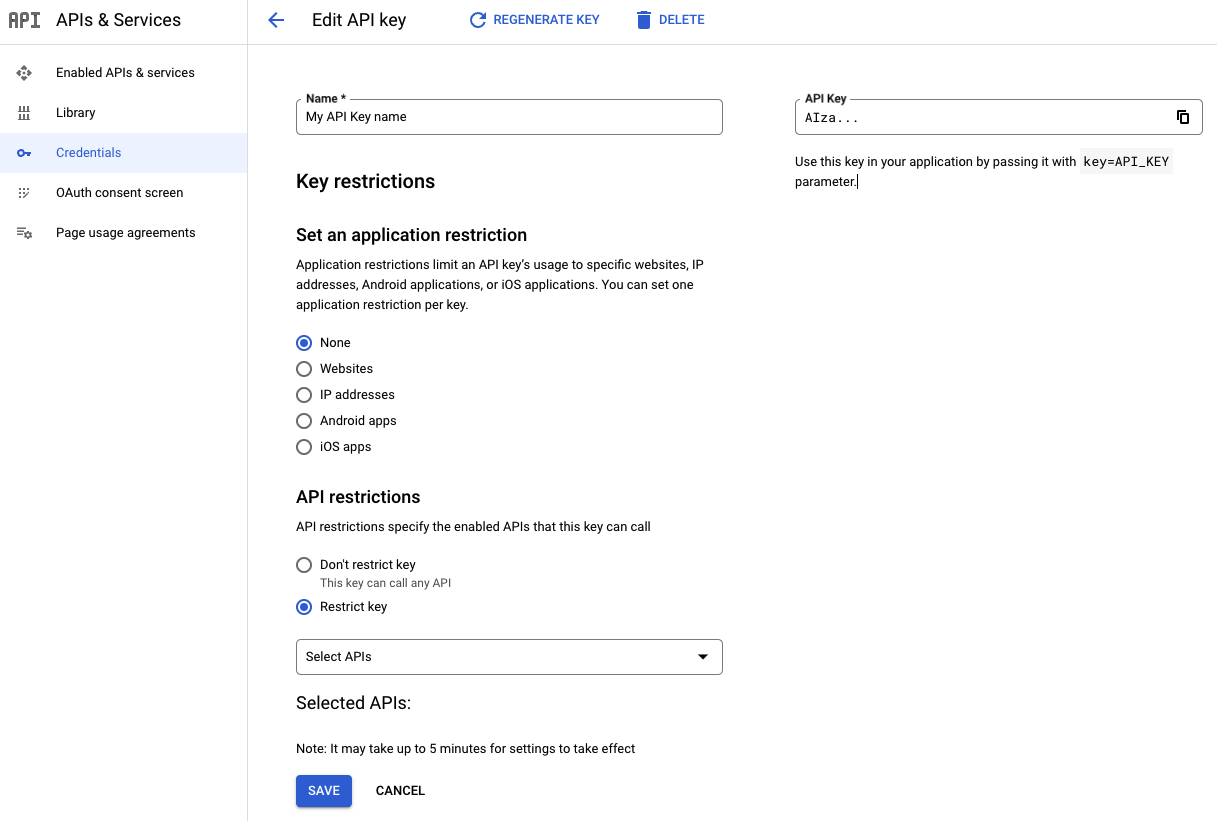
3. On the **Edit API key page** , under **API restrictions**:
- Select **Restrict key**.
- Open **Select APIs** and select the APIs or SDKs you want your
application to access using the API key.
If an API or SDK is not listed, you need to enable it. For details, see [To
enable one or more APIs or SDKs](https://developers.google.com/maps/get-started#enable-api-sdk).
4. Select **Save**.
The restriction becomes part of the API key definition after this step. Be
sure you provide the appropriate details and select **Save** to save your
API key restrictions. For further information, see the
**Get an API Key** guide in the documentation for the specific API or SDK
you are interested in.
For recommended API restrictions, see [Recommended API
Restrictions](https://developers.google.com/maps/api-security-best-practices#rec-api-restriction).
## Check your API key usage
If you're restricting API keys after they've been created, or if you want to see
what APIs are being used by a key so you can restrict them, you want to check
your API key usage. These steps show you in which services and API methods an
API key is being used. If you see any usage beyond Google Maps Platform
services, investigate to determine if you need to add more restrictions to avoid
unwanted use. You can use the Google Maps Platform Cloud Console Metrics
explorer to help determine which API and application restrictions to apply to
your API key:
- [Determine the APIs that use your API key](https://developers.google.com/maps/api-security-best-practices.md.txt#api-restrict-metrics)
- [Choose the correct type of application restriction using the Metrics
explorer](https://developers.google.com/maps/api-security-best-practices#app-restrict-metrics)
> [!TIP]
> **Tip:** If you don't see all chart labels when you open the Metrics explorer, see these topics in the Google Maps Platform Cloud Console Metrics explorer help: [Toggling the chart's full
> legends](https://cloud.google.com/monitoring/charts/working-with-legends#metrics-explorer) and [Show all legend
> columns](https://cloud.google.com/monitoring/charts/working-with-legends#legend-columns).
### Determine the APIs that use your API key
The following metrics reports allow you to determine which APIs are using your
API keys. Use these reports to do the following:
- See how your API keys are used
- Spot unexpected usage
- Help verify if an unused key is safe to delete. For information about deleting an API key, see [Delete unused API keys](https://developers.google.com/maps/deleting-unused-apikeys).
When applying API restrictions, use these reports to create a list of APIs to
authorize, or to validate automatically-generated API key restriction
recommendations. For more information about recommended restrictions, see [Apply
recommended restrictions](https://developers.google.com/maps/api-security-best-practices#apply-rec). For more information about using the
Metrics explorer, see [Create charts with Metrics
explorer](https://console.cloud.google.com/monitoring/charts/metrics-explorer)
.
1. Go to the Google Cloud console's [Metrics
explorer](https://console.cloud.google.com/monitoring/metrics-explorer)
2. Sign in and select the project for the API keys you want to check.
3. Go to the Metrics explorer page for your type of API:
- **For API keys using any API *except* the Maps Embed API** : Go to [Metrics
explorer](https://console.cloud.google.com/monitoring/metrics-explorer;duration=P30D?pageState=%7B%22xyChart%22:%7B%22constantLines%22:%5B%5D,%22dataSets%22:%5B%7B%22plotType%22:%22LINE%22,%22targetAxis%22:%22Y1%22,%22timeSeriesFilter%22:%7B%22aggregations%22:%5B%7B%22crossSeriesReducer%22:%22REDUCE_NONE%22,%22groupByFields%22:%5B%5D,%22perSeriesAligner%22:%22ALIGN_RATE%22%7D,%7B%22crossSeriesReducer%22:%22REDUCE_MEAN%22,%22groupByFields%22:%5B%22resource.label.%5C%22service%5C%22%22,%22resource.label.%5C%22method%5C%22%22,%22resource.label.%5C%22credential_id%5C%22%22%5D,%22perSeriesAligner%22:%22ALIGN_MEAN%22%7D%5D,%22apiSource%22:%22DEFAULT_CLOUD%22,%22crossSeriesReducer%22:%22REDUCE_NONE%22,%22filter%22:%22metric.type%3D%5C%22serviceruntime.googleapis.com/api/request_count%5C%22+resource.type%3D%5C%22consumed_api%5C%22+metric.label.%5C%22response_code%5C%22!%3D%5C%22403%5C%22+resource.label.%5C%22credential_id%5C%22%3Dmonitoring.regex.full_match(%5C%22apikey:.*%5C%22)%22,%22groupByFields%22:%5B%5D,%22minAlignmentPeriod%22:%2260s%22,%22perSeriesAligner%22:%22ALIGN_RATE%22,%22secondaryCrossSeriesReducer%22:%22REDUCE_MEAN%22,%22secondaryGroupByFields%22:%5B%22resource.label.%5C%22service%5C%22%22,%22resource.label.%5C%22method%5C%22%22,%22resource.label.%5C%22credential_id%5C%22%22%5D%7D%7D%5D,%22options%22:%7B%22mode%22:%22COLOR%22%7D,%22y1Axis%22:%7B%22label%22:%22%22,%22scale%22:%22LINEAR%22%7D%7D%7D&jsmode=O&mods=perf_metrics)
page.
- **For API keys using Maps Embed API** : Go to [Metrics
Explorer](https://console.cloud.google.com/monitoring/metrics-explorer;duration=P30D?pageState=%7B%22xyChart%22:%7B%22constantLines%22:%5B%5D,%22dataSets%22:%5B%7B%22plotType%22:%22LINE%22,%22targetAxis%22:%22Y1%22,%22timeSeriesFilter%22:%7B%22aggregations%22:%5B%7B%22crossSeriesReducer%22:%22REDUCE_NONE%22,%22groupByFields%22:%5B%5D,%22perSeriesAligner%22:%22ALIGN_RATE%22%7D,%7B%22crossSeriesReducer%22:%22REDUCE_MEAN%22,%22groupByFields%22:%5B%22resource.label.%5C%22service%5C%22%22,%22resource.label.%5C%22method%5C%22%22,%22resource.label.%5C%22credential_id%5C%22%22%5D,%22perSeriesAligner%22:%22ALIGN_MEAN%22%7D%5D,%22apiSource%22:%22DEFAULT_CLOUD%22,%22crossSeriesReducer%22:%22REDUCE_NONE%22,%22filter%22:%22metric.type%3D%5C%22maps.googleapis.com/service/request_count%5C%22+resource.type%3D%5C%22maps.googleapis.com/Api%5C%22+metric.label.%5C%22response_code%5C%22!%3D%5C%22403%5C%22+resource.label.%5C%22credential_id%5C%22%3Dmonitoring.regex.full_match(%5C%22apikey:.*%5C%22)+resource.label.%5C%22service%5C%22%3D%5C%22maps-embed-backend.googleapis.com%5C%22%22,%22groupByFields%22:%5B%5D,%22minAlignmentPeriod%22:%2260s%22,%22perSeriesAligner%22:%22ALIGN_RATE%22,%22secondaryCrossSeriesReducer%22:%22REDUCE_MEAN%22,%22secondaryGroupByFields%22:%5B%22resource.label.%5C%22service%5C%22%22,%22resource.label.%5C%22method%5C%22%22,%22resource.label.%5C%22credential_id%5C%22%22%5D%7D%7D%5D,%22options%22:%7B%22mode%22:%22COLOR%22%7D,%22y1Axis%22:%7B%22label%22:%22%22,%22scale%22:%22LINEAR%22%7D%7D%7D&jsmode=O&mods=perf_metrics).
4. Inspect each API key:
1. Select **ADD FILTER**.
2. Select the *label* `credential_id`.
3. Select the *value* corresponding to the key you want to inspect.
4. Note which APIs this API key is being used for, and confirm the use is
expected.
5. Once done, select **Remove filter**
at the end of the active filter
line to delete the extra filter.
5. Repeat for any remaining keys.
6. Restrict your API keys to only the APIs that are being used.
7. If you spot unauthorized use, see [Handle unauthorized use of an API
key](https://developers.google.com/maps/api-security-best-practices#unauth-key-use).
### Choose the correct type of application restriction using the Metrics explorer
After you have verified and taken any needed actions to make sure your API key is
only used for the Google Maps Platform services it is using, also verify the
API key has the correct application restrictions.
If your API key has recommended API key restrictions, apply them. For more
information, see [Apply recommended API key restrictions](https://developers.google.com/maps/api-security-best-practices.md.txt#apply-rec).
If your API key doesn't have restriction recommendations, determine the type of
application restriction to apply, based on the reported `platform_type` using
the Metrics explorer:
1. Go to the Google Cloud console's [Metrics
explorer](https://console.cloud.google.com/monitoring/metrics-explorer)
2. Sign in and select the project for the APIs you want to check.
3. Go to this Metrics explorer page: [Metrics
explorer](https://console.cloud.google.com/monitoring/metrics-explorer;duration=P30D?pageState=%7B%22xyChart%22:%7B%22constantLines%22:%5B%5D,%22dataSets%22:%5B%7B%22plotType%22:%22LINE%22,%22targetAxis%22:%22Y1%22,%22timeSeriesFilter%22:%7B%22aggregations%22:%5B%7B%22crossSeriesReducer%22:%22REDUCE_NONE%22,%22groupByFields%22:%5B%5D,%22perSeriesAligner%22:%22ALIGN_RATE%22%7D,%7B%22crossSeriesReducer%22:%22REDUCE_MEAN%22,%22groupByFields%22:%5B%22metric.label.%5C%22platform_type%5C%22%22,%22resource.label.%5C%22service%5C%22%22,%22resource.label.%5C%22method%5C%22%22,%22resource.label.%5C%22credential_id%5C%22%22%5D,%22perSeriesAligner%22:%22ALIGN_MEAN%22%7D%5D,%22apiSource%22:%22DEFAULT_CLOUD%22,%22crossSeriesReducer%22:%22REDUCE_NONE%22,%22filter%22:%22metric.type%3D%5C%22maps.googleapis.com/service/request_count%5C%22+resource.type%3D%5C%22maps.googleapis.com/Api%5C%22+metric.label.%5C%22response_code%5C%22!%3D%5C%22403%5C%22+resource.label.%5C%22credential_id%5C%22%3Dmonitoring.regex.full_match(%5C%22apikey:.*%5C%22)%22,%22groupByFields%22:%5B%5D,%22minAlignmentPeriod%22:%2260s%22,%22perSeriesAligner%22:%22ALIGN_RATE%22,%22secondaryCrossSeriesReducer%22:%22REDUCE_MEAN%22,%22secondaryGroupByFields%22:%5B%22metric.label.%5C%22platform_type%5C%22%22,%22resource.label.%5C%22service%5C%22%22,%22resource.label.%5C%22method%5C%22%22,%22resource.label.%5C%22credential_id%5C%22%22%5D%7D%7D%5D,%22options%22:%7B%22mode%22:%22COLOR%22%7D,%22y1Axis%22:%7B%22label%22:%22%22,%22scale%22:%22LINEAR%22%7D%7D%7D&jsmode=O&mods=perf_metrics).
4. Inspect each API key:
1. Select **ADD FILTER**.
2. Select the *label* `credential_id`.
3. Select the *value* corresponding to the key you want to inspect.
4. Once done, select **Remove filter**
at the end of the active filter
line to delete the extra filter.
5. Repeat for any remaining keys.
6. Once you have the platform type for your API keys, apply the application
restriction for that `platform_type`:
`PLATFORM_TYPE_JS` : Apply Website restrictions on the key.
`PLATFORM_TYPE_ANDROID` : Apply Android application restrictions on the key.
`PLATFORM_TYPE_IOS` : Apply iOS application restrictions on the key.
`PLATFORM_TYPE_WEBSERVICE` : You *may* have to rely on IP address
restrictions on the key, to properly restrict it.
For recommendations for Maps Static API and
Street View Static API, see
[Protect Static Web API usage](https://developers.google.com/maps/api-security-best-practices.md.txt#protect-static-web-api-usage).
For Maps Embed API recommendations, see
[Websites with the Maps Embed API](https://developers.google.com/maps/api-security-best-practices.md.txt#embed-api-rec).
**My API key is using multiple platform types:**
Your traffic can't be properly secured with just a single API key. You need
to migrate to multiple API keys. For more information, see
[Migrate to multiple API keys](https://developers.google.com/maps/api-security-best-practices.md.txt#migrating-to-multiple-api-keys).
## Use separate API keys for each app
This practice limits the scope of each key. If one API key is compromised, you
can delete or rotate the impacted key without needing to update your other API
keys. You can create up to 300 API keys per project. For more information, see
[Limits on API
keys](https://cloud.google.com/docs/authentication/api-keys#limits).
While one API key per application is ideal for security purposes, you can use
restricted keys on multiple apps as long as they use the same type of
application restriction.
## Apply recommended API key restrictions
> [!TIP]
> **Tip:** To receive important updates about these automated API key restriction recommendations, star the public issue [286524779](https://issuetracker.google.com/286524779).
For some project owners, editors and API key administrators, the
Google Cloud console suggests specific API key restrictions to unrestricted API
keys based on their Google Maps Platform usage and activity.
> [!CAUTION]
> **Caution:** If also use your API key on services other than Google Maps Platform (such as Cloud), you should only apply restrictions after a thorough **manual** review.
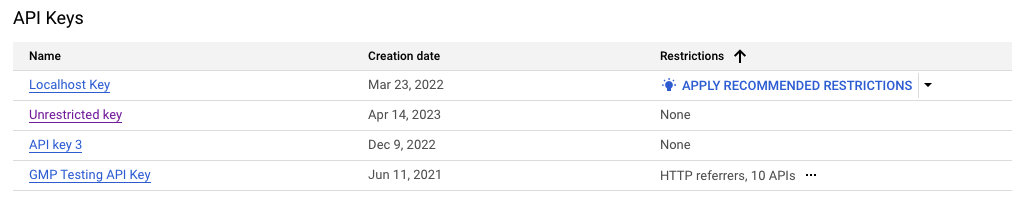
If available, recommendations appear as pre-filled options on the
[**Google Maps Platform Credentials**](https://console.cloud.google.com/project/_/google/maps-apis/credentials?utm_source=Docs_Credentials) page.
> [!IMPORTANT]
> **Important:** The list of recommendations *may* be incomplete. Make sure to double-check your API key usage following the Google Cloud console instructions, and [Check your API key usage](https://developers.google.com/maps/api-security-best-practices.md.txt#monitor-apikey) **before** you apply the recommendations.
### Google Maps Platform APIs and SDKs supported by the automated recommendations
- Maps JavaScript API, including
Directions Service (Legacy),
Distance Matrix Service (Legacy),
Elevation Service,
Geocoding Service
Place class,
Place Autocomplete Widget (New),
Place Autocomplete Data API,
Places Library,
Places Service,
Place Autocomplete Widget, and
Places UI Kit
- Maps Static API and Street View Static API
- Maps Embed API
- Maps SDK for Android, Navigation SDK for Android,
Places SDK for Android, and Places UI Kit on Android
- Maps SDK for iOS, Navigation SDK for iOS,
Places SDK for iOS, Places Swift SDK for iOS, and
Places UI Kit on iOS.
### Reasons you may *not* see a recommendation, or an incomplete one
#### Reasons for seeing no recommendation
- You are (also) using the API key on other than Google Maps Platform
services, or or Maps Platform services that are
[not yet supported](https://developers.google.com/maps/api-security-best-practices.md.txt#maps-apis-and-sdks-supported-by-recommendations) by
the automatic recommendations.
If you see usage on other services, **don't** apply the
recommendation without *first* doing the following:
1. Verify that the API usage you see in the Google Cloud console Metrics
explorer is legitimate.
2. Manually *add* missing services to the list of APIs to be authorized.
3. Manually *add* any missing application restrictions for the services
added to the API list. If your other added would require a different
*type* of application restrictions, see [Migrate to multiple API
keys](https://developers.google.com/maps/api-security-best-practices#migrating-to-multiple-api-keys).
- Your API key is not used in client-side SDKs or APIs.
- You use the API key in a low-volume app or website that has not seen usage
over the last 60 days.
- You have created a new key very recently, or you have very recently deployed
an existing key in a new app. If this is the case, just wait a few more days
to allow the recommendations to update.
- You are using the API key in multiple applications that would require
conflicting types of application restrictions, *or* you are using the same
API key in too many different apps or websites. In either case, as a best
practice, you should migrate to multiple keys. For more details, see
[Migrate to multiple API keys](https://developers.google.com/maps/api-security-best-practices.md.txt#migrating-to-multiple-api-keys).
#### Reasons for seeing an incomplete recommendation
- You use the API key in a low-volume app or website that has not seen usage
over the last 60 days.
- You have *very* recently started using a existing key on a new API or
service, and the automatic API key restriction recommendation pipeline, has
not yet processed the updated usage metrics. The propagation of usage
metrics may take a few days.
If you see usage on other services, **don't** apply the
recommendation without *first* doing the following:
1. Verify that the API usage you see in the Google Cloud console Metrics
explorer is legitimate.
2. Manually *add* missing services to the list of APIs to be authorized.
3. Manually *add* any missing application restrictions for the services
added to the API list. If your other added would require a different
*type* of application restrictions, see [Migrate to multiple API
keys](https://developers.google.com/maps/api-security-best-practices#migrating-to-multiple-api-keys).
4. Unless you **urgently** need to restrict a key, for example, due to
unauthorized use, you *might* also wait a day or two for the
recommendations to catch up.
> [!TIP]
> **Tip:** In an emergency, see [Handle unauthorized use of an API key](https://developers.google.com/maps/api-security-best-practices.md.txt#unauth-key-use).
### Reasons you might see recommendations that are *not* visible in the charts
- Your app or website sent only very short traffic bursts. In this case,
switch from a **CHART** view to display a **TABLE** or **BOTH** , as the
usage is still visible in the legend. For more information, see [Toggling
the chart's full
legends](https://cloud.google.com/monitoring/charts/working-with-legends#metrics-explorer).
- Your traffic is from the Maps Embed API. For instructions, see
[Determine the APIs that use your API key](https://developers.google.com/maps/api-security-best-practices.md.txt#api-restrict-metrics).
- The traffic from the app or website is outside the date range available in
the Google Cloud console Metrics explorer.
### To apply recommended restrictions
1. Open the Google Cloud console [**Google Maps Platform Credentials**](https://console.cloud.google.com/project/_/google/maps-apis/credentials?utm_source=Docs_Credentials)
page.
2. If available, select **Apply recommended restrictions**.
> [!NOTE]
> **Note:** If you don't see any recommended restrictions, see [Set API
> restrictions for an API key](https://developers.google.com/maps/api-security-best-practices#api-restriction) to set appropriate restrictions.
3. Select **Check API usage** to verify which services the API key is being
used on. If you see other than Google Maps Platform services, **pause**
to manually review the recommendation steps above. See the troubleshooting
steps at the beginning of section
[Apply recommended API key restrictions](https://developers.google.com/maps/api-security-best-practices.md.txt#apply-rec).
4. Double-check that the pre-filled restrictions match the websites and apps
where you expect to use your API key.
**Best Practice**: Document and remove any application or API restrictions
that are not affiliated with your services. If something breaks due to an
unexpected dependency, then you can add the required apps or APIs back in.
- If you recognize that an app, website or API is clearly missing from
your recommendation, add it manually or wait a couple of days to allow
the recommendation to update.
- If you need further help with your suggested recommendation, [contact
support](https://developers.google.com/maps/support#contact-maps-support).
5. Select **Apply**.
### What to do if your application gets rejected after applying a recommendation
If you notice that an app or website gets rejected after applying a restriction,
look for the application restriction you need to add in the API response error
message.
#### Client-side SDKs and APIs
Browser and webview based apps
:
> [!CAUTION]
> **Caution:** Exotic referrer URI schemes (i.e., not HTTPS or HTTP) are **not** well supported, and should be avoided if possible. Unless noted otherwise, don't expect Google Maps Platform service or APIs to support other referrer URI schemes that HTTPS or HTTP.
: Modern browsers typically redact the `Referer` header in cross-origin
request for privacy reasons, often stripping it down to the `Origin`.
However, the exact behavior depends on the applied `referrer-policy` of the
hosting site, and may also vary, based on the user browser and version.
: Web applications using opaque or local URI schemes for loading content will
typically have the rendering browser or webview completely redact the
`Referer` header from any outgoing calls, which may cause requests to fail
using API keys with website restrictions.
: For further guidance, see
[Host your browser based apps on a server](https://developers.google.com/maps/api-security-best-practices.md.txt#host-your-browser-based-apps-on-a-server).
: Troubleshooting instructions for browser and webview based apps:
- For Maps JavaScript API, see the browser debug console for
details on how to authorize your application.
Exotic URI schemes are *partially* supported. If parts of your
application don't work it an exotic URI scheme, even after authorizing
the required referrer, you will likely need to host your application
remotely on a server and load it over HTTPS (or HTTP).
If you need help with exotic URI schemes,
[contact support](https://developers.google.com/maps/support.md.txt#contact-maps-support).
- Other Maps Platform APIs will generally return the
referrer you need to authorize in the API error response, presuming the
client sent this information with the rejected request.
Exotic URI schemes are **not** supported.
Android apps
: Use [Android Debug Bridge (adb)](https://developer.android.com/tools/adb)
or [Logcat](https://developer.android.com/studio/debug/logcat)
iOS apps
: See [Viewing Log Messages](https://developer.apple.com/documentation/os/logging/viewing_log_messages)
#### Apps calling web services directly
For applications calling Maps Platform HTTPS REST API or
gRPC endpoints directly without a client-side Google Maps Platform SDK, see
below:
Android and iOS apps
: If your Android or iOS application calls Maps Platform
services directly without using any of the available
Google Maps Platform client SDKs, see
[Android apps](https://developers.google.com/maps/api-security-best-practices.md.txt#android-best-practices-table) and
[iOS apps](https://developers.google.com/maps/api-security-best-practices.md.txt#ios-best-practices-table) for further troubleshooting tips,
and
[Secure client-side web service calls](https://developers.google.com/maps/api-security-best-practices.md.txt#secure-client-side-ws-calls)
for current best security practices for mobile use cases.
If your app logs Maps Platform API error responses, the
above instructions for client-side SDKs may also prove useful for
troubleshooting authentication issues.
Server-side apps
: Server-side applications relying on API keys are best
secured through IP address restrictions. If you have applied IP address
restrictions to your key, and your service logs
Maps Platform API error responses, check your system
logs for further information. The error response will include the server
IP address that you need to authorize.
Browser or webview based apps
: While Maps Static API, Street View Static API more
recent Google Maps Platform APIs will also support referrer
restrictions, note that web browsers or webviews will likely restrict the
`Referer` header to the `Origin` for cross-origin requests, and will
likely omiy sending it altogether, e.g., for locally accessed resources, or
for resources served over protocols other than HTTP or HTTPS.
: If you can't use Maps JavaScript API in your application,
and website restrictions don't work,
see [Secure client-side web service calls](https://developers.google.com/maps/api-security-best-practices.md.txt#secure-client-side-ws-calls)
for how to issue Maps Platform web service calls
securely from within your browser based client-side application.
#### Tips for checking API restrictions
To check your required API restrictions, see [Determine the APIs that use your
API key](https://developers.google.com/maps/api-security-best-practices#api-restrict-metrics).
If you are unable to determine which restrictions to apply:
1. Document the current restrictions for future reference.
2. Remove them temporarily while you investigate the issue. You can check your usage over time using the steps in [Check your API key
usage](https://developers.google.com/maps/api-security-best-practices#monitor-apikey).
3. If needed, [contact support](https://developers.google.com/maps/support.md.txt#contact-maps-support).
## Delete unused API keys
> [!IMPORTANT]
> **Important:** [Check your API key usage](https://developers.google.com/maps/api-security-best-practices.md.txt#monitor-apikey) before deleting it.
Before you delete an API key, make sure that it is not used in production. If
there is no successful traffic, the key is likely safe to delete. For more
information, see [Check your API key usage](https://developers.google.com/maps/api-security-best-practices.md.txt#monitor-apikey).
To delete an API key:
1. Open the Google Cloud console [**Google Maps Platform Credentials**](https://console.cloud.google.com/project/_/google/maps-apis/credentials?utm_source=Docs_Credentials)
page.
2. Select the API key you want to delete.
3. Select the **Delete** button near the top of the page.
4. On the **Delete credential** page, select **Delete**.
Deleting an API key takes a few minutes to propagate. After propagation
completes, any traffic using the deleted API key is rejected.
> [!IMPORTANT]
> **Important:** If you have deleted a key that is still used in production and need to recover it, see [Undelete an API key](https://cloud.google.com/docs/authentication/api-keys#undelete).
## Be careful when rotating API keys
> [!IMPORTANT]
> **Important:** [Check your API key usage](https://developers.google.com/maps/api-security-best-practices.md.txt#monitor-apikey) before rotating it.
Rotating an API key creates a new key that has all the old key's restrictions.
During this time window, both the old and new key are accepted, giving you a
chance to migrate your apps to use the new key.
**Before rotating an API key**:
- First try to restrict your API keys as described in [Restrict your API
keys](https://developers.google.com/maps/api-security-best-practices#api-restriction).
- If restricting your API key is not possible due to conflicting application
restriction types, migrate to multiple new (restricted) keys as described in
[Migrate to multiple API keys](https://developers.google.com/maps/api-security-best-practices.md.txt#migrating-to-multiple-api-keys). Migrating
lets you control the migration and roll out timeline to the new API keys.
**If the preceding suggestions aren't possible**, and you must rotate your API
key to prevent unauthorized use, then follow these steps:
1. Open the Google Cloud console [**Google Maps Platform Credentials**](https://console.cloud.google.com/project/_/google/maps-apis/credentials?utm_source=Docs_Credentials)
page.
2. Open the API key you want to rotate.
3. At the top of the page, select **Rotate key**.
4. Optionally, change the API key name.
5. Select **Create**.
6. Update your applications to use the new key.
After you have updated your applications to using the new key, delete the old
key by clicking the **Delete the previous key** button under the Previous Key
section of the new API key page.
> [!IMPORTANT]
> **Important:** [Check your API key usage](https://developers.google.com/maps/api-security-best-practices.md.txt#monitor-apikey) before deleting your old key, to verify that you have migrated all your applications.
## Migrate to multiple API keys
To migrate from using one API key for multiple apps to a single unique API key
for each app, do the following:
1. **Identify which apps need new keys**:
- Web apps are the easiest to update, since you control all of the code. Plan to update all of your web-based apps' keys.
- Mobile apps are much harder, since your customers must update their apps before the new keys can be used.
2. **Create and restrict the new keys** : Add both an application restriction
and at least one API restriction. For more information, see [Recommended
best practices](https://developers.google.com/maps/api-security-best-practices#rec-best-practices).
3. **Add the new keys to your apps**: For mobile apps, this process may take
months until all of your users update to the latest app with the new API
key.
> [!IMPORTANT]
> **Important:** While you can secure API keys after they're created and in use, in mobile apps (Android and iOS), keys aren't replaced until customers update their apps. Updating or replacing keys in JavaScript or web service apps are much more straightforward, but it still may require careful planning and fast work. For more information, see [If you are restricting or regenerating an API
> key that's in use](https://developers.google.com/maps/api-security-best-practices#key-in-use).
## Split client-side and server-side usage into separate projects
If you need to call Google Maps Platform services both from server-side
applications and directly from client-side applications running end-user
devices, Google recommends splitting up your usage between two separate projects.
This approach lets you apply appropriate per-minute, per-user quota limits on
most Google Maps Platform services on your client-side project, helping
to make sure all end users get their fair share of your overall project quota
without impacting each other.
However, since per-user quota restrictions impact both client-side and
server-side applications, if you also require high bandwidth for your
server-side jobs, set up a separate project for this use case, configured
with a higher per-user quota limit, or no limit at all.
## Disable unused services
Don't leave unused services enabled on a project, as this practice is
vulnerable to abuse, *especially* if you have not restricted all your public
API keys. As a best practice, only enable a service on a project once it is
needed by your applications.
Adding API restrictions on a key prevent its use on services that it hasn't been
authorized for, but API restrictions only apply to that specific key. Disable a
service at the project level to prevents unauthorized use of the service on
*any* key linked to the project.
## Use client-side SDKs
When using provided client-side Google Maps Platform SDKs, you will always be
able to apply proper restrictions to your API key to secure your service usage.
Using client-side SDKs will also allow you to adopt more advanced security
mechanism, such as Firebase App Check on the Maps Platform
API surfaces that support it. See
[Use App Check to secure your API key](https://developers.google.com/maps/api-security-best-practices.md.txt#use-app-check-to-secure-your-api-key)
for further details.
If client-side SDKs are not available for your platform, see
[Secure your client-side web service calls](https://developers.google.com/maps/api-security-best-practices.md.txt#secure-client-side-ws-calls).
For the availability of client-side Google Maps Platform SDKs for different
platforms, see
[Recommended application and API restrictions](https://developers.google.com/maps/api-security-best-practices.md.txt#more-information).
## Protect Static Web API usage
> [!IMPORTANT]
> **Important:** Apply both website and API restrictions to a Static Web API key, if the key is publicly exposed on your web page, for example, inside an HTML `![]() ` tag used for displaying a static map or Street View panorama.
Static Web APIs, such as the Maps Static API and
Street View Static API, are similar to web service API calls.
You call both using an HTTPS REST API, and you typically generate the API
request URL on the server. However, instead of returning a JSON response, Static
Web APIs generate an image that you can embed in generated HTML code. More
importantly, it is generally the end-user *client*, not the server, that calls
the Google Maps Platform service.
> [!TIP]
> **Tip:** For more information about securing your Static Web APIs, see the blog post, [Securing API keys when using Static Maps and Street View
> APIs](https://mapsplatform.google.com/resources/blog/google-maps-platform-best-practices-securing-api-keys-when-using-static-maps-and-street-view-apis).
### Use a digital signature
As a best practice, always use digital signatures in addition to an API key.
Also, review how many unsigned requests you want to allow per day and [adjust
your unsigned request quotas](https://youtu.be/A8bsgHUYsq8)
accordingly.
For more details about digital signatures, see the [Digital Signature
Guide](https://developers.google.com/maps/digital-signature).
#### Protect your signing secret
> [!IMPORTANT]
> **Important:** Always sign your requests **server-side, not on the client**. If you for example, do the signing client-side in JavaScript, you expose it to anyone visiting your site.
To protect Static Web APIs, don't embed your API signing secrets directly in
code or in the source tree, or expose them in client-side applications. Follow
these best practices for protecting your signing secrets:
- **Generate your signed Maps Static API and
Street View Static API request URLs server-side when
serving a web page, or in response to a request from your mobile
application**.
For static web content, you can use the **Sign a URL
now** widget on the Cloud Console Google Maps Platform **Credentials** page.
For dynamic web content, see the available URL request signing
[code samples](https://developers.google.com/maps/digital-signature.md.txt#sample-code-for-url-signing).
> [!TIP]
> **Tip:** Mobile developers could use a [secure proxy server](https://developers.google.com/maps/api-security-best-practices.md.txt#proxy-server) for generating their signed requests.
- **Store signing secrets outside of your application's source code and source
tree**. If you put your signing secrets or any other private information in
environment variables or include files that are stored separately and then
share your code, then signing secrets are not included in the shared files.
If you store signing secrets or any other private information in files, keep
the files outside your application's source tree to keep your signing
secrets out of your source code control system. This precaution is
particularly important if you use a public source code management system,
such as GitHub.
## Protect web service API keys
> [!WARNING]
> **Warning:** Web service API keys are *not* expected to be publicly exposed to unauthorized users or untrusted applications or devices! The keys are meant to remain a shared secret between the developer's servers and Google.
For secure use of Google Maps Platform APIs and services from client-side
apps, see [Use client-side SDKs](https://developers.google.com/maps/api-security-best-practices.md.txt#use-client-side-sdks) and
[Secure client-side web service calls](https://developers.google.com/maps/api-security-best-practices.md.txt#secure-client-side-ws-calls).
**Store API keys outside of your application's source code or source tree** .
If you put your API keys or any other information in environment variables or
include files that are stored separately and then share your code, the API keys
are not included in the shared files. This is *particularly* important if you
use a public source code management system, such as GitHub.
To help shield your web service API key against accidental use, Google
recommends applying *API restrictions* to any key used for
Maps Platform. Furthermore, also applying *IP address
restrictions* to your web service key will protect it against help protect it
against unauthorized use from other source IP addresses, even if the key
accidentally leaks.
## Use OAuth for server-side apps
OAuth 2.0 is an open standard for access delegation.
> [!WARNING]
> **Warning:** Even if a Maps Platform API might support OAuth, **never** expose service account keys in a client-side application that may be run by untrusted end users or on untrusted end user devices.
While the OAuth 2.0 protocol supports use cases, where an end user authorizes an
application to access personal data on their behalf, the intended use case for
OAuth 2.0 with Maps Platform is for the developer to utilize
temporary access tokens for authorizing their application to call an API on
behalf of their Google Cloud project
[service account](https://developers.google.com/identity/protocols/oauth2.md.txt#serviceaccount)
with the permissions of the *service account.*
As a service account may have extremely broad permissions, OAuth 2.0 is
recommended for authorizing **server-to-server** calls between a developer's
trusted server-side applications and Google's Maps Platform
servers.
For client-side applications running on end user devices, other authentication
methods, such as API keys, are recommended.
If you want to use OAuth 2.0 to authorize server-to-server traffic,
look for the OAuth topic in your API documentation.
For example, here is the OAuth
topic for the
[Address Validation API](https://developers.google.com/maps/documentation/address-validation/oauth_token).
## Secure client-side web service calls
> [!IMPORTANT]
> **Important:** If a client-side SDK is available for a Maps Platform service on your platform, use it instead! See [Use client-side SDKs](https://developers.google.com/maps/api-security-best-practices.md.txt#use-client-side-sdks).
If client-side SDKs are **not** available, see the recommendations below.
### Use a proxy server
Using a secure proxy server provides a solid source for interacting with a
Google Maps Platform web service endpoint from a client-side application
without exposing your API key, signing secret or Google Cloud service
account to unauthorized users.
> [!TIP]
> **Tip:** For Maps Static API and Street View Static API it is enough for your server to just generate the signed request URL. If the request signing logic is implemented in a proxy server, it can just issue a HTTP redirect to the client using the newly signed request URL.
> This approach can, e.g., be used together with a mobile application that uses the static web APIs.
**Key points:**
- Construct your Google Maps Platform requests on the proxy server.
**Don't** allow clients to relay arbitrary API calls using the proxy.
- Post-process the Google Maps Platform responses on your proxy server.
Filter out data that the client doesn't need.
> [!IMPORTANT]
> **Important:** Always require authentication for client access to the proxy servers.
For more information about using a proxy server, see
[Living Vicariously: Using Proxy Servers with the Google Data API Client Libraries](https://developers.google.com/gdata/articles/proxy_setup.md.txt).
### Secure direct mobile web service calls
> [!IMPORTANT]
> **Important:** Use a separate API key for your client-side web service calls, and store it in a secure keystore! This step makes it harder to scrape API keys and other private data directly from the application.
If you are unable to set up a [secure proxy server](https://developers.google.com/maps/api-security-best-practices.md.txt#proxy-server) for your
client-side app, secure your application using the following steps:
1. Use HTTP headers:
- **Android** : Use the `X-Android-Package` and `X-Android-Cert` HTTP headers.
- **iOS** : Use the `X-Ios-Bundle-Identifier` HTTP header.
2. Add the corresponding application restrictions to your Android or iOS key.
> [!IMPORTANT]
> **Important:** Android and iOS application restrictions may not be fully supported on older legacy Google Maps Platform services.
3. Before you consider issuing calls directly from your mobile application to
a Google Maps Platform REST API web service, verify that requests with
*incorrect* Android or iOS application identifiers are rejected.
If Android and iOS application restrictions are not supported on the tested
endpoint, Google **strongly** recommends that you use a
[secure proxy server](https://developers.google.com/maps/api-security-best-practices.md.txt#proxy-server) between your mobile clients and the
Google Maps Platform web service endpoint.
**Tips for Android applications:**
- Before you integrate your Android application with Google Maps Platform
services, verify that your application ID (also called package name) is
formatted correctly. For details, see
[Configure app module](https://developer.android.com/build/configure-app-module#set-application-id).
in the Android documentation.
- To pass `X-Android-Package` directly from your application, look it up
programmatically using
[`Context.getPackageName()`](https://developer.android.com/reference/android/content/Context#getPackageName()).
- To pass `X-Android-Cert` directly from your applications,
calculate the required **SHA-1** fingerprint of your application
signing certificates, accessible through
[`PackageInfo.signingInfo`](https://developer.android.com/reference/android/content/pm/PackageInfo#signingInfo).
> [!IMPORTANT]
> **Important:** Make sure that you pass the **SHA-1** digest of the signing certificate, and convert the resulting 20-byte digest to a Base16 (hexadecimal) encoded string *without* any delimiters or prefixes when setting the header, e.g., `00112233445566778899AABBCCDDEEFF00112233`.
- If you authorize your Android application using the Google Cloud console,
note that the UI expects the SHA-1 fingerprint to be a colon-delimited
string, e.g., `00:11:22:33:44:55:66:77:88:99:AA:BB:CC:DD:EE:FF:00:11:22:33`.
However, the `gcloud` tool and the API keys API expect the hexadecimal
string *without* delimiters.
**Tips for iOS applications:**
- Before you integrate your iOS application with Google Maps Platform
services, verify that your Bundle ID is
[formatted correctly](https://developer.apple.com/documentation/bundleresources/information-property-list/cfbundleidentifier).
- You should typically always pass the Bundle ID of your
[**main bundle**](https://developer.apple.com/documentation/foundation/bundle#Finding-and-Opening-a-Bundle) in the `X-Ios-Bundle-Identifier`
header, when authorizing your iOS application.
For further information, refer to articles
[Manage API keys](https://cloud.google.com/docs/authentication/api-keys)
and
[Use API keys to access APIs](https://cloud.google.com/docs/authentication/api-keys-use).
## Host your browser based apps on a server
Frameworks, such as Apache Cordova, allow you to conveniently create
multi-platform hybrid apps running inside a webview. However, API key website
restrictions are not guaranteed to work correctly, unless your web app is loaded
using HTTP or HTTPS from a website that you control and have authorized.
Bundled resources, loaded locally from within a hybrid application, or accessed
using a local file URL will in many cases prevent referrer based authorization
from working as the browser engine powering your webview will omit sending the
`Referer` header. To avoid this, host your web applications server-side, not
client-side.
Alternatively, for mobile applications, consider using available native
Google Maps Platform Android and iOS SDKs, instead of using a web based SDK.
## Use App Check to secure your API key
Certain Maps SDKs and APIs allow you to integrate with [Firebase App
Check](https://firebase.google.com/docs/app-check). App Check provides
protection for calls from your app to Google Maps Platform by blocking traffic
that comes from sources other than legitimate apps. It does this by checking for
a token from an attestation provider. Integrating your apps with App Check helps
to protect against malicious requests, so you're not charged for unauthorized
API calls.
App Check integration instructions:
- [Places SDK for iOS](https://developers.google.com/maps/documentation/places/ios-sdk/app-check.md.txt)
- [Places SDK for Android](https://developers.google.com/maps/documentation/places/android-sdk/app-check.md.txt)
- [Maps JavaScript API](https://developers.google.com/maps/documentation/javascript/maps-app-check.md.txt)
- [Place class, Maps JavaScript API](https://developers.google.com/maps/documentation/javascript/places-app-check.md.txt)
## Handle unauthorized use of an API key
If you detect use of your API key that is unauthorized, do the following to
address the problem:
1. **Restrict your keys**: If you've used the same key in multiple apps,
migrate to multiple API keys, and use separate API keys for each app. For
more details, see:
- [Restrict your API keys](https://developers.google.com/maps/api-security-best-practices.md.txt#restricting-api-keys)
- [Migrate to multiple API keys](https://developers.google.com/maps/api-security-best-practices.md.txt#migrating-to-multiple-api-keys)
- [Use separate API keys for each app](https://developers.google.com/maps/api-security-best-practices.md.txt#separate-apikey)
2. If you use the Places SDK or the Maps Javascript API, you can also
[use App Check to secure your API Key](https://developers.google.com/maps/api-security-best-practices.md.txt#use-app-check-to-secure-your-api-key).
3. **Only** replace or rotate keys if the following is true:
- You detect unauthorized usage on keys that either cannot be restricted
or are already restricted, and App Check is not applicable.
- You want to move more quickly to secure your API key and stop the abuse,
even if it might impact legitimate traffic from your application.
***Before* proceeding, read through
[Be careful when rotating API keys](https://developers.google.com/maps/api-security-best-practices.md.txt#regenerate-apikey).**
4. If you are still having issues or need help, [contact
support](https://developers.google.com/maps/support#contact-maps-support).
## Recommended application and API restrictions
The following sections suggest appropriate application and API restrictions for
each Google Maps Platform API, SDK or service.
### Recommended API Restrictions
The following guidelines for API restrictions apply to all
Google Maps Platform services:
- Restrict your API key to only the APIs you are using it for, with the
following exceptions:
- If your app uses the Places SDK for Android or
Places SDK for iOS, authorize
Places API (New) or Places API,
depending on the SDK versions you use.
^[1](https://developers.google.com/maps/api-security-best-practices.md.txt#places-api-sup-1)^
- If your app uses Maps JavaScript API, *always* authorize
it on your key.
- If you also use any of the following Maps JavaScript API
services, you should also authorize these corresponding APIs:
| Service | API restriction |
|---|---|
| Directions Service (Legacy) | Directions API (Legacy) |
| Distance Matrix Service (Legacy) | Distance Matrix API (Legacy) |
| Elevation Service | Elevation API |
| Geocoding Service | Geocoding API |
| Place class, Place Autocomplete Widget (New) \& Place Autocomplete Data API | Places API (New)^[2](https://developers.google.com/maps/api-security-best-practices.md.txt#places-api-sup-2)^ |
| Places Library, Places Service \& Place Autocomplete Widget | Places API^[2](https://developers.google.com/maps/api-security-best-practices.md.txt#places-api-sup-2)^ |
^1^ For more details, see the
[Places SDK for Android](https://developers.google.com/maps/documentation/places/android-sdk/get-api-key.md.txt)
and [Places SDK for iOS](https://developers.google.com/maps/documentation/places/ios-sdk)
documentation.
^2^ If you are unsure if you need to
authorize Places API (New) or Places API (Legacy),
see the
[Maps JavaScript API](https://developers.google.com/maps/documentation/javascript/places-js.md.txt)
documentation.
Some examples:
- You are using the Maps SDK for Android and
Places SDK for Android, so you include the
Maps SDK for Android and Places API (New) as API
restrictions.
- Your website uses the Maps JavaScript API
Elevation Service and the
Maps Static API, so you add API restrictions for all of the
following APIs:
- Maps JavaScript API
- Elevation API
- Maps Static API
### Recommended application Restriction
> [!IMPORTANT]
> **Important:** Restricting your API keys helps to minimize overages and billing from unauthorized use, especially when a test environment may be or is publicly visible, or when an application is ready to be used in a production environment.
#### Websites
> [!TIP]
> **Tip:** For Maps Embed API, see [Websites with the Maps Embed API](https://developers.google.com/maps/api-security-best-practices.md.txt#embed-api-rec).
For websites using Maps JavaScript API services,
Maps Static API or Street View Static API or calling
recent Google Maps Platform services directly over the HTTPS REST API or
gRPC, use the **Websites** application restriction:
|---|---|
| - [Directions Service (Legacy)](https://developers.google.com/maps/documentation/javascript/directions) - [Distance Matrix Service (Legacy)](https://developers.google.com/maps/documentation/javascript/distancematrix) - [Elevation Service](https://developers.google.com/maps/documentation/javascript/elevation.md.txt) - [Geocoding Service](https://developers.google.com/maps/documentation/javascript/geocoding.md.txt) | - [Maps JavaScript API](https://developers.google.com/maps/documentation/javascript)^[1](https://developers.google.com/maps/api-security-best-practices.md.txt#api-key-table-sup-1)^ - [Places Library](https://developers.google.com/maps/documentation/javascript/places)^[2](https://developers.google.com/maps/api-security-best-practices.md.txt#api-key-table-sup-2)^ - [Maps Static API](https://developers.google.com/maps/documentation/static-maps)^[3](https://developers.google.com/maps/api-security-best-practices.md.txt#api-key-table-sup-3)^ - [Street View Static API](https://developers.google.com/maps/documentation/streetview)^[3](https://developers.google.com/maps/api-security-best-practices.md.txt#api-key-table-sup-3)^ |
^1^ For mobile applications, consider
using the native [Maps SDK for Android](https://developers.google.com/maps/documentation/android-api) and [Maps SDK for iOS](https://developers.google.com/maps/documentation/ios-sdk).
^2^ For mobile applications, consider using
the native [Places SDK for Android](https://developers.google.com/maps/documentation/places/android-sdk) and [Places SDK for iOS](https://developers.google.com/maps/documentation/places/ios-sdk).
^3^ See also
[Protect Static Web API usage](https://developers.google.com/maps/api-security-best-practices.md.txt#protect-static-web-api-usage).
#### Websites with the Maps Embed API
While using the Maps Embed API is no charge, you should still
restrict any used API key to prevent abuse on *other* services.
**Best practice** : Create a separate API key for Maps Embed API
use, and restrict this key to *only* the Maps Embed API. This
restriction sufficiently secures the key, preventing its unauthorized use on any
other Google service. For full control over where your
Maps Embed API key can be used from, Google recommends also
applying **Websites** application restrictions.
If you are unable to separate your Maps Embed API usage to a
separate API key, secure your existing key using the **Websites** application
restriction.
#### Apps and servers using web services
> [!TIP]
> **Tip:** For server-side applications, Google recommends using OAuth 2.0 over API keys on the services that support it. Refer to the table below for full details.
For servers and client-side apps from trusted corporate internal networks using
web services together with API keys, use the `IP addresses` application
restriction.
> [!IMPORTANT]
> **Important:** IP restrictions might be impractical in some scenarios, such as in mobile applications and cloud environments that rely on dynamic IP addresses. When using [Maps web service](https://developers.google.com/maps/apis-by-platform.md.txt#web_service_apis) in these scenarios, secure your apps using a [proxy server](https://developers.google.com/maps/api-security-best-practices.md.txt#proxy-server).
Use for apps and servers using these APIs:
|---|---|
| - [Address Validation API](https://developers.google.com/maps/documentation/address-validation) - [Aerial View API](https://developers.google.com/maps/documentation/aerial-view) - [Air Quality API](https://developers.google.com/maps/documentation/air-quality) - [Directions API (Legacy)](https://developers.google.com/maps/documentation/directions)^[4](https://developers.google.com/maps/api-security-best-practices.md.txt#api-key-table-sup-4)^ - [Distance Matrix API (Legacy)](https://developers.google.com/maps/documentation/distance-matrix)^[4](https://developers.google.com/maps/api-security-best-practices.md.txt#api-key-table-sup-4)^ - [Elevation API](https://developers.google.com/maps/documentation/elevation) - [Geocoding API](https://developers.google.com/maps/documentation/geocoding)^[5](https://developers.google.com/maps/api-security-best-practices.md.txt#api-key-table-sup-5)^ - [Geolocation API](https://developers.google.com/maps/documentation/geolocation)^[6](https://developers.google.com/maps/api-security-best-practices.md.txt#api-key-table-sup-6)^ - [Map Tiles API](https://developers.google.com/maps/documentation/tile) | - [Maps Datasets API](https://developers.google.com/maps/documentation/datasets) - [Places API (New)](https://developers.google.com/maps/documentation/places/web-service)^[7](https://developers.google.com/maps/api-security-best-practices.md.txt#api-key-table-sup-7)^ - [Places API (Legacy)](https://developers.google.com/maps/documentation/places/web-service/overview-legacy)^[6](https://developers.google.com/maps/api-security-best-practices.md.txt#api-key-table-sup-6)^ - [Roads API](https://developers.google.com/maps/documentation/roads) - [Routes API](https://developers.google.com/maps/documentation/routes)^[4](https://developers.google.com/maps/api-security-best-practices.md.txt#api-key-table-sup-4)^ - [Pollen API](https://developers.google.com/maps/documentation/pollen) - [Solar API](https://developers.google.com/maps/documentation/solar) - [Time Zone API](https://developers.google.com/maps/documentation/timezone)^[8](https://developers.google.com/maps/api-security-best-practices.md.txt#api-key-table-sup-8)^ - [Weather API](https://developers.google.com/maps/documentation/weather) |
^4^ For mobile applications, consider using
the Navigation SDK.
^5^ For safe mobile usage, use a
[secure proxy server](https://developers.google.com/maps/api-security-best-practices.md.txt#proxy-server).
^6^ For client-side applications, consider
using the native geolocation service offered by the platform; for example,
[W3C Geolocation](https://www.w3.org/TR/geolocation/) for web browsers,
[LocationManager](https://developer.android.com/reference/android/location/LocationManager)
or the
[Fused Location Provider API](https://developers.google.com/location-context/fused-location-provider) for Android, or the Apple
[Core Location](https://developer.apple.com/documentation/corelocation)
framework for iOS.
^7^ For mobile applications, consider using
the native [Places SDK for Android](https://developers.google.com/maps/documentation/places/android-sdk) and [Places SDK for iOS](https://developers.google.com/maps/documentation/places/ios-sdk).
^8^ For safe client-side usage, use a
[secure proxy server](https://developers.google.com/maps/api-security-best-practices.md.txt#proxy-server).
#### Android apps
For apps on Android, use the `Android apps` application restriction. Use for
apps using these SDKs:
- [Maps SDK for Android](https://developers.google.com/maps/documentation/android-api)
- [Places SDK for Android](https://developers.google.com/maps/documentation/places/android-sdk)
- [Navigation SDK for Android](https://developers.google.com/maps/documentation/navigation/android-sdk)
> [!IMPORTANT]
> **Important:** For maximum security, Google strongly recommends that you use our native SDKs to access Google Maps Platform services from your Android application.
> If you need to access Google Maps Platform services for which a native Android SDKs is not available, see [Secure client-side web service calls](https://developers.google.com/maps/api-security-best-practices.md.txt#secure-client-side-ws-calls) and [Protect Static Web API usage](https://developers.google.com/maps/api-security-best-practices.md.txt#protect-static-web-api-usage).
In addition, prevent accidentally checking API keys into version control by
using the [Secrets Gradle
Plugin](https://developers.google.com/maps/documentation/android-sdk/secrets-gradle-plugin) to inject secrets
from a local file rather than storing them in the Android Manifest.
#### iOS apps
For apps on iOS, use the `iOS apps` application restriction. Use for apps and
servers using these SDKs:
- [Maps SDK for iOS](https://developers.google.com/maps/documentation/ios-sdk)
- [Places SDK for iOS](https://developers.google.com/places/ios-sdk)
- [Navigation SDK for iOS](https://developers.google.com/maps/documentation/navigation/ios-sdk)
> [!IMPORTANT]
> **Important:** For maximum security, Google strongly recommend that you use our native SDKs to access Maps Platform services from your iOS application.
> If you need to access Maps Platform services for which a native iOS SDKs is not available, see [Secure client-side web service calls](https://developers.google.com/maps/api-security-best-practices.md.txt#secure-client-side-ws-calls) and [Protect Static Web API usage](https://developers.google.com/maps/api-security-best-practices.md.txt#protect-static-web-api-usage).
### Further reading
- [Manage API keys](https://cloud.google.com/docs/authentication/api-keys)
- [Use API keys to access APIs](https://cloud.google.com/docs/authentication/api-keys-use)
- [Optimize your Google Maps Platform usage with quotas (video)](https://www.youtube.com/watch?v=A8bsgHUYsq8)
- [How to generate and restrict API keys for the Google Maps Platform (video)](https://www.youtube.com/watch?v=2_HZObVbe-g)
- [Restricting API keys](https://mapsplatform.google.com/resources/blog/google-maps-platform-best-practices-restricting-api-keys)
- [Securing API keys when using Static Maps and Street View APIs](https://mapsplatform.google.com/resources/blog/google-maps-platform-best-practices-securing-api-keys-when-using-static-maps-and-street-view-apis)
- [15 Google Maps platform Best Practices](https://mapsplatform.google.com/resources/blog/15-google-maps-platform-best-practices)