
커뮤니티 시각화를 차트 필터로 사용하여 커뮤니티 시각화와의 상호작용을 통해 보고서를 필터링할 수 있습니다.
커뮤니티 시각화 차트 필터의 작동 방식
커뮤니티 시각화를 차트 필터로 사용하려면 다음 단계를 따라야 합니다.
config.interactions속성을 구성합니다.- 필터 정보로
dscc.sendInteraction()을 호출하는 코드를 작성합니다.
상호작용 정의
시각화가 상호작용을 지원하는 경우 상호작용을 구성에서 정의해야 합니다. 정의되면 속성 패널에 체크박스가 표시됩니다.
config.interactions의 예:
{
  "data": ...,
  "style": ...,
  "interactions": [
    {
      "id": "interactionsConfigId",
      "supportedActions": ["FILTER"]
    }
  ]
}
필터용 코드 작성
dscc.sendInteraction()을 사용하여 사용자 상호작용을 필터 작업과 연결합니다.
예:
const handleInteraction = () => {
  // this is the interactionId defined in the config
  const interactionId = "interactionConfigId";

  // the ID of the field you want to filter on
  const dimensionId = "qt_ky8sltutsb";

  // the value of the field you want to filter on
  const value = "USA";

  // the interaction type - only FILTER is supported right now
  const FILTER = dscc.InteractionType.FILTER;

  let interactionData = {
    concepts: [dimensionId],
    values: [[value]]
  };

  // send Data Studio an instruction to filter other charts in the dashboard
  dscc.sendInteraction(interactionId, FILTER, interactionData);
};
보고서 편집자가 시각화에 '필터' 상호작용을 사용 설정하지 않은 경우 데이터 스튜디오는 dscc.sendInteraction에서 보낸 메시지를 무시합니다.
필터 상태 추적
데이터 스튜디오에서 시각화로 보내는 data 객체는 상호작용에 관한 정보를 제공합니다.
data.interactions의 예:
"onClick": {
  "value": {
    "type": "FILTER",
      "data": {
      "concepts": [
        "qt_h6oibrb6wb",
        "qt_i6oibrb6wb"
      ],
        "values": [
          [
            "Afternoon",
            "Sunday"
          ],
          [
            "Afternoon",
            "Thursday"
          ],
          [
            "Morning",
            "Tuesday"
          ]
        ]
    }
  },
  "supportedActions": [
    "FILTER"
  ]
}
value.data가 정의되지 않은 경우 시각화는 현재 대시보드의 다른 구성요소를 필터링하고 있습니다.
예:
const barHighlighting = (interactionsById) => {
  // the interactionId defined in the config
  const interactionId = "interactionConfigId";

  const interactionField = interactionsById[interactionId];

  // if filter is selected
  const filterSelected = interactionField.type === "FILTER";
  // if the viz is currently acting as a filter
  const filterHasData = "data" in interactionField;

  if (filterSelected && filterHasData){
    // call the highlightBar function on the selected data
    highlightBar(interactionField.data);
  } else {
    // clear highlighting if no data selected
    clearHighlight()
  }
}
interactionData 구성
interactionData 객체는 데이터 스튜디오에서 대시보드를 필터링하는 방법을 정의합니다.
단일 측정기준 필터
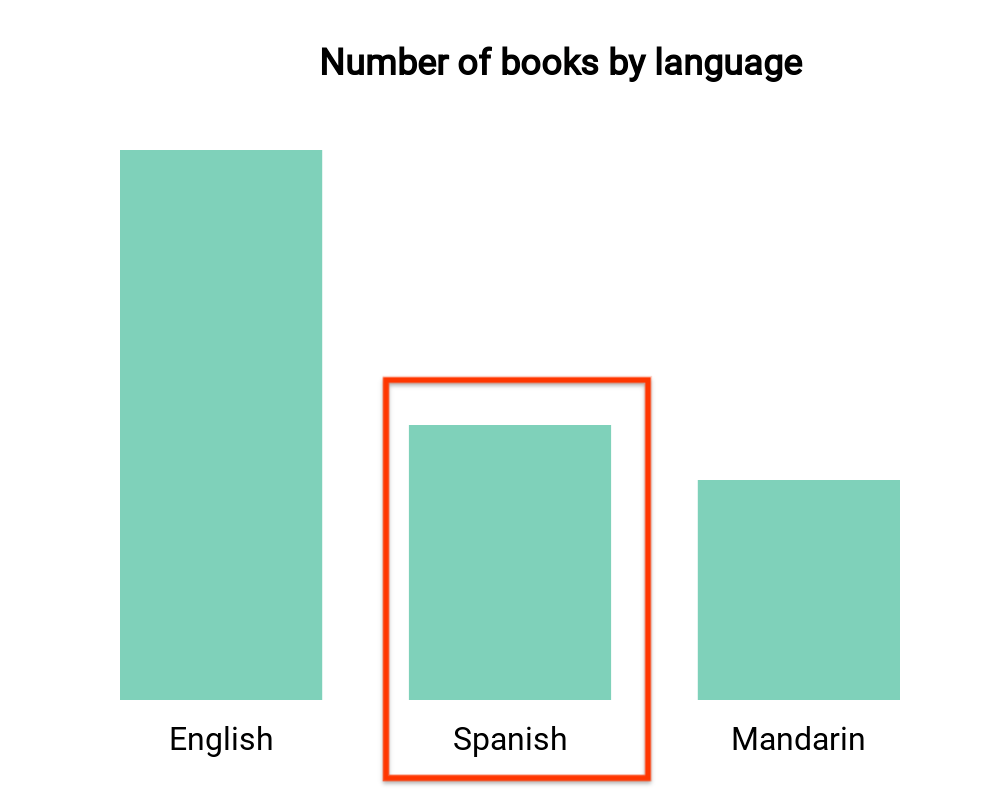
이 막대 그래프는 언어별 도서 수를 시각화합니다 (측정기준 1개, 측정항목 1개). 사용자가 스페인어 도서에 해당하는 막대를 선택했고 선택 항목이 대시보드의 나머지 부분을 필터링하도록 하려는 경우를 가정해 보겠습니다. interactionData는 다음과 같이 표시됩니다.
var interactionData = {
  "concepts": ["languageDimensionId"],
  "values": [["Spanish"]]
}
다중 측정기준 필터
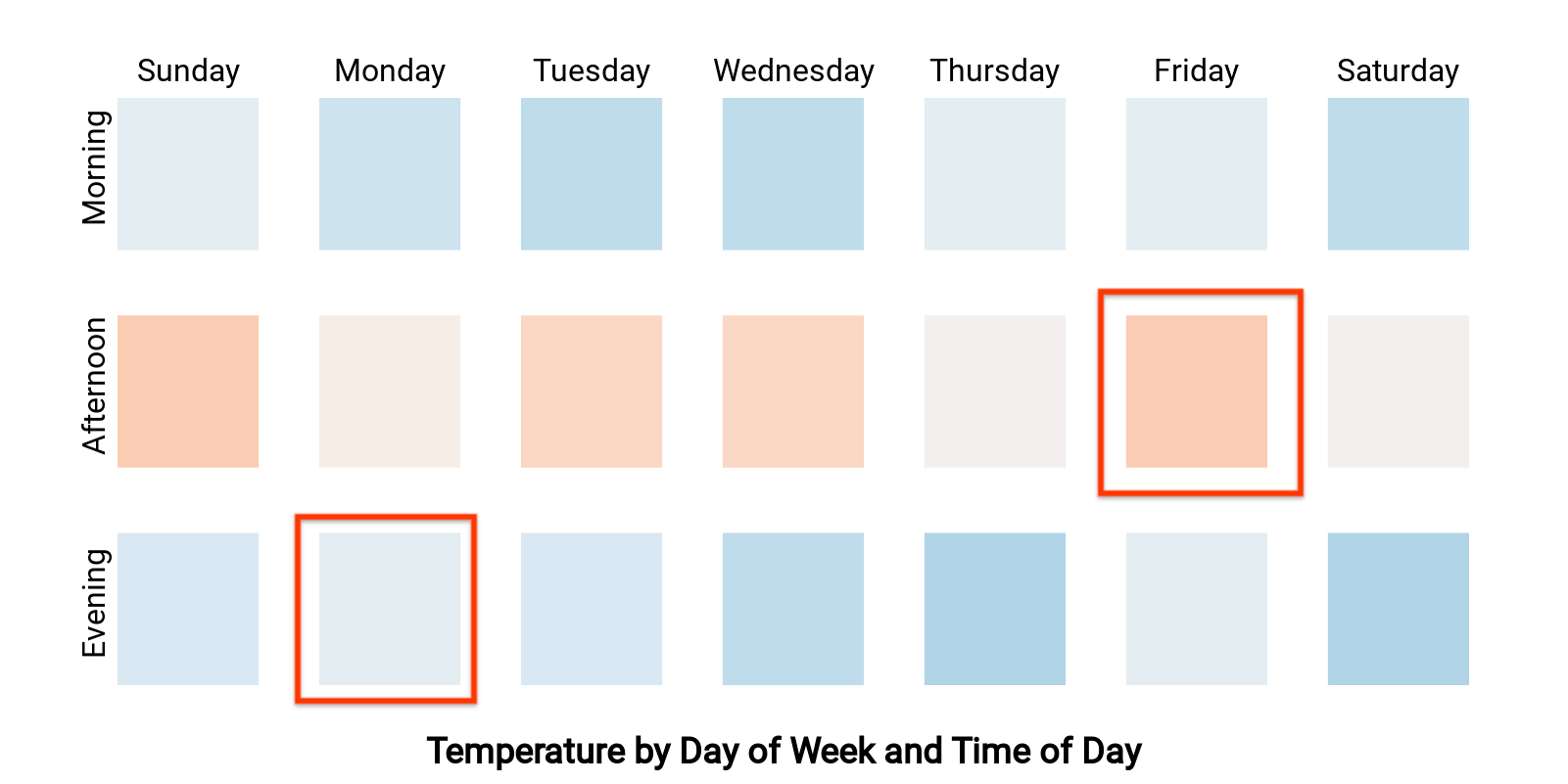
이 히트맵은 요일 및 시간별 온도를 보여줍니다 (측정기준 2개, 측정항목 1개). 사용자가 '월요일 저녁' 및 '금요일 오후'에 해당하는 셀을 선택했고 대시보드의 나머지 부분을 필터링하여 '월요일 저녁' 또는 '금요일 오후'의 데이터만 표시하도록 하려는 경우를 가정해 보겠습니다.interactionData는 다음과 같이 표시됩니다.
var interactionData = {
  "concepts": ["dayOfWeekDimensionId", "timeOfDayDimensionId"],
  "values": [
    ["Monday", "evening"],
    ["Friday", "afternoon"]
  ]
}