*Valery Hronusov, KML Developer,
Perm State University, Russia*
## Introduction
[Google
Mashup Editor](http://editor.googlemashups.com/ "Google Mashup Editor") (GME) is one of the most long-awaited and useful tools for mashup developers. GME helps developers create and edit dynamic components in Web pages, such as maps, tables, lists, and other elements, based on connections with external data. These elements can be then be included in Web pages and blogs using an iframe.
This tutorial will show you how to incorporate a KML file into a Map created with GME.
### My first impressions of Google Mashup Editor
- It has the utmost simplicity, with a clean and distinct interface, like the majority of Google products.
- It has a convenient project index with a constantly increasing collection of code examples, as well as the author's code.
- It allows for the easy storage of additional resources to the project (such as image files).
- It has an easy-to-use XML debugger.
- It has lots of easy-to-use sample applications.
### GME for KML Developers
Before the advent of the Internet, spatial data
was traditionally difficult to share. However, with
the development of the Internet, mapping applications became a standard
way of easily sharing Geographic Information Systems
(GIS) data with the world. KML is becoming a standard for the
presentation and interchange of GIS data because it is compact, easy to
develop, and is supported by popular applications such as Google Earth
and
Google Maps.
Until recently, the process of creating and editing pages
based
on
JavaScript was a large problem for KML developers. It required a large
number of
additional steps to create a mashup and debug it. GME makes
it
possible to create a KML-based mashup very rapidly
out of a few basic
components. The process of creation does not require special
knowledge of HTML
or JavaScript. The GME sample projects provide enough to get
started.
In the following example, I'll be using a KML file that points
to the
collection of the photographs taken during
[Pict Earth
USA](http://pictearth.com/missions.html "Pict Earth USA") flights.
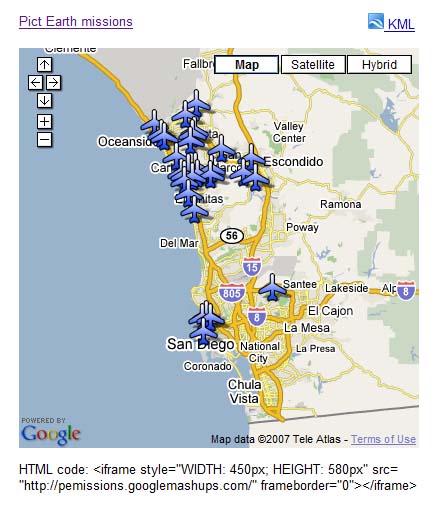
This is a snapshot of the Pict Earth maps mashup:
### Here are the steps to integrate a KML file into a GME project using the
Google Maps API:
[Step 1: Select the KML file](https://developers.google.com/kml/articles/kmlgme#Step1)
[Step 2: Create a new GME project](https://developers.google.com/kml/articles/kmlgme#Step2)
[Step 3: Create a function to add the KML](https://developers.google.com/kml/articles/kmlgme#Step3)
[Step 4: Add a map](https://developers.google.com/kml/articles/kmlgme#Step4)
[Step 5: Test the mashup](https://developers.google.com/kml/articles/kmlgme#Step5)
[Step 6: Publish the mashup](https://developers.google.com/kml/articles/kmlgme#Step6)
[Step 7: Add the mashup to a web page](https://developers.google.com/kml/articles/kmlgme#Step7)
[Step 8: Put it in the GME gallery](https://developers.google.com/kml/articles/kmlgme#Step8)
### Step 1: Select the KML file
Select
the KML file you would like to add to your Map. This can be anything
that has features supported in Google Maps. It must be hosted on a
publicly available server.
### Step 2: Create a New
GME Project
Create a new blank GME project.
This is what a blank GME project looks like:
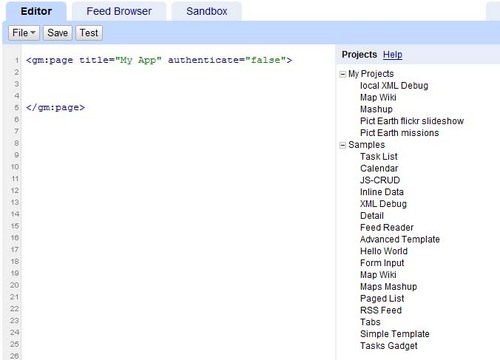
Add a
title and a name for your function.
\
\
### Step 3: Create
a function to add the KML
Create a JavaScript function with the path to the KML file to be added
to the Map.
```
```
### Step 4: Add a Map
Add map and parameters.
```
```
### Step 5: Test the mashup.
Press the Test button (F4).
This is an image of the Pict Earth mashup tested in the
Sandbox.
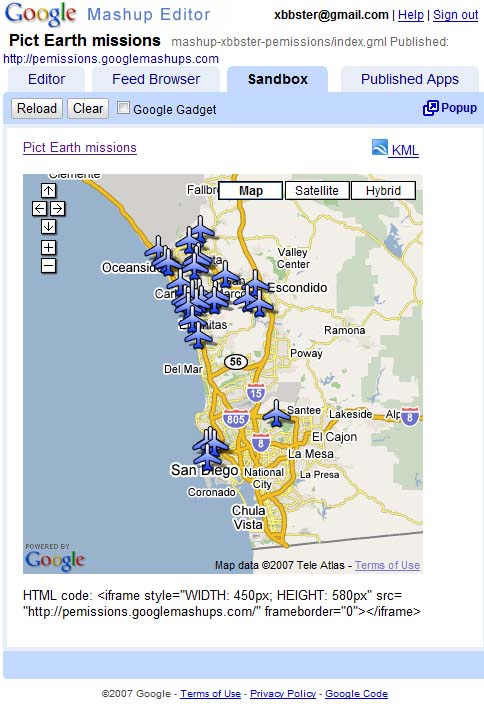
Now we can verify the text of application and see the first result. We
can add a
title and links and test it again.
### Step 6: Publish the mashup
Set the name of the project, and then publish it. This will give you a
permanent link to your mashup, which you can use to incorporate it into
web pages. Using my example, this is the link to the GME project
[home page](http://pemissions.googlemashups.com/ "home page"). You
can also see
[source
code](http://pemissions.googlemashups.com/index.gml "Source code") of project.
### Step 7: Add the mashup
to a web page
Add the mashup to a web page using an iframe. For instance, to insert
the example project, add this:
```
```
Here are examples of the mashup in a web [page](http://spreadsheetsgis.googlepages.com/pe "page")
and a [blog](http://gisplanet.blogspot.com/2007/07/pict-earth-usa-missions.html "blog").
You can also add your [Google
Analytics](http://analytics.google.com/ "Google Analytics") code to the project, which will allow you to track
statistics about who is viewing your page. Here's the simple script to
add it:
```
```
### Step 8: Put it in the
GME Gallery
Publish your mashup to the [GME Mashup Gallery](http://gallery.googlemashups.com/).
This will
allow other users to view your mashup.
### For more information:
Check out the
[Google
Mashup Editor Getting Started Guide](http://editor.googlemashups.com/docs/gettingstarted.html "Google Mashup Editor Getting Started Guide"), which presents in
detail the
process of creating mashups. Also, check out
the [list
of tags](http://editor.googlemashups.com/docs/reference.html "list of tags") for a brief description of all gm tags with
[examples](http://editor.googlemashups.com/docs/samples.html "examples").
### Code:
Here is
the whole code for using the Pict Earth KML in GME:
```
```
### What's next?
Once you've published your mashup, you can use the KML file
in it as a
parameter to include in another application, or loaded directly as a
map. For
instance, this page:
[http://param.googlemashups.com](http://param.googlemashups.com/?kml=http://pictearthusa.com/kml/missions.kml "http://param.googlemashups.com/?kml=http://pictearthusa.com/kml/missions.kml")
is a GME mashup. You can directly reference a KML file to the mashup by adding kml= as a parameter in the URL, like this:
You can also create a [Gadget](http://www.google.com/apis/gadgets/) from your project. Once you've submitted it, go to the file menu and click on Submit Gadget, and follow the directions. This will allow you to easily add your application to your [Google personalized home page](http://www.google.com/ig), on other web pages, and to share it with others.