# Change Issue Status to Read or Unread
When you view issues in a list, unread issues appear in bold font. When you open
an unread issue, Issue Tracker automatically changes the status to read and
changes the font from bold to plain text. The status update occurs as soon as
the issue finishes loading.
Status updates can also occur when you edit an issue. If another user makes a
[Major](https://developers.google.com/issue-tracker/concepts/issues#major_edits)
edit to an issue such as adding a new comment, the status of the issue is
automatically updated from read to unread. Minor edits like adding yourself to
the **CC** list do not affect the read status.
You can also manually update the read status for issues using bulk edits or
keyboard shortcuts.
## Status indicators
Issue lists apply styling to issues based on their status. The styling changes
depending on whether the issue is:
- **Read**: Issues that have been read use the base row styling.
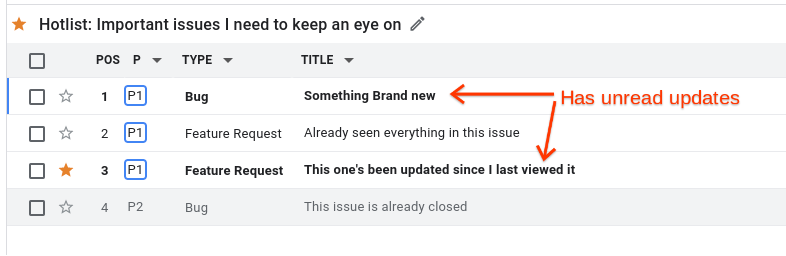
- **Unread** : Unread issues are displayed using a **bold** font.
- **Closed**: Closed issues have a darker background and lighter font.
The following image shows unread issues displayed in bold.
If you are using a screen reader, the read or unread status is also included at
the start of each row label.
## Use bulk edits to change the read status
You can change the read status of one or more issues by using bulk edits. To
edit issues in bulk:
1. Open an issue list like a hotlist or the **Assigned to me** list.
2. To change the status of unread issues, click the checkbox to the left of one
or more unread issues in the list.
3. At the top of the page, click **Mark as read**.
4. To change the status of read issues, click the checkbox to the left of one
or more read issues in the list.
5. At the top of the page, click **Mark as unread**.

> [!NOTE]
> **Note:** If you select a mix of read and unread issues, the only available option is to mark them all read.
For more information on editing multiple issues, see
[Editing Issues in Bulk](https://developers.google.com/issue-tracker/guides/edit-issue-bulk).
## Use keyboard shortcuts to change the read status
You can also mark issues read or unread by using the following keyboard
shortcuts.
- Press Shift+i to mark selected issues read.
- Press Shift+u to mark selected issues unread.
In order to use the keyboard shortcuts, you must have **Enable all hotkeys**
turned on in the Issue Tracker display settings. For more information, see
[Keyboard settings](https://developers.google.com/issue-tracker/concepts/settings#keyboard).
For a list of all keyboard shortcuts, press `?`.