Media Ads (IMA) SDK for iOS.
This guide is intended for IMA publishers who want to add Picture in
Picture support to their existing IMA implementation.
## Prerequisites
- Complete the [Get Started
guide](https://developers.google.com/interactive-media-ads/docs/sdks/ios/client-side).
## Adding picture-in-picture support to your app
As of SDK version 3.1.0, IMA supports Apple's Picture in Picture mode for iPad.
To add support for Picture in Picture to your app, you need to tweak a few
settings and implement a few new IMA classes, as shown below.
### Updating settings to allow background playback
Picture in Picture mode requires that you allow background media playback in
your app.
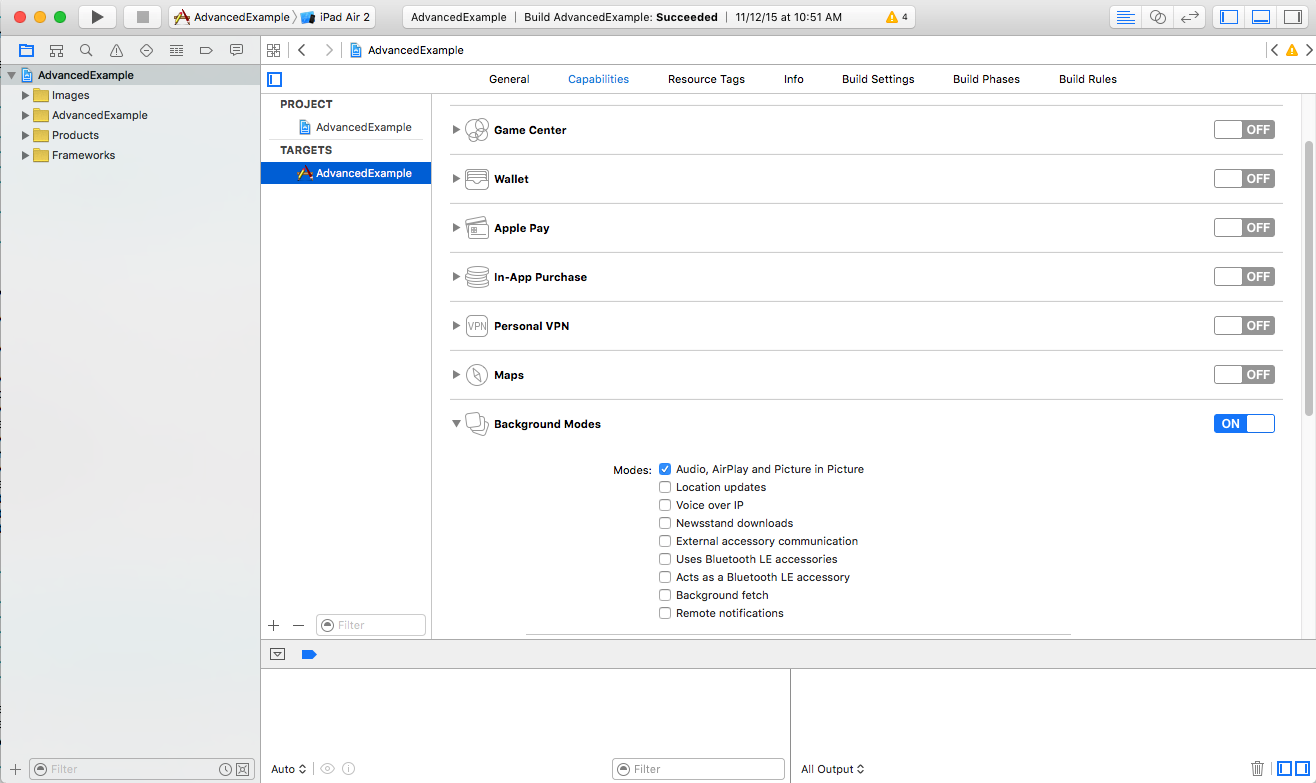
1. Set **Background Modes** to **ON** for **Audio, AirPlay and Picture in
Picture** as shown below:
2. Set the `AVAudioSession` properties to support background playback, as well
as enable background playback in `IMASettings`:
```
...
– (void)viewDidLoad {
[super viewDidLoad];
self.playButton.layer.zPosition = MAXFLOAT;
[[AVAudioSession sharedInstance] setActive:YES error:nil];
[[AVAudioSession sharedInstance] setCategory:AVAudioSessionCategoryPlayback error:nil];
[self setupAdsLoader];
[self setUpContentPlayer];
}
– (void)setupAdsLoader {
IMASettings *settings = [[IMASettings alloc] init];
settings.enableBackgroundPlayback = YES;
self.adsLoader = [[IMAAdsLoader alloc] initWithSettings:settings];
self.adsLoader.delegate = self;
}
```
### Creating new iOS and IMA objects for picture-in-picture
To support Picture in Picture, Apple added the `AVPictureInPictureController`
and `AVPictureinPictureControllerDelegate` classes. IMA, for its part, added
`IMAPictureInPictureProxy`. To incorporate these classes in your project, add
the following statements to your code:
```
...
@interface VideoViewController ()
...
// PiP objects.
@property(nonatomic, strong) IMAPictureInPictureProxy *pictureInPictureProxy;
@property(nonatomic, strong) AVPictureInPictureController *pictureInPictureController;
...
@end
- (void)setUpContentPlayer {
...
self.pictureInPictureProxy =
[[IMAPictureInPictureProxy alloc] initWithAVPictureInPictureControllerDelegate:self];
self.pictureInPictureController =
[[AVPictureInPictureController alloc] initWithPlayerLayer:self.contentPlayerLayer];
self.pictureInPictureController.delegate = self.pictureInPictureProxy;
}
```
### Modifying your ads request
There's one more new object to create: `IMAAVPlayerVideoDisplay`. This is passed
to your `IMAAdsRequest` constructor and allows the SDK to insert ads into the PiP
window when your video is playing in Picture in Picture mode:
```
...
- (void)requestAdsWithTag:(NSString *)adTagUrl {
[self logMessage:@"Requesting ads"];
// Create an ad request with our ad tag, display container, and optional user context.
IMAAdsRequest *request = [[IMAAdsRequest alloc]
initWithAdTagUrl:adTagUrl
adDisplayContainer:[self createAdDisplayContainer]
avPlayerVideoDisplay:[[IMAAVPlayerVideoDisplay alloc] initWithAVPlayer:self.contentPlayer]
pictureInPictureProxy:self.pictureInPictureProxy
userContext:nil];
[self.adsLoader requestAdsWithRequest:request];
}
```
### Starting ads
IMA SDK ads **cannot be started during picture in picture mode** . As a result,
you need to ensure that you only call `[adsManager start]` when your video is in
standard playback mode:
```
...
- (void)adsManager:(IMAAdsManager *)adsManager didReceiveAdEvent:(IMAAdEvent *)event {
[self logMessage:@"AdsManager event (%s).", AdEventNames[event.type]];
// When the SDK notified you that ads have been loaded, play them.
switch (event.type) {
case kIMAAdEvent_LOADED:
if (![self.pictureInPictureController isPictureInPictureActive]) {
[adsManager start];
}
break;
...
default:
break;
}
}
```
### Entering picture-in-picture mode
If you're using an `AVPlayer` without an `AVPlayerViewController`, you need to
add your own Picture in Picture button. We've implemented one in our [Advanced
Sample](https://github.com/googleads/googleads-ima-ios/tree/master/Objective-C/AdvancedExample)
like this:
- (IBAction)onPipButtonClicked:(id)sender {
if ([self.pictureInPictureController isPictureInPictureActive]) {
[self.pictureInPictureController stopPictureInPicture];
} else {
[self.pictureInPictureController startPictureInPicture];
}
}
## FAQ
How do I start ads when the video is in Picture in Picture mode?
: Ads cannot be started while the video is in Picture in Picture mode; they
can only be started in standard playback mode.
My existing Picture in Picture integration needs to set `self.pictureInPictureController.delegate` to my own class. How can I implement IMA ads in Picture in Picture and still be the delegate?
: The IMA SDK also needs to receive `AVPictureinPictureControllerDelegate`
messages to enable ad playback in Picture in Picture mode. This is why we ask
you to set the delegate for `AVPictureinPictureController` to an instance of
`IMAPictureInPicturyProxy`. This proxy object forwards on all
`AVPictureinPictureControllerDelegate` messages to your app, but also forwards
the calls to IMA to enable Picture in Picture support. Note that you must also
maintain a local handle to your AVPlayerLayer.