# Custom UI with the IMA SDK for iOS
This guide shows how to implement your own custom ad UI using the IMA SDK for iOS.
To do so, you need to disable the default UI, set up a new custom UI, and then
populate the new UI with ad information obtained from the SDK. This guide builds on the
[basic Objective-C example](https://github.com/googleads/googleads-ima-ios/tree/master/Objective-C/BasicExample)
for iOS. You can download the complete
[Custom UI example](https://drive.google.com/file/d/172e-jf499KA0XBkojOPT7XONo0Dp-EYm/view?usp=sharing).
> [!NOTE]
> **Note:** Your Google Ad Manager account must be enabled to enable this feature. For more information, contact your account manager.
## Define new UI elements
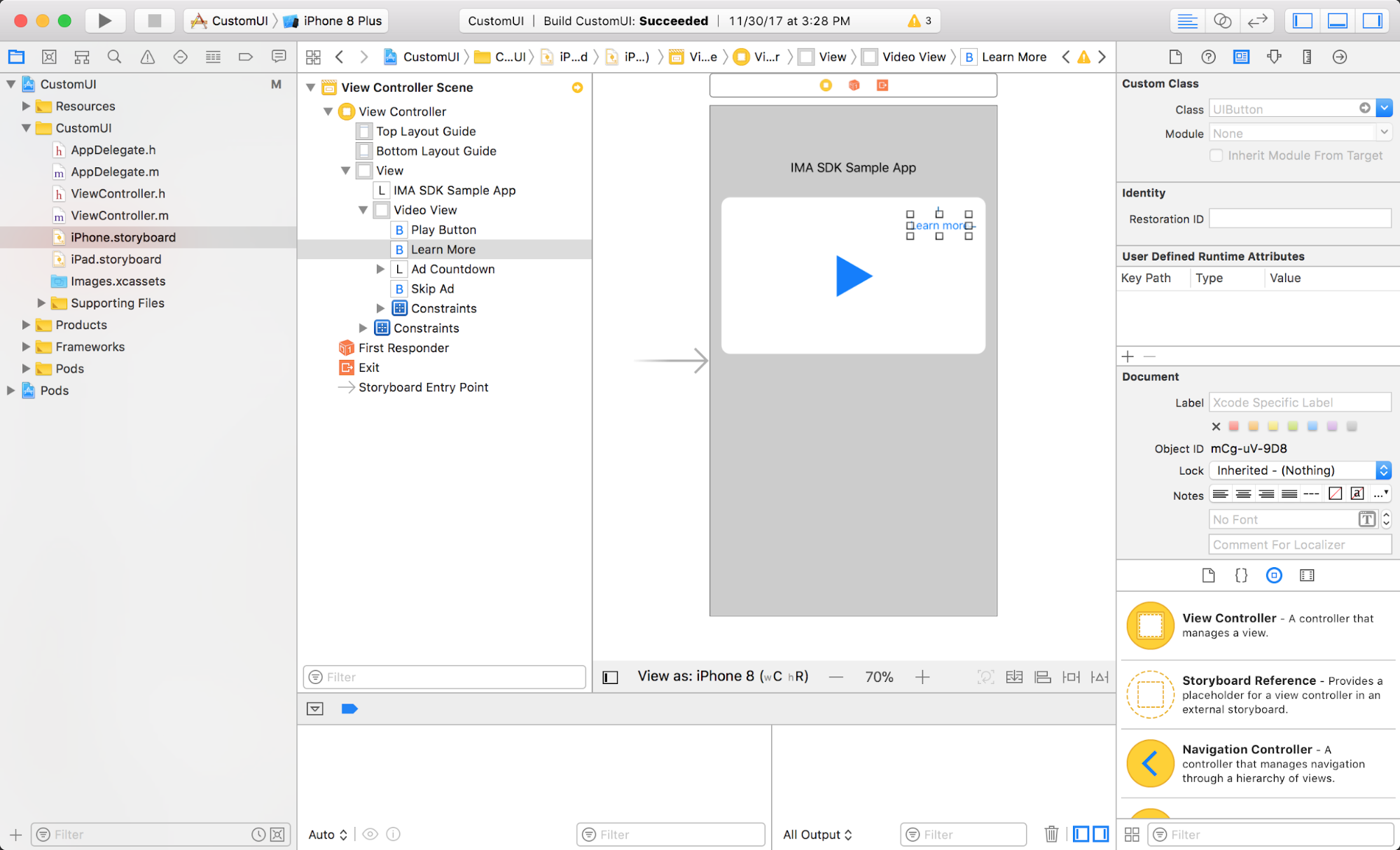
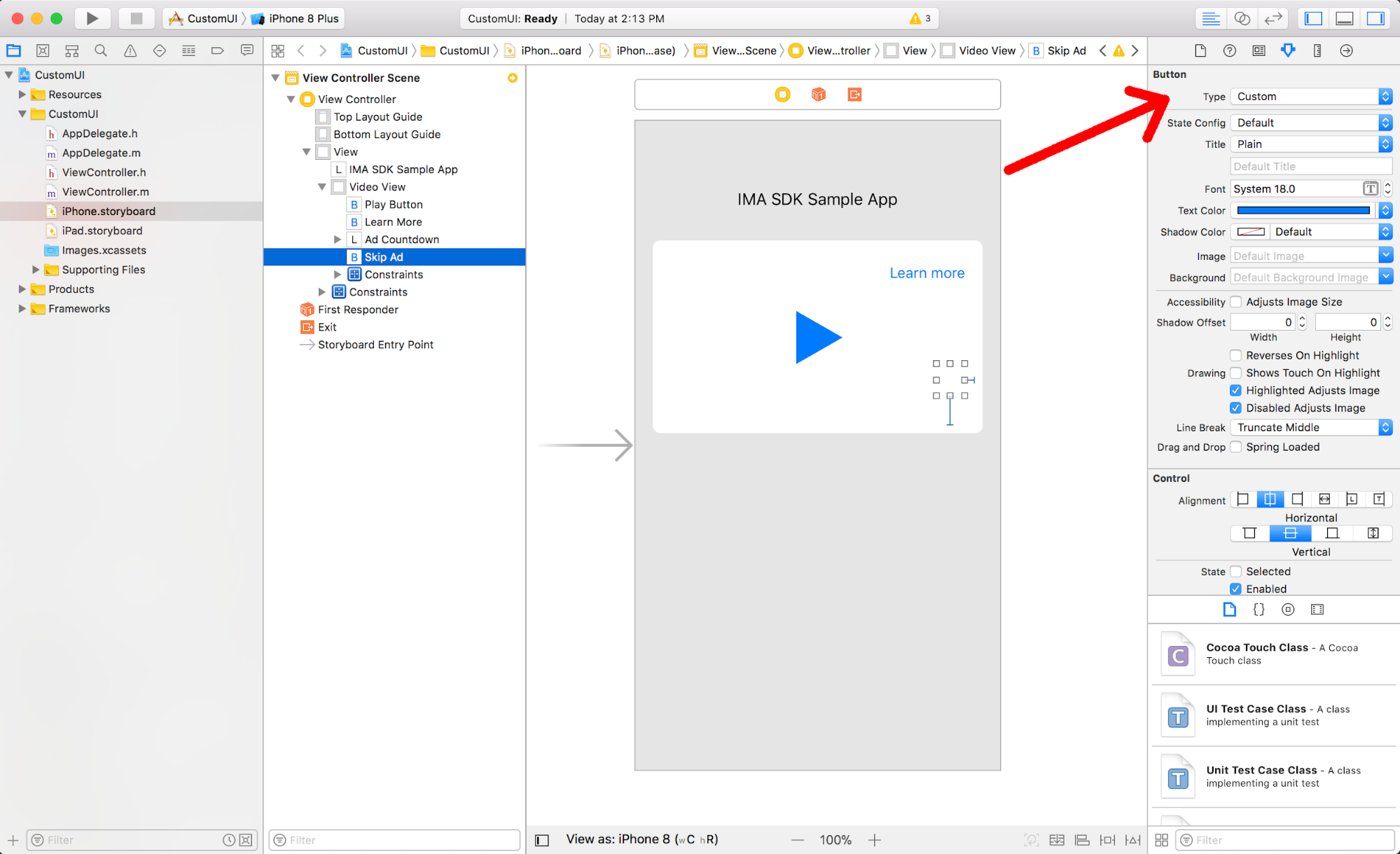
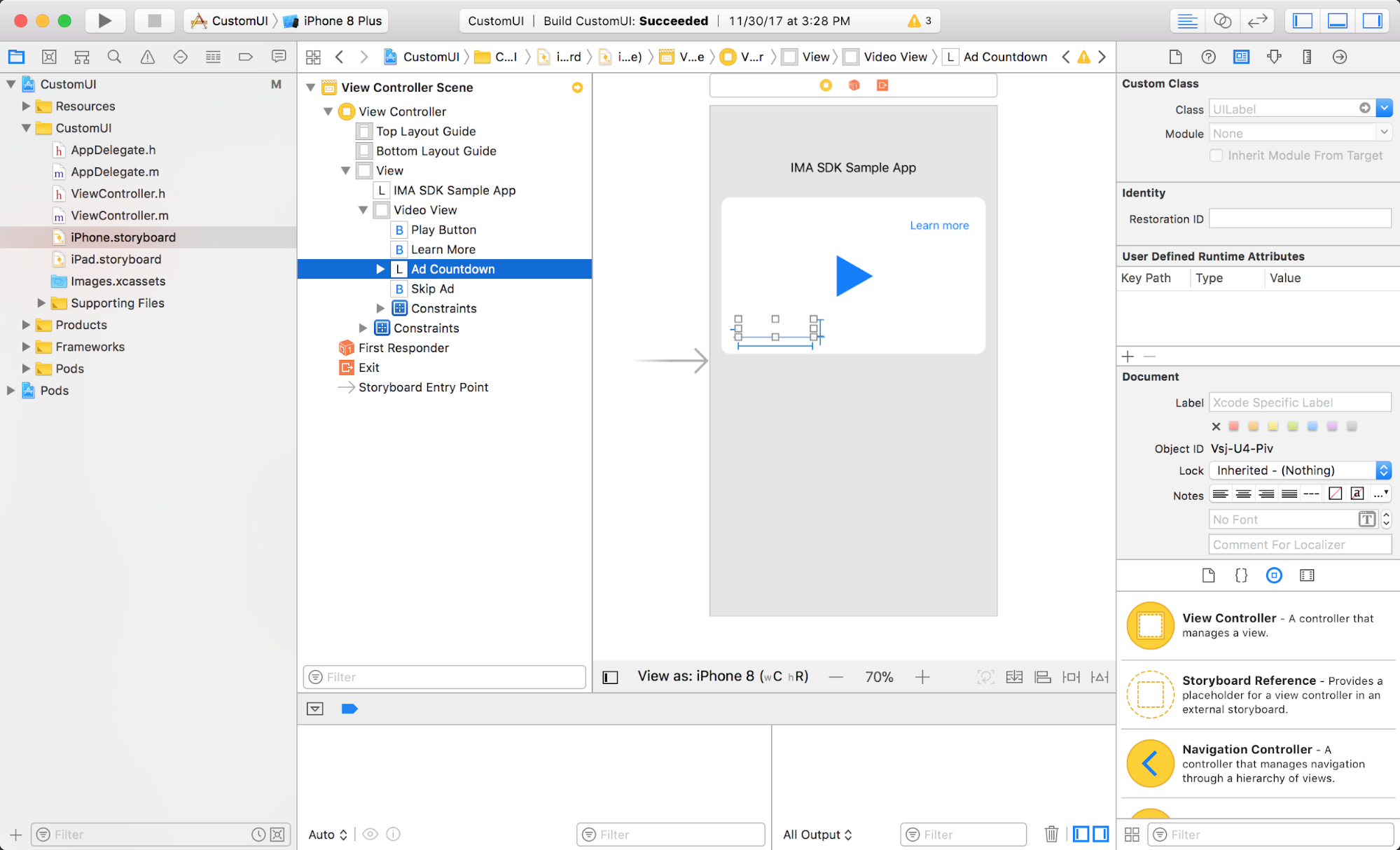
Before you write any code, modify the storyboard to add elements for the
**Learn More** button, **Skip Ad** button, and countdown timer. Ensure that
your **Skip Ad** button is a "Custom" button (as shown below) to prevent it
from blinking as the skip countdown timer updates.
#### **Learn More** button
#### **Skip Ad** button
#### **Ad Countdown** label
Make sure these new elements are connected to variables in your `ViewController`.
Also add variables to track the current ad and time until the ad can be skipped,
which is used later on.
#### ViewController.m
@property(nonatomic, weak) IBOutlet UIButton *learnMore;
@property(nonatomic, weak) IBOutlet UIButton *skipAd;
@property(nonatomic, weak) IBOutlet UILabel *adCountdown;
@property(nonatomic) NSTimeInterval timeTillSkip;
@property(nonatomic, strong) IMAAd *currentAd;
## Disable the built-in UI
Start by telling the SDK that you want to disable its built-in UI.
#### ViewController.m
```
- (void)setUpContentPlayer {
...
IMAAdsRenderingSettings *adsRenderingSettings = [[IMAAdsRenderingSettings alloc] init];
adsRenderingSettings.disableUi = YES;
[self.adsManager initializeWithAdsRenderingSettings:adsRenderingSettings];
}
```
## Hide your custom UI and show it only when allowed
Some Google ads, such as AdSense ads, do not allow for a custom UI.
They always render their own UI instead. Hide your custom UI by default:
#### ViewController.m
```
- (void)viewDidLoad {
...
[self hideCustomUi];
self.timeTillSkip = INFINITY;
self.learnMore.layer.zPosition = MAXFLOAT;
self.skipAd.layer.zPosition = MAXFLOAT;
self.adCountdown.layer.zPosition = MAXFLOAT;
...
}
- (void)hideCustomUi {
self.learnMore.hidden = YES;
self.adCountdown.hidden = YES;
self.skipAd.hidden = YES;
}
```
Show the custom UI only when the currently playing ad is hiding its UI.
Hide the custom UI after each ad in case the ad that follows does not
allow custom UI:
#### ViewController.m
```
- (void)adsManager:(IMAAdsManager *)adsManager didReceiveAdEvent:(IMAAdEvent *)event {
// When the SDK notified you that ads have been loaded, play them.
if (event.type == kIMAAdEvent_LOADED) {
[adsManager start];
} else if (event.type == kIMAAdEvent_STARTED) {
self.currentAd = event.ad;
if (self.currentAd.isUiDisabled) {
[self showCustomUi];
}
} else if (event.type == kIMAAdEvent_SKIPPED || event.type == kIMAAdEvent_COMPLETE) {
[self hideCustomUi];
} else if (event.type == kIMAAdEvent_TAPPED) {
// Since you're disabling IMA's built-in UI, you're also losing the
// UI element that resumes paused ads with a tap. Add this code
// to resume paused ads when a user taps on them.
[self.adsManager resume];
}
}
- (void)showCustomUi {
self.learnMore.hidden = NO;
[self.videoView bringSubviewToFront:self.learnMore];
self.adCountdown.hidden = NO;
if (self.currentAd.isSkippable) {
self.skipAd.hidden = NO;
[self.videoView bringSubviewToFront:self.skipAd];
} else {
self.skipAd.hidden = YES;
}
self.adCountdown.text = @"";
[self.skipAd setTitle:@"" forState:UIControlStateNormal];
}
```
## Add logic for the Learn More button
The first UI component to wire up is the **Learn More** button.
Create a "Touch Up Inside" listener to notify the SDK that the
**Learn More** button has been clicked.
#### ViewController.m
- (IBAction)onLearnMoreTouch:(id)sender {
[self.adsManager clicked];
}
## Add logic for the countdown timer
Next, wire up the countdown timer, which uses
`adsManager:adDidProgressToTime:totalTime:` to calculate
the remaining time of the ad.
#### ViewController.m
- (void)adsManager:(IMAAdsManager *)adsManager
adDidProgressToTime:(NSTimeInterval)mediaTime
totalTime:(NSTimeInterval)totalTime {
// Update countdown timer.
NSMutableString *countdownText = [NSMutableString stringWithString:@"Ad "];
NSInteger totalAds = self.currentAd.adPodInfo.totalAds;
if (totalAds > 1) {
NSInteger position = self.currentAd.adPodInfo.adPosition;
[countdownText appendString:
[NSString stringWithFormat:@"%ld of %ld", (long)position, (long)totalAds]];
}
NSTimeInterval remainingTime = totalTime - mediaTime;
[countdownText appendString:[NSString stringWithFormat:@" (%.fs)", remainingTime]];
self.adCountdown.text = countdownText;
}
## Add logic for the Skip Ad button
Lastly, wire up the **Skip Ad** button. This button is displayed only for skippable
ads; it skips an ad once its countdown timer reaches 0. This code is added
to the same method used for the countdown timer above.
#### ViewController.m
- (void)adsManager:(IMAAdsManager *)adsManager
adDidProgressToTime:(NSTimeInterval)mediaTime
totalTime:(NSTimeInterval)totalTime {
...
// Update skip button
if (self.currentAd.isSkippable) {
self.timeTillSkip = self.currentAd.skipTimeOffset - mediaTime;
NSString *skipString = @"Skip ad";
if (self.timeTillSkip > 0) {
skipString =
[NSString stringWithFormat:@"Skip this ad in %.f...", self.timeTillSkip];
}
// Disable animations while you change the button text to prevent it from blinking. The button
// type must be "Custom" instead of "System" for this to work. This can be set in the attributes
// inspector for the button in the storyboard file.
[UIView setAnimationsEnabled:NO];
[self.skipAd setTitle:skipString forState:UIControlStateNormal];
[self.skipAd layoutIfNeeded];
[UIView setAnimationsEnabled:YES];
}
}
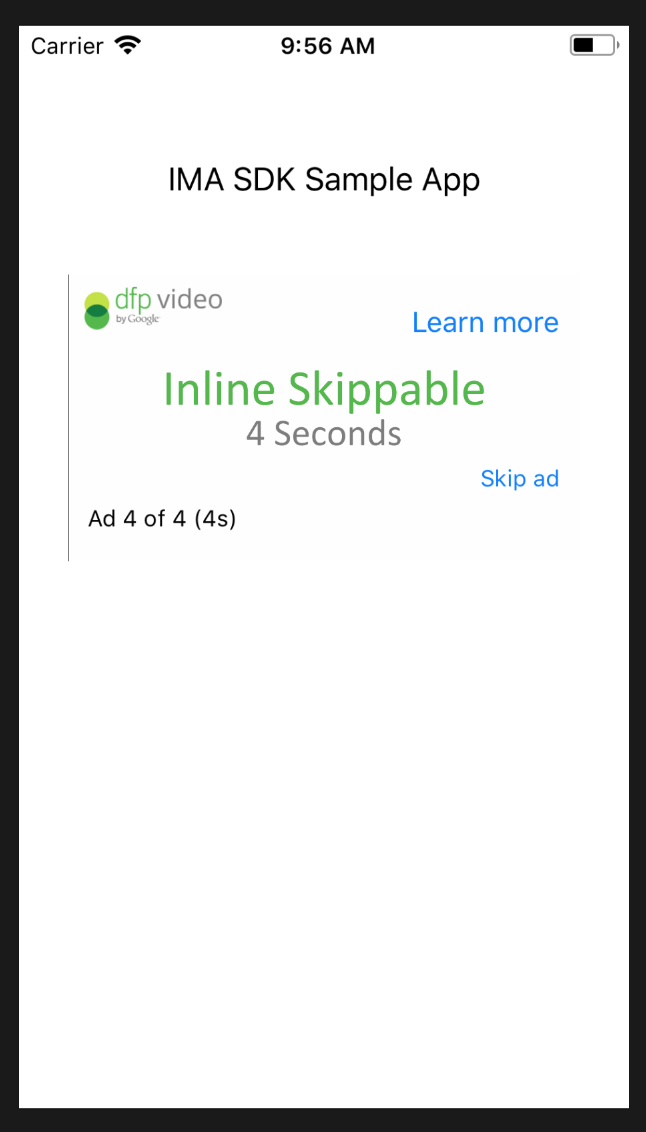
Once implemented, the UI in our
[Custom UI Example](https://drive.google.com/file/d/172e-jf499KA0XBkojOPT7XONo0Dp-EYm/view?usp=sharing)
looks like this:
## Troubleshooting
Do you have a sample tag that is enabled for disabling ad UI?
: You can copy the URL of this
[sample tag](https://pubads.g.doubleclick.net/gampad/ads?sz=640x480&iu=/6062/imacustomuisample&ciu_szs=300x250&gdfp_req=1&env=vp&output=vast&pmxd=50000&unviewed_position_start=1&correlator)
and paste it into your IMA implementation.
I can't disable the default UI.
: Check to make sure that you set `adsRenderingSettings.disableUi` to `true`
and pass it to the `getAdsManager`. Check to see that `ad.isUiDisabled()`
returns `true`. In addition, your network must be enabled in Ad Manager to disable
the ad UI. If you are enabled, your VAST contains an `Extension` that
looks like this:
```
1
```
If you are still having trouble, check with your account manager to determine
whether you are enabled. Some ad types require a specific UI; these ads
return with a `` value of 0. If you encounter this, your
trafficking team needs to make changes to ensure these ad types do not serve.