Select platform: [HTML5](https://developers.google.com/interactive-media-ads/docs/sdks/html5/client-side/companions.md.txt "View this page for the HTML5 platform docs.") [Android](https://developers.google.com/interactive-media-ads/docs/sdks/android/client-side/companions.md.txt "View this page for the Android platform docs.") [iOS](https://developers.google.com/interactive-media-ads/docs/sdks/ios/client-side/companions.md.txt "View this page for the iOS platform docs.")

<br />

You might want to associate your in-page HTML ad slots with video or
overlay ad slots. This relationship between associated ad slots is referred
to as the *master-companion* relationship.

In addition to requesting video and overlay master ads, you can use the IMA SDK
to display companion HTML ads. These ads are displayed within an HTML
environment

## Use companion ads

To use companion ads, perform the following steps:

### 1. Book your companion ads

You must first book the companion ads that you want to display with your
master ads. Companion ads can be
[trafficked in Ad Manager](https://support.google.com/admanager/answer/1171783).
You can serve up to six companion ads per master ad. This technique, when a
single buyer controls all ads on the page, is also known as
[roadblocking](https://support.google.com/admanager/answer/177277).

### 2. Request your companion ads

By default, companion ads are enabled for each ad request.

### 3. Display companion ads

There are two ways to render companion ads:

- **Automatically
  [using the Google Publisher Tag (GPT)](https://developers.google.com/interactive-media-ads/docs/sdks/html5/client-side/companions.md.txt#use_companion_ads_with_google_publisher_tag)**.

  If you're using GPT to implement your companion ads, they are
  displayed automatically as long as there are companion ad slots declared
  on the HTML page and these ads are registered with the API (that is, the div
  ID in the JavaScript and HTML must match). Some benefits of using GPT are:
  - Companion slot awareness.
  - Companion backfill from the publisher's network, if the VAST response contains fewer companion ads than there are defined slots on the HTML page.
  - Companion autofill if a video ad is missing.
  - Preloaded companion ad slots for click-to-play video players.
  - Automated companion rendering, including `HTMLResource` and `iFrameResource`.
- **Manually [using the Ad API](https://developers.google.com/interactive-media-ads/docs/sdks/html5/client-side/companions.md.txt#use_companion_ads_with_the_ad_api)**.

## Use companion ads with Google Publisher Tag

The Google Publisher Tag (GPT) automates the display of HTML
companion ads on your site. We recommend that most publishers use the GPT. The
HTML5 SDK recognizes GPT slots if GPT is loaded on the main web page
(not in an IFrame). You can find more detailed information on using GPT with the
IMA SDK in the [GPT docs](https://developers.google.com/publisher-tag).

> [!NOTE]
> **Note:** When you use the Google Interactive Media Ads SDK for ad serving, the metrics reported back to the ad server may include whether the visitor has interacted with the page on which the ads were served. You should disclose this to your visitors to comply with the data collection and usage disclosure requirement of your contract with Google.

### If you host the HTML5 SDK within an IFrame

If you meet both of the following criteria, you need to include an extra
proxy script in order for your GPT companions to display correctly:

1. Load the HTML5 SDK in an IFrame.
2. Load GPT on the main web page (outside the IFrame).

To get your companions to display in this scenario, you must load the
GPT proxy script before loading the SDK:

```html
<script src="https://imasdk.googleapis.com/js/sdkloader/gpt_proxy.js"></script>
```

Important things to keep in mind:

- There should be no GPT loaded inside the IFrame loading the SDK.
- GPT must be loaded on the top page, not in another IFrame.
- The proxy script must be loaded in the same frame as GPT (that is, on the main page).

### Declare companion ad slots in HTML

This section explains how to declare companion ads in HTML using GPT and
provides sample code for different scenarios. For the HTML5 SDK, you
need to add some JavaScript to your HTML page and declare the companion ad
slots.

> [!NOTE]
> **Note:** In each of the following examples, be sure to supply a valid `network` and `unit-path` in the `googletag.defineSlot` method call (located in the `<head>` or `<body>` tag, depending on the actual example you are using).

- [Example 1: Basic ad slot implementation](https://developers.google.com/interactive-media-ads/docs/sdks/html5/client-side/companions.md.txt#example1)
- [Example 2: Dynamic ad slot implementation](https://developers.google.com/interactive-media-ads/docs/sdks/html5/client-side/companions.md.txt#example2)
- [Example 3: Pre-loaded ad slots](https://developers.google.com/interactive-media-ads/docs/sdks/html5/client-side/companions.md.txt#example3)

### Example 1: Basic ad slot implementation

The following sample code shows how to include the `gpt.js` file in your HTML
page and declare an ad slot. The declared ad slot is 728x90px. GPT attempts to
fill the slot with any companion ads returned in the VAST response that match
this size. After the ad slots have been declared, the `googletag.display()`
function can render them wherever it is called on the page. Because the slots
are companion slots, ads are not displayed immediately. Instead they appear
alongside the master video ad.

Here's an example of the implementation:

```html
<html>
  <head>
    <!-- Uncomment the line below for the HTML5 SDK caveat proxy -->
    <!--<script src="https://imasdk.googleapis.com/js/sdkloader/gpt_proxy.js"></script>-->
    <!-- HEAD part -->
    <!-- Initialize the tagging library -->
    <script async src="https://securepubads.g.doubleclick.net/tag/js/gpt.js"></script>

    <!-- Register your companion slots -->
    <script>
       window.googletag = window.googletag || { cmd: [] };

       googletag.cmd.push(function() {
         // Supply YOUR_NETWORK and YOUR_UNIT_PATH.
         googletag.defineSlot('/YOUR_NETWORK/YOUR_UNIT_PATH', [728, 90], 'companionDiv')
             .addService(googletag.companionAds())
             .addService(googletag.pubads());
         googletag.companionAds().setRefreshUnfilledSlots(true);
         googletag.pubads().enableVideoAds();
         googletag.enableServices();
       });
    </script>
  </head>

  <body>
    <!-- BODY part -->
    <!-- Declare a div where you want the companion to appear. Use
          googletag.display() to make sure the ad is displayed. -->
    <div id="companionDiv" style="width:728px; height:90px;">
      <script>
         // Using the command queue to enable asynchronous loading.
         // The unit does not actually display now - it displays when
         // the video player is displaying the ads.
         googletag.cmd.push(function() { googletag.display('companionDiv'); });
      </script>
    </div>
  <body>
</html>
```

#### Try it out

You can see the following codepen for a working implementation.
<iframe height="600" scrolling="no" src="//codepen.io/imasdk/embed/ONmrBm/?height=600&amp;theme-id=0&amp;default-tab=html" frameborder="no" allowtransparency="true" allowfullscreen="true" style="width: 100%;">See the Pen <a href='http://codepen.io/imasdk/pen/ONmrBm/'>ONmrBm</a> by IMA SDK (<a href='http://codepen.io/imasdk'>@imasdk</a>) on <a href='http://codepen.io'>CodePen</a>.
</iframe>

### Example 2: Dynamic ad slot implementation

Sometimes you might not know how many ad slots you have on a page until the
page content is rendered. The following sample code shows how to define ad slots
while the page renders. This example is identical to [Example 1](https://developers.google.com/interactive-media-ads/docs/sdks/html5/client-side/companions.md.txt#example1)
except that it registers the ad slots where they are actually displayed.

> [!NOTE]
> **Note:** When the video player is about to display the ads, it asks for the slots. Ensure that the slots are defined before the player displays the ads.

```html
<html>
  <head>
    <!-- Uncomment the line below for the HTML5 SDK caveat proxy -->
    <!-- <script src="https://imasdk.googleapis.com/js/sdkloader/gpt_proxy.js"></script> -->
    <script async src="https://securepubads.g.doubleclick.net/tag/js/gpt.js"></script>
    <!-- HEAD part -->
    <!-- Initialize the tagging library -->
    <script>
      window.googletag = window.googletag || { cmd: [] };

      googletag.cmd.push(function() {
        googletag.companionAds().setRefreshUnfilledSlots(true);
        googletag.pubads().enableVideoAds();
        googletag.enableServices();
      });
    </script>
  </head>

  <body>
    <!-- BODY part -->
    <!-- Declare a div where you want the companion to appear. Use
        googletag.display() to make sure the ad is displayed. -->
    <div id="companionDiv" style="width:728px; height:90px;">
      <script>
        // Using the command queue to enable asynchronous loading.
        // The unit does not actually display now - it displays when
        // the video player is displaying the ads.
        googletag.cmd.push(function() {
          // Supply YOUR_NETWORK and YOUR_UNIT_PATH.
          googletag.defineSlot('/YOUR_NETWORK/YOUR_UNIT_PATH', [728, 90], 'companionDiv')
              .addService(googletag.companionAds())
              .addService(googletag.pubads());
          googletag.display('companionDiv');
        });
      </script>
    </div>
  <body>
</html>
```

#### Try it out

You can see the following code for a working implementation.
<iframe height="600" scrolling="no" src="//codepen.io/imasdk/embed/vGmPaP/?height=600&amp;theme-id=0&amp;default-tab=html" frameborder="no" allowtransparency="true" allowfullscreen="true" style="width: 100%;">See the Pen <a href='http://codepen.io/imasdk/pen/vGmPaP/'>vGmPaP</a> by IMA SDK (<a href='http://codepen.io/imasdk'>@imasdk</a>) on <a href='http://codepen.io'>CodePen</a>.
</iframe>

### Example 3: Pre-loaded ad slots

In certain cases, you may need to display something in the ad slot before
the companion ad is requested. Companion ads are usually requested along
with a video ad. This request could occur after the page
loads. For example, a companion ad may load only after the user
clicks a click-to-play video. In such a case, you need the ability to request
a regular ad to fill the ad slot before the companion ad is requested. To
support this use case, you can display standard web ads in the
companion slot. Ensure the web ads are targeted to the companion slots.
You can target the companion slots in the same way as you would target
standard web ad slots.

> [!NOTE]
> **Note:** The following sample code is exactly the same as that provided for Example 1 with the exception of the section that is bolded. In this case, you provide the ad network and unit path of your **preload** ad instead of your video ad unit.

Here's an example of the implementation just described:

```html
<html>
  <head>
    ...
    <!-- Register your companion slots -->
    <script>
      window.googletag = window.googletag || { cmd: [] };

      googletag.cmd.push(function() {
        // Supply YOUR_PRELOAD_NETWORK and YOUR_PRELOAD_UNIT_PATH.
        googletag.defineSlot('/YOUR_PRELOAD_NETWORK/YOUR_PRELOAD_UNIT_PATH', [728, 90], 'companionDiv')
            .addService(googletag.companionAds())
            .addService(googletag.pubads());
        googletag.companionAds().setRefreshUnfilledSlots(true);
        googletag.pubads().enableVideoAds();
        googletag.enableServices();
      });
    </script>
  </head>
  ...
</html>
```

#### Try it out

You can see the following code-pen for a working implementation.
<iframe height="600" scrolling="no" src="//codepen.io/imasdk/embed/yOXGwj/?height=600&amp;theme-id=0&amp;default-tab=html" frameborder="no" allowtransparency="true" allowfullscreen="true" style="width: 100%;">See the Pen <a href='http://codepen.io/imasdk/pen/yOXGwj/'>yOXGwj</a> by IMA SDK (<a href='http://codepen.io/imasdk'>@imasdk</a>) on <a href='http://codepen.io'>CodePen</a>.
</iframe>

## Use companion ads with the Ad API

This section describes how to display companion ads using the `Ad` API.

### Display companion ads

To display companion ads, first get a reference to an `Ad` object through any
of the `AdEvent` events dispatched from the `AdsManager`. We recommend using
the `AdEvent.STARTED` event, as displaying companion ads should coincide with
displaying the master ad.

Next, use this `Ad` object to call `getCompanionAds()` to get an array of
`CompanionAd` objects. Here you have the option of specifying
`CompanionAdSelectionSettings`, which lets you set filters on the companion
ads for creative type, near fit percentage, resource type, and size criteria.
For more information on these settings, see the
[IMA `CompanionAdSelectionSettings` API documentation](https://developers.google.com/interactive-media-ads/docs/sdks/html5/client-side/reference/class/google.ima.CompanionAdSelectionSettings.md.txt).

The `CompanionAd` objects returned by `getCompanionAds` can now be used to
display the companion ads on the page using these guidelines:

1. Create a companion ad slot `<div>` of the required size on the page.
2. In your event handler for the [`STARTED`](https://developers.google.com/interactive-media-ads/docs/sdks/html5/client-side/reference/namespace/google.ima.AdEvent.md.txt#google.ima.AdEvent.Type) event, retrieve the [`Ad`](https://developers.google.com/interactive-media-ads/docs/sdks/html5/client-side/reference/interface/google.ima.Ad.md.txt) object by calling [`getAd()`](https://developers.google.com/interactive-media-ads/docs/sdks/html5/client-side/reference/interface/google.ima.AdEvent.md.txt#google.ima.AdEvent.getAd).
3. Use [`getCompanionAds()`](https://developers.google.com/interactive-media-ads/docs/sdks/html5/client-side/reference/interface/google.ima.Ad.md.txt#google.ima.Ad.getCompanionAds) to get a list of companion ads that match both the companion ad slot size and [`CompanionAdSelectionSettings`](https://developers.google.com/interactive-media-ads/docs/sdks/html5/client-side/reference/class/google.ima.CompanionAdSelectionSettings.md.txt) and have the same sequence number as the master creative. Creatives with a missing sequence attribute are treated as having sequence number 0.
4. Get the content from a [`CompanionAd`](https://developers.google.com/interactive-media-ads/docs/sdks/html5/client-side/reference/interface/google.ima.CompanionAd.md.txt) instance and set it as the inner HTMl of that ad slot's `<div>`.

### Sample code

```html
<!--Set a companion ad div in html page. -->
<div id="companion-ad-300-250" width="300" height="250"></div>

<script>

  // Listen to the STARTED event.
  adsManager.addEventListener(
    google.ima.AdEvent.Type.STARTED,
    onAdEvent);

  function onAdEvent(adEvent) {
    switch (adEvent.type) {
      case google.ima.AdEvent.Type.STARTED:
        // Get the ad from the event.
        var ad = adEvent.getAd();
        var selectionCriteria = new google.ima.CompanionAdSelectionSettings();
        selectionCriteria.resourceType = google.ima.CompanionAdSelectionSettings.ResourceType.STATIC;
        selectionCriteria.creativeType = google.ima.CompanionAdSelectionSettings.CreativeType.IMAGE;
        selectionCriteria.sizeCriteria = google.ima.CompanionAdSelectionSettings.SizeCriteria.IGNORE;
        // Get a list of companion ads for an ad slot size and CompanionAdSelectionSettings
        var companionAds = ad.getCompanionAds(300, 250, selectionCriteria);
        var companionAd = companionAds[0];
        // Get HTML content from the companion ad.
        var content = companionAd.getContent();
        // Write the content to the companion ad slot.
        var div = document.getElementById('companion-ad-300-250');
        div.innerHTML = content;
        break;
    }
  }
</script>
```

## Display fluid companion ads

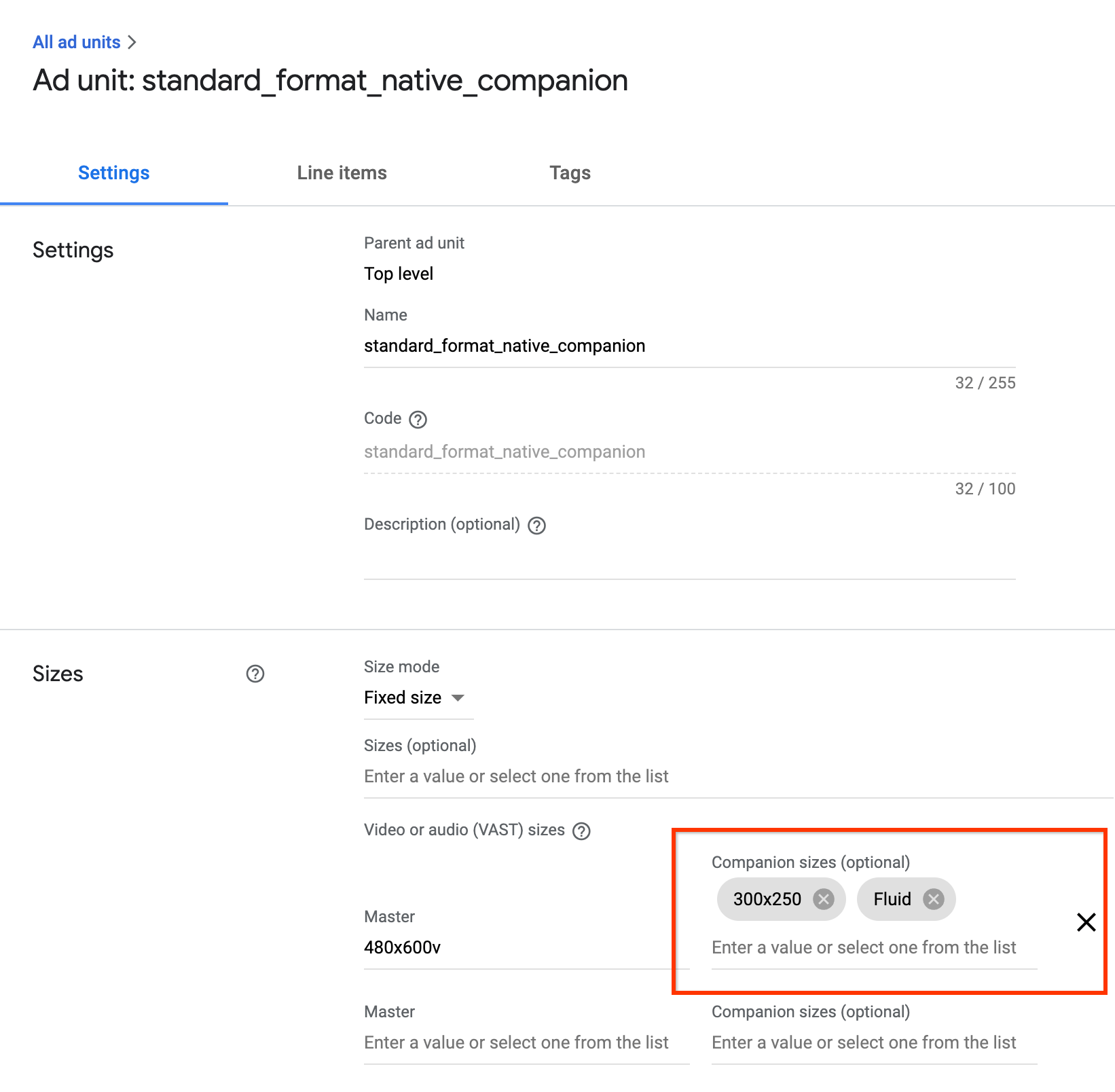
IMA now supports fluid companion ads. These companions ads can resize
to match the size of the ad slot. They fill 100% of the width of parent div,
then resize their height to fit the companion's content. They're set by using
the `Fluid` companion size in Ad Manager. See the following image for where to
set this value.
![Image showing Ad Manager's companion ad settings. Highlights the companion sizes option.](https://developers.google.com/static/interactive-media-ads/images/ad_manager_fluid_companion.png)

### GPT fluid companions

When using GPT companions, you can declare a fluid companion slot by updating
the `defineSlot()` method's second parameter.

```html
<!-- Register your companion slots -->
<script>
  googletag.cmd.push(function() {
    // Supply YOUR_NETWORK and YOUR_UNIT_PATH.
    googletag.defineSlot('/YOUR_NETWORK/YOUR_UNIT_PATH', \['fluid'\], 'companionDiv')
        .addService(googletag.companionAds())
        .addService(googletag.pubads());
    googletag.companionAds().setRefreshUnfilledSlots(true);
    googletag.pubads().enableVideoAds();
    googletag.enableServices();
  });
</script>
```

### Ad API fluid companions

When using the Ad API for companion ads, you can declare a fluid companion slot
by updating
[`google.ima.CompanionAdSelectionSettings.SizeCriteria`](https://developers.google.com/interactive-media-ads/docs/sdks/html5/client-side/reference/namespace/google.ima.CompanionAdSelectionSettings.md.txt#google.ima.CompanionAdSelectionSettings.SizeCriteria)
to the `SELECT_FLUID` value.

```html
<script>

  ...
    // Get the ad from the event.
    var ad = adEvent.getAd();
    var selectionCriteria = new google.ima.CompanionAdSelectionSettings();
    selectionCriteria.resourceType = google.ima.CompanionAdSelectionSettings.ResourceType.STATIC;
    selectionCriteria.creativeType = google.ima.CompanionAdSelectionSettings.CreativeType.IMAGE;
    selectionCriteria.sizeCriteria = google.ima.CompanionAdSelectionSettings.SizeCriteria.SELECT_FLUID;
// Get a list of companion ads for an ad slot size and CompanionAdSelectionSettings
// Note: Companion width and height are irrelevant when fluid size is used.
var companionAds = ad.getCompanionAds(0, 0, selectionCriteria);
    var companionAd = companionAds[0];
  ...
    }
  }
</script>
```