# Communicating passkeys to users
Passkeys are a new technology that enables creating online accounts and signing
in to them without using passwords. They are more convenient and secure, but
they are also unfamiliar to a lot of users. These guidelines will help you
overcome that by creating content design that improves user experience and
helps your users be successful with passkeys.
## Associate passkeys with familiar concepts
Because passkeys are a new concept, whenever possible in your content design
associate them with familiar concepts, visuals, and experiences, such as
biometrics or passwords. We recommend that you use the term passkeys explicitly
in your UI because it's a step towards educating users and making passkeys a
common term.
Google's research has shown that many users associate biometrics with security.
While passkeys don't require biometrics (a passkey can be used with a device
PIN, for example), associating them with biometrics makes them more familiar
and can boost user perception of security benefits. For example, in
Google Accounts passkeys are consistently nestled amongst the familiar security
experiences that enable passkey use: fingerprint, face scan, or other device
screen lock.
 Passkeys in Google Accounts are mentioned alongside with fingerprint, face scan, or other device screen lock.
## Emphasize benefits relevant to your user base
When introducing users to passkeys, emphasize the practical benefits that
directly align with their needs and preferences.
Use clear and concise language that emphasizes the benefits that will resonate
with your user base, such as speed, ease of use, and the familiarity of screen
lock features that eliminate the need to remember unique usernames and
passwords.
Keep in mind that different user bases may have different priorities and tailor
your messaging to highlight the benefits that are most relevant to your
audience.
The UX for passkeys on Google Accounts highlights speed and convenience which
has proven effective, and similar advantages may resonate with your users as
well.
For example, if your platform is an e-commerce service, the convenience and
speed might be the most attractive features.
Another example are banks or services that handle sensitive information, where
emphasizing the enhanced security that passkeys provide could be a compelling
selling point for users.
Carefully identify what is most valuable to your users and craft your messaging
to highlight those specific benefits.
 Google Accounts page for creating passkeys, highlighting the simplicity of user experience.
 A mockup of a fitness app, highlighting the speed of signing in with passkeys.
  A mockup of a bank app, with the next image showing a pop-up prompt suggesting that the user upgrade to Passkeys.
## Show helpful information about passkeys at every step
For any passkeys related actions, show users clear messages in your app UI
before triggering the operating system (OS) dialogs. After the passkeys OS
dialogs are completed or dismissed, show the resulting status of the task. For
example, when creating a passkey, use clear "create passkey" messaging before
triggering the OS dialog and a success message after.
 The success page after creating a Passkey.
This helps establish that your website and the OS are working together with
passkeys and helps users become more familiar with the process of creating
and using passkeys.
Make helpful information about passkeys visible in the user interface by
default, rather than hiding it behind clicks. For example, keep the text that
explains what passkeys are and where they're used in the account settings even
after a passkey is created.
 Passkeys management page within Google Accounts, with the helpful information highlighted.
## What information to use to create a passkey
A passkey is made up of a username and displayname.
The username serves to identify your user when they sign in to their account.
It can be helpful to use an email address as a username so if a user deletes
all their passkeys or otherwise loses access to your service, they can use the
email address as an account recovery method. If other ways to recover accounts,
such as using a phone number, are more common for your users, then including
them as an option during account or passkey creation can help prevent problems
down the road.
The displayname is an easily readable name that can help your users find the
right passkey in a list of credentials. It can act as a familiar name
(like a nickname) in a way that's easy for a user to understand.
In this list Elisa Beckett is the displayname,
[elisabeckett@gmail.com](mailto:elisabeckett@gmail.com) is the
username, and there's a passkey icon.
 A passkey for Elisa's account.
## Make passkeys a primary option in account settings
Present passkeys in the same way that you present other authentication items
such as username, password, or two-factor authentication within a user's account
settings. For example, if other sign in options within settings are labeled
with an H2 heading, then label "Passkeys" with an H2 heading, too.
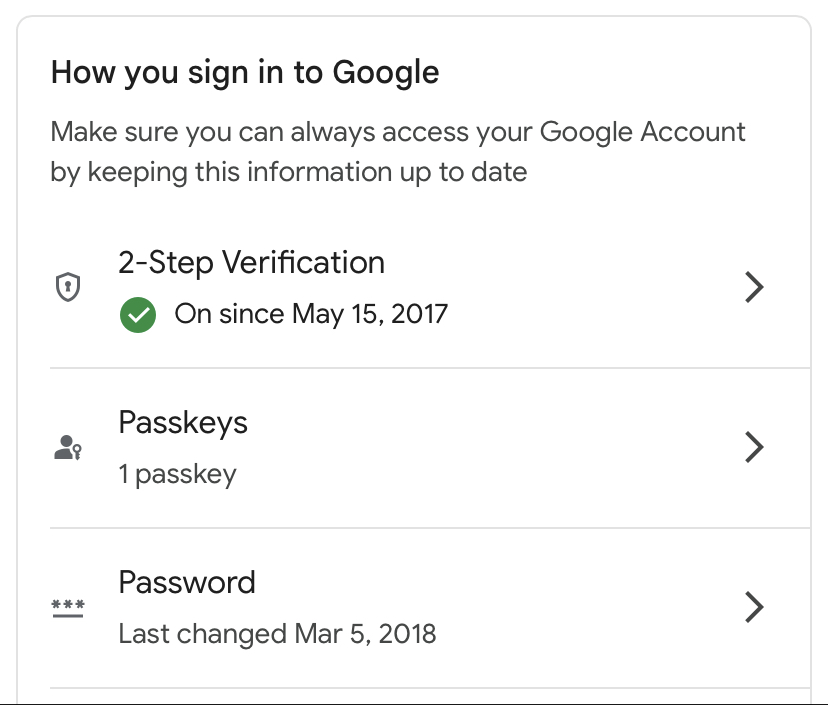 Google Accounts settings present passkeys in the same way as other authentication options.
## Learn more about passkeys content principles
FIDO Alliance User Experience Working Group has conducted user research and
created content principle guidelines. Read more in [FIDO UX content principles](https://fidoalliance.org/ux-guidelines-for-passkey-creation-and-sign-ins/#content-principles).