This reference page describes the Sign in with Google JavaScript API, used to
display the Sign In With Google button or One Tap prompt on web pages.
## Method: google.accounts.id.initialize
The `google.accounts.id.initialize` method initializes the Sign In With Google
client based on the configuration object. See the following code example of the
method:
```javascript
google.accounts.id.initialize(IdConfiguration)
```
The following code example implements the `google.accounts.id.initialize` method
with an `onload` function:
```javascript
```
The `google.accounts.id.initialize` method creates a Sign In With Google client
instance that can be implicitly used by all modules in the same web page.
- You only need to call the `google.accounts.id.initialize` method once even if you use multiple modules (like One Tap, Personalized button, revocation, etc.) in the same web page.
- If you do call the `google.accounts.id.initialize` method multiple times, only the configurations in the last call is remembered and used.
You actually reset the configurations whenever you call the
`google.accounts.id.initialize` method, and all subsequent methods in the same
web page immediately use the new configurations.
> [!WARNING]
> **Warning:** The `google.accounts.id.initialize` method should be called only once, even if you use both One Tap and button in the same web page.
## Data type: IdConfiguration
The following table lists the fields and descriptions of the `IdConfiguration`
data type:
| Field ||
|---|---|
| ` client_id` | Your application's client ID |
| ` color_scheme` | The color scheme applied to the One Tap prompt. |
| ` auto_select` | Enables automatic selection. |
| ` callback` | The JavaScript function that handles ID tokens. Google One Tap and the Sign In With Google button `popup` UX mode use this attribute. |
| ` login_uri` | The URL of your login endpoint. The Sign In With Google button `redirect` UX mode uses this attribute. |
| ` native_callback` | The JavaScript function that handles password credentials. |
| ` cancel_on_tap_outside` | Cancels the prompt if the user clicks outside the prompt. |
| ` prompt_parent_id` | The DOM ID of the One Tap prompt container element |
| ` nonce` | A random string for ID tokens |
| ` essential_claims` | Additional claims to include in the ID token returned by Google. |
| ` context` | The title and words in the One Tap prompt |
| ` state_cookie_domain` | If you need to call One Tap in the parent domain and its subdomains, pass the parent domain to this field so that a single shared cookie is used. |
| ` ux_mode` | The Sign In With Google button UX flow |
| ` allowed_parent_origin` | The origins that are allowed to embed the intermediate iframe. One Tap is run in the intermediate iframe mode if this field is present. |
| ` intermediate_iframe_close_callback` | Overrides the default intermediate iframe behavior when users manually close One Tap. |
| ` itp_support` | Enables upgraded One Tap UX on ITP browsers. |
| ` login_hint` | Skip account selection by providing a user hint. |
| ` hd` | Limit account selection by domain. |
| ` use_fedcm_for_prompt` | > [!WARNING] > **Deprecated:** This attribute is deprecated and will be ignored if used. Allow the browser to control user sign-in prompts and mediate the sign-in flow between your website and Google. |
| ` use_fedcm_for_button` | This field determines if FedCM button UX should be used on Chrome (desktop M125+ and Android M128+). Defaults to `false`. |
| ` button_auto_select` | Whether to enable the [auto select](https://developers.google.com/identity/gsi/web/guides/personalized-button.md.txt#auto-select) option for the FedCM button flow. If enabled, returning users with an active Google session will be automatically signed in, bypassing the Account Chooser prompt.Default value is `false`. |
### client_id
This field is your application's client ID, which is found and created in the
Google Cloud console. See the following table for further information:
| Type | Required | Example |
|---|---|---|
| string | Yes | `client_id: "CLIENT_ID.apps.googleusercontent.com"` |
### color_scheme
This field is the color scheme applied to the One Tap prompt. See the
following table for further information:
| Type | Required | Example |
|---|---|---|
| string | Optional. Defaults to the users system default color scheme. | `color_scheme: "dark"` |
The following table lists the available color schemes and their descriptions.
| Color scheme ||
|---|---|
| `default` | Apply the default color scheme of the user's system, depending on user preference scheme is either light or dark. |
| `light` | Apply a light color scheme. |
| `dark` | Apply a dark color scheme. |
### auto_select
This field determines if an ID token is automatically returned without any user
interaction when there's only one Google session that has approved your app
before. The default value is `false`. See the following table for further
information:
| Type | Required | Example |
|---|---|---|
| boolean | Optional | `auto_select: true` |
### callback
This field is the JavaScript function that handles the ID token returned from
the One Tap prompt or the pop-up window. This attribute is required if Google
One Tap or the Sign In With Google button `popup` UX mode is used. See the
following table for further information:
| Type | Required | Example |
|---|---|---|
| function | Required for One Tap and the `popup` UX mode | `callback: handleResponse` |
### login_uri
This attribute is the URI of your login endpoint.
The value must exactly match one of the authorized redirect URIs for the OAuth
2.0 client, which you [configured](https://developers.google.com/identity/gsi/web/guides/get-google-api-clientid.md.txt)
in the Google Cloud console and must conform to our [Redirect URI validation
rules](https://developers.google.com/identity/protocols/oauth2/web-server#uri-validation).
This attribute may be omitted if the current page is your login page, in which
case the credential is posted to this page by default.
The ID token credential response is posted to your login endpoint when a user
clicks on the Sign In With Google button and redirect UX mode is used.
See the following table for further information:
| Type | Optional | Example |
|---|---|---|
| URL | Defaults to the URI of the current page, or the value you specify. Only used when `ux_mode: "redirect"` is set. | `login_uri: "https://www.example.com/login"` |
Your [login endpoint](https://developers.google.com/identity/gsi/web/reference/html-reference.md.txt#id-token-handler-endpoint)
must handle POST requests containing a [`credential`](https://developers.google.com/identity/gsi/web/reference/js-reference.md.txt#credential) parameter
with an ID token value in the body. `select_by` is not included in HTTP `POST`
requests to `login_uri` or `data-login_uri`, and is only returned in the
[`CredentialResponse`](https://developers.google.com/identity/gsi/web/reference/js-reference.md.txt#CredentialResponse) object passed to the JavaScript [`callback`](https://developers.google.com/identity/gsi/web/reference/js-reference.md.txt#callback)
function.
> [!NOTE]
> **Note:** With JavaScript API, the response of Google One Tap and the Sign In With Google button `popup` UX mode can only be returned to the `callback` JavaScript function. Try the [HTML
> API](https://developers.google.com/identity/gsi/web/reference/html-reference#data-login_uri) if the response must be submitted automatically to `login_uri`.
### native_callback
This field is the name of the JavaScript function that handles the password
credential returned from the browser's built-in credential manager. See the
following table for further information:
| Type | Required | Example |
|---|---|---|
| function | Optional | `native_callback: handleResponse` |
### cancel_on_tap_outside
This field sets whether or not to cancel the One Tap request if a user clicks
outside the prompt. The default value is `true`. You can disable it if you set
the value to `false`. See the following table for further information:
| Type | Required | Example |
|---|---|---|
| boolean | Optional | `cancel_on_tap_outside: false` |
### prompt_parent_id
This attribute sets the DOM ID of the container element. If it's not set, the
One Tap prompt is displayed in the top-right corner of the window. See the
following table for further information:
| Type | Required | Example |
|---|---|---|
| string | Optional | `prompt_parent_id: 'parent_id'` |
### nonce
This field is a random string used by the ID token to prevent replay attacks.
See the following table for further information:
| Type | Required | Example |
|---|---|---|
| string | Optional | `nonce: "biaqbm70g23"` |
Nonce length is limited to the maximum JWT size supported by your environment,
and individual browser and server HTTP size constraints.
### essential_claims
This field is a string used to request additional claims to be included in the
ID token returned by Google. For a complete list of claims accepted by Google
see
[supported claims](https://developers.google.com/identity/openid-connect/openid-connect.md.txt#authenticationuriparameters).
See the following table for further information:
| Type | Required | Example |
|---|---|---|
| string | Optional | `essential_claims: "auth_time, amr"` |
### context
This field changes the text of the title and messages shown in the One Tap
prompt, no effect for ITP browsers. Defaults to `signin`.
See the following table for further information:
| Type | Required | Example |
|---|---|---|
| string | Optional | `context: "use"` |
The following table lists **all** the available contexts and their descriptions:
| Context ||
|---|---|
| `signin` | "Sign in to" |
| `signup` | "Sign up to" |
| `use` | "Use" |
### state_cookie_domain
If you need to display One Tap in the parent domain and its subdomains, pass the
parent domain to this field so that a single shared-state cookie is used. See
the following table for further information:
| Type | Required | Example |
|---|---|---|
| string | Optional | `state_cookie_domain: "example.com"` |
### ux_mode
Use this field to set the UX flow used by the Sign In With Google button. The
default value is `popup`. This attribute has no impact on the OneTap UX. See the
following table for further information:
| Type | Required | Example |
|---|---|---|
| string | Optional | `ux_mode: "redirect"` |
The following table lists the available UX modes and their descriptions.
| UX Mode ||
|---|---|
| `popup` | Performs sign-in UX flow in a pop-up window. |
| `redirect` | Performs sign-in UX flow by a full page redirection. |
### allowed_parent_origin
The origins that are allowed to embed the intermediate iframe. One Tap runs
in the intermediate iframe mode if this field is present. See the following
table for further information:
| Type | Required | Example |
|---|---|---|
| string or string array | Optional | `allowed_parent_origin: "https://example.com"` |
The following table lists the supported value types and their descriptions.
| Value Types |||
|---|---|---|
| `string` | A single domain URI. | `"https://example.com"` |
| `string array` | An array of domain URIs. | `["https://news.example.com", "https://local.example.com"]` |
Wildcard prefixes are also supported. For example, `"https://*.example.com"`
matches `example.com` and its subdomains at all levels (e.g
`news.example.com`, `login.news.example.com`). Things to keep in mind when using
wildcards:
- Pattern strings cannot be composed of only a wildcard and a top level domain. For example `https://.com`*and
`https://`* `.co.uk` are invalid as `"https://.example.com"`*matches `example.com` and
all its subdomains. Use a comma separated list to represent two different
domains. For example,
`"https://example1.com,https://`* `.example2.com"` matches the domains `example1.com`, `example2.com` and the subdomains of `example2.com`
- Wildcard domains must begin with a secure https:// scheme, so `"*.example.com"` is considered invalid.
> [!NOTE]
> **Note:** Unlike the HTML API, a string with comma-separated URIs is invalid for the `allowed_parent_origin` field. Use a JavaScript Array object instead.
If the value of `allowed_parent_origin` field is invalid, the One Tap
initialization of the intermediate iframe mode would fail and stop.
### intermediate_iframe_close_callback
Overrides the default intermediate iframe behavior when users manually close One
Tap by tapping on the 'X' button in the One Tap UI. The default behavior is to
remove the intermediate iframe from the DOM immediately.
The `intermediate_iframe_close_callback` field takes effect only in intermediate
iframe mode. And it has impact only to the intermediate iframe, instead of the
One Tap iframe. The One Tap UI is removed before the callback is invoked.
| Type | Required | Example |
|---|---|---|
| function | Optional | `intermediate_iframe_close_callback: logBeforeClose` |
### itp_support
This field determines if the [upgraded One Tap UX](https://developers.google.com/identity/gsi/web/guides/features.md.txt#upgraded_ux_on_itp_browsers)
should be enabled on browsers that support Intelligent Tracking Prevention
(ITP). The default value is `false`. See the following table for further
information:
| Type | Required | Example |
|---|---|---|
| boolean | Optional | `itp_support: false` |
### login_hint
If your application knows in advance which user should be signed-in, it can
provide a login hint to Google. When successful, account selection is skipped.
Accepted values are: an email address or an ID token [sub](https://developers.google.com/identity/openid-connect/openid-connect.md.txt#an-id-tokens-payload) field value.
For more information, see the [login_hint](https://developers.google.com/identity/protocols/oauth2/openid-connect#authenticationuriparameters) field in the OpenID Connect
documentation.
| Type | Required | Example |
|---|---|---|
| String, an email address or the value from an ID token `sub` field. | Optional | `login_hint: 'elisa.beckett@gmail.com'` |
### hd
When a user has multiple accounts and should only sign-in with their Workspace
account use this to provide a domain name hint to Google. When successful, user
accounts displayed during account selection are limited to the provided domain.
A wildcard value: `*` offers only Workspace accounts to the user and excludes
consumer accounts (user@gmail.com) during account selection.
For more information, see the [hd](https://developers.google.com/identity/protocols/oauth2/openid-connect#authenticationuriparameters) field in the OpenID Connect documentation.
| Type | Required | Example |
|---|---|---|
| String. A fully qualified domain name or \*. | Optional | `hd: '*'` |
### use_fedcm_for_prompt
> [!WARNING]
> **Deprecated:** This attribute is deprecated and will be ignored if used.
Allow the browser to control user sign-in prompts and mediate the sign-in flow
between your website and Google. Defaults to false. See [Migrate to FedCM](https://developers.google.com/identity/gsi/web/guides/fedcm-migration.md.txt)
page for more information.
| Type | Required | Example |
|---|---|---|
| boolean | Deprecated | `use_fedcm_for_prompt: true` |
### use_fedcm_for_button
This field determines if FedCM button UX should be used on Chrome (desktop M125+
and Android M128+). Defaults to `false`. See the following table for further
information:
| Type | Required | Example |
|---|---|---|
| boolean | Optional | `use_fedcm_for_button: true` |
### button_auto_select
This field determines whether to enable the [auto select](https://developers.google.com/identity/gsi/web/guides/personalized-button.md.txt#auto-select) option for the
FedCM button flow. If enabled, returning users with an active Google session
will be automatically signed in, bypassing the Account Chooser prompt. Defaults
to `false`. You need to explicitly enable button auto-sign-in during the opt-in
launch. See the following table for further information:
| Type | Required | Example |
|---|---|---|
| boolean | Optional | `button_auto_select: true` |
## Method: google.accounts.id.prompt
The `google.accounts.id.prompt` method displays the One Tap prompt or the
browser built-in credential manager after the `initialize()` method is invoked.
See the following code example of the method:
```javascript
google.accounts.id.prompt(/**
@type{(function(!PromptMomentNotification):void)=} */ momentListener)
```
Normally, the `prompt()` method is called on page load. Due to the session
status and user settings on the Google side, the One Tap prompt UI might not be
displayed. To get notified on the UI status for different moments, pass a
function to receive UI status notifications.
Notifications are fired on the following moments:
- **Display moment:** This occurs after the `prompt()` method is called. The notification contains a boolean value to indicate whether the UI is displayed or not.
- **Skipped moment:** This occurs when the One Tap prompt is closed by an auto
cancel, a manual cancel, or when Google fails to issue a credential, such as
when the selected session has signed out of Google.
In these cases, we recommend that you continue on to the next identity
providers, if there are any.
- **Dismissed moment:** This occurs when Google successfully retrieves a
credential or a user wants to stop the credential retrieval flow. For
example, when the user begins to input their username and password in your
login dialog, you can call the `google.accounts.id.cancel()` method to close
the One Tap prompt and trigger a dismissed moment.
> [!WARNING]
> **Warning:** When on a dismissed moment, don't try any of the next identity providers.
The following code example implements the skipped moment:
```javascript
```
> [!NOTE]
> **Note:** To improve user privacy, display moment notifications are intentionally delayed when FedCM is [enabled](https://developers.google.com/identity/gsi/web/reference/js-reference.md.txt#use_fedcm_for_prompt). Notifications can be received up to 1 minute after the actual event took place.
> [!NOTE]
> **Note:** For the built-in credential manager, there is no notification for display, skipped, or dismissed moments as these occur outside of the GIS library.
## Data type: PromptMomentNotification
The following table lists methods and descriptions of the
`PromptMomentNotification` data type:
> [!CAUTION]
> **Caution:** FedCM changes affect `isDisplayMoment()`, `isDisplayed()`, `isNotDisplayed()`, `getNotDisplayedReason()`, and `getSkippedReason()`.See [Migrate to FedCM](https://developers.google.com/identity/gsi/web/guides/fedcm-migration.md.txt) page for more information.
| Method ||
|---|---|
| `isDisplayMoment()` | Returns `true` if the One Tap prompt is displayed. **Note:** When FedCM is enabled, this notification is not supported. See [Migrate to FedCM](https://developers.google.com/identity/gsi/web/guides/fedcm-migration.md.txt) page for more information. |
| `isDisplayed()` | Returns `true` if the moment type is `PromptMoment.DISPLAY` and the One Tap prompt is displayed. **Note:** When FedCM is enabled, this notification is not supported. See [Migrate to FedCM](https://developers.google.com/identity/gsi/web/guides/fedcm-migration.md.txt) page for more information. |
| `isNotDisplayed()` | Returns `true` if the moment type is `PromptMoment.DISPLAY` and the One Tap prompt is not displayed. **Note:** When FedCM is enabled, this notification is not supported. See [Migrate to FedCM](https://developers.google.com/identity/gsi/web/guides/fedcm-migration.md.txt) page for more information. |
| `getNotDisplayedReason()` | The detailed reason why the UI isn't displayed. The following are possible values: - `browser_not_supported` - `invalid_client` - `missing_client_id` - `opt_out_or_no_session` - `secure_http_required` - `suppressed_by_user` - `unregistered_origin` - `unknown_reason` **Note:** When FedCM is enabled, this notification is not supported. See [Migrate to FedCM](https://developers.google.com/identity/gsi/web/guides/fedcm-migration.md.txt) page for more information. |
| `isSkippedMoment()` | Returns `true` if the moment type is `PromptMoment.SKIPPED` **Note:** When FedCM is enabled, this method is partially supported. In particular, it does not support the skipped reason of `user_cancel`. See [Migrate to FedCM](https://developers.google.com/identity/gsi/web/guides/fedcm-migration.md.txt) page for more information. |
| `getSkippedReason()` | The detailed reason for the skipped moment. The following are possible values: - `auto_cancel` - `user_cancel` - `tap_outside` - `issuing_failed` **Note:** When FedCM is enabled, this method is partially supported. In particular, it does not support the skipped reason of `user_cancel`. See [Migrate to FedCM](https://developers.google.com/identity/gsi/web/guides/fedcm-migration.md.txt) page for more information. |
| `isDismissedMoment()` | Returns `true` if the moment type is `PromptMoment.DISMISSED`. **Note:** When FedCM is enabled, this method is fully supported. See [Migrate to FedCM](https://developers.google.com/identity/gsi/web/guides/fedcm-migration.md.txt) page for more information. |
| `getDismissedReason()` | The detailed reason for the dismissal. The following are possible values: - `credential_returned` - `cancel_called` - `flow_restarted` **Note:** When FedCM is enabled, this method is fully supported. See [Migrate to FedCM](https://developers.google.com/identity/gsi/web/guides/fedcm-migration.md.txt) page for more information. |
| `getMomentType()` | Return a string for the moment type. The following are possible values: - `display` - `skipped` - `dismissed` |
## Data type: CredentialResponse
When your `callback` function is invoked, a `CredentialResponse` object is
passed as the parameter. The following table lists the fields that are contained
in the credential response object:
| Field ||
|---|---|
| `credential` | The encoded JWT ID token that Google issues. |
| `select_by` | How the user signed in. |
| `state` | This field is only defined when user clicks a Sign in with Google button to sign in, and the button's `state` attribute is specified. |
### credential
This field is the ID token as a base64-encoded JSON Web Token (JWT) string.
When
[decoded](https://developers.google.com/identity/gsi/web/guides/handle-credential-responses-js-functions),
the JWT looks like the following example:
```
header
{
"alg": "RS256",
"kid": "f05415b13acb9590f70df862765c655f5a7a019e", // JWT signature
"typ": "JWT"
}
payload
{
"iss": "https://accounts.google.com", // The JWT's issuer
"nbf": 161803398874,
"aud": "314159265-pi.apps.googleusercontent.com", // Your server's client ID
"sub": "3141592653589793238", // The unique ID of the user's Google Account
"hd": "gmail.com", // If present, the host domain of the user's Google Workspace email address
"auth_time": 1748875426,
"amr": ["mfa", "pwd", "tel"],
"email": "elisa.g.beckett@gmail.com", // The user's email address
"email_verified": true, // true, if Google has verified the email address
"azp": "314159265-pi.apps.googleusercontent.com",
"name": "Elisa Beckett",
// If present, a URL to user's profile picture
"picture": "https://lh3.googleusercontent.com/a-/e2718281828459045235360uler",
"given_name": "Elisa",
"family_name": "Beckett",
"iat": 1596474000, // Unix timestamp of the assertion creation time
"exp": 1596477600, // Unix timestamp of the assertion expiration time
"jti": "abc161803398874def"
}
```
The `sub` field is a globally unique identifier for the Google Account. **Only**
use `sub` field as identifier for the user as it is unique among all Google
Accounts and never reused.
> [!WARNING]
> **Warning:** **Don't** use email address as an identifier because a Google Account can have multiple email addresses at different points in time. Always use the `sub` field as the identifier for the user.
Using the `email`, `email_verified` and `hd` fields you can determine if Google
hosts and is authoritative for an email address. In cases where Google is
authoritative the user is confirmed to be the legitimate account owner.
Cases where Google is authoritative:
- `email` has a `@gmail.com` suffix, this is a Gmail Account.
- `email_verified` is true and `hd` is set, this is a Google Workspace account.
Users may register for Google Accounts without using Gmail or Google Workspace.
When `email` does not contain a `@gmail.com` suffix and `hd` is absent Google is
not authoritative and password or other challenge methods are recommended to
verify the user. `email_verfied` can also be true as Google initially verified
the user when the Google Account was created, however ownership of the third
party email account may have since changed.
The `exp` field shows the expiration time for you to [verify the token on your
server side](https://developers.google.com/identity/gsi/web/guides/verify-google-id-token). It is one hour
for the ID token obtained from Sign In With Google. You need to [verify the
token](https://developers.google.com/identity/gsi/web/guides/verify-google-id-token) before the expiration
time. **Don't use `exp` for session management** . An expired ID token
does **not** mean the user is signed out. Your app is responsible for session
management of your users.
### select_by
> [!NOTE]
> **Note:** `select_by` is only returned in the [`CredentialResponse`](https://developers.google.com/identity/gsi/web/reference/js-reference.md.txt#CredentialResponse) object passed to the JavaScript [`callback`](https://developers.google.com/identity/gsi/web/reference/js-reference.md.txt#callback) function and is not included in HTTP `POST` requests to [`login_uri`](https://developers.google.com/identity/gsi/web/reference/js-reference.md.txt#login_uri) or [`data-login_uri`](https://developers.google.com/identity/gsi/web/reference/html-reference.md.txt#data-login_uri).
The following table lists the possible values for the `select_by` field. The
type of button used along with the session and consent state are used to set the
value,
- The user pressed either the One Tap or Sign In With Google button or used
the touchless Automatic sign-in process.
- An existing session was found, or the user selected and signed-in to a
Google Account to establish a new session.
- Prior to sharing ID token credentials with your app the user either
- pressed the Confirm button to grant their consent to share credentials, or
- had previously granted consent and used Select an Account to choose a Google Account.
The value of this field is set to one of these types,
| Value | Description |
|---|---|
| `auto` | Automatic sign-in of a user with an existing session who had previously granted consent to share credentials. Applies only to non-FedCM supported browsers. |
| `user` | A user with an existing session who had previously granted consent pressed the One Tap 'Continue as' button to share credentials. Applies only to non-FedCM supported browsers. |
| `fedcm` | A user pressed the One Tap 'Continue as' button to share credentials using FedCM. Applies only to FedCM [supported](https://developers.google.com/identity/gsi/web/guides/supported-browsers.md.txt) browsers. |
| `fedcm_auto` | Automatic sign-in of a user with an existing session who had previously granted consent to share credentials using FedCM One Tap. Applies only to FedCM [supported](https://developers.google.com/identity/gsi/web/guides/supported-browsers.md.txt) browsers. |
| `user_1tap` | A user with an existing session pressed the One Tap 'Continue as' button to grant consent and share credentials. Applies only to Chrome v75 and higher. |
| `user_2tap` | A user without an existing session pressed the One Tap 'Continue as' button to select an account and then pressed the Confirm button in a pop-up window to grant consent and share credentials. Applies to non-Chromium based browsers. |
| `itp` | A user who had previously granted consent pressed the One Tap on [ITP](https://developers.google.com/identity/gsi/web/guides/itp) browsers. |
| `itp_confirm` | A user who did not grant consent pressed the One Tap on [ITP](https://developers.google.com/identity/gsi/web/guides/itp) browsers and pressed the 'Continue' button to grant consent and share credentials. |
| `btn` | A user who had previously granted consent pressed the Sign In With Google button and selected a Google Account from 'Choose an Account' to share credentials. |
| `btn_confirm` | A user who did not grant consent pressed the Sign In With Google button and pressed the 'Continue' button to grant consent and share credentials. |
### state
This field is only defined when user clicks a Sign in with Google button to
sign in, and the clicked button's [`state`](https://developers.google.com/identity/gsi/web/reference/js-reference.md.txt#state) attribute is specified. The
value of this field is the same value you specified in the button's
[`state`](https://developers.google.com/identity/gsi/web/reference/js-reference.md.txt#state) attribute.
As multiple Sign in with Google buttons can be rendered on the same page, you
can assign each button with a unique string. Hence, you can this `state` field
to identify which button user clicked to sign in.
## Method: google.accounts.id.renderButton
The `google.accounts.id.renderButton` method renders a Sign In With Google
button in your web pages.
See the following code example of the method:
```javascript
google.accounts.id.renderButton(
/** @type{!HTMLElement} */ parent,
/** @type{!GsiButtonConfiguration} */ options
)
```
## Data type: GsiButtonConfiguration
The following table lists the fields and descriptions of the
`GsiButtonConfiguration` data type:
| Attribute ||
|---|---|
| ` type` | The button type: icon, or standard button. |
| ` theme` | The button theme. For example, filled_blue or filled_black. |
| ` size` | The button size. For example, small or large. |
| ` text` | The button text. For example, "Sign in with Google" or "Sign up with Google". |
| ` shape` | The button shape. For example, rectangular or circular. |
| ` logo_alignment` | The Google logo alignment: left or center. |
| ` width` | The button width, in pixels. |
| ` locale` | If set, then the button language is rendered. |
| ` click_listener` | If set, this function is called when the Sign in with Google button is clicked. |
| ` state` | If set, this string returns with the ID token. |
### Attribute types
The following sections contain details about each attribute type, and an
example.
#### type
The button type. The default value is `standard`.
See the following table for further information:
| Type | Required | Example |
|---|---|---|
| string | Yes | `type: "icon"` |
The following table lists the available button types and their
descriptions:
| Type ||
|---|---|
| `standard` |  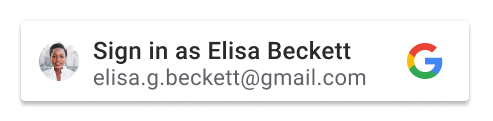 Button with text or personalized information. |
| `icon` |  An icon button without text. |
#### theme
The button theme. The default value is `outline`. See the following table for
further information:
| Type | Required | Example |
|---|---|---|
| string | Optional | `theme: "filled_blue"` |
The following table lists the available themes and their descriptions:
| Theme | Samples | Specifications |
|---|---|---|
| `outline` |    A standard button theme. | Fill: #FFFFFF Stroke: #747775 \| 1px \| inside Font: #1F1F1F \| Roboto Medium \| 14/20 Personalized: #1F1F1F \| Roboto \| Medium 12/14 \| Regular 11/13 |
| `filled_blue` |   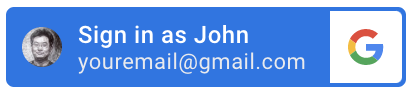 A blue-filled button theme. | Fill: #0B57D0 Stroke: #OB57D0 \| 1px \| inside Font: #FFFFFF \| Google Sans Medium \| 14/20 Personalized: #FFFFFF \| Roboto \| Medium 12/14 \| Regular 11/13 |
| `filled_black` |   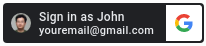 A black-filled button theme with contrasting logo. | Fill: #202124 Stroke: #OB57D0 \| 1px \| inside Font: #FFFFFF \| Google Sans Medium \| 14/20 Personalized: #FFFFFF \| Roboto \| Medium 12/14 \| Regular 11/13 |
| `outline_dark` |    A black-filled button theme. | Fill: #131314 Stroke: #8E918F \| 1px \| inside Font: #FFFFFF \| Google Sans Medium \| 14/20 Personalized: #FFFFFF \| Roboto \| Medium 12/14 \| Regular 11/13 |
#### size
The button size. The default value is `large`. See the following table for
further information:
| Type | Required | Example |
|---|---|---|
| string | Optional | `size: "small"` |
The following table lists the available button sizes and their descriptions:
| Size ||
|---|---|
| `large` |    A large-sized button. |
| `medium` |   A medium-sized button. |
| `small` |   A small-sized button. |
#### text
The button text. The default value is `signin_with`. There are no visual
differences for the text of icon buttons that have different `text` attributes.
The only exception is when the text is read for screen accessibility.
See the following table for further information:
| Type | Required | Example |
|---|---|---|
| string | Optional | `text: "signup_with"` |
The following table lists **all** the available button texts and their
descriptions:
| Text ||
|---|---|
| `signin_with` |   The button text is "Sign in with Google". |
| `signup_with` |   The button text is "Sign up with Google". |
| `continue_with` |   The button text is "Continue with Google". |
| `signin` |   The button text is "Sign in". |
#### shape
The button shape. The default value is `rectangular`. See the following table
for further information:
| Type | Required | Example |
|---|---|---|
| string | Optional | `shape: "rectangular"` |
The following table lists the available button shapes and their descriptions:
| Shape ||
|---|---|
| `rectangular` |    The rectangular-shaped button. If used for the `icon` button type, then it's the same as `square`. |
| `pill` |    The pill-shaped button. If used for the `icon` button type, then it's the same as `circle`. |
| `circle` |    The circle-shaped button. If used for the `standard` button type, then it's the same as `pill`. |
| `square` |    The square-shaped button. If used for the `standard` button type, then it's the same as `rectangular`. |
#### logo_alignment
The alignment of the Google logo. The default value is `left`. This attribute
only applies to the `standard` button type. See the following table for further
information:
| Type | Required | Example |
|---|---|---|
| string | Optional | `logo_alignment: "center"` |
The following table lists the available alignments and their descriptions:
| logo_alignment ||
|---|---|
| `left` |  Left-aligns the Google logo. |
| `center` |  Center-aligns the Google logo. |
#### width
The minimum button width, in pixels. The maximum width is 400 pixels.
See the following table for further information:
| Type | Required | Example |
|---|---|---|
| string | Optional | `width: "400"` |
#### locale
Optional. Display button text using the specified locale, otherwise default to
the users Google Account or browser settings. Add the `hl` parameter and
language code to the src directive when loading the library, for example:
`gsi/client?hl=`.
If it's not set, the browser's default locale or the Google session user's
preference is used. Therefore, different users might see different versions of
localized buttons, and possibly with different sizes.
See the following table for further information:
| Type | Required | Example |
|---|---|---|
| string | Optional | `locale: "zh_CN"` |
#### click_listener
You can define a JavaScript function to be called when the Sign in with Google
button is clicked using the `click_listener` attribute.
```
google.accounts.id.renderButton(document.getElementById("signinDiv"), {
theme: 'outline',
size: 'large',
click_listener: onClickHandler
});
function onClickHandler(){
console.log("Sign in with Google button clicked...")
}
```
In this example, the message *Sign in with Google button clicked...* is logged
to the console when the Sign in with Google button is clicked.
#### state
Optional, as multiple Sign in with Google buttons can be rendered on the same
page, you can assign each button with a unique string. The same string
would return along with the ID token, so you can identify which button user
clicked to sign in.
See the following table for further information:
| Type | Required | Example |
|---|---|---|
| string | Optional | `data-state: "button 1"` |
## Data type: Credential
When your
[`native_callback`](https://developers.google.com/identity/gsi/web/reference/js-reference.md.txt#native_callback)
function is invoked, a `Credential` object is passed as the parameter. The
following table lists the fields contained in the object:
| Field ||
|---|---|
| `id` | Identifies the user. |
| `password` | The password |
## Method: google.accounts.id.disableAutoSelect
When the user signs out of your website, you need to call the method
`google.accounts.id.disableAutoSelect` to record the status in cookies. This
prevents a UX dead loop. See the following code snippet of the method:
```javascript
google.accounts.id.disableAutoSelect()
```
The following code example implements the `google.accounts.id.disableAutoSelect`
method with an `onSignout()` function:
```javascript
```
## Method: google.accounts.id.storeCredential
This method is a wrapper for the `store()` method of the browser's built-in
credential manager API. Therefore, it can only be used to store a password
credential. See the following code example of the method:
```javascript
google.accounts.id.storeCredential(Credential, callback)
```
The following code example implements the `google.accounts.id.storeCredential`
method with an `onSignIn()` function:
```javascript
```
## Method: google.accounts.id.cancel
You can cancel the One Tap flow if you remove the prompt from the relying party
DOM. The cancel operation is ignored if a credential is already selected. See
the following code example of the method:
```javascript
google.accounts.id.cancel()
```
The following code example implements the `google.accounts.id.cancel()` method
with an `onNextButtonClicked()` function:
```javascript
```
## Library load callback: onGoogleLibraryLoad
You can register an `onGoogleLibraryLoad` callback. It's notified after the Sign
In With Google JavaScript library is loaded:
```javascript
window.onGoogleLibraryLoad = () => {
...
};
```
This callback is just a shortcut for the `window.onload` callback. There are no
differences in behavior.
The following code example implements an `onGoogleLibraryLoad` callback:
```javascript
```
## Method: google.accounts.id.revoke
The `google.accounts.id.revoke` method revokes the OAuth grant used to share the
ID token for the specified user. See the following code snippet of the method:
`javascript
google.accounts.id.revoke(login_hint, callback)`
| Parameter | Type | Description |
|---|---|---|
| `login_hint` | string | The email address or unique ID of the user's Google Account. The ID is the `sub` property of the [credential](https://developers.google.com/identity/gsi/web/reference/js-reference.md.txt#credential) payload. |
| `callback` | function | Optional [RevocationResponse](https://developers.google.com/identity/gsi/web/reference/js-reference.md.txt#RevocationResponse) handler. |
The following code sample shows how use the `revoke` method with an ID.
```
google.accounts.id.revoke('1618033988749895', done => {
console.log(done.error);
});
```
> [!IMPORTANT]
> **Key Point:** Revocation removes all OAuth 2.0 scopes previously granted to a project, invalidating any issued access or refresh tokens for all clients registered under that project.
## Data type: RevocationResponse
When your `callback` function is invoked, a `RevocationResponse` object is
passed as the parameter. The following table lists the fields that are contained
in the revocation response object:
| Field ||
|---|---|
| `successful` | This field is the return value of the method call. |
| `error` | This field optionally contains a detailed error response message. |
### successful
This field is a boolean value set to true if the revoke method call succeeded or
false on failure.
### error
This field is a string value and contains a detailed error message if the revoke
method call failed, it is undefined on success.