This page describes how to implement features related to how users sign in or
sign out with Google One Tap.
## Sign in users automatically
Google One Tap supports automatic sign-in, which provides a frictionless user
experience (UX) by removing the manual steps users must take when returning
to your site. Users don't need to remember which Google Account they selected
during their last visit, decreasing the chances of unnecessary duplicate
accounts being created on your platform.
Automatic sign-in is intended to complement our Sign in with Google button
and One Tap dialogs. It is designed to be used across your entire site, with
manual sign-up or switching accounts occurring only after the user has first
signed-out of your site.
For Automatic sign-in to occur the following conditions are required:
- users must first be signed-in to their Google Account, and
- previously granted consent to share their account profile with your app, and
- when using FedCM, made only a single sign-in attempt in the last 10 minutes. One Tap is displayed when repeated sign-in attempts occur during this window.
- when using FedCM, Chrome requires users to reconfirm that they want to sign in to the website with Google Account in each Chrome instance even if the user approved the website prior to the FedCM rollout. This change may affect conversion rate on your existing site using One Tap. In Chrome M121 update, [Auto Sign-in improvement](https://developers.google.com/identity/gsi/web/reference/release-notes.md.txt#2023-12-21) mitigates conversion rate drop issue.
For pages where Automatic sign-in is enabled and if these conditions are met
the user's ID token credential is automatically returned without any user
interaction. If these conditions are not met, and even if Automatic sign-in is
enabled on the page, the user defaults to the One Tap flow for sign-in or
consent. If a user has multiple Google Accounts and visits your site they are
required to first sign-in to a single Google Account and to have provided
consent for that account.
You may measure Automatic sign-in success rate using the `auto` value in the
[select_by](https://developers.google.com/identity/gsi/web/reference/js-reference.md.txt#select_by) field of the returned `CredentialResponse` object when handling
the response in a JavaScript callback (`callback` or `data-callback`).
`select_by` is not included in HTTP `POST` requests sent to `login_uri` or
`data-login_uri`.
To enable automatic sign-in, add `data-auto_select="true"` to your code, as
shown in the following snippet:
```html
```
> [!NOTE]
> **Note:** The [upgraded One Tap UX for ITP browsers](https://developers.google.com/identity/gsi/web/guides/features.md.txt#upgraded_ux_on_itp_browsers) doesn't support auto sign-in.
## Sign out
When a user signs out of your website, they can be directed to a page where a
Google One Tap prompt is automatically displayed. For this setup, auto-selection
must be prohibited. Otherwise, the user is automatically signed in again, which
leads to a dead-loop UX.
### Using FedCM
To improve user experience, there is a 10 minute quiet period between every
automatic sign-in attempt. During this time period, One Tap prompt is
displayed instead. Users need to explicitly click One Tap to sign in.
### Without FedCM
To prohibit auto-selection after a user signs out, add the class name
`g_id_signout` to all of your logout links and buttons. See the following code
snippet:
```html
Sign Out
```
The following JavaScript code snippet can also be used for sign out:
```javascript
const button = document.getElementById('signout_button');
button.onclick = () => {
google.accounts.id.disableAutoSelect();
}
```
To prevent a dead-loop UX, user signed-out status is stored in a cookie named
`g_state` that is set by the Google Identity Services library. By default the
cookie domain is set to the domain of current page. If One Tap is displayed
on the parent domain and subdomains, the state cookie must be visible across
all of your domains. Use the `data-state_cookie_domain` attribute to set the
`g_state` cookie domain to your parent domain. For example, add
`data-state_cookie_domain="example.com"` to the `g_id_onload` element for a
parent domain of `example.com` and a subdomain named `webapp.example.com`.
> [!IMPORTANT]
> **Key Point:** If One Tap is displayed on multiple domains, you need to set the `g_state` cookie domain to your parent domain.
If you have a service that monitors all of the cookies used in your domain,
you need to notify them of the `g_state` cookie.
> [!IMPORTANT]
> **Key Point:** Feel free to use other ways to prevent the dead-loop UX on log out moment.
If you don't want to load the client library on your post-login pages, use
these solutions to prevent a dead-loop UX after log out occurs:
- On log out, redirect users to a page (say, `https://example.com/logged_out`) where One Tap is not displayed, or where auto sign-in is always disabled.
- On log out, add a parameter to the URL. For example, `logged_out=1`. When rendering One Tap by JavaScript API, check that URL parameter and disable auto sign-in when present.
> [!WARNING]
> **Warning:** The term 'sign out' here refers to temporarily disabling One Tap Automatic sign-in for one day. This API does not sign out your users out of your website or any Google websites.
## Key user journeys
The automatic sign-in page.
### Using FedCM
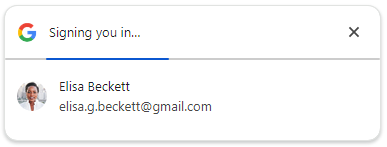
Users can close the One Tap prompt by clicking the **X** button. For
accessibility consideration, an ID token is shared with your website
even if users click the **X** button.
To improve user experience, there is a 10 minute quiet period between every
automatic sign-in attempt. During this time period, One Tap prompt is
displayed instead. Users need to explicitly click One Tap to sign in.
### Without FedCM

If users don't click the **Cancel** button within 5 seconds, an ID token
is shared with your website.
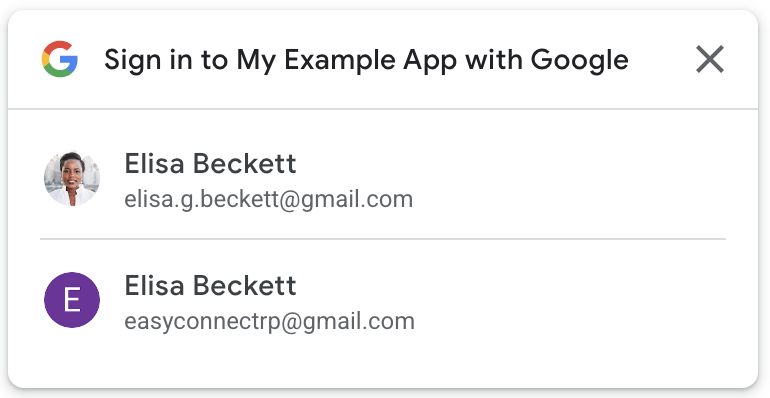
When Sign-In is cancelled, based on the number of active Google sessions,
either the account chooser page or the returning user page displays.
- Multiple Google sessions
- Single Google Sessions

> [!IMPORTANT]
> **Key Point:** Once cancelled, Automatic sign-in is disabled for one day.