The Android SDK gives you access to the various inputs and sensors available with Glass EE2.
This page provides you with an overview of the available features, implementation details,
and helpful tips.
## Touch gestures
You can use the Android SDK to enable access to raw data from the Glass touchpad. This is
accomplished through a gesture detector that automatically detects common gestures on Glass such
as tap, fling, and scroll.
You can also use this gesture detector in your apps to account for tap, swipe forward, swipe back,
and swipe down. This is similar to previous Glass devices.
It's best to use these gestures in the following ways:
- **Tap**: Confirm or enter.
- **Swipe forward** , **swipe back**: Navigate through cards and screens.
- **Swipe down**: Back or exit.
For implementation details, read the
[sample gesture detector](https://developers.google.com/glass-enterprise/samples/code-samples).
### Detect gestures with the Android gesture detector
The Android [`GestureDetector`](https://developer.android.com/reference/android/view/GestureDetector)
lets you detect simple and complex gestures, such as those that use multiple fingers or scrolling.
### Detect activity-level gestures
Detect gestures at the activity level only when it doesn't matter what part of your UI has focus.
For example, if you want to bring up a menu when a user taps the touchpad,
regardless of what view has focus, handle the
[`MotionEvent`](http://developer.android.com/reference/android/view/MotionEvent.html)
inside the activity.
The following is an example of activity-level gesture detection that uses
[`GestureDetector`](https://developer.android.com/reference/android/view/GestureDetector) and implements
[`GestureDetector.OnGestureListener`](https://developer.android.com/reference/android/view/GestureDetector.OnGestureListener) to process recognized gestures, which are
then handled and translated to the following:
- `TAP`
- `SWIPE_FORWARD`
- `SWIPE_BACKWARD`
- `SWIPE_UP`
- `SWIPE_DOWN`
### Kotlin
```kotlin
class GlassGestureDetector(context: Context, private val onGestureListener: OnGestureListener) :
GestureDetector.OnGestureListener {
private val gestureDetector = GestureDetector(context, this)
enum class Gesture {
TAP,
SWIPE_FORWARD,
SWIPE_BACKWARD,
SWIPE_UP,
SWIPE_DOWN
}
interface OnGestureListener {
fun onGesture(gesture: Gesture): Boolean
}
fun onTouchEvent(motionEvent: MotionEvent): Boolean {
return gestureDetector.onTouchEvent(motionEvent)
}
override fun onDown(e: MotionEvent): Boolean {
return false
}
override fun onShowPress(e: MotionEvent) {}
override fun onSingleTapUp(e: MotionEvent): Boolean {
return onGestureListener.onGesture(Gesture.TAP)
}
override fun onScroll(
e1: MotionEvent,
e2: MotionEvent,
distanceX: Float,
distanceY: Float
): Boolean {
return false
}
override fun onLongPress(e: MotionEvent) {}
/**
* Swipe detection depends on the:
* - movement tan value,
* - movement distance,
* - movement velocity.
*
* To prevent unintentional SWIPE_DOWN and SWIPE_UP gestures, they are detected if movement
* angle is only between 60 and 120 degrees.
* Any other detected swipes, will be considered as SWIPE_FORWARD and SWIPE_BACKWARD, depends
* on deltaX value sign.
*
* ______________________________________________________________
* | \ UP / |
* | \ / |
* | 60 120 |
* | \ / |
* | \ / |
* | BACKWARD <--- 0 --- 180 ---> FORWARD |
* | / \ |
* | / \ |
* | 60 120 |
* | / \ |
* | / DOWN \ |
* ---
*/
override fun onFling(
e1: MotionEvent,
e2: MotionEvent,
velocityX: Float,
velocityY: Float
): Boolean {
val deltaX = e2.x - e1.x
val deltaY = e2.y - e1.y
val tan =
if (deltaX != 0f) abs(deltaY / deltaX).toDouble() else java.lang.Double.MAX_VALUE
return if (tan > TAN_60_DEGREES) {
if (abs(deltaY) < SWIPE_DISTANCE_THRESHOLD_PX || Math.abs(velocityY) < SWIPE_VELOCITY_THRESHOLD_PX) {
false
} else if (deltaY < 0) {
onGestureListener.onGesture(Gesture.SWIPE_UP)
} else {
onGestureListener.onGesture(Gesture.SWIPE_DOWN)
}
} else {
if (Math.abs(deltaX) < SWIPE_DISTANCE_THRESHOLD_PX || Math.abs(velocityX) < SWIPE_VELOCITY_THRESHOLD_PX) {
false
} else if (deltaX < 0) {
onGestureListener.onGesture(Gesture.SWIPE_FORWARD)
} else {
onGestureListener.onGesture(Gesture.SWIPE_BACKWARD)
}
}
}
companion object {
private const val SWIPE_DISTANCE_THRESHOLD_PX = 100
private const val SWIPE_VELOCITY_THRESHOLD_PX = 100
private val TAN_60_DEGREES = tan(Math.toRadians(60.0))
}
}
```
### Java
```java
public class GlassGestureDetector implements GestureDetector.OnGestureListener {
enum Gesture {
TAP,
SWIPE_FORWARD,
SWIPE_BACKWARD,
SWIPE_UP,
SWIPE_DOWN,
}
interface OnGestureListener {
boolean onGesture(Gesture gesture);
}
private static final int SWIPE_DISTANCE_THRESHOLD_PX = 100;
private static final int SWIPE_VELOCITY_THRESHOLD_PX = 100;
private static final double TAN_60_DEGREES = Math.tan(Math.toRadians(60));
private GestureDetector gestureDetector;
private OnGestureListener onGestureListener;
public GlassGestureDetector(Context context, OnGestureListener onGestureListener) {
gestureDetector = new GestureDetector(context, this);
this.onGestureListener = onGestureListener;
}
public boolean onTouchEvent(MotionEvent motionEvent) {
return gestureDetector.onTouchEvent(motionEvent);
}
@Override
public boolean onDown(MotionEvent e) {
return false;
}
@Override
public void onShowPress(MotionEvent e) {
}
@Override
public boolean onSingleTapUp(MotionEvent e) {
return onGestureListener.onGesture(Gesture.TAP);
}
@Override
public boolean onScroll(MotionEvent e1, MotionEvent e2, float distanceX, float distanceY) {
return false;
}
@Override
public void onLongPress(MotionEvent e) {
}
/**
* Swipe detection depends on the:
* - movement tan value,
* - movement distance,
* - movement velocity.
*
* To prevent unintentional SWIPE_DOWN and SWIPE_UP gestures, they are detected if movement
* angle is only between 60 and 120 degrees.
* Any other detected swipes, will be considered as SWIPE_FORWARD and SWIPE_BACKWARD, depends
* on deltaX value sign.
*
* ______________________________________________________________
* | \ UP / |
* | \ / |
* | 60 120 |
* | \ / |
* | \ / |
* | BACKWARD <--- 0 --- 180 ---> FORWARD |
* | / \ |
* | / \ |
* | 60 120 |
* | / \ |
* | / DOWN \ |
* ---
*/
@Override
public boolean onFling(MotionEvent e1, MotionEvent e2, float velocityX, float velocityY) {
final float deltaX = e2.getX() - e1.getX();
final float deltaY = e2.getY() - e1.getY();
final double tan = deltaX != 0 ? Math.abs(deltaY/deltaX) : Double.MAX_VALUE;
if (tan > TAN_60_DEGREES) {
if (Math.abs(deltaY) < SWIPE_DISTANCE_THRESHOLD_PX || Math.abs(velocityY) < SWIPE_VELOCITY_THRESHOLD_PX) {
return false;
} else if (deltaY < 0) {
return onGestureListener.onGesture(Gesture.SWIPE_UP);
} else {
return onGestureListener.onGesture(Gesture.SWIPE_DOWN);
}
} else {
if (Math.abs(deltaX) < SWIPE_DISTANCE_THRESHOLD_PX || Math.abs(velocityX) < SWIPE_VELOCITY_THRESHOLD_PX) {
return false;
} else if (deltaX < 0) {
return onGestureListener.onGesture(Gesture.SWIPE_FORWARD);
} else {
return onGestureListener.onGesture(Gesture.SWIPE_BACKWARD);
}
}
}
}
```
### Sample usage
In order to make use of activity-level gesture detection, you need to complete the following
tasks:
1. Add the following declaration to your manifest file, inside the application declaration. This enables your app to receive the [`MotionEvent`](http://developer.android.com/reference/android/view/MotionEvent.html) in the activity:
```
```
2. Override the activity's [`dispatchTouchEvent(motionEvent)`](https://developer.android.com/reference/android/app/Activity#dispatchTouchEvent(android.view.MotionEvent)) method to pass the motion events to the gesture detector's [`onTouchEvent(motionEvent)`](https://developer.android.com/reference/android/view/GestureDetector#onTouchEvent(android.view.MotionEvent)) method.
3. Implement `GlassGestureDetector.OnGestureListener` in your activity.
The following is an example of an activity-level gesture detector:
### Kotlin
```kotlin
class MainAcvitiy : AppCompatActivity(), GlassGestureDetector.OnGestureListener {
private lateinit var glassGestureDetector: GlassGestureDetector
override fun onCreate(savedInstanceState: Bundle?) {
super.onCreate(savedInstanceState)
setContentView(R.layout.activity_main)
glassGestureDetector = GlassGestureDetector(this, this)
}
override fun onGesture(gesture: GlassGestureDetector.Gesture): Boolean {
when (gesture) {
TAP ->
// Response for TAP gesture
return true
SWIPE_FORWARD ->
// Response for SWIPE_FORWARD gesture
return true
SWIPE_BACKWARD ->
// Response for SWIPE_BACKWARD gesture
return true
else -> return false
}
}
override fun dispatchTouchEvent(ev: MotionEvent): Boolean {
return if (glassGestureDetector.onTouchEvent(ev)) {
true
} else super.dispatchTouchEvent(ev)
}
}
```
### Java
```java
public class MainActivity extends AppCompatActivity implements OnGestureListener {
private GlassGestureDetector glassGestureDetector;
@Override
protected void onCreate(Bundle savedInstanceState) {
super.onCreate(savedInstanceState);
setContentView(R.layout.activity_main);
glassGestureDetector = new GlassGestureDetector(this, this);
}
@Override
public boolean onGesture(Gesture gesture) {
switch (gesture) {
case TAP:
// Response for TAP gesture
return true;
case SWIPE_FORWARD:
// Response for SWIPE_FORWARD gesture
return true;
case SWIPE_BACKWARD:
// Response for SWIPE_BACKWARD gesture
return true;
default:
return false;
}
}
@Override
public boolean dispatchTouchEvent(MotionEvent ev) {
if (glassGestureDetector.onTouchEvent(ev)) {
return true;
}
return super.dispatchTouchEvent(ev);
}
}
```
> [!NOTE]
> **Note:** By default, the system handles a `SWIPE_DOWN` gesture as "Back." However after you add ``, you can choose to change it. In order to take full advantage of the device, remember to optimize which gestures you use. For example, [`ViewPager`](https://developer.android.com/reference/android/support/v4/view/ViewPager) handles forward and backward swipes out of the box, so if you change `SWIPE_FORWARD` and `SWIPE_BACKWARD`, it won't work as expected.
## Audio input
Glass Enterprise Edition 2 is a standard AOSP-based device that supports basic
[audio sources](https://developer.android.com/reference/android/media/MediaRecorder.AudioSource.html#summary).
The following audio sources have advanced signal processing implemented:
- [`VOICE_COMMUNICATION`](https://developer.android.com/reference/android/media/MediaRecorder.AudioSource.html#VOICE_COMMUNICATION)
- [`VOICE_RECOGNITION`](https://developer.android.com/reference/android/media/MediaRecorder.AudioSource.html#VOICE_RECOGNITION)
## Voice recognition
Glass Enterprise Edition 2 supports a native implementation for speech recognition.
This is supported only for English.
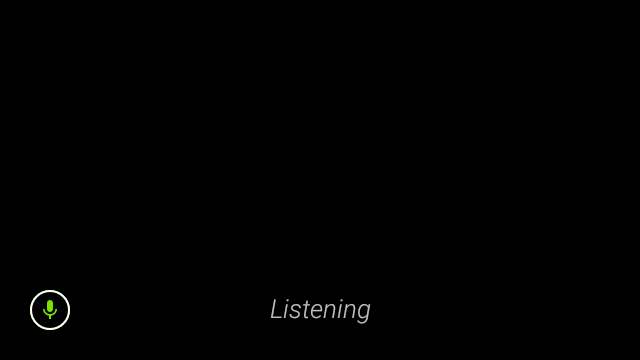
The speech recognition UI waits for a users to speak and then returns the transcribed text after they
are done. To start the activity, follow these steps:
1. Call [`startActivityForResult()`](https://developer.android.com/reference/android/app/Activity#startActivityForResult(android.content.Intent,%20int,%20android.os.Bundle)) with the [`ACTION_RECOGNIZE_SPEECH`](https://developer.android.com/reference/android/speech/RecognizerIntent#ACTION_RECOGNIZE_SPEECH) intent. The following intent extras are supported when you start the activity:
- [`EXTRA_PROMPT`](https://developer.android.com/reference/android/speech/RecognizerIntent#EXTRA_PROMPT)
- [`EXTRA_RESULTS_PENDINGINTENT`](https://developer.android.com/reference/android/speech/RecognizerIntent#EXTRA_RESULTS_PENDINGINTENT)
- [`EXTRA_RESULTS_PENDINGINTENT_BUNDLE`](https://developer.android.com/reference/android/speech/RecognizerIntent#EXTRA_RESULTS_PENDINGINTENT_BUNDLE)
2. Override the [`onActivityResult()`](https://developer.android.com/reference/android/app/Activity#onActivityResult(int,%20int,%20android.content.Intent)) callback to receive the transcribed text from the [`EXTRA_RESULTS`](https://developer.android.com/reference/android/speech/RecognizerIntent#EXTRA_RESULTS) intent extra as shown in the following code sample. This callback is called when the user finishes speaking.
### Kotlin
```kotlin
private const val SPEECH_REQUEST = 109
private fun displaySpeechRecognizer() {
val intent = Intent(RecognizerIntent.ACTION_RECOGNIZE_SPEECH)
startActivityForResult(intent, SPEECH_REQUEST)
}
override fun onActivityResult(requestCode: Int, resultCode: Int, data: Intent) {
if (requestCode == SPEECH_REQUEST && resultCode == RESULT_OK) {
val results: List? =
data.getStringArrayListExtra(RecognizerIntent.EXTRA_RESULTS)
val spokenText = results?.get(0)
// Do something with spokenText.
}
super.onActivityResult(requestCode, resultCode, data)
}
```
### Java
```java
private static final int SPEECH_REQUEST = 109;
private void displaySpeechRecognizer() {
Intent intent = new Intent(RecognizerIntent.ACTION_RECOGNIZE_SPEECH);
startActivityForResult(intent, SPEECH_REQUEST);
}
@Override
protected void onActivityResult(int requestCode, int resultCode,
Intent data) {
if (requestCode == SPEECH_REQUEST && resultCode == RESULT_OK) {
List results = data.getStringArrayListExtra(
RecognizerIntent.EXTRA_RESULTS);
String spokenText = results.get(0);
// Do something with spokenText.
}
super.onActivityResult(requestCode, resultCode, data);
}
```
> [!NOTE]
> **Note:** Binding to the [SpeechRecognizer](https://developer.android.com/reference/android/speech/SpeechRecognizer) service isn't allowed, therefore the [SpeechRecognizer#startListening()](https://developer.android.com/reference/android/speech/SpeechRecognizer#startListening(android.content.Intent)) method won't work.
For implementation details, read the
[sample voice recognition app](https://developers.google.com/glass-enterprise/samples/code-samples).
### Biasing for keywords
Speech recognition on Glass can be biased for a list of keywords. Biasing increases keyword recognition
accuracy. To enable biasing for keywords, use the following:
### Kotlin
```kotlin
val keywords = arrayOf("Example", "Biasing", "Keywords")
val intent = Intent(RecognizerIntent.ACTION_RECOGNIZE_SPEECH)
intent.putExtra("recognition-phrases", keywords)
startActivityForResult(intent, SPEECH_REQUEST)
```
### Java
```java
final String[] keywords = {"Example", "Biasing", "Keywords"};
Intent intent = new Intent(RecognizerIntent.ACTION_RECOGNIZE_SPEECH);
intent.putExtra("recognition-phrases", keywords);
startActivityForResult(intent, SPEECH_REQUEST);
```
## Voice commands
Voice commands allow users to carry out actions from activities. You build voice
commands with the standard Android menu APIs, but users can invoke the menu items with voice
commands instead of touch.
To enable voice commands for a particular activity, follow these steps:
1. Call [`getWindow().requestFeature(FEATURE_VOICE_COMMANDS)`](https://developer.android.com/reference/android/view/Window#requestFeature(int)) in the desired activity to enable voice commands. With this feature enabled, the microphone icon appears in the bottom left corner of the screen whenever this activity receives focus.
**Note:** The `FEATURE_VOICE_COMMANDS` constant is used for the same feature in the GDK, but it must be defined by the developer in EE2 because there's no longer an SDK.
2. Request the [`RECORD_AUDIO`](https://developer.android.com/reference/android/Manifest.permission#RECORD_AUDIO) permission in your app.
3. Override [`onCreatePanelMenu()`](https://developer.android.com/reference/android/app/Activity.html#onCreatePanelMenu(int,%20android.view.Menu)) and inflate a menu resource.
4. Override [`onContextItemSelected()`](https://developer.android.com/reference/android/app/Activity#onContextItemSelected(android.view.MenuItem)) to handle the detected voice commands.
### Kotlin
```kotlin
class VoiceCommandsActivity : AppCompatActivity() {
companion object {
const val FEATURE_VOICE_COMMANDS = 14
const val REQUEST_PERMISSION_CODE = 200
val PERMISSIONS = arrayOf(Manifest.permission.RECORD_AUDIO)
val TAG = VoiceCommandsActivity::class.java.simpleName
}
override fun onCreate(savedInstanceState: Bundle?) {
super.onCreate(savedInstanceState)
window.requestFeature(FEATURE_VOICE_COMMANDS)
setContentView(R.layout.activity_voice_commands)
// Requesting permissions to enable voice commands menu
ActivityCompat.requestPermissions(
this,
PERMISSIONS,
REQUEST_PERMISSION_CODE
)
}
override fun onRequestPermissionsResult(
requestCode: Int,
permissions: Array,
grantResults: IntArray
) {
if (requestCode == REQUEST_PERMISSION_CODE) {
for (result in grantResults) {
if (result != PackageManager.PERMISSION_GRANTED) {
Log.d(TAG, "Permission denied. Voice commands menu is disabled.")
}
}
} else {
super.onRequestPermissionsResult(requestCode, permissions, grantResults)
}
}
override fun onCreatePanelMenu(featureId: Int, menu: Menu): Boolean {
menuInflater.inflate(R.menu.voice_commands_menu, menu)
return true
}
override fun onContextItemSelected(item: MenuItem): Boolean {
return when (item.itemId) {
// Handle selected menu item
R.id.edit -> {
// Handle edit action
true
}
else -> super.onContextItemSelected(item)
}
}
}
```
### Java
```java
public class VoiceCommandsActivity extends AppCompatActivity {
private static final String TAG = VoiceCommandsActivity.class.getSimpleName();
private static final int FEATURE_VOICE_COMMANDS = 14;
private static final int REQUEST_PERMISSION_CODE = 200;
private static final String[] PERMISSIONS = new String[]{Manifest.permission.RECORD_AUDIO};
@Override
protected void onCreate(@Nullable Bundle savedInstanceState) {
super.onCreate(savedInstanceState);
getWindow().requestFeature(FEATURE_VOICE_COMMANDS);
setContentView(R.layout.activity_voice_commands);
// Requesting permissions to enable voice commands menu
ActivityCompat.requestPermissions(this, PERMISSIONS, REQUEST_PERMISSION_CODE);
}
@Override
public void onRequestPermissionsResult(int requestCode, @NonNull String[] permissions, @NonNull int[] grantResults) {
if (requestCode == REQUEST_PERMISSION_CODE) {
for (int result : grantResults) {
if (result != PackageManager.PERMISSION_GRANTED) {
Log.d(TAG, "Permission denied. Voice commands menu is disabled.");
}
}
} else {
super.onRequestPermissionsResult(requestCode, permissions, grantResults);
}
}
@Override
public boolean onCreatePanelMenu(int featureId, @NonNull Menu menu) {
getMenuInflater().inflate(R.menu.voice_commands_menu, menu);
return true;
}
@Override
public boolean onContextItemSelected(@NonNull MenuItem item) {
switch (item.getItemId()) {
// Handle selected menu item
case R.id.edit:
// Handle edit action
return true;
default:
return super.onContextItemSelected(item);
}
}
}
```
The following is an example of the menu resource used by the previous activity:
```
```
Read the [sample notes-taking app](https://developers.google.com/glass-enterprise/samples/code-samples#notes-taking) for
a complete example.
### Voice command list reloading
You can dynamically reload the voice command list. To do so, replace the `menu` resource in the
[`onCreatePanelMenu()`](https://developer.android.com/reference/android/app/Activity.html#onCreatePanelMenu(int,%20android.view.Menu))
method, or modify the menu object in the
[`onPreparePanel()`](https://developer.android.com/reference/android/app/Activity#onPreparePanel(int,%20android.view.View,%20android.view.Menu))
method. To apply changes, call the
[`invalidateOptionsMenu()`](https://developer.android.com/reference/android/app/Activity#invalidateOptionsMenu())
method.
### Kotlin
```kotlin
private val options = mutableListOf()
fun onPreparePanel(featureId: Int, view: View?, menu: Menu): Boolean {
if (featureId != FEATURE_VOICE_COMMANDS) {
return super.onCreatePanelMenu(featureId, menu)
}
for (optionTitle in options) {
menu.add(optionTitle)
}
return true
}
/**
* Method showing example implementation of voice command list modification
*
* If you call [Activity.invalidateOptionsMenu] method, voice command list will be
* reloaded (onCreatePanelMenu and onPreparePanel methods will be called).
*/
private fun modifyVoiceCommandList() {
options.add("Delete")
options.add("Play")
options.add("Pause")
invalidateOptionsMenu()
}
```
### Java
```java
private final List options = new ArrayList<>();
@Override
public boolean onPreparePanel(int featureId, View view, Menu menu) {
if (featureId != FEATURE_VOICE_COMMANDS) {
return super.onCreatePanelMenu(featureId, menu);
}
for (String optionTitle : options) {
menu.add(optionTitle);
}
return true;
}
/**
* Method showing example implementation of voice command list modification
*
* If you call {@link Activity#invalidateOptionsMenu()} method, voice command list will be
* reloaded (onCreatePanelMenu and onPreparePanel methods will be called).
*/
private void modifyVoiceCommandList() {
options.add("Delete");
options.add("Play");
options.add("Pause");
invalidateOptionsMenu();
}
```
#### AppCompatActivity solution
To reload a voice command list in an activity that extends `AppCompatActivity`, use the
[`sendBroadcast()`](https://developer.android.com/reference/android/content/Context#sendBroadcast(android.content.Intent))
method with the `reload-voice-commands` intent action:
### Kotlin
```kotlin
sendBroadcast(Intent("reload-voice-commands"))
```
### Java
```java
sendBroadcast(new Intent("reload-voice-commands"));
```
> [!NOTE]
> **Note:** To display its menus, [`AppCompatActivity`](https://developer.android.com/reference/androidx/appcompat/app/AppCompatActivity) uses a different mechanism than other classes. For Glass EE2 implementations, [`invalidateOptionsMenu()`](https://developer.android.com/reference/android/app/Activity#invalidateOptionsMenu()) method can't be used to reload the voice command list. Use [`sendBroadcast()`](https://developer.android.com/reference/android/content/Context#sendBroadcast(android.content.Intent)) instead, as shown in the previous example.
### Enable and disable voice commands in runtime
You can enable and disable voice commands in runtime. To do so, return an appropriate value from the
[`onCreatePanelMenu()`](https://developer.android.com/reference/android/app/Activity.html#onCreatePanelMenu(int,%20android.view.Menu))
method as follows:
- Set the value to `true` to enable.
- Set the value to `false` to disable.
### Debug mode
To enable debug mode for voice commands, call
[`getWindow().requestFeature(FEATURE_DEBUG_VOICE_COMMANDS)`](https://developer.android.com/reference/android/view/Window#requestFeature(int))
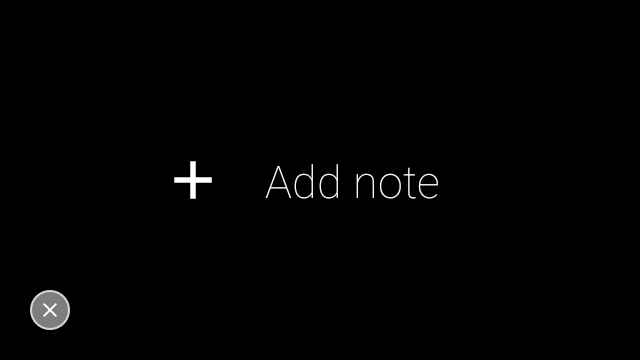
in the desired activity. Debug mode activates the following features:
- Logcat contains the log with the recognized phrase for debugging.
- UI overlay is displayed when an unrecognized command is detected, as shown:
### Kotlin
```kotlin
class VoiceCommandsActivity : AppCompatActivity() {
companion object {
const val FEATURE_VOICE_COMMANDS = 14
const val FEATURE_DEBUG_VOICE_COMMANDS = 15
const val REQUEST_PERMISSION_CODE = 200
val PERMISSIONS = arrayOf(Manifest.permission.RECORD_AUDIO)
val TAG = VoiceCommandsActivity::class.java.simpleName
}
override fun onCreate(savedInstanceState: Bundle?) {
super.onCreate(savedInstanceState)
window.requestFeature(FEATURE_VOICE_COMMANDS)
window.requestFeature(FEATURE_DEBUG_VOICE_COMMANDS)
setContentView(R.layout.activity_voice_commands)
// Requesting permissions to enable voice commands menu
ActivityCompat.requestPermissions(
this,
PERMISSIONS,
REQUEST_PERMISSION_CODE
)
}
.
.
.
}
```
### Java
```java
public class VoiceCommandsActivity extends AppCompatActivity {
private static final String TAG = VoiceCommandsActivity.class.getSimpleName();
private static final int FEATURE_VOICE_COMMANDS = 14;
private static final int FEATURE_DEBUG_VOICE_COMMANDS = 15;
private static final int REQUEST_PERMISSION_CODE = 200;
private static final String[] PERMISSIONS = new String[]{Manifest.permission.RECORD_AUDIO};
@Override
protected void onCreate(@Nullable Bundle savedInstanceState) {
super.onCreate(savedInstanceState);
getWindow().requestFeature(FEATURE_VOICE_COMMANDS);
getWindow().requestFeature(FEATURE_DEBUG_VOICE_COMMANDS);
setContentView(R.layout.activity_voice_commands);
// Requesting permissions to enable voice commands menu
ActivityCompat.requestPermissions(this, PERMISSIONS, REQUEST_PERMISSION_CODE);
}
.
.
.
}
```
For implementation details, read the [sample voice commands reloading app](https://developers.google.com/glass-enterprise/samples/code-samples#voice-commands-reloading).
## Text-to-Speech (TTS)
Text-to-Speech functionality converts digital text to synthesized speech output. For more
information, visit
[Android Developers Documentation TextToSpeech](https://developer.android.com/reference/android/speech/tts/TextToSpeech).
Glass EE2 has the
[Google Text-to-Speech](https://cloud.google.com/text-to-speech)
engine installed. It's set as the default TTS engine and works offline.
The following locales are bundled with the Google Text-to-Speech engine:
|---|---|---|
| Bengali Mandarin Chinese Czech Danish German Greek English Spanish Estonian Finnish French Gujarati Hindi | Hungarian Indonesian Italian Japanese Javanese Austronesian Austroasiatic Kannada Korean Malayalam Norwegian Dutch | Polish Portuguese Russian Slovak Sundanese Swedish Tamil Telugu Thai Turkish Ukrainian Vietnamese |
## Camera
Glass Enterprise Edition 2 is equipped with an 8 megapixel, fixed-focus camera that has an f/2.4
aperture, 4:3 sensor aspect ratio, and 83° diagonal field of view (71° x 57° in landscape orientation).
We recommended that you use the standard
[CameraX](https://developer.android.com/training/camerax) or
[Camera2](https://developer.android.com/reference/android/hardware/camera2/package-summary) API.
For implementation details, read the [sample camera app](https://developers.google.com/glass-enterprise/samples/code-samples).
## Camera button
The camera button is the physical button on the hinge of the Glass Enterprise Edition 2 device.
It can be handled just like a standard
[keyboard action](https://developer.android.com/training/keyboard-input/commands) and
can be identified by the [`KeyEvent#KEYCODE_CAMERA`](https://developer.android.com/reference/android/view/KeyEvent.html#KEYCODE_CAMERA) keycode.
As of the [OPM1.200313.001](https://developers.google.com/glass-enterprise/downloads/system-images)
OS update,
[intents](https://developer.android.com/reference/android/content/Intent) with the
following actions are sent from the Launcher application:
- [`MediaStore#ACTION_IMAGE_CAPTURE`](https://developer.android.com/reference/android/provider/MediaStore#ACTION_IMAGE_CAPTURE) on the camera button short press.
- [`MediaStore#ACTION_VIDEO_CAPTURE`](https://developer.android.com/reference/android/provider/MediaStore#ACTION_VIDEO_CAPTURE) on the camera button long press.
> [!NOTE]
> **Note:** By default, the [preinstalled camera application](https://developers.google.com/glass-enterprise/samples/code-samples#camera2-sample) opens when the camera button is pressed. A short press opens the app in photo mode and a long press opens it in video mode.
## Sensors
There are a variety of sensors available to developers as they develop applications in Glass EE2.
The following standard Android sensors are supported on Glass:
- [`TYPE_ACCELEROMETER`](http://developer.android.com/reference/android/hardware/Sensor.html#TYPE_ACCELEROMETER)
- [`TYPE_GRAVITY`](http://developer.android.com/reference/android/hardware/Sensor.html#TYPE_GRAVITY)
- [`TYPE_GYROSCOPE`](http://developer.android.com/reference/android/hardware/Sensor.html#TYPE_GYROSCOPE)
- [`TYPE_LIGHT`](http://developer.android.com/reference/android/hardware/Sensor.html#TYPE_LIGHT)
- [`TYPE_LINEAR_ACCELERATION`](http://developer.android.com/reference/android/hardware/Sensor.html#TYPE_LINEAR_ACCELERATION)
- [`TYPE_MAGNETIC_FIELD`](http://developer.android.com/reference/android/hardware/Sensor.html#TYPE_MAGNETIC_FIELD)
- [`TYPE_ORIENTATION` (deprecated)](http://developer.android.com/reference/android/hardware/Sensor.html#TYPE_ORIENTATION)
- [`TYPE_ROTATION_VECTOR`](http://developer.android.com/reference/android/hardware/Sensor.html#TYPE_ROTATION_VECTOR)
The following Android sensors aren't supported on Glass:
- [`TYPE_AMBIENT_TEMPERATURE`](http://developer.android.com/reference/android/hardware/Sensor.html#TYPE_AMBIENT_TEMPERATURE)
- [`TYPE_PRESSURE`](http://developer.android.com/reference/android/hardware/Sensor.html#TYPE_PRESSURE)
- [`TYPE_PROXIMITY`](http://developer.android.com/reference/android/hardware/Sensor.html#TYPE_PROXIMITY)
- [`TYPE_RELATIVE_HUMIDITY`](http://developer.android.com/reference/android/hardware/Sensor.html#TYPE_RELATIVE_HUMIDITY)
- [`TYPE_TEMPERATURE`](http://developer.android.com/reference/android/hardware/Sensor.html#TYPE_TEMPERATURE)
The Glass sensor coordinate system is shown in the following illustration. It's relative to the Glass display. For more
information, see [Sensor coordinate system](http://developer.android.com/guide/topics/sensors/sensors_overview.html#sensors-coords).
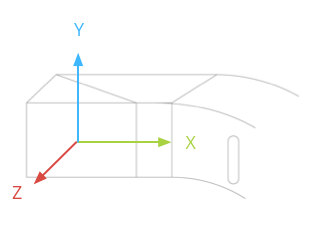
The accelerometer, gyroscope, and magnetometer are located on the optics pod of the Glass device,
which users rotate to align the device with their sight. You can't measure the angle of the
optics pod directly, so be aware of this when you use angles from these sensors for applications,
such as a compass heading.
To preserve battery life, only listen to sensors when you need them. Consider the
needs and lifecycle of the app when you decide when to start and stop listening to the
sensors.
Sensor event callbacks run on the UI thread, so process events and returns as quickly as
possible. If processing takes too long, push sensor events into a queue and use a background
thread to handle them.
50 Hz is often a sufficient sampling rate to track head motion.
For more information on how to use sensors, see the [Android developer guide](http://developer.android.com/guide/topics/sensors/sensors_overview.html).
## Location services
The Glass Enterprise Edition 2 device isn't equipped with a GPS module and it doesn't provide the
location of the user. However, it does have location services implemented, which is necessary to
display a list of nearby Wi-Fi networks and Bluetooth devices.
If your application has device owner privileges, you can use it to programmatically change
the value of the corresponding secure setting:
### Kotlin
```kotlin
val devicePolicyManager = context
.getSystemService(Context.DEVICE_POLICY_SERVICE) as DevicePolicyManager
if (devicePolicyManager.isDeviceOwnerApp(context.getPackageName())) {
val componentName = ComponentName(context, MyDeviceAdmin::class.java)
devicePolicyManager.setSecureSetting(
componentName,
Settings.Secure.LOCATION_MODE,
Settings.Secure.LOCATION_MODE_SENSORS_ONLY.toString()
)
}
```
### Java
```java
final DevicePolicyManager devicePolicyManager = (DevicePolicyManager) context
.getSystemService(Context.DEVICE_POLICY_SERVICE);
if (devicePolicyManager.isDeviceOwnerApp(context.getPackageName())) {
final ComponentName componentName = new ComponentName(context, MyDeviceAdmin.class);
devicePolicyManager.setSecureSetting(componentName, Settings.Secure.LOCATION_MODE,
String.valueOf(Settings.Secure.LOCATION_MODE_SENSORS_ONLY));
}
```
If you use a third-party MDM solution, the MDM solution must be able to change these
settings for you.