## Introduction
Earth Engine Apps are dynamic, shareable user
interfaces for Earth Engine analyses. With Apps, experts can use simple UI elements to
leverage Earth Engine's data catalog and analytical power, for experts and non-experts alike
to use.
Apps published from Earth Engine are accessible from the
application-specific URL generated at time of publishing. No Earth Engine account is
required to view or interact with a published App. Apps selected as featured by their
creator are also available at a user-specific App Gallery
(e.g., USERNAME.users.earthengine.app).
> [!NOTE]
> **Note:** Access to a published App can be restricted to members of a Google Group, or it can be made publicly accessible. Publicly accessible Apps are viewable by anyone, without needing to sign in. If an App is restricted to members of a Google Group, users will need to sign in to an account that is a member of the group.
## Build Your App
Earth Engine Apps can take advantage of most of the same functions used in the Code Editor,
with a few exceptions. Additionally, we designed the User Interface API with Apps developers
in mind. If you're new to the User Interface API, take a look at [the UI API Overview](https://developers.google.com/earth-engine/ui).
> [!NOTE]
> **Important:** Any image or table assets used in your App must be shared publicly for the App to display properly. In the [share dialog](https://developers.google.com/earth-engine/asset_manager#sharing-assets), select the "Anyone can read" option or choose the App name from the drop-down list.
## Publishing Your App
To publish an App from the Code Editor, first load the script that you want to make into
an App, and then open the App Management panel, which you can access by clicking the
**Apps** button above the script section in the Code Editor.
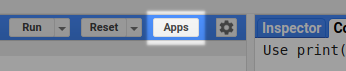 Manage Apps Button
Then click on the **NEW APP** button.
 New App Button
In the dialog, choose editor access, an App name, select a Google Cloud Project, and specify
the location of the App's source code. Restrict access to this App to a particular Google
Group or keep it publicly accessible using options under the Restriction tab. For publicly
accessible apps, you can also provide a custom preview image for the App as well as a
description in the Gallery tab. Click "Feature this app in your Apps Gallery" if you would
like this App to appear on your public gallery of apps available at
`USERNAME.users.earthengine.app`. Optionally include a custom logo in the
upper-left corner of the App by uploading an image of your choice from the Logo tab.
> [!NOTE]
> **Note:** only a single Google Group can be given access. However, a Google Group can have additional Google Groups as members. [Learn about Google Groups](https://support.google.com/groups/).
> [!NOTE]
> **Note:** If you have not used Google Cloud Projects before we recommend creating a project called "ee-USERNAME". This same Google Cloud Project can be used for all your Apps. You may also need to select an organization if you have an institutional account. [Learn about Google Cloud Projects](https://cloud.google.com/resource-manager/docs/creating-managing-projects).
 Choose editing access: choose who can edit the app. 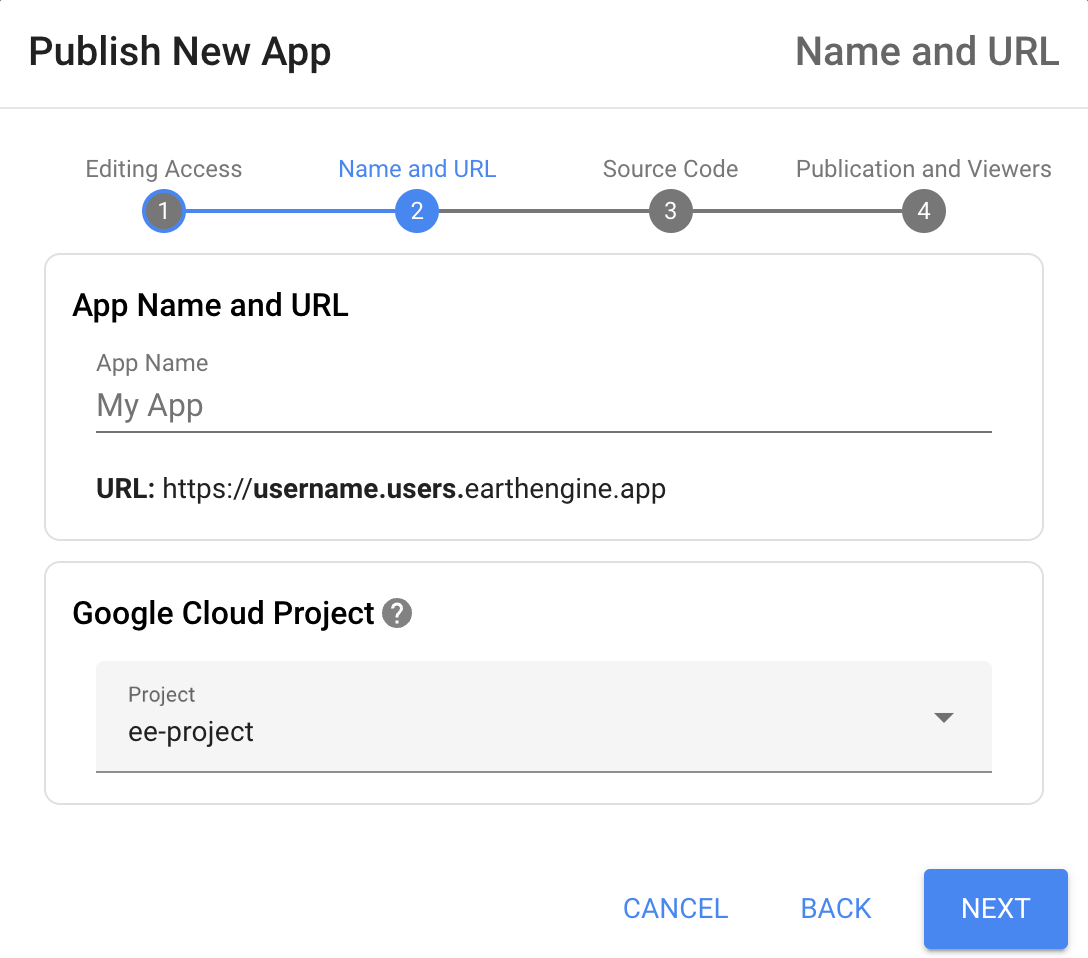 Publish an App: choose a name, App ID, and Cloud Project.  Publish an App: select the App source code  Publish an App: choose options like featuring the App in your gallery, access restrictions, and custom logo
## Managing Your Apps
To manage an App from the Code Editor, open the App Management panel by clicking the
**Apps** button above the script section in the Code Editor. From here you can update
your App's configuration or delete the app.
 Manage Apps
## Collaborate with others on Project-owned Apps
By default, Apps that you publish under your username are only editable by you. Collaboration
on Apps is possible with *Project-owned Apps* . Project-owned Apps are apps that are
owned and published under a Cloud Project; anyone with the
*Earth Engine Apps Publisher* IAM role can edit and delete apps published under the
Cloud Project.
[Learn more
about Earth Engine IAM Roles here](https://developers.google.com/earth-engine/cloud/roles_permissions#predefined-earth-engine-iam-roles).
> [!NOTE]
> **Important:** Deleting a Cloud Project will also result in the deletion of any Project-owned Apps under the Cloud Project, as per [Google Cloud's data deletion and
> retention policies](https://cloud.google.com/docs/security/deletion).
To enable Project-owned Apps, choose the *Cloud Project* option on the
"Choose editing access" step and select the Cloud Project you would like to use, then finish
the App publishing flow as normal. The App will be published to the domain
`PROJECT-ID.projects.earthengine.app` and will be editable by anyone who has the
Earth Engine Apps Publisher IAM role on the Cloud Project.
 Publish a Project-owned App
To view Apps for a Cloud Project, press the **ADD CLOUD PROJECT** button and
select the Cloud Project.
 Add a Cloud Project
To share the Cloud Project with others, press the **SHARE PROJECT** button.
This will take you to the Cloud Console IAM page for the project where you can grant
collaborators the Earth Engine Apps Publisher IAM role.
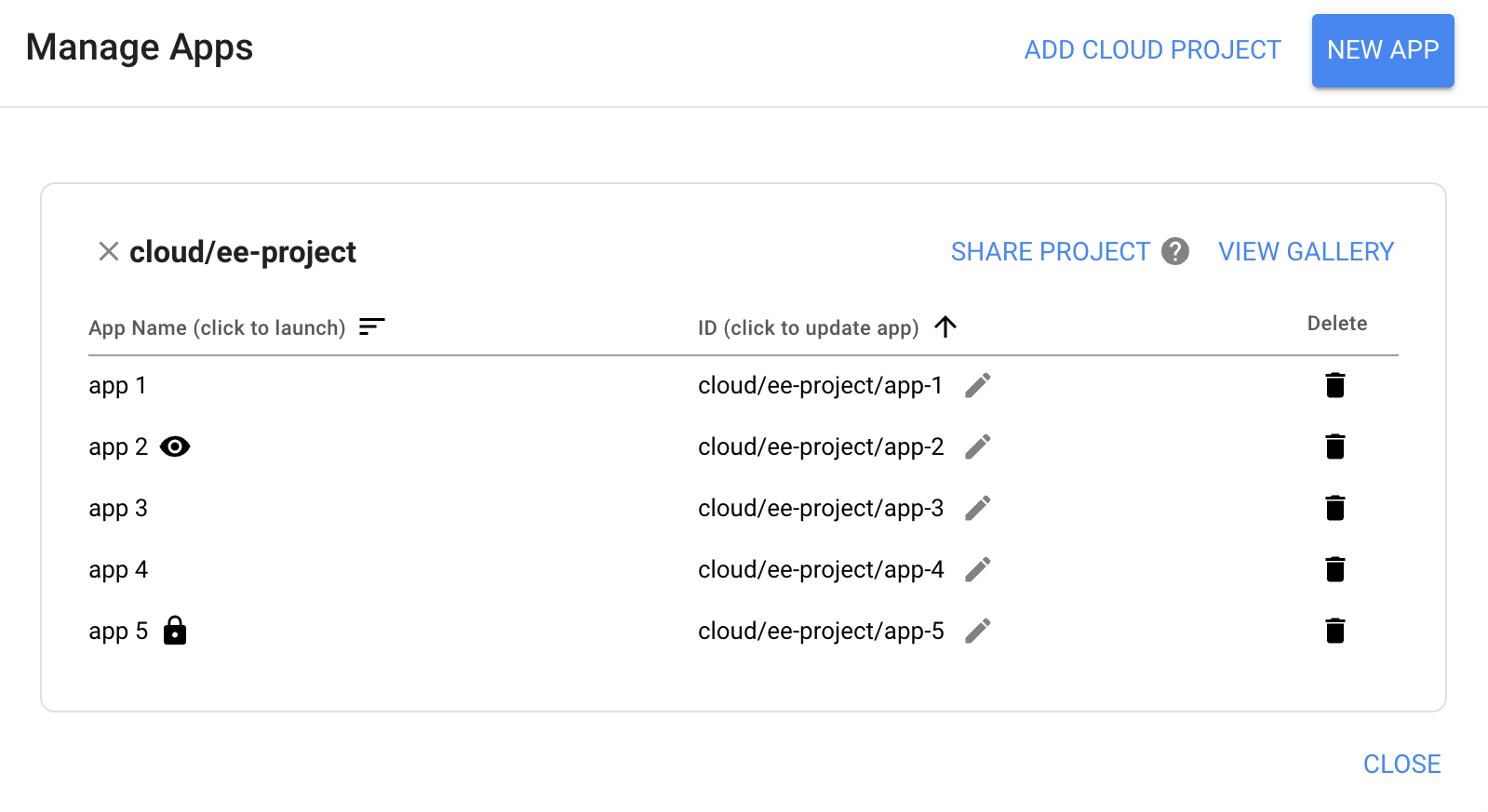 Edit and delete Project-owned Apps
## FAQ
How do I remove an App from my Apps Gallery?
:
The "Feature this App" checkbox on the App configuration page controls whether or not an App
appears on the Featured Apps page. Apps with restricted access cannot be featured.
Is my Earth Engine code visible?
:
Yes, to anyone who can access the App. Although it's not clearly visible when your app is
published, it's fairly easy for
someone to view the JavaScript for your App by watching the network traffic to their web
browser. In Chrome, for example, the JavaScript will be visible by looking at the
[Network panel](https://developers.google.com/web/tools/chrome-devtools/network-performance/reference) of the Developer Tools.
What are some possible causes of the "There was an error loading some parts of the map"
error for a published App?
: Ensure all image or table assets used in your App are shared publicly or with the App. In
the [asset share dialog](https://developers.google.com/earth-engine/asset_manager#sharing-assets),
select the "Anyone can read" option or choose the App name from the drop-down list. For apps
restricted to a Google Group, sharing an asset with that Google Group
will **not** make it viewable by the App; the assets should be shared with the
App or publicly, instead.
Why do I see an "app is not ready yet" page?
:
After an App is created, it may take some time for information to propagate through the
system. This is typically resolved within a few minutes. If the error persists, please
[reach out for help](https://developers.google.com/earth-engine/help).
Why are my drawn geometries shown in my App?
:
This makes it easy to show reference geometries in your App, and allows you to create Apps
where users can edit the geometries. If you don't want particular geometries to be shown or
edited, you can hide or lock individual geometry layers to prevent users from seeing or
editing them before publishing your App. See the
[geometry tools documentation](https://developers.google.com/earth-engine/playground#geometry-tools) to learn more.
What is App quota?
:
To prevent errant or resource-intensive scripts from negatively impacting the availability of
the service, Earth Engine has App usage quotas on concurrent queries. This quota operates
similarly to Earth Engine's [per-user quota](https://developers.google.com/earth-engine/usage), except that the quota is tied to a the App, rather than a specific
user.
Does each App I make have its own quota?
:
Yes, separate quota is associated with each App. For older apps created with an
API Key, quota is tied to the Cloud Project from which you generate an App's API key.
If you generate multiple API keys from the same Cloud Project, they will all share the
same usage quota.
Why is a Cloud billing account required? Will I be charged for my apps?
:
We use Google Cloud Platform for a variety of behind-the-scenes tasks. You will not be
charged for creating an Earth Engine App. However, Google Cloud Storage is not free,
so if you choose to export the results of your analyses to Google Cloud Storage,
there may be an associated fee.
How can I understand my apps usage and quota better?
: If the quota is exceeded, Earth Engine may return `HTTP 429: Too Many Requests`
errors. Generally, these errors are handled by the Earth Engine client library, which
wraps requests in exponential backoff, retrying the query until it succeeds. The Earth
Engine client library will retry the request five times.
If your app becomes so popular that many users get quota exceeded errors, users will see
a warning message, and Earth Engine may have to (temporarily) restrict access to the app.
To help avoid receiving 429 errors, you may want to enable caching for your application,
such as by storing cacheable aggregate statistics as Earth Engine table assets,
rather than computing them on the fly.