# Display \& Video 360 Seller API Onboarding
There are a few key steps to onboard with the Display \& Video 360 Seller API. The DV360 Seller API is an allowlist-based Google Cloud API and uses OAuth 2.0 for authentication and authorization.
The enabling process is handled by the Display \& Video 360 Seller API team.
> [!NOTE]
> **Note:** If your application accesses the DV360 Seller API, it must pass the [OAuth verification review](https://support.google.com/cloud/answer/7454865#verification). If you see **unverified app** on the screen when testing your application, you must submit a verification request to remove it. Learn more about [unverified apps](https://support.google.com/cloud/answer/7454865) or get answers to [frequently asked questions about app
> verification](https://support.google.com/cloud/answer/9110914).
Onboarding steps:
1. Sign up for a Google Account by visiting .
- This account will be used to manage access tokens for your production client. Don't use a personal Gmail account.
- The account cannot be a Google Group.
- **If you are using an existing Google Cloud project:** The account must be an administrator of the project.
2. Contact the Google DV360 team with your account details to have it added to the allowlist.
3. Wait for confirmation that your account has been enabled.
4. **Optional and non-blocking:** Submit an [OAuth verification
review](https://support.google.com/cloud/answer/7454865#verification) request for your application in order to access the `https://www.googleapis.com/auth/doubleclickbidmanager` scope.
5. In the [Google Cloud console](https://console.cloud.google.com/), navigate to **APIs \& Services \> Library \> Private** . You should see the **DV360 Seller API** available to your project.
6. Enable the **DV360 Seller API**.
7. Navigate to **APIs \& Services \> Credentials \> Create Credentials \> Service Account Key** . Follow the setup instructions in the [OAuth 2.0 Service Account documentation](https://developers.google.com/identity/protocols/OAuth2ServiceAccount).
Set up a service account:
**Note:** Let us know if you would like to reuse an existing service account, such as one used for the [DV360 Reporting API](https://developers.google.com/display-video/exchange-reporting/guides/getting-started/setting-up-auth).
Google Cloud API authentication and authorization (commonly grouped together as "auth") is typically done using a service account. A service account allows your code to send application credentials directly to the Cloud API. A service account, like a user account, is represented by an email address. Unlike a user account, however, a service account belongs only to an application, and may only be used to access the API for which it was created. As an example, this guide shows how to create service account credentials using the Google Cloud console.
### Using the Google Cloud console
From the Google Cloud console [API Manager→Credentials](https://console.cloud.google.com/apis/credentials) page, select "Create credentials→Service account key".
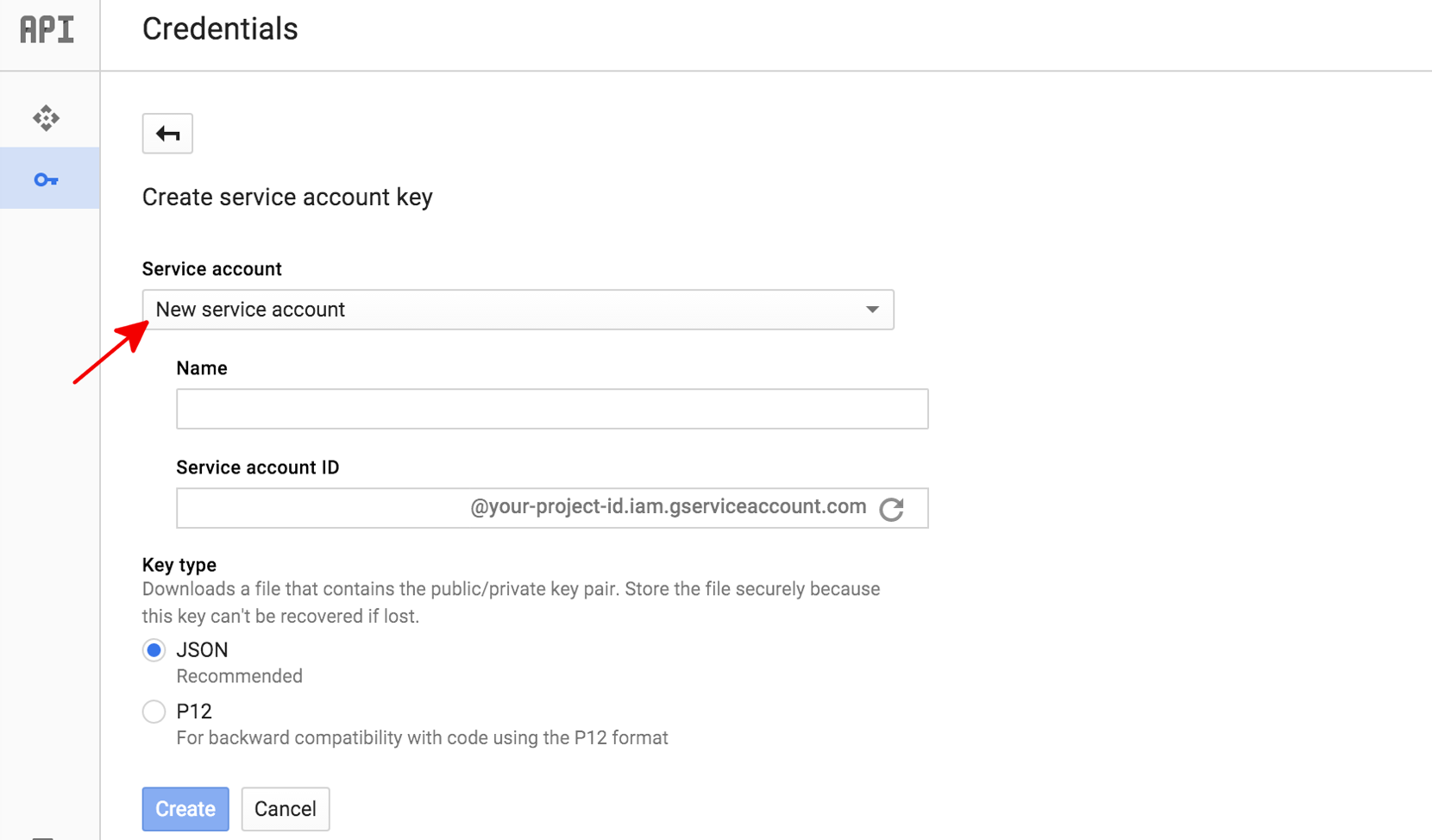
Next, select "New service account" from the "Service account" drop-down.

Type a "Name" for this service account. This name will be used as the default name for your "Service account ID" (to the left of the "@" in the generated service account ID address), but you can change this service account ID name if you want. These names can be arbitrary; it is only important that you remember them. Under "Key type," we recommend that you leave this value as "JSON". Click "Create", and the Google Cloud console will generate a JSON key (as a `.json` text file), prompt you to download the file to your computer, and display a **Service account created** dialog.

The generated JSON key will be similar to the following sample JSON key:
```
{
"type": "service_account",
"project_id": "project-id",
"private_key_id": "some_number",
"private_key": "---BEGIN PRIVATE KEY---\n....
=\n---END PRIVATE KEY---\n",
"client_email": "api@project-id.iam.gserviceaccount.com",
"client_id": "...",
"auth_uri": "https://accounts.google.com/o/oauth2/auth",
"token_uri": "https://accounts.google.com/o/oauth2/token",
"auth_provider_x509_cert_url": "https://www.googleapis.com/oauth2/v1/certs",
"client_x509_cert_url": "https://www.googleapis.com/...api%40project-id.iam.gserviceaccount.com"
}
```
Store this JSON file securely, as it contains your private key (and this file is the only copy of that key). You will need to refer to this service account key file within your code when you want to send credentials to the Google Cloud API.
8. Contact the DV360 team with the **service account** information you created (specifically, the service account email address). This is a second allowlist step for authorization.
9. Once your service account is authorized to call the API, you can refer to the [DV360 Seller API documentation](https://developers.google.com/display-video/seller). To obtain an auth token manually, see instructions in the [oauth2l tool repository](https://github.com/google/oauth2l) (using your downloaded JSON service account key). Detailed instructions on programmatically obtaining OAuth tokens are available in the [Google Cloud Authentication documentation](https://cloud.google.com/docs/authentication/production).
**Important: The OAuth scope must be `https://www.googleapis.com/auth/doubleclickbidmanager`**