This page contains code snippets and descriptions of the features available for
customizing an Android TV Receiver app.
**Note:** We recommend that you try the following:
- [**Cast Android TV codelab
tutorial**](https://developers.google.com/cast/codelabs/cast-connect-atv) - Learn step-by-step how to build a Cast-enabled Android TV Receiver app using the Google Cast SDK that can receive video casts.
- [**CastAndroidTvReceiver sample app**](https://github.com/googlecast/CastAndroidTvReceiver) (GitHub) - Run, navigate, and view this reference sample app which complies with the [UX Guidelines](https://developers.google.com/cast/docs/ux_guidelines.md.txt) and [Design Checklist](https://developers.google.com/cast/docs/design_checklist.md.txt).
- [**CastVideos Sender sample apps**](https://github.com/googlecast?q=CastVideos) (GitHub) - Test using Cast Connect-enabled sender reference sample apps.
## Configuring libraries
To make Cast Connect APIs available to your Android TV app:
Android
1. Open the `build.gradle` file inside your application module directory.
> [!NOTE]
> **Note:** Android Studio projects contain a top-level build.gradle file and a build.gradle file for each module. Be sure to edit the file for your application module. See [Building Your Project with Gradle](https://developer.android.com/sdk/installing/studio-build.html) for more information about Gradle.
2. Verify that `google()` is included in the listed `repositories`.
```
repositories {
google()
}
```
3. Depending on your target device type for your app, add the latest versions of the libraries to your dependencies:
- For Android Receiver app:
```
dependencies {
implementation 'com.google.android.gms:play-services-cast-tv:21.1.1'
implementation 'com.google.android.gms:play-services-cast:23.0.0'
}
```
- For Android Sender app:
```
dependencies {
implementation 'com.google.android.gms:play-services-cast:21.1.1'
implementation 'com.google.android.gms:play-services-cast-framework:23.0.0'
}
```
Be sure you update this version number each time the services are updated.
4. Save the changes and click `Sync Project with Gradle Files` in the toolbar.
iOS
1. Make sure you `Podfile` is targeting `google-cast-sdk` 4.8.6 or higher
2. Target iOS 16 or higher. See [Release Notes](https://developers.google.com/cast/docs/release-notes.md.txt) for more details.
```
platform: ios, '16'
def target_pods
pod 'google-cast-sdk', '~>4.8.6'
end
```
Web
1. Requires Chromium browser version M87 or higher.
2. Add the Web Sender API library to your project
```
```
## AndroidX requirement
New versions of Google Play Services require an app to have been updated to use
the `androidx` namespace. Follow the instructions for
[migrating to AndroidX](https://developer.android.com/jetpack/androidx/migrate).
## Android TV app---prerequisites
In order to support Cast Connect in your Android TV app, you must create and
support events from a media session. The data provided by your media session
provides the basic information---for example, position, playback state, etc.---for
your media status. Your media session also is used by the Cast Connect library
to signal when it has received certain messages from a sender, like pause.
For more information on media session and how to initialize a media session,
see the
[working with a media session guide](https://developer.android.com/guide/topics/media-apps/working-with-a-media-session).
### Media session lifecycle
Your app should create a media session when playback starts and release it when
it can't be controlled any more. For example, if your app is a video app, you
should release the session when the user exits the playback activity---either by
selecting 'back' to browse other content or by backgrounding the app. If your
app is a music app, you should release it when your app is no longer playing any
media.
### Updating session status
> [!NOTE]
> **Note:** If you are using Exoplayer, see the [Using Exoplayer with Cast Connect](https://developers.google.com/cast/docs/android_tv_receiver/core_features.md.txt#using_exoplayer_with_cast_connect) for how to update your media session automatically.
The data in your media session should be kept up-to-date with the status of your
player. For example, when playback is paused, you should update the playback
state as well as the supported actions. The following tables list what states
you are responsible for keeping up to date.
#### [MediaMetadataCompat](https://developer.android.com/reference/kotlin/android/support/v4/media/MediaMetadataCompat.html)
| Metadata Field | Description |
|---|---|
| [METADATA_KEY_TITLE](https://developer.android.com/reference/kotlin/android/support/v4/media/MediaMetadataCompat.html#METADATA_KEY_TITLE) **(required)** | The media title. |
| [METADATA_KEY_DISPLAY_SUBTITLE](https://developer.android.com/reference/kotlin/android/support/v4/media/MediaMetadataCompat.html#METADATA_KEY_DISPLAY_SUBTITLE) | The subtitle. |
| [METADATA_KEY_DISPLAY_ICON_URI](https://developer.android.com/reference/kotlin/android/support/v4/media/MediaMetadataCompat.html#METADATA_KEY_DISPLAY_ICON_URI) | The icon URL. |
| [METADATA_KEY_DURATION](https://developer.android.com/reference/kotlin/android/support/v4/media/MediaMetadataCompat.html#METADATA_KEY_DURATION) **(required)** | Media duration. |
| [METADATA_KEY_MEDIA_URI](https://developer.android.com/reference/kotlin/android/support/v4/media/MediaMetadataCompat.html#METADATA_KEY_MEDIA_URI) | The Content ID. |
| [METADATA_KEY_ARTIST](https://developer.android.com/reference/kotlin/android/support/v4/media/MediaMetadataCompat.html#METADATA_KEY_ARTIST) | The artist. |
| [METADATA_KEY_ALBUM](https://developer.android.com/reference/kotlin/android/support/v4/media/MediaMetadataCompat.html#METADATA_KEY_ALBUM) | The album. |
#### [PlaybackStateCompat](https://developer.android.com/reference/kotlin/android/support/v4/media/session/PlaybackStateCompat)
| Required Method | Description |
|---|---|
| [setActions()](https://developer.android.com/reference/kotlin/android/support/v4/media/session/PlaybackStateCompat.Builder.html#setActions(long)) | Sets supported media commands. |
| [setState()](https://developer.android.com/reference/kotlin/android/support/v4/media/session/PlaybackStateCompat.Builder.html#setState(int,%2520long,%2520float)) | Set the playing state and current position. |
#### [MediaSessionCompat](https://developer.android.com/reference/kotlin/android/support/v4/media/session/MediaSessionCompat#top_of_page)
| Required Method | Description |
|---|---|
| [setRepeatMode()](https://developer.android.com/reference/kotlin/android/support/v4/media/session/MediaSessionCompat#setRepeatMode(int)) | Sets repeat mode. |
| [setShuffleMode()](https://developer.android.com/reference/kotlin/android/support/v4/media/session/MediaSessionCompat#setShuffleMode(int)) | Sets shuffle mode. |
| [setMetadata()](https://developer.android.com/reference/kotlin/android/support/v4/media/session/MediaSessionCompat#setMetadata(android.support.v4.media.MediaMetadataCompat)) | Sets media metadata. |
| [setPlaybackState()](https://developer.android.com/reference/kotlin/android/support/v4/media/session/MediaSessionCompat#setPlaybackState(android.support.v4.media.session.PlaybackStateCompat)) | Sets playback state. |
Kotlin
```kotlin
private fun updateMediaSession() {
val metadata = MediaMetadataCompat.Builder()
.putString(MediaMetadataCompat.METADATA_KEY_TITLE, "title")
.putString(MediaMetadataCompat.METADATA_KEY_DISPLAY_SUBTITLE, "subtitle")
.putString(MediaMetadataCompat.METADATA_KEY_DISPLAY_ICON_URI, mMovie.getCardImageUrl())
.build()
val playbackState = PlaybackStateCompat.Builder()
.setState(
PlaybackStateCompat.STATE_PLAYING,
player.getPosition(),
player.getPlaybackSpeed(),
System.currentTimeMillis()
)
.build()
mediaSession.setMetadata(metadata)
mediaSession.setPlaybackState(playbackState)
}
```
Java
```
private void updateMediaSession() {
MediaMetadataCompat metadata =
new MediaMetadataCompat.Builder()
.putString(MediaMetadataCompat.METADATA_KEY_TITLE, "title")
.putString(MediaMetadataCompat.METADATA_KEY_DISPLAY_SUBTITLE, "subtitle")
.putString(MediaMetadataCompat.METADATA_KEY_DISPLAY_ICON_URI,mMovie.getCardImageUrl())
.build();
PlaybackStateCompat playbackState =
new PlaybackStateCompat.Builder()
.setState(
PlaybackStateCompat.STATE_PLAYING,
player.getPosition(),
player.getPlaybackSpeed(),
System.currentTimeMillis())
.build();
mediaSession.setMetadata(metadata);
mediaSession.setPlaybackState(playbackState);
}
```
### Handling transport control
Your app should implement media session transport control callback. The
following table shows what transport control actions they need to handle:
#### [MediaSessionCompat.Callback](https://developer.android.com/reference/kotlin/android/support/v4/media/session/MediaSessionCompat.Callback)
| Actions | Description |
|---|---|
| [onPlay()](https://developer.android.com/reference/kotlin/android/support/v4/media/session/MediaSessionCompat.Callback#onPlay()) | Resume |
| [onPause()](https://developer.android.com/reference/kotlin/android/support/v4/media/session/MediaSessionCompat.Callback#onPlay()) | Pause |
| [onSeekTo()](https://developer.android.com/reference/kotlin/android/support/v4/media/session/MediaSessionCompat.Callback#onPlay()) | Seek to a position |
| [onStop()](https://developer.android.com/reference/kotlin/android/support/v4/media/session/MediaSessionCompat.Callback#onPlay()) | Stop the current media |
Kotlin
```kotlin
class MyMediaSessionCallback : MediaSessionCompat.Callback() {
override fun onPause() {
// Pause the player and update the play state.
...
}
override fun onPlay() {
// Resume the player and update the play state.
...
}
override fun onSeekTo (long pos) {
// Seek and update the play state.
...
}
...
}
mediaSession.setCallback( MyMediaSessionCallback() );
```
Java
```
public MyMediaSessionCallback extends MediaSessionCompat.Callback {
public void onPause() {
// Pause the player and update the play state.
...
}
public void onPlay() {
// Resume the player and update the play state.
...
}
public void onSeekTo (long pos) {
// Seek and update the play state.
...
}
...
}
mediaSession.setCallback(new MyMediaSessionCallback());
```
## Configuring Cast support
When a launch request is sent out by a sender application, an intent is created
with an application namespace. Your application is responsible for handling it
and creating an instance of the
[`CastReceiverContext`](https://developers.google.com/android/reference/com/google/android/gms/cast/tv/CastReceiverContext.md.txt)
object when the TV app is launched. The `CastReceiverContext` object is needed
to interact with Cast while the TV app is running. This object enables your TV
application to accept Cast media messages coming from any connected senders.
### Android TV setup
#### Adding a launch intent filter
Add a new intent filter to the activity that you want to handle the launch
intent from your sender app:
#### Specify receiver options provider
You need to implement a
[`ReceiverOptionsProvider`](https://developers.google.com/android/reference/com/google/android/gms/cast/tv/ReceiverOptionsProvider.md.txt)
to provide
[`CastReceiverOptions`](https://developers.google.com/android/reference/com/google/android/gms/cast/tv/CastReceiverOptions.md.txt):
Kotlin
```kotlin
class MyReceiverOptionsProvider : ReceiverOptionsProvider {
override fun getOptions(context: Context?): CastReceiverOptions {
return CastReceiverOptions.Builder(context)
.setStatusText("My App")
.build()
}
}
```
Java
```
public class MyReceiverOptionsProvider implements ReceiverOptionsProvider {
@Override
public CastReceiverOptions getOptions(Context context) {
return new CastReceiverOptions.Builder(context)
.setStatusText("My App")
.build();
}
}
```
> [!NOTE]
> **Note:** If you don't set `setStatusText`, it is pulled automatically from `android:label` in your Android TV manifest.
Then specify the options provider in your `AndroidManifest`:
The `ReceiverOptionsProvider` is used to provide the `CastReceiverOptions` when
`CastReceiverContext` is initialized.
#### Cast receiver context
Initialize the
[`CastReceiverContext`](https://developers.google.com/android/reference/com/google/android/gms/cast/tv/CastReceiverContext.md.txt)
when your app is created:
Kotlin
```kotlin
override fun onCreate() {
CastReceiverContext.initInstance(this)
...
}
```
Java
```
@Override
public void onCreate() {
CastReceiverContext.initInstance(this);
...
}
```
Start the `CastReceiverContext` when your app moves to the foreground:
Kotlin
```kotlin
CastReceiverContext.getInstance().start()
```
Java
```
CastReceiverContext.getInstance().start();
```
Call
[`stop()`](https://developers.google.com/android/reference/com/google/android/gms/cast/tv/CastReceiverContext.md.txt#stop())
on the
[`CastReceiverContext`](https://developers.google.com/android/reference/com/google/android/gms/cast/tv/CastReceiverContext.md.txt)
after the app goes into the background for video apps or apps that don't support
background playback:
Kotlin
```kotlin
// Player has stopped.
CastReceiverContext.getInstance().stop()
```
Java
```
// Player has stopped.
CastReceiverContext.getInstance().stop();
```
Additionally, if your app does support playing in the background, call `stop()`
on the `CastReceiverContext` when it stops playing while in the background.
We strongly recommend you use the LifecycleObserver from the
[`androidx.lifecycle`](https://developer.android.com/reference/androidx/lifecycle/package-summary.html)
library to manage calling
[`CastReceiverContext.start()`](https://developers.google.com/android/reference/com/google/android/gms/cast/tv/CastReceiverContext.md.txt#public-void-start)
and
[`CastReceiverContext.stop()`](https://developers.google.com/android/reference/com/google/android/gms/cast/tv/CastReceiverContext.md.txt#public-void-stop),
especially if your native app has multiple activities. This avoids race
conditions when you call `start()` and `stop()` from different activities.
Kotlin
```kotlin
// Create a LifecycleObserver class.
class MyLifecycleObserver : DefaultLifecycleObserver {
override fun onStart(owner: LifecycleOwner) {
// App prepares to enter foreground.
CastReceiverContext.getInstance().start()
}
override fun onStop(owner: LifecycleOwner) {
// App has moved to the background or has terminated.
CastReceiverContext.getInstance().stop()
}
}
// Add the observer when your application is being created.
class MyApplication : Application() {
fun onCreate() {
super.onCreate()
// Initialize CastReceiverContext.
CastReceiverContext.initInstance(this /* android.content.Context */)
// Register LifecycleObserver
ProcessLifecycleOwner.get().lifecycle.addObserver(
MyLifecycleObserver())
}
}
```
Java
```
// Create a LifecycleObserver class.
public class MyLifecycleObserver implements DefaultLifecycleObserver {
@Override
public void onStart(LifecycleOwner owner) {
// App prepares to enter foreground.
CastReceiverContext.getInstance().start();
}
@Override
public void onStop(LifecycleOwner owner) {
// App has moved to the background or has terminated.
CastReceiverContext.getInstance().stop();
}
}
// Add the observer when your application is being created.
public class MyApplication extends Application {
@Override
public void onCreate() {
super.onCreate();
// Initialize CastReceiverContext.
CastReceiverContext.initInstance(this /* android.content.Context */);
// Register LifecycleObserver
ProcessLifecycleOwner.get().getLifecycle().addObserver(
new MyLifecycleObserver());
}
}
```
// In AndroidManifest.xml set MyApplication as the application class
#### Connecting MediaSession to MediaManager
When you create a
[`MediaSession`](https://developer.android.com/reference/kotlin/android/support/v4/media/session/MediaSessionCompat),
you also need to provide the current `MediaSession` token to
[`CastReceiverContext`](https://developers.google.com/android/reference/com/google/android/gms/cast/tv/CastReceiverContext.md.txt)
so it knows where to send the commands and retrieve the media playback state:
Kotlin
```kotlin
val mediaManager: MediaManager = receiverContext.getMediaManager()
mediaManager.setSessionCompatToken(currentMediaSession.getSessionToken())
```
Java
```
MediaManager mediaManager = receiverContext.getMediaManager();
mediaManager.setSessionCompatToken(currentMediaSession.getSessionToken());
```
When you release your `MediaSession` due to inactive playback, you should set a
null token on
[`MediaManager`](https://developers.google.com/android/reference/com/google/android/gms/cast/tv/media/MediaManager.md.txt):
Kotlin
```kotlin
myPlayer.stop()
mediaSession.release()
mediaManager.setSessionCompatToken(null)
```
Java
```
myPlayer.stop();
mediaSession.release();
mediaManager.setSessionCompatToken(null);
```
If your app supports playing media while your app is in the background, instead
of calling
[`CastReceiverContext.stop()`](https://developers.google.com/android/reference/com/google/android/gms/cast/tv/CastReceiverContext.md.txt#public-void-stop)
when your app is sent to the background, you should call it only when your app
is in the background and no longer playing media. For example:
Kotlin
```kotlin
class MyLifecycleObserver : DefaultLifecycleObserver {
...
// App has moved to the background.
override fun onPause(owner: LifecycleOwner) {
mIsBackground = true
myStopCastReceiverContextIfNeeded()
}
}
// Stop playback on the player.
private fun myStopPlayback() {
myPlayer.stop()
myStopCastReceiverContextIfNeeded()
}
// Stop the CastReceiverContext when both the player has
// stopped and the app has moved to the background.
private fun myStopCastReceiverContextIfNeeded() {
if (mIsBackground && myPlayer.isStopped()) {
CastReceiverContext.getInstance().stop()
}
}
```
Java
```
public class MyLifecycleObserver implements DefaultLifecycleObserver {
...
// App has moved to the background.
@Override
public void onPause(LifecycleOwner owner) {
mIsBackground = true;
myStopCastReceiverContextIfNeeded();
}
}
// Stop playback on the player.
private void myStopPlayback() {
myPlayer.stop();
myStopCastReceiverContextIfNeeded();
}
// Stop the CastReceiverContext when both the player has
// stopped and the app has moved to the background.
private void myStopCastReceiverContextIfNeeded() {
if (mIsBackground && myPlayer.isStopped()) {
CastReceiverContext.getInstance().stop();
}
}
```
#### Using Exoplayer with Cast Connect
If you are using
[`Exoplayer`](https://developer.android.com/guide/topics/media/exoplayer), you can use the
[`MediaSessionConnector`](https://exoplayer.dev/doc/reference/com/google/android/exoplayer2/ext/mediasession/MediaSessionConnector.html)
to automatically maintain the session and all related information including the
playback state instead of tracking the changes manually.
[`MediaSessionConnector.MediaButtonEventHandler`](https://exoplayer.dev/doc/reference/com/google/android/exoplayer2/ext/mediasession/MediaSessionConnector.MediaButtonEventHandler.html)
can be used to handle MediaButton events by calling
[`setMediaButtonEventHandler(MediaButtonEventHandler)`](https://exoplayer.dev/doc/reference/com/google/android/exoplayer2/ext/mediasession/MediaSessionConnector.html#setMediaButtonEventHandler-com.google.android.exoplayer2.ext.mediasession.MediaSessionConnector.MediaButtonEventHandler-)
which are otherwise handled by
[`MediaSessionCompat.Callback`](https://developer.android.com/reference/kotlin/android/support/v4/media/session/MediaSessionCompat.Callback)
by default.
To integrate
[`MediaSessionConnector`](https://exoplayer.dev/doc/reference/com/google/android/exoplayer2/ext/mediasession/MediaSessionConnector.html)
in your app, add the following to your player activity class or to wherever you
manage your media session:
Kotlin
```kotlin
class PlayerActivity : Activity() {
private var mMediaSession: MediaSessionCompat? = null
private var mMediaSessionConnector: MediaSessionConnector? = null
private var mMediaManager: MediaManager? = null
override fun onCreate(savedInstanceState: Bundle?) {
...
mMediaSession = MediaSessionCompat(this, LOG_TAG)
mMediaSessionConnector = MediaSessionConnector(mMediaSession!!)
...
}
override fun onStart() {
...
mMediaManager = receiverContext.getMediaManager()
mMediaManager!!.setSessionCompatToken(currentMediaSession.getSessionToken())
mMediaSessionConnector!!.setPlayer(mExoPlayer)
mMediaSessionConnector!!.setMediaMetadataProvider(mMediaMetadataProvider)
mMediaSession!!.isActive = true
...
}
override fun onStop() {
...
mMediaSessionConnector!!.setPlayer(null)
mMediaSession!!.release()
mMediaManager!!.setSessionCompatToken(null)
...
}
}
```
Java
```
public class PlayerActivity extends Activity {
private MediaSessionCompat mMediaSession;
private MediaSessionConnector mMediaSessionConnector;
private MediaManager mMediaManager;
@Override
protected void onCreate(Bundle savedInstanceState) {
...
mMediaSession = new MediaSessionCompat(this, LOG_TAG);
mMediaSessionConnector = new MediaSessionConnector(mMediaSession);
...
}
@Override
protected void onStart() {
...
mMediaManager = receiverContext.getMediaManager();
mMediaManager.setSessionCompatToken(currentMediaSession.getSessionToken());
mMediaSessionConnector.setPlayer(mExoPlayer);
mMediaSessionConnector.setMediaMetadataProvider(mMediaMetadataProvider);
mMediaSession.setActive(true);
...
}
@Override
protected void onStop() {
...
mMediaSessionConnector.setPlayer(null);
mMediaSession.release();
mMediaManager.setSessionCompatToken(null);
...
}
}
```
### Sender app setup
#### Enable Cast Connect support
Once you have updated your sender app with Cast Connect support, you can declare
its readiness by setting the
[`androidReceiverCompatible`](https://developers.google.com/android/reference/com/google/android/gms/cast/LaunchOptions.Builder.md.txt#setAndroidReceiverCompatible(boolean))
flag on
[`LaunchOptions`](https://developers.google.com/android/reference/com/google/android/gms/cast/LaunchOptions.md.txt)
to true.
Android
Requires `play-services-cast-framework` version
`19.0.0` or higher.
The `androidReceiverCompatible` flag is set in
`LaunchOptions` (which is part of `CastOptions`):
Kotlin
```kotlin
class CastOptionsProvider : OptionsProvider {
override fun getCastOptions(context: Context?): CastOptions {
val launchOptions: LaunchOptions = Builder()
.setAndroidReceiverCompatible(true)
.build()
return CastOptions.Builder()
.setLaunchOptions(launchOptions)
...
.build()
}
}
```
Java
```
public class CastOptionsProvider implements OptionsProvider {
@Override
public CastOptions getCastOptions(Context context) {
LaunchOptions launchOptions = new LaunchOptions.Builder()
.setAndroidReceiverCompatible(true)
.build();
return new CastOptions.Builder()
.setLaunchOptions(launchOptions)
...
.build();
}
}
```
iOS
Requires `google-cast-sdk` version `v4.4.8` or
higher.
The `androidReceiverCompatible` flag is set in
`GCKLaunchOptions` (which is part of
`GCKCastOptions`):
```swift
let options = GCKCastOptions(discoveryCriteria: GCKDiscoveryCriteria(applicationID: kReceiverAppID))
...
let launchOptions = GCKLaunchOptions()
launchOptions.androidReceiverCompatible = true
options.launchOptions = launchOptions
GCKCastContext.setSharedInstanceWith(options)
```
Web
Requires Chromium browser version
`M87` or higher.
```javascript
const context = cast.framework.CastContext.getInstance();
const castOptions = new cast.framework.CastOptions();
castOptions.receiverApplicationId = kReceiverAppID;
castOptions.androidReceiverCompatible = true;
context.setOptions(castOptions);
```
### Cast Developer Console setup
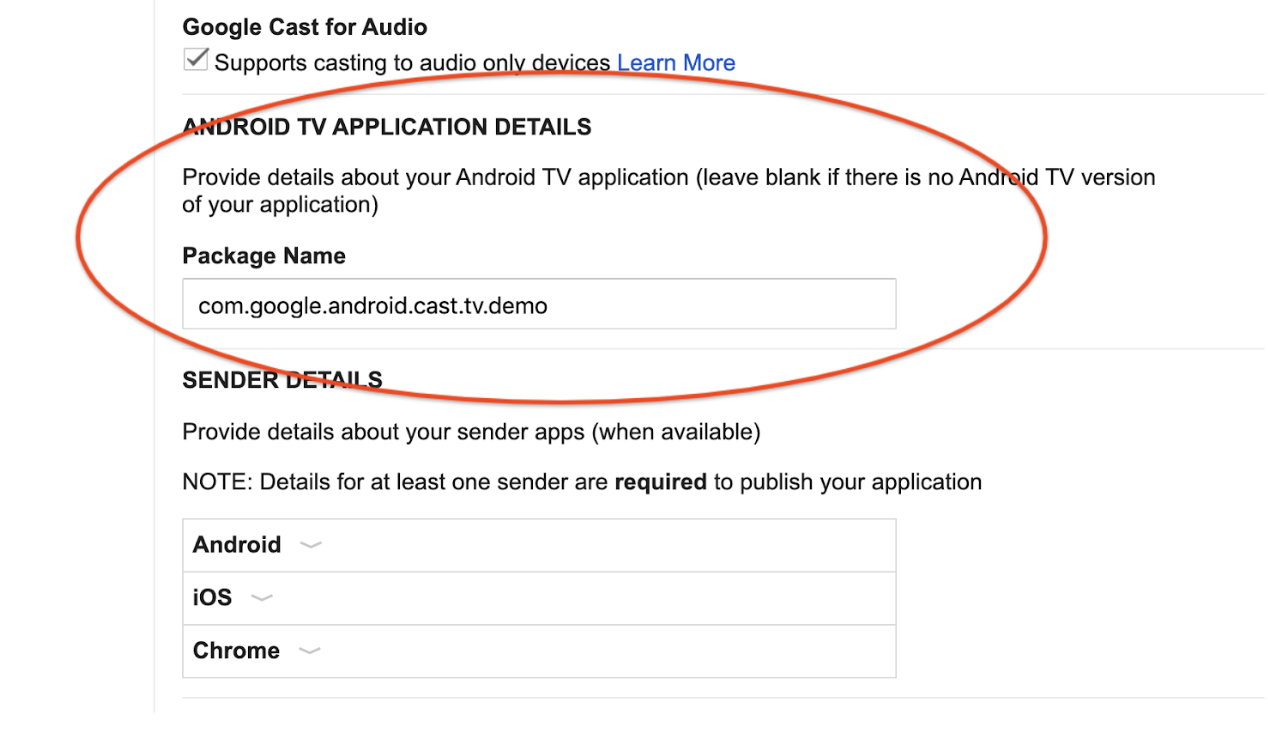
#### Configure the Android TV app
Add the package name of your Android TV app in
[Cast Developer Console](https://cast.google.com/publish)
to associate it with your Cast App ID.
#### Register developer devices
Register the serial number of the Android TV device that you are going to use
for development in the
[Cast Developer Console](https://cast.google.com/publish).
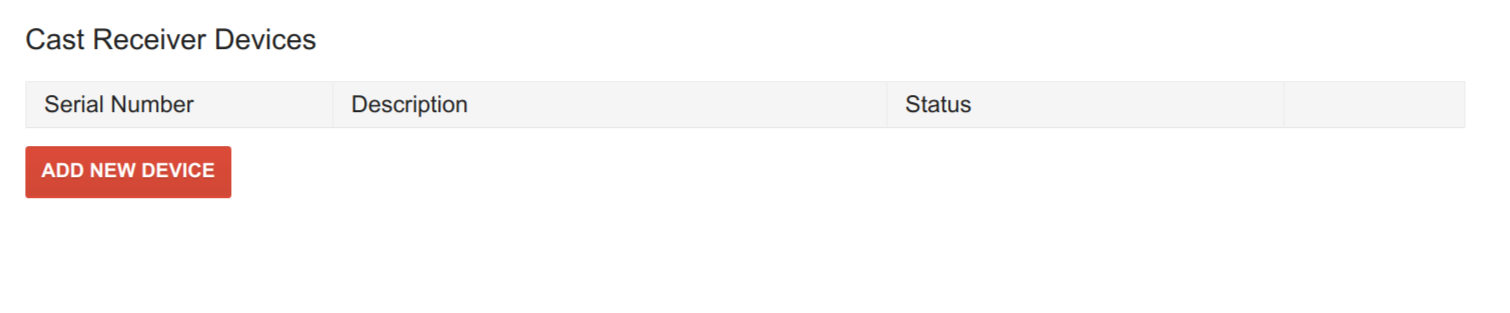
**Note:** Android TV (ATV) devices have multiple serial numbers associated with them. You must use the ATV device's software (Cast) serial number. See [determining
an ATV device's serial number](https://developers.google.com/cast/docs/registration#find_device_serial_number) for details on how to find it.
Without registration, Cast Connect will only work for apps installed from the
Google Play Store due to security reasons.
For further information about registering a Cast or Android TV device for Cast
development, see the [registration page](https://developers.google.com/cast/docs/registration.md.txt#devices).
### Loading media
If you have already implemented deep link support in your Android TV app, then
you should have a similar definition configured in your Android TV Manifest:
#### Load by entity on sender
On the senders, you can pass the deep link by setting the `entity` in the media
information for the load request:
Kotlin
```kotlin
val mediaToLoad = MediaInfo.Builder("some-id")
.setEntity("https://example.com/watch/some-id")
...
.build()
val loadRequest = MediaLoadRequestData.Builder()
.setMediaInfo(mediaToLoad)
.setCredentials("user-credentials")
...
.build()
remoteMediaClient.load(loadRequest)
```
Android Java
```
MediaInfo mediaToLoad =
new MediaInfo.Builder("some-id")
.setEntity("https://example.com/watch/some-id")
...
.build();
MediaLoadRequestData loadRequest =
new MediaLoadRequestData.Builder()
.setMediaInfo(mediaToLoad)
.setCredentials("user-credentials")
...
.build();
remoteMediaClient.load(loadRequest);
```
iOS
```swift
let mediaInfoBuilder = GCKMediaInformationBuilder(entity: "https://example.com/watch/some-id")
...
mediaInformation = mediaInfoBuilder.build()
let mediaLoadRequestDataBuilder = GCKMediaLoadRequestDataBuilder()
mediaLoadRequestDataBuilder.mediaInformation = mediaInformation
mediaLoadRequestDataBuilder.credentials = "user-credentials"
...
let mediaLoadRequestData = mediaLoadRequestDataBuilder.build()
remoteMediaClient?.loadMedia(with: mediaLoadRequestData)
```
Web
Requires Chromium browser version
`M87` or higher.
```javascript
let mediaInfo = new chrome.cast.media.MediaInfo('some-id"', 'video/mp4');
mediaInfo.entity = 'https://example.com/watch/some-id';
...
let request = new chrome.cast.media.LoadRequest(mediaInfo);
request.credentials = 'user-credentials';
...
cast.framework.CastContext.getInstance().getCurrentSession().loadMedia(request);
```
The load command is sent via an intent with your deep link and the package name
you defined in the developer console.
#### Setting ATV credentials on sender
It is possible that your Web Receiver app and Android TV app support different
deep links and `credentials` (for example if you are handling authentication
differently on the two platforms). To address this, you can provide alternate
`entity` and `credentials` for Android TV:
Android Kotlin
```kotlin
val mediaToLoad = MediaInfo.Builder("some-id")
.setEntity("https://example.com/watch/some-id")
.setAtvEntity("myscheme://example.com/atv/some-id")
...
.build()
val loadRequest = MediaLoadRequestData.Builder()
.setMediaInfo(mediaToLoad)
.setCredentials("user-credentials")
.setAtvCredentials("atv-user-credentials")
...
.build()
remoteMediaClient.load(loadRequest)
```
Java
```
MediaInfo mediaToLoad =
new MediaInfo.Builder("some-id")
.setEntity("https://example.com/watch/some-id")
.setAtvEntity("myscheme://example.com/atv/some-id")
...
.build();
MediaLoadRequestData loadRequest =
new MediaLoadRequestData.Builder()
.setMediaInfo(mediaToLoad)
.setCredentials("user-credentials")
.setAtvCredentials("atv-user-credentials")
...
.build();
remoteMediaClient.load(loadRequest);
```
iOS
```swift
let mediaInfoBuilder = GCKMediaInformationBuilder(entity: "https://example.com/watch/some-id")
mediaInfoBuilder.atvEntity = "myscheme://example.com/atv/some-id"
...
mediaInformation = mediaInfoBuilder.build()
let mediaLoadRequestDataBuilder = GCKMediaLoadRequestDataBuilder()
mediaLoadRequestDataBuilder.mediaInformation = mediaInformation
mediaLoadRequestDataBuilder.credentials = "user-credentials"
mediaLoadRequestDataBuilder.atvCredentials = "atv-user-credentials"
...
let mediaLoadRequestData = mediaLoadRequestDataBuilder.build()
remoteMediaClient?.loadMedia(with: mediaLoadRequestData)
```
Web
Requires Chromium browser version
`M87` or higher.
```javascript
let mediaInfo = new chrome.cast.media.MediaInfo('some-id"', 'video/mp4');
mediaInfo.entity = 'https://example.com/watch/some-id';
mediaInfo.atvEntity = 'myscheme://example.com/atv/some-id';
...
let request = new chrome.cast.media.LoadRequest(mediaInfo);
request.credentials = 'user-credentials';
request.atvCredentials = 'atv-user-credentials';
...
cast.framework.CastContext.getInstance().getCurrentSession().loadMedia(request);
```
If the Web Receiver app is launched, it uses the `entity` and `credentials` in
the load request. However if your Android TV app is launched, the SDK overrides
the `entity` and `credentials` with your `atvEntity` and `atvCredentials`
(if specified).
#### Loading by Content ID or MediaQueueData
If you are not using `entity` or `atvEntity`, and are using Content ID or
Content URL in your Media Information or use the more detailed Media Load
Request Data, you need to add the following predefined intent filter in
your Android TV app:
On the sender side, similar to [load by entity](https://developers.google.com/cast/docs/android_tv_receiver/core_features.md.txt#load_by_entity_on_sender), you
can create a load request with your content information and call `load()`.
Android Kotlin
```kotlin
val mediaToLoad = MediaInfo.Builder("some-id").build()
val loadRequest = MediaLoadRequestData.Builder()
.setMediaInfo(mediaToLoad)
.setCredentials("user-credentials")
...
.build()
remoteMediaClient.load(loadRequest)
```
Java
```
MediaInfo mediaToLoad =
new MediaInfo.Builder("some-id").build();
MediaLoadRequestData loadRequest =
new MediaLoadRequestData.Builder()
.setMediaInfo(mediaToLoad)
.setCredentials("user-credentials")
...
.build();
remoteMediaClient.load(loadRequest);
```
iOS
```swift
let mediaInfoBuilder = GCKMediaInformationBuilder(contentId: "some-id")
...
mediaInformation = mediaInfoBuilder.build()
let mediaLoadRequestDataBuilder = GCKMediaLoadRequestDataBuilder()
mediaLoadRequestDataBuilder.mediaInformation = mediaInformation
mediaLoadRequestDataBuilder.credentials = "user-credentials"
...
let mediaLoadRequestData = mediaLoadRequestDataBuilder.build()
remoteMediaClient?.loadMedia(with: mediaLoadRequestData)
```
Web
Requires Chromium browser version
`M87` or higher.
```javascript
let mediaInfo = new chrome.cast.media.MediaInfo('some-id"', 'video/mp4');
...
let request = new chrome.cast.media.LoadRequest(mediaInfo);
...
cast.framework.CastContext.getInstance().getCurrentSession().loadMedia(request);
```
#### Handling load requests
In your activity, to handle these load requests, you need to handle the intents
in your activity lifecycle callbacks:
Kotlin
```kotlin
class MyActivity : Activity() {
override fun onStart() {
super.onStart()
val mediaManager = CastReceiverContext.getInstance().getMediaManager()
// Pass the intent to the SDK. You can also do this in onCreate().
if (mediaManager.onNewIntent(intent)) {
// If the SDK recognizes the intent, you should early return.
return
}
// If the SDK doesn't recognize the intent, you can handle the intent with
// your own logic.
...
}
// For some cases, a new load intent triggers onNewIntent() instead of
// onStart().
override fun onNewIntent(intent: Intent) {
val mediaManager = CastReceiverContext.getInstance().getMediaManager()
// Pass the intent to the SDK. You can also do this in onCreate().
if (mediaManager.onNewIntent(intent)) {
// If the SDK recognizes the intent, you should early return.
return
}
// If the SDK doesn't recognize the intent, you can handle the intent with
// your own logic.
...
}
}
```
Java
```
public class MyActivity extends Activity {
@Override
protected void onStart() {
super.onStart();
MediaManager mediaManager =
CastReceiverContext.getInstance().getMediaManager();
// Pass the intent to the SDK. You can also do this in onCreate().
if (mediaManager.onNewIntent(getIntent())) {
// If the SDK recognizes the intent, you should early return.
return;
}
// If the SDK doesn't recognize the intent, you can handle the intent with
// your own logic.
...
}
// For some cases, a new load intent triggers onNewIntent() instead of
// onStart().
@Override
protected void onNewIntent(Intent intent) {
MediaManager mediaManager =
CastReceiverContext.getInstance().getMediaManager();
// Pass the intent to the SDK. You can also do this in onCreate().
if (mediaManager.onNewIntent(intent)) {
// If the SDK recognizes the intent, you should early return.
return;
}
// If the SDK doesn't recognize the intent, you can handle the intent with
// your own logic.
...
}
}
```
If [`MediaManager`](https://developers.google.com/android/reference/com/google/android/gms/cast/tv/media/MediaManager.md.txt)
detects the intent is a load intent, it extracts a
[`MediaLoadRequestData`](https://developers.google.com/android/reference/com/google/android/gms/cast/MediaLoadRequestData.md.txt)
object from the intent, and invoke
[`MediaLoadCommandCallback.onLoad()`](https://developers.google.com/android/reference/com/google/android/gms/cast/tv/media/MediaLoadCommandCallback.md.txt#public-taskmedialoadrequestdata-onload-string-senderid,-medialoadrequestdata-requestdata).
You need to override this method to handle the load request. The callback must
be registered before
[`MediaManager.onNewIntent()`](https://developers.google.com/android/reference/com/google/android/gms/cast/tv/media/MediaManager.md.txt#onNewIntent(android.content.Intent))
is called (it's recommended to be on an Activity or Application `onCreate()`
method).
Kotlin
```kotlin
class MyActivity : Activity() {
override fun onCreate(savedInstanceState: Bundle?) {
super.onCreate(savedInstanceState)
val mediaManager = CastReceiverContext.getInstance().getMediaManager()
mediaManager.setMediaLoadCommandCallback(MyMediaLoadCommandCallback())
}
}
class MyMediaLoadCommandCallback : MediaLoadCommandCallback() {
override fun onLoad(
senderId: String?,
loadRequestData: MediaLoadRequestData
): Task {
return Tasks.call {
// Resolve the entity into your data structure and load media.
val mediaInfo = loadRequestData.getMediaInfo()
if (!checkMediaInfoSupported(mediaInfo)) {
// Throw MediaException to indicate load failure.
throw MediaException(
MediaError.Builder()
.setDetailedErrorCode(DetailedErrorCode.LOAD_FAILED)
.setReason(MediaError.ERROR_REASON_INVALID_REQUEST)
.build()
)
}
myFillMediaInfo(MediaInfoWriter(mediaInfo))
myPlayerLoad(mediaInfo.getContentUrl())
// Update media metadata and state (this clears all previous status
// overrides).
castReceiverContext.getMediaManager()
.setDataFromLoad(loadRequestData)
...
castReceiverContext.getMediaManager().broadcastMediaStatus()
// Return the resolved MediaLoadRequestData to indicate load success.
return loadRequestData
}
}
private fun myPlayerLoad(contentURL: String) {
myPlayer.load(contentURL)
// Update the MediaSession state.
val playbackState: PlaybackStateCompat = Builder()
.setState(
player.getState(), player.getPosition(), System.currentTimeMillis()
)
...
.build()
mediaSession.setPlaybackState(playbackState)
}
```
Java
```
public class MyActivity extends Activity {
@Override
protected void onCreate(Bundle savedInstanceState) {
super.onCreate(savedInstanceState);
MediaManager mediaManager =
CastReceiverContext.getInstance().getMediaManager();
mediaManager.setMediaLoadCommandCallback(new MyMediaLoadCommandCallback());
}
}
public class MyMediaLoadCommandCallback extends MediaLoadCommandCallback {
@Override
public Task onLoad(String senderId, MediaLoadRequestData loadRequestData) {
return Tasks.call(() -> {
// Resolve the entity into your data structure and load media.
MediaInfo mediaInfo = loadRequestData.getMediaInfo();
if (!checkMediaInfoSupported(mediaInfo)) {
// Throw MediaException to indicate load failure.
throw new MediaException(
new MediaError.Builder()
.setDetailedErrorCode(DetailedErrorCode.LOAD_FAILED)
.setReason(MediaError.ERROR_REASON_INVALID_REQUEST)
.build());
}
myFillMediaInfo(new MediaInfoWriter(mediaInfo));
myPlayerLoad(mediaInfo.getContentUrl());
// Update media metadata and state (this clears all previous status
// overrides).
castReceiverContext.getMediaManager()
.setDataFromLoad(loadRequestData);
...
castReceiverContext.getMediaManager().broadcastMediaStatus();
// Return the resolved MediaLoadRequestData to indicate load success.
return loadRequestData;
});
}
private void myPlayerLoad(String contentURL) {
myPlayer.load(contentURL);
// Update the MediaSession state.
PlaybackStateCompat playbackState =
new PlaybackStateCompat.Builder()
.setState(
player.getState(), player.getPosition(), System.currentTimeMillis())
...
.build();
mediaSession.setPlaybackState(playbackState);
}
```
To process the load intent, you can parse the intent into the data structures
we defined
([`MediaLoadRequestData`](https://developers.google.com/android/reference/com/google/android/gms/cast/MediaLoadRequestData.md.txt)
for load requests).
### Supporting media commands
#### Basic playback control support
Basic integration commands includes the commands that are compatible with media
session. These commands are notified via media session callbacks. You need to
register a callback to media session to support this (you might be doing this
already).
Kotlin
```kotlin
private class MyMediaSessionCallback : MediaSessionCompat.Callback() {
override fun onPause() {
// Pause the player and update the play state.
myPlayer.pause()
}
override fun onPlay() {
// Resume the player and update the play state.
myPlayer.play()
}
override fun onSeekTo(pos: Long) {
// Seek and update the play state.
myPlayer.seekTo(pos)
}
...
}
mediaSession.setCallback(MyMediaSessionCallback())
```
Java
```
private class MyMediaSessionCallback extends MediaSessionCompat.Callback {
@Override
public void onPause() {
// Pause the player and update the play state.
myPlayer.pause();
}
@Override
public void onPlay() {
// Resume the player and update the play state.
myPlayer.play();
}
@Override
public void onSeekTo(long pos) {
// Seek and update the play state.
myPlayer.seekTo(pos);
}
...
}
mediaSession.setCallback(new MyMediaSessionCallback());
```
#### Supporting Cast control commands
There are some Cast commands that are not available in
[`MediaSession`](https://developer.android.com/reference/kotlin/android/support/v4/media/session/MediaSessionCompat),
such as
[`skipAd()`](https://developers.google.com/android/reference/com/google/android/gms/cast/framework/media/RemoteMediaClient.md.txt#skipAd())
or
[`setActiveMediaTracks()`](https://developers.google.com/android/reference/com/google/android/gms/cast/framework/media/RemoteMediaClient.md.txt#setActiveMediaTracks(long%5B%5D)).
Also, some queue commands needs to be implemented here because the Cast queue
is not fully compatible with `MediaSession` queue.
Kotlin
```kotlin
class MyMediaCommandCallback : MediaCommandCallback() {
override fun onSkipAd(requestData: RequestData?): Task {
// Skip your ad
...
return Tasks.forResult(null)
}
}
val mediaManager = CastReceiverContext.getInstance().getMediaManager()
mediaManager.setMediaCommandCallback(MyMediaCommandCallback())
```
Java
```
public class MyMediaCommandCallback extends MediaCommandCallback {
@Override
public Task onSkipAd(RequestData requestData) {
// Skip your ad
...
return Tasks.forResult(null);
}
}
MediaManager mediaManager =
CastReceiverContext.getInstance().getMediaManager();
mediaManager.setMediaCommandCallback(new MyMediaCommandCallback());
```
#### Specify supported media commands
As with your Cast receiver, your Android TV app should specify which commands
are supported, so senders can enable or disable certain UI controls. For
commands that are part of
[`MediaSession`](https://developer.android.com/reference/kotlin/android/support/v4/media/session/MediaSessionCompat),
specify the commands in
[`PlaybackStateCompat`](https://developer.android.com/reference/kotlin/android/support/v4/media/session/PlaybackStateCompat).
Additional commands should be specified in the
[`MediaStatusModifier`](https://developers.google.com/android/reference/com/google/android/gms/cast/tv/media/MediaStatusModifier.md.txt).
Kotlin
```kotlin
// Set media session supported commands
val playbackState: PlaybackStateCompat = PlaybackStateCompat.Builder()
.setActions(PlaybackStateCompat.ACTION_PLAY or PlaybackStateCompat.ACTION_PAUSE)
.setState(PlaybackStateCompat.STATE_PLAYING)
.build()
mediaSession.setPlaybackState(playbackState)
// Set additional commands in MediaStatusModifier
val mediaManager = CastReceiverContext.getInstance().getMediaManager()
mediaManager.getMediaStatusModifier()
.setMediaCommandSupported(MediaStatus.COMMAND_QUEUE_NEXT)
```
Java
```
// Set media session supported commands
PlaybackStateCompat playbackState =
new PlaybackStateCompat.Builder()
.setActions(PlaybackStateCompat.ACTION_PLAY | PlaybackStateCompat.ACTION_PAUSE)
.setState(PlaybackStateCompat.STATE_PLAYING)
.build();
mediaSession.setPlaybackState(playbackState);
// Set additional commands in MediaStatusModifier
MediaManager mediaManager = CastReceiverContext.getInstance().getMediaManager();
mediaManager.getMediaStatusModifier()
.setMediaCommandSupported(MediaStatus.COMMAND_QUEUE_NEXT);
```
#### Hide unsupported buttons
If your Android TV app only supports basic media control but your Web Receiver
app supports more advanced control, you should make sure your sender app behave
correctly when casting to the Android TV app. For example, if your Android TV
app doesn't support changing playback rate while your Web Receiver app does,
you should set the supported actions correctly on each platform and make sure
your sender app renders UI properly.
### Modifying MediaStatus
To support advanced features like tracks, ads, live, and queueing, your Android
TV app needs to provide additional information that can't be ascertained via
[`MediaSession`](https://developer.android.com/reference/kotlin/android/support/v4/media/session/MediaSessionCompat).
We provide the
[`MediaStatusModifier`](https://developers.google.com/android/reference/com/google/android/gms/cast/tv/media/MediaStatusModifier.md.txt)
class for you to achieve this. `MediaStatusModifier` will always operate on the
`MediaSession` which you have set in
[`CastReceiverContext`](https://developers.google.com/android/reference/com/google/android/gms/cast/tv/CastReceiverContext.md.txt).
To create and broadcast
[`MediaStatus`](https://developers.google.com/android/reference/com/google/android/gms/cast/MediaStatus.md.txt):
Kotlin
```kotlin
val mediaManager: MediaManager = castReceiverContext.getMediaManager()
val statusModifier: MediaStatusModifier = mediaManager.getMediaStatusModifier()
statusModifier
.setLiveSeekableRange(seekableRange)
.setAdBreakStatus(adBreakStatus)
.setCustomData(customData)
mediaManager.broadcastMediaStatus()
```
Java
```
MediaManager mediaManager = castReceiverContext.getMediaManager();
MediaStatusModifier statusModifier = mediaManager.getMediaStatusModifier();
statusModifier
.setLiveSeekableRange(seekableRange)
.setAdBreakStatus(adBreakStatus)
.setCustomData(customData);
mediaManager.broadcastMediaStatus();
```
Our client library will get the base `MediaStatus` from `MediaSession`, your
Android TV app can specify additional status and override status via a
`MediaStatus` modifier.
Some states and metadata can set both in `MediaSession` and
`MediaStatusModifier`. We *strongly* recommend you only set them in
`MediaSession`. You can still use the modifier to override the states in
`MediaSession`---this is discouraged because the status in the modifier always
have a higher priority than values provided by `MediaSession`.
> [!NOTE]
> **Note:** You only have to call [`broadcastMediaStatus()`](https://developers.google.com/android/reference/com/google/android/gms/cast/tv/media/MediaManager.md.txt#broadcastMediaStatus()) when you have changed or updated a `MediaStatusModifier`. Changes to `MediaSession` are automatically broadcasted.
### Intercepting MediaStatus before sending out
Same as the Web Receiver SDK, if you want to do some finishing touches before
sending out, you can specify a
[`MediaStatusInterceptor`](https://developers.google.com/android/reference/com/google/android/gms/cast/tv/media/MediaManager.MediaStatusInterceptor.md.txt)
to process the
[`MediaStatus`](https://developers.google.com/android/reference/com/google/android/gms/cast/MediaStatus.md.txt) to
be sent. We pass in a
[`MediaStatusWriter`](https://developers.google.com/android/reference/com/google/android/gms/cast/tv/media/MediaStatusWriter.md.txt)
to manipulate the `MediaStatus` before it is sent out.
Kotlin
```kotlin
mediaManager.setMediaStatusInterceptor(object : MediaStatusInterceptor {
override fun intercept(mediaStatusWriter: MediaStatusWriter) {
// Perform customization.
mediaStatusWriter.setCustomData(JSONObject("{data: \"my Hello\"}"))
}
})
```
Java
```
mediaManager.setMediaStatusInterceptor(new MediaStatusInterceptor() {
@Override
public void intercept(MediaStatusWriter mediaStatusWriter) {
// Perform customization.
mediaStatusWriter.setCustomData(new JSONObject("{data: \"my Hello\"}"));
}
});
```
## Handling user credentials
Your Android TV app might only allow certain users to launch or join the app
session. For example, only allow a sender to launch or join if:
- The sender app is logged into same account and profile as ATV app.
- The sender app is logged into same account, but different profile as ATV app.
If your app can handle multiple or anonymous users, you may allow additional any
user to join the ATV session. If the user provides credentials, your ATV app
needs to handle their credentials so their progress and other user data can be
properly tracked.
When your sender app launches or joins your Android TV app, your sender app
should provide the credentials that represents who is joining the session.
Before a sender launches and joins your Android TV app, you can specify a
launch checker to see if the sender credentials are allowed. If not, the Cast
Connect SDK falls back to launching your Web Receiver.
### Sender app launch credentials data
On the sender side, you can specify the `CredentialsData` to represent who is
joining the session.
The `credentials` is a string which can be user-defined, as long as your ATV
app can understand it. The `credentialsType` defines which platform the
`CredentialsData` is coming from or can be a custom value. By default it is set
to the platform that it is being sent from.
The `CredentialsData` is only passed to your Android TV app during launch or
join time. If you set it again while you are connected, it won't be passed to
your Android TV app. If your sender switches the profile while connected, you
could either stay in the session, or call
[`SessionManager.endCurrentCastSession(boolean stopCasting)`](https://developers.google.com/android/reference/com/google/android/gms/cast/framework/SessionManager.md.txt#endCurrentSession(boolean))
if you think the new profile is incompatible with the session.
The
[`CredentialsData`](https://developers.google.com/android/reference/com/google/android/gms/cast/CredentialsData.md.txt)
for each sender can be retrieved using
[`getSenders`](https://developers.google.com/android/reference/com/google/android/gms/cast/tv/CastReceiverContext.md.txt)
on the
[`CastReceiverContext`](https://developers.google.com/android/reference/com/google/android/gms/cast/tv/CastReceiverContext.md.txt)
to get the `SenderInfo`,
[`getCastLaunchRequest()`](https://developers.google.com/android/reference/com/google/android/gms/cast/tv/SenderInfo.md.txt#public-castlaunchrequest-getcastlaunchrequest)
to get the
[`CastLaunchRequest`](https://developers.google.com/android/reference/com/google/android/gms/cast/tv/CastLaunchRequest.md.txt),
and then
[`getCredentialsData()`](https://developers.google.com/android/reference/com/google/android/gms/cast/tv/CastLaunchRequest.md.txt#public-credentialsdata-getcredentialsdata).
Android
Requires `play-services-cast-framework` version
`19.0.0` or higher.
Kotlin
```kotlin
CastContext.getSharedInstance().setLaunchCredentialsData(
CredentialsData.Builder()
.setCredentials("{\"userId\": \"abc\"}")
.build()
)
```
Java
```
CastContext.getSharedInstance().setLaunchCredentialsData(
new CredentialsData.Builder()
.setCredentials("{\"userId\": \"abc\"}")
.build());
```
iOS
Requires `google-cast-sdk` version `v4.8.6` or
higher.
Can be called anytime after the options are set:
`GCKCastContext.setSharedInstanceWith(options)`.
```swift
GCKCastContext.sharedInstance().setLaunch(
GCKCredentialsData(credentials: "{\"userId\": \"abc\"}")
```
Web
Requires Chromium browser version
`M87` or higher.
Can be called anytime after the options are set:
`cast.framework.CastContext.getInstance().setOptions(options);`.
```javascript
let credentialsData =
new chrome.cast.CredentialsData("{\"userId\": \"abc\"}");
cast.framework.CastContext.getInstance().setLaunchCredentialsData(credentialsData);
```
### Implementing ATV launch request checker
The
[`CredentialsData`](https://developers.google.com/android/reference/com/google/android/gms/cast/CredentialsData.md.txt)
is passed to your Android TV app when a sender tries to launch or join. You can
implement a
[`LaunchRequestChecker`](https://developers.google.com/android/reference/com/google/android/gms/cast/tv/CastReceiverOptions.LaunchRequestChecker.md.txt).
to allow or reject this request.
If a request is rejected, the Web Receiver is loaded instead of launching
natively into the ATV app. You should reject a request if your ATV is unable to
handle the user requesting to launch or join. Examples could be that a different
user is logged into the ATV app than is requesting and your app is unable to
handle switching credentials, or there is not a user currently logged into the
ATV app.
If a request is allowed, the ATV app launches. You can customize this
behavior depending on if your app supports sending load requests when a user
is not logged into the ATV app or if there is a user mismatch. This behavior is
fully cusomizable in the `LaunchRequestChecker`.
Create a class implementing the
[`CastReceiverOptions.LaunchRequestChecker`](https://developers.google.com/android/reference/com/google/android/gms/cast/tv/CastReceiverOptions.LaunchRequestChecker.md.txt)
interface:
Kotlin
```kotlin
class MyLaunchRequestChecker : LaunchRequestChecker {
override fun checkLaunchRequestSupported(launchRequest: CastLaunchRequest): Task {
return Tasks.call {
myCheckLaunchRequest(
launchRequest
)
}
}
}
private fun myCheckLaunchRequest(launchRequest: CastLaunchRequest): Boolean {
val credentialsData = launchRequest.getCredentialsData()
?: return false // or true if you allow anonymous users to join.
// The request comes from a mobile device, e.g. checking user match.
return if (credentialsData.credentialsType == CredentialsData.CREDENTIALS_TYPE_ANDROID) {
myCheckMobileCredentialsAllowed(credentialsData.getCredentials())
} else false // Unrecognized credentials type.
}
```
Java
```
public class MyLaunchRequestChecker
implements CastReceiverOptions.LaunchRequestChecker {
@Override
public Task checkLaunchRequestSupported(CastLaunchRequest launchRequest) {
return Tasks.call(() -> myCheckLaunchRequest(launchRequest));
}
}
private boolean myCheckLaunchRequest(CastLaunchRequest launchRequest) {
CredentialsData credentialsData = launchRequest.getCredentialsData();
if (credentialsData == null) {
return false; // or true if you allow anonymous users to join.
}
// The request comes from a mobile device, e.g. checking user match.
if (credentialsData.getCredentialsType().equals(CredentialsData.CREDENTIALS_TYPE_ANDROID)) {
return myCheckMobileCredentialsAllowed(credentialsData.getCredentials());
}
// Unrecognized credentials type.
return false;
}
```
Then set it in your
[`ReceiverOptionsProvider`](https://developers.google.com/android/reference/com/google/android/gms/cast/tv/ReceiverOptionsProvider.md.txt):
Kotlin
```kotlin
class MyReceiverOptionsProvider : ReceiverOptionsProvider {
override fun getOptions(context: Context?): CastReceiverOptions {
return CastReceiverOptions.Builder(context)
...
.setLaunchRequestChecker(MyLaunchRequestChecker())
.build()
}
}
```
Java
```
public class MyReceiverOptionsProvider implements ReceiverOptionsProvider {
@Override
public CastReceiverOptions getOptions(Context context) {
return new CastReceiverOptions.Builder(context)
...
.setLaunchRequestChecker(new MyLaunchRequestChecker())
.build();
}
}
```
Resolving `true` in the
[`LaunchRequestChecker`](https://developers.google.com/android/reference/com/google/android/gms/cast/tv/CastReceiverOptions.LaunchRequestChecker.md.txt)
launches the ATV app and `false` launches your Web Receiver app.
## Sending \& Receiving Custom Messages
The Cast protocol allows you to send custom string messages between senders and
your receiver application. You must register a namespace (channel) to send
messages across before initializing your
[`CastReceiverContext`](https://developers.google.com/android/reference/com/google/android/gms/cast/tv/CastReceiverContext.md.txt).
### Android TV---Specify Custom Namespace
You need to specify your supported namespaces in your
[`CastReceiverOptions`](https://developers.google.com/android/reference/com/google/android/gms/cast/tv/CastReceiverOptions.md.txt)
during setup:
Kotlin
```kotlin
class MyReceiverOptionsProvider : ReceiverOptionsProvider {
override fun getOptions(context: Context?): CastReceiverOptions {
return CastReceiverOptions.Builder(context)
.setCustomNamespaces(
Arrays.asList("urn:x-cast:com.example.cast.mynamespace")
)
.build()
}
}
```
Java
```
public class MyReceiverOptionsProvider implements ReceiverOptionsProvider {
@Override
public CastReceiverOptions getOptions(Context context) {
return new CastReceiverOptions.Builder(context)
.setCustomNamespaces(
Arrays.asList("urn:x-cast:com.example.cast.mynamespace"))
.build();
}
}
```
> [!NOTE]
> **Note:** Namespaces *must* begin with the `urn:x-cast:` prefix.
### Android TV---Sending Messages
Kotlin
```kotlin
// If senderId is null, then the message is broadcasted to all senders.
CastReceiverContext.getInstance().sendMessage(
"urn:x-cast:com.example.cast.mynamespace", senderId, customString)
```
Java
```
// If senderId is null, then the message is broadcasted to all senders.
CastReceiverContext.getInstance().sendMessage(
"urn:x-cast:com.example.cast.mynamespace", senderId, customString);
```
### Android TV---Receive Custom Namespace Messages
Kotlin
```kotlin
class MyCustomMessageListener : MessageReceivedListener {
override fun onMessageReceived(
namespace: String, senderId: String?, message: String ) {
...
}
}
CastReceiverContext.getInstance().setMessageReceivedListener(
"urn:x-cast:com.example.cast.mynamespace", new MyCustomMessageListener());
```
Java
```
class MyCustomMessageListener implements CastReceiverContext.MessageReceivedListener {
@Override
public void onMessageReceived(
String namespace, String senderId, String message) {
...
}
}
CastReceiverContext.getInstance().setMessageReceivedListener(
"urn:x-cast:com.example.cast.mynamespace", new MyCustomMessageListener());
```