# App launcher
The app launcher lets users browse through their available apps and other main
options, then select the one they want to launch.
Users can access the launcher from the apps button on the
[navigation bar](https://developers.google.com/cars/design/android-auto/product-experience/system-ui/nav-bar).
They can also customize how their apps appear in the launcher,
including whether suggested apps are displayed.
*** ** * ** ***
## Anatomy
The launcher displays available apps and options in a vertically scrolling grid.
 This default layout appearance of the app launcher.
The app launcher's position within the
[content area](https://developers.google.com/cars/design/android-auto/product-experience/system-ui/content-area)
depends on the width and height of the vehicle's screen, as shown in the
following images:
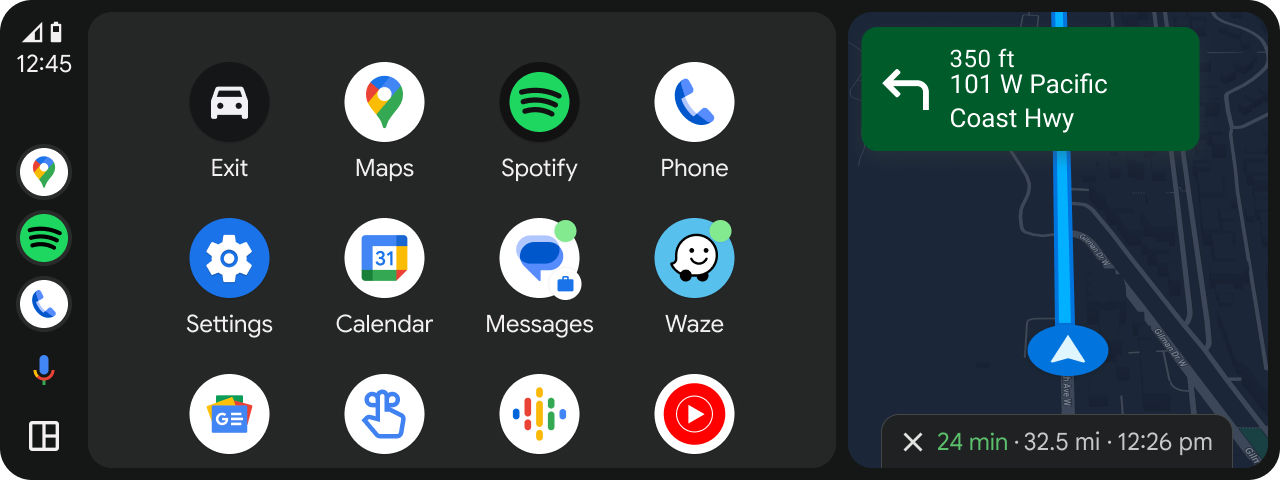 This default layout appearance of the app launcher.
On cars with wider screens, the app launcher opens next to the navigation bar
on the side of the screen.
 This default layout appearance of the app launcher.
Vehicles with portrait screens open the app launcher above the navigation
bar at the bottom of the screen.
*** ** * ** ***
## Available apps \& options
The grid of items in the launcher includes the following:
- Apps
- Exit option
- Assistant actions
Examples of these items are in examples in the next sections.
### Apps
The launcher shows a user's Android Auto compatible apps, including navigation,
media, communications, and more.
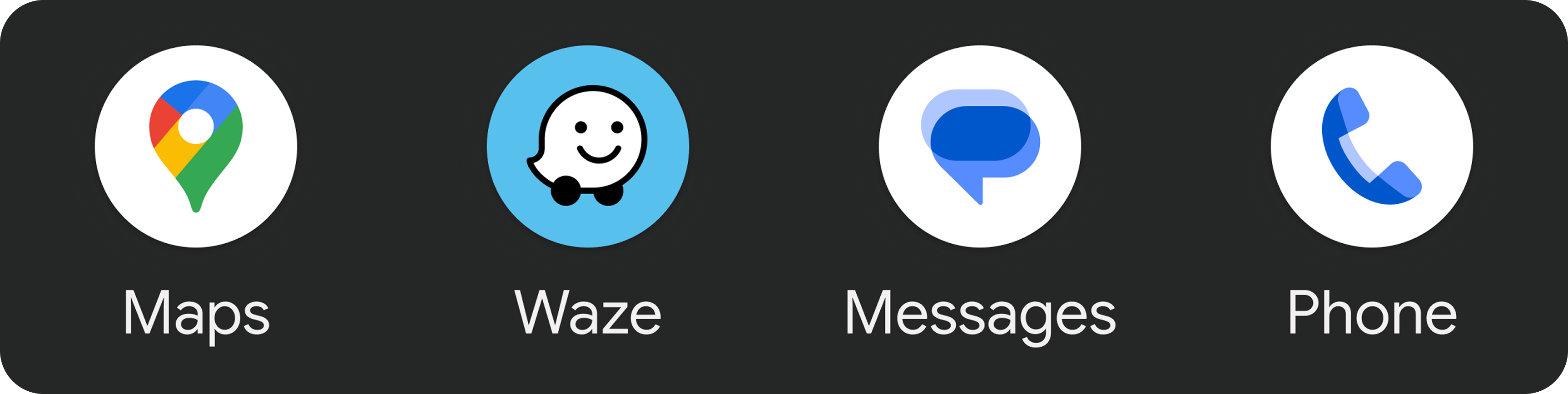 All apps in the launcher are represented by their app icon and title
### Exit option
 Exit button
In addition to showing apps, the launcher displays an Exit option. This option
allows users to quit Android Auto and return to the car's built-in infotainment
system. The exit button can include the logo and brand name of the car maker.
In the default layout, the Exit option appears first, before the alphabetical
grid of apps. Users can move it elsewhere if they
[customize the launcher](https://developers.google.com/cars/design/android-auto/product-experience/system-ui/app-launcher#customizing_the_launcher).
### Digital assistant actions
Apps that are digital assistant activated are included with the apps in the
launcher. Selecting these icons invokes the digital assistant to help with
specific tasks for which voice interaction is helpful.
For example, you can use the Assistant to discover news podcasts,
set a reminder, or read weather information.
 Digital assistant actions
*** ** * ** ***
## Customizing the launcher
Users can customize their launcher in these ways:
- Hide certain apps and options
- Change the order in which apps appear
These customization actions are available in the Android Auto settings
on a user's phone.
 Here, a user has customized the order in which apps and options appear in the launcher
### Accessing customization settings
To get to the Android Auto Settings page, users navigate to the system
Settings app on their phone, and go to
**Connected Devices \> Connection Preferences \> Android Auto** . Users can also
search for Android Auto in the settings app.
Users can customize the app launcher by modifying the **Customize launcher**
settings. There, users can choose apps to hide or drag their names to
rearrange their order in the launcher. Any changes made on this page will be
reflected in the launcher after the user exits and restarts Android Auto.
 The **Customize launcher** option on the user's phone opens up a page that lets users choose what will show in their launcher, and in what order.