> [!NOTE]
> **Note:** While the advice on this page provides a good starting point, rich card support depends on device capabilities, and rendering is affected by factors like screen size and resolution. Check the capabilities of your target audience's devices to see which RCS for Business features are supported (refer to [Capability checks](https://developers.google.com/business-communications/rcs-business-messaging/guides/build/capabilities.md.txt) for more information). Then, test your flow on a range of those devices to confirm it's a good user experience.
Rich cards combine media, text, and suggestions in one message. They focus on a
single topic and offer clear actions to users.
A rich card can contain the following:
1. Media (image/GIF, video, or PDF file)
2. Title text
3. Description text
4. Suggested replies and actions.
> [!NOTE]
> **Note:** Currently, sending PDF in rich cards is available only in India on the Google Messages client.
Each of these fields is optional, but at least one of the fields 1--3 must be
included in the rich card.

## Rich card components
### Media
Rich cards can include various media, such as images, GIFs, videos, and PDF
files. Rich cards support a variety of media formats.
Supported image types:
- JPEG/JPG
- GIF
- PNG
Supported video types:
- H.263
- M4V
- MP4
- MPEG
- MPEG-4
- WebM
Supported file types (only available in India on the Google Messages client):
- PDF
You can choose between three media heights for a rich card:
| Media type | Media height |
|---|---|
| Short media | 112 DP |
| Medium media | 168 DP |
| Tall media | 264 DP |
DP stands for density-independent pixels, which are units designed to provide a
consistent physical size for UI elements across screens with different pixel
densities.
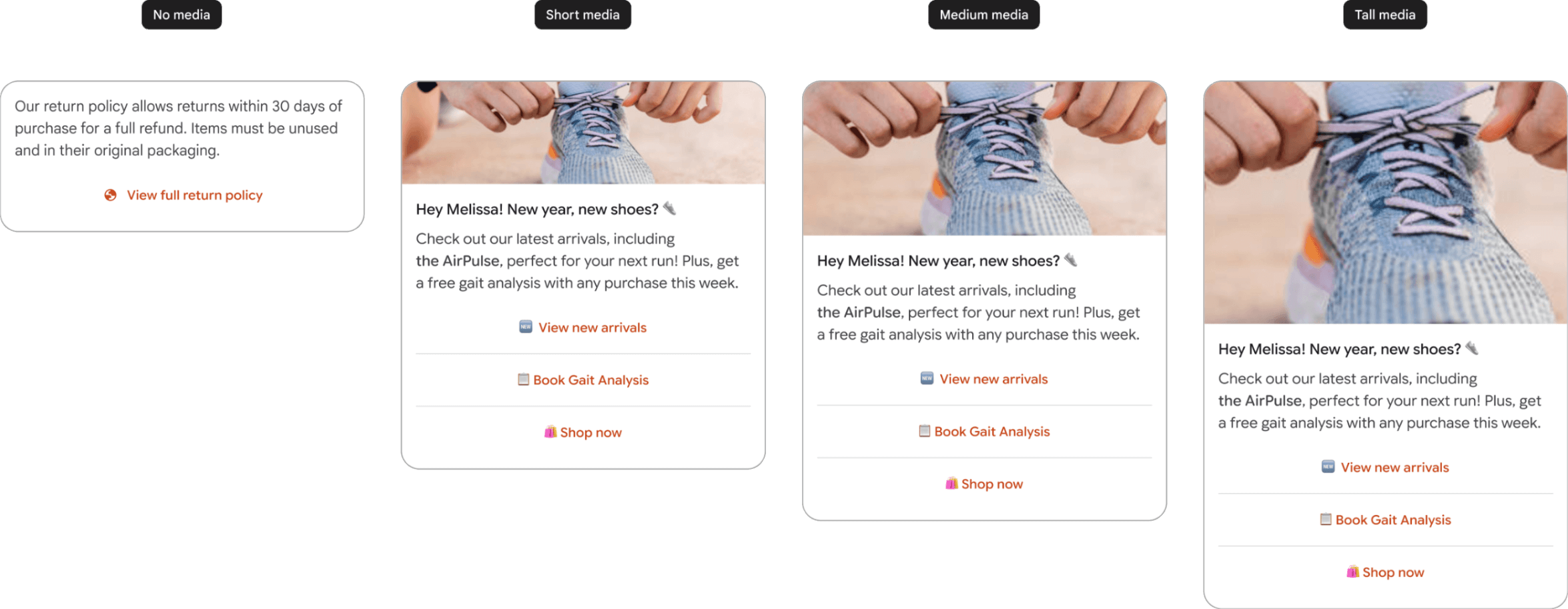
If the media's dimensions don't match the selected height, the system
automatically zooms and centrally crops the media. This cropping may result in
an undesirable preview. To display the exact image you want, specify a
thumbnail. Clicking the preview or thumbnail opens a full-screen view of the
media file.
PDF files display a preview image based on the first page of the PDF file, even
if a thumbnail is provided. Clicking the preview image opens the file in a PDF
viewer. When a preview is not available (for example, when the file is
password-protected), the PDF file displays the thumbnail image, or a default
icon if a thumbnail isn't specified.
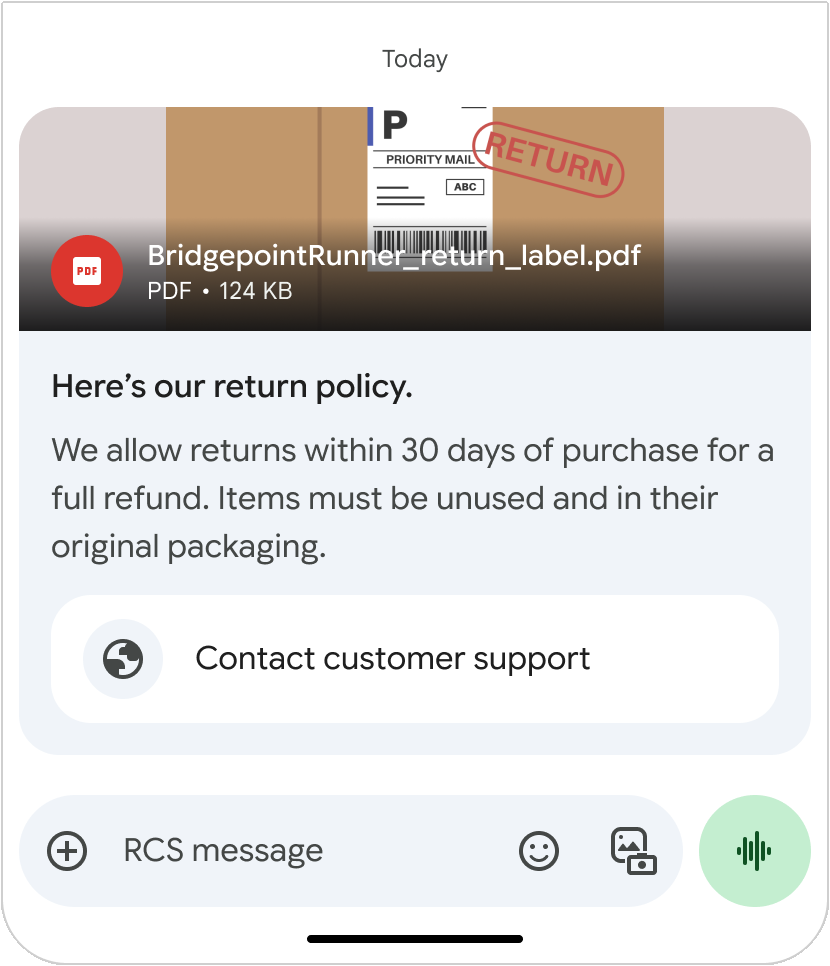 PDF file preview in a vertical rich card 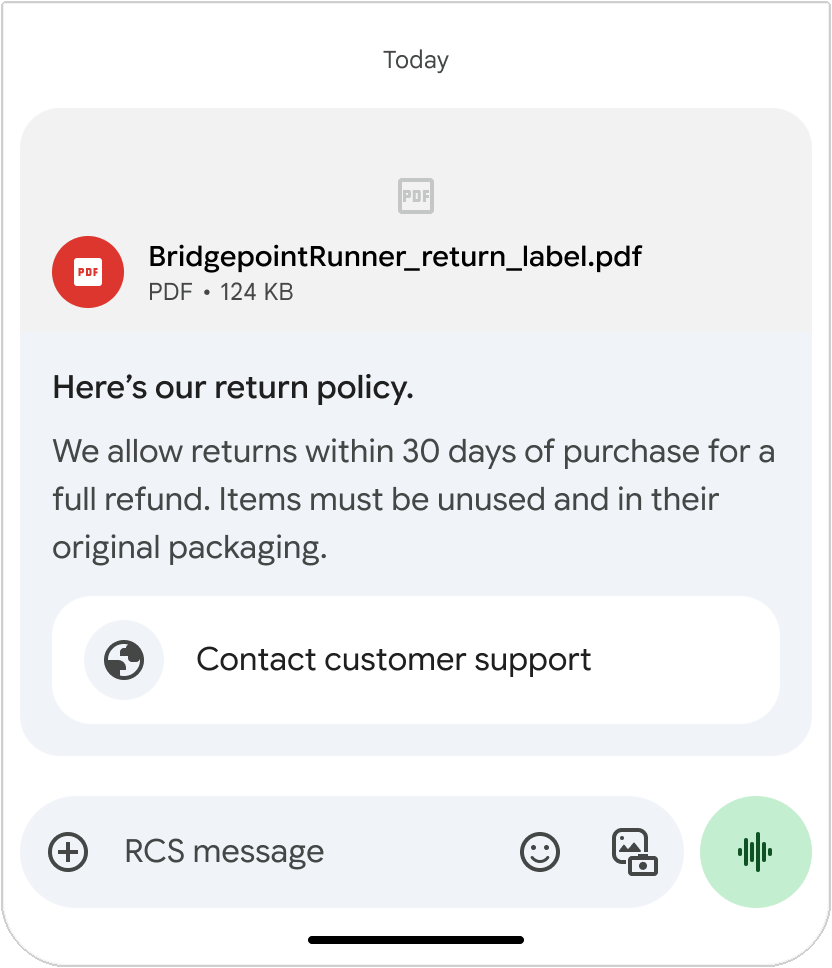 Default PDF icon in a vertical rich card
Upload media by either specifying a URL or directly uploading a file.
You can find more information on the [Send messages](https://developers.google.com/business-communications/rcs-business-messaging/guides/build/messages/send.md.txt#media)
page.
#### Alt text
Providing alt text for rich card media supports your accessibility efforts and
improves the experience for screen reader users. You can define this text by
setting the
[`contentDescription`](https://developers.google.com/business-communications/rcs-business-messaging/reference/rest/v1/phones.agentMessages.md.txt#Media)
field when sending the message.
To write effective alt text, follow these guidelines:
- Write concise, factual descriptions rather than promotional copy.
- Focus on functional context, for example, "ACME Bank Platinum Visa debit card ending in 4821".
- Avoid placing raw URLs, which are read aloud character-by-character and aren't clickable, or gesture instructions (such as *"tap"* or *"swipe"* ) inside `contentDescription`.
For more authoring tips, see Google's guide to
[writing helpful alt text](https://developers.google.com/tech-writing/accessibility/self-study/write-alt-text.md.txt)
and the
[W3C WAI image alt text tips](https://www.w3.org/WAI/tutorials/images/tips/).
### Thumbnail
> [!NOTE]
> **Note:** The following thumbnail behavior applies to Google Messages.
The maximum file size of a thumbnail is 100 kB. For optimal user experience, we
recommend it to be 50 kB or less. If you don't provide a thumbnail, a default
icon is shown instead. The thumbnail remains visible during file download, even
if the download fails, and also serves as the preview for downloaded videos.
Tapping the thumbnail or default icon opens a full-screen view of the media
file.
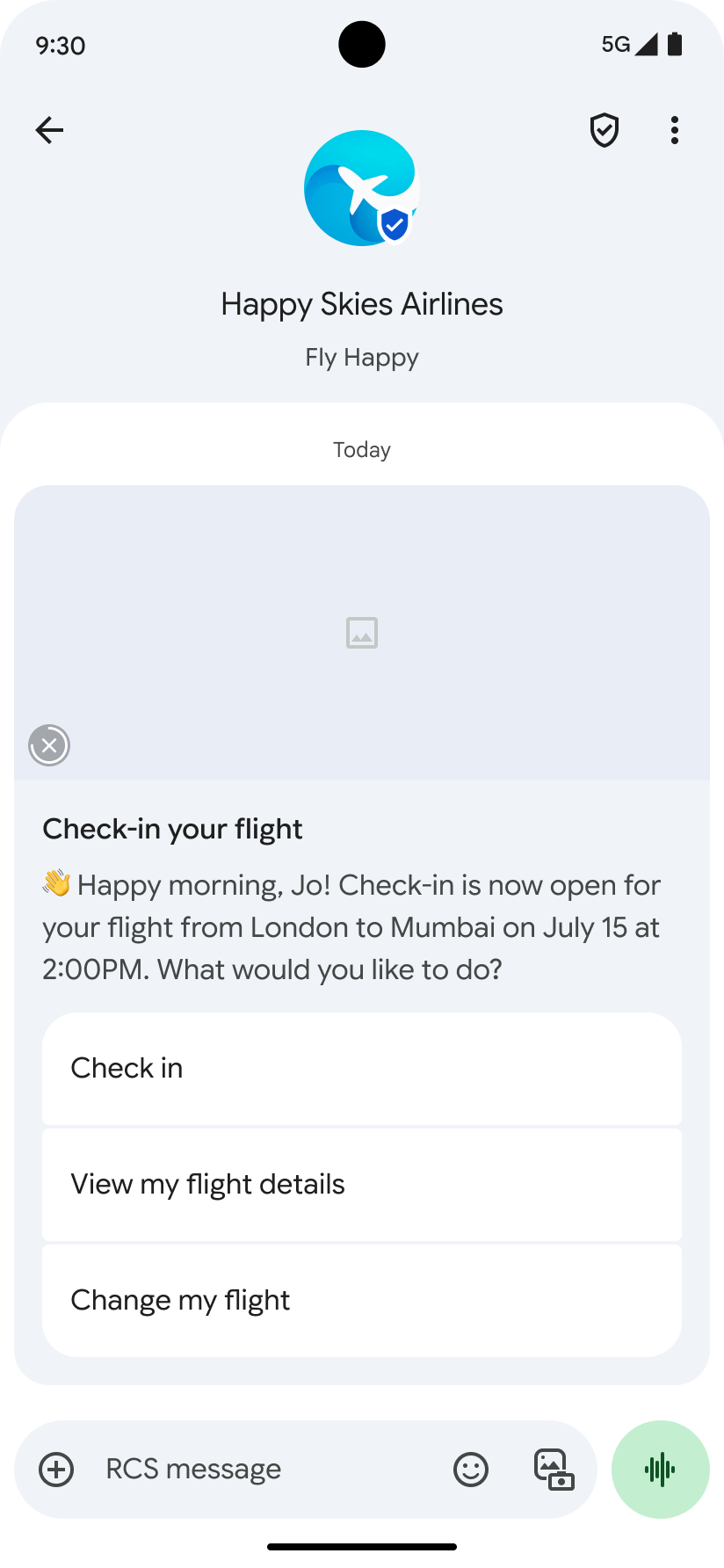 Default icon for image file  Default icon for video file 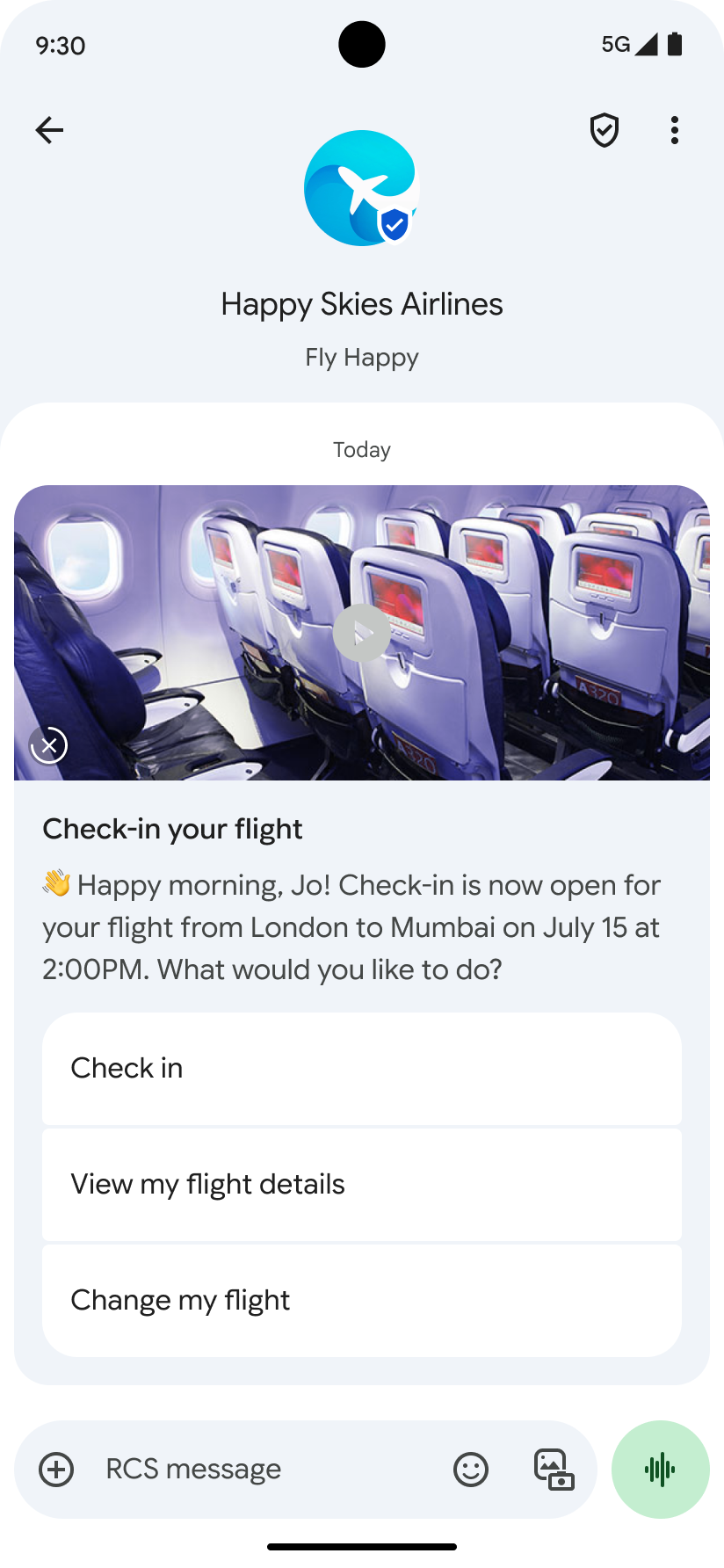 Custom thumbnail
### Title text
The title of your rich card is like a headline that captures the user's
attention and gives them a clear idea of what your message is about. Make sure
it's concise and informative. It can be up to 200 characters long.
> [!NOTE]
> **Note:** Special characters, such as emoji or a multi-byte character set, count as 2--4 characters or more.
### Description
The rich card description includes essential supporting information. This is
where you elaborate on the title, highlight key benefits, and drive conversions
with a clear call to action. The description can be up to 2000 characters long.
### Suggested replies and actions
Each rich card can contain up to four [suggested replies](https://developers.google.com/business-communications/rcs-business-messaging/guides/build/messages/send.md.txt#replies)
and [suggested actions](https://developers.google.com/business-communications/rcs-business-messaging/guides/build/messages/send.md.txt#actions).
In addition, you can add up to 11 suggestions below your card in a chip list,
much like you would add suggestions to a text message. Suggested replies and
actions within a chip list are a way of advancing the conversation. They
shouldn't repeat the options listed within the rich card, and they are not
selection tools for the items presented in a carousel.
You can find detailed information about suggestions
[in this article](https://developers.google.com/business-communications/rcs-business-messaging/open-maap/reference/rest/v1/agents.phones.agentMessages#suggestion).
> [!NOTE]
> **Note:** If a message doesn't include standalone suggestions, Google Messages displays the first eligible suggestion from your rich card, or from the first card in a carousel, directly in the Android system notification. To ensure the most relevant action is displayed, place your primary suggestion first.
#### Suggested replies
Suggested replies help users interact with your agent in ways that it can
easily respond to. Unless the interaction requires a freeform response, use
suggested replies. They're easier to process than freeform text and they allow
your agent to steer conversations down an optimal path.
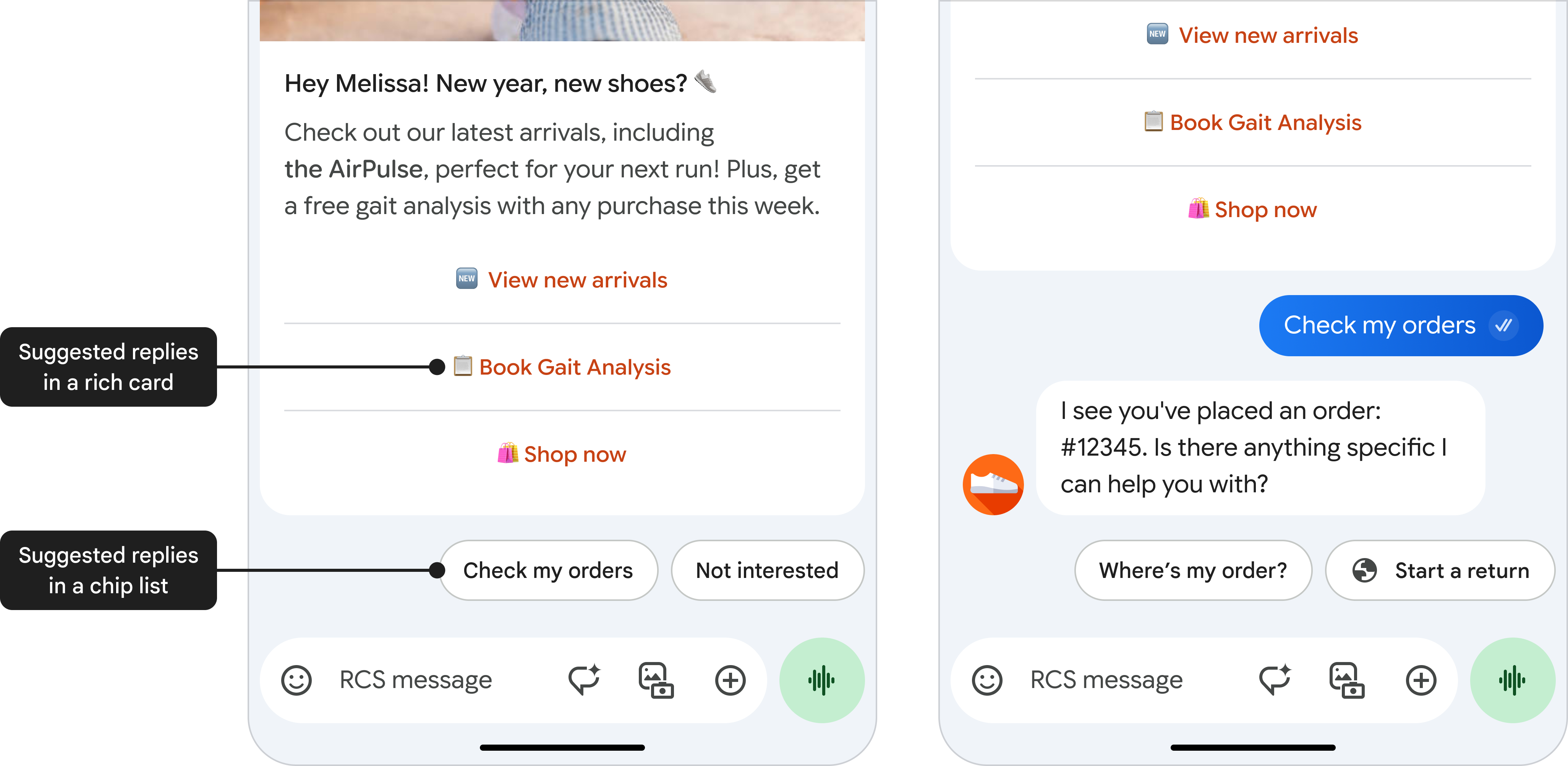
Suggested replies can be up to 25 characters long.
#### Suggested actions
Suggested actions allow an agent to hook into native device actions and they
provide a tightly integrated experience for the user. When relevant, suggested
actions can make it easy to call customer support or find a location on the
map.
But don't overwhelm users with options. Only provide actions that are related
to the most recent message, and only provide as many actions as necessary.
Limit the number of suggested actions and suggested replies to what is useful
to the user in a given context.

Suggested actions can be up to 25 characters long.
## Rich card layout
Rich cards can have either a [vertical](https://developers.google.com/business-communications/rcs-business-messaging/guides/learn/rich-cards.md.txt#vertical-rich-card)
or [horizontal](https://developers.google.com/business-communications/rcs-business-messaging/guides/learn/rich-cards.md.txt#horizontal-rich-card)
layout.
### Vertical rich cards
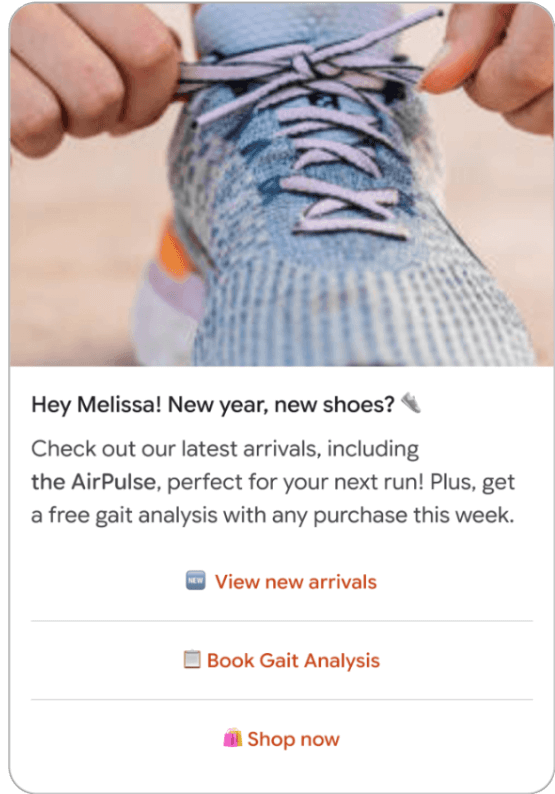
Vertical rich cards display horizontal media at the top of the card. The
minimum height of a vertical rich card is 112 DP.
Media used in a vertical rich card can have the following height:
- **Short:** 112 DP
- **Medium:** 168 DP
- **Tall:** 264 DP
For optimal display, we recommend the following aspect ratios for media used in
a vertical rich card:
- **Short:** 7:2
- **Medium:** 21:9
- **Tall:** 3:2
### Horizontal rich cards
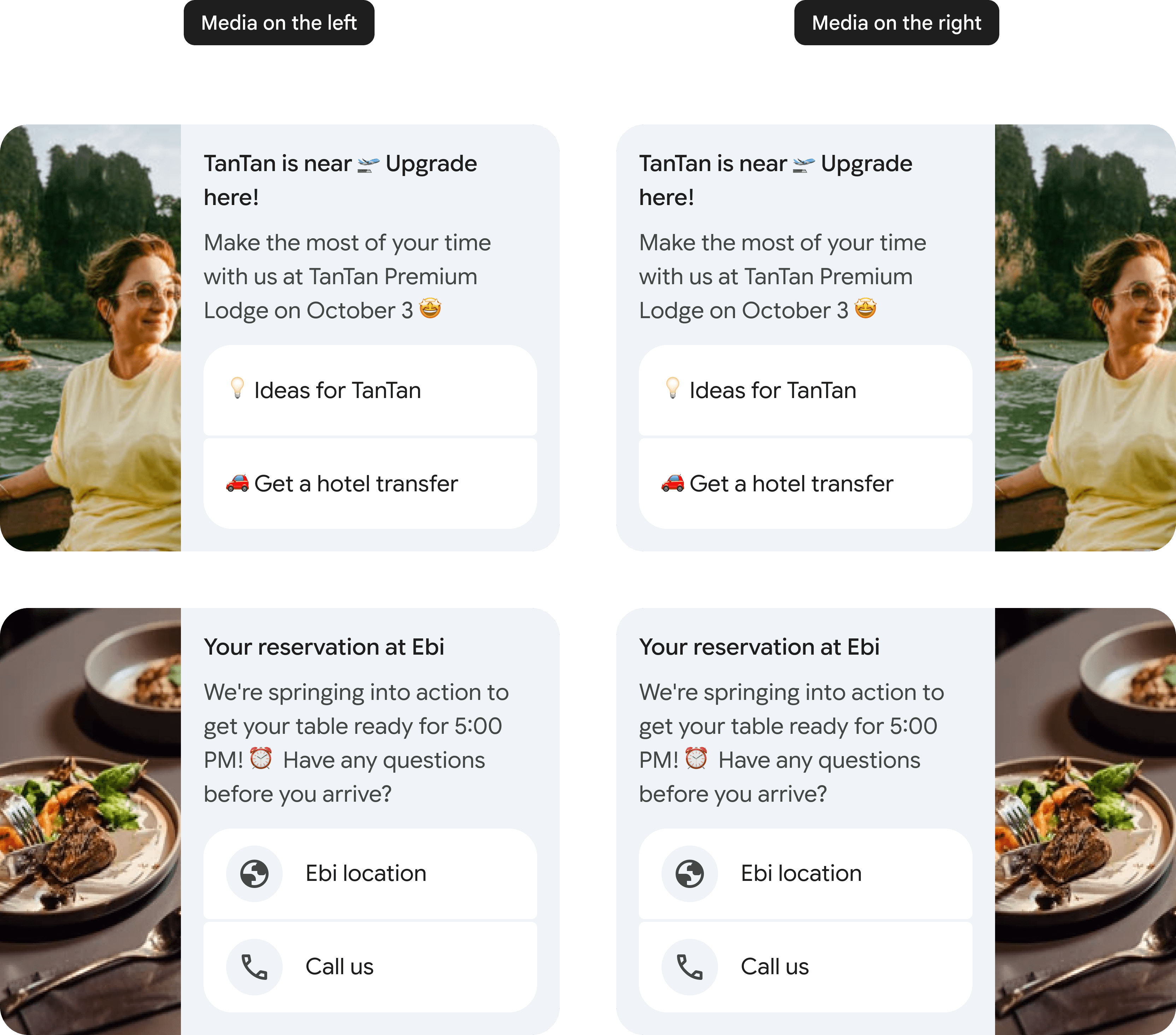
Horizontal rich cards display media on the left or right side of the card.
A horizontal rich card doesn't have a fixed media ratio, but a fixed width of
128 DP. The height scales to the height of the text elements in the card.
## Rich card carousels
You can send a standalone rich card or a carousel of rich cards.
Rich card carousels are ideal for showcasing multiple items, such as data plans
or devices, allowing users to browse and compare different options
within a single message. A carousel is ideal when you want to present a variety
of choices or enable exploration of related content.
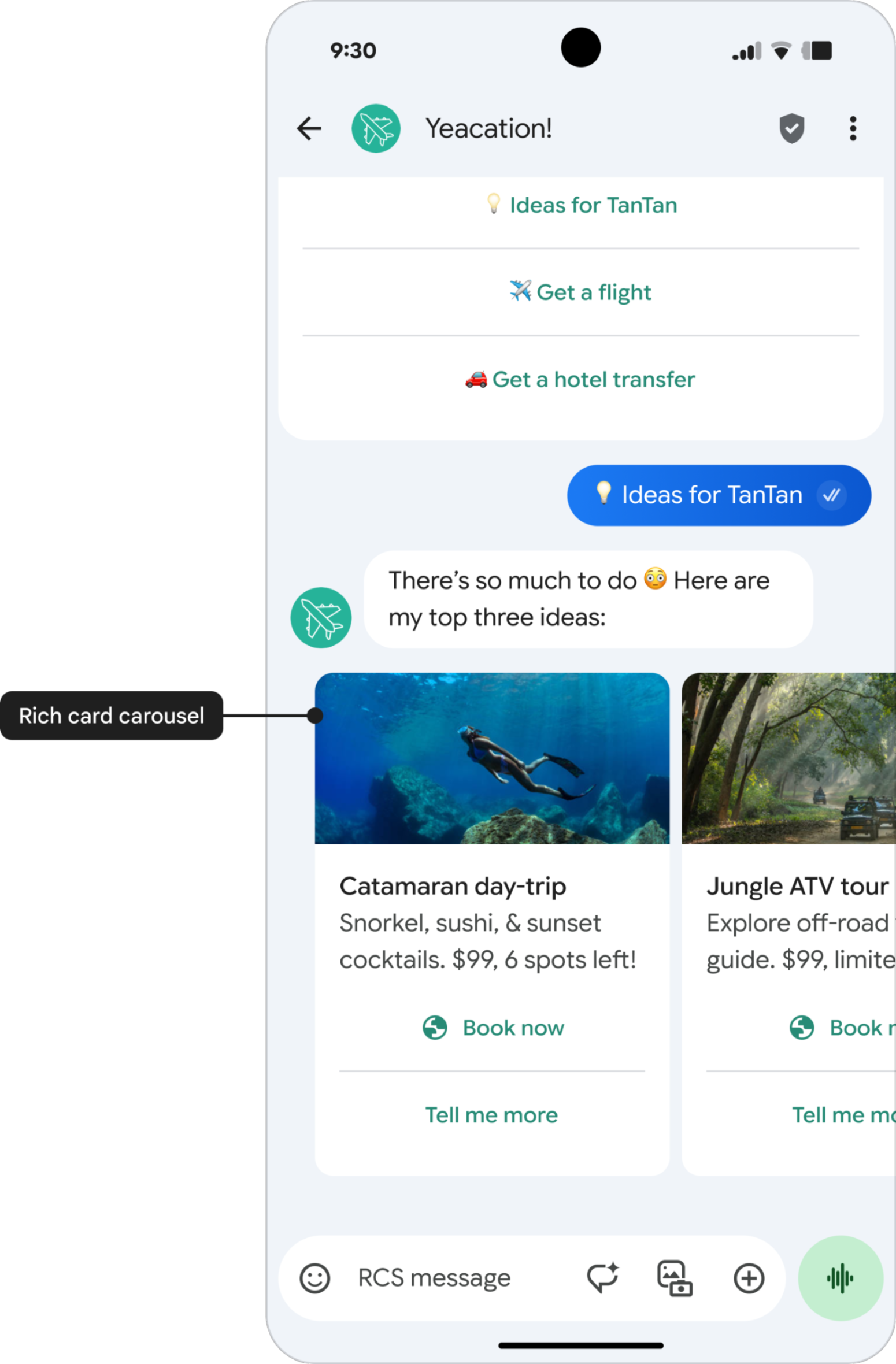
The first item in a carousel should be the optimal choice, and the reason why
should be clear to the user. You can have up to ten cards in a rich card
carousel. Rich card carousels can contain only vertical rich cards.
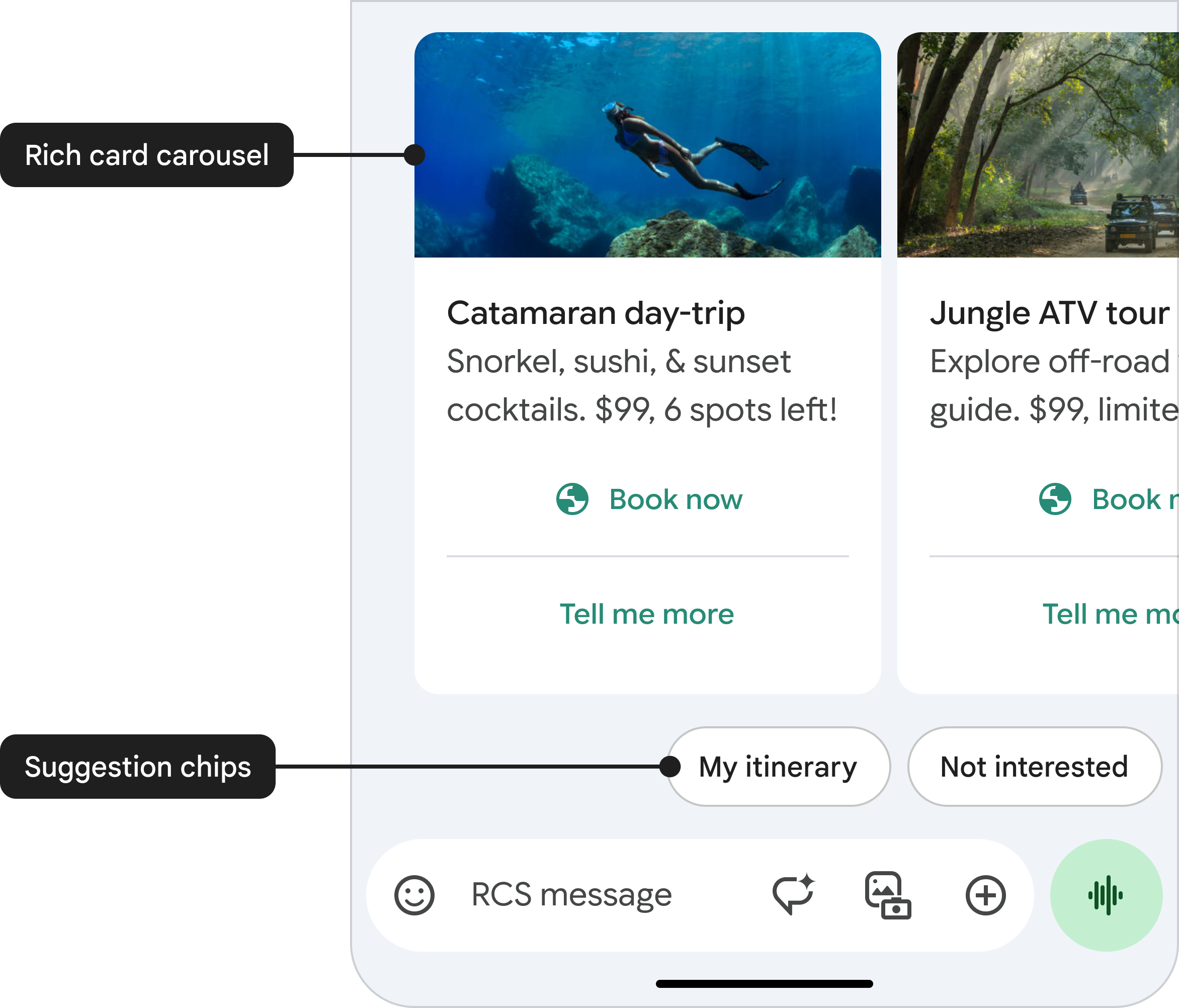
Similar to a standalone rich card message, you can include
[suggestion chips below a carousel](https://developers.google.com/business-communications/rcs-business-messaging/guides/build/messages/send.md.txt#chip-list)
to move the conversation forward. Suggestion chips shouldn't repeat the options
listed within the carousel, and they are not selection tools for the items
presented in the carousel.
### Carousel specifications
> [!NOTE]
> **Note:** This table describes the standard carousel view---in its un-expanded state before any user interaction. For information about the expanded full-screen view, see [Specifications for full-screen view](https://developers.google.com/business-communications/rcs-business-messaging/guides/learn/rich-cards.md.txt#full-screen-specs).
| Specification | Details |
|---|---|
| **Title** | Maximum 200 characters |
| **Description** | Maximum 2000 characters |
| **Height** | • Small carousels: maximum height of 542 DP • Medium carousels: maximum height of 592 DP All cards within a carousel will be scaled to match the height of the tallest card. For details on how content is adjusted to fit this height, see [Content sizing and truncation](https://developers.google.com/business-communications/rcs-business-messaging/guides/learn/rich-cards.md.txt#content-sizing-and-truncation). |
| **Width** | Choose one of the following options: • Small: 180 DP (fixed width) • Medium: 296 DP (fixed width) |
## Content sizing and truncation
If the contents of a rich card carousel aren't large enough to fill
the minimum height, extra whitespace will be added at the bottom. If the
contents exceed the maximum height, they will be truncated in the following
order:
1. Description, reduced to a single line.
2. Title, reduced to a single line.
3. Suggestions, removed entirely.
4. Description, removed entirely.
5. Title, removed entirely.
To solve this truncation issue, so users can always see the full content, RCS
for Business provides an expandable, full-screen view for cards in a carousel.
For more details on this feature, see
[Full-screen view for carousels](https://developers.google.com/business-communications/rcs-business-messaging/guides/learn/rich-cards.md.txt#full-screen-carousels).
## Full-screen view for carousels
To prevent text or suggestions from getting lost in truncation, RCS for Business
provides a full-screen view for rich card carousels. This lets designers use
the full text limits, knowing users can expand the card to see the complete
message.
### Key details for developers
- **No action required:** This feature is enabled automatically for all rich card carousels.
- **Scope:** Applies only to rich card carousels. Standalone rich cards are not affected.
- **Limits:** All existing character and suggestion limits for titles (200), descriptions (2000), and suggestions (4) remain the same.
Your browser does not support the video tag.
### Open and close full-screen view
**To open:** When content on a card is truncated, a **More** button appears at
the end of the visible text. A user can tap anywhere on the card's text area or
on the **More** button to open the full-screen view.
**To close:** Users can exit the full-screen view in the following ways:
1. Tap the **X** button in the top-left corner.
2. Use the system back button or back gesture navigation.
3. Tap a suggestion that continues the conversation.
### Navigation in full-screen view
The full-screen view allows for both vertical scrolling within a card and
horizontal swiping between cards.
- **Vertical scrolling:** If a card's text is still longer than the full-screen view, the text and media area becomes vertically scrollable. The suggestions remain "floating" and always visible at the bottom of the screen.
- **Horizontal swiping:** In full-screen view, users can swipe horizontally to move to the next or previous card in the carousel.
Your browser does not support the video tag.
Vertical scrolling
Your browser does not support the video tag.
Horizontal swiping
### Specifications for full-screen view
When a card is expanded, it uses a standardized full-screen layout.
| Specification | Details |
|---|---|
| **Media height** | 264 DP The media height in full-screen view always uses the Tall media setting. |
| **Media width** | `screenwidth - 32 DP` Media expands to fill the screen width with 16 DP margins on each side. The same central cropping rules apply. |
### How suggestions work in full-screen view
When a user taps a suggestion in full-screen view, the resulting behavior
depends on the suggestion type:
| Suggestion type | Behavior |
|---|---|
| [Open URL action](https://developers.google.com/business-communications/rcs-business-messaging/guides/build/messages/send.md.txt#url) | The URL opens in the default browser or a webview overlay. When the user navigates back to Google Messages, the full-screen view is restored. |
| [Dial](https://developers.google.com/business-communications/rcs-business-messaging/guides/build/messages/send.md.txt#dial), [View Location](https://developers.google.com/business-communications/rcs-business-messaging/guides/build/messages/send.md.txt#view-location), and [Create a Calendar Event](https://developers.google.com/business-communications/rcs-business-messaging/guides/build/messages/send.md.txt#calendar) actions | The corresponding app opens. Upon returning to Google Messages, the full-screen view is restored. |
| [Share Location action](https://developers.google.com/business-communications/rcs-business-messaging/guides/build/messages/send.md.txt#share-location) | The full-screen view closes, and Google Maps opens. After the user sends their location, they automatically return to the standard chat view. |
| [Suggested reply](https://developers.google.com/business-communications/rcs-business-messaging/guides/build/messages/send.md.txt#suggestions) | The full-screen view closes, and the reply is sent in the standard chat view, continuing the conversation. |
## Limits
Rich card titles are limited to 200 characters, whereas descriptions can be
up to 2000 characters. Keep in mind that special characters, such as emoji or
a multi-byte character set, count as 2--4 characters or more.
Media in a rich card or a rich card carousel can have the following height:
- Short: 112 DP
- Medium: 168 DP
- Tall: 264 DP
For all elements (media, titles, descriptions, and buttons) to display
correctly in your rich card or carousel, they must adhere to the specified
character and size limits.
The maximum size of a rich card payload is 250 KB.