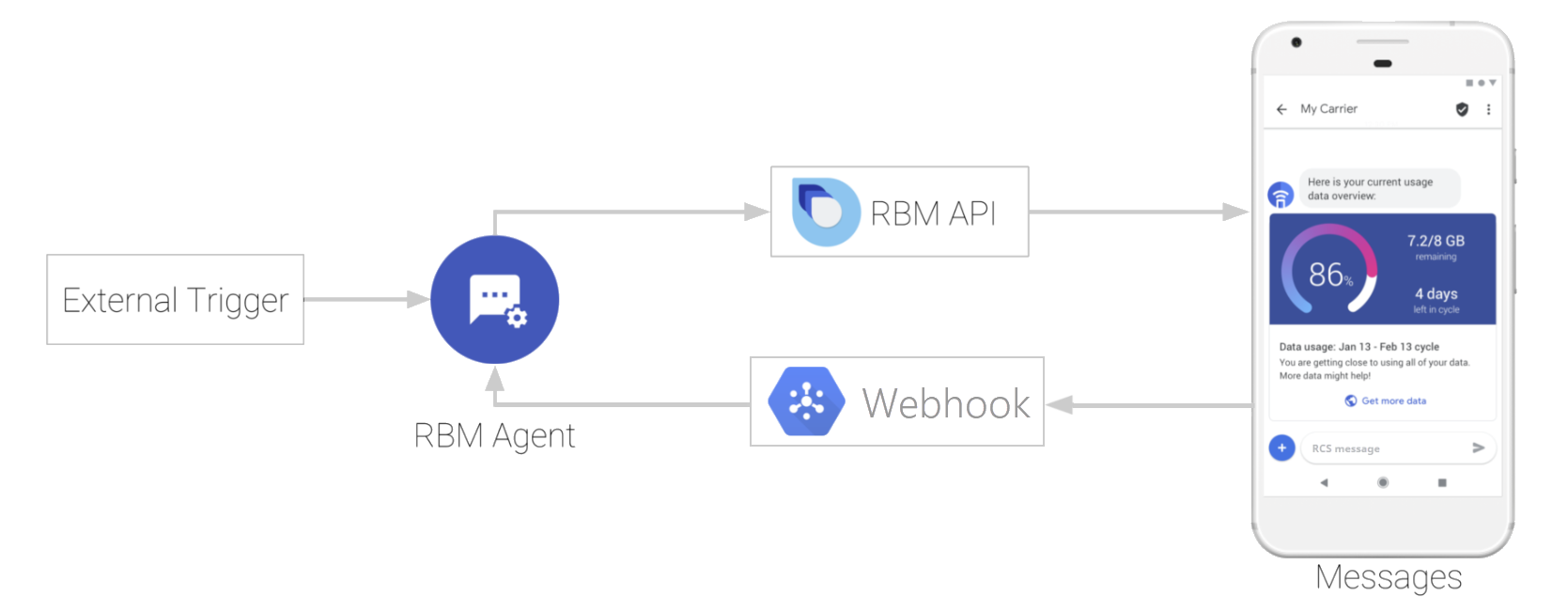
Users interact with
[agents](https://developers.google.com/business-communications/rcs-business-messaging/reference/glossary#agent)
through an RCS-enabled messaging app, such as
[Google Messages](https://messages.google.com/), on their devices.
In this quickstart, you'll create a basic RCS for Business agent that can send a
simple message to a test device and receive a response.
## Prerequisites
Before you get started with your agent, you'll need the following items:
- The name of the brand your agent will represent
- Your agent's
- Name
- [Region where the agent will operate](https://developers.google.com/business-communications/rcs-business-messaging/guides/get-started/first-agent?model=xion#region)
- [Billing category](https://developers.google.com/business-communications/rcs-business-messaging/guides/get-started/first-agent?model=xion#billingCategory)
- [Use case](https://developers.google.com/business-communications/rcs-business-messaging/guides/get-started/first-agent?model=xion#usecase)
- An Android device with an active phone number
- A development machine that can run sample code
## Set up your test device
To communicate with an unlaunched RCS for Business agent, a test device needs to
be RCS-enabled, but not all Android devices can receive RCS messages by default.
You can check the [RCS status](https://developers.google.com/business-communications/rcs-business-messaging/guides/get-started/first-agent#check-rcs) of your device and, if necessary,
[enable RCS](https://developers.google.com/business-communications/rcs-business-messaging/guides/build/test#enable-rcs)
by configuring your device with pre-release versions of the Messages and Carrier
Services apps.
### Check the RCS status of your device
1. In the Messages app, tap the button, then tap **Settings**.
2. Tap **Chat features** , and find the **Status** value.
If **Status** is **Connected**, RCS is active on your device.
### Next steps
If RCS is active on your device, you're ready to [set up your agent](https://developers.google.com/business-communications/rcs-business-messaging/guides/get-started/first-agent#set-up-agent).
If RCS is inactive on your device, you need to
[enable RCS](https://developers.google.com/business-communications/rcs-business-messaging/guides/build/test#enable-rcs)
on your device before you can test your RCS for Business agent.
## Set up your agent
RCS for Business agents use the [RBM API](https://developers.google.com/business-communications/rcs-business-messaging/reference/rest)
to send [messages](https://developers.google.com/business-communications/rcs-business-messaging/guides/build/messages/send),
[events](https://developers.google.com/business-communications/rcs-business-messaging/guides/build/events),
and other requests to users. When you create an agent, you enable access to
the RBM API and define your agent's basic information.
### Identify the agent's region
RCS for Business agents can exist in one of three regions: North America,
Europe, and Asia Pacific. The RBM API supports
[three regional endpoints](https://developers.google.com/business-communications/rcs-business-messaging/guides/learn/best-practices#regional-endpoints)
to help businesses comply with regional and business requirements.
When you create your agent, choose your agent's region based on the applicable
regulations, requirements, and proximity to end users. This region determines
where your agent operates from and where it stores its data.
If you or your intended users don't fit within those regions, choose the region
that is closest to you to minimize latency. For example:
- If you're in Latin America, choose the North America region.
- If you're in Africa, choose the Europe region.
- If you're in Australia, choose the Asia Pacific region.
Don't decide your agent's region based on your target carriers. All regions
have equal access to carriers worldwide.
> [!NOTE]
> **Note:** You can't change your agent's region after you create your agent.
### Determine the agent's billing category
When creating an RCS for Business agent, you need to specify its billing
category based on how the agent will interact with users. Choose the category
that most closely matches your agent's intended behavior:
- **Conversational**: For agents that engage in multi-turn conversations with users.
- **Basic Message or Single Message**: For agents who send messages without expecting frequent replies.
> [!NOTE]
> **Note:** The two non-conversational billing categories, Basic Message and Single Message, work exactly the same way. This is a bit of a historical quirk that we're working to simplify. For now, feel free to use either category for your non-conversational messages --- whether they're plain texts or rich cards. You'll be billed the standard non-conversational rate. For more information, see [Agent billing categories](https://developers.google.com/business-communications/rcs-business-messaging/carriers/billing/reports#agent-billing-categories).
You can only change your agent's billing category before launching it.
If you need to change the billing category after launch,
[contact the RCS for Business support team](https://developers.google.com/business-communications/rcs-business-messaging/support/overview/contact).
For more information about the standard RCS or Business billing model, refer to
the [billing FAQ](https://developers.google.com/business-communications/rcs-business-messaging/carriers/billing/rbm-billing-faq).
### Identify the agent's use case
Each RCS for Business agent is required to have a predefined use case. This
helps categorize your agent and apply the right
[business rules](https://developers.google.com/business-communications/rcs-business-messaging/guides/learn/agent-use-cases#businessrules)
for a good user experience. RCS for Business supports four use cases:
- **OTP**: One-time passwords required to securely authenticate an account or confirm a transaction.
- **Transactional**: Notifications, updates, or alerts that share information directly relevant to a customer's existing services or products, such as alerts for suspicious account activities, purchase confirmations, and shipping notifications.
- **Promotional**: Sales, marketing, and promotional messages to new or existing customers, with the goal of increasing awareness, engagement, and sales.
- **Multi-use**: Conversations that combine transactional and promotional messages, such as sending an account notification followed by a discount offer or upgrading to a new product or service.
Each use case has different rules about what you can send. To learn more about
each use case and find the best fit for your agent, see
[Choose the right use case for your agent](https://developers.google.com/business-communications/rcs-business-messaging/guides/learn/agent-use-cases#choose_the_right_use_case_for_your_agent).
Once you submit your agent for launch, you cannot change the use case. Check
your
[country's use cases and business rules](https://developers.google.com/business-communications/rcs-business-messaging/guides/learn/agent-use-cases#businessrules)
before submitting your agent.
### Create the agent
Follow these instructions to create your agent in the RCS for Business Developer
Console.
> [!NOTE]
> **Note:** To create an agent using the RBM Management API, refer to the [Manage agents](https://developers.google.com/business-communications/rcs-business-messaging/guides/management-api/agents#create_an_agent) documentation.
To create an agent:
1. Go to the [RCS for Business Developer Console](https://business-communications.cloud.google.com/console/partner-console) and sign in with your RCS for Business partner Google Account.
2. On the homepage, click **+ Create agent**.
3. In the **New RCS for Business agent** window, specify the following information:
- Brand that your agent represents
- Agent name
- [Hosting region](https://developers.google.com/business-communications/rcs-business-messaging/guides/get-started/first-agent#region)
- [Billing category](https://developers.google.com/business-communications/rcs-business-messaging/guides/get-started/first-agent#billingCategory)
- [Use case](https://developers.google.com/business-communications/rcs-business-messaging/guides/get-started/first-agent#usecase)
4. Click **Create agent**.
Once your agent is available, you can add business and branding information. See
[Create your agent](https://developers.google.com/business-communications/rcs-business-messaging/guides/build/agents#create).
### Invite your test device
Now that you have an agent and your test device is RCS-enabled, you can invite
your device to test your agent.
1. In the left navigation, click **Devices**.
2. For **Add test devices** , enter your device's phone number and click **Add**.
3. On your test device, accept the tester request for your agent.
If you don't receive an invitation on your test device, verify that
[RCS is enabled](https://developers.google.com/business-communications/rcs-business-messaging/guides/get-started/first-agent#check-rcs) on your device.
### Send a message
With a registered test device, your agent can now
[send messages](https://developers.google.com/business-communications/rcs-business-messaging/guides/build/messages/send).
You need a service account key to securely authenticate API calls. If you
haven't already created a
[service account key for your partner account](https://developers.google.com/business-communications/rcs-business-messaging/guides/get-started/partner-account#authenticate_api_calls),
now is the time to do it.
In a terminal on your development machine, run the following command:
```
curl -X POST "https://REGION-rcsbusinessmessaging.googleapis.com/v1/phones/PHONE_NUMBER/agentMessages?messageId=MESSAGE_ID&agentId=AGENT_ID" \
-H "Content-Type: application/json" \
-H "User-Agent: curl/rcs-business-messaging" \
-H "`oauth2l header --json PATH_TO_SERVICE_ACCOUNT_KEY rcsbusinessmessaging`" \
-d '{
"contentMessage": {
"text": "Hello, world!"
},
"messageTrafficType": "PROMOTION"
}'
```
- Replace REGION with `asia`, `europe`, or `us`, depending on your agent's [region](https://developers.google.com/business-communications/rcs-business-messaging/guides/get-started/first-agent#region).
- Replace PHONE_NUMBER with the phone number of your test device. Include the country code, the area code, and a leading `+`, but don't include separators. For example, `+14155555555`.
- Replace AGENT ID with your agent ID, located on the **Agent information** page in the RCS for Business Developer Console.
- Replace PATH_TO_SERVICE_ACCOUNT_KEY with the path to the [key](https://developers.google.com/business-communications/rcs-business-messaging/guides/get-started/partner-account#set_up_service_account_to_authenticate_api_calls) you created earlier.
You should receive a "Hello, world!" message from your agent on your test
device. If you don't receive a message on your test device, verify that you
correctly entered and formatted the phone number and path to your service
account key in the command.
To send different types of messages, such as suggested replies and rich cards,
see [Send messages](https://developers.google.com/business-communications/rcs-business-messaging/guides/build/messages/send).
## Next steps
Now that your agent can send messages to a test device, it's time to build
something that suits your business needs. Get a [sample agent](https://developers.google.com/business-communications/rcs-business-messaging/samples)
in your preferred language and follow the instructions in the sample's README.
Once you have the sample agent configured, review RCS for Business's
[best practices](https://developers.google.com/business-communications/rcs-business-messaging/guides/learn/best-practices)
and learn how agents [send](https://developers.google.com/business-communications/rcs-business-messaging/guides/build/messages/send)
and [receive](https://developers.google.com/business-communications/rcs-business-messaging/guides/build/messages/receive)
messages.