Once you've created an agent, you'll need to define the agent information. This
is required before you can submit the agent for verification and launch. You can
define and edit the agent information using the
[API](https://developers.google.com/business-communications/rcs-business-messaging/guides/management-api/agents#create_an_agent)
or the [RCS for Business Developer Console](https://business-communications.cloud.google.com/console/partner-console).
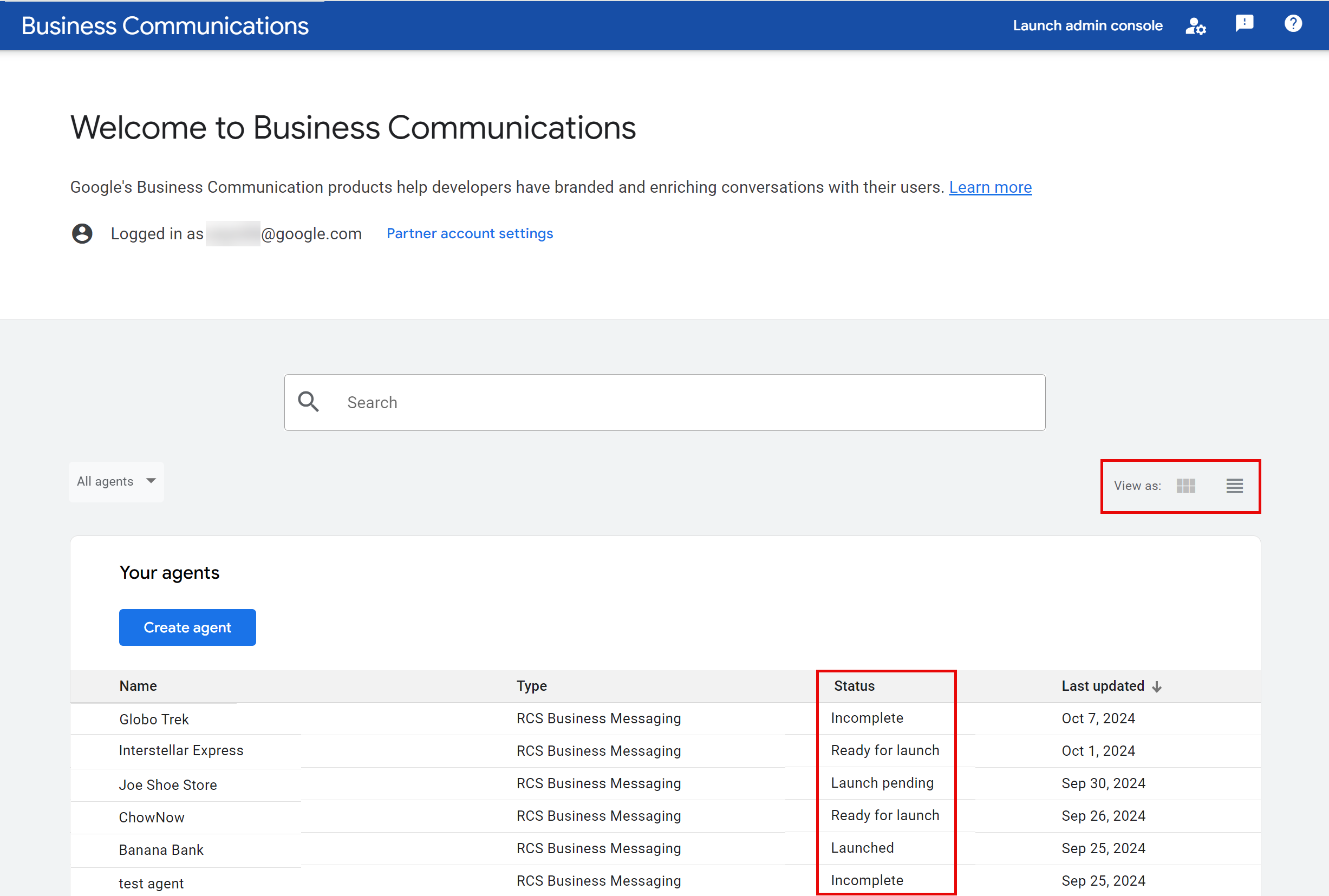
If you switch to the tile view in the Console, you'll see the status of the
agent.
> [!TIP]
> **Tip:** For the most recent change to the agent's launch status, check **Overview** . For a detailed list of changes to the agent's launch status across all relevant carriers, see **Agent history**.
- **Incomplete**: The agent has been created, and the initial details like brand name, agent name, hosting region, billing category, and use case have been provided. However, additional information is still needed for launch.
- **Ready for launch**: All agent and verification details have been provided, but the launch questionnaire and/or carrier selection is pending.
- **Launch pending**: The agent has been submitted for launch and is awaiting final approval.
- **Launched**: The agent is launched on at least one carrier.
You cannot edit agent information after your agent's
[verification information](https://developers.google.com/business-communications/rcs-business-messaging/guides/launch/brand-verification#submit-verification-information)
is submitted. See
[Verify and launch your agent](https://developers.google.com/business-communications/rcs-business-messaging/guides/launch)
for more information.
## Edit your agent's information
The following steps describe how you can edit your agent's information in the
[RCS for Business Developer Console](https://business-communications.cloud.google.com/console/partner-console).
You can also edit an agent with the
[RBM Management API](https://developers.google.com/business-communications/rcs-business-messaging/guides/management-api/agents#create_an_agent).
1. Go to the [RCS for Business Developer Console](https://business-communications.cloud.google.com/console/partner-console) and sign in with your partner Google Account.
2. On the homepage, select your agent from the list.
3. On the sidebar, select **Agent information**.
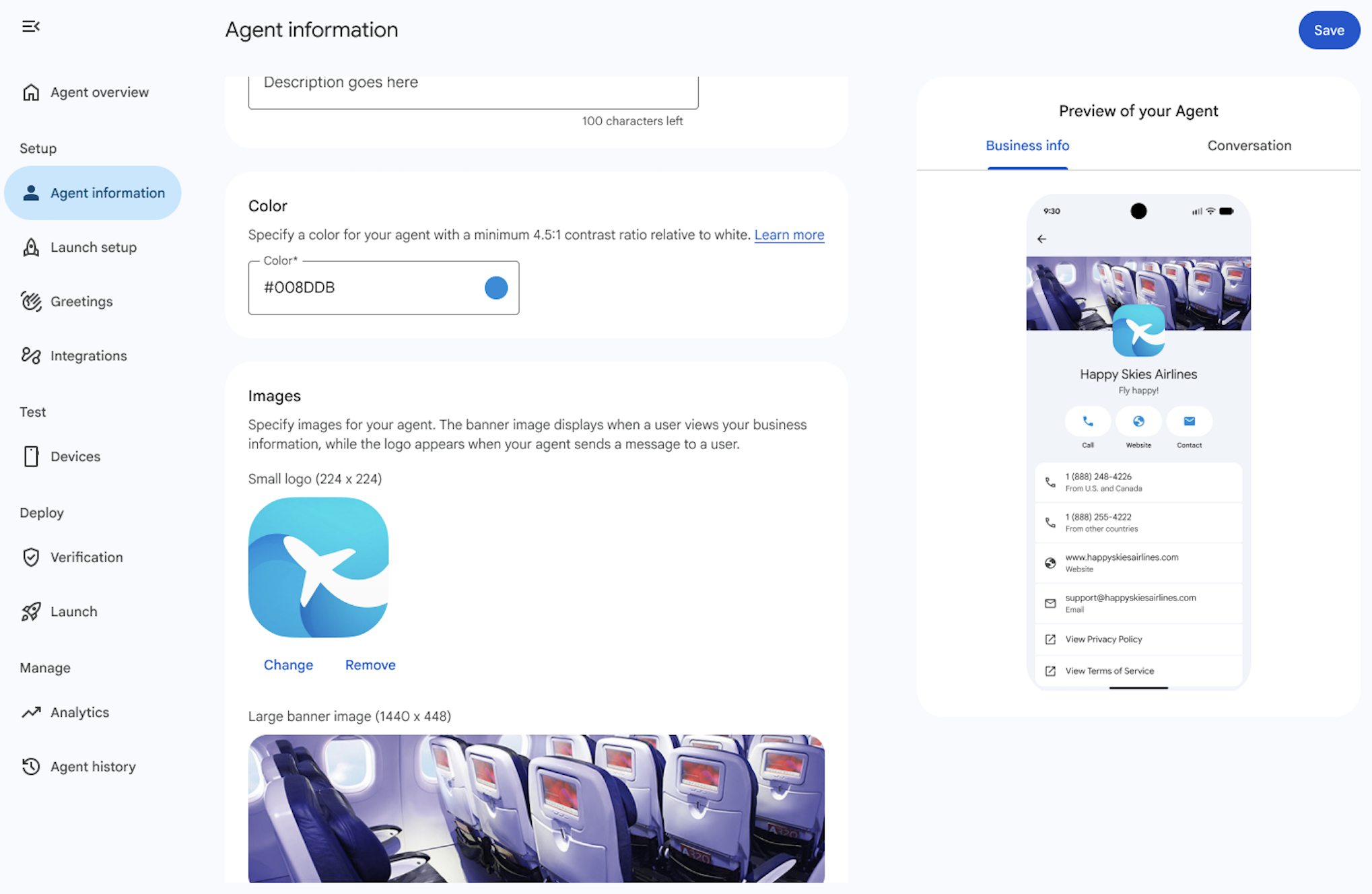
4. Provide the following information for your agent. As you enter the
information, **Agent Preview** updates automatically.
|---|---|---|
| **Field** | **Description** | **Details** |
| Display name | Name that is displayed to users when they interact with your agent. Typically, this is the brand name. | |
| Description | Brief description or tagline of the brand. | The following list of content is not allowed: - Script content - JSON - HTML - Escapes such as `%2e|%2f|%5c|%25` - Templates - OS paths - Unix commands - Nested scopes such as `{This is outer content (This is inner content)}` or `([another example {nested}])` |
| Color | Color of certain elements displayed above the phone number. Use this to match your brand colors. | A minimum 4.5:1 contrast ratio to white (for example, #E91B0C). For more details, see [Check the contrast ratio](https://developers.google.com/business-communications/rcs-business-messaging/guides/build/agents/edit-agent-information#contrast-ratio). |
| Images | Images for your agent. The banner image displays when a user views your business information, while the logo appears when your agent sends a message to a user. | **Banner image**: 1440x448 px. **Logo** : 224x224 px. Logos display as rounded squares throughout Google Messages. To check if your logo displays well as a rounded square, use the [Logo preview tool](https://developers.google.com/business-communications/rcs-business-messaging/guides/build/agents/edit-agent-information#resources). You can remove the publicly accessible URLs for your images after updating your agent, as a copy will be saved during the agent update process. |
| Contact | Primary phone number that your users can reach out to in case of queries. | Required if email and website are not provided. Phone numbers should ideally be in E.164 format (`+ [country code][subscriber number]`). For local and toll-free numbers, an unformatted string excluding "+", prefix, country code, and special characters (for example, 5554443333) is also accepted and will be internally converted to E.164. However, if your agent's phone number cannot be expressed in standard E.164 format (for example, certain 1800 toll-free numbers in India), please enter a placeholder and [contact the RCS for Business support team](https://developers.google.com/business-communications/rcs-business-messaging/support/overview/contact) for manual processing. To add multiple phone numbers, click **+ Add phone number**. |
| Contact | Label for primary phone number | For example, Customer care number Custom labels are displayed only in Google Messages. See the [note on custom labels](https://developers.google.com/business-communications/rcs-business-messaging/guides/build/agents/edit-agent-information#custom-labels). |
| Contact | Primary website | Required if phone number and email are not provided. To add multiple websites, click **+ Add website**. |
| Contact | Label for primary website | For example, ABC website Custom labels are displayed only in Google Messages. See the [note on custom labels](https://developers.google.com/business-communications/rcs-business-messaging/guides/build/agents/edit-agent-information#custom-labels). |
| Contact | Primary email | Required if phone number and website are not provided. Verify that the email is an individual address, and that the person is part of the brand organization. To add multiple emails, click **+ Add email**. |
| Contact | Label for primary email | For example, Customer care email Custom labels are displayed only in Google Messages. See the [note on custom labels](https://developers.google.com/business-communications/rcs-business-messaging/guides/build/agents/edit-agent-information#custom-labels). |
| Privacy and terms of service | Your Privacy Policy and Terms of Service URLs. | Required for launching your agent on RBM. Verify you've provided valid links for both your Terms of Service and Privacy Policy. |
> [!IMPORTANT]
> **Important:** For Google-managed launches, the agent can't be submitted for launch until a **Primary phone number** , **Primary website** , or **Primary
> email** has been provided. While only one is required for submission, we recommend providing all three for the best user experience. Be sure to verify with your launch carriers if they require multiple contact details.
> [!WARNING]
> **Warning:** Custom labels for the primary phone number, primary website, and primary email are used only by Google Messages. Other RCS clients might not display custom labels and show a default label instead (for example, "Website"). To provide a consistent experience across devices, use the default labels.
5. Click **Save**.
The **Overview** and **Agent information** pages preview how your agent appears
in the Messages app.
### Check the contrast ratio
Contrast ratio is a comparison of the contrast and ease of distinguishing
between two colors. A high contrast ratio between two colors, such as between a
background and text, increases readability in bad lighting and for people
with accessibility considerations.
[WCAG 2.0](https://www.w3.org/TR/WCAG/#contrast-minimum) defines 4.5:1 as a
minimum contrast ratio for text.
You can verify that the agent color you identified has at least a 4.5:1 contrast
ratio to white using online tools like the
[WebAIM Contrast Checker](https://webaim.org/resources/contrastchecker/).
### Format and crop your logo
A visually appealing logo and hero image can significantly boost your agent's
credibility and engagement with users. Verify that your logo is well-formatted
and cropped to maintain a professional appearance. Follow these tips to create
a good looking logo:
- **Logo**:
- Remember that logos are cropped into rounded squares, even if the original image is rectangular. So, always [check how your logo appears](https://developers.google.com/business-communications/rcs-business-messaging/guides/build/agents/edit-agent-information#resources) when cropped into a rounded square.
- You don't need to worry about the border around logos, it won't overlap the logo itself.
- **Hero images**:
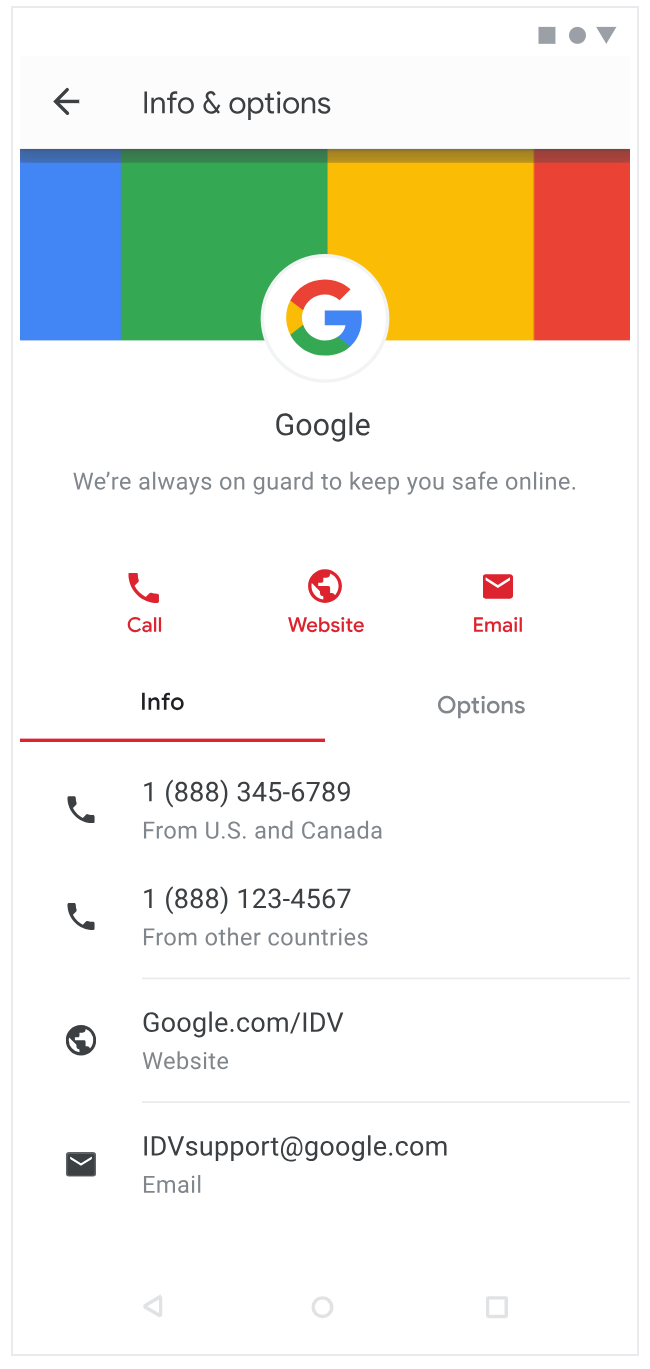
- Remember that hero images, displayed in the agent's **Info \& options** screen, partially overlap with the logo, so design accordingly for a visually pleasing result.
- Create hero images with a 45:14 aspect ratio so they display correctly alongside the logo.
#### Logo tips
- Leave sufficient space in your image to account for cropping. When a logo
takes up the entire height and width of the image, parts of the logo often get
cropped out.
| Practice | Good example | Bad example |
|---|---|---|
| Spacing logo |  |  |
| Cropping logo in mock | 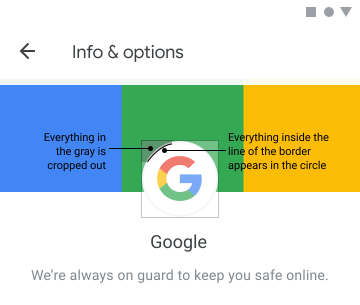 |  |
- Space your logo equidistant from all sides of the image to make sure it
displays properly and fully.
| Practice | Good example |
|---|---|
| Logo with equal measurements from image borders | 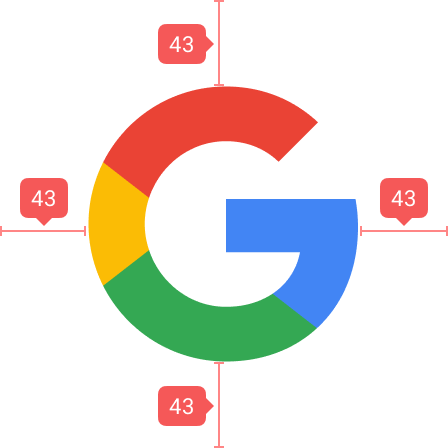 |
- Use a 45:14 aspect ratio for hero images, and keep in mind that the logo
partially overlaps the hero image.
| Practice | Good example | Bad example |
|---|---|---|
| Using 45:14 aspect ratio for hero images |  |   |
- If a hero image doesn't match the correct aspect ratio, parts of the hero
image get cropped out. The result is an image that doesn't look good or
represent your agent well.
| Practice | Good example | Bad example |
|---|---|---|
| Cropping hero image in mock | 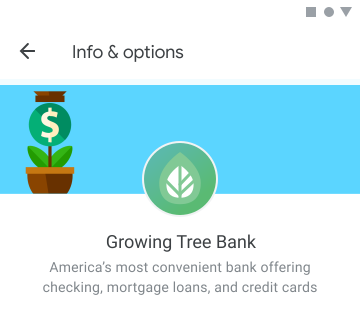 | 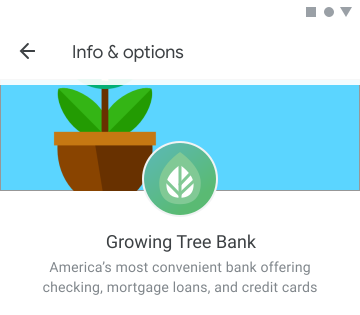 |
- Avoid images with transparencies. Logos without sufficient contrast blend into
dark mode backgrounds and suffer reduced visibility. If a transparent
background doesn't suit your logo, use a white background.
| Practice | Good example | Bad example |
|---|---|---|
| Encounting dark mode | 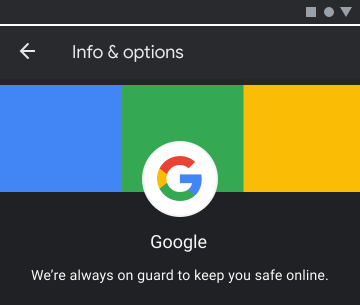 | 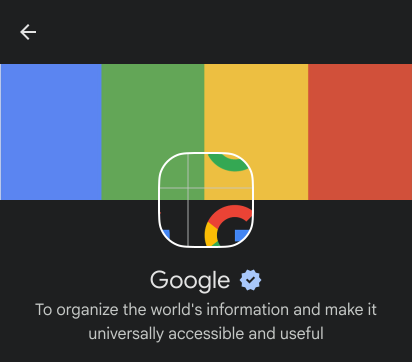 |
#### Resources
Use the following resources to help you design your logo or troubleshoot issues.
- **Logo template** as a base for agent logos you create.
Download:
[\[PNG\]](https://developers.google.com/static/business-communications/images/logo-guidelines/template-logo.png)
[\[SVG\]](https://developers.google.com/static/business-communications/images/logo-guidelines/template-logo.svg)

- **Rectangle hero image template** as a base for agent hero images you
create.
Download:
[\[PNG\]](https://developers.google.com/static/business-communications/images/logo-guidelines/template-hero-rectangle.png)
[\[SVG\]](https://developers.google.com/static/business-communications/images/logo-guidelines/template-hero-rectangle.svg)

- **Logo preview tool**.
Enter a URL for your logo to see how it would look to users.
> [!NOTE]
> **Note**: The web server hosting the image must allow images to be embedded on other websites.
### Edit your agent's details for launched agents
Each carrier is responsible for approving the agents that are live on their
network. After initial approval, carriers also need to sign off on any later
changes to the agent, including their information and account ownership. Be
aware that some changes may affect the carrier's billing reports, so sufficient
lead time is necessary for carriers to update their billing systems.
After the agent has been launched on any carrier-managed networks, RBM partners
can request updates to their agent details by following the
[RBM Troubleshooting guide](https://developers.google.com/business-communications/rcs-business-messaging/support/overview/troubleshooting#request_to_update_agent_details).
## Next steps
Now that you've specified the agent information, you can invite
[test devices](https://developers.google.com/business-communications/rcs-business-messaging/guides/build/test),
[send messages](https://developers.google.com/business-communications/rcs-business-messaging/guides/build/messages/send),
make other calls from the [API reference](https://developers.google.com/business-communications/rcs-business-messaging/reference/rest),
or use a [sample agent](https://developers.google.com/business-communications/rcs-business-messaging/samples).
For security reasons, you can't delete an RBM agent. Contact
[RBM Support](mailto:rbm-support@google.com) for assistance.