> [!NOTE]
> Choose whether to manage agents with the Business Communications [Developer
> Console](https://business-communications.cloud.google.com?utm_source=/business-communications/business-messages/guides/how-to/message/surveys&utm_medium=devsite&utm_campaign=business-messages) or [API](https://developers.google.com/business-communications/business-messages/reference/business-communications/rest).
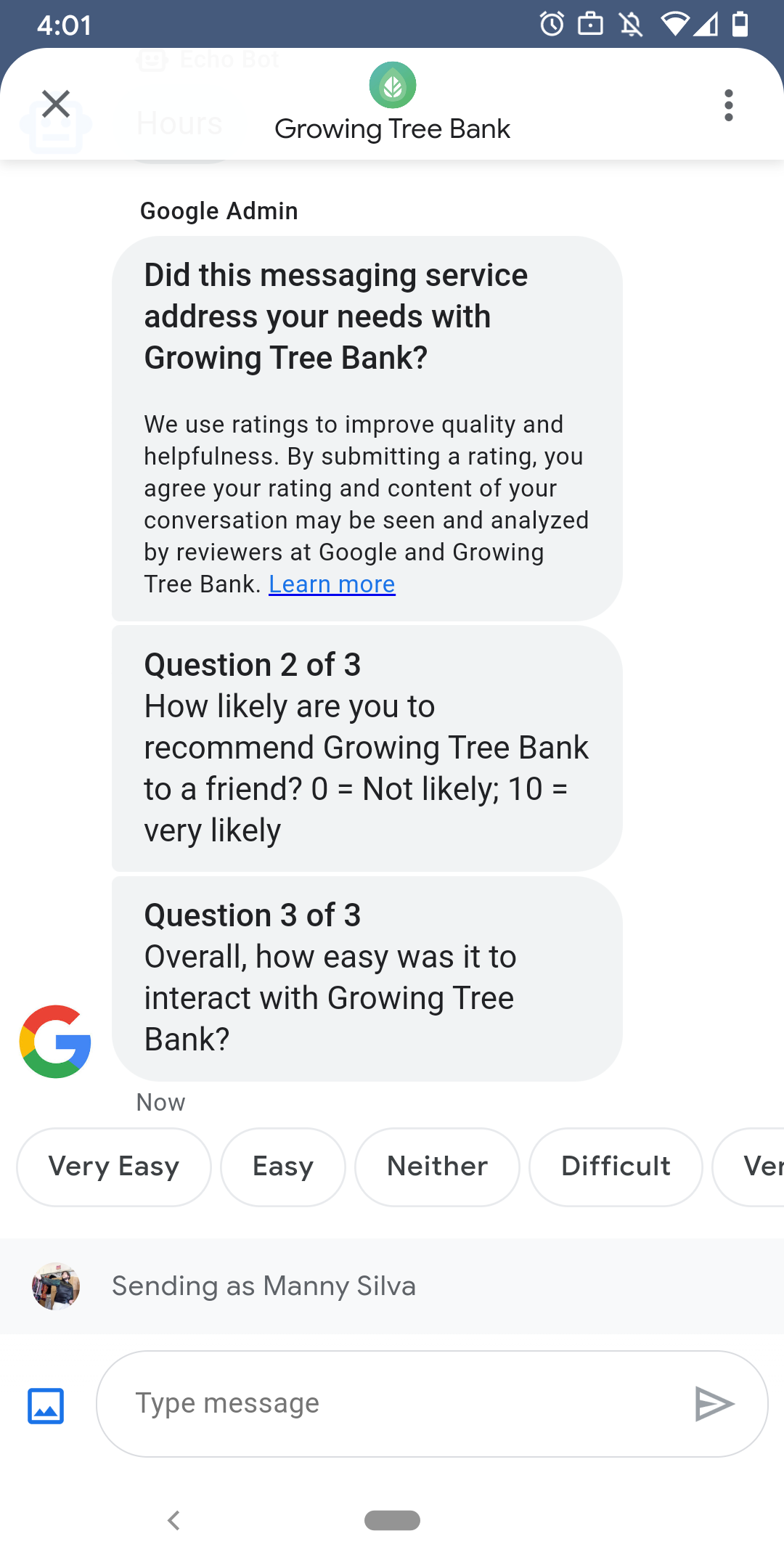
To make sure that users have satisfying interactions with your agent, Google
sends surveys to users after they've finished conversations with your agent. If
you want to collect data with different timing, such as at the end of
a conversation, you can [send surveys](https://developers.google.com/business-communications/business-messages/guides/how-to/message/surveys#send) within the context of a
conversation. Surveys display in the conversation and allow users to provide
feedback with a variety of options depending on the question.
The timing of Google-triggered surveys depends on the agent's [messaging
availability](https://developers.google.com/business-communications/business-messages/guides/how-to/agents/availability):
| Availability | Survey timing |
|---|---|
| Bot-only | 30 minutes after the last message |
| Human-only | 24 business hours after the last message |
| Bot and human | 24 business hours after the last message |
If there are \< 24 business hours in next 7 days, we use 24 hours instead.
You can send one survey per conversation every 24 hours. If you send a survey in
a conversation before Google, Google doesn't send a survey to that conversation.
If your agent sends multiple surveys in the same conversation within 24 hours,
Business Messages only attempts to send the first survey to the user.
The next time a user begins a conversation with your agent after completing a
survey, the agent displays a [greeting](https://developers.google.com/business-communications/business-messages/guides/how-to/agents/begin-conversation#greetings).
If a user doesn't respond to a survey, the survey expires after 7 days, and the
user sees a greeting in their next conversation after the survey expiration.
If a user sends a message unrelated to a survey while a survey is active in the
conversation, Business Messages cancels the survey and sends the user's message
to the agent's webhook.
If you don't send surveys to users, your agent still [receives](https://developers.google.com/business-communications/business-messages/guides/how-to/message/surveys#receive)
the results of Google's surveys at your webhook and should accept and process
them accordingly.
> [!NOTE]
> **Note:** Google doesn't automatically send surveys in conversations started from the Business Messages [widget](https://developers.google.com/business-communications/business-messages/guides/how-to/integrate/web-widget) or the [URL entry
> point](https://developers.google.com/business-communications/business-messages/guides/how-to/integrate/url). You must send surveys to collect survey data from these entry points.
## Questions
Surveys can include up to five questions, split into three categories:
[required](https://developers.google.com/business-communications/business-messages/guides/how-to/message/surveys#required), [template](https://developers.google.com/business-communications/business-messages/guides/how-to/message/surveys#template), and [custom](https://developers.google.com/business-communications/business-messages/guides/how-to/message/surveys#custom). A survey
always includes the required question, then displays up to two template
questions, and then displays up to two custom questions.
### Required question
The required question is localized across all locales that Business Messages
supports. Users can respond with a thumbs up or thumbs down.
The required question: "Did this messaging service address your needs with
AGENT_NAME?"
### Template questions
Template questions are optional, Google-defined questions that are localized
across all locales that Business Messages supports. A survey can include up to
two template questions. User response formats vary by question.
Template questions include
- How was your experience messaging AGENT_NAME?
- How likely are you to recommend AGENT_NAME to a friend?
- The next time you contact AGENT_NAME, how likely are you to choose messaging?
- Overall, how easy was it to interact with AGENT_NAME?
- To what extent do you agree or disagree with the following statement: AGENT_NAME made it easy for me to handle my issue.
- Please rate your overall satisfaction with the support associate.
- Did this chat session help you avoid a call to AGENT_NAME?
To see a list of all available template questions and get template IDs,
1. Open the [Business Communications Developer
Console](https://business-communications.cloud.google.com?utm_source=/business-communications/business-messages/guides/how-to/message/surveys&utm_medium=devsite&utm_campaign=business-messages) and sign in with your Business Messages Google account.
2. Choose your agent.
3. In the left navigation, click **Survey**.
### Custom questions
A survey can include up to two custom questions. If you specify a custom
question, include versions of the question for each
[locale](https://developers.google.com/business-communications/business-messages/guides/how-to/agents/localization)
that your agent supports. You must specify a version of each question for your
default locale. If a user receives a survey but is in a locale that doesn't have
a specified version of a custom question, the question displays as it's defined
in the agent's default locale.
Responses to custom questions support separate text and postback data, similar
to [suggested
replies](https://developers.google.com/business-communications/business-messages/guides/how-to/message/send#suggested_replies).
## Customize a survey
To customize the survey for an agent,
1. Open the [Business Communications Developer
Console](https://business-communications.cloud.google.com?utm_source=/business-communications/business-messages/guides/how-to/message/surveys&utm_medium=devsite&utm_campaign=business-messages) and sign in with your Business Messages Google account.
2. Choose your agent.
3. In the left navigation, click **Survey**.
4. Add up to two available template questions to the survey.
5. Click **Create a custom question** to add custom questions to your survey.
For formatting and value options, see
[`surveyConfig`](https://developers.google.com/business-communications/business-messages/reference/business-communications/rest/v1/brands.agents#surveyconfig).
## Send a survey
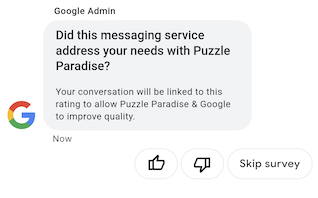
To send a survey, run the following command. Replace CONVERSATION_ID
with the identifier of the conversation you want to send the survey to and
SURVEY_ID with a unique identifier for the survey.
### cURL
```console
# Copyright 2021 Google LLC
#
# Licensed under the Apache License, Version 2.0 (the "License");
# you may not use this file except in compliance with the License.
# You may obtain a copy of the License at
# https://www.apache.org/licenses/LICENSE-2.0
# Unless required by applicable law or agreed to in writing, software
# distributed under the License is distributed on an "AS IS" BASIS,
# WITHOUT WARRANTIES OR CONDITIONS OF ANY KIND, either express or implied.
# See the License for the specific language governing permissions and
# limitations under the License.
# This code sends a survey to the user:
# Read more: https://developers.google.com/business-communications/business-messages/guides/how-to/message/surveys?hl=en
# Replace the __CONVERSATION_ID__ with a conversation id that you can send messages to
# Make sure a service account key file exists at ./service_account_key.json
curl -X POST "https://businessmessages.googleapis.com/v1/conversations/__CONVERSATION_ID__/surveys?surveyId=f4bd7576-6c2e-4674-9db4-d697166f63ce" \
-H "Content-Type: application/json" \
-H "User-Agent: curl/business-messages" \
-H "$(oauth2l header --json ./service_account_key.json businessmessages)"
```
### Node.js
```javascript
/**
* This code sends a survey to the user:
* Read more: https://developers.google.com/business-communications/business-messages/guides/how-to/message/surveys?hl=en
*
* This code is based on the https://github.com/google-business-communications/nodejs-businessmessages Node.js
* Business Messages client library.
*/
/**
* Edit the values below:
*/
const PATH_TO_SERVICE_ACCOUNT_KEY = './service_account_key.json';
const CONVERSATION_ID = 'EDIT_HERE';
const businessmessages = require('businessmessages');
const uuidv4 = require('uuid').v4;
const {google} = require('googleapis');
// Initialize the Business Messages API
const bmApi = new businessmessages.businessmessages_v1.Businessmessages({});
// Set the scope that we need for the Business Messages API
const scopes = [
'https://www.googleapis.com/auth/businessmessages',
];
// Set the private key to the service account file
const privatekey = require(PATH_TO_SERVICE_ACCOUNT_KEY);
/**
* Posts a survey to the Business Messages API.
*
* @param {string} conversationId The unique id for this user and agent.
*/
async function sendSurvey(conversationId) {
const authClient = await initCredentials();
// Create the payload for creating a new survey
const apiParams = {
auth: authClient,
parent: 'conversations/' + conversationId,
surveyId: uuidv4(),
resource: {}
};
// Call the message create function using the
// Business Messages client library
bmApi.conversations.surveys.create(apiParams,
{auth: authClient}, (err, response) => {
console.log(err);
console.log(response);
});
}
/**
* Initializes the Google credentials for calling the
* Business Messages API.
*/
async function initCredentials() {
// configure a JWT auth client
const authClient = new google.auth.JWT(
privatekey.client_email,
null,
privatekey.private_key,
scopes,
);
return new Promise(function(resolve, reject) {
// authenticate request
authClient.authorize(function(err, tokens) {
if (err) {
reject(false);
} else {
resolve(authClient);
}
});
});
}
sendSurvey(CONVERSATION_ID);
```
### Java
```java
import com.google.api.client.googleapis.services.AbstractGoogleClientRequest;
import com.google.api.client.http.HttpBackOffUnsuccessfulResponseHandler;
import com.google.api.client.http.HttpRequest;
import com.google.api.client.googleapis.auth.oauth2.GoogleCredential;
import com.google.api.client.googleapis.javanet.GoogleNetHttpTransport;
import com.google.api.client.http.HttpTransport;
import com.google.api.client.json.jackson2.JacksonFactory;
import com.google.api.client.util.ExponentialBackOff;
import com.google.api.services.businessmessages.v1.Businessmessages;
import com.google.api.services.businessmessages.v1.model.*;
import java.io.FileInputStream;
import java.util.Arrays;
import java.util.UUID;
class SendSurveySnippet {
/**
* Initializes credentials used by the Business Messages API.
*/
private static Businessmessages.Builder getBusinessMessagesBuilder() {
Businessmessages.Builder builder = null;
try {
GoogleCredential credential = GoogleCredential
.fromStream(new FileInputStream("PATH_TO_SERVICE_ACCOUNT_KEY"));
credential = credential.createScoped(Arrays.asList(
"https://www.googleapis.com/auth/businessmessages"));
credential.refreshToken();
HttpTransport httpTransport = GoogleNetHttpTransport.newTrustedTransport();
JacksonFactory jsonFactory = JacksonFactory.getDefaultInstance();
// Create instance of the Business Messages API
builder = new Businessmessages
.Builder(httpTransport, jsonFactory, null)
.setApplicationName("Sample Application");
// Set the API credentials and endpoint
builder.setHttpRequestInitializer(credential);
} catch (Exception e) {
e.printStackTrace();
}
return builder;
}
public static void main(String args[]) {
try {
String conversationId = "CONVERSATION_ID";
// Create client library reference
Businessmessages.Builder builder = getBusinessMessagesBuilder();
// Create a new survey to send to the user associated with the conversationId
Businessmessages.Conversations.Surveys.Create request
= bmBuilder.build().conversations().surveys()
.create("conversations/" + conversationId,
new BusinessMessagesSurvey());
request.setSurveyId(UUID.randomUUID().toString());
// Setup retries with exponential backoff
HttpRequest httpRequest =
((AbstractGoogleClientRequest) request).buildHttpRequest();
httpRequest.setUnsuccessfulResponseHandler(new
HttpBackOffUnsuccessfulResponseHandler(
new ExponentialBackOff()));
// Execute request
httpRequest.execute();
} catch (Exception e) {
e.printStackTrace();
}
}
}
```
### Python
```python
"""This code sends a survey to the user.
Read more: https://developers.google.com/business-communications/business-messages/guides/how-to/message/surveys?hl=en
This code is based on the https://github.com/google-business-communications/python-businessmessages
Python Business Messages client library.
"""
import uuid
from businessmessages import businessmessages_v1_client as bm_client
from businessmessages.businessmessages_v1_messages import BusinessmessagesConversationsSurveysCreateRequest
from businessmessages.businessmessages_v1_messages import BusinessMessagesSurvey
from oauth2client.service_account import ServiceAccountCredentials
# Edit the values below:
path_to_service_account_key = './service_account_key.json'
conversation_id = 'EDIT_HERE'
credentials = ServiceAccountCredentials.from_json_keyfile_name(
path_to_service_account_key,
scopes=['https://www.googleapis.com/auth/businessmessages'])
client = bm_client.BusinessmessagesV1(credentials=credentials)
# Create the survey request
survey_request = BusinessmessagesConversationsSurveysCreateRequest(
surveyId=str(uuid.uuid4().int),
parent='conversations/' + conversation_id,
businessMessagesSurvey=BusinessMessagesSurvey())
# Send the survey
bm_client.BusinessmessagesV1.ConversationsSurveysService(
client=client).Create(request=survey_request)
```
For formatting and value options, see
[`conversations.surveys`](https://developers.google.com/business-communications/business-messages/reference/rest/v1/conversations.surveys).
## Receive survey responses
When a user responds to a question in a survey, your agent receives the response
at its webhook. Receive and process survey responses the same way you [receive
messages](https://developers.google.com/business-communications/business-messages/guides/how-to/message/receive).
All questions in a survey have the same `surveyResponse.survey` value. If
your survey includes multiple questions, make sure your infrastructure accepts
multiple responses with the same `surveyResponse.survey` value and identifies
individual questions by the `surveyResponse.surveyQuestionId` field.
Text values for survey responses appear in
`surveyResponse.questionResponseText`. For required and template questions,
Business Messages returns a thumbs up response as `VERY_SATISFIED` and a thumbs
down response as `VERY_DISSATISFIED`. If a custom question response includes an
emoji, it's a best practice to rely on the
`surveyResponse.questionResponsePostbackData` rather than try to parse the
Unicode value.
> [!CAUTION]
> **Caution:** `surveyResponse.rating` is deprecated. Use `surveyResponse.questionResponseText` instead.
Survey responses have the following format.
```
{
"agent": "brands/BRAND_ID/agents/AGENT_ID",
"sendTime": "SEND_TIME",
"conversationId": "CONVERSATION_ID",
"requestId": "REQUEST_ID",
"surveyResponse": {
"survey": "conversations/CONVERSATION_ID/surveys/SURVEY_ID",
"rating": "SURVEY_RATING",
"createTime": "CREATE_TIME",
"surveyQuestionId": "QUESTION_ID",
"questionResponseText": "RESPONSE_TEXT",
"questionResponsePostbackData": "RESPONSE_POSTBACK_DATA",
"questionType": "QUESTION_TYPE",
"questionIndex": QUESTION_INDEX,
"totalQuestionCount": TOTAL_QUESTION_COUNT,
"surveyTriggerSource": "TRIGGER_SOURCE"
}
}
```
For formatting and value options, see
[`UserMessage`](https://developers.google.com/business-communications/business-messages/reference/rest/v1/UserMessage)
and
[`SurveyResponse`](https://developers.google.com/business-communications/business-messages/reference/rest/v1/SurveyResponse).