> [!IMPORTANT]
> **Key Point:** This document will give you the information and context necessary for doing the initial setup of your Ads Data Hub account. This guide assumes that you are the owner of both the Ads Data Hub account and the Google ad platform accounts that you'll be linking. If you're working with an [Ads Data Hub vendor](https://developers.google.com/ads-data-hub/marketers/resources/adh-vendors), contact the vendor to learn about their integration process.
## Ads Data Hub account setup overview
This overview provides a high-level summary of the steps required to set up an
Ads Data Hub account:
1. **[Determine your account structure](https://developers.google.com/ads-data-hub/marketers/guides/account-setup#structure_account):** Choose between a [single-tier account](https://developers.google.com/ads-data-hub/marketers/guides/account-setup#single-tier_account) (recommended for most organizations) or a [dual-tier account](https://developers.google.com/ads-data-hub/marketers/guides/account-setup#dual-tier_account) for complex multi-advertiser structures.
2. **[Configure your Google Cloud
project(s)](https://developers.google.com/ads-data-hub/marketers/guides/account-setup#configure_your_google_cloud_projects):** Designate a Google Cloud project as your admin project, enable the Ads Data Hub API (`adsdatahub.googleapis.com`) and BigQuery API (`bigquery.googleapis.com`), create a BigQuery dataset, and grant the Ads Data Hub service account (a Google Cloud Per-Product, Per-Project Service Agent, or P4SA) permission to read and write to your dataset(s).
3. **[Provision user access](https://developers.google.com/ads-data-hub/marketers/guides/account-setup#provision_user_access):** Assign [user access roles](https://developers.google.com/ads-data-hub/marketers/guides/assign-access-by-role) to users in your Ads Data Hub account and configure BigQuery IAM permissions.
4. **[Link data to your Ads Data Hub account](https://developers.google.com/ads-data-hub/marketers/guides/account-setup#link_data):** Connect your Google ad platform accounts by [linking accounts in Ads Data Hub](https://developers.google.com/ads-data-hub/marketers/guides/link-accounts).
### Setup paths: Account setup wizard and manual configuration
For Ads Data Hub for Marketers, initial setup follows four stages, with two
paths for configuring Google Cloud resources (the required setup wizard or
manual configuration):
1. **Before creation (Step 1 --- Account structure):** Work with your Google representative to determine your [account structure](https://developers.google.com/ads-data-hub/marketers/guides/account-setup#structure_account) (single-tier is recommended for most organizations) and sign your contract agreement.
2. **Account setup wizard (Required --- guides you through Step 2):** Completing the [account setup wizard](https://developers.google.com/ads-data-hub/marketers/guides/account-setup#account_setup_wizard) from your welcome email is **required** to finish creating your Ads Data Hub account (**the
wizard cannot be skipped** ). It guides you sequentially through naming your account, designating your admin Google Cloud project, enabling APIs, choosing your default BigQuery dataset, and optionally enabling user-provided data matching (UPDM). *(Note: Child accounts in a dual-tier
account setup cannot be created with the wizard.)*
3. **Manual Google Cloud configuration path (Step 2 reference / manual setup):** If the user running the wizard lacks Google Cloud permissions to automatically configure the project or BigQuery datasets inside the wizard, a Cloud administrator can manually configure the Google Cloud project, APIs, BigQuery datasets, and Ads Data Hub service account (P4SA) permissions beforehand using [Configure your Google Cloud
project(s)](https://developers.google.com/ads-data-hub/marketers/guides/account-setup#configure_your_google_cloud_projects)---and then select those pre-configured resources in the wizard. Manual configuration is also used for child accounts in a dual-tier setup or when adding datasets later.
4. **Post-wizard configuration (Steps 3 and 4):** After completing the wizard and your account is provisioned, complete [Provision user access](https://developers.google.com/ads-data-hub/marketers/guides/account-setup#provision_user_access) and [Link data to your Ads Data Hub account](https://developers.google.com/ads-data-hub/marketers/guides/account-setup#link_data) in the Ads Data Hub UI.
## Structure your Ads Data Hub account
Review the two types of account structures in the following sections. Once
you have determined the structure necessary for your organization's needs,
communicate this to your Google representative. If you feel that neither
accommodates your organization's needs, please consult with your Google
representative.
### Single-tier account
A **single-tier account** is an Ads Data Hub account with no sub-accounts. It is
the recommended and most common structure for most customers. In this type of
account structure, ads data is linked directly to your Ads Data Hub account and
data access is solely determined by user [**access roles**](https://developers.google.com/ads-data-hub/marketers/guides/assign-access-by-role).
### Dual-tier account
If you need your Ads Data Hub account to mimic a complex organizational
structure, you may require a **dual-tier account** . In this type of account
structure, your Ads Data Hub account (referred to as a
[**parent account**](https://developers.google.com/ads-data-hub/marketers/resources/glossary#parent_account))
contains multiple
[**child accounts**](https://developers.google.com/ads-data-hub/marketers/resources/glossary#child_account).
Ads data is linked to the child accounts, and user access can be restricted by
assigning users to specific child accounts. The parent-child account
relationship is immutable, meaning child accounts cannot be moved to another
parent account.
Each Ads Data Hub account (and each child account) requires a distinct
Google Cloud project designated as the one and only admin project for that
Ads Data Hub account. This relationship must be 1-to-1: a single Google
Cloud project cannot serve as the admin project for multiple
Ads Data Hub accounts.
Your BigQuery datasets must be in the same region as your Ads Data Hub
account (`US`, `EU`, `asia-northeast1`, or `australia-southeast1`). All child
accounts inherit their region from the Ads Data Hub parent account.
> [!IMPORTANT]
> **Important:** Users with organizations that span multiple regions may need to create multiple region-specific Ads Data Hub accounts that align with the regions of their ads data and datasets. In order to respect region-specific regulations, an Ads Data Hub account in the US cannot import or export data with a BigQuery dataset in the EU. Child accounts inherit their region from the Ads Data Hub account. This becomes particularly important when working with first party data in Ads Data Hub.
This chart compares the two account structure types:
| | Single tier | Dual tier |
|---|---|---|
| Typical use cases | Advertisers | Agencies Advertisers with a complex org structure |
| Example diagram |  |  |
| Assumes that the Ads Data Hub account owner is also the ad platform account owner. | Yes | No |
| Google ad platform accounts are linked directly to your Ads Data Hub account. | Yes | No |
| Child accounts, representing particular advertisers, are created under your Ads Data Hub account. | No | Yes |
| Google ad platform accounts are associated to your Ads Data Hub child accounts using **ads data from IDs**. One ad platform ID can be associated to each ads data from ID. | No | Yes |
| Simple user management. Users are provisioned directly in your Ads Data Hub account. Users with access to this account could access all of the account's linked ads data. | Yes | No |
| Granular user management. Users that are provisioned directly in your Ads Data Hub account could access all of the ads data linked to all of the child accounts. Users that are provisioned in a given child account could access all of the ads data linked to that child account. They cannot access data from other child accounts. | No | Yes |
| Requires one administrative Google Cloud project for your Ads Data Hub account (1-to-1 relationship). | Yes | No |
| Requires one administrative Google Cloud project for your Ads Data Hub account, plus one distinct Google Cloud project for each child account (each in a 1-to-1 relationship). | No | Yes |
| Data can be imported from multiple cloud regions into the same Ads Data Hub account. | No | No |
| Data from different ad platform accounts linked to the same account (or same child account) can be joined in the same query. Data across different child accounts cannot be joined in the same query. | Yes | No |
## Create your Ads Data Hub account
You can reach out to your Google representative for help with getting access to
Ads Data Hub. The Google representative checks and confirms whether you meet
the standard criteria, and then initiates a contract agreement. After the
contract is signed, you'll receive an email notification to go through the
account setup wizard, and can then complete the account creation process.
## Account setup wizard
Completing the account setup wizard from your welcome email is **required** to
finish creating your Ads Data Hub account (**the wizard cannot be
skipped**). The wizard guides you through the initial configuration tasks.
> [!NOTE]
> **Note:** The wizard can't be used to create child accounts in a [dual-tier](https://developers.google.com/ads-data-hub/marketers/guides/account-setup#dual-tier_account) account setup.
### Launch the account setup wizard
The setup wizard guides you sequentially through the main configuration steps:
1. [Naming your Ads Data Hub account](https://developers.google.com/ads-data-hub/marketers/guides/account-setup#name_account)
2. [Designating your admin Google Cloud project](https://developers.google.com/ads-data-hub/marketers/guides/account-setup#admin_project)
3. [Choosing your default BigQuery dataset](https://developers.google.com/ads-data-hub/marketers/guides/account-setup#bigquery_dataset)
4. (Optional) [Enabling user-provided data matching (UPDM)](https://developers.google.com/ads-data-hub/marketers/guides/account-setup#enable_updm)
At any stage of the wizard, you can [add a user to help with setup](https://developers.google.com/ads-data-hub/marketers/guides/account-setup#add_user)
(particularly if you need assistance from a colleague with Google Cloud IAM
permissions) or use the **Help** icon to access the following resources:
- [Account setup overview](https://developers.google.com/ads-data-hub/marketers/guides/account-setup#account_setup_overview)
- [Google Cloud project information](https://developers.google.com/ads-data-hub/marketers/guides/account-setup#configure_your_google_cloud_projects)
- [BigQuery dataset information](https://developers.google.com/ads-data-hub/marketers/guides/account-setup#create_a_bigquery_dataset)
- [Privacy policy](https://policies.google.com/privacy)
- [Contact support](https://developers.google.com/ads-data-hub/marketers/support/contact-support)
### Add a user to help with setup
If you need help from someone else in your organization to complete the
setup---such as a Google Cloud administrator with IAM permissions to enable APIs
or configure BigQuery datasets---you can add users at any stage in the wizard by
clicking the **Add user** icon.
When you add a user, you are prompted to input their email address and a note.
Clicking **Save** sends them an email invitation with your note and a link to
join the setup process. The user is automatically added as a **Superuser** in
your Ads Data Hub account.
Notes:
- This person must be someone within your organization who can access your Ads Data Hub account once setup is complete.
- Email addresses must be associated with a valid Google Account.
- Users added at this stage are granted the **Superuser** role. [Learn more about user roles](https://developers.google.com/ads-data-hub/marketers/guides/assign-access-by-role).
- Users can be [removed](https://developers.google.com/ads-data-hub/marketers/guides/assign-access-by-role#remove_users) after the wizard is complete.
### Step 1: Name your Ads Data Hub account
Assign a name to your Ads Data Hub account. All accounts have a unique
9-digit ID, but this name can help identify the account. The name should be
unique and descriptive so new users can identify the account.
> [!NOTE]
> **Note:** Don't use personal information in account names.
For help with this step, or if you encounter an error, visit [Account setup
overview](https://developers.google.com/ads-data-hub/marketers/guides/account-setup#account_setup_overview) or
[add a user](https://developers.google.com/ads-data-hub/marketers/guides/account-setup#add_user) to assist.
### Step 2: Designate your admin project
For administrative purposes, your Ads Data Hub account is configured with
a single designated Google Cloud project as its **admin project**. This
relationship is strictly 1-to-1: a single Google Cloud project cannot be the
admin project for multiple Ads Data Hub accounts (or child accounts), and
the designation cannot be changed once submitted.
If your Google Cloud administrator already manually enabled the required APIs
and configured permissions beforehand per
[Configure your Google Cloud project(s)](https://developers.google.com/ads-data-hub/marketers/guides/account-setup#configure_your_google_cloud_projects),
you can select that pre-configured project during this step.
Notes:
- Contact your Google representative if you require assistance with configuring your Google Cloud project.
- You can't designate a different admin project or update your Cloud region after submitting this initial selection. Because of this, it is critical that you designate a permanent Google Cloud project as your admin project. [Learn more](https://developers.google.com/ads-data-hub/marketers/guides/account-setup#designate_an_admin_project).
- Both input and output BigQuery datasets must reside in the BigQuery location (`US`, `EU`, `asia-northeast1`, or `australia-southeast1`) matching your Ads Data Hub account region. The geographic location of ad serving and audience targeting is separate from your BigQuery dataset location. [Learn more](https://cloud.google.com/bigquery/docs/locations#export-data-location-considerations).
- Choose an available project. This project must be permanent, as it can't be changed once this step is complete. Note that you must have **Editor** permission on the selected Google Cloud project.
- API enablement and the Ads Data Hub service account (P4SA) permissions granted during this step are applied directly to your selected Google Cloud project.
- By clicking **Next** you are agreeing to enable the [Ads Data Hub API](https://developers.google.com/ads-data-hub/marketers/guides/account-setup#enable_the_api_on_your_admin_project). You can't change these settings once you proceed to the next step.
For help with this step, or if you encounter an error, [add a user](https://developers.google.com/ads-data-hub/marketers/guides/account-setup#add_user)
to assist or visit the following articles:
- [Account setup overview](https://developers.google.com/ads-data-hub/marketers/guides/account-setup#account_setup_overview)
- [Admin project overview](https://developers.google.com/ads-data-hub/marketers/guides/account-setup#designate_an_admin_project)
- [BigQuery Cloud region](https://cloud.google.com/bigquery/docs/locations#export-data-location-considerations)
- [Enable the API on your admin project](https://developers.google.com/ads-data-hub/marketers/guides/account-setup#enable_the_api_on_your_admin_project)
### Step 3: Choose a default BigQuery dataset
BigQuery datasets are where Ads Data Hub results are written, and one of
the places where you can further analyze your data. In this step you must:
**Designate your output dataset:** You must have sufficient [edit permissions](https://developers.google.com/ads-data-hub/marketers/guides/account-setup#create_a_bigquery_dataset)
to successfully select an output dataset or you can [add a user](https://developers.google.com/ads-data-hub/marketers/guides/account-setup#add_user)
who is a BigQuery admin user to assist.
**Designate your support dataset (optional):** To enable advanced
troubleshooting from the Ads Data Hub support team, you can set up a
support dataset. [Learn more](https://developers.google.com/ads-data-hub/marketers/support/contact-support#create_a_dataset_for_query_troubleshooting).
Notes:
- To enable Ads Data Hub support team to troubleshoot your query, you'll need to write the output of your query to a new troubleshooting dataset and grant the support team BigQuery Data Viewer (*roles/bigquery.dataViewer* ) access to the dataset. This allows the team to view output of your query, without granting access to any other data in your Google Cloud project. You can revoke access anytime. [Learn more](https://developers.google.com/ads-data-hub/marketers/support/contact-support).
- Dataset creation and dataset-level permissions granted during this step are applied directly to your BigQuery project.
For help with this step, or if you encounter an error, [add a user](https://developers.google.com/ads-data-hub/marketers/guides/account-setup#add_user)
to assist or visit the following articles:
- [BigQuery dataset overview](https://developers.google.com/ads-data-hub/marketers/guides/account-setup#create_a_bigquery_dataset)
- [BigQuery permissions](https://cloud.google.com/bigquery/docs/access-control)
- [Change BigQuery access to see changes](https://cloud.google.com/bigquery/docs/updating-datasets#update_dataset_access_controls)
### Step 4 (Optional): Enable user-provided data matching
In order for user-provided data matching (UPDM) to read and match your
first-party data and write results to your Google Cloud project, you need to
provide the Ads Data Hub service account (P4SA) access to your Google
Cloud project. For help with this step, or if you encounter an error, visit the
following articles:
- [User-provided data matching](https://developers.google.com/ads-data-hub/marketers/guides/user-provided-data-matching)
- [BigQuery permissions](https://cloud.google.com/bigquery/docs/access-control)
- [Terms of Service](https://developers.google.com/ads-data-hub/marketers/resources/policies)
### After completing the wizard
Once you complete the wizard you will receive a message to say that your setup is
complete. You must allow one to three days for the full setup to be complete.
You will then receive a follow up message letting you know when your account is
available. If your setup is pending for more than five business days, or you get
a message alerting you to issues with setting up your account, you can [contact
support](https://developers.google.com/ads-data-hub/marketers/support/contact-support). Once your account is
available, proceed to [Provision user access](https://developers.google.com/ads-data-hub/marketers/guides/account-setup#provision_user_access) and
[Link data to your Ads Data Hub account](https://developers.google.com/ads-data-hub/marketers/guides/account-setup#link_data).
## Configure your Google Cloud project(s) (manual configuration)
Note: If you already completed the [account setup wizard](https://developers.google.com/ads-data-hub/marketers/guides/account-setup#account_setup_wizard), the wizard automatically designated your admin project, enabled required APIs, and configured your default BigQuery dataset and service account permissions. You only need to follow the manual steps in the following sections if your Google Cloud administrator is pre-configuring resources before running the wizard, if you are creating child accounts in a dual-tier setup, or if you need to add additional datasets or change permissions later.
Your Google Cloud project contains your Ads Data Hub results and any
first-party data that you use to write
[first-party joins](https://developers.google.com/ads-data-hub/marketers/guides/join-your-data). Additionally,
Google Cloud projects are the underlying foundation that billing and the usage
of Google Cloud services are built upon.
[Video](https://www.youtube.com/watch?v=u5mjchf29NY)
[Learn more about how Ads Data Hub works with BigQuery](https://developers.google.com/ads-data-hub/marketers/guides/intro#how_ads_data_hub_works)
[Learn how to create a Google Cloud project](https://cloud.google.com/resource-manager/docs/creating-managing-projects)
### Designate an admin project
For administrative purposes, your Ads Data Hub account is initially
created with a designated Google Cloud project, known as the **admin project** .
**Once set, this admin project designation cannot be changed.** This
relationship is strictly 1-to-1: a single Google Cloud project cannot be
designated as the admin project for multiple Ads Data Hub accounts (or
child accounts).
Separate from the designated admin project, your Ads Data Hub account can
read input data from and write output results to BigQuery datasets in any number
of Google Cloud projects. Access to those datasets is controlled by granting the
Ads Data Hub service account (a Google Cloud Per-Product, Per-Project
Service Agent, or P4SA) the appropriate BigQuery permissions on the necessary
datasets or Google Cloud projects, which can be updated at any time.
**You won't be able to designate a different admin project after making your
initial selection.** Changing which project is your admin project can break
your Ads Data Hub account. As such, it's critical that you designate a
permanent Google Cloud project as your admin project when setting up your
account. Disabling the Ads Data Hub API from your admin project, or deleting
your admin project can cause data loss and create issues in accessing your
Ads Data Hub account. Additionally, anticipate any upcoming changes in your
organization (such as naming conventions) that may require changing your admin
project.
If your admin project is accidentally deleted or if you need help restoring
access to your account,
[contact Ads Data Hub support](https://developers.google.com/ads-data-hub/marketers/support/contact-support).
> [!NOTE]
> **Note:** Protect your admin project from accidental deletion by placing it under a lien. [Learn more](https://cloud.google.com/resource-manager/docs/project-liens)
#### Sample Google Cloud project configurations
Most users can use a single project (the default setup) that handles all
functionality. This includes input and output data. This is the recommended
setup, as introducing more projects creates additional complexity and overhead.
However, if the single project setup won't meet your needs, work with your
Google representative to determine what structure will work best.
**The default setup, a single project used for all functionality:**
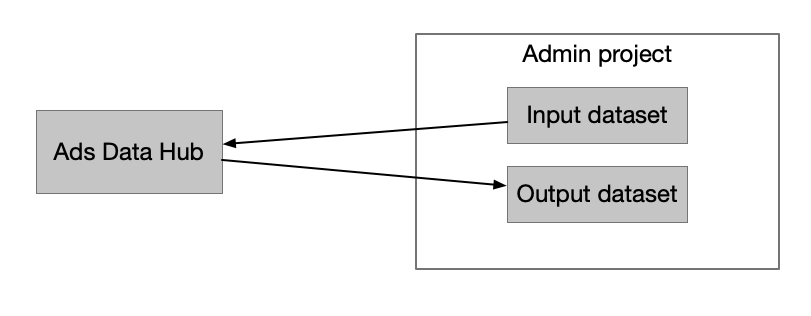
**Separate input project, admin project for administration and output:**

### Enable the API on your admin project
Before creating an Ads Data Hub account, you must enable the
[Ads Data Hub API](https://console.cloud.google.com/apis/library/adsdatahub.googleapis.com)
(service name: `adsdatahub.googleapis.com`,
"API for executing Ads Data Hub queries") and the
[BigQuery API](https://console.cloud.google.com/apis/library/bigquery.googleapis.com)
(service name: `bigquery.googleapis.com`,
"A data platform for customers to create, manage, share and query data") on your
admin project.
The user enabling the APIs should have `serviceusage.services.enable` permission
within the admin project. This could be someone outside of your organization.
[Learn how to enable the Ads Data Hub API](https://developers.google.com/ads-data-hub/marketers/guides/quickstart-api#setup)
### Create a BigQuery dataset
BigQuery datasets are where Ads Data Hub results are written, and one of
the places where you can further analyze your data.
During account creation, a default dataset is entered into your
Ads Data Hub account settings. This dataset is where results are written
if you don't specify a dataset during query execution.
The dataset ID consists of your default output project name and dataset name,
i.e.: `projectName.datasetName`.
> [!NOTE]
> **Note:** You can use any dataset in the default output project for your output without the need to reconfigure your Ads Data Hub account, however, the dataset must have write permission for the Ads Data Hub service account (P4SA). If you are planning to use VPC Service Controls, any dataset you use must be within the service perimeter.
[Learn how to create datasets in BigQuery](https://cloud.google.com/bigquery/docs/datasets)
> [!NOTE]
> **Note:** BigQuery requires datasets and query jobs to be co-located (see [Cloud BigQuery dataset locations](https://cloud.google.com/bigquery/docs/locations)). BigQuery executes compute in the same location where the data resides to optimize query performance and eliminate cross-region network latency.
Both input and output BigQuery datasets must reside in the location matching
your Ads Data Hub account region:
- **US accounts:** Specify the `US` multi-region.
- **EU accounts:** Specify the `EU` multi-region.
- **Asia Pacific accounts:** Specify `asia-northeast1` (Tokyo) or `australia-southeast1` (Sydney), matching your account.
Jobs fail if a dataset's location does not match your account region (for
example, specifying `us-east1` for an account in the US multi-region, or
specifying `US` for an account in `asia-northeast1`).
The geographic location of ad serving and audience targeting is entirely
separate from the BigQuery data location used when running Ads Data Hub
queries. Regardless of where your ads are served or where target audiences
reside globally, your input and output BigQuery datasets must still reside in
the location matching your Ads Data Hub account region.
### Permission the Ads Data Hub service account
In order for Ads Data Hub to read data and write results, you must grant
the Ads Data Hub service account (P4SA) access to the relevant BigQuery
datasets:
- **Output datasets:** Grant **BigQuery Data Editor** (`roles/bigquery.dataEditor`) to allow Ads Data Hub to write query results to your dataset.
- **Input datasets (first-party data):** Grant **BigQuery Data Viewer** (`roles/bigquery.dataViewer`) to allow Ads Data Hub to read your first-party data for joins.
Permissions can be granted at either the dataset level or the project level:
- **Dataset level (recommended):** In the [BigQuery console](https://console.cloud.google.com/bigquery), select your dataset, click **Share** \> **Manage permissions**, and add the service account principal.
- **Project level:** Add the service account principal on the [Identity and Access Management (IAM) page](https://console.cloud.google.com/iam-admin/iam) in the Google Cloud console.
You can find the Ads Data Hub service account (P4SA) email (principal)
under **Settings** \> **Details** \> **Service account** in your
[Ads Data Hub account](https://adsdatahub.google.com/marketers#/config).
## Provision user access
Note: Complete this step after you have completed the [account setup wizard](https://developers.google.com/ads-data-hub/marketers/guides/account-setup#account_setup_wizard) and received confirmation that your Ads Data Hub account is available.
Users will need access to both Ads Data Hub and BigQuery. Within
Ads Data Hub they'll write and run queries, and within BigQuery they'll
work with the results obtained from Ads Data Hub.
Users are added to your Ads Data Hub account under **Settings** \>
**Users** and assigned
[role-based access](https://developers.google.com/ads-data-hub/marketers/guides/assign-access-by-role)
(such as *Superuser* , *Analyst* , or *Read-Only* ) to write and run queries.
In Google Cloud, BigQuery IAM roles (such as `roles/bigquery.dataViewer` and
`roles/bigquery.user`) control who can view and query the resulting output
tables in BigQuery.
[Learn more about role-based access in Ads Data Hub](https://developers.google.com/ads-data-hub/marketers/guides/assign-access-by-role)
[Learn more about access control in BigQuery](https://cloud.google.com/bigquery/docs/access-control)
## Link data to your Ads Data Hub account
Note: Complete this step after your Ads Data Hub account is provisioned and available following completion of the [account setup wizard](https://developers.google.com/ads-data-hub/marketers/guides/account-setup#account_setup_wizard).
In order to have ads data available for querying in Ads Data Hub you'll
need to link from the account associated with the Google ad product used by your
team.
Account linking is a two-step process:
1. **Initiate the link request:** A link request is initiated from the Google ad platform used by your team (such as Google Ads, Display \& Video 360, Campaign Manager 360, or YouTube Reserve).
2. **Approve the link request:** The link request is approved in your Ads Data Hub account---either in the Ads Data Hub UI under **Settings** \> **Linked accounts** or programmatically using the [`CustomerService.BatchApproveAdsDataLinks`](https://developers.google.com/ads-data-hub/reference/rest/v1/customers.adsDataLinks/batchApprove) API.
When a new Ads Data Hub account is created, any customer ID linked to that account within the first 7 days of account creation automatically receives up to 21 days of historical data backfilled. This data prefill lets you begin executing queries and viewing real results within a day or two, without waiting for daily data to accumulate to meet privacy and aggregation thresholds.
[Learn more about linking accounts in Ads Data Hub](https://developers.google.com/ads-data-hub/marketers/guides/link-accounts)