The Unity Editor is version locked to a specific version of [Gradle](https://docs.unity3d.com/Manual/android-gradle-overview.html).
Earlier versions of the Unity Editor use earlier versions of Gradle which are
incompatible with the latest version of Google Mobile Ads.
To build Android, select your preferred Unity Editor version:
### 2023.1 or higher
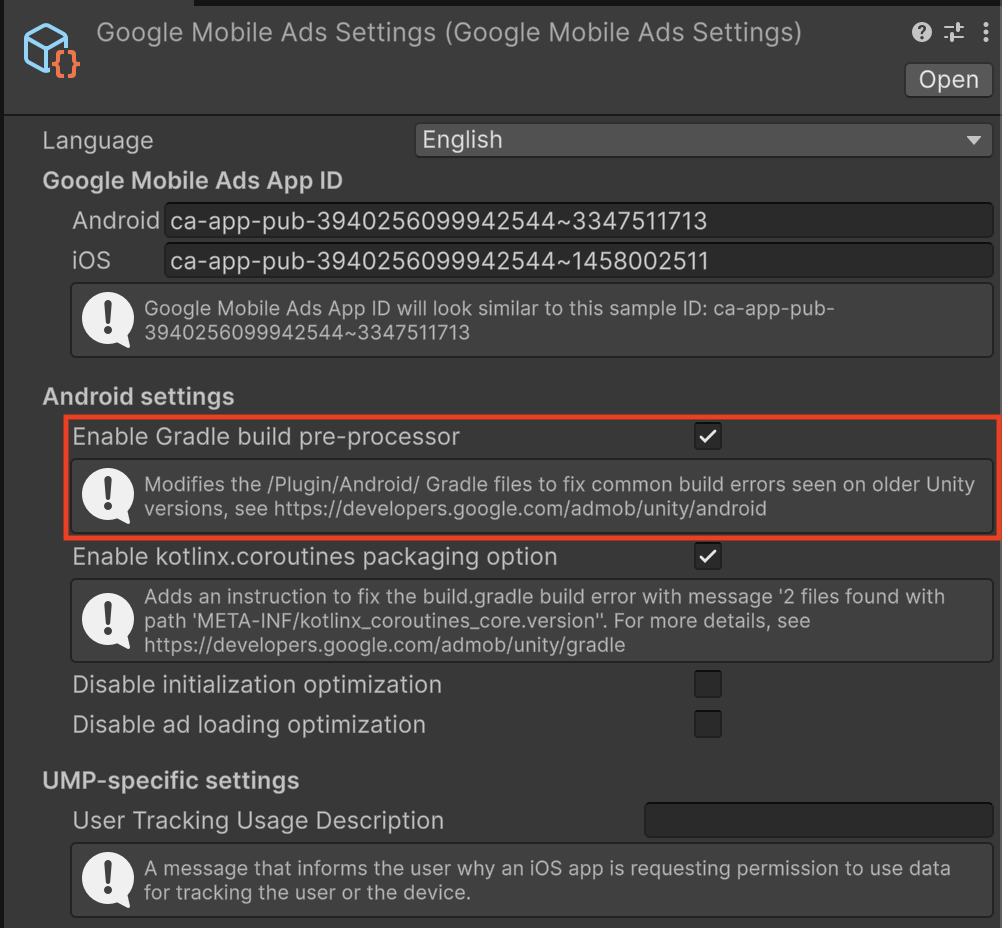
### Enable Gradle build pre-processor
The Gradle build preprocessor is *enabled by default* in Unity Editor 2021.3.41f1 and later. The processor automatically applies all necessary Gradle and player settings to support the latest Google Mobile Ads Unity Plugin on earlier versions of the Unity Editor.
> [!IMPORTANT]
> **Key Point:** If you enable the Gradle build pre-processor, you don't need to manually implement the following steps.
### Manually configure Android and Gradle settings
#### Enable Custom Gradle Templates
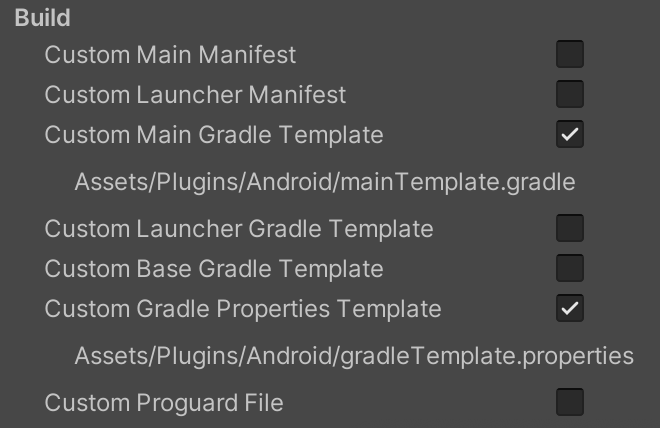
Go to **Project Settings \> Player \> Android \> Publishing Settings \> Build**
and enable `Custom Main Gradle Template` and `Custom Gradle Properties Template`.
#### Set Target API Level
From the main menu open
**Edit \> Project Settings \> Player \> Android \> Other Settings** and set the
**Target API Level** to **API Level 24** or higher.
### 2021.3.41f1 - 2022.3
### Enable Gradle build pre-processor
The Gradle build preprocessor is *enabled by default* in Unity Editor 2021.3.41f1 and later. The processor automatically applies all necessary Gradle and player settings to support the latest Google Mobile Ads Unity Plugin on earlier versions of the Unity Editor.

> [!IMPORTANT]
> **Key Point:** If you enable the Gradle build pre-processor, you don't need to manually implement the following steps.
### Manually configure Android and Gradle settings
#### Enable Custom Gradle Templates
Go to **Project Settings \> Player \> Android \> Publishing Settings \> Build**
and enable `Custom Main Gradle Template` and `Custom Gradle Properties Template`.

#### Set Target API Level
From the main menu open
**Edit \> Project Settings \> Player \> Android \> Other Settings** and set the
**Target API Level** to **API Level 24** or higher.
### Add jetifier ignore list to \`gradleTemplate.properties\`
Edit `Assets/Plugins/Android/gradleTemplate.properties`
and add the following line:
```c#
android.jetifier.ignorelist=annotation-experimental-1.4.0.aar
```
### Remove \`minSDKVersion\` from \`AndroidManifest.xml\`
Edit `Assets/Plugins/Android/GoogleMobileAdsPlugin.androidlib/AndroidManifest.xml`
and remove `android:minSdkVersion="21"` from the ` uses-sdk ` node.
Your `AndroidManifest.xml` should look like the following:
```c#
```
### 2019.4 - 2021.3.37f1
### Prerequisites
Before continuing, ensure you have the following:
- Download and install the latest stable version of [Android Studio](https://developer.android.com/studio).
- Optional: For details on building for Android, see [Java versions in Android builds](https://developer.android.com/build/jdks)
#### Enable Custom Gradle Templates
Go to **Project Settings \> Player \> Android \> Publishing Settings \> Build**
and enable `Custom Main Gradle Template` and `Custom Gradle Properties Template`.

#### Set Target API Level
From the main menu open
**Edit \> Project Settings \> Player \> Android \> Other Settings** and set the
**Target API Level** to **API Level 35** or higher.
#### Export to Android Studio
Modify the Android build settings by selecting
**File (or Unity Editor on MacOS) \> Build Settings** and check Export Project:
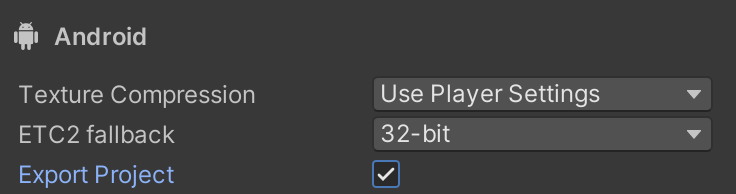
If you receive a warning that Android SDK platform API
level 35 is missing, select the **'Update Android SDK'** option.
#### Open Android Studio
This section contains steps performed within Android Studio.
#### Update Gradle JDK configuration
Open the Gradle settings from
**File (or Android Studio on MacOS) \> Settings \> Build \> Execution \> Deployment \> Build Tools \> Gradle** .
Locate the **Gradle JDK** drop-down and set the Gradle JDK to use JDK 17 or later.
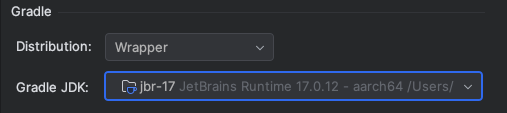
If you don't have JDK 17 installed, select the **Download JDK** options from the
Gradle JDK menu bar and download a compatible version. We recommend the
[JetBrains runtime](https://developer.android.com/build/jdks#glossary) vendor with
aarch64 support, to match what Android Studio distributes.
#### Update the project-level build.gradle
Set Gradle tools version to `8.1.1` or newer.
```c#
plugins {
id 'com.android.application' version '8.1.1' apply false
id 'com.android.library' version '8.1.1' apply false
}
task clean(type: Delete) {
delete rootProject.buildDir
}
```
#### Update `/gradle/gradle-wrapper.properties`
Set `distributionUrl` to use **Gradle 8.1.1** or newer.
`distributionUrl=https\://services.gradle.org/distributions/gradle-8.1.1-bin.zip`
#### Update `launcher/build.gradle`
- Set the `namespace` attribute using the value of the `package` attribute from `launcher/AndroidManifest.xml`
- Set `sourceCompatibility` and `targetCompatibility` to Java 17
```c#
apply plugin: 'com.android.application'
dependencies {
implementation project(':unityLibrary')
}
android {
namespace "com.google.android.gms.example"
compileSdkVersion 35
buildToolsVersion '35.0.0'
compileOptions {
sourceCompatibility JavaVersion.VERSION_17
targetCompatibility JavaVersion.VERSION_17
}
defaultConfig {
minSdkVersion 28
targetSdkVersion 35
applicationId 'com.google.android.gms.example'
ndk {
abiFilters 'armeabi-v7a', 'arm64-v8a', 'x86', 'x86_64'
}
versionCode 1
versionName '1.0'
}
aaptOptions {
noCompress = ['.unity3d', '.ress', '.resource', '.obb', '.bundle', '.unityexp']
ignoreAssetsPattern = "!.svn:!.git:!.ds_store:!*.scc:.*:!CVS:!thumbs.db:!picasa.ini:!*~"
}
lintOptions {
abortOnError false
}
buildTypes {
debug {
minifyEnabled false
proguardFiles getDefaultProguardFile('proguard-android.txt')
signingConfig signingConfigs.debug
jniDebuggable true
}
release {
minifyEnabled false
proguardFiles getDefaultProguardFile('proguard-android.txt')
signingConfig signingConfigs.debug
}
}
packagingOptions {
doNotStrip '*/armeabi-v7a/*.so'
doNotStrip '*/arm64-v8a/*.so'
doNotStrip '*/x86/*.so'
doNotStrip '*/x86_64/*.so'
jniLibs {
useLegacyPackaging true
}
}
bundle {
language {
enableSplit = false
}
density {
enableSplit = false
}
abi {
enableSplit = true
}
}
}
apply from: '../unityLibrary/GoogleMobileAdsPlugin.androidlib/packaging_options.gradle'
```
#### Update project-level `settings.gradle`
Set `pluginManagement` and `dependencyResolutionManagement` sections.
```c#
pluginManagement {
repositories {
gradlePluginPortal()
google()
mavenCentral()
}
}
include ':launcher', ':unityLibrary'
include 'unityLibrary:GoogleMobileAdsPlugin.androidlib'
dependencyResolutionManagement {
repositoriesMode.set(RepositoriesMode.PREFER_SETTINGS)
repositories {
google()
mavenCentral()
flatDir {
dirs "${project(':unityLibrary').projectDir}/libs"
}
}
}
```
> [!NOTE]
> **Note:** Unity might add obsolete code such as `useProguard` to the `build.gradle` file. Remove this code and use `minifyEnabled` instead.
#### Update unityLibrary/build.gradle
- Set `namespace` with the value `"com.unity3d.player"`
- Set `sourceCompatibility` and `targetCompatibility` to `JavaVersion.VERSION_17`
```c#
apply plugin: 'com.android.library'
dependencies {
implementation fileTree(dir: 'libs', include: ['*.jar'])
// Android Resolver Dependencies Start
implementation 'androidx.constraintlayout:constraintlayout:2.1.4'
implementation 'com.google.android.gms:play-services-ads:23.6.0'
implementation 'com.google.android.ump:user-messaging-platform:3.1.0'
// Android Resolver Dependencies End
implementation(name: 'googlemobileads-unity', ext:'aar')
implementation project('GoogleMobileAdsPlugin.androidlib')
}
// Android Resolver Exclusions Start
android {
packagingOptions {
exclude ('/lib/armeabi/*' + '*')
exclude ('/lib/mips/*' + '*')
exclude ('/lib/mips64/*' + '*')
exclude ('/lib/x86/*' + '*')
}
}
// Android Resolver Exclusions End
android {
namespace "com.unity3d.player"
compileSdkVersion 35
buildToolsVersion '30.0.2'
compileOptions {
sourceCompatibility JavaVersion.VERSION_17
targetCompatibility JavaVersion.VERSION_17
}
defaultConfig {
minSdkVersion 28
targetSdkVersion 34
ndk {
abiFilters 'armeabi-v7a', 'arm64-v8a', 'x86_64'
}
versionCode 1
versionName '1.0'
consumerProguardFiles 'proguard-unity.txt'
}
lintOptions {
abortOnError false
}
aaptOptions {
ignoreAssetsPattern = "!.svn:!.git:!.ds_store:!*.scc:.*:!CVS:!thumbs.db:!picasa.ini:!*~"
}
packagingOptions {
doNotStrip '*/armeabi-v7a/*.so'
doNotStrip '*/arm64-v8a/*.so'
doNotStrip '*/x86_64/*.so'
}
}
apply from: 'GoogleMobileAdsPlugin.androidlib/packaging_options.gradle'
gradle.projectsEvaluated { apply from: 'GoogleMobileAdsPlugin.androidlib/validate_dependencies.gradle' }
```
#### Update unity/Library/GoogleMobileAdsPlugin.androidlib/build.gradle
Set the `namespace` attribute with the value `"com.google.unity.ads"`.
```c#
apply plugin: 'android-library'
dependencies {
implementation fileTree(dir: 'bin', include: ['.jar'])
implementation fileTree(dir: 'libs', include: ['.jar'])
}
android {
namespace "com.google.unity.ads"
sourceSets {
main {
manifest.srcFile 'AndroidManifest.xml'
//java.srcDirs = ['src']
res.srcDirs = ['res']
assets.srcDirs = ['assets']
jniLibs.srcDirs = ['libs']
}
}
compileSdkVersion 34
buildToolsVersion '30.0.2'
defaultConfig {
targetSdkVersion 31
}
lintOptions {
abortOnError false
}
}
```
#### Run the Android Project
From Android Studio, [run gradle sync](https://developer.android.com/build#sync-files), and
[run the project](https://developer.android.com/studio/run).