[Video](https://www.youtube.com/watch?v=-19mGZ6hOj8)
This page covers steps on viewing and verifying adapters associated with
your ad sources.
## Prerequisites
Before you continue, do the following:
- Complete all items in the initial [Prerequisites](https://developers.google.com/admob/android/next-gen/ad-inspector.md.txt#prerequisites) to create an AdMob account, set your test device, initialize GMA Next-Gen SDK, and install the latest version.
- [Launch ad inspector](https://developers.google.com/admob/android/next-gen/ad-inspector/launch-ad-inspector.md.txt).
You can view a list of all adapters associated with the ad sources configured
in your app. To view the list, complete the following steps:
1. In the **Ad inspector** page, click **Adapters**.
2. Expand the cards to view initialization statuses and adapter and
third-party SDK versions.
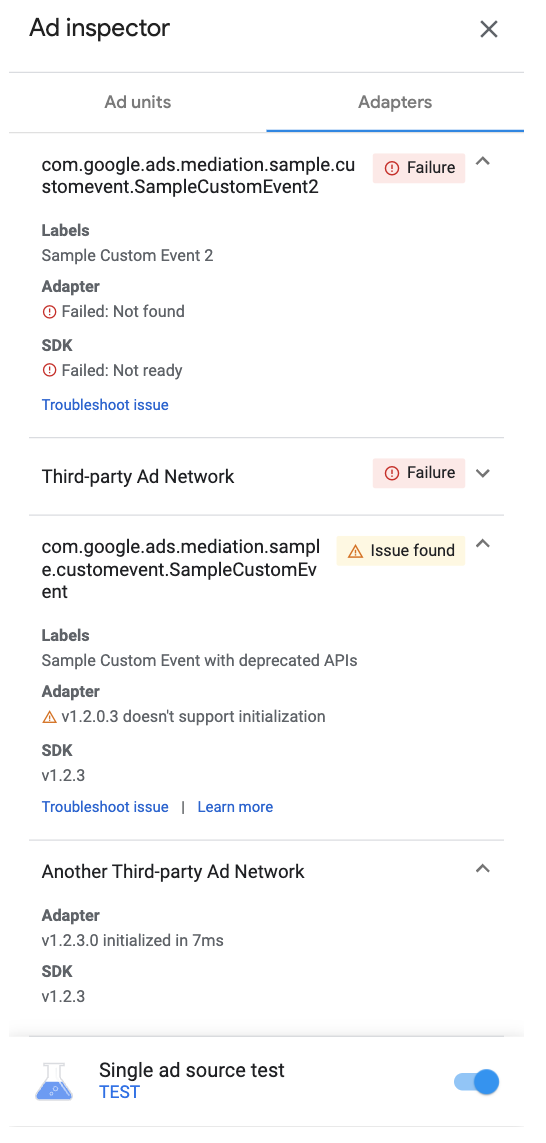
If the adapter isn't found or fails to initialize, see
[Troubleshoot issues found using ad inspector](https://support.google.com/admob/answer/12659455).
## View custom event adapters
You can also view custom event adapters. Custom events lets you set up
waterfall mediation for an ad source that AdMob doesn't support.
In the adapter list, Custom events are distinct by unique class names. In
addition to providing the class name, ad inspector also displays labels
assigned to those custom events in the AdMob UI. For more details
on custom events, see
[Setup](https://developers.google.com/admob/android/next-gen/custom-events/setup.md.txt).