# Get started with the Android TV ads library
The Android TV ads library provides a user interface for users to control their
ad experience on Google TV. This guide explains how to integrate the Android TV
ads library into your existing PAL Android TV app.
## Prerequisites
- Complete the [Get Started](https://developers.google.com/ad-manager/pal/android) guide
- Android PAL SDK version 20.0.1 or higher
## Ads transparency and controls
The Android TV ads library provides functionality to render ads transparency and
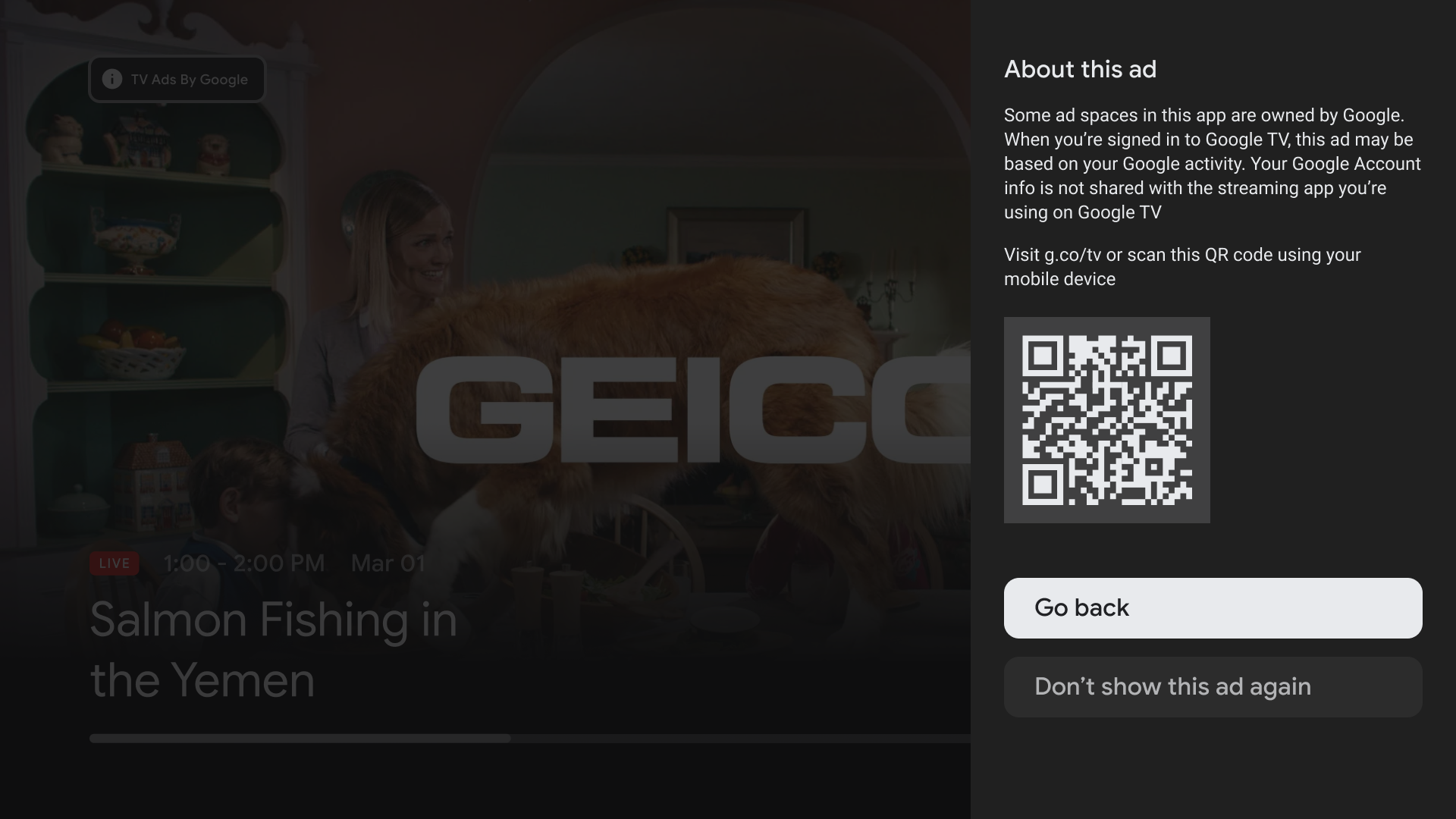
controls features (AT\&C) during ad breaks. When users interact with the *TV Ads
by Google* icon during in-stream ads, the AT\&C menu is rendered as a system
overlay by the TV launcher app, showing a short URL, a quick response (QR code)
to find out more about the ad and a button to stop showing the same ad.
The *TV Ads by Google* icon should be rendered using the same VAST icon
rendering requirements as the
[AdChoices](https://developers.google.com/ad-manager/pal/android/wta#rendering_requirements_for_adchoices)
icon.
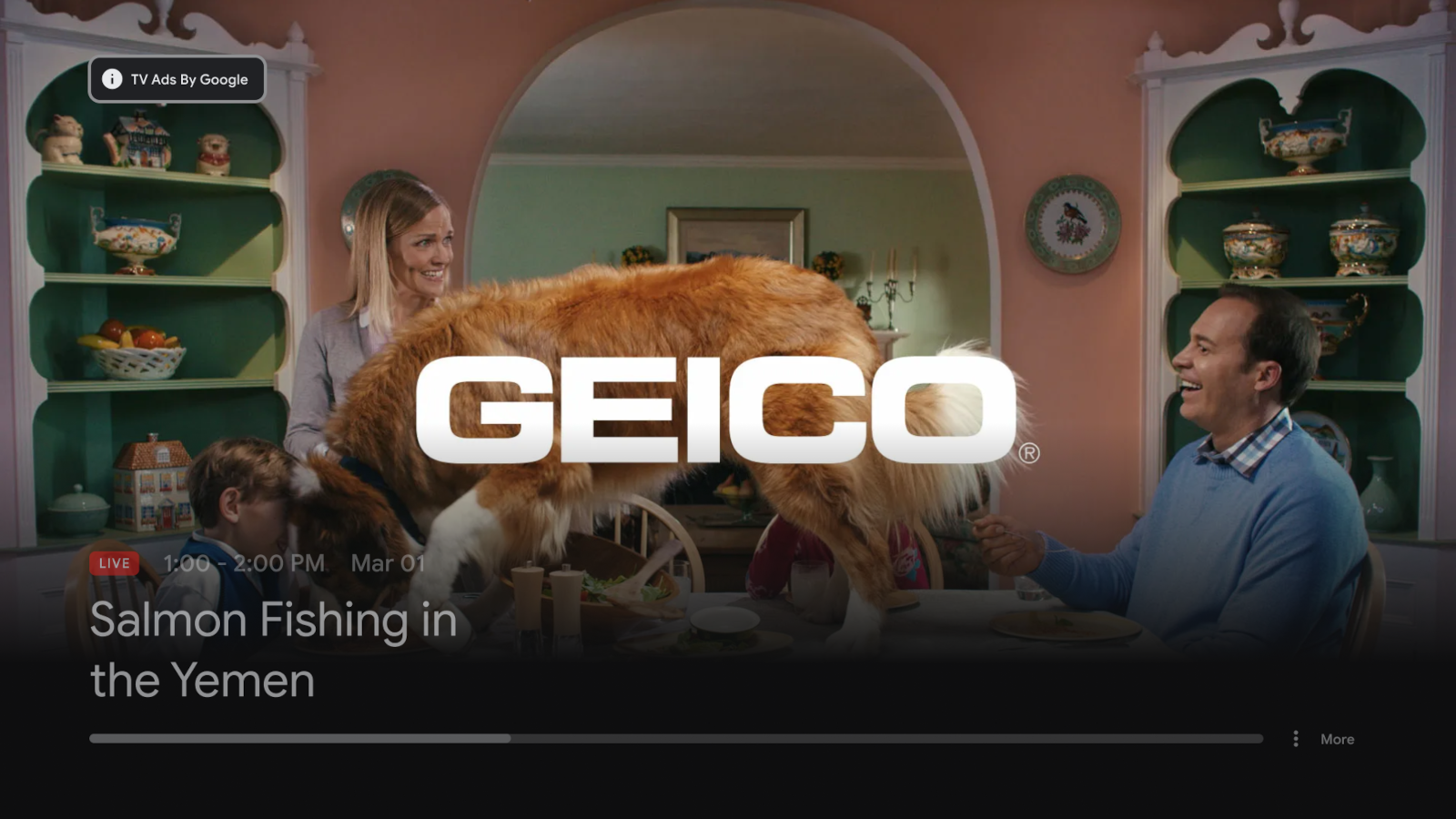
Clicking the *TV Ads by Google* icon shows the user a short URL and QR code for
the **About this ad** (ATA) webpage.
## Integrate the Android TV ads library
### Import the ATV ads library
Add the following dependency for the Android TV ads library to your app-level
Gradle file, normally `app/build.gradle`:
dependencies {
...
implementation 'com.google.android.tv:tv-ads:1.0.1'
}
### Declare `AD_ID` permission
In order for the Android TV ads library to access the [Advertising
ID](https://support.google.com/googleplay/android-developer/answer/6048248), add the
following line to your `AndroidManifest.xml`:
### Integrate with the PAL SDK
The Android TV ads library uses the
[`SignalCollector`](https://developers.google.com/ad-manager/pal/android/tv-ads-library/api/com/google/android/tv/ads/SignalCollector)
class to collect identifiers on the device required for requesting ads. The PAL
SDK uses the
[`NonceRequest.Builder`](https://developers.google.com/ad-manager/pal/android/api/com/google/ads/interactivemedia/pal/NonceRequest.Builder)
class to read these signals and build a nonce.
Add the **bold** lines to your PAL app to set up the Android TV ads library to
work with the PAL SDK:
public class VideoPlayerActivity extends Activity {
...
private SignalCollector signalCollector;
...
@Override
public void onCreate(Bundle savedInstanceState) {
...
signalCollector = new SignalCollector();
...
}
...
public generateNonceForAdRequest() {
...
NonceRequest nonceRequest = NonceRequest.builder()
...
.platformSignalCollector(signalCollector)
.build();
...
}
### Parse VAST response
When an ad request is made with the Android TV ads library's signals, Google ad
servers will send a VAST response containing the `` tag with one or
multiple `` children for different screen resolutions.
Follow the parsing VAST XML responses
[instructions](https://developers.google.com/ad-manager/pal/android/wta#parsing_adchoices_from_a_vast_xml_response)
to parse the VAST.
Here is a sample VAST 4.2 structure of the `` tag and its children, with
the relevant data in **bold**.
...
...
...
...
...
...
Sample alt text
...
...
...
...
...
...
...
Similarly, `` can be parsed using the example VAST 3.0
structure in the [PAL guide for parsing VAST 3.0
responses](https://developers.google.com/ad-manager/pal/android/wta#vast_30).
When parsing the VAST, create an
[`IconClickFallbackImage`](https://developers.google.com/ad-manager/pal/android/tv-ads-library/api/com/google/android/tv/ads/IconClickFallbackImage)
object for each `` tag and populate it with the parsed
data using
[`IconClickFallbackImage.Builder`](https://developers.google.com/ad-manager/pal/android/tv-ads-library/api/com/google/android/tv/ads/IconClickFallbackImage.Builder).
Similarly, use
[`IconClickFallbackImages.Builder`](https://developers.google.com/ad-manager/pal/android/tv-ads-library/api/com/google/android/tv/ads/IconClickFallbackImages.Builder)
to pass the list of `IconClickFallbackImage` objects into an
[`IconClickFallbackImages`](https://developers.google.com/ad-manager/pal/android/tv-ads-library/api/com/google/android/tv/ads/IconClickFallbackImages)
object representing the `` tag.
import com.google.android.tv.ads.IconClickFallbackImage;
import com.google.android.tv.ads.IconClickFallbackImages;
import java.util.Arrays;
...
IconClickFallbackImages getIconClickFallbackImages(...) {
// Use parsed VAST IconClickFallbackImages data to build a list of
// IconClickFallbackImage objects.
int parsedWidth;
int parsedHeight;
String parsedAltText;
String parsedCreativeType;
String parsedStaticResourceUri;
// Read the node and its children to set
// parsedWidth, parsedHeight, ...
IconClickFallbackImages iconClickFallbackImages =
IconClickFallbackImages.builder(
Arrays.asList(
IconClickFallbackImage.builder()
.setWidth(parsedWidth)
.setHeight(parsedHeight)
.setAltText(parsedAltText)
.setCreativeType(parsedCreativeType)
.setStaticResourceUri(parsedStaticResourceUri)
.build()))
.build();
return iconClickFallbackImages;
}
### Render AT\&C
The Android TV ads library provides an
[`AdsControlsManager.handleIconClick()`](https://developers.google.com/ad-manager/pal/android/tv-ads-library/api/com/google/android/tv/ads/AdsControlsManager#handleIconClick(com.google.android.tv.ads.IconClickFallbackImages))
method for rendering an AT\&C menu or a standard VAST IconClickFallbackImage.
The following snippet sets up the Android TV ads library to render the AT\&C
menu and VAST icon click fallback images.
import android.app.Activity;
import android.os.Bundle;
import android.view.View;
import com.google.android.tv.ads.AdsControlsManager;
import com.google.android.tv.ads.IconClickFallbackImage;
import com.google.android.tv.ads.IconClickFallbackImages;
import java.util.ArrayList;
import java.util.List;
public final class VideoPlayerActivity extends Activity {
...
private AdsControlsManager adsControlsManager;
...
@Override
public void onCreate(Bundle savedInstanceState) {
...
adsControlsManager = new AdsControlsManager(this);
...
}
...
/**
* Called when the user interacts with any VAST Icon.
* @param view.
*/
public void onVastIconClicked(View view) {
IconClickFallbackImages iconClickFallbackImages;
// Populate the IconClickFallbackImages object from the parsed VAST data.
...
adsControlsManager.handleIconClick(iconClickFallbackImages);
...
}
}
Calling `AdsControlsManager.handleIconClick()` starts an Android `Activity` so
standard lifecycle callbacks such as
[`onPause()`](https://developer.android.com/guide/components/activities/activity-lifecycle#onpause)
and
[`onResume()`](https://developer.android.com/guide/components/activities/activity-lifecycle#onresume)
can be used to listen to activity lifecycle changes.
### \[Optional\] Provide custom fallback image renderer
If your app has special requirements, such as hardware restrictions or UX
constraints, you can set a callback function using
[`AdsControlsManager.setCustomFallbackImageRenderer()`](https://developers.google.com/ad-manager/pal/android/tv-ads-library/api/com/google/android/tv/ads/AdsControlsManager#setCustomFallbackImageRenderer(com.google.android.tv.ads.CustomFallbackImageRenderer)).
The Android TV ads library will verify the fallback images to determine whether
it can use the provided custom renderer. A custom rendering will only be used
for VAST IconClickFallbackImage, and not the AT\&C menu.
import android.app.Activity;
import android.os.Bundle;
import com.google.android.tv.ads.AdsControlsManager;
import com.google.android.tv.ads.CustomFallbackImageRenderer;
import com.google.android.tv.ads.IconClickFallbackImages;
import java.util.List;
public final class VideoPlayerActivity extends Activity {
...
private AdsControlsManager adsControlsManager;
...
@Override
public void onCreate(Bundle savedInstanceState) {
...
adsControlsManager = new AdsControlsManager(this);
adsControlsManager.setCustomFallbackImageRenderer(
new CustomFallbackImageRendererImpl());
...
}
private static class CustomFallbackImageRendererImpl implements CustomFallbackImageRenderer {
@Override
public void render(IconClickFallbackImages iconClickFallbackImages) {
// Render the fallback images using a custom layout
...
}
}
...
}
## Give Google feedback about the Android TV ads library
We are looking for feedback about your experience with integration and
migration of Android TV apps. Contact your Google account manager to schedule
a meeting with one of our engineers.
## Release history
| Version | Release Date | Notes |
|---|---|---|
| 1.0.1 | 2025-01-09 | - Updates supported ads transparency and controls formats. |
| 1.0.0 | 2023-05-16 | - Adds logging. - Lowers minSdk support to API level 21. - Updates error handling and dependencies to fix crashes. |
| 1.0.0-alpha02 | 2022-11-17 | - Updates the Android Manifest allowing the [Leanback](https://developer.android.com/training/tv/start/start#leanback-req) feature to be optional. |
| 1.0.0-alpha01 | 2022-09-07 | - Initial release. |