[Video](https://www.youtube.com/watch?v=gqxfJ9El6s4)
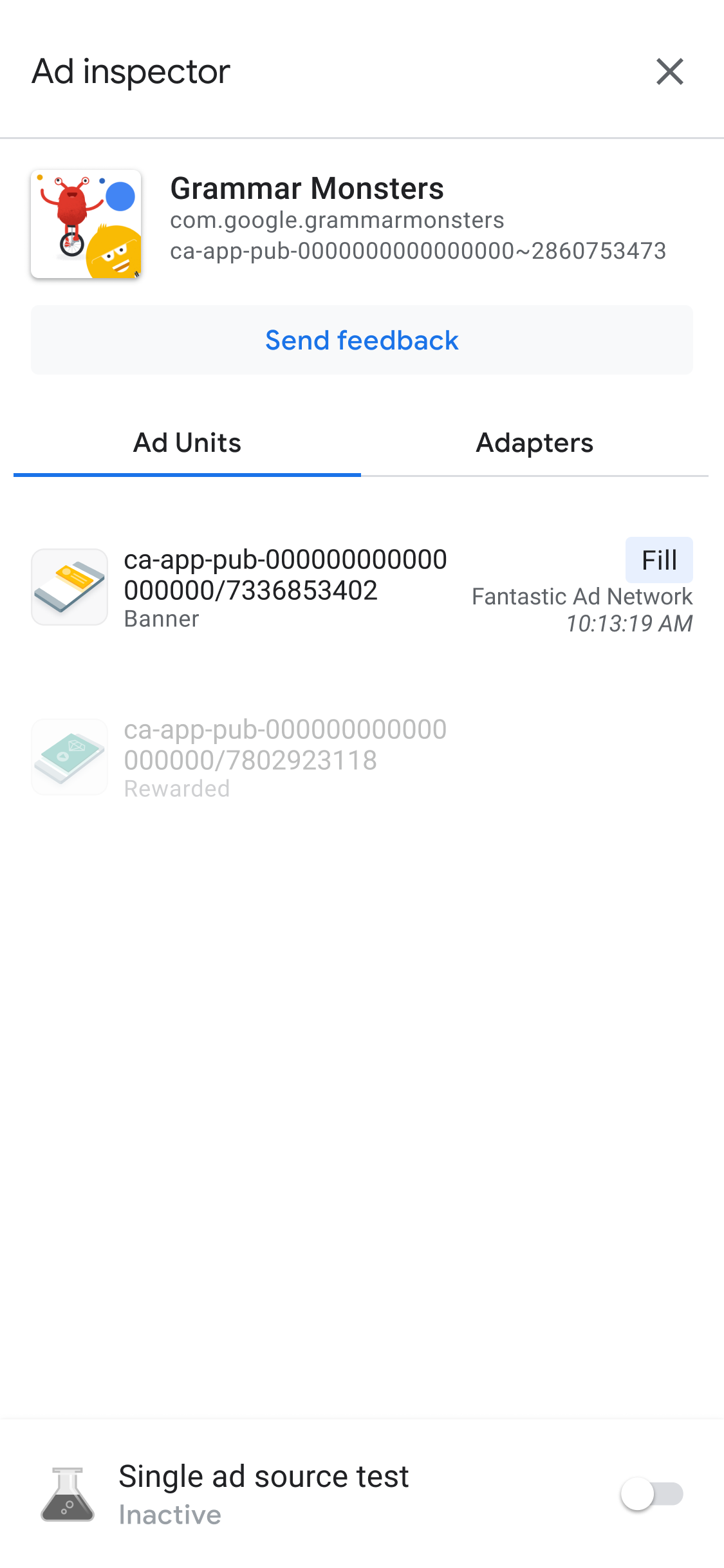
After you launch ad inspector, you see the ad inspector landing page.
This page contains a list of your ad units in the Ad Manager UI
associated with your Ad Manager app ID
that have bidding or mediation
configurations . If the app requests ads from other ad units during
a session, ad inspector displays these ad units.
## Prerequisites
Before you continue, do the following:
- Complete all items in the initial [Prerequisites](https://developers.google.com/ad-manager/mobile-ads-sdk/ios/ad-inspector.md.txt#prerequisites) to create an Ad Manager account, set your test device, initialize Google Mobile Ads SDK, and install the latest version.
- [Launch ad inspector](https://developers.google.com/ad-manager/mobile-ads-sdk/ios/ad-inspector/launch-ad-inspector.md.txt).
## View waterfall details for an ad unit
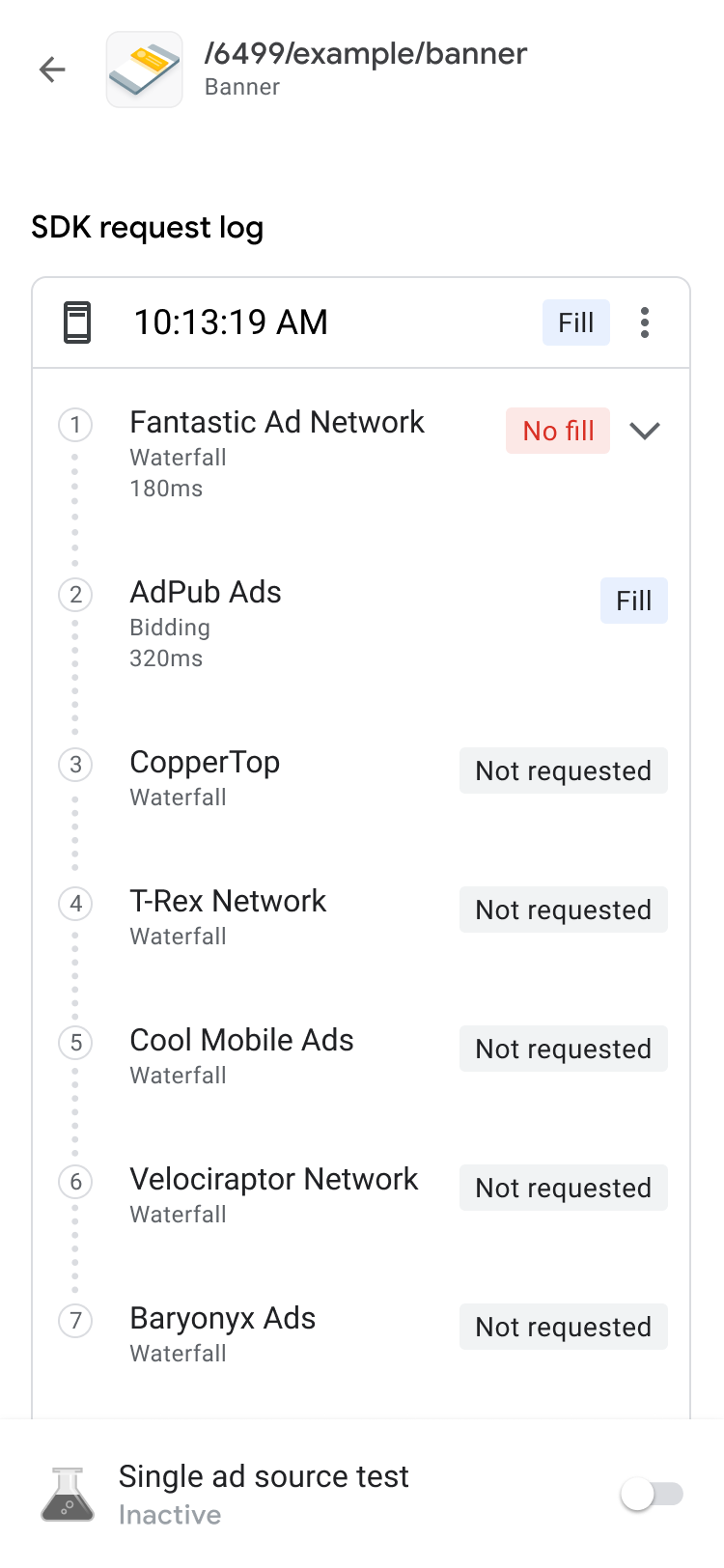
In the **Ad Units** tab, tap on an ad unit to view its SDK request log. The
SDK request log shares details about the waterfall from the ad request, such
as when the ad filled, which ad source filled, or if the waterfall ended
without a fill.

To show the results of the waterfall for a request, along with error and
latency, expand the list of details using
keyboard_arrow_down.
For third-party ad sources, an ad source sends the error message directly.
If you want more information, consult your third-party ad source.
## View bidding details for an ad unit
[Video](https://www.youtube.com/watch?v=f_--pZHrvIw)
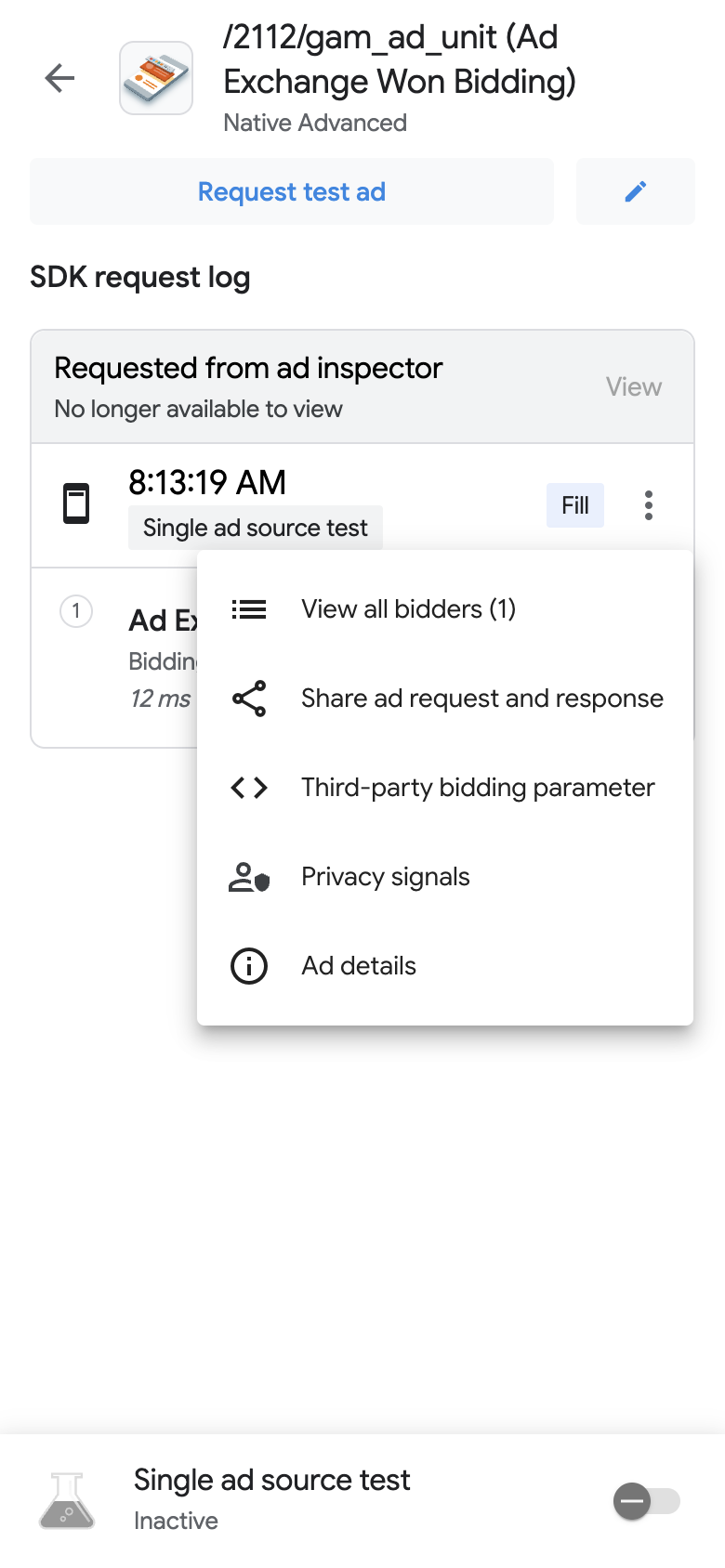
In **SDK request log** , you see the bidding ad sources called in an ad request.
To view the details of each ad source in the bidding auction, tap
more_vert and click
**View all bidders**:
The bidding results are sorted from most to least actionable, as follows:
| **Label** | **Description** |
|---|---|
| **Won** | The ad source that won the auction. |
| **Issue found** | The ad sources with issues. |
| **No ad returned** | Ad sources with no returned ads, or did not bid. Refer to the ad source's integration documentation, or contact the third-party ad source directly. |
| **Submitted bid** | Ad sources that submitted a bid but lost the bidding auction. |

A mediation waterfall is the result of multiple yield groups competing for the
same inventory. You can add up to ten third-party yield partners to a single
yield group, including both bidding yield partners and mediation for mobile
apps yield partners.
## Troubleshoot an ad unit
To troubleshoot ad units, review the ad request and response to identify a
failure, or share the ad request and response with support.
Complete the following steps:
1. In **SDK request log** , tap more_vert . An options dialog appears.
2. Tap **Share ad request and response** to export the full ad request and response.
> [!NOTE]
> **Note:** You can export the ad response only after you [link your device](https://developers.google.com/ad-manager/mobile-ads-sdk/ios/debug.md.txt#link_your_device) through the debug options menu.

Additionally, you can view third-party bidding parameters. In the options
dialog, tap **Third-party bidding parameter**. This option provides details
about which third-party bidding parameters might present issues, and helps you
troubleshoot your app or validate an ad source is collecting signals.

If you encounter a **No ad returned** issue, copy the buyer generated data and
share with the ad sources for assistance.
## View ad details
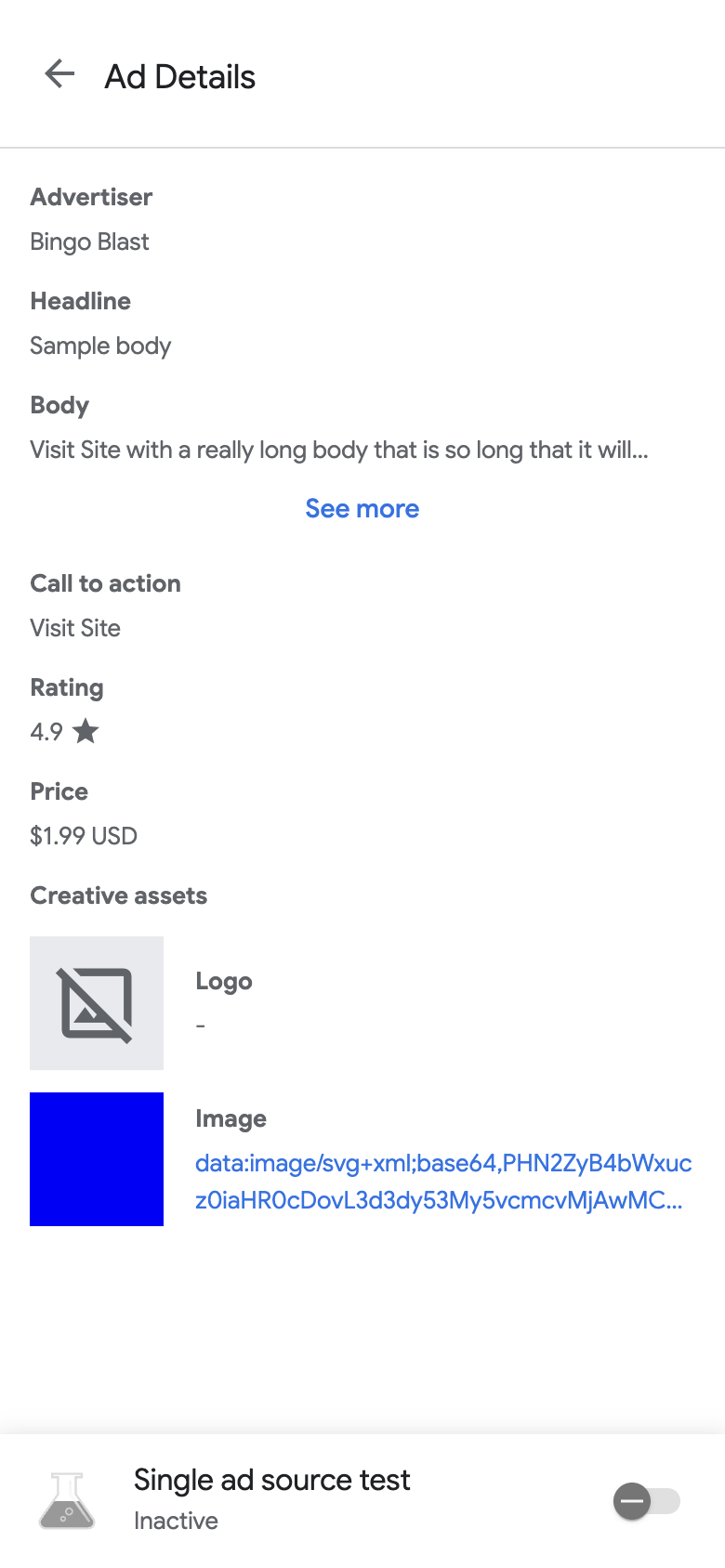
To view details of your native ads, use the **Ad details** page. This page
lists details of a native ad, such as the advertiser name, body text, rating,
price, and creative assets. For a list and description of all ad details, see
[Native ads elements](https://support.google.com/admanager/answer/6366845).
For details on native ads, see [Load an ad](https://developers.google.com/ad-manager/mobile-ads-sdk/ios/native.md.txt).
> [!NOTE]
> **Note:** The **Ad details** page is only available for native ads.
To view your native ad details, do the following:
1. In the **Ad units** tab, tap on a native ad unit. The **SDK request log** page appears.
2. On the native ad unit, tap
more_vert**More**. An
options dialog appears:
3. Tap info **Ad details** .
The **Ad details** page appears: