Native templates are code-complete views for your native ads, designed for fast
implementation and easy modification. With native templates, the plugin provides
prebuilt Android and iOS layouts for you, and you can customize the style of the
native assets using a Dart API.
This guide demonstrates how to use the Dart API to stylize the underlying
platform views and to render the ad.
## Prerequisites
Before you continue, do the following:
- Flutter 2.4.0 or higher.
- [Set up Google Mobile Ads Flutter Plugin](https://developers.google.com/ad-manager/mobile-ads-sdk/flutter/quick-start.md.txt).
- [Set up native ads](https://developers.google.com/ad-manager/mobile-ads-sdk/flutter/native.md.txt).
## Always test with test ads
When building and testing your apps, make sure you use test ads rather than
live, production ads. The easiest way to load test ads is to use our dedicated
test ad unit ID for native ads:
- `/21775744923/example/native`
The test ad units are configured to return test ads for every request, so
you can use them in your own apps while coding, testing, and
debugging---just make sure you replace them with your own ad unit IDs before
publishing your app.
## Load ad
The following example loads a native ad using the `medium` sized native
template:
class NativeExampleState extends State {
NativeAd? nativeAd;
bool _nativeAdIsLoaded = false;
// TODO: replace this test ad unit with your own ad unit.
final _adUnitId = '/21775744923/example/native';
/// Loads a native ad.
void loadAd() {
_nativeAd = NativeAd(
adUnitId: _adUnitId,
listener: NativeAdListener(
onAdLoaded: (ad) {
debugPrint('$NativeAd loaded.');
setState(() {
_nativeAdIsLoaded = true;
});
},
onAdFailedToLoad: (ad, error) {
// Dispose the ad here to free resources.
debugPrint('$NativeAd failed to load: $error');
ad.dispose();
},
),
request: const AdManagerAdRequest(),
// Styling
nativeTemplateStyle: NativeTemplateStyle(
// Required: Choose a template.
templateType: TemplateType.medium,
// Optional: Customize the ad's style.
mainBackgroundColor: Colors.purple,
cornerRadius: 10.0,
callToActionTextStyle: NativeTemplateTextStyle(
textColor: Colors.cyan,
backgroundColor: Colors.red,
style: NativeTemplateFontStyle.monospace,
size: 16.0),
primaryTextStyle: NativeTemplateTextStyle(
textColor: Colors.red,
backgroundColor: Colors.cyan,
style: NativeTemplateFontStyle.italic,
size: 16.0),
secondaryTextStyle: NativeTemplateTextStyle(
textColor: Colors.green,
backgroundColor: Colors.black,
style: NativeTemplateFontStyle.bold,
size: 16.0),
tertiaryTextStyle: NativeTemplateTextStyle(
textColor: Colors.brown,
backgroundColor: Colors.amber,
style: NativeTemplateFontStyle.normal,
size: 16.0)))
..load();
}
}
See
[`NativeTemplateStyle`](https://pub.dev/documentation/google_mobile_ads/latest/google_mobile_ads/NativeTemplateStyle-class.html)
and
[`NativeTemplateTextStyle`](https://pub.dev/documentation/google_mobile_ads/latest/google_mobile_ads/NativeTemplateTextStyle-class.html)
for available styling options.
## Customize ad
When customizing a native ad using native templates, your ad's UI configuration
will live in the `NativeTemplateStyle` class, enabling you to style an entire
native ad in Dart code.
### Template sizes
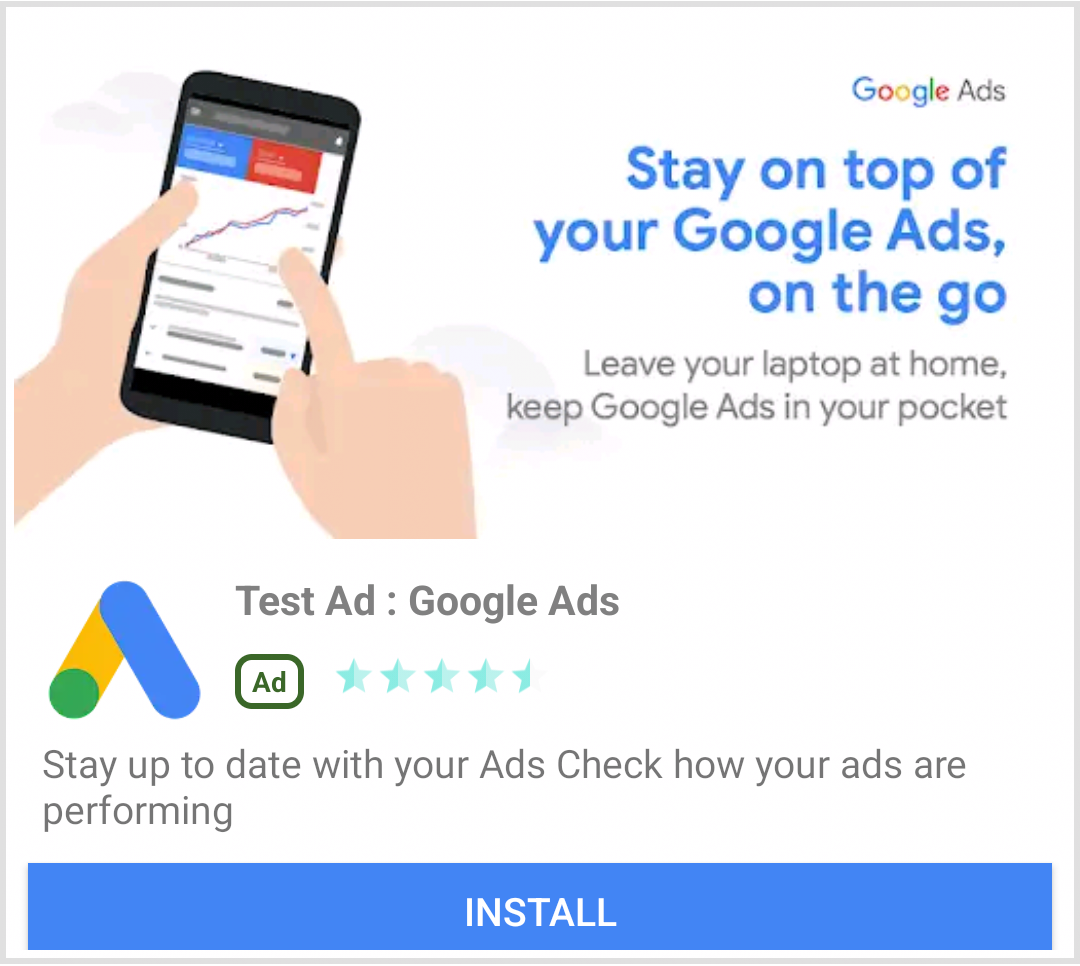
Flutter native ad templates come in two types: `TemplateType.small` and
`TemplateType.medium`. The small template is ideal for a `TableView` or
`GridView`, for in-feed ads or anywhere you need a thin rectangular ad view. The
medium template is meant to be a half to three-quarters page view, which is
ideal for landing or splash pages.
| Small |
|---|---|
|  **Android** | 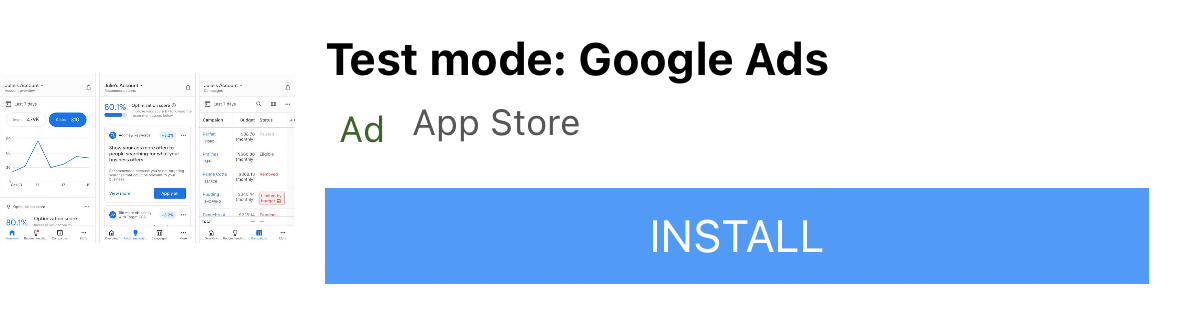 **iOS** |
|  **Android** | 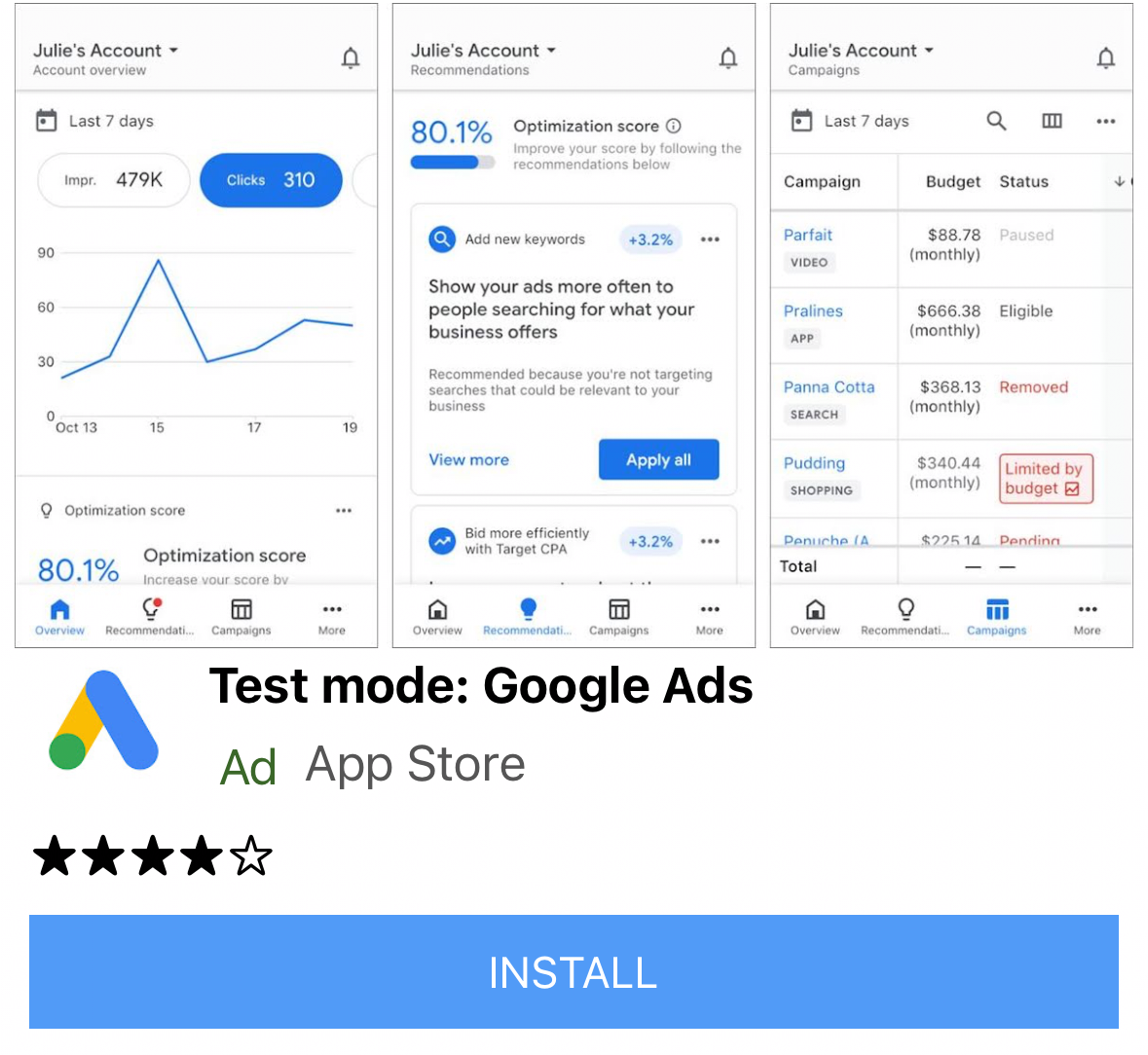 **iOS** |
## Native ad events
To be notified of events related to the native ad interactions, use the
[`listener`](https://pub.dev/documentation/google_mobile_ads/latest/google_mobile_ads/NativeAd/listener.html)
property of the ad. Then, implement
[`NativeAdListener`](https://pub.dev/documentation/google_mobile_ads/latest/google_mobile_ads/NativeAdListener-class.html)
to receive ad event callbacks.
class NativeExampleState extends State {
NativeAd? _nativeAd;
bool _nativeAdIsLoaded = false;
// TODO: replace this test ad unit with your own ad unit.
final _adUnitId = '/21775744923/example/native';
/// Loads a native ad.
void loadAd() {
_nativeAd = NativeAd(
adUnitId: _adUnitId,
listener: NativeAdListener(
onAdLoaded: (ad) {
print('$NativeAd loaded.');
setState(() {
_nativeAdIsLoaded = true;
});
},
onAdFailedToLoad: (ad, error) {
// Dispose the ad here to free resources.
print('$NativeAd failedToLoad: $error');
ad.dispose();
},
// Called when a click is recorded for a NativeAd.
onAdClicked: (ad) {},
// Called when an impression occurs on the ad.
onAdImpression: (ad) {},
// Called when an ad removes an overlay that covers the screen.
onAdClosed: (ad) {},
// Called when an ad opens an overlay that covers the screen.
onAdOpened: (ad) {},
// For iOS only. Called before dismissing a full screen view
onAdWillDismissScreen: (ad) {},
// Called when an ad receives revenue value.
onPaidEvent: (ad, valueMicros, precision, currencyCode) {},
),
request: const AdManagerAdRequest(),
// Styling
nativeTemplateStyle: NativeTemplateStyle(
// Required: Choose a template.
templateType: TemplateType.medium,
// Optional: Customize the ad's style.
mainBackgroundColor: Colors.purple,
cornerRadius: 10.0,
callToActionTextStyle: NativeTemplateTextStyle(
textColor: Colors.cyan,
backgroundColor: Colors.red,
style: NativeTemplateFontStyle.monospace,
size: 16.0),
primaryTextStyle: NativeTemplateTextStyle(
textColor: Colors.red,
backgroundColor: Colors.cyan,
style: NativeTemplateFontStyle.italic,
size: 16.0),
secondaryTextStyle: NativeTemplateTextStyle(
textColor: Colors.green,
backgroundColor: Colors.black,
style: NativeTemplateFontStyle.bold,
size: 16.0),
tertiaryTextStyle: NativeTemplateTextStyle(
textColor: Colors.brown,
backgroundColor: Colors.amber,
style: NativeTemplateFontStyle.normal,
size: 16.0)))
..load();
}
}
## Display ad
To display a `NativeAd` as a widget, you must instantiate an
[`AdWidget`](https://pub.dev/documentation/google_mobile_ads/latest/google_mobile_ads/AdWidget-class.html)
with a supported ad after calling `load()`. You can create the widget before
calling `load()`, but `load()` must be called before adding it to the widget
tree.
`AdWidget` inherits from Flutter's `Widget` class and can be used like any other
widget. On iOS, make sure you place the widget in a container with a specified
width and height. Otherwise, your ad may not be displayed.
// Small template
final adContainer = ConstrainedBox(
constraints: const BoxConstraints(
minWidth: 320, // minimum recommended width
minHeight: 90, // minimum recommended height
maxWidth: 400,
maxHeight: 200,
),
child: AdWidget(ad: _nativeAd!),
);
// Medium template
final adContainer = ConstrainedBox(
constraints: const BoxConstraints(
minWidth: 320, // minimum recommended width
minHeight: 320, // minimum recommended height
maxWidth: 400,
maxHeight: 400,
),
child: AdWidget(ad: _nativeAd!),
);
## Dispose ad
A
[`NativeAd`](https://pub.dev/documentation/google_mobile_ads/latest/google_mobile_ads/NativeAd-class.html)
must be disposed of when access to it is no longer needed. The best practice for
when to call `dispose()` is after the `AdWidget` associated with the native ad
is removed from the widget tree and in the `AdListener.onAdFailedToLoad()`
callback.