App open ads are a special ad format intended for publishers wishing to monetize
their app load screens. App open ads can be closed at any time, and are designed
to be shown when your users bring your app to the foreground.
App open ads automatically show a small branding area so users know they're in
your app. Here is an example of what an app open ad looks like:
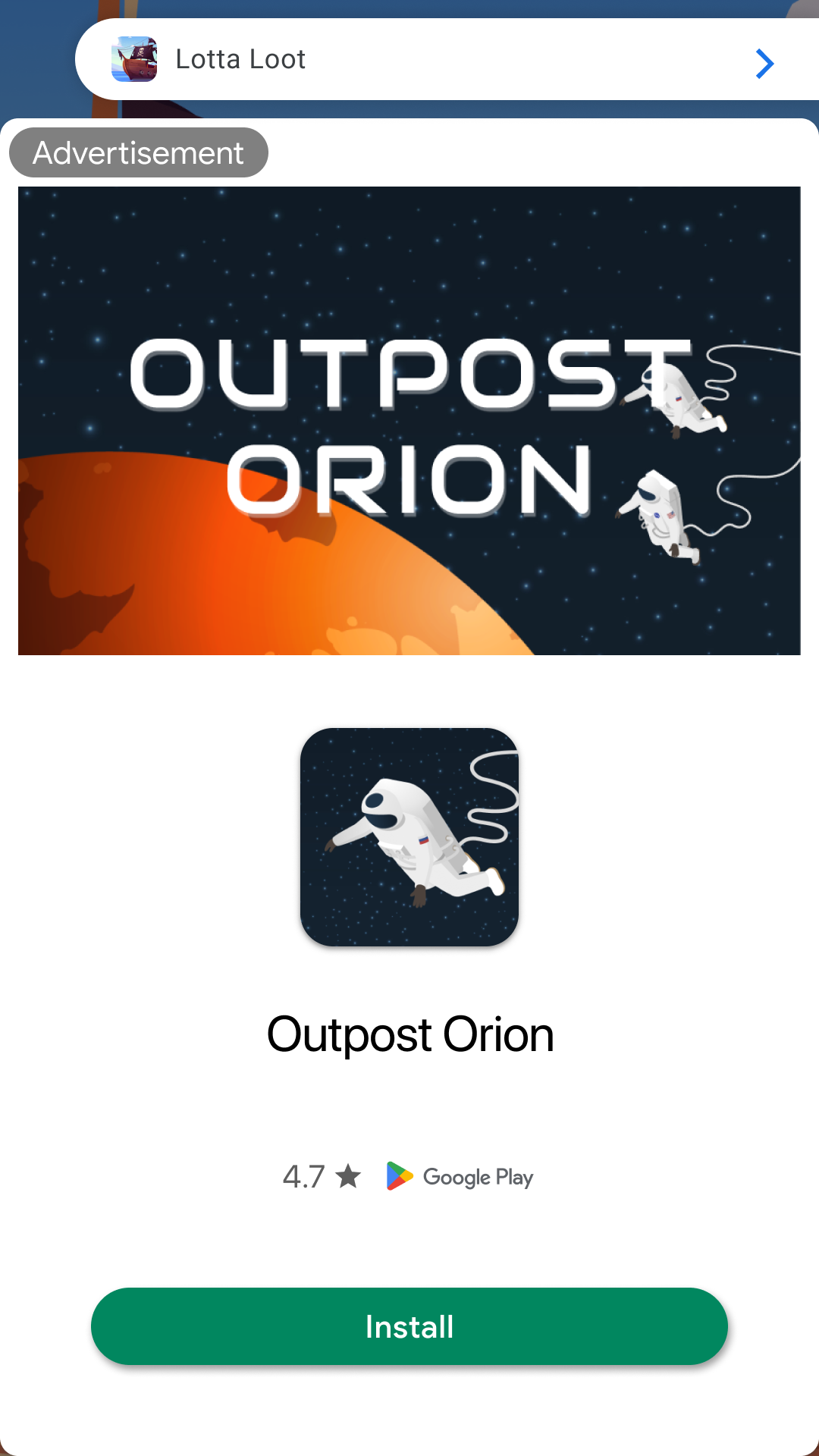
## Prerequisites
Before you continue, do the following:
- Install Flutter plugin 0.13.6 or higher.
- [Set up Google Mobile Ads Flutter Plugin](https://developers.google.com/ad-manager/mobile-ads-sdk/flutter/quick-start.md.txt). Your Flutter app must have Google Mobile Ads Flutter Plugin imported.
## Always test with test ads
When building and testing your apps, make sure you use test ads rather than
live, production ads. Failure to do so can lead to suspension of your account.
The easiest way to load test ads is to use our dedicated test ad unit IDs for
Android and iOS rewarded ads:
- `/21775744923/example/app-open`
They have been specially configured to return test ads for every request, and
you're free to use them in your own apps while coding, testing, and debugging.
Just make sure you replace them with your own ad unit ID before publishing your
app.
## Implementation
The main steps to integrate app open ads are:
1. Create a utility class that loads an ad before you need to display it.
2. Load an ad.
3. Register for callbacks and show the ad.
4. Subscribe to `AppStateEventNotifier.appStateStream` to show the ad during foregrounding events.
### Create a utility class
Create a new class called `AppOpenAdManager` to load the ad. This class manages
an instance variable to keep track of a loaded ad and the ad unit ID for each
platform.
```dart
import 'package:google_mobile_ads/google_mobile_ads.dart';
import 'dart:io' show Platform;
class AppOpenAdManager {
String adUnitId = '/21775744923/example/app-open';
AppOpenAd? _appOpenAd;
bool _isShowingAd = false;
/// Load an AppOpenAd.
void loadAd() {
// We will implement this below.
}
/// Whether an ad is available to be shown.
bool get isAdAvailable {
return _appOpenAd != null;
}
}
```
### Load an ad
Your app open ad needs to be ready before users enter your app. Implement a
utility class to make ad requests ahead of when you need to show the ad.
Loading an ad is accomplished using the `loadWithAdManagerAdRequest` method
on the `AppOpenAd` class. The load method requires an ad unit ID, an orientation
mode, an `AdManagerAdRequest` object, and a completion
handler which gets called when ad loading succeeds or fails. The loaded
`AppOpenAd` object is provided as a parameter in the completion handler. The
following example shows how to load an `AppOpenAd`.
```dart
public class AppOpenAdManager {
...
/// Load an AppOpenAd.
void loadAd() {
AppOpenAd.loadWithAdManagerAdRequest(
adUnitId: adUnitId,
adManagerAdRequest: AdManagerAdRequest(),
adLoadCallback: AppOpenAdLoadCallback(
onAdLoaded: (ad) {
_appOpenAd = ad;
},
onAdFailedToLoad: (error) {
print('AppOpenAd failed to load: $error');
// Handle the error.
},
),
);
}
}
```
## Show the ad and handle fullscreen callbacks
Before showing the ad, register a `FullScreenContentCallback` for each ad event
you want to listen to.
```dart
public class AppOpenAdManager {
...
public void showAdIfAvailable() {
if (!isAdAvailable) {
print('Tried to show ad before available.');
loadAd();
return;
}
if (_isShowingAd) {
print('Tried to show ad while already showing an ad.');
return;
}
// Set the fullScreenContentCallback and show the ad.
_appOpenAd!.fullScreenContentCallback = FullScreenContentCallback(
onAdShowedFullScreenContent: (ad) {
_isShowingAd = true;
print('$ad onAdShowedFullScreenContent');
},
onAdFailedToShowFullScreenContent: (ad, error) {
print('$ad onAdFailedToShowFullScreenContent: $error');
_isShowingAd = false;
ad.dispose();
_appOpenAd = null;
},
onAdDismissedFullScreenContent: (ad) {
print('$ad onAdDismissedFullScreenContent');
_isShowingAd = false;
ad.dispose();
_appOpenAd = null;
loadAd();
},
);
}
}
```
If a user returns to your app after having left it by clicking on an app open
ad, make sure they're not presented with another app open ad.
## Listen for app foregrounding events
In order to be notified of app foregrounding events, you need to subscribe to
`AppStateEventNotifier.appStateStream` and listen for `foreground` events.
```dart
import 'package:app_open_example/app_open_ad_manager.dart';
import 'package:google_mobile_ads/google_mobile_ads.dart';
/// Listens for app foreground events and shows app open ads.
class AppLifecycleReactor {
final AppOpenAdManager appOpenAdManager;
AppLifecycleReactor({required this.appOpenAdManager});
void listenToAppStateChanges() {
AppStateEventNotifier.startListening();
AppStateEventNotifier.appStateStream
.forEach((state) => _onAppStateChanged(state));
}
void _onAppStateChanged(AppState appState) {
// Try to show an app open ad if the app is being resumed and
// we're not already showing an app open ad.
if (appState == AppState.foreground) {
appOpenAdManager.showAdIfAvailable();
}
}
}
```
Now you can add initialize your `AppLifecycleReactor` and start listening for
app lifecycle changes. For example, from your homepage:
```dart
import 'package:app_open_example/app_open_ad_manager.dart';
import 'package:flutter/material.dart';
import 'package:google_mobile_ads/google_mobile_ads.dart';
import 'app_lifecycle_reactor.dart';
void main() {
WidgetsFlutterBinding.ensureInitialized();
MobileAds.instance.initialize();
runApp(MyApp());
}
class MyApp extends StatelessWidget {
@override
Widget build(BuildContext context) {
return MaterialApp(
title: 'App Open Example',
theme: ThemeData(
primarySwatch: Colors.blue,
),
home: MyHomePage(title: 'App Open Demo Home Page'),
);
}
}
class MyHomePage extends StatefulWidget {
MyHomePage({Key? key, required this.title}) : super(key: key);
final String title;
@override
_MyHomePageState createState() => _MyHomePageState();
}
/// Example home page for an app open ad.
class _MyHomePageState extends State {
int _counter = 0;
late AppLifecycleReactor _appLifecycleReactor;
@override
void initState() {
super.initState();
AppOpenAdManager appOpenAdManager = AppOpenAdManager()..loadAd();
_appLifecycleReactor = AppLifecycleReactor(
appOpenAdManager: appOpenAdManager);
}
```
## Consider ad expiration
> [!IMPORTANT]
> **Key Point:** Ad references in the app open beta will time out after four hours. Ads rendered more than four hours after request time will no longer be valid and may not earn revenue. This time limit is being carefully considered and may change in future beta versions of the app open format.
To ensure you don't show an expired ad, add a timestamp to the
`AppOpenAdManager` so you can check how long it has been since your ad loaded.
Then, use that timestamp to check if the ad is still valid.
```dart
/// Utility class that manages loading and showing app open ads.
class AppOpenAdManager {
...
/// Maximum duration allowed between loading and showing the ad.
final Duration maxCacheDuration = Duration(hours: 4);
/// Keep track of load time so we don't show an expired ad.
DateTime? _appOpenLoadTime;
...
/// Load an AppOpenAd.
void loadAd() {
AppOpenAd.loadWithAdManagerAdRequest(
adUnitId: adUnitId,
orientation: AppOpenAd.orientationPortrait,
adManagerAdRequest: AdManagerAdRequest(),
adLoadCallback: AppOpenAdLoadCallback(
onAdLoaded: (ad) {
print('$ad loaded');
_appOpenLoadTime = DateTime.now();
_appOpenAd = ad;
},
onAdFailedToLoad: (error) {
print('AppOpenAd failed to load: $error');
},
),
);
}
/// Shows the ad, if one exists and is not already being shown.
///
/// If the previously cached ad has expired, this just loads and caches a
/// new ad.
void showAdIfAvailable() {
if (!isAdAvailable) {
print('Tried to show ad before available.');
loadAd();
return;
}
if (_isShowingAd) {
print('Tried to show ad while already showing an ad.');
return;
}
if (DateTime.now().subtract(maxCacheDuration).isAfter(_appOpenLoadTime!)) {
print('Maximum cache duration exceeded. Loading another ad.');
_appOpenAd!.dispose();
_appOpenAd = null;
loadAd();
return;
}
// Set the fullScreenContentCallback and show the ad.
_appOpenAd!.fullScreenContentCallback = FullScreenContentCallback(...);
_appOpenAd!.show();
}
}
```
## Cold starts and loading screens
The documentation thus far assumes that you only show app open ads when users
foreground your app when it is suspended in memory. "Cold starts" occur when
your app is launched but was not previously suspended in memory.
An example of a cold start is when a user opens your app for the first time.
With cold starts, you won't have a previously loaded app open ad that's ready to
be shown right away. The delay between when you request an ad and receive an ad
back can create a situation where users are able to briefly use your app before
being surprised by an out of context ad. This should be avoided because it is a
bad user experience.
The preferred way to use app open ads on cold starts is to use a loading screen
to load your game or app assets, and to only show the ad from the loading
screen. If your app has completed loading and has sent the user to the main
content of your app, do not show the ad.
> [!IMPORTANT]
> **Key Point:** In order to continue loading app assets while the app open ad is being displayed, always load assets in a background thread.
## Best practices
App open ads help you monetize your app's loading screen, when the app first
launches and during app switches, but it's important to keep best practices in
mind so that your users enjoy using your app. It's best to:
- Show your first app open ad after your users have used your app a few times.
- Show app open ads during times when your users would otherwise be waiting for your app to load.
- If you have a loading screen under the app open ad and your loading screen completes loading before the ad is dismissed, you may want to dismiss your loading screen in the `onAdDismissedFullScreenContent` event handler.