[Video](https://www.youtube.com/watch?v=-19mGZ6hOj8)
This page covers steps on viewing and verifying adapters associated with
your ad sources.
## Prerequisites
Before you continue, do the following:
- Complete all items in the initial [Prerequisites](https://developers.google.com/ad-manager/mobile-ads-sdk/flutter/ad-inspector.md.txt#prerequisites) to create an Ad Manager account, set your test device, initialize Google Mobile Ads Flutter Plugin, and install the latest version.
- [Launch ad inspector](https://developers.google.com/ad-manager/mobile-ads-sdk/flutter/ad-inspector/launch-ad-inspector.md.txt).
You can view a list of all adapters associated with the ad sources configured
in your app. To view the list, complete the following steps:
1. In the **Ad inspector** page, click **Adapters**.
2. Expand the cards to view initialization statuses and adapter and
third-party SDK versions.
|---|---|
| 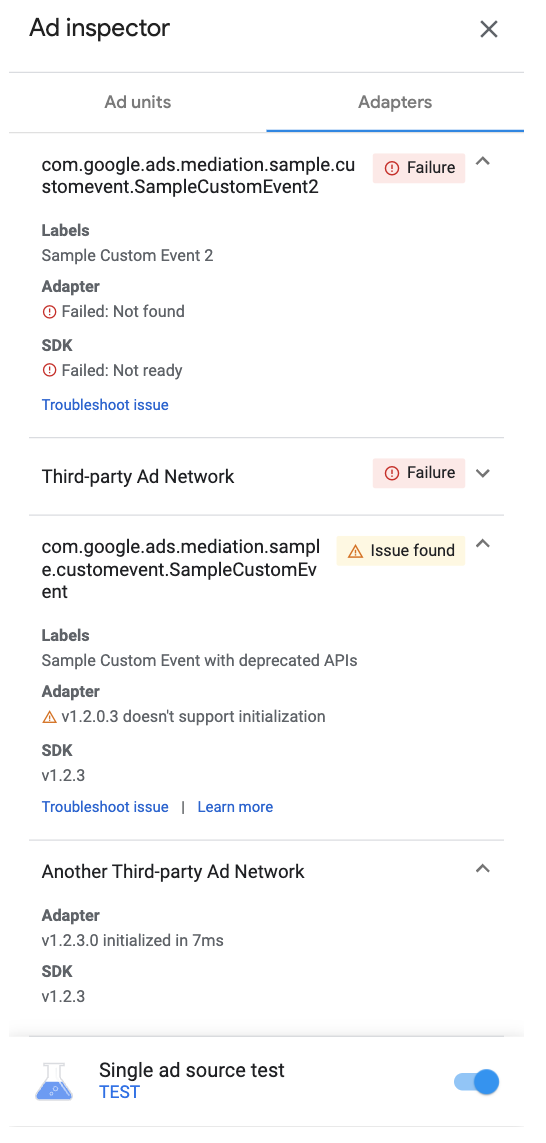 Android | 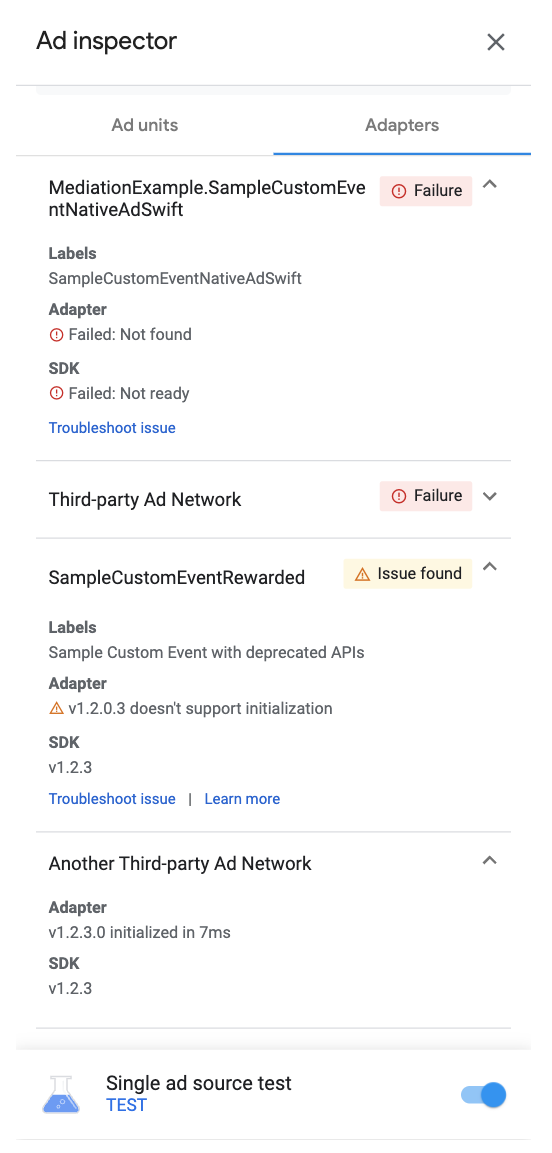 iOS |
If the adapter isn't found or fails to initialize, see
[Ad inspector](https://support.google.com/admanager/answer/7180401#ad-inspector).