On Android N or higher, ad calls are visible in Charles proxy only when the
following steps are performed:
1. Install Charles SSL certificate on your device, and set up proxy.
2. Enable SSL Proxy for your mobile app.
## Install Charles SSL certificate on your device, and set up proxy
To use Charles as a proxy for your app, download and
[install Charles](https://www.charlesproxy.com/documentation/installation/) on your
computer.
To save the certificate as a `.pem` or `.cer` file, select
**Help \> SSL Proxying \> Save Charles Root Certificate** . To install the
certificate on your device, follow the prompts in **Help \> SSL Proxying**.

If you use an
[Android emulator with a proxy](https://developer.android.com/studio/run/emulator-networking#proxy),
set the proxy address to `http://127.0.0.1`. Set the port to the value shown in
Charles from **Proxy \> Proxy Settings**.
If you use a physical device, connect the device to the same Wi-Fi network as
your computer. To set up the proxy, open your device's advanced network
settings. For details, see
[Connect to Wi-Fi networks on your Pixel phone](https://support.google.com/pixelphone/answer/2819519).
In Charles, select **Help \> Local IP Address** to find your IP address. On your
device, enter the IP address from Charles and the Charles port as the proxy.
## Enable SSL proxy for your mobile app
For Charles to intercept your mobile app's SSL traffic, declare
that your app can trust an SSL certificate. You can trust a user-installed
certificate or embed the Charles certificate as a raw resource in your app. For
example, you can save the certificate in your `res/raw/charles_cert.pem` file.
First, add a new XML resource file for
[Network Security Configuration](https://developer.android.com/training/articles/security-config)
in your `res/xml/network_security_config.xml` file:
```xml
```

Next, update the `AndroidManifest.xml` file to use the network security
configuration.
```xml
...
```
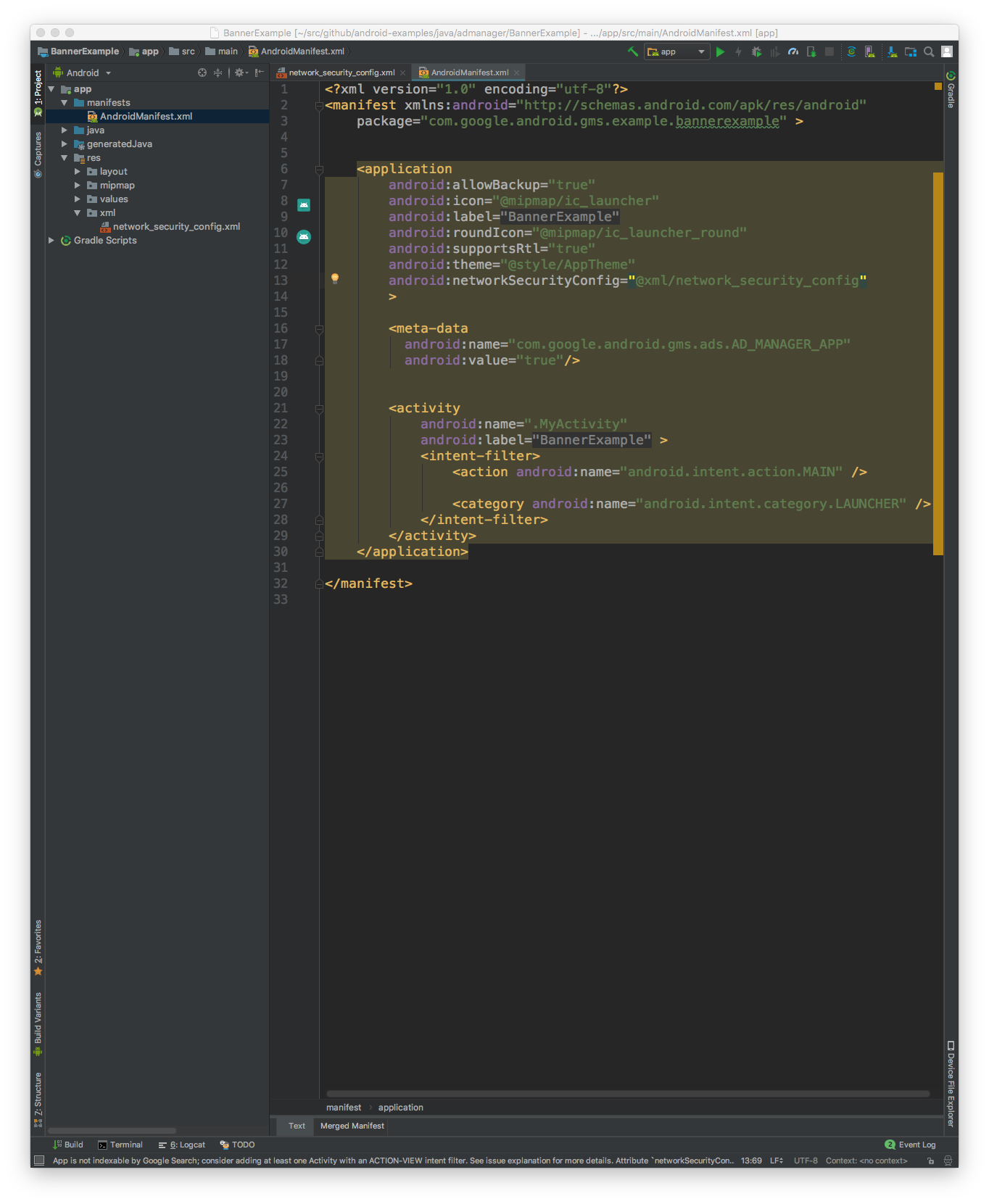
After that, you can launch the mobile app and look for ad requests in the
Charles log.