Select platform: [HTML5](https://developers.google.com/ad-manager/dynamic-ad-insertion/sdk/html5/get-started/full-service.md.txt "View this page for the HTML5 platform docs.") [Android](https://developers.google.com/ad-manager/dynamic-ad-insertion/sdk/android/get-started/full-service.md.txt "View this page for the Android platform docs.") [iOS](https://developers.google.com/ad-manager/dynamic-ad-insertion/sdk/ios/get-started/full-service.md.txt "View this page for the iOS platform docs.") [tvOS](https://developers.google.com/ad-manager/dynamic-ad-insertion/sdk/tvos/get-started/full-service.md.txt "View this page for the tvOS platform docs.") [Cast](https://developers.google.com/ad-manager/dynamic-ad-insertion/sdk/cast/get-started/full-service.md.txt "View this page for the Cast platform docs.") [Roku](https://developers.google.com/ad-manager/dynamic-ad-insertion/sdk/roku/get-started/full-service.md.txt "View this page for the Roku platform docs.")
This guide covers integrating the IMA DAI SDK into a video
player app. If you want to view or follow along with a completed sample
integration, download the
[BasicExample](https://github.com/googleads/googleads-ima-ios-dai) from
GitHub.
**Note:** Apple only provides frameworks to support [HTTP Live Streaming (HLS)](https://developer.apple.com/documentation/http_live_streaming), such as AVKit, AVFoundation, and WebKit. These frameworks won't work with DASH stream format.
> [!IMPORTANT]
> To use IMA DAI, you must have an [Ad Manager 360 Advanced](https://support.google.com/admanager/answer/3485387) account. If you have an Ad Manager account, contact your account manager for more details. For information about signing up for Ad Manager, visit the [Ad Manager Help Center](https://support.google.com/admanager/answer/7084151).
**Note:** For information on integrating with other platforms, or on using the IMA client-side SDKs, see [Interactive Media Ads SDKs](https://developers.google.com/interactive-media-ads).
## IMA DAI overview
Implementing IMA DAI involves four main SDK components, as this guide
demonstrates:
- `
IMAAdDisplayContainer` -- A container object that sits on top of the video playback element and houses the ad UI elements.
- `
IMAAdsLoader` -- An object that requests streams and handles events triggered by stream request response objects. You should only instantiate one ads loader, which can be reused throughout the life of the application.
- `
IMAStreamRequest` -- either an `
IMAVODStreamRequest` or an `
IMALiveStreamRequest`. An object that defines a stream request. Stream requests can either be for video-on-demand or live streams. Live stream requests specify an asset key, while VOD requests specify a CMS ID and video ID. Both request types can optionally include an API key needed to access specified streams, and a Google Ad Manager network code for the IMA SDK to handle ads identifiers as specified in Google Ad Manager settings.
- `
IMAStreamManager` -- An object that handles dynamic ad insertion streams and interactions with the DAI backend. The stream manager also handles tracking pings and forwards stream and ad events to the publisher.
## Prerequisites
Before you begin, you need the following:
- Xcode 13 or later
- Method for installing the IMA SDK:
- [Swift Package Manager](https://docs.swift.org/swiftpm/documentation/packagemanagerdocs/) (preferred)
- A download copy of [IMA SDK for iOS](https://developers.google.com/interactive-media-ads/docs/sdks/ios/dai/download)
You also need the parameters to request your stream from the IMA SDK.
For examples of request parameters, see
[Sample Streams](https://developers.google.com/ad-manager/dynamic-ad-insertion/streams.md.txt).
| Livestream parameters ||
|---|---|
| **Asset key** | The asset key [identifying your livestream in Google Ad Manager](https://support.google.com/admanager/answer/7294289#live-linear-stream-url-and-asset-key). Example: `c-rArva4ShKVIAkNfy6HUQ` |
| **Content source ID** | The [content source](https://support.google.com/admanager/answer/7064112) ID from Google Ad Manager. Example: `2548831` |
| **Video ID** | The video ID from Google Ad Manager. Example: `tears-of-steel` |
| **Network code** | Your Google Ad Manager network code. Example: `21775744923` |
## Create a new Xcode project
In Xcode, create a new iOS project using Objective-C named
"BasicExample".
## Add the IMA DAI SDK to the Xcode project
To install IMA SDK, choose a preferred method.
### Recommended: Install the SDK using Swift Package Manager
The Interactive Media Ads SDK supports [Swift Package
Manager](https://swift.org/package-manager/) starting in version 3.18.4. Follow these
steps to import the Swift package.
1. In Xcode, install the IMA DAI SDK Swift Package: navigate to
**File \> Add Packages**.
2. In the prompt that appears, search for the IMA DAI SDK Swift Package GitHub
repository:
https://github.com/googleads/swift-package-manager-google-interactive-media-ads-ios
3. Select the version of the IMA DAI SDK Swift Package you want to use. For new
projects, use the **Up to Next Major Version**.
When you're done, Xcode resolves your package dependencies and downloads them in
the background. For more details on how to add package dependencies, see
[Apple's article](https://developer.apple.com/documentation/swift_packages/adding_package_dependencies_to_your_app).
### Manually download and install the SDK
If you don't want to use Swift Package Manager, download and manually add
IMA SDK to your project.
#### Show instructions
1. From the [iOS IMA Download page](https://developers.google.com/ad-manager/dynamic-ad-insertion/sdk/ios/download.md.txt), download and extract the latest version of the IMA DAI SDK.
2. Open **BasicExample.xcodeproj**.
3. In the left pane, click the project name.
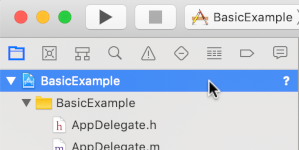
4. In the center pane, click **Build Phases** .

5. Expand the **Link Binary With Libraries** section.
6. At the bottom of the libraries list, click the plus icon **\[+\]**.
7. Click **Add Other**.
8. In the directory where you extracted the downloaded SDK, select **GoogleInteractiveMediaAds.framework** and click **Open**.
9. At the bottom of the libraries list, click the plus icon **\[+\]** again.
10. In the **Status** column, verify that `GoogleInteractiveMediaAds.framework` shows `Required`.
11. Include the `-ObjC` linker flag in your build settings. For more information, see [Apple QA1490](https://developer.apple.com/library/content/qa/qa1490/_index.html).
## Create a video player
Implement a video player in your main view controller; wrap an AV player
in a UI view. The IMA SDK uses the UI view to display ad
UI elements.
### Objective-C
```objective-c
#import "ViewController.h"
#import
/// Content URL.
static NSString *const kBackupContentUrl =
@"http://devimages.apple.com/iphone/samples/bipbop/bipbopall.m3u8";
@interface ViewController ()
/// Play button.
@property(nonatomic, weak) IBOutlet UIButton *playButton;
@property(nonatomic, weak) IBOutlet UIView *videoView;
/// Video player.
@property(nonatomic, strong) AVPlayer *videoPlayer;
@end
@implementation ViewController
- (void)viewDidLoad {
[super viewDidLoad];
self.view.backgroundColor = [UIColor blackColor];
// Load AVPlayer with the path to your content.
NSURL *contentURL = [NSURL URLWithString:kBackupContentUrl];
self.videoPlayer = [AVPlayer playerWithURL:contentURL];
// Create a player layer for the player.
AVPlayerLayer *playerLayer = [AVPlayerLayer playerLayerWithPlayer:self.videoPlayer];
// Size, position, and display the AVPlayer.
playerLayer.frame = self.videoView.layer.bounds;
[self.videoView.layer addSublayer:playerLayer];
}
- (IBAction)onPlayButtonTouch:(id)sender {
[self.videoPlayer play];
self.playButton.hidden = YES;
}
@end
```
### Swift
```swift
// Copyright 2024 Google LLC. All rights reserved.
//
//
// Licensed under the Apache License, Version 2.0 (the "License"); you may not use this
// file except in compliance with the License. You may obtain a copy of the License at
//
// http://www.apache.org/licenses/LICENSE-2.0
//
// Unless required by applicable law or agreed to in writing, software distributed under
// the License is distributed on an "AS IS" BASIS, WITHOUT WARRANTIES OR CONDITIONS OF
// ANY KIND, either express or implied. See the License for the specific language governing
// permissions and limitations under the License.
import AVFoundation
import UIKit
class ViewController: UIViewController {
/// Content URL.
static let backupStreamURLString =
"http://devimages.apple.com/iphone/samples/bipbop/bipbopall.m3u8"
/// Play button.
@IBOutlet private weak var playButton: UIButton!
@IBOutlet private weak var videoView: UIView!
/// Video player.
private var videoPlayer: AVPlayer?
override func viewDidLoad() {
super.viewDidLoad()
playButton.layer.zPosition = CGFloat(MAXFLOAT)
// Load AVPlayer with path to our content.
// note: this unwrap is safe because the URL is a constant string.
let contentURL = URL(string: ViewController.backupStreamURLString)!
videoPlayer = AVPlayer(url: contentURL)
// Create a player layer for the player.
let playerLayer = AVPlayerLayer(player: videoPlayer)
// Size, position, and display the AVPlayer.
playerLayer.frame = videoView.layer.bounds
videoView.layer.addSublayer(playerLayer)
}
@IBAction func onPlayButtonTouch(_ sender: Any) {
videoPlayer?.play()
playButton.isHidden = true
}
}
```
## Initialize the ads loader
Import the IMA SDK into your view controller and adopt the
[`IMAAdsLoaderDelegate`](https://developers.google.com/ad-manager/dynamic-ad-insertion/sdk/ios/reference/Protocols/IMAAdsLoaderDelegate.md.txt)
and
[`IMAStreamManagerDelegate`](https://developers.google.com/ad-manager/dynamic-ad-insertion/sdk/ios/reference/Protocols/IMAStreamManagerDelegate.md.txt)
protocols to handle ads loader and stream manager events.
Add these private properties to store key IMA SDK components:
- [`IMAAdsLoader`](https://developers.google.com/ad-manager/dynamic-ad-insertion/sdk/ios/reference/Classes/IMAAdsLoader.md.txt)
- Manages stream requests across the lifetime of your app.
- [`IMAAdDisplayContainer`](https://developers.google.com/ad-manager/dynamic-ad-insertion/sdk/ios/reference/Classes/IMAAdDisplayContainer.md.txt)
- Handles inserting and managing ad user interface elements.
- [`IMAAVPlayerVideoDisplay`](https://developers.google.com/ad-manager/dynamic-ad-insertion/sdk/ios/reference/Protocols/IMAAVPlayerVideoDisplay) - Communicates between the IMA SDK and your media player and handles timed metadata.
- [`IMAStreamManager`](https://developers.google.com/ad-manager/dynamic-ad-insertion/sdk/ios/reference/Protocols/IMAStreamManager) - Manages stream playback and fires ad-related events.
Initialize the ads loader, ad display container, and video display after the
view loads.
### Objective-C
```objective-c
@import GoogleInteractiveMediaAds;
// ...
@interface ViewController ()
/// The entry point for the IMA DAI SDK to make DAI stream requests.
@property(nonatomic, strong) IMAAdsLoader *adsLoader;
/// The container where the SDK renders each ad's user interface elements and companion slots.
@property(nonatomic, strong) IMAAdDisplayContainer *adDisplayContainer;
/// The reference of your video player for the IMA DAI SDK to monitor playback and handle timed
/// metadata.
@property(nonatomic, strong) IMAAVPlayerVideoDisplay *imaVideoDisplay;
/// References the stream manager from the IMA DAI SDK after successful stream loading.
@property(nonatomic, strong) IMAStreamManager *streamManager;
// ...
@end
@implementation ViewController
- (void)viewDidLoad {
[super viewDidLoad];
// ...
self.adsLoader = [[IMAAdsLoader alloc] initWithSettings:nil];
self.adsLoader.delegate = self;
// Create an ad display container for rendering each ad's user interface elements and companion
// slots.
self.adDisplayContainer =
[[IMAAdDisplayContainer alloc] initWithAdContainer:self.videoView
viewController:self
companionSlots:nil];
// Create an IMAAVPlayerVideoDisplay to give the SDK access to your video player.
self.imaVideoDisplay = [[IMAAVPlayerVideoDisplay alloc] initWithAVPlayer:self.videoPlayer];
}
```
### Swift
```swift
import GoogleInteractiveMediaAds
// ...
class ViewController: UIViewController, IMAAdsLoaderDelegate, IMAStreamManagerDelegate {
// ...
/// The entry point for the IMA DAI SDK to make DAI stream requests.
private var adsLoader: IMAAdsLoader?
/// The container where the SDK renders each ad's user interface elements and companion slots.
private var adDisplayContainer: IMAAdDisplayContainer?
/// The reference of your video player for the IMA DAI SDK to monitor playback and handle timed
/// metadata.
private var imaVideoDisplay: IMAAVPlayerVideoDisplay!
/// References the stream manager from the IMA DAI SDK after successfully loading the DAI stream.
private var streamManager: IMAStreamManager?
// ...
override func viewDidLoad() {
super.viewDidLoad()
// ...
adsLoader = IMAAdsLoader(settings: nil)
adsLoader?.delegate = self
// Create an ad display container for rendering ad UI elements and the companion ad.
adDisplayContainer = IMAAdDisplayContainer(
adContainer: videoView,
viewController: self,
companionSlots: nil)
// Create an IMAAVPlayerVideoDisplay to give the SDK access to your video player.
imaVideoDisplay = IMAAVPlayerVideoDisplay(avPlayer: videoPlayer)
}
```
## Make a stream request
When a user presses the play button, make a new stream request.
Use the
[`IMALiveStreamRequest`](https://developers.google.com/ad-manager/dynamic-ad-insertion/sdk/ios/reference/Classes/IMALiveStreamRequest.md.txt)
class for Live streams. For VOD streams, use the
[`IMAVODStreamRequest`](https://developers.google.com/ad-manager/dynamic-ad-insertion/sdk/ios/reference/Classes/IMAVODStreamRequest.md.txt)
class.
The stream request requires your stream parameters, as well as a reference to
your ad display container and video display.
> [!TIP]
> **Tip:** The `userContext` parameter lets you pass request-specific data from the stream request to the associated ads loader delegate methods. Use user context to differentiate between multiple concurrent stream requests.
### Objective-C
```objective-c
- (IBAction)onPlayButtonTouch:(id)sender {
[self requestStream];
self.playButton.hidden = YES;
}
- (void)requestStream {
// Create a stream request. Use one of "Live stream request" or "VOD request", depending on your
// type of stream.
if (kStreamType == StreamTypeLive) {
// Live stream request. Replace the asset key with your value.
IMALiveStreamRequest *request =
[[IMALiveStreamRequest alloc] initWithAssetKey:kLiveStreamAssetKey
networkCode:kNetworkCode
adDisplayContainer:self.adDisplayContainer
videoDisplay:self.imaVideoDisplay
userContext:nil];
request.useHLSInterstitials = YES;
[self.adsLoader requestStreamWithRequest:request];
} else {
// VOD request. Replace the content source ID and video ID with your values.
IMAVODStreamRequest *request =
[[IMAVODStreamRequest alloc] initWithContentSourceID:kVODContentSourceID
videoID:kVODVideoID
networkCode:kNetworkCode
adDisplayContainer:self.adDisplayContainer
videoDisplay:self.imaVideoDisplay
userContext:nil];
[self.adsLoader requestStreamWithRequest:request];
}
}
```
### Swift
```swift
@IBAction func onPlayButtonTouch(_ sender: Any) {
requestStream()
playButton.isHidden = true
}
func requestStream() {
// Create a stream request. Use one of "Livestream request" or "VOD request".
if ViewController.requestType == StreamType.live {
// Livestream request.
let request = IMALiveStreamRequest(
assetKey: ViewController.assetKey,
networkCode: ViewController.networkCode,
adDisplayContainer: adDisplayContainer!,
videoDisplay: imaVideoDisplay,
userContext: nil)
request.useHLSInterstitials = true
adsLoader?.requestStream(with: request)
} else {
// VOD stream request.
let request = IMAVODStreamRequest(
contentSourceID: ViewController.contentSourceID,
videoID: ViewController.videoID,
networkCode: ViewController.networkCode,
adDisplayContainer: adDisplayContainer!,
videoDisplay: imaVideoDisplay,
userContext: nil)
adsLoader?.requestStream(with: request)
}
}
```
## Listen to stream load events
The [`IMAAdsLoader`](https://developers.google.com/ad-manager/dynamic-ad-insertion/sdk/ios/reference/Classes/IMAAdsLoader.md.txt)
class calls the
[`IMAAdsLoaderDelegate`](https://developers.google.com/ad-manager/dynamic-ad-insertion/sdk/ios/reference/Protocols/IMAAdsLoaderDelegate.md.txt)
methods on successful initialization or failure of the stream request.
In the [`adsLoadedWithData`](https://developers.google.com/ad-manager/dynamic-ad-insertion/sdk/ios/reference/Protocols/IMAAdsLoaderDelegate.md.txt#-adsloader:adsloadedwithdata:)
delegate method, set your
[`IMAStreamManagerDelegate`](https://developers.google.com/ad-manager/dynamic-ad-insertion/sdk/ios/reference/Protocols/IMAStreamManagerDelegate.md.txt).
Initialize the stream manager. On initialization, the stream manager starts
playback.
In the
[`failedWithErrorData`](https://developers.google.com/ad-manager/dynamic-ad-insertion/sdk/ios/reference/Protocols/IMAAdsLoaderDelegate.md.txt#-adsloader:failedwitherrordata:)
delegate method, log the error. Optionally, play the backup stream. See
[DAI best practices](https://support.google.com/admanager/answer/7321214).
### Objective-C
```objective-c
- (void)adsLoader:(IMAAdsLoader *)loader adsLoadedWithData:(IMAAdsLoadedData *)adsLoadedData {
NSLog(@"Stream created with: %@.", adsLoadedData.streamManager.streamId);
self.streamManager = adsLoadedData.streamManager;
self.streamManager.delegate = self;
[self.streamManager initializeWithAdsRenderingSettings:nil];
}
- (void)adsLoader:(IMAAdsLoader *)loader failedWithErrorData:(IMAAdLoadingErrorData *)adErrorData {
// Log the error and play the content.
NSLog(@"AdsLoader error, code:%ld, message: %@", adErrorData.adError.code,
adErrorData.adError.message);
[self.videoPlayer play];
}
```
### Swift
```swift
func adsLoader(_ loader: IMAAdsLoader, adsLoadedWith adsLoadedData: IMAAdsLoadedData) {
print("DAI stream loaded. Stream session ID: \(adsLoadedData.streamManager!.streamId!)")
streamManager = adsLoadedData.streamManager!
streamManager!.delegate = self
streamManager!.initialize(with: nil)
}
func adsLoader(_ loader: IMAAdsLoader, failedWith adErrorData: IMAAdLoadingErrorData) {
print("Error loading DAI stream. Error message: \(adErrorData.adError.message!)")
// Play the backup stream.
videoPlayer.play()
}
```
## Listen to ad events
The [`IMAStreamManager`](https://developers.google.com/ad-manager/dynamic-ad-insertion/sdk/ios/reference/Classes/IMAStreamManager.md.txt)
calls the
[`IMAStreamManagerDelegate`](https://developers.google.com/ad-manager/dynamic-ad-insertion/sdk/ios/reference/Protocols/IMAStreamManagerDelegate.md.txt)
methods to pass stream events and errors to your application.
For this example, log the primary ad events to the console:
### Objective-C
```objective-c
- (void)streamManager:(IMAStreamManager *)streamManager didReceiveAdEvent:(IMAAdEvent *)event {
NSLog(@"Ad event (%@).", event.typeString);
switch (event.type) {
case kIMAAdEvent_STARTED: {
// Log extended data.
NSString *extendedAdPodInfo = [[NSString alloc]
initWithFormat:@"Showing ad %ld/%ld, bumper: %@, title: %@, description: %@, contentType:"
@"%@, pod index: %ld, time offset: %lf, max duration: %lf.",
(long)event.ad.adPodInfo.adPosition, (long)event.ad.adPodInfo.totalAds,
event.ad.adPodInfo.isBumper ? @"YES" : @"NO", event.ad.adTitle,
event.ad.adDescription, event.ad.contentType,
(long)event.ad.adPodInfo.podIndex, event.ad.adPodInfo.timeOffset,
event.ad.adPodInfo.maxDuration];
NSLog(@"%@", extendedAdPodInfo);
break;
}
case kIMAAdEvent_AD_BREAK_STARTED: {
NSLog(@"Ad break started");
break;
}
case kIMAAdEvent_AD_BREAK_ENDED: {
NSLog(@"Ad break ended");
break;
}
case kIMAAdEvent_AD_PERIOD_STARTED: {
NSLog(@"Ad period started");
break;
}
case kIMAAdEvent_AD_PERIOD_ENDED: {
NSLog(@"Ad period ended");
break;
}
default:
break;
}
}
- (void)streamManager:(IMAStreamManager *)streamManager didReceiveAdError:(IMAAdError *)error {
NSLog(@"StreamManager error with type: %ld\ncode: %ld\nmessage: %@", error.type, error.code,
error.message);
[self.videoPlayer play];
}
```
### Swift
```swift
func streamManager(_ streamManager: IMAStreamManager, didReceive event: IMAAdEvent) {
print("Ad event \(event.typeString).")
switch event.type {
case IMAAdEventType.STARTED:
// Log extended data.
if let ad = event.ad {
let extendedAdPodInfo = String(
format: "Showing ad %zd/%zd, bumper: %@, title: %@, "
+ "description: %@, contentType:%@, pod index: %zd, "
+ "time offset: %lf, max duration: %lf.",
ad.adPodInfo.adPosition,
ad.adPodInfo.totalAds,
ad.adPodInfo.isBumper ? "YES" : "NO",
ad.adTitle,
ad.adDescription,
ad.contentType,
ad.adPodInfo.podIndex,
ad.adPodInfo.timeOffset,
ad.adPodInfo.maxDuration)
print("\(extendedAdPodInfo)")
}
break
case IMAAdEventType.AD_BREAK_STARTED:
print("Ad break started.")
break
case IMAAdEventType.AD_BREAK_ENDED:
print("Ad break ended.")
break
case IMAAdEventType.AD_PERIOD_STARTED:
print("Ad period started.")
break
case IMAAdEventType.AD_PERIOD_ENDED:
print("Ad period ended.")
break
default:
break
}
}
func streamManager(_ streamManager: IMAStreamManager, didReceive error: IMAAdError) {
print("StreamManager error with type: \(error.type)")
print("code: \(error.code)")
print("message: \(error.message ?? "Unknown Error")")
}
```
Run your app. If successful, request and play Google DAI streams
with the IMA SDK. To learn about more advanced SDK features, see other
guides listed in the left-hand sidebar or
[samples on GitHub](https://github.com/googleads/googleads-ima-ios-dai).